

Things to Know Before Disabling YouTube Shorts
- While some regions may have the option to disable YouTube Shorts directly within the app itself. However, for the majority of users, YouTube does not provide a straightforward method to disable the Shorts feature. In such cases, workarounds need to be used.
- If you click or tap the X in the Shorts section of the YouTube website or select not interested in the app, as mentioned in the article below, the Shorts feature will be disabled for 30 days. This means that during this period, you won’t see Shorts content in your feed.
Note: At the time of writing this article, below are some of the most effective ways to get rid of Shorts on YouTube. Moreover, some methods mentioned in the article only work on Android, and some on Android and iOS.
Method 1: Adjust Your YouTube Settings to Remove YouTube Shorts
This method is demographic-specific, meaning it may or may not be available in your region.
Note: We don’t have the settings available for us to demonstrate using images.
Step 1: Launch the YouTube app and tap on your profile avatar in the top right corner.
Step 2: Scroll down and choose Settings. In the Settings screen, go to General.
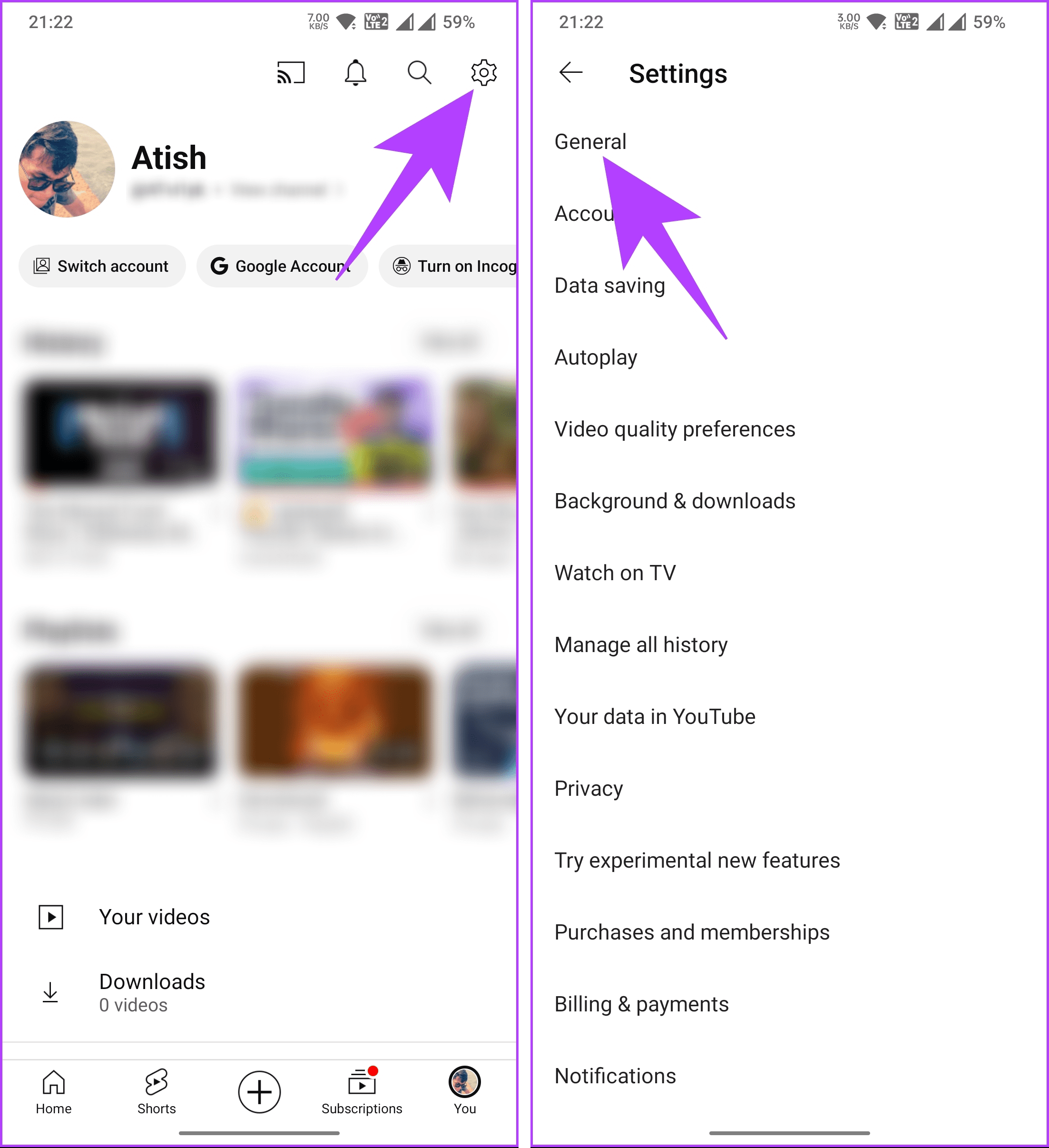
Step 3: Toggle off the Shorts button and restart the YouTube app.
That’s it. When you relaunch the YouTube app on your device, the Shorts section will be disabled. If you cannot find the option under YouTube Settings, follow us to the next method.
Method 2: By Marking as Not Interested
Note: You will need to make every recommended YouTube Shorts Not interested for it to work.
Step 1: Open the YouTube app and play any video you prefer.
Step 2: Scroll down to see the Shorts section once the video starts playing
Step 3: Tap on the three-dot icon of the Shorts video. From the options, select Not interested.


Now, repeat the Steps for all recommended Shorts videos. This way, at least for the time being, you’ll not see YouTube Shorts recommendations from the YouTube app.
Method 3: Using YouTube in Browser
Step 1: Open your preferred browser (ex: Chrome) and go to YouTube.
Step 2: Once the page is loaded, tap on the three-dot icon at the top right corner.
Step 3: From the drop-down menu, select Desktop site. With this, YouTube will reload as a desktop site.
Step 4: Now, from the home page, tap on the X (cross mark) at the corner of the Shorts section.

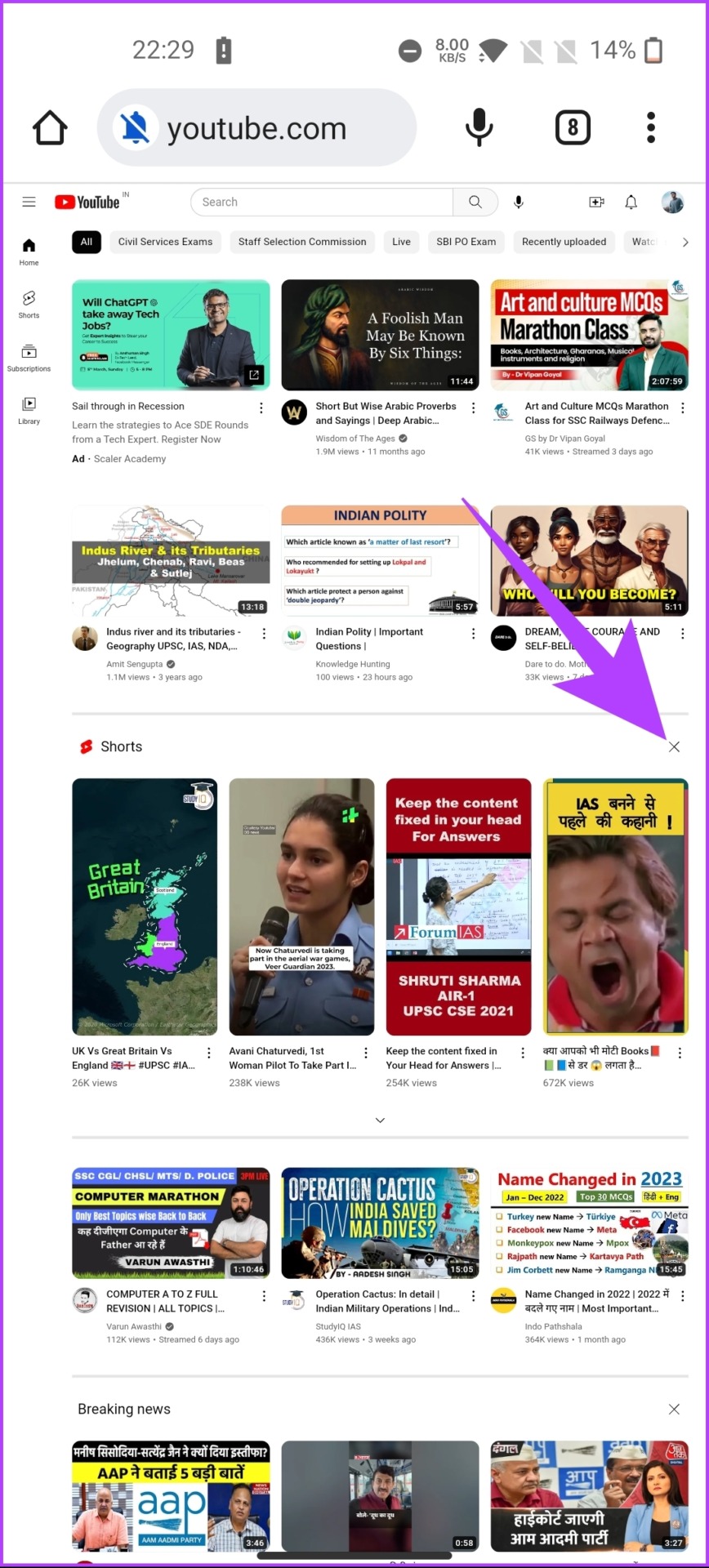
There you go. You are out of Shorts recommendations for the time being. If this method is not enough and you want to permanently disable YouTube Shorts from the web, move to the next method.
Method 4: Using Extension
There are many browser extensions available on the respective stores that will help you block Shorts on YouTube.
a. For Chromium-based Browsers (Google Chrome, Edge, Brave, etc.)
– Hide YouTube Shorts: This extension is specifically designed to hide Shorts from your YouTube browsing experience. It effectively filters out Shorts content, allowing you to enjoy a Shorts-free YouTube on your desktop.
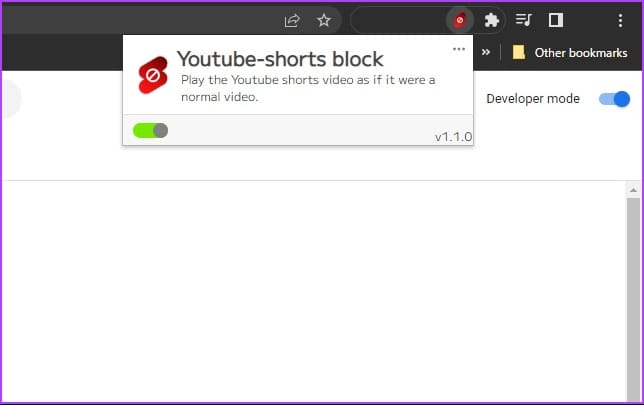
– YouTube-Shorts Block: This extension blocks Shorts videos, preventing them from appearing in your YouTube feed. It offers a seamless way to remove Shorts content from your browsing experience.
– ShortsBlocker: This extension that targets YouTube Shorts, ShortsBlocker, helps you block Shorts videos on the desktop version of YouTube. It provides an efficient way to customize your YouTube content.
b. For Firefox Browser
For Firefox users, there are dedicated extensions available to remove YouTube Shorts:
– Remove YouTube Shorts: This extension is designed to specifically remove Shorts content from YouTube. It offers a user-friendly way to customize your YouTube experience on the desktop and block Shorts videos.
– Hide YouTube Shorts: This extension also allows you to hide Shorts content, giving you control over your YouTube feed.
If you don’t want to use any extension, there’s another extension that helps you block YouTube Shorts from your desktop browser; continue reading.
Method 5: Using uBlock Origin Filter
Step 1: Go to the Chrome store and search for the uBlock Original extension.
Note: We are going with the Google Chrome browser. If you are not using Chrome, you can download uBlock Origin from the official site.
Step 2: Now, download and add the extension to your Chromium browser.
Step 3: Once installed, click on the extension and open the dashboard by clicking the Settings icon.
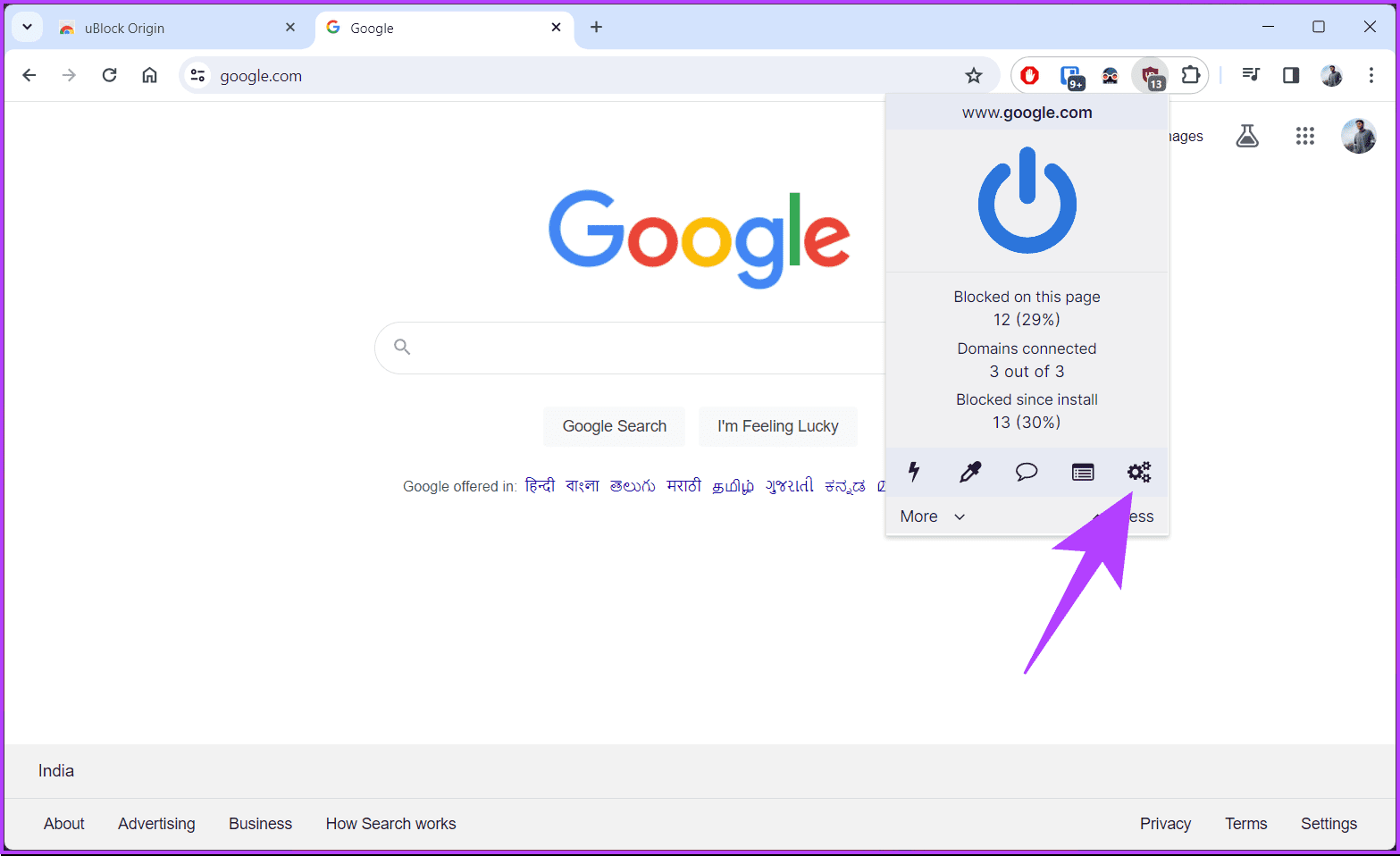
Step 4: Navigate to the My filters section from the top.
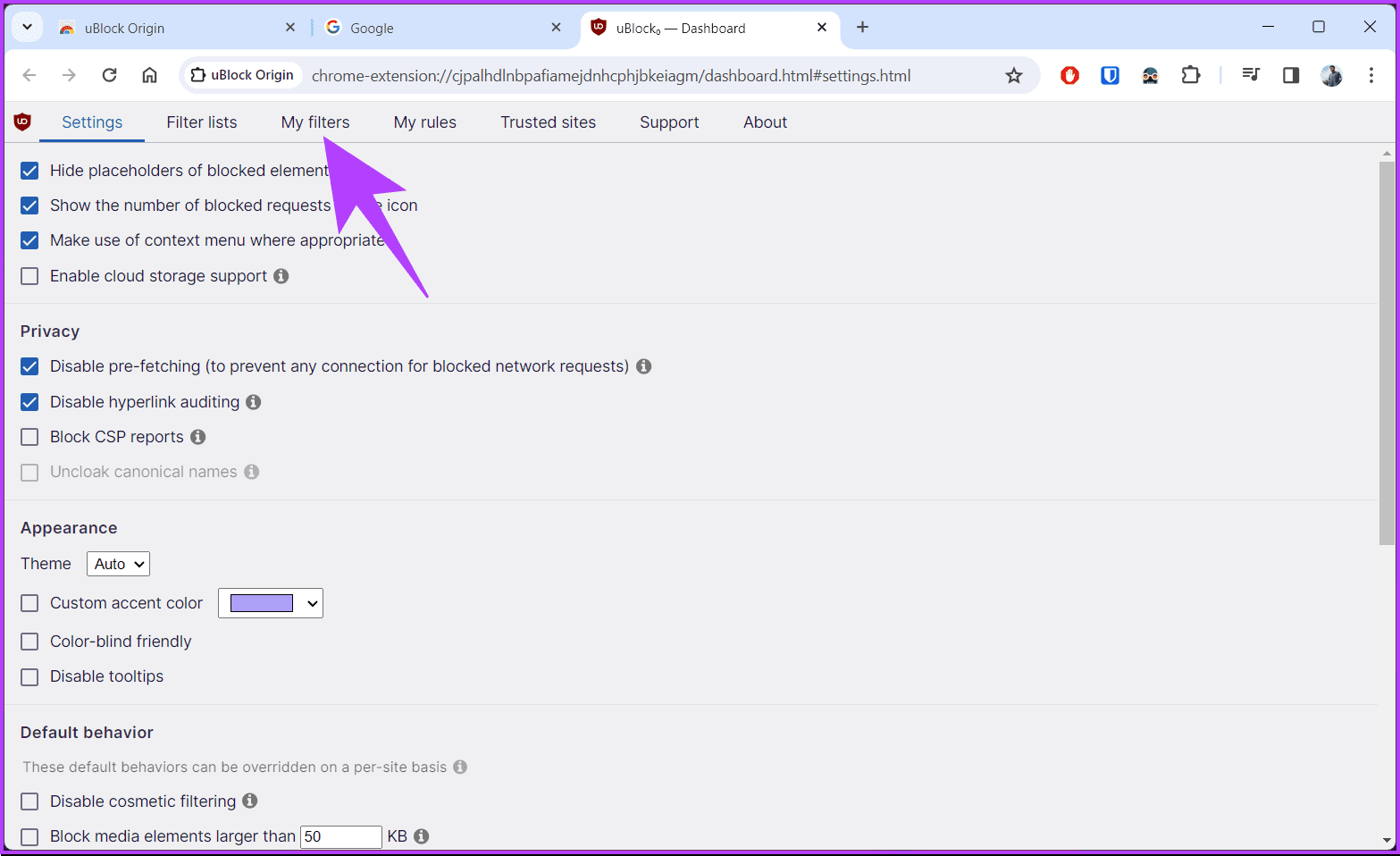
Step 5: Now, copy and paste the below code in the My filters section and click Apply changes from the top left corner.
! Title: Hide YouTube Shorts
! Description: Hide all traces of YouTube shorts videos on YouTube
! Version: 1.8.0
! Last modified: 2024-01-08 20:02
! Expires: 2 weeks (update frequency)
! Homepage: https://github.com/gijsdev/ublock-hide-yt-shorts
! License: https://github.com/gijsdev/ublock-hide-yt-shorts/blob/master/LICENSE.md

! Hide all videos containing the phrase "#shorts"
youtube.com##ytd-grid-video-renderer:has(#video-title:has-text(#shorts))
youtube.com##ytd-grid-video-renderer:has(#video-title:has-text(#Shorts))
youtube.com##ytd-grid-video-renderer:has(#video-title:has-text(#short))
youtube.com##ytd-grid-video-renderer:has(#video-title:has-text(#Short))

! Hide all videos with the shorts indicator on the thumbnail
youtube.com##ytd-grid-video-renderer:has([overlay-style="SHORTS"])
youtube.com##ytd-rich-item-renderer:has([overlay-style="SHORTS"])
youtube.com##ytd-video-renderer:has([overlay-style="SHORTS"])
youtube.com##ytd-item-section-renderer.ytd-section-list-renderer[page-subtype="subscriptions"]:has(ytd-video-renderer:has([overlay-style="SHORTS"]))

! Hide shorts button in sidebar
youtube.com##ytd-guide-entry-renderer:has-text(Shorts)
youtube.com##ytd-mini-guide-entry-renderer:has-text(Shorts)

! Hide shorts section on homepage
youtube.com##ytd-rich-section-renderer:has(#rich-shelf-header:has-text(Shorts))
youtube.com##ytd-reel-shelf-renderer:has(.ytd-reel-shelf-renderer:has-text(Shorts))

! Hide shorts tab on channel pages
! Old style
youtube.com##tp-yt-paper-tab:has(.tp-yt-paper-tab:has-text(Shorts))
! New style (2023-10)
youtube.com##yt-tab-shape:has-text(/^Shorts$/)

! Hide shorts in video descriptions
youtube.com##ytd-reel-shelf-renderer.ytd-structured-description-content-renderer:has-text("Shorts remixing this video")

! Remove empty spaces in grid
youtube.com##ytd-rich-grid-row,#contents.ytd-rich-grid-row:style(display: contents !important)


!!! MOBILE !!!

! Hide all videos in home feed containing the phrase "#shorts"
m.youtube.com##ytm-rich-item-renderer:has(#video-title:has-text(#shorts))
m.youtube.com##ytm-rich-item-renderer:has(#video-title:has-text(#Shorts))
m.youtube.com##ytm-rich-item-renderer:has(#video-title:has-text(#short))
m.youtube.com##ytm-rich-item-renderer:has(#video-title:has-text(#Short))

! Hide all videos in subscription feed containing the phrase "#shorts"
m.youtube.com##ytm-item-section-renderer:has(#video-title:has-text(#shorts))
m.youtube.com##ytm-item-section-renderer:has(#video-title:has-text(#Shorts))
m.youtube.com##ytm-item-section-renderer:has(#video-title:has-text(#short))
m.youtube.com##ytm-item-section-renderer:has(#video-title:has-text(#Short))

! Hide shorts button in the bottom navigation bar
m.youtube.com##ytm-pivot-bar-item-renderer:has(.pivot-shorts)

! Hide all videos with the shorts indicator on the thumbnail
m.youtube.com##ytm-video-with-context-renderer:has([data-style="SHORTS"])

! Hide shorts sections
m.youtube.com##ytm-rich-section-renderer:has(ytm-reel-shelf-renderer:has(.reel-shelf-title-wrapper:has-text(Shorts)))
m.youtube.com##ytm-reel-shelf-renderer.item:has(.reel-shelf-title-wrapper:has-text(Shorts))

! Hide shorts tab on channel pages
m.youtube.com##.single-column-browse-results-tabs>a:has-text(Shorts)
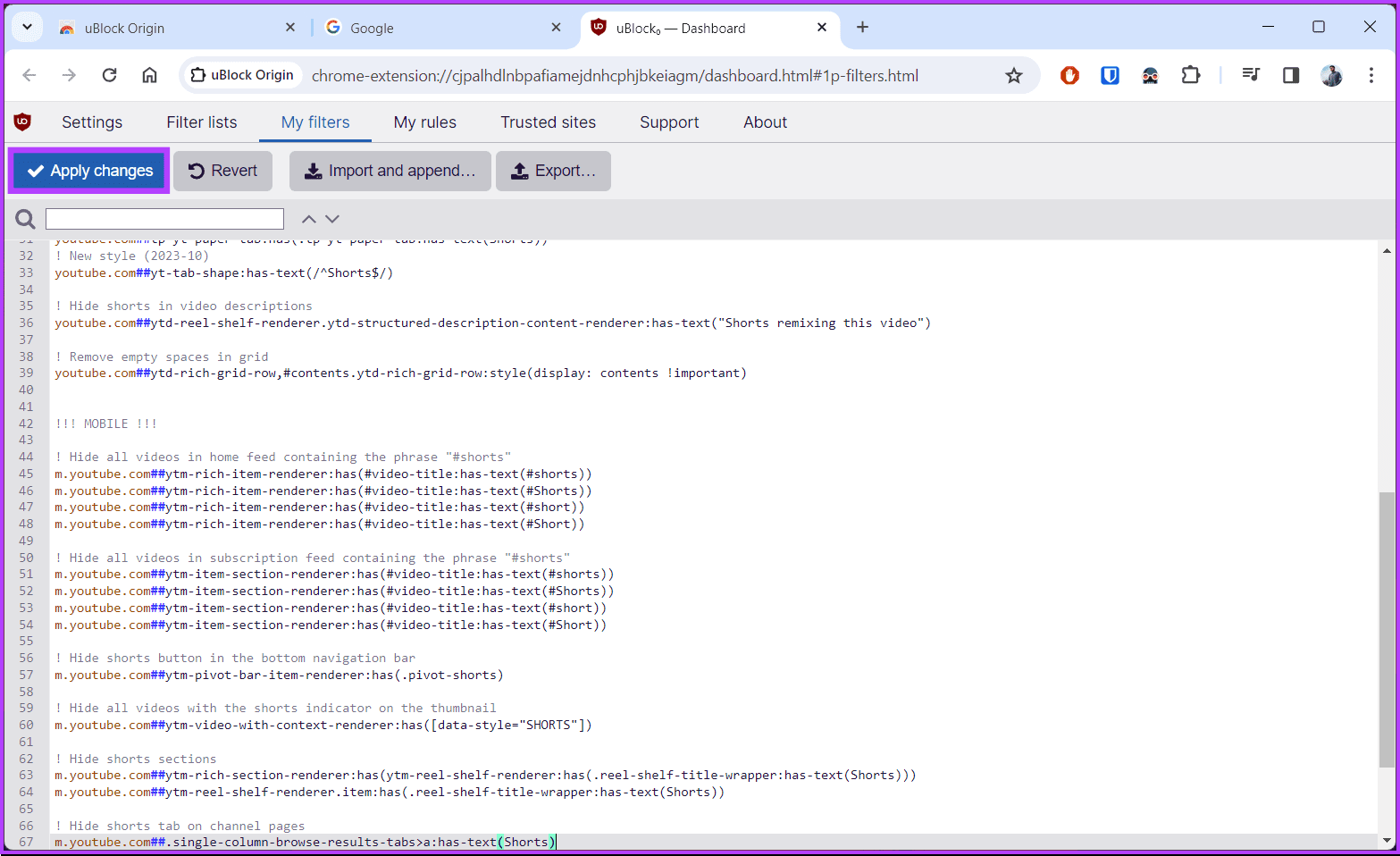
With this filter applied, you won’t see YouTube shorts on your desktop ever again. If you want to hide YouTube Shorts from your mobile device, check out the next method.
Method 6: By Downgrading the YouTube App on Android
Note: This only works if the version of YouTube that you’ve installed on (or that came with) your Android is older than the version that introduced Shorts (14.13.54).
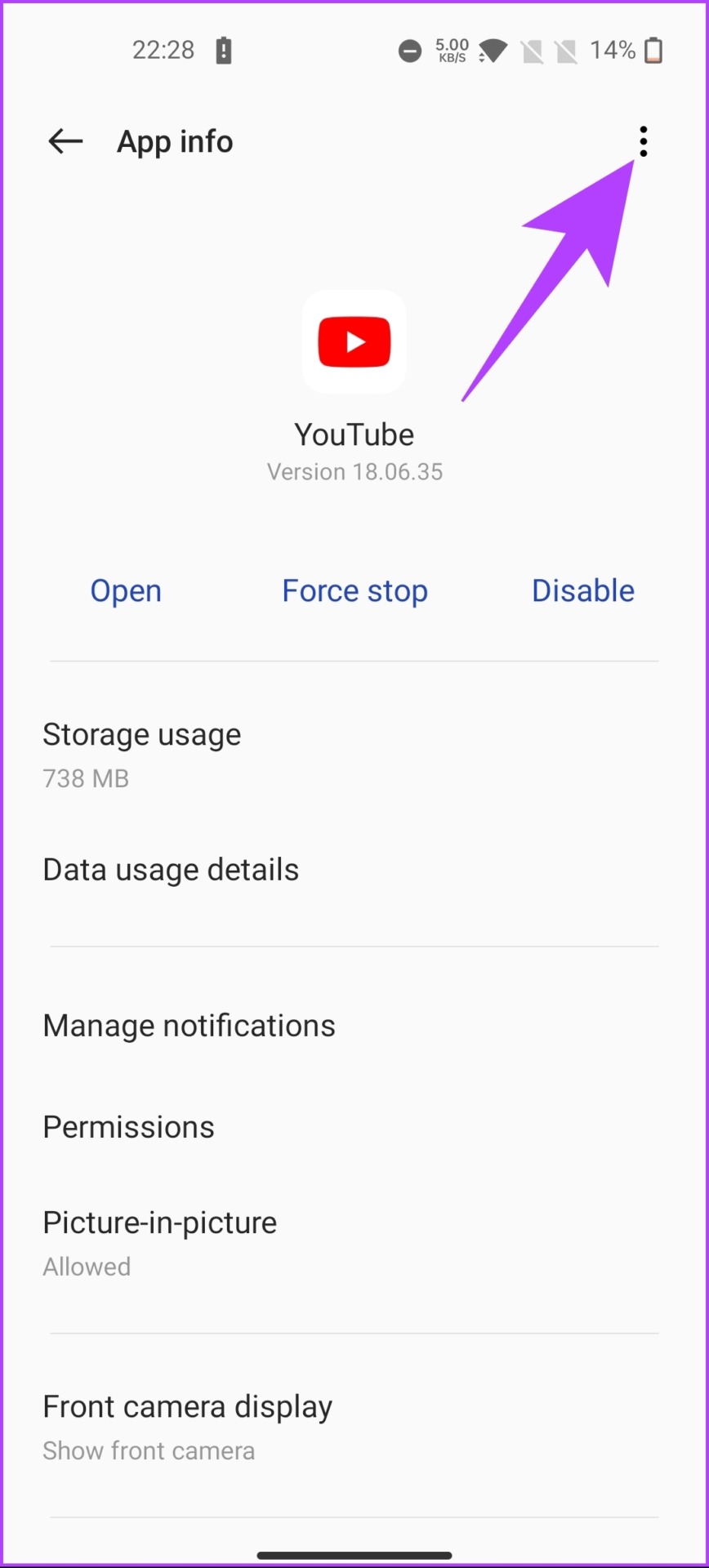
Step 1: Long-press the YouTube app and select App Info.
Step 2: Tap the three-dot icon at the top-right corner of the App info page.
Step 3: From the drop-down, select Uninstall updates.
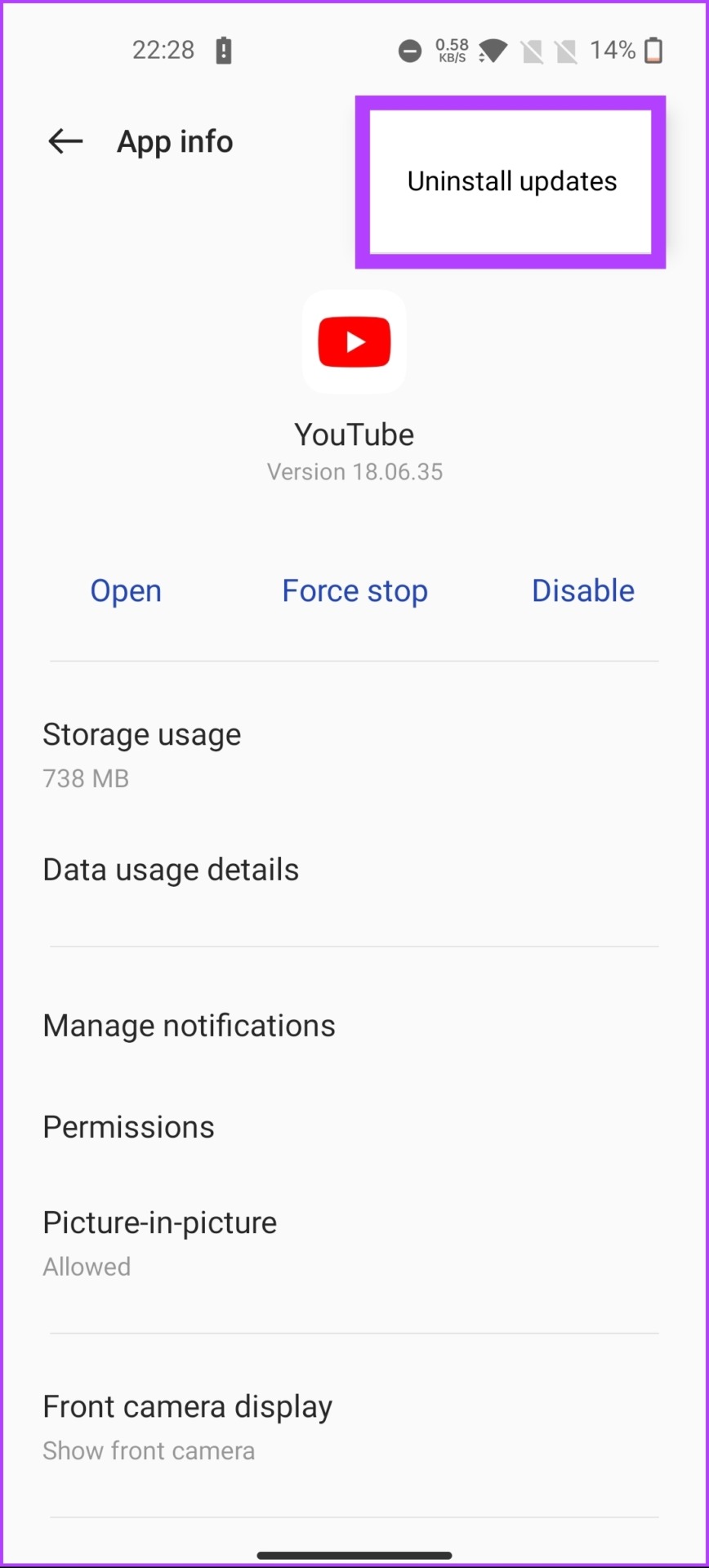
There you have it. You have brought old YouTube back on your phone. Do not update the YouTube app, even if it asks, and also, make sure you have kept the auto-update disabled on your Android device.
Method 7: Sideloading its Older Version (Android)
After uninstalling the updates on your YouTube app, try this method if you still have a version higher than 14.13.54, which comes with shorts. Follow the below-mentioned steps.
Step 1: Go to APKMirror to download the older YouTube app version using the below link.
Step 2: Now, install it on your Android device. Once installed, open the YouTube app on your device.
Note: Allow the installation from unknown sources if it gets stuck.
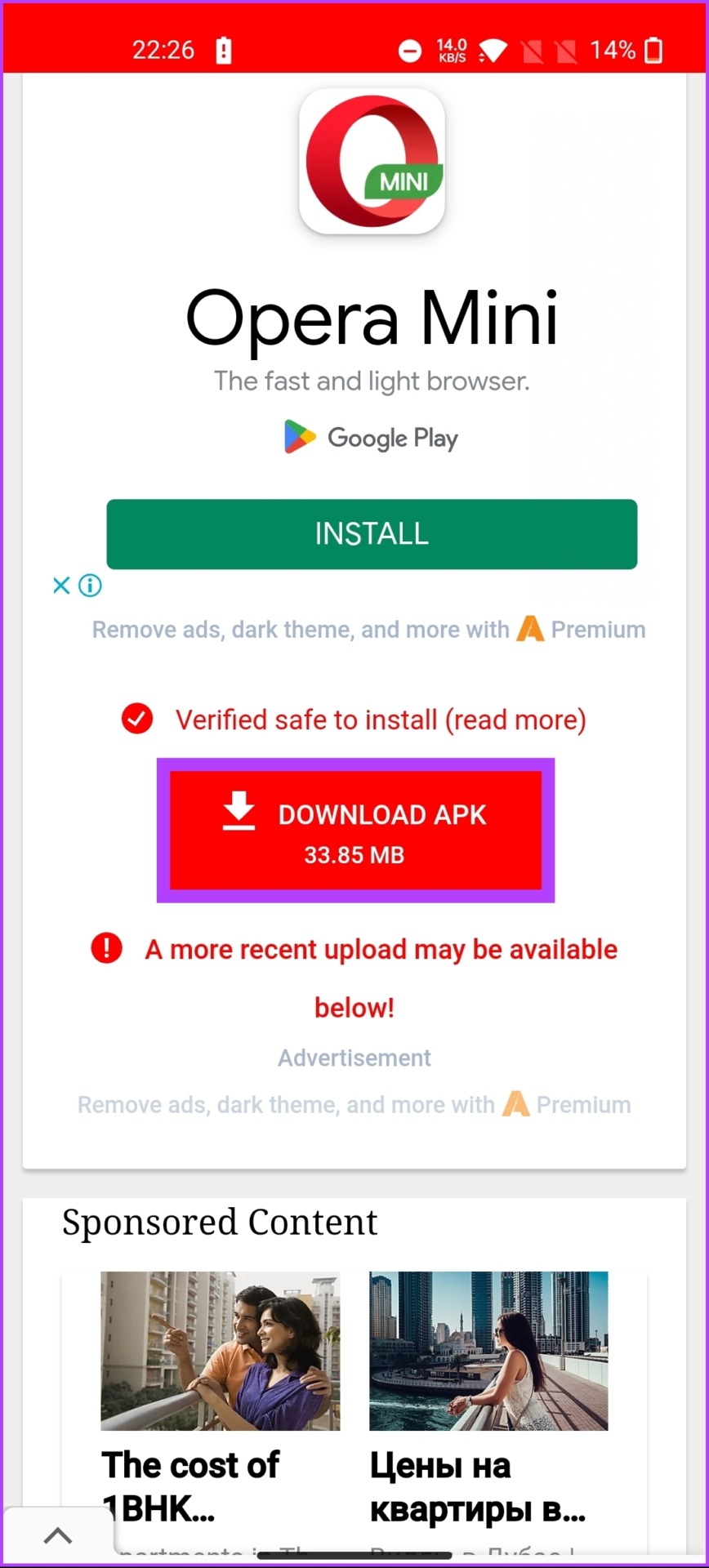

It should work now; you will not see Shorts on the app. Ensure you have disabled auto-app updates on your device before continuing to use it daily.
If all the methods weren’t enough, the following and the last method would help. Keep reading.
Method 8: Using YouTube Vanced on Android
Step 1: Go to the YouTube Vanced website using the below link on your Android device.
Step 2: Tap on Vanced Manager, and select Download anyway in the pop-up.
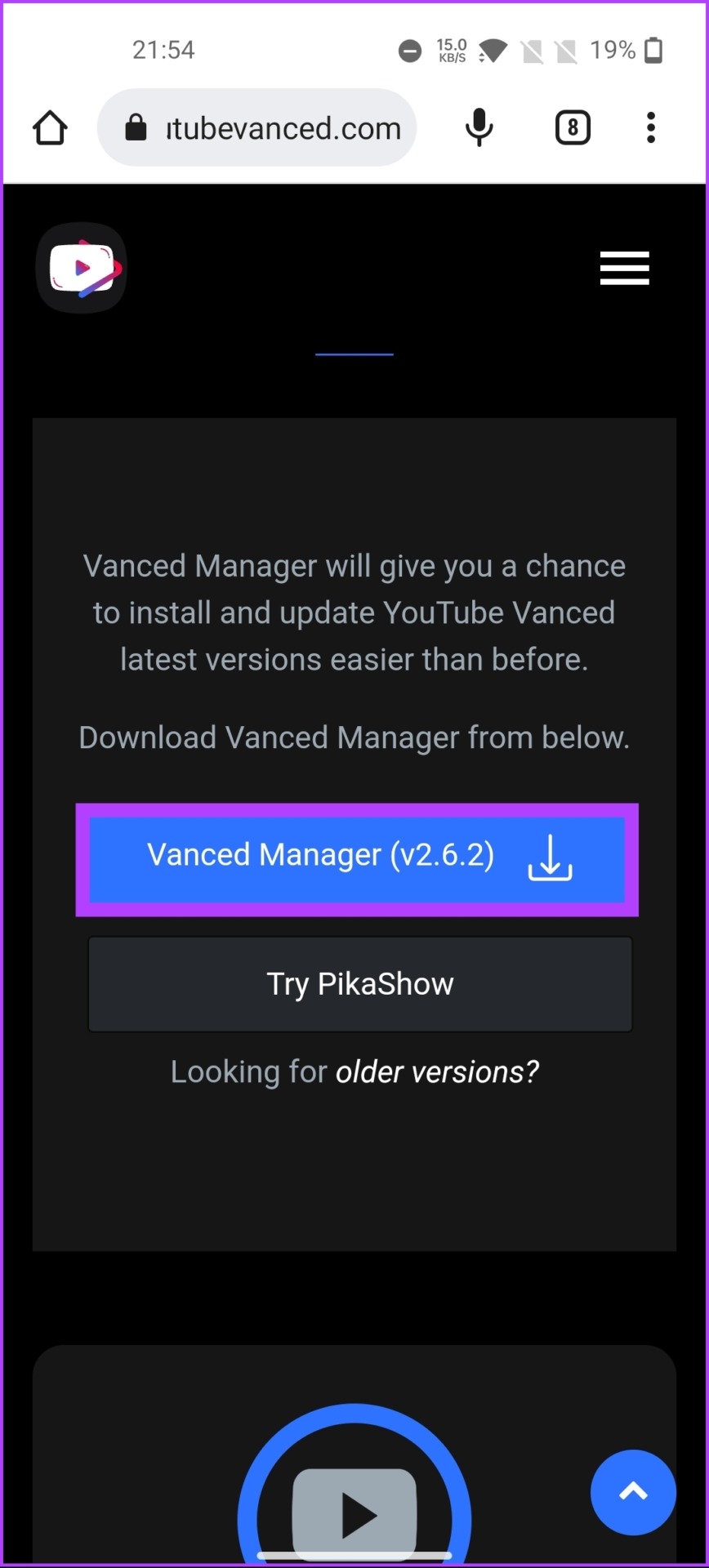
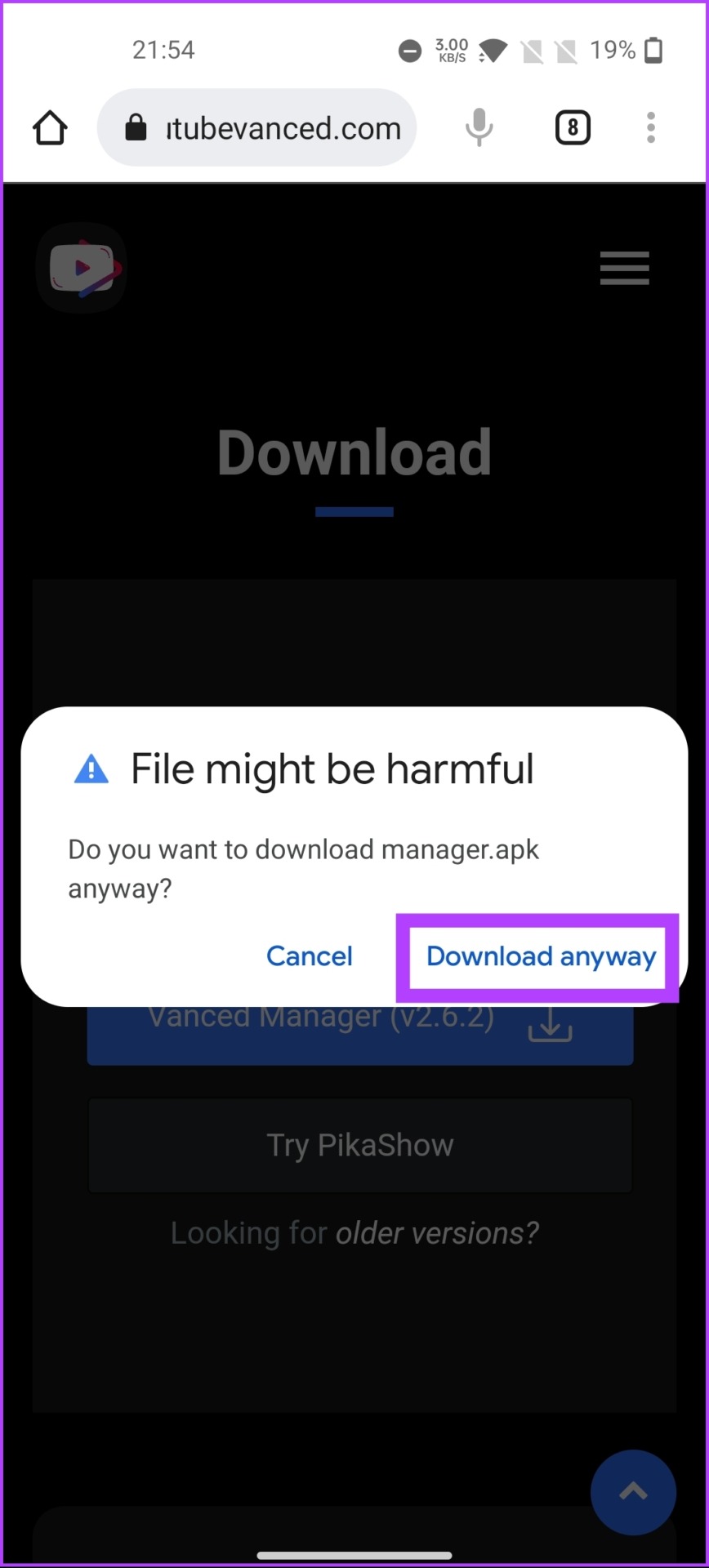
Step 3: Go to the browser’s download folder and tap on the APK.
Step 4: In the pop-up, select Install. Once installed, tap on Open, followed by the Let’s get started button.

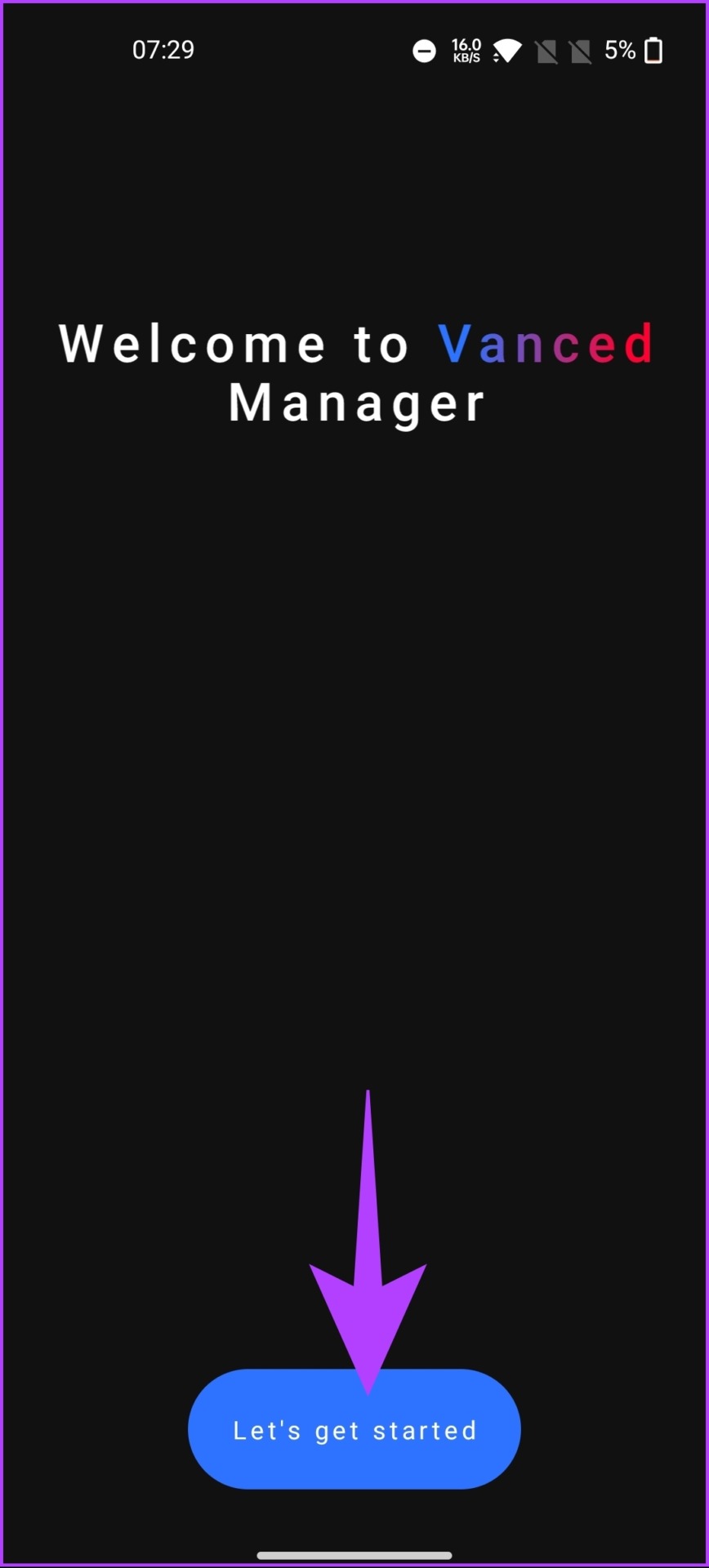
Step 5: Check the box you want and tap the next arrow.
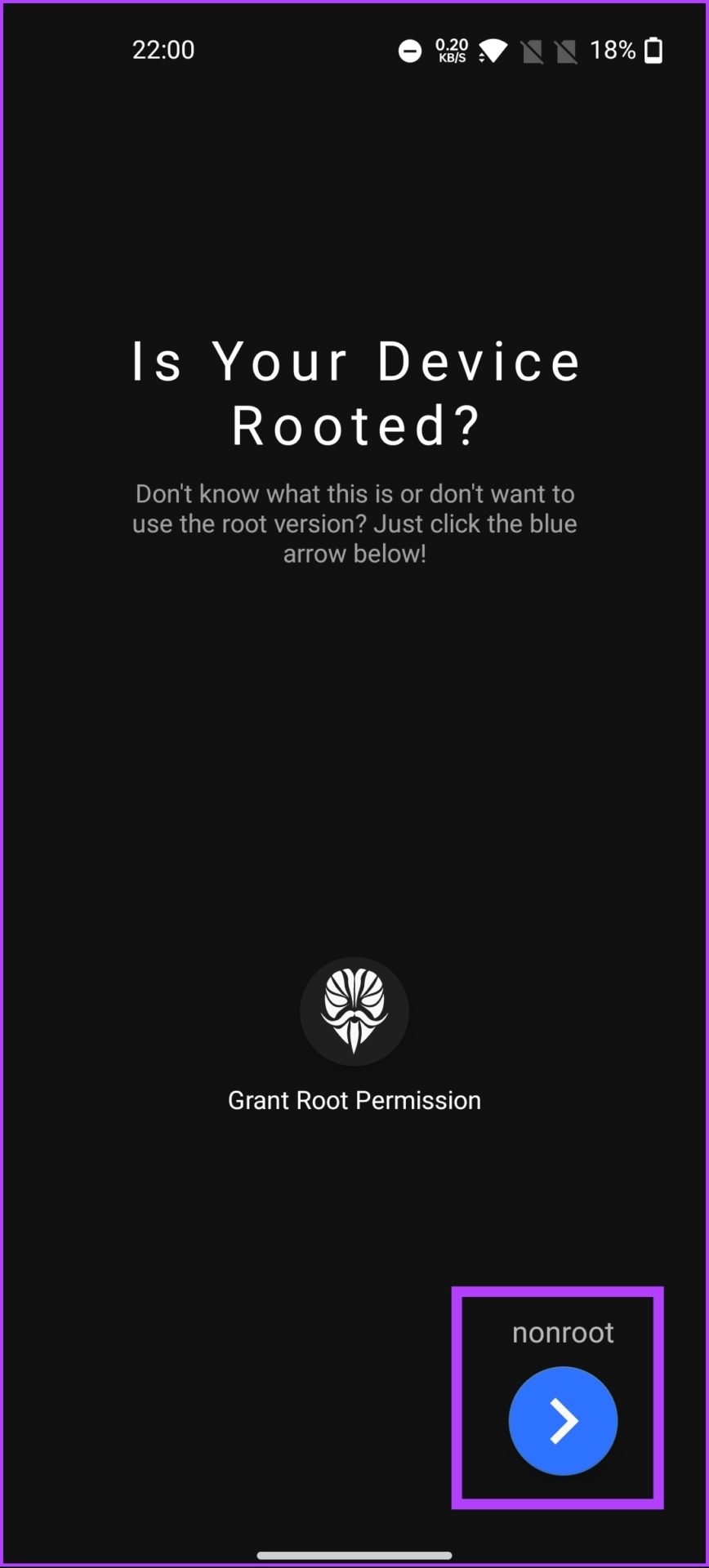
Step 6: If your device is rooted, tap on Grant Root Permission. If not, tap on the nonroot arrow button.

Step 7: Select Vanced microG and tap on the Download icon.
Note: If asked, enable ‘Allow apps from this source.’
Step 8: Tap Install.

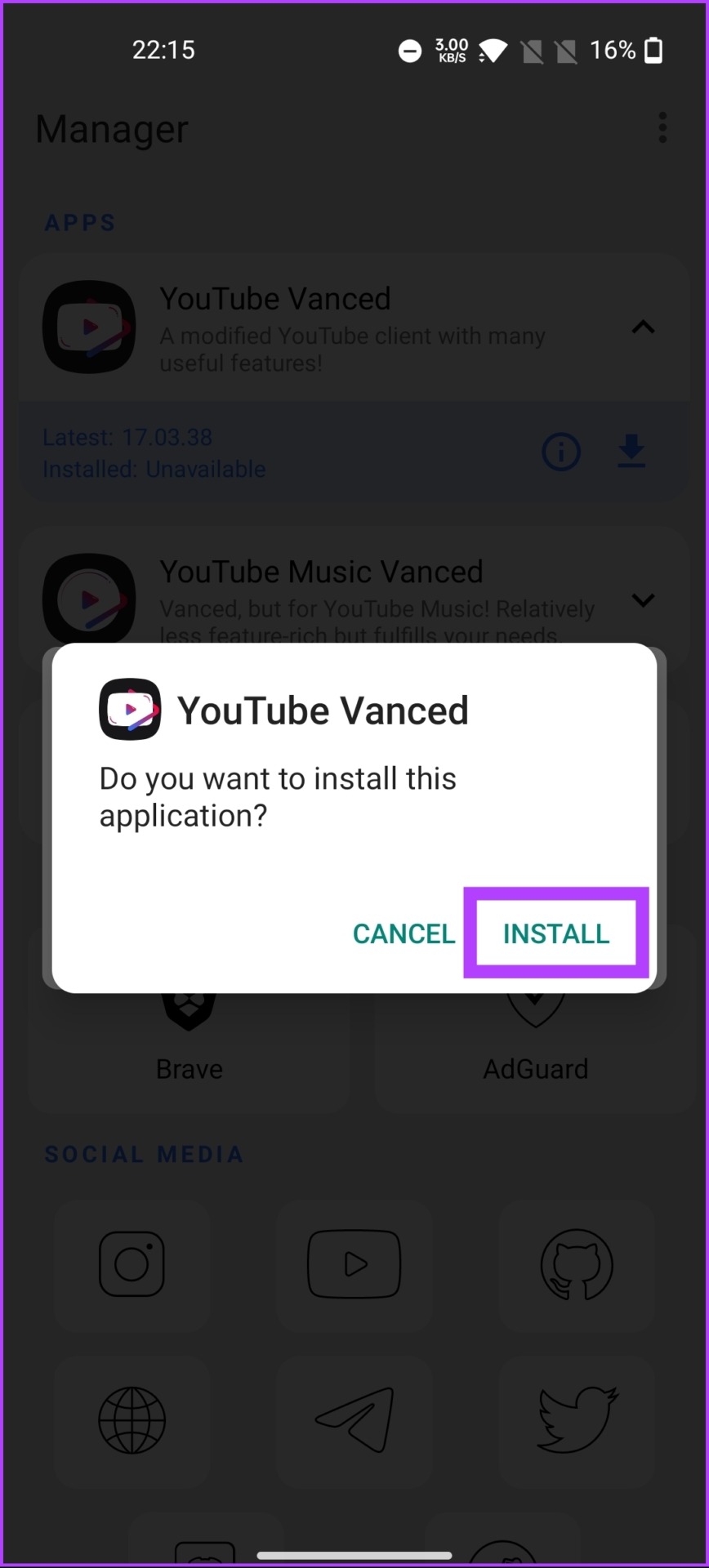
Step 9: Now, select YouTube Vanced and tap on the Download icon.
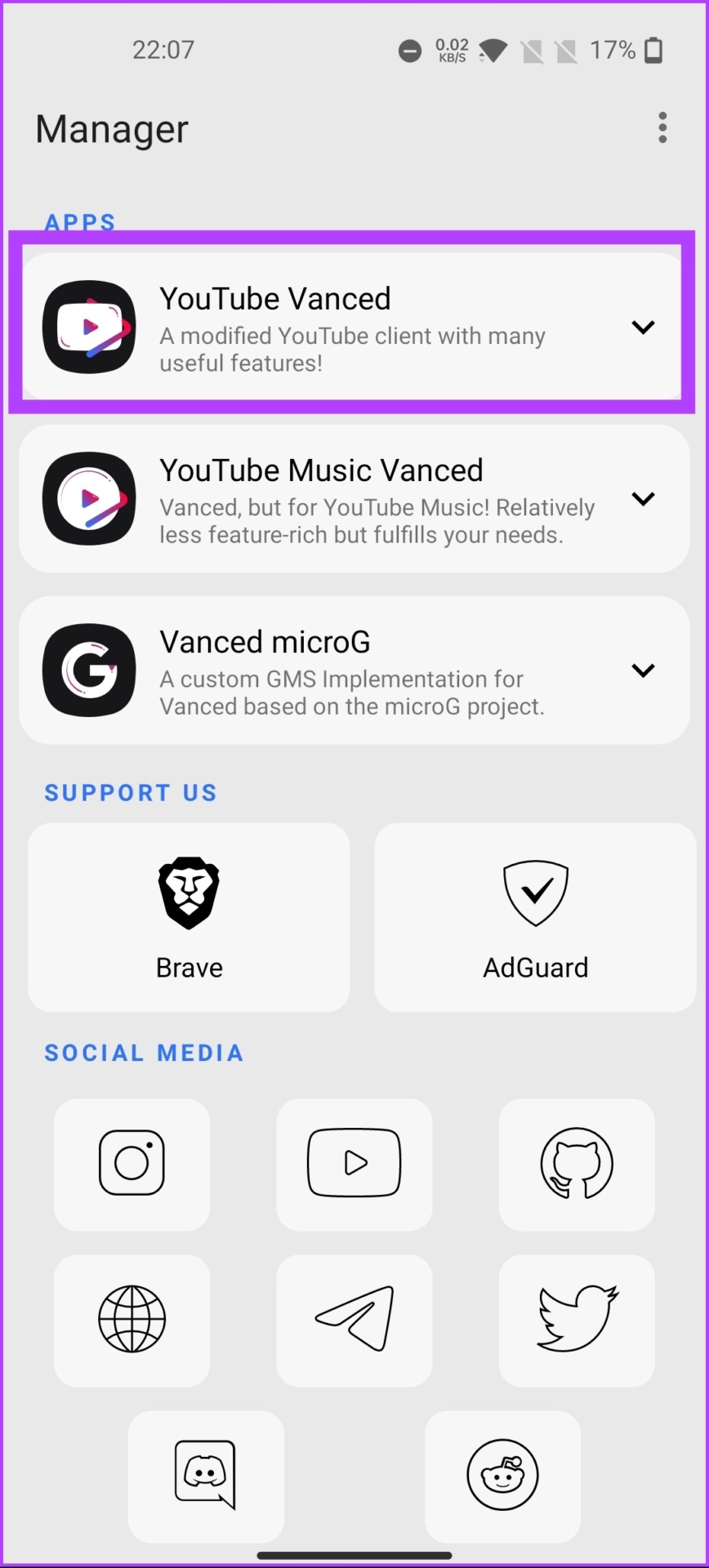

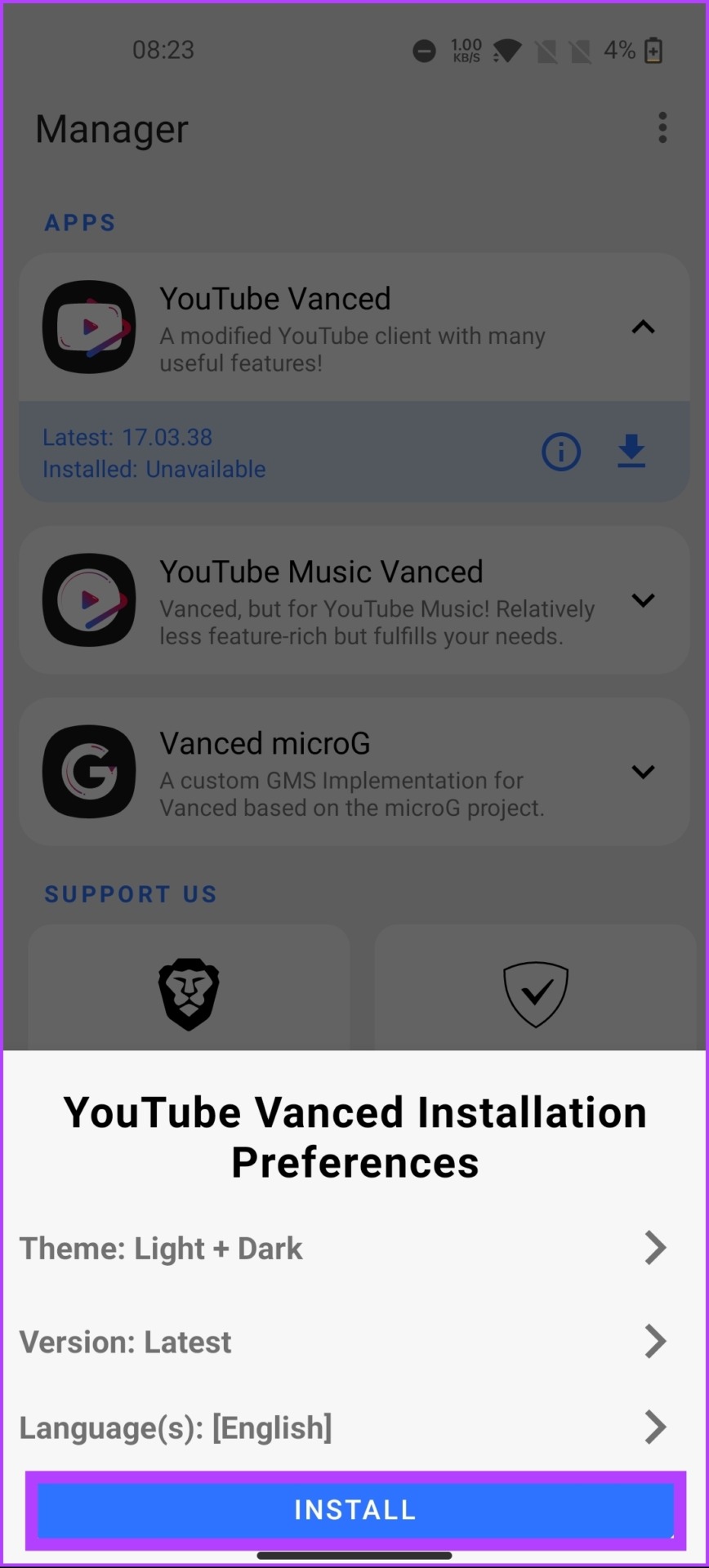
Step 10: From the options, select Install. In the YouTube Vanced pop-up, tap on Install.
Step 11: Open YouTube Vanced from the app drawer.
Step 12: Tap on the profile avatar at the top right corner and select Settings.


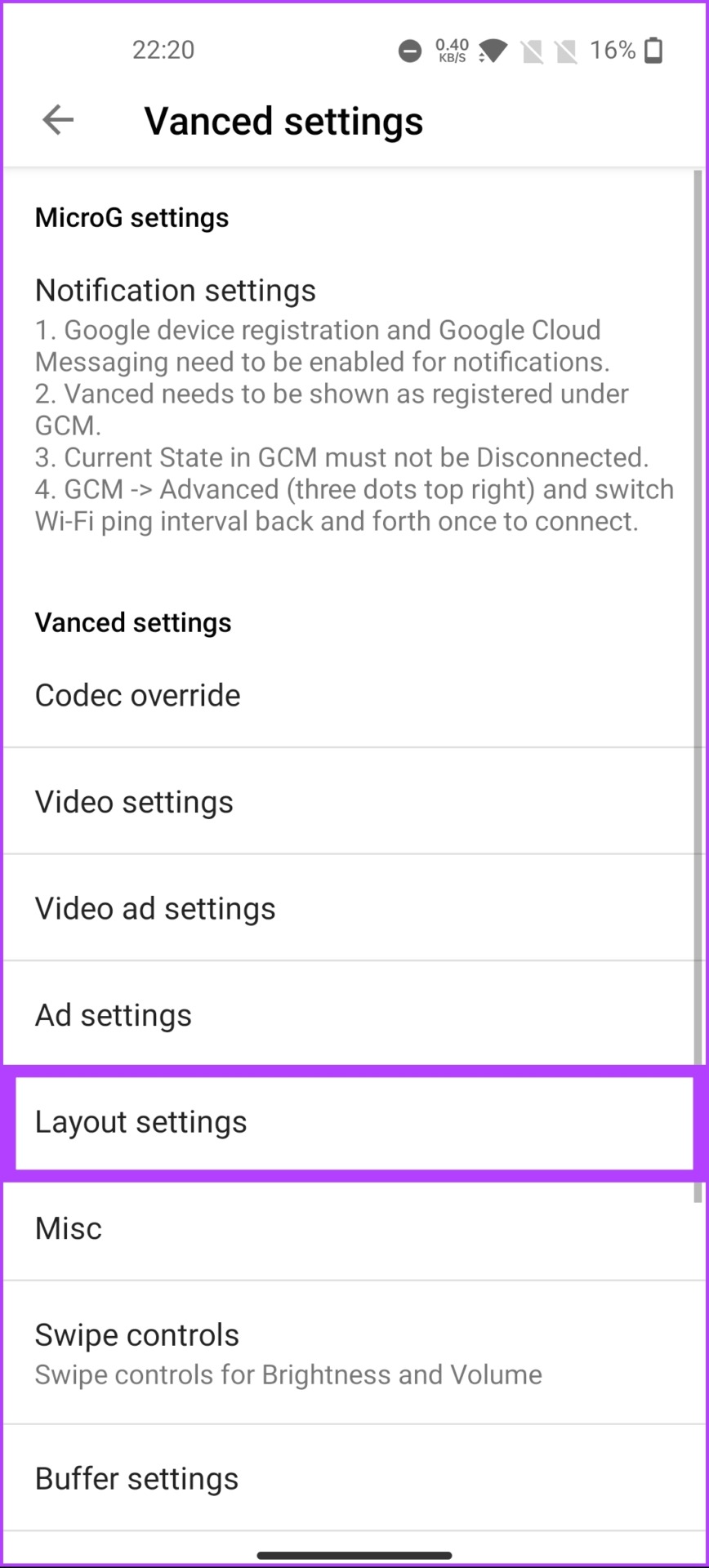
Step 13: Scroll down and select Vanced settings. Under Vanced settings, tap on Layout settings.

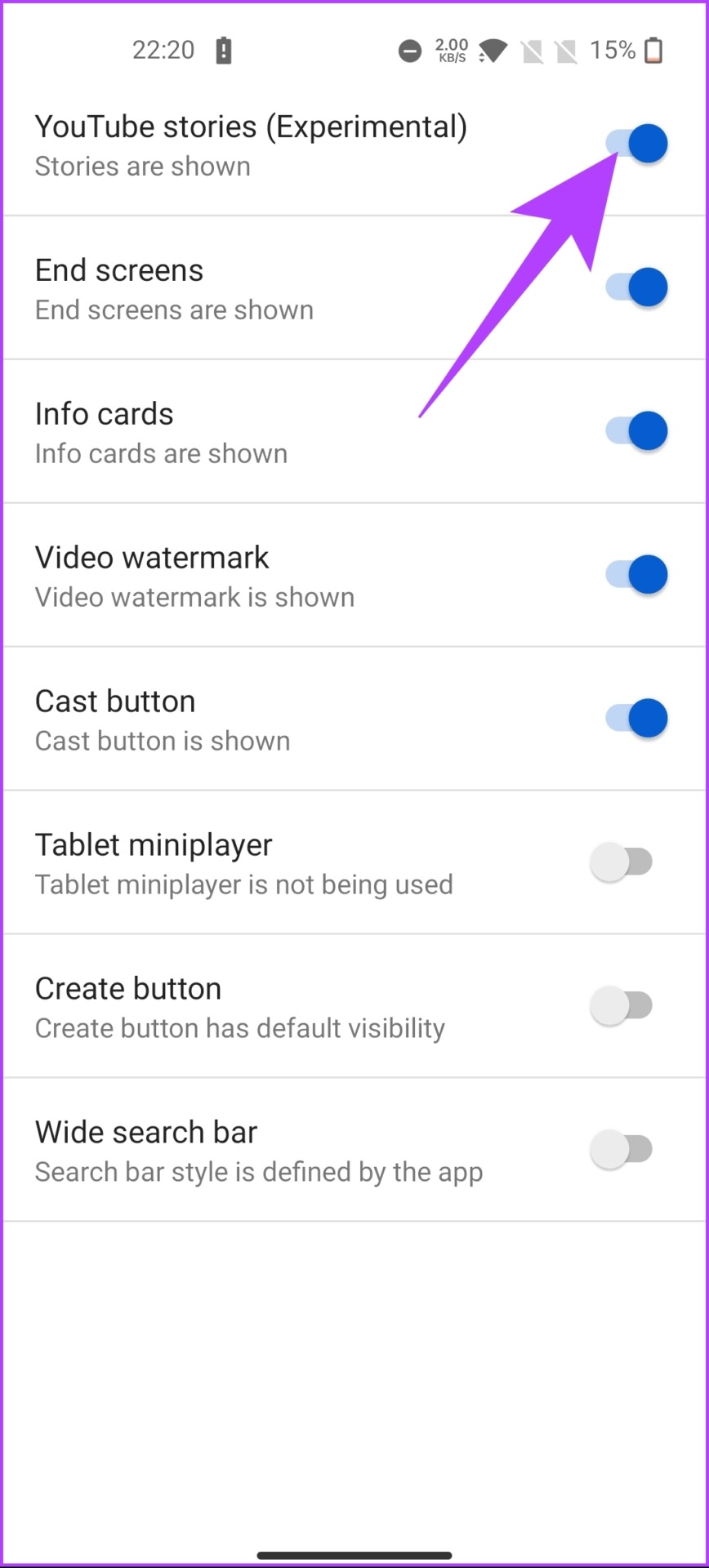
Step 14: Toggle off YouTube stories (Experimental), and in the pop-up, select Restart.
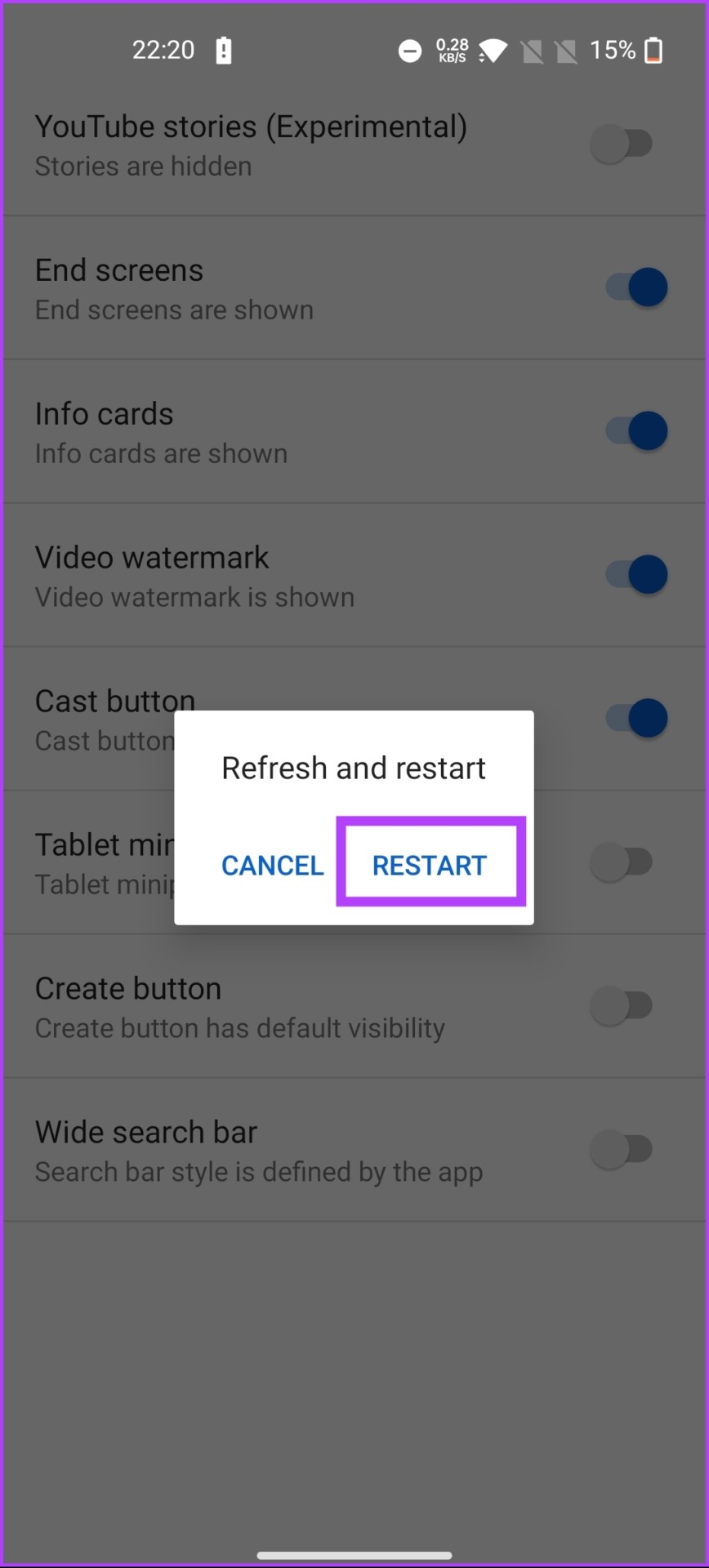
With this, YouTube Shorts will be disabled on the app. If you have any queries, check out the FAQ section below.
FAQs on Disabling YouTube Shorts on YouTube
If you want to stop YouTube Shorts from showing in your viewing history, go to the YouTube app > tap on your profile picture in the top corner of the screen > select Settings from the drop-down menu > scroll down to the ‘History & privacy’ section > tap on History > toggle off the switch next to YouTube Shorts to stop Shorts.
YouTube Shorts are designed to be short and engaging, making them addictive and encouraging users to spend more time scrolling through their feeds. If you spend too much time on YouTube or feel that your consumption habits are negatively affecting your mental health, consider setting app limits on your iPhone or Android.
Yes, disabling YouTube Shorts will notably impact your overall YouTube experience. It significantly reduces or removes Shorts videos from your recommended feed, subscriptions, and search results. This can limit the diversity of content you encounter and potentially alter personalized recommendations.
No, YouTube did not provide a direct option to filter out YouTube Shorts from search results. If you want to filter out YouTube Shorts from search results, you can try using specific search parameters or keywords in your search queries to narrow down the results.
YouTube encourages users to provide feedback on their platform. To report or provide feedback, all you need to do is long-press the video and look for the feedback or report options on the YouTube mobile app or website to share your thoughts, concerns, or suggestions regarding YouTube Shorts.
Whether you’re looking to save data or avoid content that’s not relevant to you, turning off Shorts is an excellent option. Moreover, disabling Shorts doesn’t affect other features on YouTube.
Was this helpful?
Last updated on 11 July, 2024
3 Comments
Leave a Reply
Read Next
 5 Ways to Fix YouTube Shorts Not Playing in Google Chrome
Fix 1: Turn Off Hardware Acceleration When you enable hardware acceleration in Google Chrome, the browser uses your GPU instead of your CPU to perform specific graphic-intensive tasks.
5 Ways to Fix YouTube Shorts Not Playing in Google Chrome
Fix 1: Turn Off Hardware Acceleration When you enable hardware acceleration in Google Chrome, the browser uses your GPU instead of your CPU to perform specific graphic-intensive tasks.
 3 Ways to Fix YouTube Shorts Not Playing on Android and iPhone
Try These Basic Fixes Temporarily disable your VPN connection: Issues with the VPN service might prevent the YouTube app from connecting to the internet and playing videos.
3 Ways to Fix YouTube Shorts Not Playing on Android and iPhone
Try These Basic Fixes Temporarily disable your VPN connection: Issues with the VPN service might prevent the YouTube app from connecting to the internet and playing videos.
 3 Fixes for Can’t Post Comments on YouTube Videos and Shorts
Try Basic Fixes The creator may have blocked your account: YouTube gives creators the option to block specific users from commenting on their videos.
3 Fixes for Can’t Post Comments on YouTube Videos and Shorts
Try Basic Fixes The creator may have blocked your account: YouTube gives creators the option to block specific users from commenting on their videos.
 4 Cool Sites to Watch YouTube Videos Without YouTube
1.
4 Cool Sites to Watch YouTube Videos Without YouTube
1.
 YouTube and Jasmine: iPhone YouTube Apps Compared
As you surely know, YouTube is by far the most popular video sharing website out there, with its popularity only increasing even more with the arrival of mobile devices like
YouTube and Jasmine: iPhone YouTube Apps Compared
As you surely know, YouTube is by far the most popular video sharing website out there, with its popularity only increasing even more with the arrival of mobile devices like
 5 Ways to Fix YouTube Videos Lagging on Android
Basic Fixes Force stop app: Tap and hold on the YouTube app icon, select App Info, tap on Force Stop, and re-open the app.
5 Ways to Fix YouTube Videos Lagging on Android
Basic Fixes Force stop app: Tap and hold on the YouTube app icon, select App Info, tap on Force Stop, and re-open the app.
 2 Ways to Block YouTube Channels on Desktop and Mobile
Method 1: Block a YouTube Channel From Appearing on Your Feed If you want to stop a YouTube channel from appearing in your feed without fully blocking it, you can
2 Ways to Block YouTube Channels on Desktop and Mobile
Method 1: Block a YouTube Channel From Appearing on Your Feed If you want to stop a YouTube channel from appearing in your feed without fully blocking it, you can
 3 Ways to Fix White Screen on YouTube on Any Device
Basic Fixes Restart YouTube: Restarting an app can eliminate temporary errors or glitches.
3 Ways to Fix White Screen on YouTube on Any Device
Basic Fixes Restart YouTube: Restarting an app can eliminate temporary errors or glitches.
The article above may contain affiliate links which help support Guiding Tech. The content remains unbiased and authentic and will never affect our editorial integrity.

Thanks for the tip, short is the worst thing youtube has ever added.
Thank you so much for the link to the extension add-on for Chrome! I cannot believe in this day of High Definition and Widescreen TV and monitors people still film video in the vertical position! I call them SLITIOTS! Not to mention the scum on YouTube that just repost over and over… it’s out of control with the shorts videos!
I, however, will enjoy video as it’s meant to be viewed: Horizontally! Our eyes are arranged side by side, not top to bottom! Let the Slitiots keep making their retard videos… thank GOD I no longer have to endure them in my searches!
After toggling off “Youtube stories” and restarting Youtube vanced, shorts are still present and still can be played.