If you’re struggling with a broken or malfunctioning key on the keyboard, or a specific one like “Windows” or “Alt” get in the way when you’re working or gaming, by far the simplest solution is to disable it in your system until you can get a different keyboard layout that works for you. Here’s how to disable a key on keyboard layouts, or even entire shortcuts, with a few quick software solutions.
Fix 1: How to Disable a Key on Keyboard Windows 11 PowerToys
PowerToys is a powerful utility tool developed directly by Microsoft to make it easier to modify core system settings without going into the registry or Group Policy Editor (with the latter being unavailable on Windows 11 Home by default anyway). You can get it straight from the Microsoft Store and it takes up minimal resources to run in the background.
Step 1. Go to the Microsoft Store and search for “PowerToys,” then select the first result. Click on the large “Install” button and wait for the process to complete.
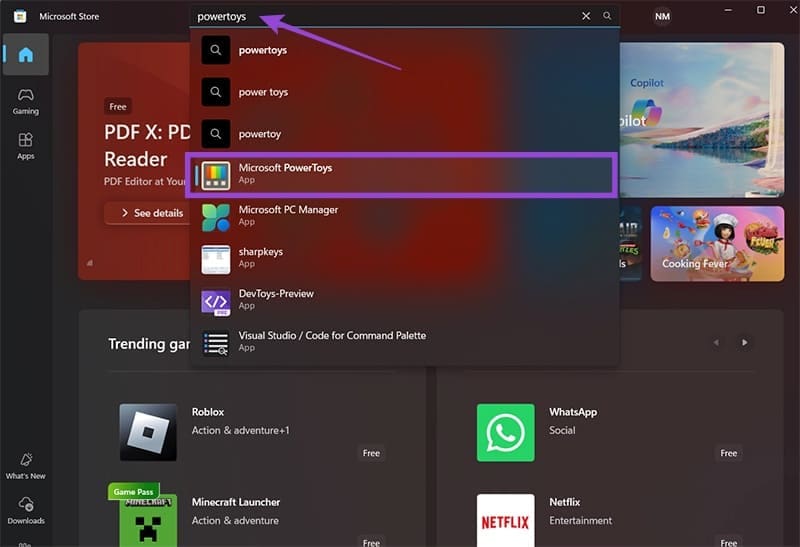
Step 2. PowerToys will immediately start running in the background, and you can open it via the toolbar by expanding the icons.

Step 3. Go to the “Input/Output” tab on the left and select “Keyboard Manager,” then toggle it on in the main panel.

Step 4. Open the “Remap a key” section, which brings up a new window.
Step 5. In the Remap section, click on “Add key remapping,” then press “Select” on the left side.
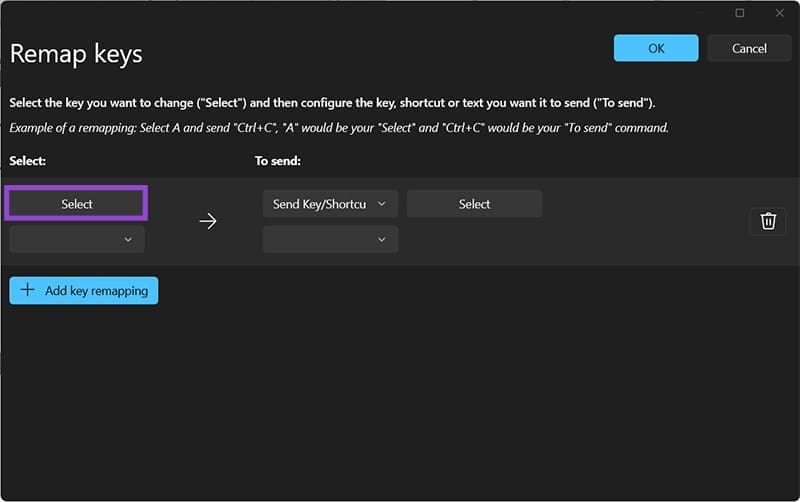
Step 6. Press the key you want to disable and hit “Enter.” You can even disable the “Enter” key by hitting it twice.

Step 7. On the right-side on the panel, click on the second dropdown, scroll up, and select “Disable.” Click on “OK” on the top-right to save the remap.

Step 8. You’ll get a warning that a key will be remapped without an alternative. Hit “Continue anyway.”
You can also use PowerToys to then remap another key on the keyboard, perhaps one you don’t use often, to that key instead. The process is similar, selecting the key you want to remap on the left and the key you disabled on the right.

PowerToys can also disable entire shortcuts (such as “Alt + Shift” or “Win + Space” for changing the input language). This section is available under “Remap a shortcut” and works similarly.
You can re-enable the key by clicking on the bin icon next to the entry you want to remove in the remapper.
Fix 2: How to Disable Key on Keyboard via Registry
Using the Registry Editor is slightly more complex, but it allows you to disable some keys that might still be accessed on the system level.
Step 1. Open the Registry Editor by going to the Run utility (“Win + R”) and entering regedit. Allow the User Account Control access when prompted.
Step 2. Go to “File” and select “Export” to make a backup of the registry, and save it wherever you want.
Step 3. Click and drag over the address path on the top (you’ll need to select the entire address manually) and overwrite it by pasting in the following:
Computer\HKEY_LOCAL_MACHINE\SYSTEM\CurrentControlSet\Control\Keyboard Layout

Step 4. Click on an empty space on the right, then right-click and select “New” then “Binary Value.”

Step 5. Open the value you made by double-clicking (should be listed as “New Value #1”).
Step 6. In the value data section:
- Fill the first row with zeroes until you hit the next one.
- To disable a single key, enter “02.” To disable a key combination, enter “03.”
- Enter five pairs of zeroes. If you want to remap a key, enter three pairs instead.
- Enter the hex code of the key you want to disable, which can be found in a table in this link, this link, or in this thread. If you’re remapping keys, enter the key you’re remapping to, and then the one you’re remapping from.
- Enter four pairs of zeroes on the third line and hit “OK.”
For example, to disable Right Shift, you should enter the hex code 36.

Step 7. Exit the registry, which immediately saves it.
To undo changes, remove the binary value you made or import the backup you created earlier.
Fix 3: Use a Third-Party Tool
A third-party tool like SharpKeys can also achieve similar results to PowerToys. Usually, these tools create scripts that you can turn on or off at will. It can be helpful if you want to momentarily disable a key when working without going back and forth in settings.
Was this helpful?
Last updated on 31 August, 2025
Read Next
 3 Ways to Disable Task Manager for Specific Users in Windows
Method 1: Using Command Line or Powershell Step 1: Press the Windows key, type PowerShell or Command Prompt, and click on Run as administrator.
3 Ways to Disable Task Manager for Specific Users in Windows
Method 1: Using Command Line or Powershell Step 1: Press the Windows key, type PowerShell or Command Prompt, and click on Run as administrator.
 How to Stop a Specific Windows Update From Installing
Method 1: Hide a Windows Update Using the Show or Hide Updates Troubleshooter Microsoft's "Show or hide updates" tool makes it simple to stop a specific Windows Update from installing
How to Stop a Specific Windows Update From Installing
Method 1: Hide a Windows Update Using the Show or Hide Updates Troubleshooter Microsoft's "Show or hide updates" tool makes it simple to stop a specific Windows Update from installing
 Top 7 Ways to Fix Windows Key Not Working on Windows 10
Windows 10 operating system is full of keyboard shortcuts.
Top 7 Ways to Fix Windows Key Not Working on Windows 10
Windows 10 operating system is full of keyboard shortcuts.
 7 Ways to Fix Windows Key Not Working in Windows 11
Basic Fixes Check for physical damage: There might be physical damage or dirt buildup on your keyboard.
7 Ways to Fix Windows Key Not Working in Windows 11
Basic Fixes Check for physical damage: There might be physical damage or dirt buildup on your keyboard.
 3 Quick Ways to Find Product Key on Windows 10 or Windows 11
1.
3 Quick Ways to Find Product Key on Windows 10 or Windows 11
1.
 How to Make Shortcuts to Open with Specific Browser on Windows
https://youtu.be/m5J0_Q3djik Method 1.
How to Make Shortcuts to Open with Specific Browser on Windows
https://youtu.be/m5J0_Q3djik Method 1.
 How to Fix Enter Key or Backspace Not Working on Windows 11
Basic Fixes: Restart Windows device: Restarting your device can help fix any minor software issue that might be preventing the Backspace or Enter key from working on Windows after the
How to Fix Enter Key or Backspace Not Working on Windows 11
Basic Fixes: Restart Windows device: Restarting your device can help fix any minor software issue that might be preventing the Backspace or Enter key from working on Windows after the
 How to Take a Screenshot on Chromebook Without Windows Key
Chromebooks have practically exploded in popularity, overtaking macOS devices due to being relatively cheap, easy to operate, and designed for mobile browsing and casual or educational uses.
How to Take a Screenshot on Chromebook Without Windows Key
Chromebooks have practically exploded in popularity, overtaking macOS devices due to being relatively cheap, easy to operate, and designed for mobile browsing and casual or educational uses.
The article above may contain affiliate links which help support Guiding Tech. The content remains unbiased and authentic and will never affect our editorial integrity.