How to Remove Cards or Other Payment Methods From Amazon
You can update and remove payment methods on both the Amazon website and mobile application. Let’s first look at how to do it on the Amazon app.
App
Step 1: Open the Amazon app on your smartphone.
Step 2: Tap on Menu and go to Account.
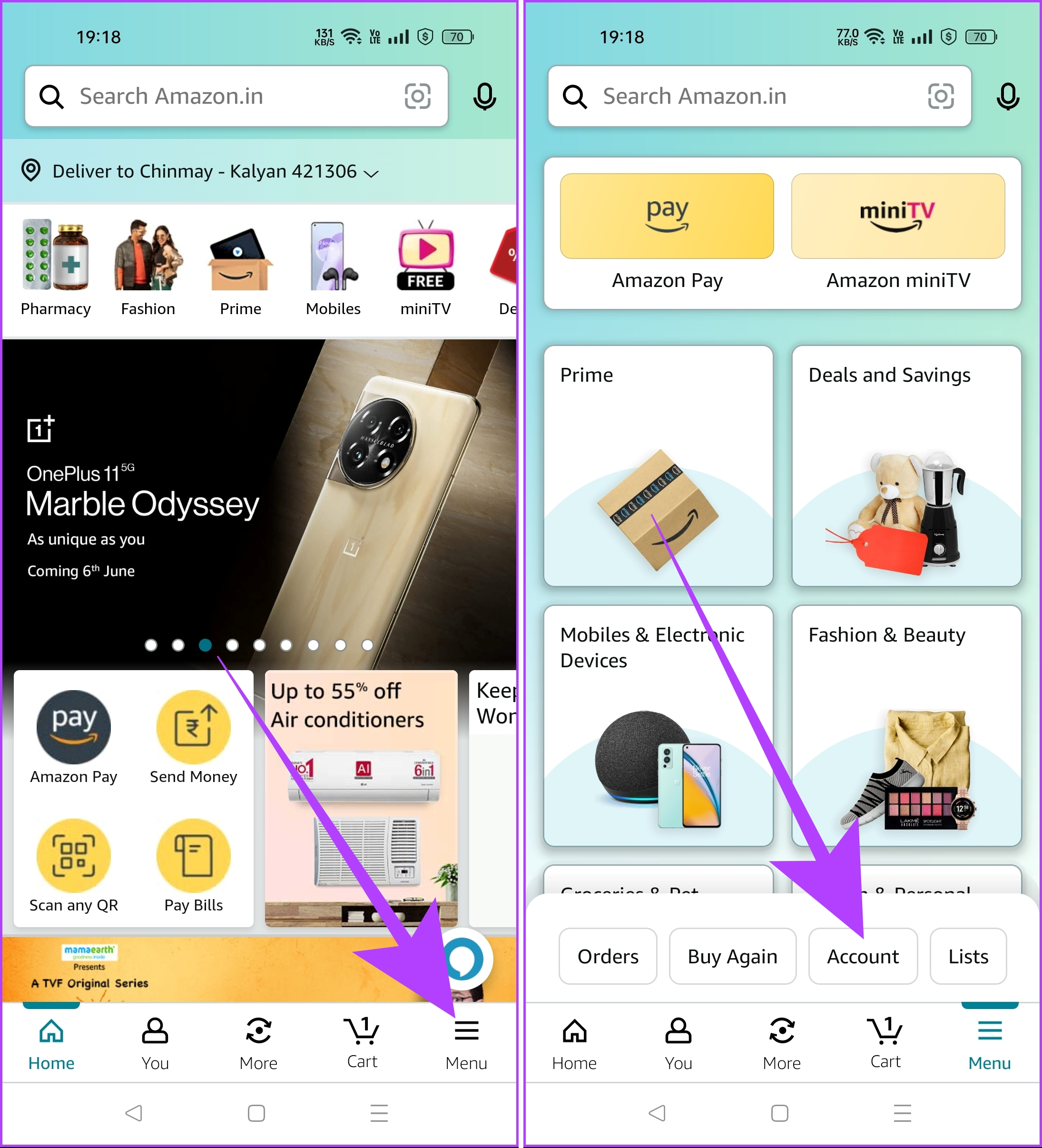
Step 3: Scroll to the Amazon Pay section and tap Manage payment options.
Step 4: You will see the list of all saved payment methods on your Amazon account. Search for the card you want to delete and tap the Remove button.
Step 5: Select Confirm to remove the app.

The selected card will get deleted from your Amazon account on all devices.
Tip: You can change the Amazon language to English to follow these steps.
Web
Step 1: Open the Amazon website in any web browser on your computer.
Step 2: Click on the Accounts & Lists button. This will take you to the dashboard of your Amazon account.

Step 3: Now, click on Your Payments. Amazon will show you all the saved payment options, including your credit and debit cards.
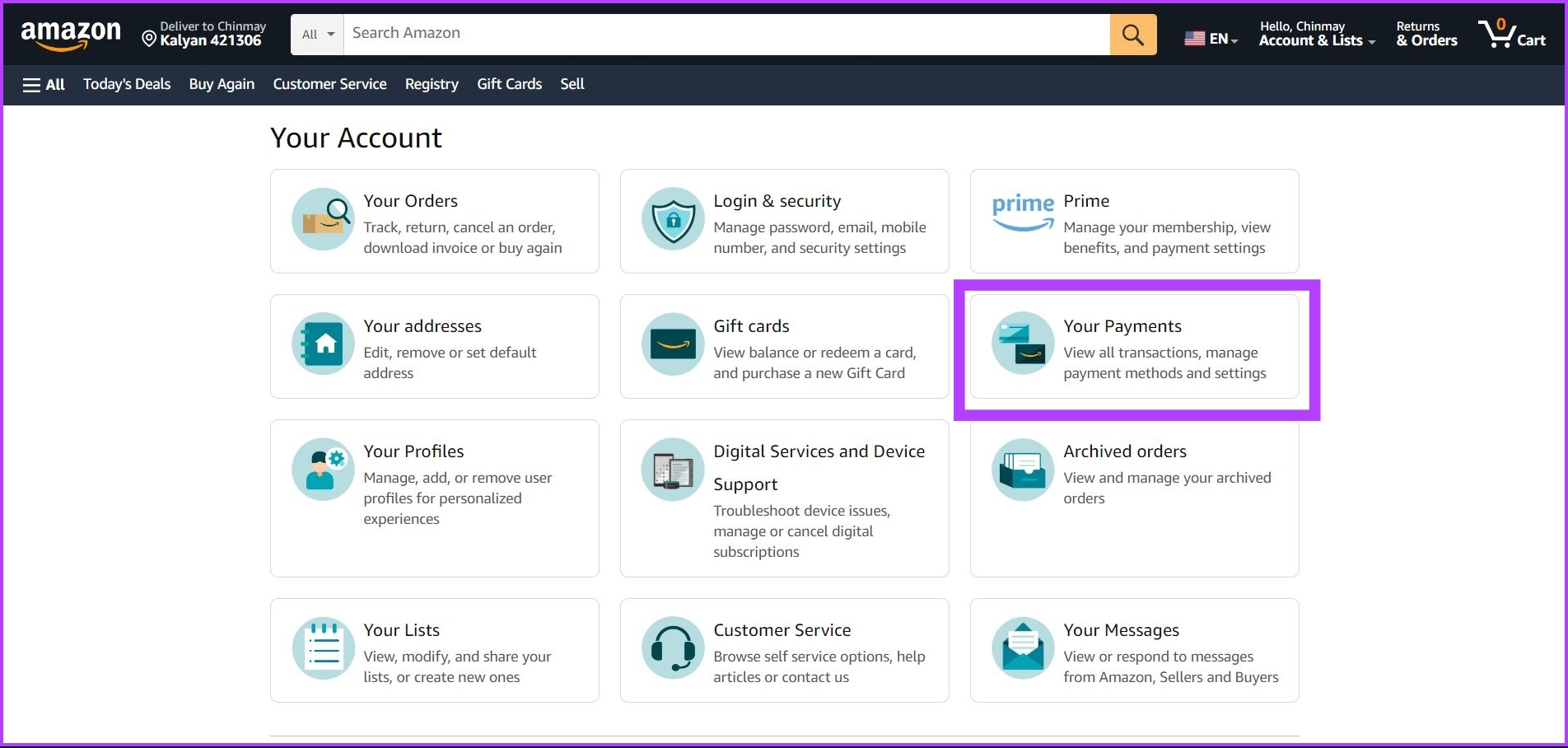
Step 4: Click on the card you want to delete from your Amazon account.
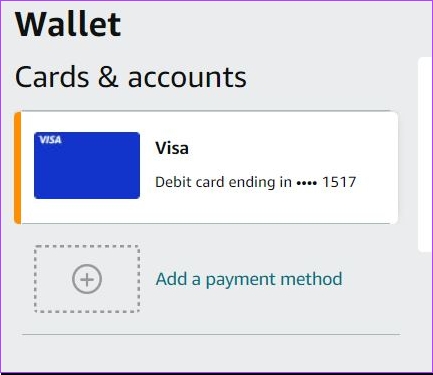
Step 5: Now, click on the Edit button. This will show you all the card details.

Step 6: Click on Remove from wallet.
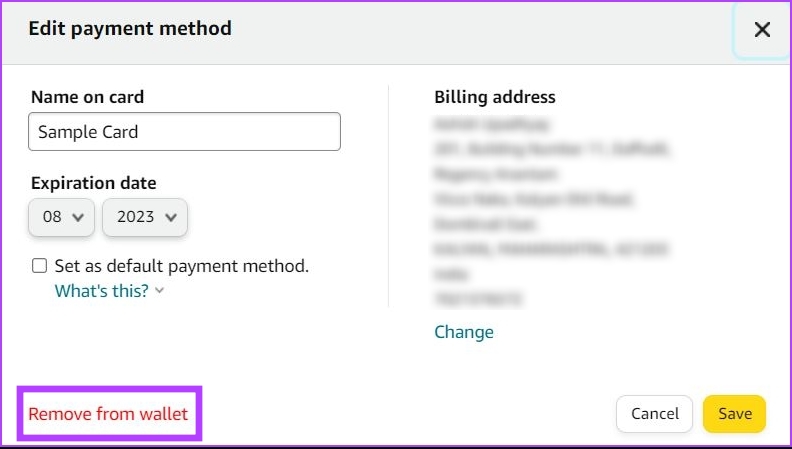
Step 7: Amazon will now ask you for a confirmation to delete this card from your account. Click on Remove.

The selected card will get deleted from your Amazon account, and this change will apply to all the devices where your account is signed in.
FAQ
Can I delete a card from only one device on Amazon?
No, you cannot delete a card for a single device. All the changes to your Amazon account will instantly appear on other devices.
Was this helpful?
Last updated on 29 July, 2024
Read Next
 What Happens to WhatsApp When You Change Phone or SIM Card
What Happens to WhatsApp When You Remove SIM Card?
What Happens to WhatsApp When You Change Phone or SIM Card
What Happens to WhatsApp When You Remove SIM Card?
 3 Ways to Fix Roblox Gift Card Not Working
Try Basic Fixes Wait and try again: Due to server overload or other temporary issues, Roblox may sometimes fail to process your gift cards.
3 Ways to Fix Roblox Gift Card Not Working
Try Basic Fixes Wait and try again: Due to server overload or other temporary issues, Roblox may sometimes fail to process your gift cards.
 6 Best USB-C SD Card Readers That You Can Buy
It's safe to say that USB-C is the new charging/transfer medium for majority of gadgets.
6 Best USB-C SD Card Readers That You Can Buy
It's safe to say that USB-C is the new charging/transfer medium for majority of gadgets.
 5 Ways to Format SD Card on Windows 11
Method 1: Format SD Card Using File Explorer The primary method for formatting your SD card is using File Explorer in Windows.
5 Ways to Format SD Card on Windows 11
Method 1: Format SD Card Using File Explorer The primary method for formatting your SD card is using File Explorer in Windows.
 6 Best Wi-Fi Routers With SIM Card Slot
A good Wi-Fi router is essential whether you're working from home, streaming your favorite shows, or gaming online.
6 Best Wi-Fi Routers With SIM Card Slot
A good Wi-Fi router is essential whether you're working from home, streaming your favorite shows, or gaming online.
 5 Bluetooth Speakers With SD Card Slot
Bluetooth speakers are handy if you enjoy listening to loud music or you want to have a mini party in your living room.
5 Bluetooth Speakers With SD Card Slot
Bluetooth speakers are handy if you enjoy listening to loud music or you want to have a mini party in your living room.
 How to See Apple Pay Card Number on iPhone
See Full Card Number on Apple Pay on iPhone Here's how you can easily view your card number and access its information on the Apple Wallet app on your iPhone.
How to See Apple Pay Card Number on iPhone
See Full Card Number on Apple Pay on iPhone Here's how you can easily view your card number and access its information on the Apple Wallet app on your iPhone.
 6 Best iPhone 15 Cases With Card Holders
If you want to keep your new iPhone 15 safe and also want to organize your everyday carry better, a case with a cardholder is a must-buy.
6 Best iPhone 15 Cases With Card Holders
If you want to keep your new iPhone 15 safe and also want to organize your everyday carry better, a case with a cardholder is a must-buy.
The article above may contain affiliate links which help support Guiding Tech. The content remains unbiased and authentic and will never affect our editorial integrity.