


Method 1: Delete All Promotions in Gmail App (Android and iPhone)
You can remove promotion emails from Gmail mobile apps. Since Gmail uses the same UI on Android and iPhone, the steps below will work on both platforms.
Step 1: Open the Gmail app on your phone.
Step 2: Tap the Hamburger icon > select the Promotions menu at the top.
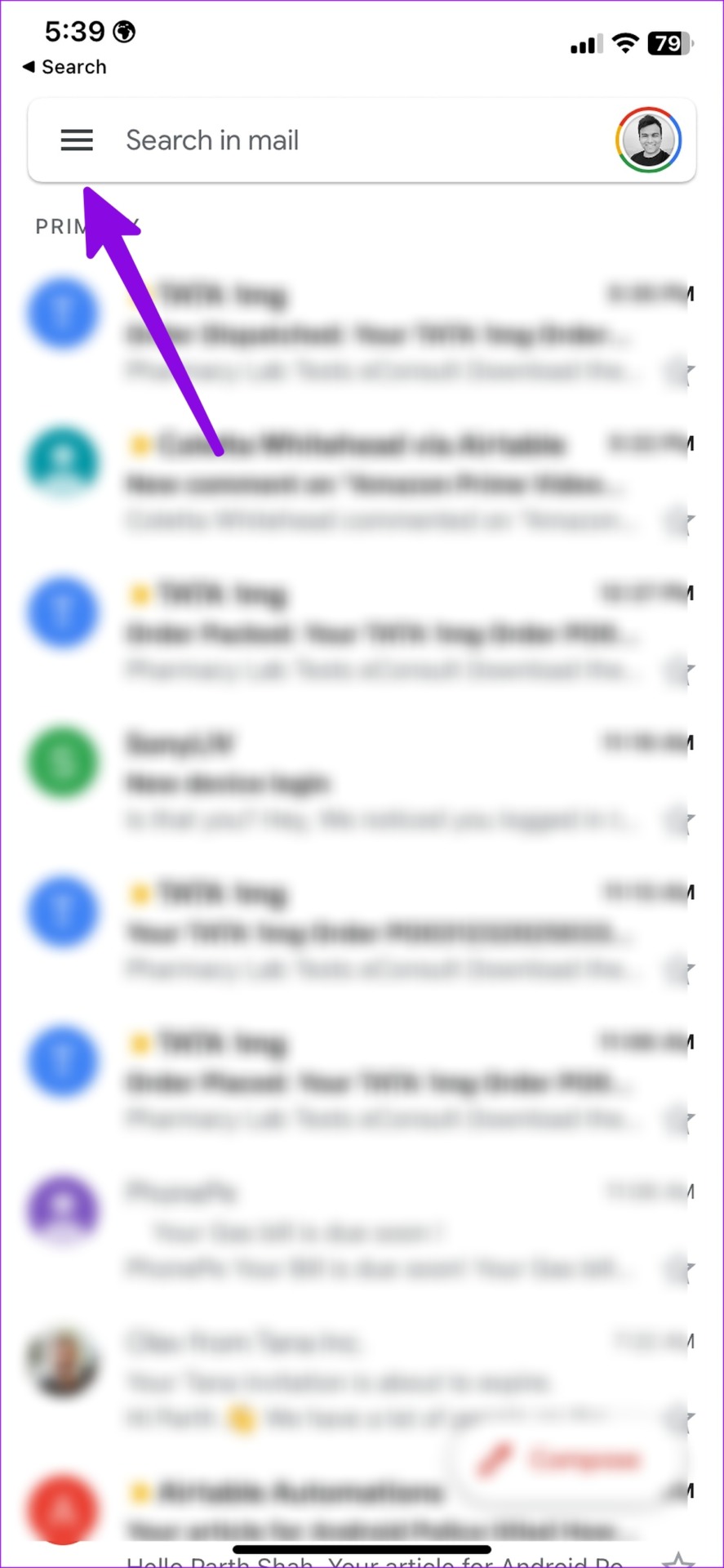
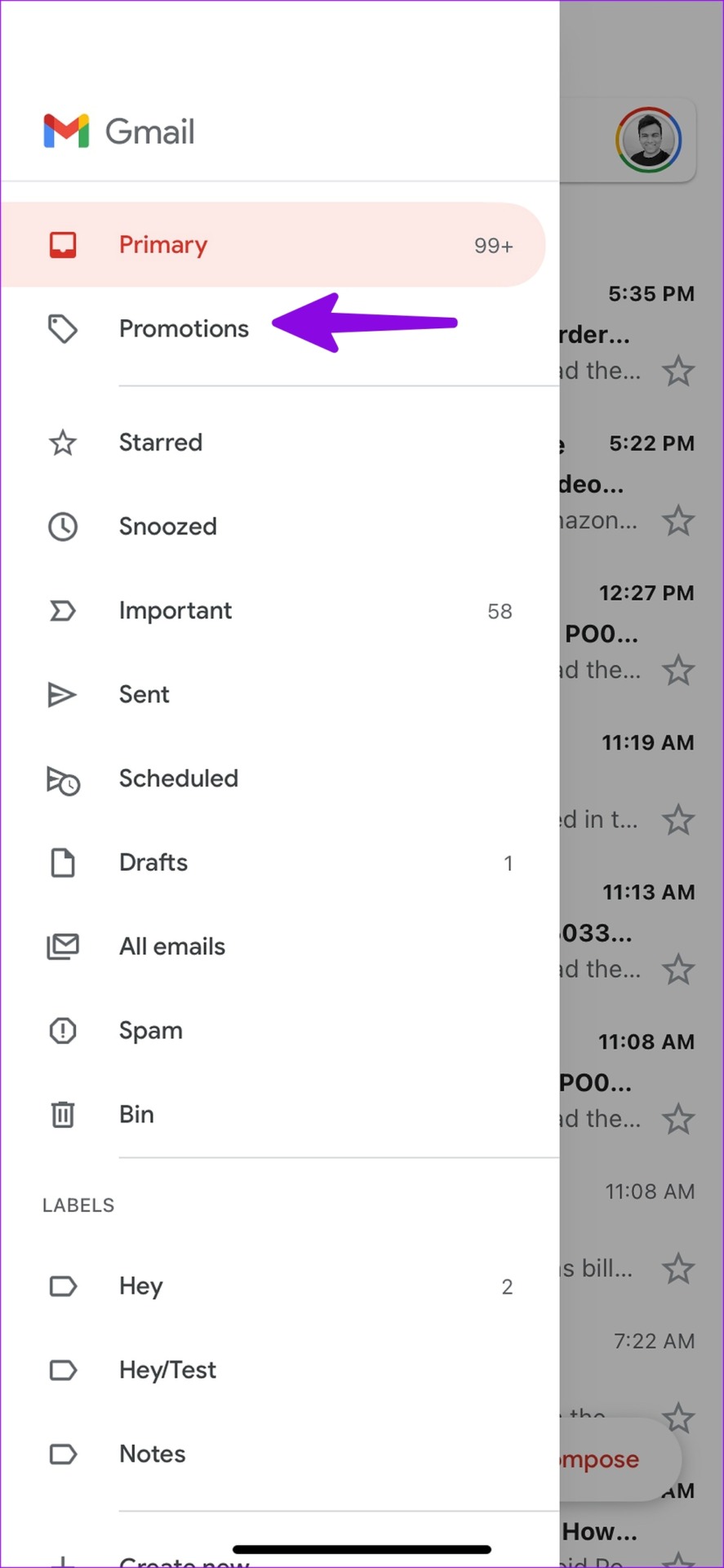
Step 3: Tap the account picture beside each irrelevant email. Repeat the same for all such emails, then select the Delete icon at the top and move them to Bin.


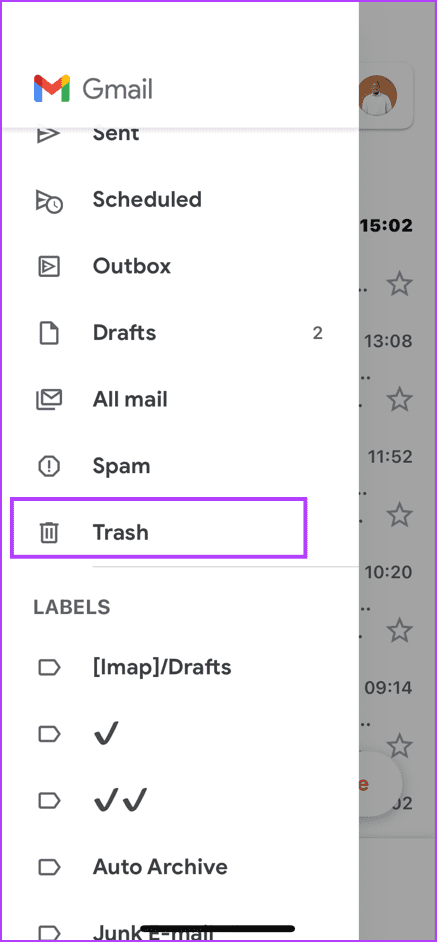
Step 4: Go back to Gmail home > tap the hamburger menu at the top-left corner > select Trash > tap Empty trash now.

Method 2: Delete All Promotions in Gmail on Desktop
You can delete the promotion emails from a desktop browser. Follow the steps below.
Step 1: Visit the Gmail website and click on the Promotions tab.

Step 2: Click the checkmark at the top > click the Delete icon.
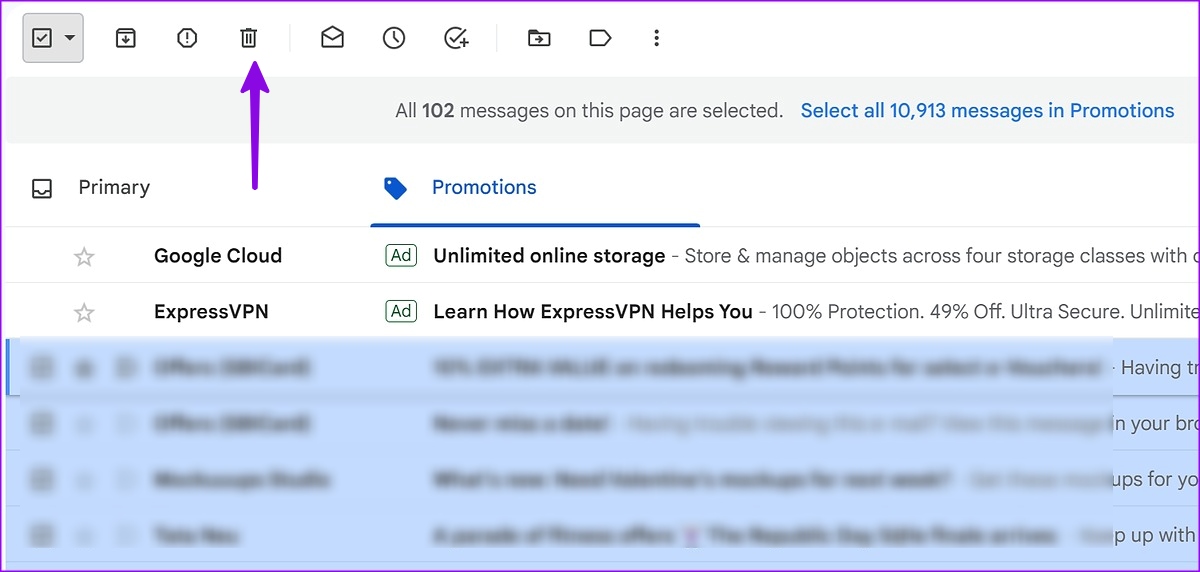
Step 3: Select Trash from the left sidebar.

Step 4: Click a similar checkmark at the top and select Delete Forever.

Method 3: Auto-Delete Promotions in Gmail Using Filters
If a specific online service spams you with dozens of promotional emails daily, unsubscribe from their list. If you have difficulty unsubscribing, use the steps below to auto-delete such emails in Gmail.
Step 1: Visit Gmail in a web browser.
Step 2: Move to the Promotions tab.
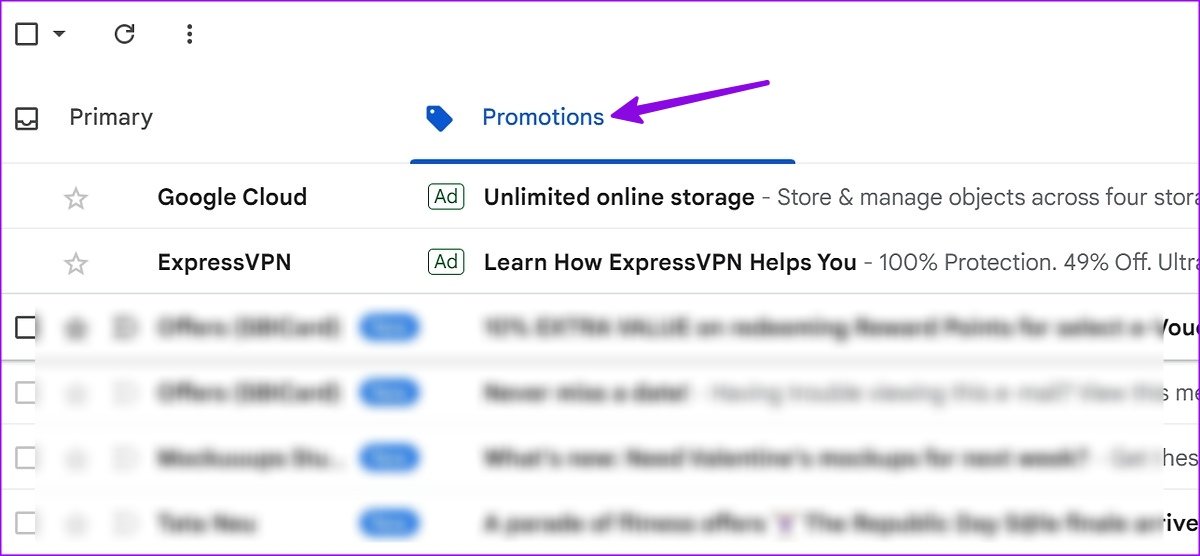
Step 3: Open an email.
Step 4: Click the More menu at the top-right corner > select Filter messages like this.
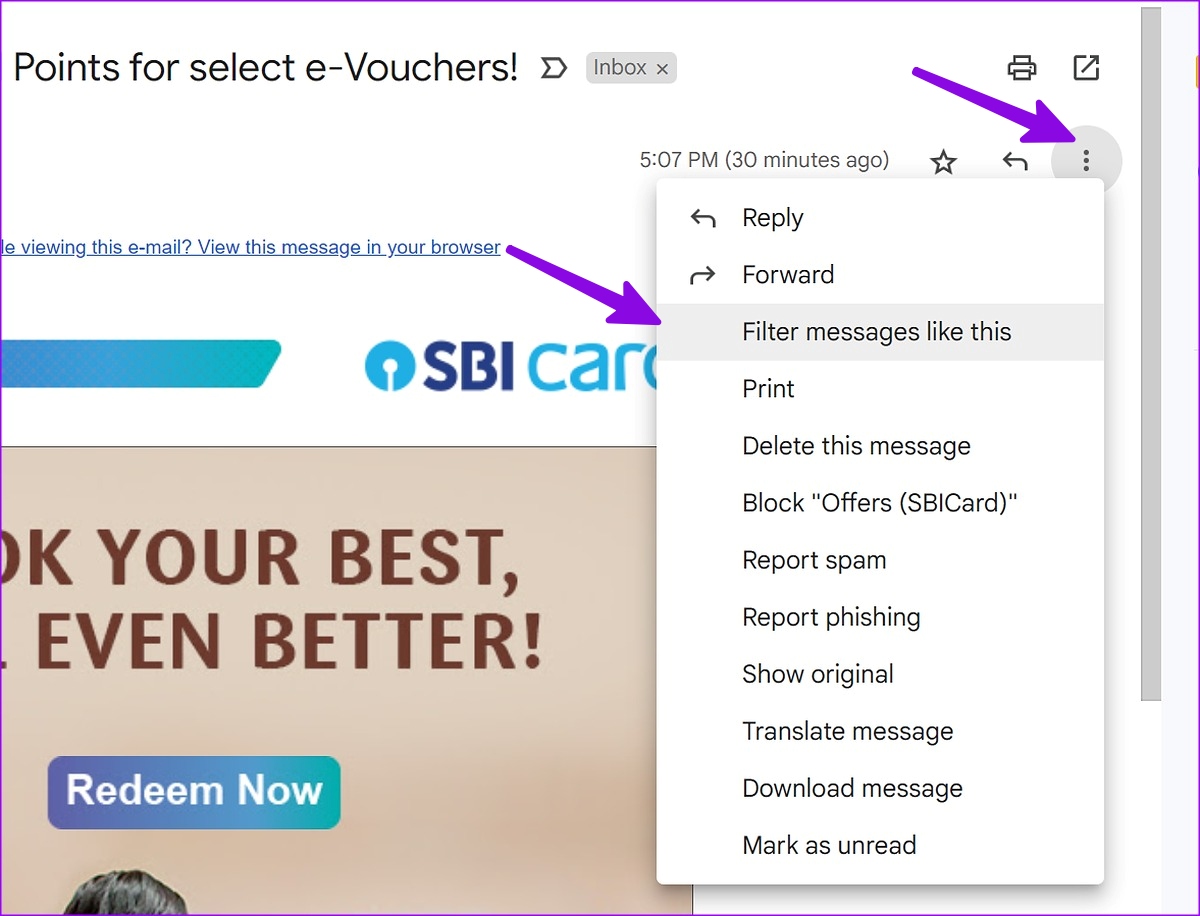
Step 5: It will open the filter menu. Click Create filter.

Step 6: Enable the checkmark beside Delete it > click Create filter.

You can create similar rules for all such promotional emails. You can even add words and phrases to auto-delete unwanted emails from your inbox. The possibilities are endless here.
Was this helpful?
Last updated on 27 May, 2024
1 Comment
Leave a Reply
Read Next
 How to Auto-Delete Emails in Gmail
Method 1: Using Filters Gmail offers filters to manage incoming emails automatically.
How to Auto-Delete Emails in Gmail
Method 1: Using Filters Gmail offers filters to manage incoming emails automatically.
 What Happens if You Delete Gmail App From Phone
What Happens to Emails After Deleting Gmail App?
What Happens if You Delete Gmail App From Phone
What Happens to Emails After Deleting Gmail App?
 How to Add, Edit or Delete Contacts in Gmail
In today's interconnected world, managing your contacts efficiently is key to staying in touch with friends, colleagues, and acquaintances.
How to Add, Edit or Delete Contacts in Gmail
In today's interconnected world, managing your contacts efficiently is key to staying in touch with friends, colleagues, and acquaintances.
 How to Delete Folders or Labels in Gmail
If you've gone overboard and created too many labels to keep your mailbox organized - you'd probably want to revisit and delete any redundant ones.
How to Delete Folders or Labels in Gmail
If you've gone overboard and created too many labels to keep your mailbox organized - you'd probably want to revisit and delete any redundant ones.
 How to Delete a Story on Instagram and What to Do if You Can’t Delete It
How to Delete a Live Story on IG Once you upload a story on Instagram, it lasts for 24 hours.
How to Delete a Story on Instagram and What to Do if You Can’t Delete It
How to Delete a Live Story on IG Once you upload a story on Instagram, it lasts for 24 hours.
 What Is Gmail’s Mute Feature and How to Use It Effectively
What Is Gmail’s Mute Feature?
What Is Gmail’s Mute Feature and How to Use It Effectively
What Is Gmail’s Mute Feature?
 How to Send GIFs in Microsoft Outlook and Gmail
Method 1.
How to Send GIFs in Microsoft Outlook and Gmail
Method 1.
 How to Edit or Cancel a Scheduled Email in Gmail
How to Edit a Scheduled Email in Gmail During the time between scheduling and sending an email, you can edit or reschedule the content as needed.
How to Edit or Cancel a Scheduled Email in Gmail
How to Edit a Scheduled Email in Gmail During the time between scheduling and sending an email, you can edit or reschedule the content as needed.
The article above may contain affiliate links which help support Guiding Tech. The content remains unbiased and authentic and will never affect our editorial integrity.


Followed your directions to delete all email in Promotions (157,000 emails). Looks like maybe there were too many because Gmail gave up trying after a while (a minutes or so) and all the selected emails were unselected again. Other Ideas?