If you’ve got a list of folder names that need to be made into folders (for example, for filing), creating folders manually can take a while when the list gets long. If you want to learn how to create multiple folders in Windows from a list, there are a few ways, from using solely scripting solutions built into Windows to third-party apps.
Windows Create Multiple Folders From a List With PowerShell Commands
PowerShell has access to pretty much any part of the system and can make folders at will. However, this method is a bit unwieldy if you don’t have a list that’s correctly formatted for it.
Step 1. Right-click on the Start button on the toolbar and select “Terminal (Admin).” Confirm the user account control when prompted.
Step 2. In File Explorer, right-click on the address bar of the folder where you want the folders to appear to copy it.

Step 3. Type in “cd” and paste the address. For example, this is from our sample:
cd C:\Users\Asus\OneDrive\Desktop\FolderList

Step 4. Create a command that starts with “md” then has the list of names of folders you want to create, with each name in quotes and each entry separated by a comma. For example:
md “name1”, “name2”, “name3”, “name4”

The folders will be created.
Create Multiple Folders from a List using Excel
If you want to streamline this process, you can use Excel. Suppose you have a list of names in a column in Excel (let’s say column A).
Step 1.. In an empty cell, enter the following command:
=TEXTJOIN(“, “,TRUE,””””&A1:A4&””””)
For the numbers, insert the starting and ending row of the list of names. Note that you have to be precise, as the formula will create blanks.
Step 2. Hit Enter to confirm the operation.
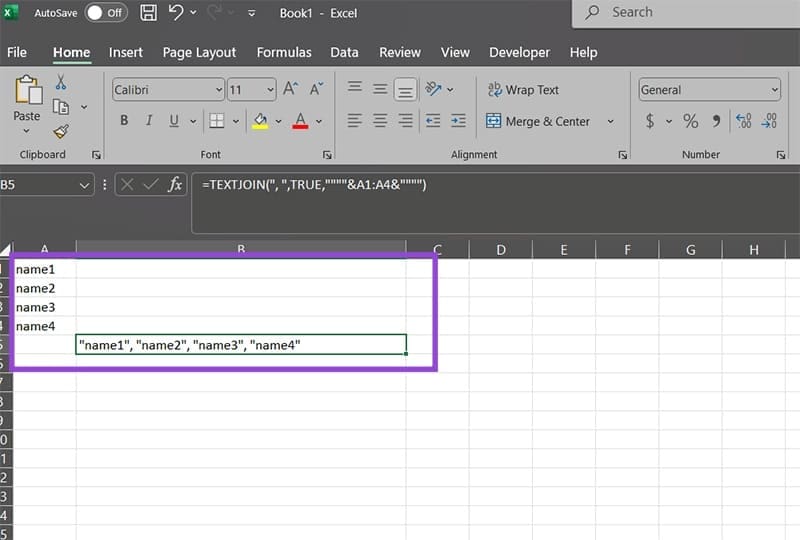
Step 3. Use the PowerShell command from above, select the location (with the cd), and then use the “md” command and paste in the list.
Batch Create Multiple Folders From a List With Third-Party Tools
If you don’t like using PowerShell or manipulating lists manually, you can use third-party tools. Typically, these don’t take up too much space and have an UI that’s fairly easy to use. You can find a lot of different options, but here are some recommendations.
Option 1: Folder Creator
The Folder Creator utility is simple and lightweight, creating a list of folders that have a shared name base. This can be helpful when you want to create a bunch of folders that are numbered differently.
Using the tool is quite simple. All you have to do is define the target location (which can be browsed for), enter the base name (the shared element in all folders), and then the starting and ending number for the list. The tool will take care of the rest.
Option 2: Batch Create Folders
The Batch-Create-Folders utility (available on SourceForge) is an open-source tool that allows you to manually input or paste a list of names of folders.
Once downloaded, it’s fairly easy to use.
Step 1. Extract the downloaded ZIP file somewhere (you can even use the Downloads folder).
Step 2. Open the extracted folder and run the .exe file.

Step 3. Enter a list of names separated by a linebreak (Enter of Shift + Enter).
Step 4. Click on “Choose Directory” to locate the destination folder.
Step 5. Click on “Create folders” to create the folders.


Optionally, you can right-click on an entry to create subfolders in a similar manner.

Was this helpful?
Last updated on 24 September, 2025
Read Next
 7 Ways to Combine First and Last Names in Microsoft Excel
Method 1: Using Flash Fill Flash Fill is an intelligent tool in Excel that eliminates the need for complex formulas and manual data manipulation.
7 Ways to Combine First and Last Names in Microsoft Excel
Method 1: Using Flash Fill Flash Fill is an intelligent tool in Excel that eliminates the need for complex formulas and manual data manipulation.
 How to Create Folders and Move Emails in Outlook on Mac and Windows
Microsoft Outlook app for Mac and Windows lets you manage email conversations and calendar events.
How to Create Folders and Move Emails in Outlook on Mac and Windows
Microsoft Outlook app for Mac and Windows lets you manage email conversations and calendar events.
 4 Fixes for iMessage Not Showing Contact Names on iPhone
Basic Fixes Enable iMessage again: This will reload all the preferences for iMessages including your chats.
4 Fixes for iMessage Not Showing Contact Names on iPhone
Basic Fixes Enable iMessage again: This will reload all the preferences for iMessages including your chats.
 How to Put Emojis in Discord Channel Names
Do you want to spice up your Discord community or bring a touch of creativity and visual appeal to your Discord server?
How to Put Emojis in Discord Channel Names
Do you want to spice up your Discord community or bring a touch of creativity and visual appeal to your Discord server?
 3 Ways to Fix WhatsApp Not Showing Contact Names
Why Is WhatsApp Showing Numbers but Not Names?
3 Ways to Fix WhatsApp Not Showing Contact Names
Why Is WhatsApp Showing Numbers but Not Names?
 8 Best Fixes for Google Messages App Not Showing Contact Names on Android
The Google Messages app can help you send text messages and react to them as well.
8 Best Fixes for Google Messages App Not Showing Contact Names on Android
The Google Messages app can help you send text messages and react to them as well.
 4 Fixes for Android Not Showing Contact Names for Incoming Calls
https://youtu.be/42YJeJ_T88c Fix 1: Allow the Phone App to Access Your Contacts Like most apps, the Phone app on your Android also requires permission to access your contact list.
4 Fixes for Android Not Showing Contact Names for Incoming Calls
https://youtu.be/42YJeJ_T88c Fix 1: Allow the Phone App to Access Your Contacts Like most apps, the Phone app on your Android also requires permission to access your contact list.
 5 Fixes for iPhone Not Showing Contact Names for Incoming Calls
Fix 1: Disable and Re-Enable iCloud Contact Sync Issues with your iCloud account could affect your iPhone's ability to sync contacts, preventing it from showing contact names on incoming caller
5 Fixes for iPhone Not Showing Contact Names for Incoming Calls
Fix 1: Disable and Re-Enable iCloud Contact Sync Issues with your iCloud account could affect your iPhone's ability to sync contacts, preventing it from showing contact names on incoming caller
The article above may contain affiliate links which help support Guiding Tech. The content remains unbiased and authentic and will never affect our editorial integrity.