Writing email after email can get a little tedious, especially when you’re just writing the same thing over and over with little variation. You’re wasting time you could be spending on other, more productive tasks. Thankfully, Microsoft has provided a solution – templates you can build into Outlook that eliminate the typing time burden.
You just need to know how to create email templates in Outlook, which you’ll discover in this step-by-step guide.
How to Create an Email Template in Outlook
There are two aspects of making a template in Outlook – creating the template, and tweaking it after the fact.
The Steps to Create an Outlook Template
“New” Outlook doesn’t offer templates as standard, so you have to add an app to the platform. These steps show you how to create email templates in Outlook using the Outlook ribbon.
Step 1: Navigate to “Insert” in the ribbon bar and select “Apps.”

Step 2: Type “My Templates” in the search bar and click the icon with the same name that appears. If you don’t get the icon, hit “Get add-ins” and search for “My Templates” there.

Step 3: Hit “Continue” after reading the description of what the “My Templates” add-in does.

Step 4: You’ll see a handful of Microsoft’s standard templates in your collection already. If any of them apply, click the template and start creating your email. However, if you want to create your own, select “+ Template.”

Step 5: Type the name of your new template in the top text box, followed by entering the text for your templated email in the box below. Hit the “Save” button when you’re done.

Step 6: You should see your created template is now listed underneath the standard options Outlook provided earlier. Click that new template and voila – you’ll see your templated message appear in the message panel in the center of the screen.


Once your templated message has appeared, you can tweak it as needed and set the email address it needs to go to. After that, just hit the “Send” button like you would with any other email to send the templated email on its way.
How to Access and Tweak Your Templates
Once you have your template saved, you might want to change it around or even delete it from your Outlook storage. These steps help you do that.
Step 1: Hit the “Insert” option in the Outlook ribbon, select “Apps” and hit “My Templates” again.

Step 2: Locate your template in the list and hover your cursor over it.

Step 3: You should see two options in the template’s right-hand corner – a rubbish can and a little pen and paper. If you want to get rid of your Outlook template, hit the rubbish can icon. Note that clicking this icon gets rid of the template immediately, with no request for confirmation on your part. The pen and paper icon allows you to edit the template, which is helpful whenever you want to make a tweak or you notice a spelling mistake in your original template.
Was this helpful?
Last updated on 18 February, 2025
Read Next
 5 Fixes for Email Templates Missing in Microsoft Outlook
Fix 1: Check the Email Templates Folder An obvious reason why your Outlook email templates may not show up is that you have accidentally deleted them.
5 Fixes for Email Templates Missing in Microsoft Outlook
Fix 1: Check the Email Templates Folder An obvious reason why your Outlook email templates may not show up is that you have accidentally deleted them.
 11 Best Microsoft Word Templates to Create Brochure
Microsoft Office 365 is considered as the gold standard of productivity suite among enterprise and business.
11 Best Microsoft Word Templates to Create Brochure
Microsoft Office 365 is considered as the gold standard of productivity suite among enterprise and business.
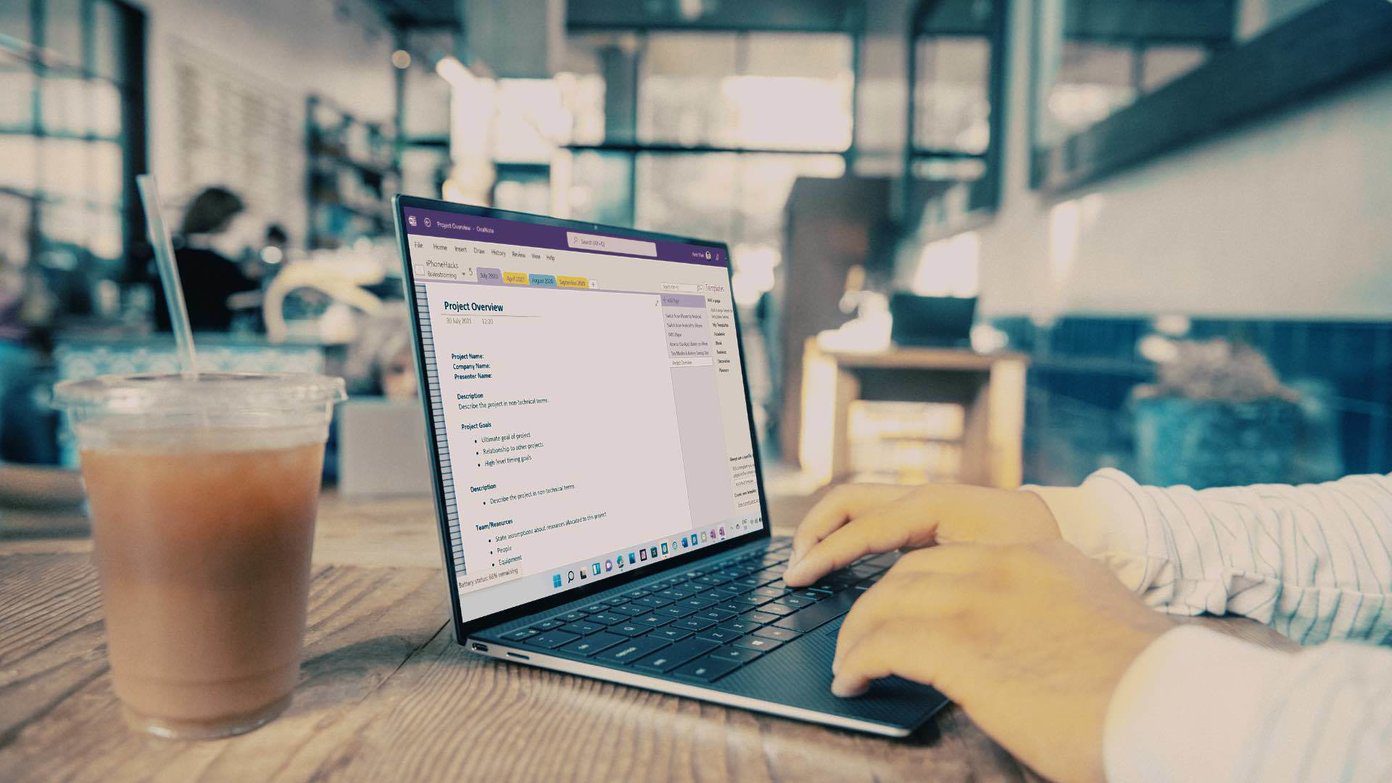 How to Create Templates in OneNote on Windows and Mac
OneNote Mac and Windows App The OneNote app on Mac and Windows are almost similar looking with the same options and menus.
How to Create Templates in OneNote on Windows and Mac
OneNote Mac and Windows App The OneNote app on Mac and Windows are almost similar looking with the same options and menus.
 How to Create and Use Custom Table Templates in Microsoft Word
How to Create a Custom Table Template in Microsoft Word On Microsoft Word, there is a feature called Quick Tables.
How to Create and Use Custom Table Templates in Microsoft Word
How to Create a Custom Table Template in Microsoft Word On Microsoft Word, there is a feature called Quick Tables.
 6 Best Microsoft Excel Templates for Payroll Management
Microsoft Excel continues to excel when it comes to creating spreadsheets and crunching data.
6 Best Microsoft Excel Templates for Payroll Management
Microsoft Excel continues to excel when it comes to creating spreadsheets and crunching data.
 How to Insert Emojis in a Microsoft Outlook Email
Have you ever typed a work email and wished there was a way to add a touch of personality or convey emotions through your words?
How to Insert Emojis in a Microsoft Outlook Email
Have you ever typed a work email and wished there was a way to add a touch of personality or convey emotions through your words?
 How to Add Pictures to Outlook Email (Body or Attachment)
Add Inline Image to Outlook Email on Desktop For Windows Step 1: Open the Outlook app and click on New Email at the top-left corner.
How to Add Pictures to Outlook Email (Body or Attachment)
Add Inline Image to Outlook Email on Desktop For Windows Step 1: Open the Outlook app and click on New Email at the top-left corner.
 How to Find What Folder an Email is in Outlook
See Where an Email Is Filed in Outlook on Windows or Mac While finding what Outlook folder an email is in used to be a task, things have become much
How to Find What Folder an Email is in Outlook
See Where an Email Is Filed in Outlook on Windows or Mac While finding what Outlook folder an email is in used to be a task, things have become much
The article above may contain affiliate links which help support Guiding Tech. The content remains unbiased and authentic and will never affect our editorial integrity.