How to Create a Discord Channel on Desktop
To improve Discord organization, you can categorize channels by topic. Keep in mind that channels can be text or voice-based. Follow these steps:
Step 1: Open Discord on your computer and log in to your account.
Step 2: In the left sidebar, right-click on your server and choose Create Channel.

Step 3: Name your channel and select its type (TEXT or VOICE) in the pop-up window.
Step 4: Toggle on the Private Channel to limit access to selected members.
Step 5: Click Create Channel.

Your newly created channel will now appear in the server’s sidebar. To change its position, drag and drop it where you want.
Also read: How to Fix Screen Share Not Working on Discord
How to Create a Discord Channel on Android
You can also create a Discord channel on your mobile device. The process is similar for both Android and iOS devices.
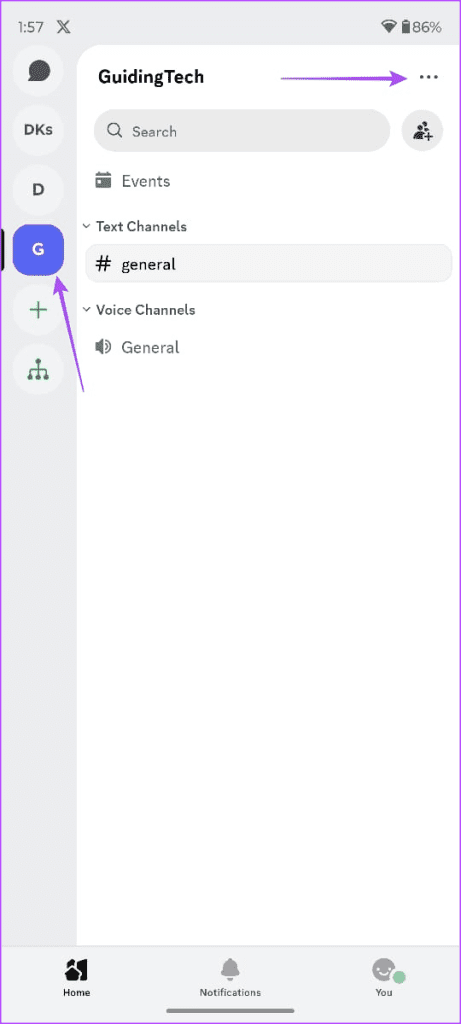
Step 1: Open Discord and select your server from the left sidebar.
Step 2: Tap on the three dots and select Create Channel.
Step 3: Name your channel and choose the channel type (Text or Voice).
Step 4: Toggle Private Channel on if you want it private. Otherwise, leave it off for a public channel.
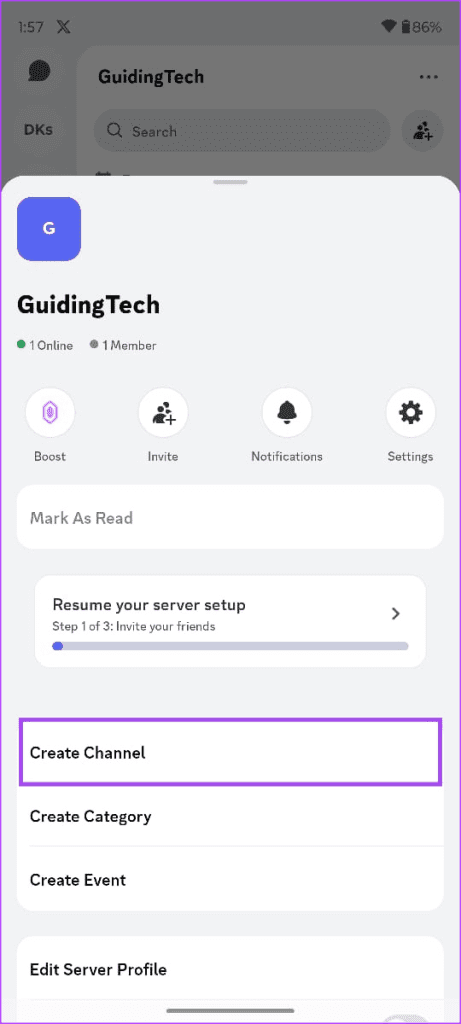

Step 5: Tap Create to finish creating the channel.
So that’s how you can create a new voice or text channel on Discord. If notifications aren’t working properly for the new channel, check out our guide on fixing Discord’s notification issues.
Was this helpful?
Last updated on 29 July, 2024
Read Next
 How to Lock a Discord Channel on Desktop and Mobile
Locking a Channel by Making it Private Making a Discord channel private means it becomes hidden from other members on a server.
How to Lock a Discord Channel on Desktop and Mobile
Locking a Channel by Making it Private Making a Discord channel private means it becomes hidden from other members on a server.
 2 Best Ways to Create a Poll on Discord for Desktop and Mobile
Want a quick and easy way to gain input from friends, family, or a community on Discord?
2 Best Ways to Create a Poll on Discord for Desktop and Mobile
Want a quick and easy way to gain input from friends, family, or a community on Discord?
 How to Add Friends on Discord for Desktop and Mobile
People join Discord to meet and connect with like-minded folks of their location.
How to Add Friends on Discord for Desktop and Mobile
People join Discord to meet and connect with like-minded folks of their location.
 How to Put Emojis in Discord Channel Names
Do you want to spice up your Discord community or bring a touch of creativity and visual appeal to your Discord server?
How to Put Emojis in Discord Channel Names
Do you want to spice up your Discord community or bring a touch of creativity and visual appeal to your Discord server?
 How to Share Screen in Discord on Desktop and Mobile
How to Share Your Screen in a Discord Voice Channel As a channel member, Discord lets you share your device’s screen with up to 50 people at once.
How to Share Screen in Discord on Desktop and Mobile
How to Share Your Screen in a Discord Voice Channel As a channel member, Discord lets you share your device’s screen with up to 50 people at once.
 How to Find a Discord User ID on Web, Desktop, and Mobile
Check Discord ID on the Web or Desktop App Step 1: Go to Discord from your preferred browser on your Windows or Mac and log in to your account.
How to Find a Discord User ID on Web, Desktop, and Mobile
Check Discord ID on the Web or Desktop App Step 1: Go to Discord from your preferred browser on your Windows or Mac and log in to your account.
 How to React to Messages on Discord (Mobile and Desktop)
How to React to Discord Messages on Desktop You can also react with custom emojis on Discord if you have Manage Emoji permission, are server owners, or have Discord Nitro.
How to React to Messages on Discord (Mobile and Desktop)
How to React to Discord Messages on Desktop You can also react with custom emojis on Discord if you have Manage Emoji permission, are server owners, or have Discord Nitro.
 How to Hide Mutual Servers in Discord on Desktop and Mobile
Method 1: Hide Discord Mutual Servers Using Hidden Folders Categorizing mutual servers into folders on Discord is one of the easiest ways to hide them from mutual friends.
How to Hide Mutual Servers in Discord on Desktop and Mobile
Method 1: Hide Discord Mutual Servers Using Hidden Folders Categorizing mutual servers into folders on Discord is one of the easiest ways to hide them from mutual friends.
The article above may contain affiliate links which help support Guiding Tech. The content remains unbiased and authentic and will never affect our editorial integrity.