Sure, PCs might be relying more on file transfer apps and the cloud to send and receive these days, but that doesn’t mean that Bluetooth is out of the game yet as a file transfer technology. That said, transferring files via Bluetooth in Windows 11 could be smoother.
In this article, we’ll show you how to create a Bluetooth transfer shortcut, Windows 11 style.
Adding a Bluetooth Transfer Shortcut (Windows 11) to Your Desktop
There are a few different ways to create Bluetooth shortcut, Windows 11, and it just depends on what works best for you. We’ve got the options below:
Directly on the Desktop
You can get Bluetooth on your Desktop without ever having to leave it. Here’s what you need to do:
Step 1. Right-click anywhere on your Desktop and hover over “New” in the context menu.
Step 2. In the next menu, click “Shortcut.”
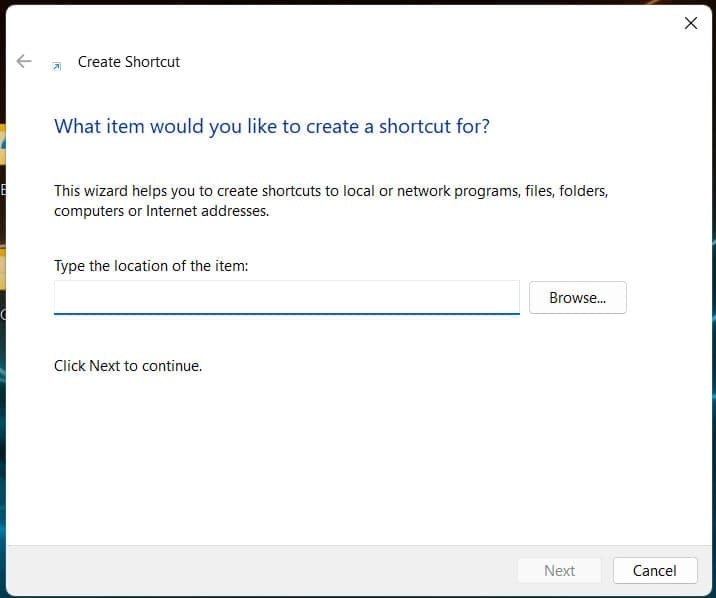
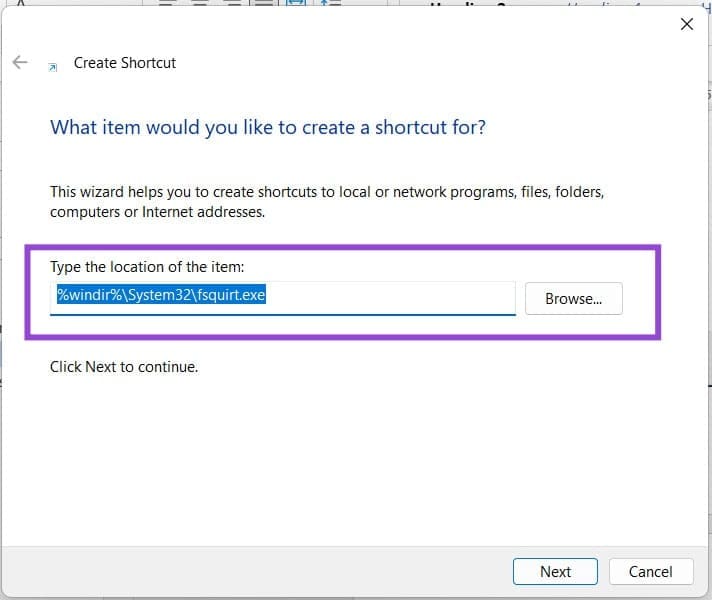
Step 3. A new window will appear. Type “%windir%\System32\fsquirt.exe” into the dialog box and click “Next.”
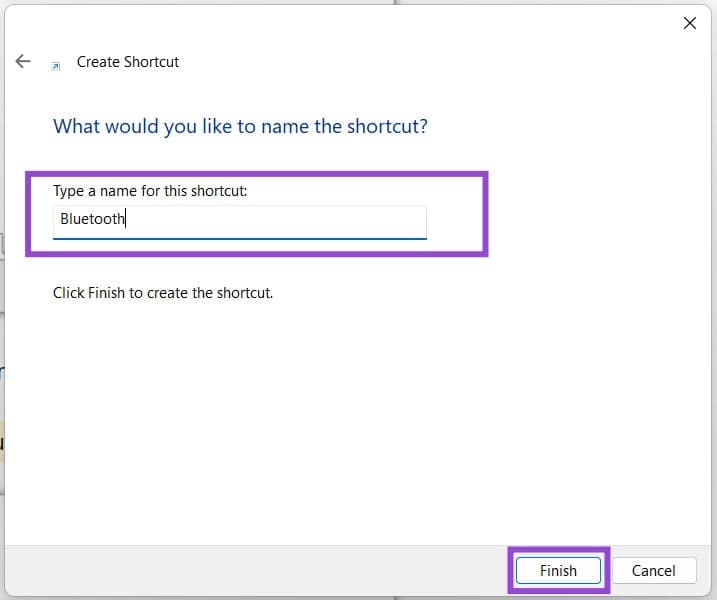
Step 4. Type a name for your shortcut. Just ensure it’ll make you remember the function. Click “Finish” to finalize.
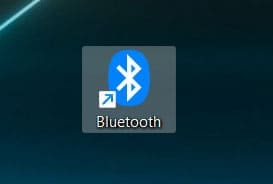
Step 5. Your Bluetooth function will appear as a shortcut. Double-click it to begin file transfers to any other PC or smart device.
Via System32
In the above solution, you might’ve noticed the shortcut path mentioned System32. This is where the Bluetooth file transfer app is kept. You can add it as a shortcut to your desktop directly. Here’s how to navigate to it:
Step 1. Open the Run Dialog (Win + R) and type “system32” before hitting “Enter.”
Step 2. An Explorer window will open in the System32 directory. Navigate right down (or type in the Search Box) to find “fsquirt.exe.”
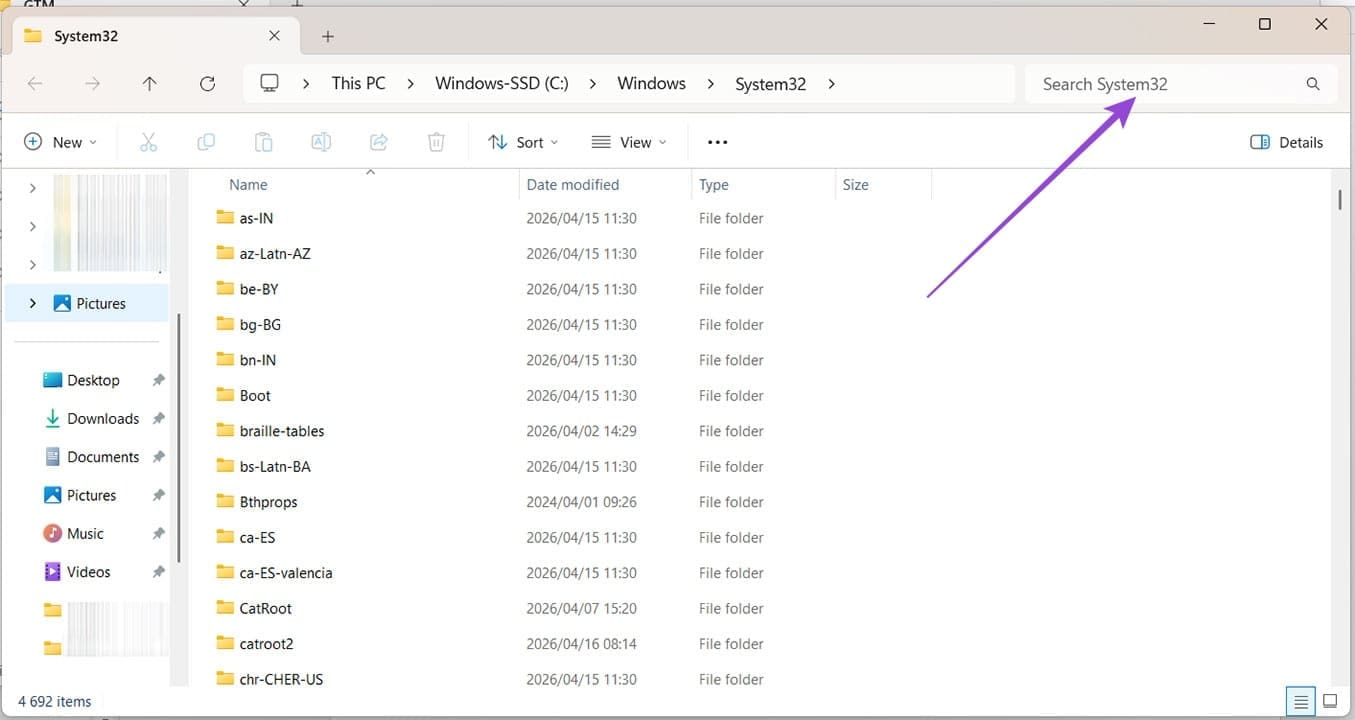
Step 3. Right-click the app, and click “Show more options” in the context menu.
Step 4. Hover over “Send to” and click “Desktop (create shortcut).”
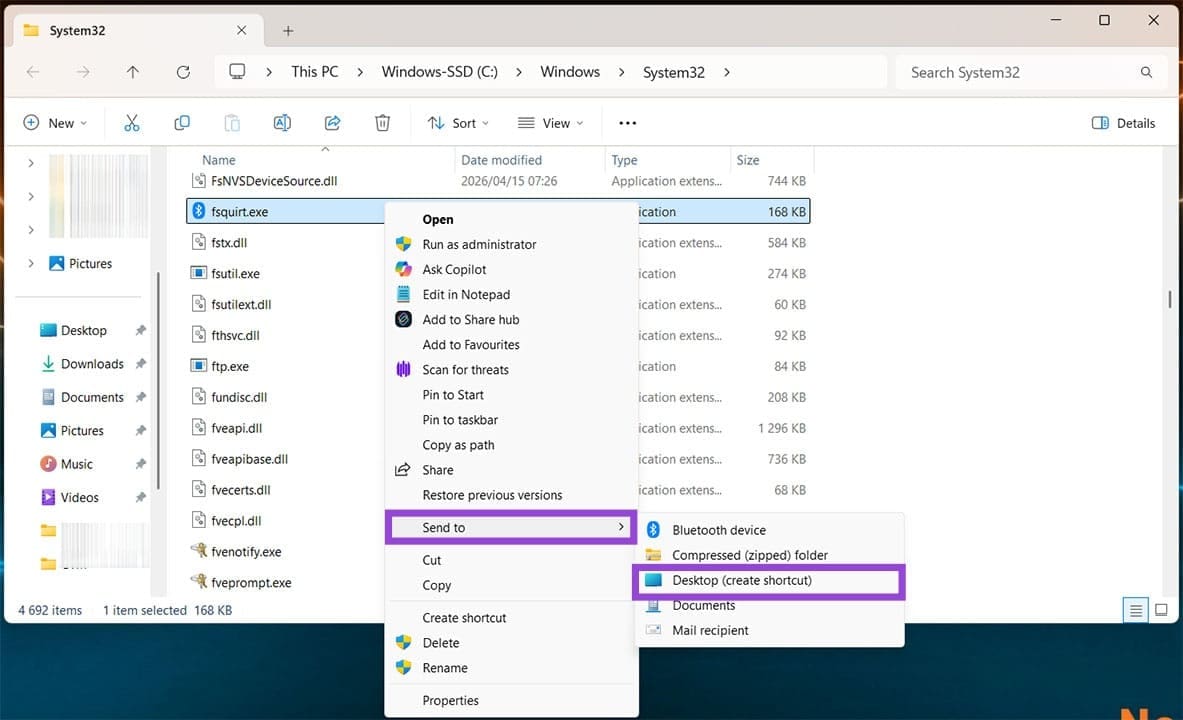
Step 5. “fsquirt.exe” will appear on your Desktop. Click it once to rename it if you wish.
Bluetooth Devices via Shortcut
If you want to create a shortcut not for Bluetooth transfer only, but for all Bluetooth devices, without having to turn to the System Tray, you can do so via the Desktop too:
Step 1. Right-click anywhere on the Desktop and select “New” and “Shortcut” from the context menu.
Step 2. A new window will pop up asking you for a path. Type “ms-actioncenter:controlcenter/Bluetooth” into the dialog box and click “Next” once done.
Step 3. Name your new shortcut and click “Finish” to finalize.
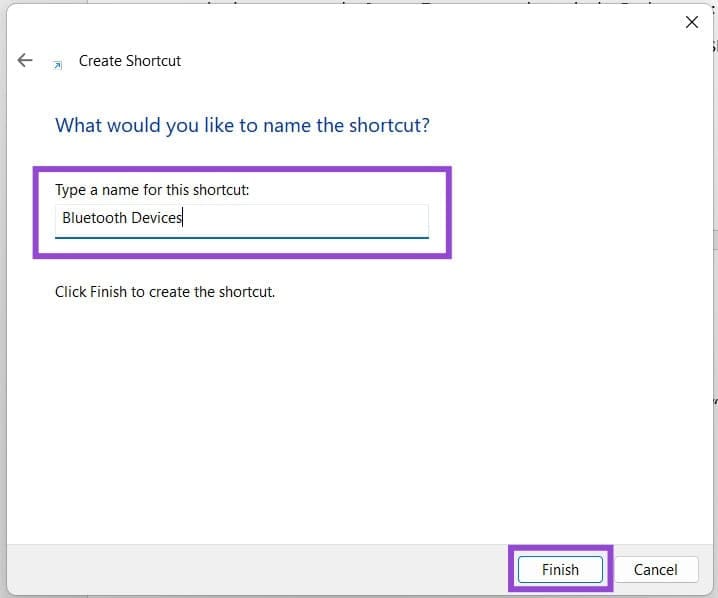
Step 4. It won’t be the most glamorous-looking shortcut, but it will be added to your Desktop.
Was this helpful?
Last updated on 27 April, 2026
Read Next
 How to Create Incognito Mode Shortcut on Windows Desktop
Create a Shortcut to Open Incognito Tab on Desktop Nearly all browsers offer Incognito/Private mode, but the feature is named differently on every browser.
How to Create Incognito Mode Shortcut on Windows Desktop
Create a Shortcut to Open Incognito Tab on Desktop Nearly all browsers offer Incognito/Private mode, but the feature is named differently on every browser.
 3 Ways to Fix Chrome Create Shortcut Not Working Issue
Fix 1: Create Shortcut Option Grayed Out Issue Sometimes, the Create Shortcut option will be grayed out if you use an Incognito or Guest window in Chrome.
3 Ways to Fix Chrome Create Shortcut Not Working Issue
Fix 1: Create Shortcut Option Grayed Out Issue Sometimes, the Create Shortcut option will be grayed out if you use an Incognito or Guest window in Chrome.
 Bluetooth 5.1 vs Bluetooth 4.2: The 4 Key Differences
Bluetooth is one of the most common means of wireless connectivity.
Bluetooth 5.1 vs Bluetooth 4.2: The 4 Key Differences
Bluetooth is one of the most common means of wireless connectivity.
 6 Fixes for Alt + Tab Shortcut Not Working on Windows 11
Fix 1.
6 Fixes for Alt + Tab Shortcut Not Working on Windows 11
Fix 1.
 3 Ways to Remove Shortcut Arrows in Windows
Method 1: Remove Shortcut Arrows by Manually Editing the Registry The Windows Registry is a database that stores configuration settings for your computer.
3 Ways to Remove Shortcut Arrows in Windows
Method 1: Remove Shortcut Arrows by Manually Editing the Registry The Windows Registry is a database that stores configuration settings for your computer.
 How to Make Windows 11 Shut Down Shortcut
In some cases, your PC might start malfunctioning and refuse to shut down or show the toolbar to provide the shut down menu access.
How to Make Windows 11 Shut Down Shortcut
In some cases, your PC might start malfunctioning and refuse to shut down or show the toolbar to provide the shut down menu access.
 How to Change the Default Language Shortcut in Windows
If one of your keyboard keys stopped working, it can be a big deal when it’s used for shortcuts.
How to Change the Default Language Shortcut in Windows
If one of your keyboard keys stopped working, it can be a big deal when it’s used for shortcuts.
 4 Ways to Fix Snipping Tool Keyboard Shortcut Not Working
Basic Fixes: Check your keyboard for damages: Any physical damage to keyboard keys might prevent them from working as expected.
4 Ways to Fix Snipping Tool Keyboard Shortcut Not Working
Basic Fixes: Check your keyboard for damages: Any physical damage to keyboard keys might prevent them from working as expected.
The article above may contain affiliate links which help support Guiding Tech. The content remains unbiased and authentic and will never affect our editorial integrity.