Method 1: Convert Units on iMessage
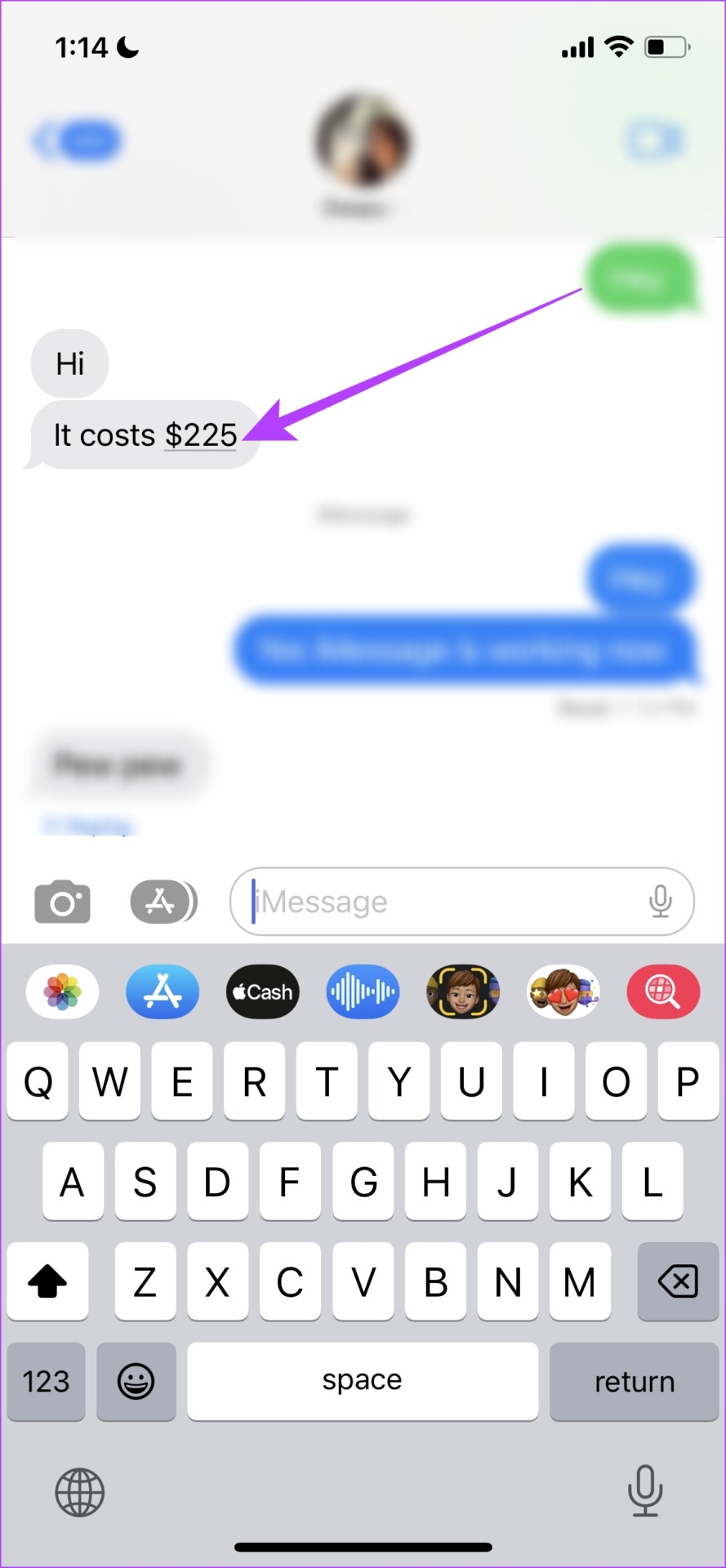
If you use iMessage regularly, you might come across a few parts of a text message that are underlined. This is a prompt to take more actions, say converting time in the message to a calendar event, or converting a currency or unit to another value. For more context, look at our illustration below.
Step 1: Open iMessage and the text that contains the information you need to convert.
Step 2: You will see an underline below a quantity. Tap on the same.
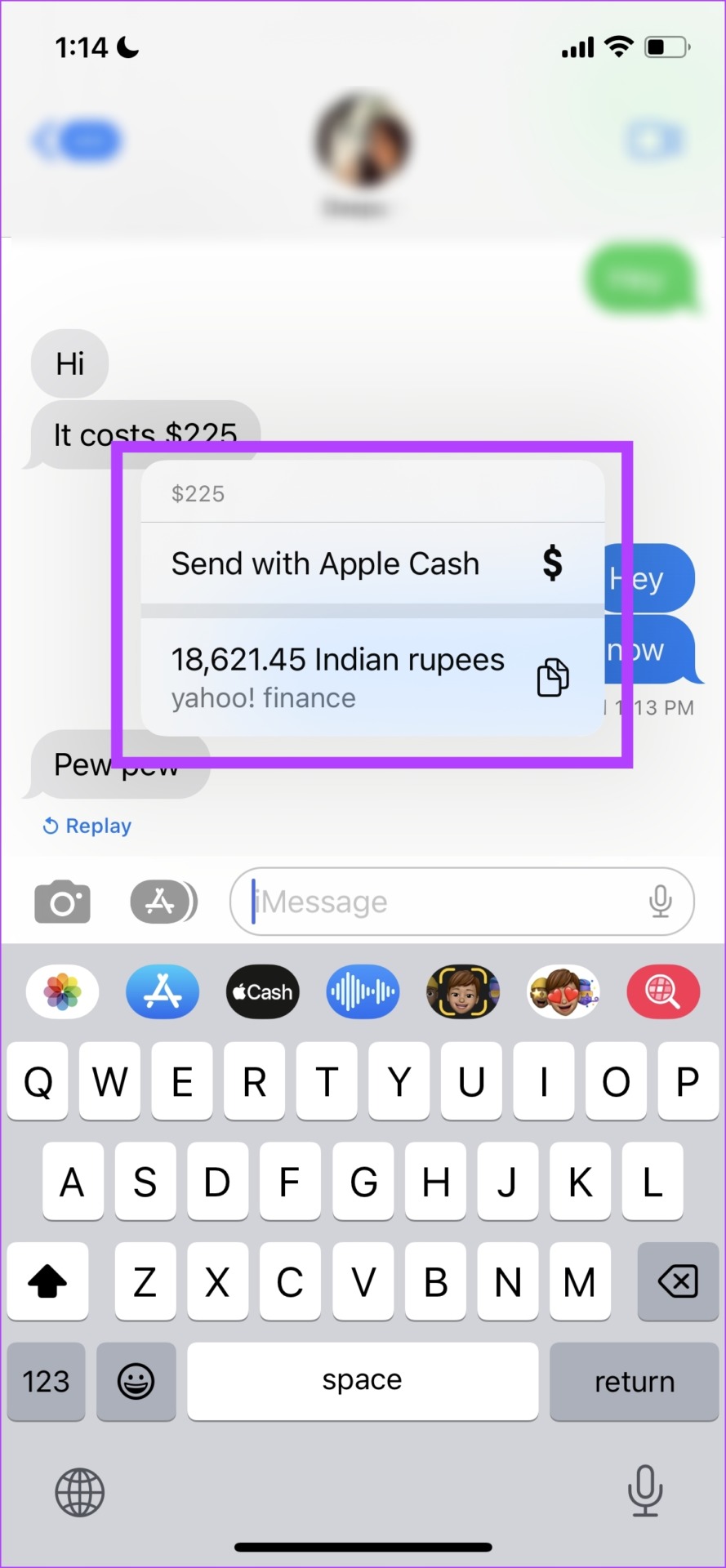
The unit or currency will convert. You also get options like copying the converted result or sending the money with Apple Cash (in our case).
Method 2: Highlight Text to Convert Units, Time Zones, and Currencies
If your iPhone doesn’t provide a prompt to convert a quantity, you can manually select the same to convert.
Step 1: Select the part of the text that has the quantity you need to convert.
Step 2: Tap on the right arrowhead icon in the list of options that popped up.
You will now find the converted quantity, unit, or even time zone.


Method 3: Use the Camera
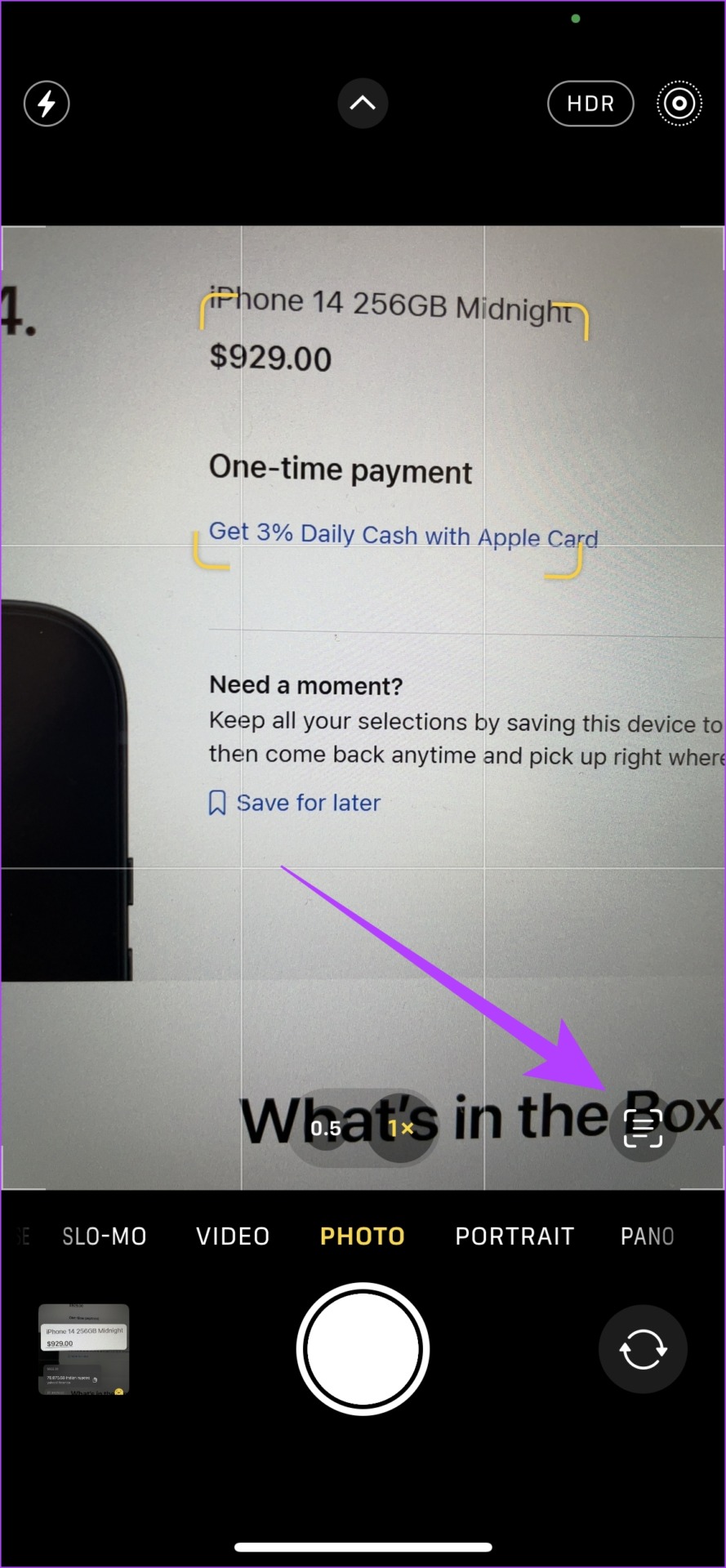
Using Live Text, you can simply point your camera at something that you want to convert including temperature, time zone, currency, and unit, and the rest is magic.
Step 1: Point your camera towards the text you need to convert and tap on the detect text icon at the bottom right corner of the viewfinder.
Step 3: Once the text is detected, the option turns yellow and you need to select it again.
Step 4: You can now see that the text that can be converted is underlined. Tap on it to see the converted value.


Method 4: Use Spotlight Search for Conversion on iPhone
Spotlight search lets you search everything on your iPhone with a simple swipe-down gesture. It also helps you convert quantities.
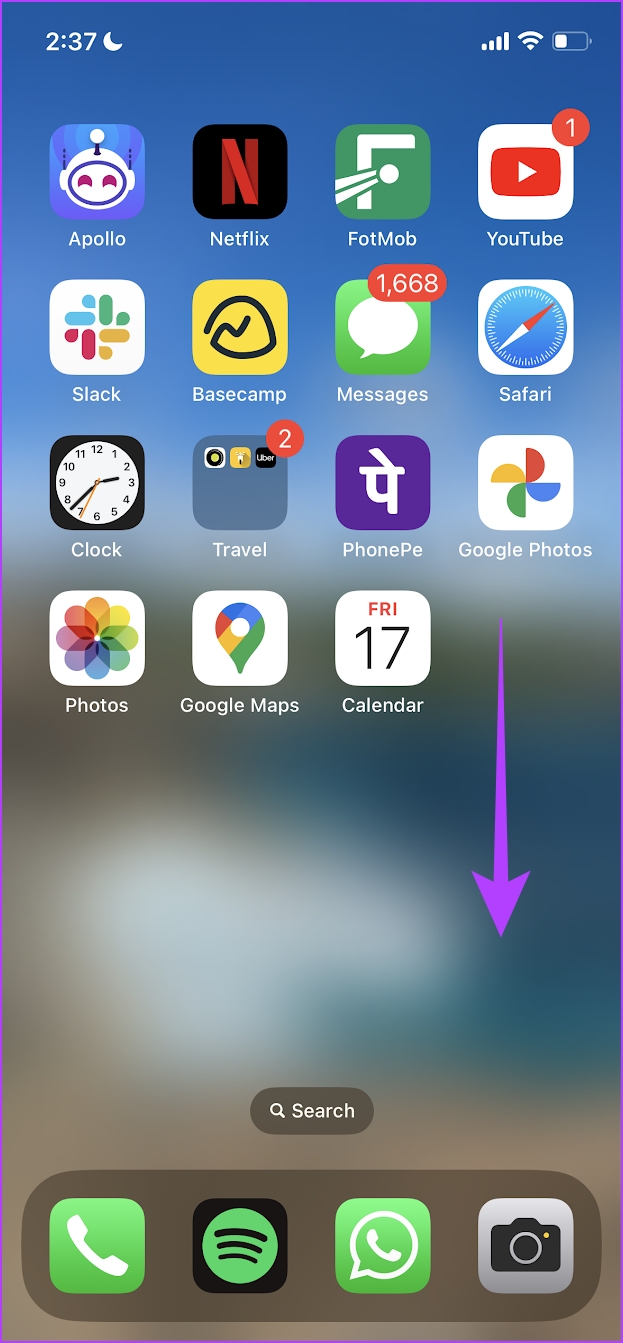
Step 1: Swipe down on your home screen to open the Spotlight search.
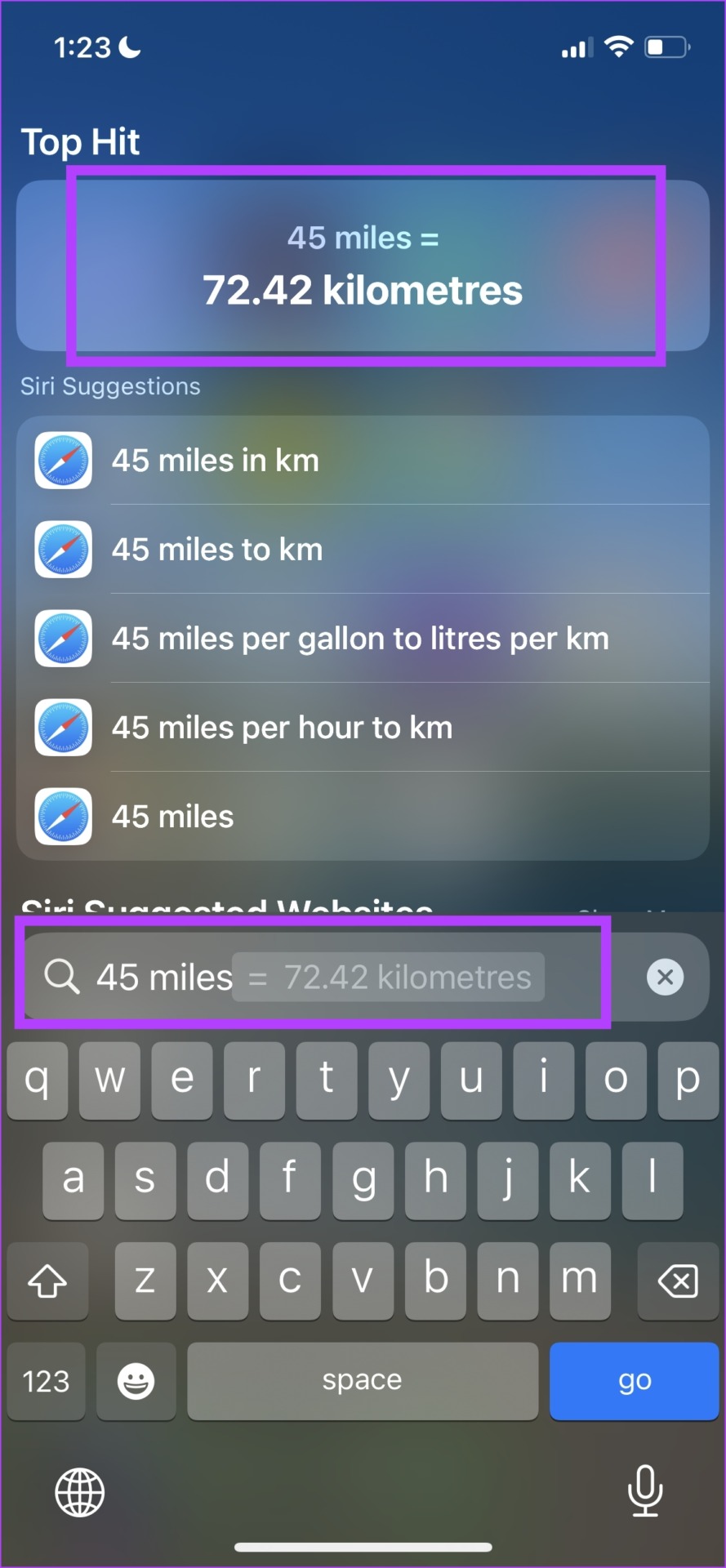
Step 2: Type in the quantity you want to convert along with the unit, and the first search result will return the converted value.
Method 5: Use Siri for Unit Conversion
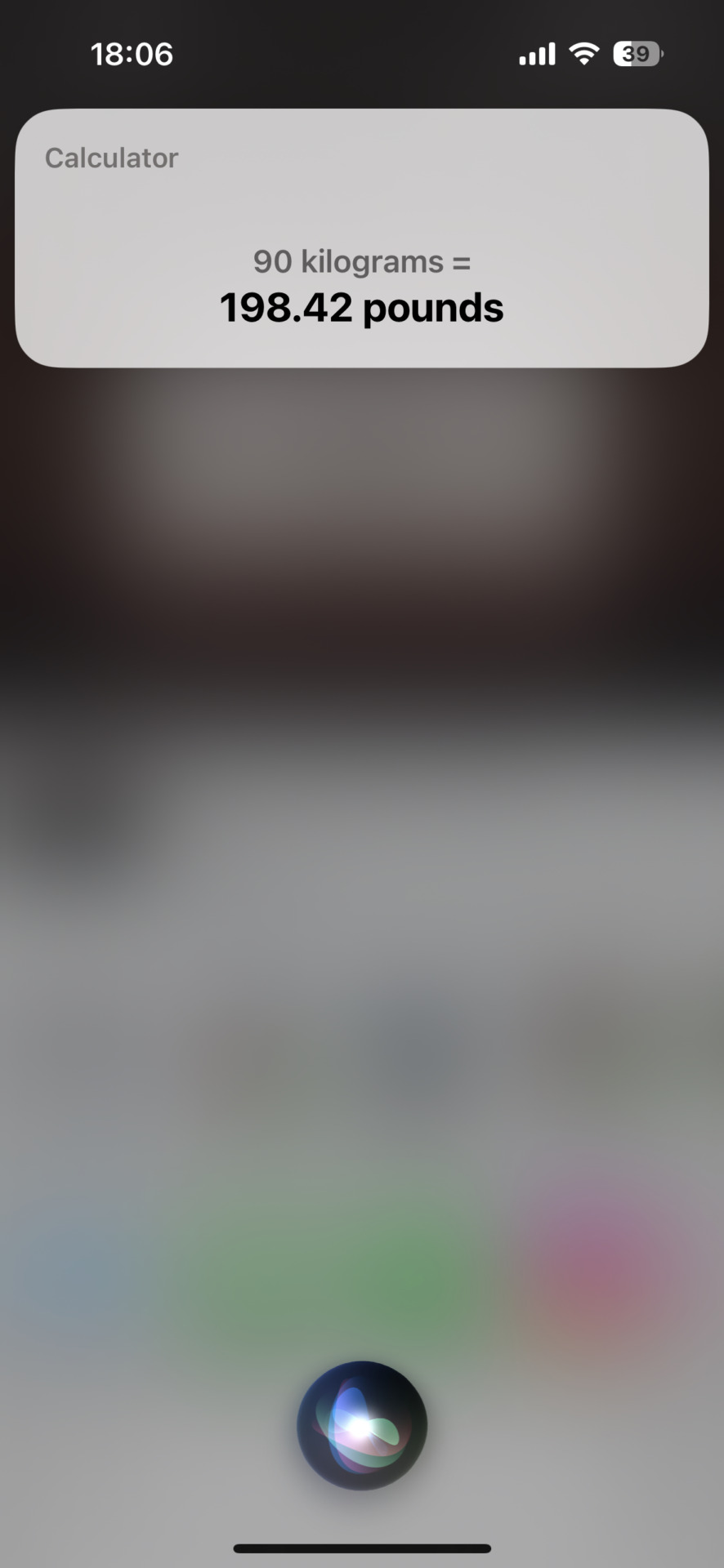
All you need to do is summon Siri and give commands like: ‘Convert $50 into Rupees‘ or ‘how much is 90Kgs in Pounds‘. The assistant will immediately answer the question.
Besides, you can convert the currency, unit, time zone, etc. as well regardless of where you are located.

Method 6: Use Third-Party Apps
Third-party apps to convert quantities on iPhone give you a better set of controls and options to convert units and quantities.
Unit Converter – Best Units App: This is a free-to-use app that helps you quickly convert units on iPhone, and comes with great reviews.
Converter+: Converter + is also free to use, but packs in a much more minimal and functional user interface, and has a large list of units and currencies you can convert on iPhone.
Method 7: Use Units and Currency Conversion Calculator on Google
The good old Google search comes to our rescue in nearly every situation, and it is no different when it comes to converting units and currencies on your iPhone. You can type in any conversion-related query using Google search on Safari, and the search results will help you out.


Also Read: 7 free calculator apps for iPhone
Was this helpful?
Last updated on 30 June, 2024
Read Next
 5 Best Portable Apple CarPlay Units For Your Vehicle
Apple CarPlay head units allow users to access their playlists and podcasts seamlessly.
5 Best Portable Apple CarPlay Units For Your Vehicle
Apple CarPlay head units allow users to access their playlists and podcasts seamlessly.
 How to Convert HEIC Images to PNG on iPhone the Easy Way
HEIC is the default photo format on the iPhone for a good reason.
How to Convert HEIC Images to PNG on iPhone the Easy Way
HEIC is the default photo format on the iPhone for a good reason.
 How to Easily Convert JPG to HEIC Images on iPhone
Method 1: Use a Shortcut to Convert JPG to HEIC I've created a Shortcut to help you quickly convert a JPG image to HEIC.
How to Easily Convert JPG to HEIC Images on iPhone
Method 1: Use a Shortcut to Convert JPG to HEIC I've created a Shortcut to help you quickly convert a JPG image to HEIC.
 5 Ways to Convert Photo to PDF on iPhone or iPad (Without Third-Party Apps)
iOS offers multiple ways to convert pictures to PDF on iPhone quickly, efficiently, and without an app.
5 Ways to Convert Photo to PDF on iPhone or iPad (Without Third-Party Apps)
iOS offers multiple ways to convert pictures to PDF on iPhone quickly, efficiently, and without an app.
 4 Ways to Convert Word to PDF on iPhone or iPad (For Free)
Method 1.
4 Ways to Convert Word to PDF on iPhone or iPad (For Free)
Method 1.
 How to Convert Slow Motion Video to Normal Video on iPhone
Recording a video in slow motion can add an artistic flair to your content and make it visually appealing.
How to Convert Slow Motion Video to Normal Video on iPhone
Recording a video in slow motion can add an artistic flair to your content and make it visually appealing.
 4 Ways to Convert WEBP Images to JPG/PNG on iPhone
What is a WEBP Image and Why Can't I View It WEBP format aims to compress the image to a size relatively lower than the PNG/JPEG formats while maintaining adequate
4 Ways to Convert WEBP Images to JPG/PNG on iPhone
What is a WEBP Image and Why Can't I View It WEBP format aims to compress the image to a size relatively lower than the PNG/JPEG formats while maintaining adequate
 2 Ways to Convert RAW (DNG) Photos to JPG on iPhone
Method 1: Turn RAW Images to JPG/PNG in the Files App The Files app on your iPhone is a Swiss Army knife that lets you modify, manage, and even convert
2 Ways to Convert RAW (DNG) Photos to JPG on iPhone
Method 1: Turn RAW Images to JPG/PNG in the Files App The Files app on your iPhone is a Swiss Army knife that lets you modify, manage, and even convert
The article above may contain affiliate links which help support Guiding Tech. The content remains unbiased and authentic and will never affect our editorial integrity.