Method 1: Turn RAW Images to JPG/PNG in the Files App
The Files app on your iPhone is a Swiss Army knife that lets you modify, manage, and even convert files from one format to another.
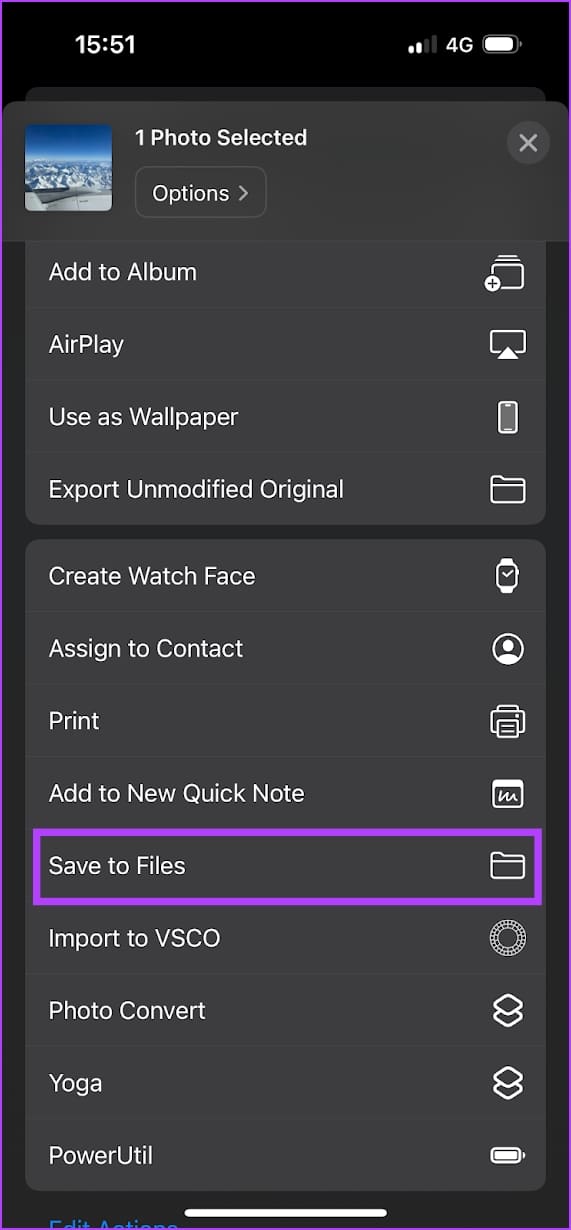
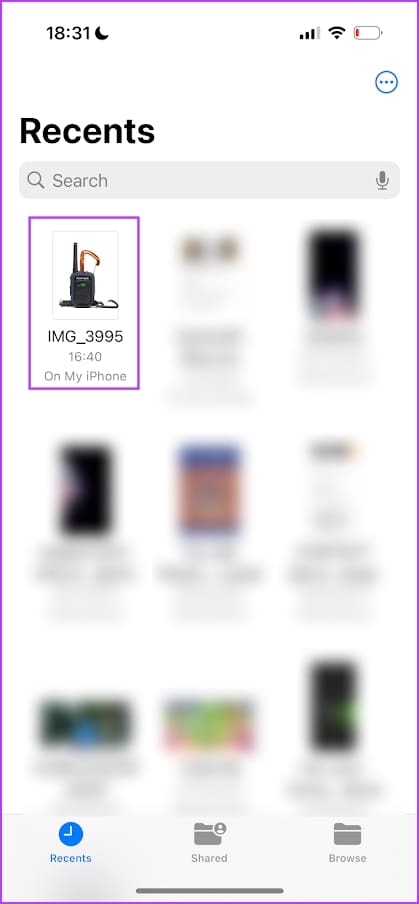
Step 1: Open the RAW image that you want to convert. Tap on the share button, and select Save to Files.
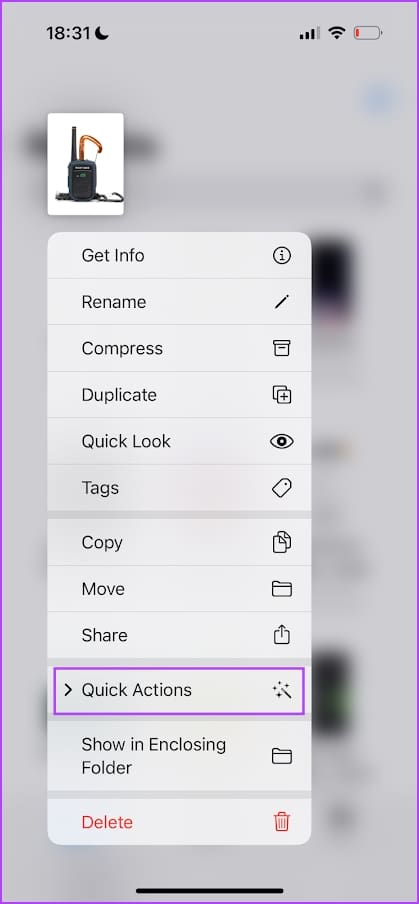
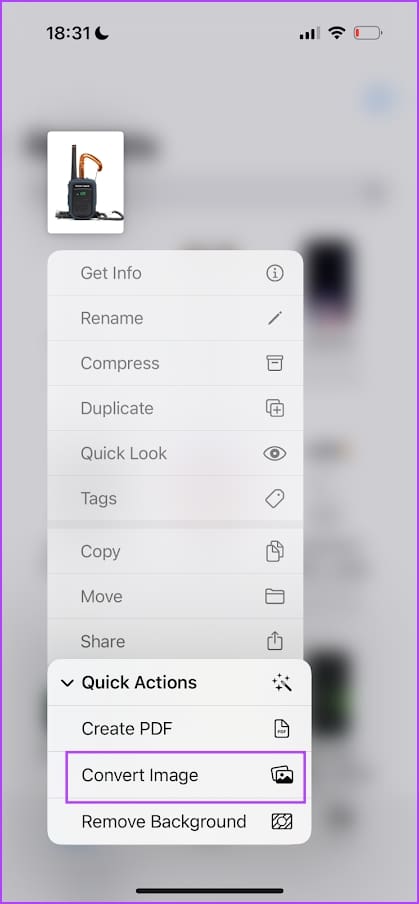
Step 2: Long-press on the image in Files and select Quick Actions.
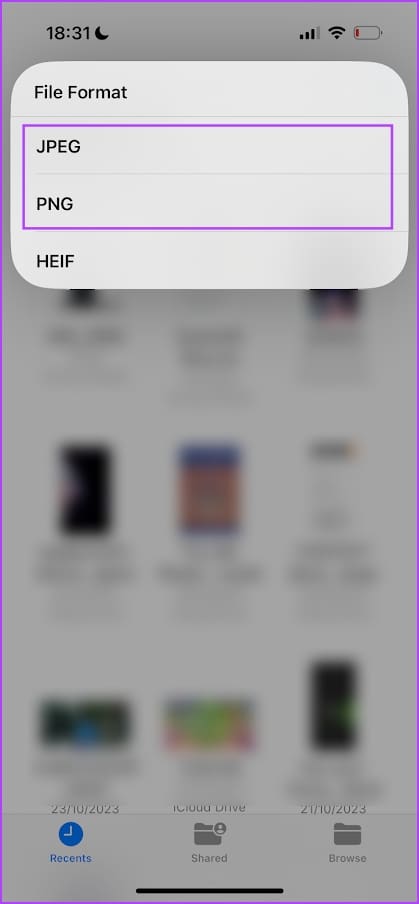
Step 2: Tap on Convert Image. Select the output format, and select the image size if asked.

Also Read: How to convert WEBP images to JPG/PNG on iPhone
Method 2: Batch Convert RAW to JPG or PNG
You can also create a Shortcut to convert RAW (DNG) images to JPG/PNG easily on your iPhone. This is helpful if you want to convert images directly from the Photos app.
I’ve created a shortcut that you can directly download and access from the Shortcuts app.
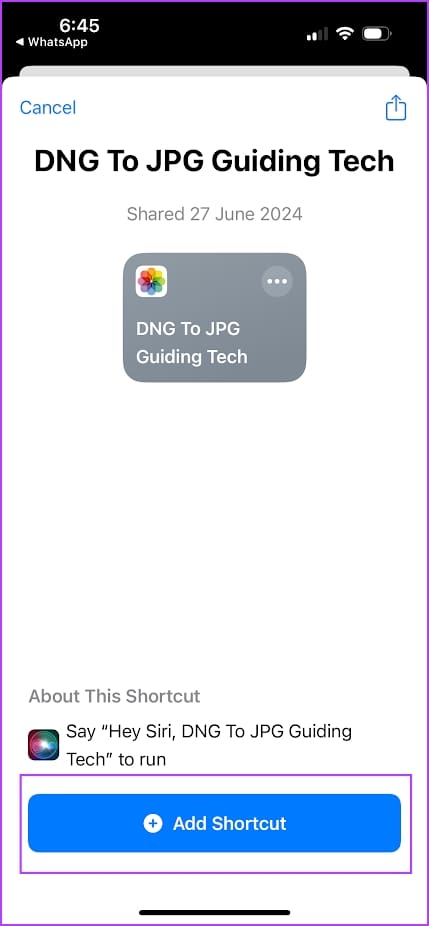
Step 1: Download the Shortcut from the iCloud link, and tap on Add Shortcut. Tap on the Shortcut (DNG to JPG Guiding Tech) when you add it.
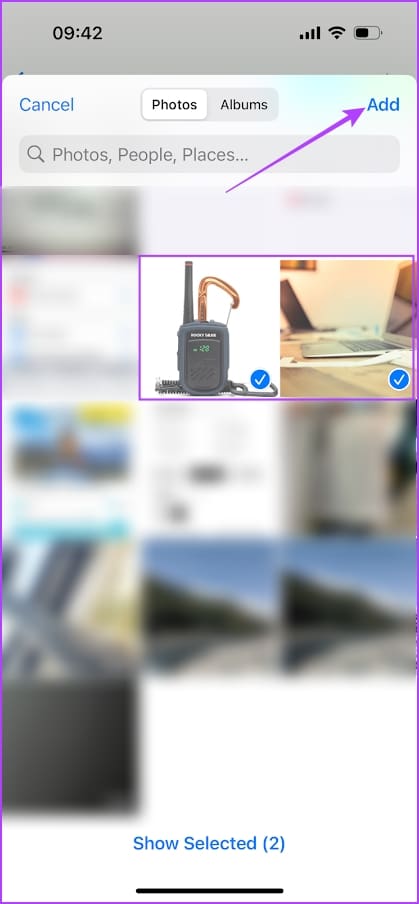
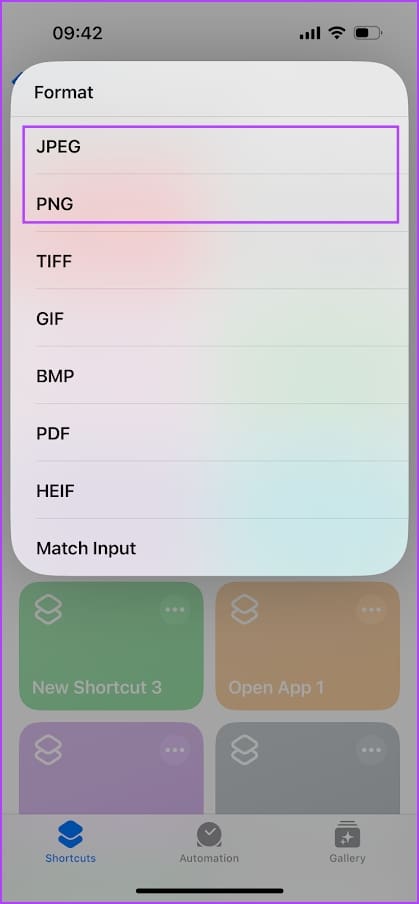
Step 2: Select all the images you want to convert and tap on Add. Select the output format, and tap on Done on the following screen. The image will be saved to the Recents folder in the Photos app.
Also Read: How to convert HEIC images to PNG on iPhone
How to Turn Off ProRaw on iPhone
If you wish to turn off the ProRAW mode on your iPhone, here’s how you can do it.
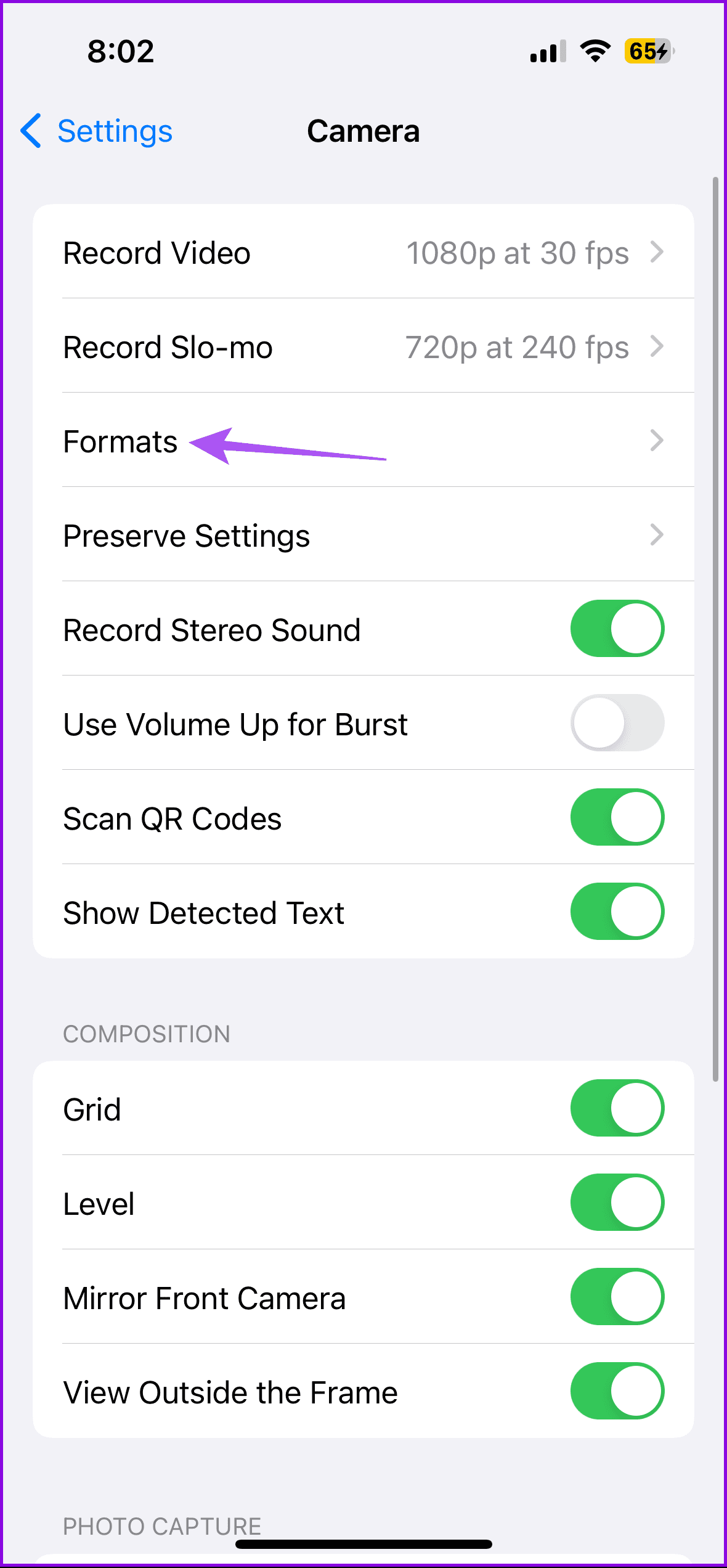
Step 1: Open the Settings app, and select Camera. Tap on Formats.
Step 2: Turn off the toggle for ProRAW & Resolution Control.

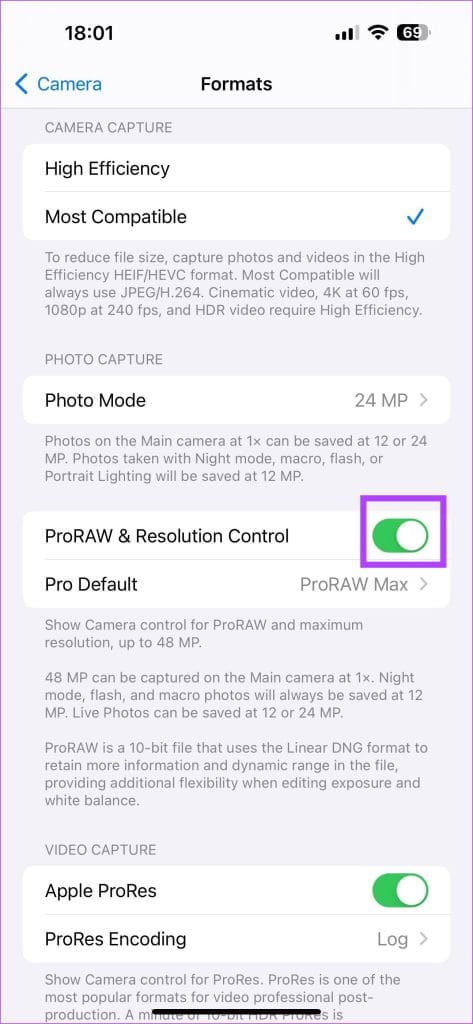
Alternatively, if you want to keep ProRAW turned on but want to disable it for certain photos, you can tap on the RAW button in the top right corner of the Camera app to turn it off.

Bonus: How to View DNG Images on Windows and Android Devices
If you do not wish to convert the RAW (DNG) image and want to view it while retaining the format – here’s how you can do so.
The default Photos app on your Windows PC lets you natively view DNG images. If you cannot view them, you can download a DNG viewer app for free like File Viewer Lite.
Further, you can also use an online DNG image viewer from your web browser. You can access this free tool called Photokit.
If you are facing issues while opening a DNG – RAW image on your Android device, you can download a file manager app that can open files of various formats. Solid File Manager is one such free app on the Play Store.
Was this helpful?
Last updated on 30 June, 2024
Read Next
 4 Ways to Convert WEBP Images to JPG/PNG on iPhone
What is a WEBP Image and Why Can't I View It WEBP format aims to compress the image to a size relatively lower than the PNG/JPEG formats while maintaining adequate
4 Ways to Convert WEBP Images to JPG/PNG on iPhone
What is a WEBP Image and Why Can't I View It WEBP format aims to compress the image to a size relatively lower than the PNG/JPEG formats while maintaining adequate
 How to Easily Convert JPG to HEIC Images on iPhone
Method 1: Use a Shortcut to Convert JPG to HEIC I've created a Shortcut to help you quickly convert a JPG image to HEIC.
How to Easily Convert JPG to HEIC Images on iPhone
Method 1: Use a Shortcut to Convert JPG to HEIC I've created a Shortcut to help you quickly convert a JPG image to HEIC.
 6 Methods to Convert HEIC to JPG on Windows 11/10
Method 1: iOS 'Automatic' Transfer Mode iOS built-in solution allows you to instantly convert HEIC to JPG as soon as you connect it to a Mac or PC, making it
6 Methods to Convert HEIC to JPG on Windows 11/10
Method 1: iOS 'Automatic' Transfer Mode iOS built-in solution allows you to instantly convert HEIC to JPG as soon as you connect it to a Mac or PC, making it
 3 Ways to Convert WEBP to JPG or PNG on Android
Method 1: Use Google Photos While Google Photos doesn’t offer a native way to convert WEBP images to JPG or PNG, applying an edit does the job.
3 Ways to Convert WEBP to JPG or PNG on Android
Method 1: Use Google Photos While Google Photos doesn’t offer a native way to convert WEBP images to JPG or PNG, applying an edit does the job.
 How to Convert HEIC to JPG on Android
Apple began implementing HEIC as the default image storage format for the iPhone in 2017.
How to Convert HEIC to JPG on Android
Apple began implementing HEIC as the default image storage format for the iPhone in 2017.
 How to Convert JPG to PNG in Paint 3D on Windows PC
Paint 3D is a modern upgrade over the classic Microsoft Paint.
How to Convert JPG to PNG in Paint 3D on Windows PC
Paint 3D is a modern upgrade over the classic Microsoft Paint.
 How to Switch From HEIC to JPG on iPhone
Switch From HEIC to JPG Step 1: Go to iPhone Settings > Camera.
How to Switch From HEIC to JPG on iPhone
Switch From HEIC to JPG Step 1: Go to iPhone Settings > Camera.
 How to Convert Normal Photos to Portrait on iPhone 15 and Older Models
Add Portrait Mode to an Existing Photo on iPhone 15 Series Both the A17 Pro and the A16 Bionic have a neural engine and an image-sensing processor that help run
How to Convert Normal Photos to Portrait on iPhone 15 and Older Models
Add Portrait Mode to an Existing Photo on iPhone 15 Series Both the A17 Pro and the A16 Bionic have a neural engine and an image-sensing processor that help run
The article above may contain affiliate links which help support Guiding Tech. The content remains unbiased and authentic and will never affect our editorial integrity.