Step 1: Tap on the comment button under a post. You will find the sticker icon on the right.
Step 2: Go to the GIFs tab. Instagram has also integrated GIPHY so you can use the search bar to find the GIF of your choice.
Step 3: Once you find the GIF, tap on it.

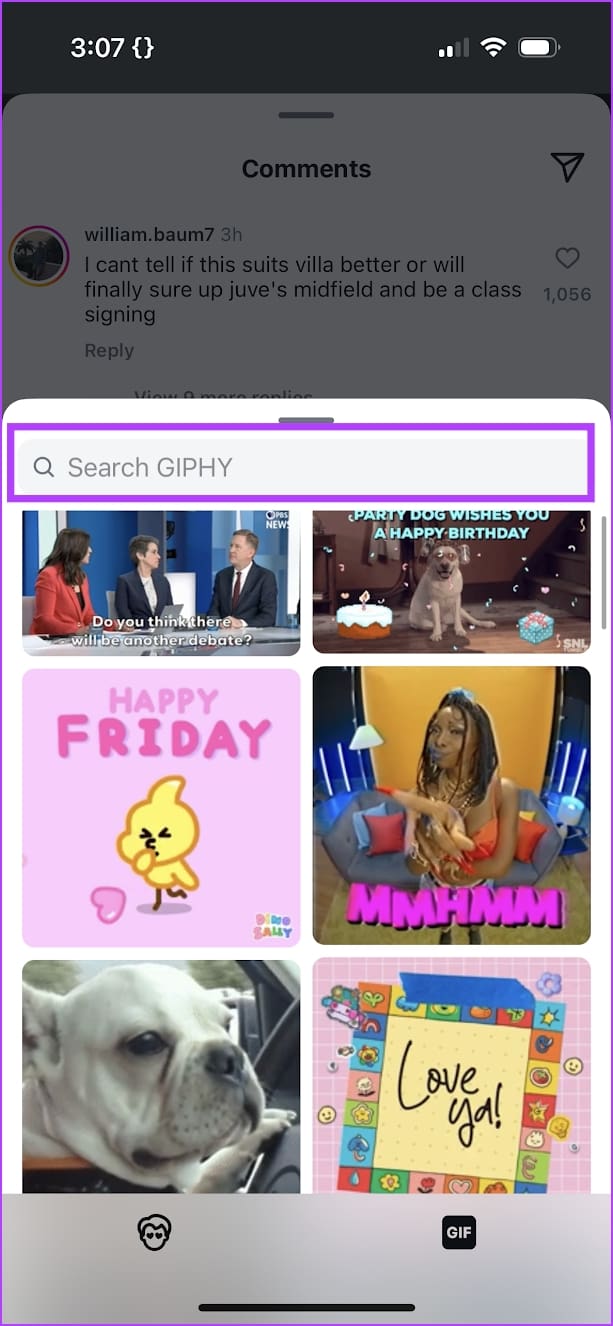
However, we advise you to double-check the GIF you are posting as a comment. Once you tap on the GIF, it gets sent as a comment without any further prompt.
Tip: Check out how to send live photos as GIFs on WhatsApp
Delete a Comment With a GIF on Instagram
So, if you accidentally selected the wrong GIF to comment on Instagram, there’s no way to edit it. However, you can quickly delete the comment and send one with the right GIF.
On Android: Long-tap on the comment with a GIF that you want to delete, and use the delete option.
On iOS: Swipe left on the comment with the GIF, and use the delete option.

Once you delete the comment, you can post another comment while carefully selecting the right GIF.
Was this helpful?
Last updated on 30 June, 2024
Read Next
 What to Do if You Can’t Post Comments on Facebook Posts
Try Basic Fixes The post owner has moderated comments: If the post owner has turned off comments from friends and followers, you won’t be able to comment.
What to Do if You Can’t Post Comments on Facebook Posts
Try Basic Fixes The post owner has moderated comments: If the post owner has turned off comments from friends and followers, you won’t be able to comment.
 4 Ways to Fix the Couldn’t Post Comment Error on Instagram App
Basic Fixes Check network connection: Ensure there's no problem with your Wi-Fi or cellular network.
4 Ways to Fix the Couldn’t Post Comment Error on Instagram App
Basic Fixes Check network connection: Ensure there's no problem with your Wi-Fi or cellular network.
 11 Facebook Comment Tricks and Tips You Should Know
Tip 1: @highlight in Facebook Comments If you have a comment that you want all your friends to be notified of, simply type @ and select @highlight from the options.
11 Facebook Comment Tricks and Tips You Should Know
Tip 1: @highlight in Facebook Comments If you have a comment that you want all your friends to be notified of, simply type @ and select @highlight from the options.
 Why Can’t I Share Instagram Posts to My Story?
Why Can’t I Share Posts to Story on Instagram 1.
Why Can’t I Share Instagram Posts to My Story?
Why Can’t I Share Posts to Story on Instagram 1.
 3 Easy Ways to Hide Posts From Someone on Instagram
Note: Changing settings on your desktop automatically syncs to your mobile device, so you don't have to follow the same methods on your mobile device as you would on your
3 Easy Ways to Hide Posts From Someone on Instagram
Note: Changing settings on your desktop automatically syncs to your mobile device, so you don't have to follow the same methods on your mobile device as you would on your
 3 Ways to Fix Instagram Feed Not Showing Friends Posts
Why Can’t I See My Friends’ Posts on My Instagram Feed?
3 Ways to Fix Instagram Feed Not Showing Friends Posts
Why Can’t I See My Friends’ Posts on My Instagram Feed?
 9 Ways to Fix Videos Freezing on Instagram Stories and Posts
Ever since apps like Dubsmash and TikTok popularized short videos, popular social media apps have come up with alternatives for posting short-form content.
9 Ways to Fix Videos Freezing on Instagram Stories and Posts
Ever since apps like Dubsmash and TikTok popularized short videos, popular social media apps have come up with alternatives for posting short-form content.
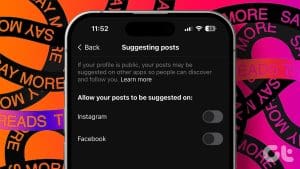 How to Stop Seeing Threads Posts and Notifications on Instagram
How to Hide Threads' Posts and Notifications Manually Instagram uses algorithms to suggest posts and accounts based on your interactions within the app.
How to Stop Seeing Threads Posts and Notifications on Instagram
How to Hide Threads' Posts and Notifications Manually Instagram uses algorithms to suggest posts and accounts based on your interactions within the app.
The article above may contain affiliate links which help support Guiding Tech. The content remains unbiased and authentic and will never affect our editorial integrity.