You open Chrome settings to clear cookies on exit, go to the page where the toggle used to be, and it’s not there. It looks like a bug or a broken profile, but it’s neither. Google often renames settings and moves them to a different page, and this has happened to the history and cookies options. Apart from this, there are a few situations where the option for Chrome clear cookies is missing because it is blocked, which needs to be rechecked.
Why the Clear Cookies Option Seems Missing in Chrome
Google now groups cookie and other site-data behavior under a setting called “On-device site data.” The old “Clear cookies and site data when you close all windows” checkbox is now one of three choices under a “Default behavior” heading on a completely different settings page.
If you can see the setting but it is greyed out, that can be a problem. A greyed-out control means a policy is managing it, usually from a work or school profile, or from a leftover entry in Group Policy or the registry on a personal PC.
Fix 1 – Use the On-Device Site Data Setting
This is the current location of the clear-on-exit option and where most people should start.
Step 1. Open Chrome, click the three-dot menu, and select “Settings.” You can also paste “chrome://settings/content/siteData” into the address bar to jump straight there.
Step 2. If you prefer the menus, go to “Privacy and security” > “Site settings” > “Additional content settings” > “On-device site data.”
Step 3. Under “Default behavior,” select “Delete data sites have saved to your device when you close all windows.”
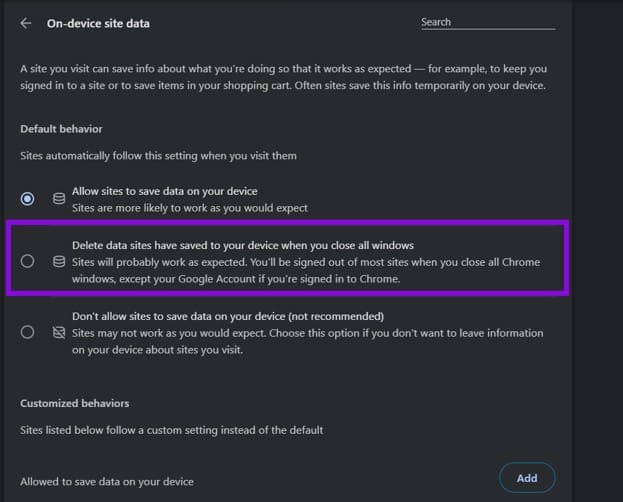
The third option, “Don’t allow sites to save data on your device,” blocks storage completely and breaks a lot of websites, so stick with the middle one unless you know you want that. If there are sites you would rather stay signed in to, add them under “Customized behaviors.”
Fix 2 – Clear Cookies Manually
If you only want a clean slate right now, you do not need the automatic setting at all.
Step 1. Press “Ctrl + Shift + Delete” (Cmd + Shift + Delete on Mac).
Step 2. Choose a time range, check “Cookies and other site data,” and click the Delete button.
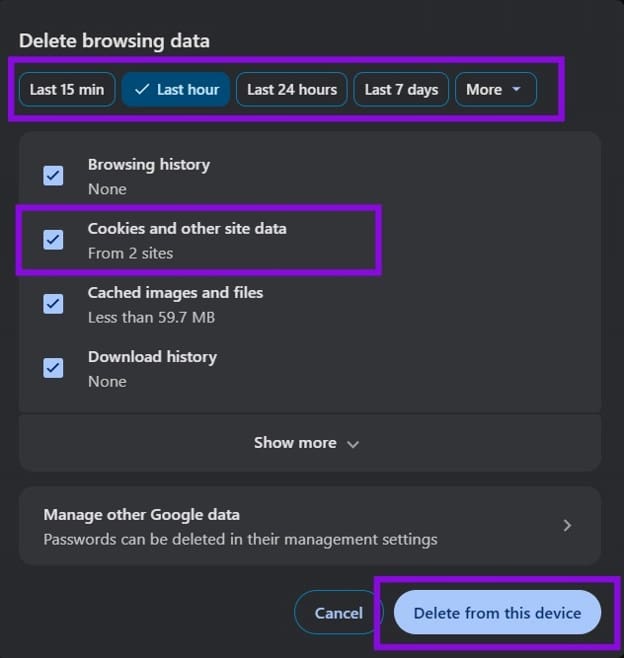
For a single website, you can use the address “chrome://settings/content/all” and search for the domain, then click the bin icon next to it. Be aware that this clears the entire storage scope for that site, including cached data and local storage, not just its cookies.
Fix 3 – Check Whether Chrome Is Being Managed
A policy set by an employer, or one left behind by software you installed years ago, can hide or lock cookie settings. If this is the case, try the following if Chrome “Clear cookies” not working.
Step 1. Type “chrome://policy” in the address bar and press “Enter.”
Step 2. Look through the list for cookie-related entries such as “ClearBrowsingDataOnExitList.” If your browser belongs to a work or school account, this is where it will show up, and only an administrator can change it.
Step 3. On a personal PC, open the Local Group Policy Editor and go to Computer Configuration > Administrative Templates > Google Chrome. Double-click “Clear Browsing Data on Exit,” set it to “Not Configured,” and click “OK.”
Step 4. If the policy was set through the registry instead, open Registry Editor, go to “HKEY_LOCAL_MACHINE\SOFTWARE\Policies\Google\Chrome,” and delete the ClearBrowsingDataOnExitList entry. Restart the PC afterward.
Fix 4 – Make Sure Chrome Has Actually Closed
Plenty of people set the option correctly and then find that their site data is still present the next morning. The setting applies when all Chrome windows are closed.
Step 1. Close all Chrome windows, then open Task Manager and look for any remaining “chrome.exe” processes under the Details tab.

Step 2. End any that are still running, then reopen Chrome and check whether you have been signed out of the sites you visited.
Was this helpful?
Last updated on 06 September, 2026
Read Next
 How to Clear Cookies and Cache in Chrome for One Site
How to Clear Chrome Cookies and Cache for One Site Only on a Desktop Method 1: Delete Chrome Cache and Cookie From the Website Step 1: Load the site from
How to Clear Cookies and Cache in Chrome for One Site
How to Clear Chrome Cookies and Cache for One Site Only on a Desktop Method 1: Delete Chrome Cache and Cookie From the Website Step 1: Load the site from
 How to Clear Cache and Cookies on Microsoft Edge
Clear Microsoft Edge Cache and Cookies in Windows and Mac Here are all the ways to clear your Microsoft Edge cache and cookies on Windows and Mac.
How to Clear Cache and Cookies on Microsoft Edge
Clear Microsoft Edge Cache and Cookies in Windows and Mac Here are all the ways to clear your Microsoft Edge cache and cookies on Windows and Mac.
 Missing Cast Option in Chrome? Here’s How to Add It Back to the Toolbar
Chrome lets you cast your browser tabs or the entire screen to all the nearby devices with Chromecast support.
Missing Cast Option in Chrome? Here’s How to Add It Back to the Toolbar
Chrome lets you cast your browser tabs or the entire screen to all the nearby devices with Chromecast support.
 How to Set Microsoft Edge to Automatically Clear Browser Cookies
Browsers like Microsoft Edge use “cookies” to improve your online experiences.
How to Set Microsoft Edge to Automatically Clear Browser Cookies
Browsers like Microsoft Edge use “cookies” to improve your online experiences.
 5 Ways to Fix Background Apps Permissions Option Missing on Windows 11
Fix 1: Configure Background App Permissions via Battery Settings You can manage background app permissions in various ways in Windows 11.
5 Ways to Fix Background Apps Permissions Option Missing on Windows 11
Fix 1: Configure Background App Permissions via Battery Settings You can manage background app permissions in various ways in Windows 11.
 How to Fix Missing Scroll Bar in Chrome
Basic Fixes Update Chrome: An outdated Google Chrome browser may lack some important features and be more prone to bugs and glitches.
How to Fix Missing Scroll Bar in Chrome
Basic Fixes Update Chrome: An outdated Google Chrome browser may lack some important features and be more prone to bugs and glitches.
 3 Fixes for Chrome Send to Devices Missing or Not Working Issue
Note: The steps are the same for Windows and Mac on desktop and Android and iOS on mobile.
3 Fixes for Chrome Send to Devices Missing or Not Working Issue
Note: The steps are the same for Windows and Mac on desktop and Android and iOS on mobile.
 6 Ways to Restore Missing Google Chrome Icon on Windows
Method 1: Restore Chrome Icon From Start Menu One of the easiest ways to put the Google Chrome icon on your desktop is to drag and drop it from the
6 Ways to Restore Missing Google Chrome Icon on Windows
Method 1: Restore Chrome Icon From Start Menu One of the easiest ways to put the Google Chrome icon on your desktop is to drag and drop it from the
The article above may contain affiliate links which help support Guiding Tech. The content remains unbiased and authentic and will never affect our editorial integrity.