If everything you’ve been working on for the last hour has suddenly been lost to a “blue screen of death” (or BSOD) and reboot, there’s no doubt you’re going to want some answers. The good news is that Windows keeps logs of these fatal errors for users to better diagnose what caused the shutdown in the first place.
In this article, we’re going to show you how to find the BSOD logs for Windows and where they’re stored. Just as with most Windows solutions, there’s more than one way to achieve it.
Finding BSOD Logs for Windows – Different Solutions to the Same Problem
Whenever your computer shuts down unexpectedly, Windows creates a crash log for you to look at. Where does Windows store crash logs? These are added to your system hard drive for access at a later stage. There are a few ways to access these logs, some more complicated than others. Let’s get started:
Using the Event Viewer
Perhaps the easiest, most user-friendly way to check the logs is via the Event Viewer, a dedicated tool that keeps track of all events on your machine, including the crashes. Here’s what to do:
Step 1. Right-click on the “Start” button and select “Event Viewer” from the menu.
Step 2. A new window will open, and all events will load. Click “Event Viewer (Local)” from the left sidebar.

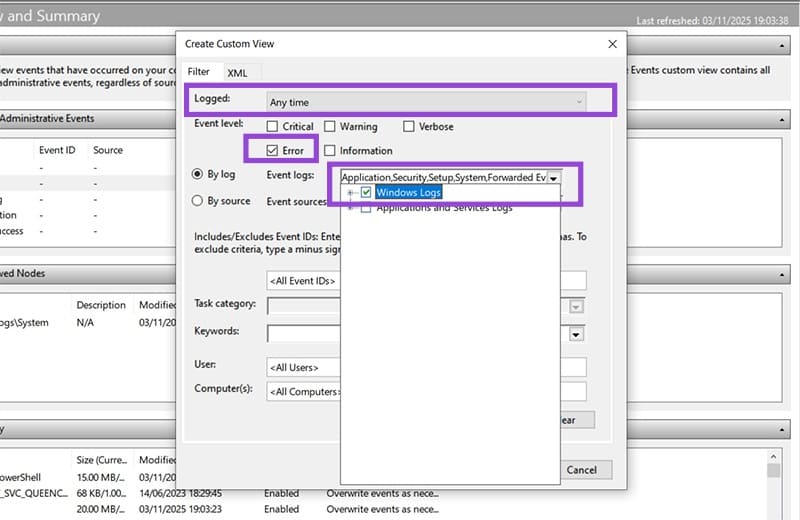
Step 3. Not all events are related to crashes. You’ll need to perform a custom search. To do this, click “Action” in the menu and “Create Custom View.”

Step 4. A new window will open. Choose the time frame via the “Logged” dropdown, and ensure the “Error” box is checked. Under “Event Logs,” select “Windows Logs” to include only system errors.
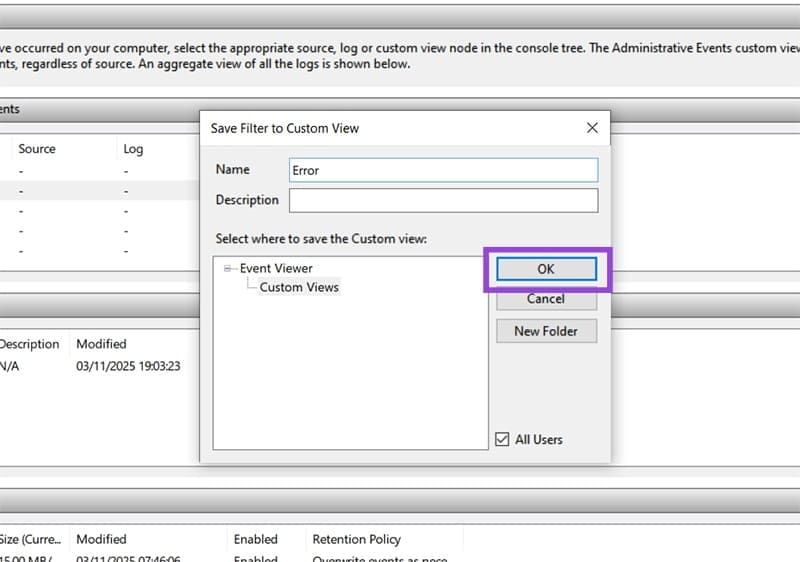
Step 5. Click the “OK” button to finalize. You’ll be asked to name your new filter. Do so, and click “OK.”
Step 6. Your errors in your indicated timeframe should now appear. Use the time of the BSOD to search for error IDs that usually signal crashes (1001, or 41).
The Reliability Monitor
The Reliability Monitor is a great visual way to track BSODs and system crashes. You can use the timeline of errors to track your specific crash and find out more. Here’s what to do:
Step 1. Type “Reliability History” into the search bar and choose the option that comes up.
Step 2. In the new window, you’ll see a timeline of your machine’s reliability, which you can change between “Days” and “Weeks.” Simply click on a column to view the error reports that occurred and find BSOD logs in this way.

Step 3. Click “View technical details” to see the log. Once you’re done, click “OK” to exit.
Using Command Prompt
If you don’t mind dealing with walls of text and typing in a command line interface, then try using Command Prompt. Here’s what to do:
Step 1. Open the Run dialog (Win + R) and type “cmd” into the box before hitting (Ctrl + Shift + Enter) to run as Admin.
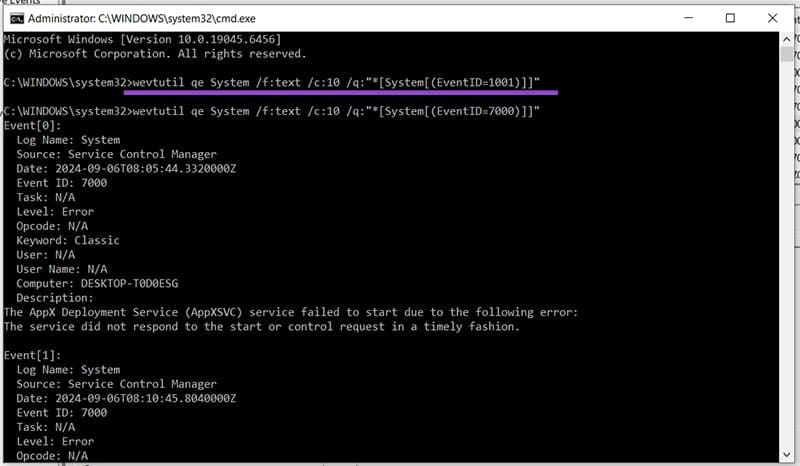
Step 2. In Command Prompt, type the following command in “wevtutil qe System /f:text /c:20 /q:”*[System[(EventID=1001)]]” before hitting “Enter.” Type “c:20”, which in this case is the number of events you want to see, and “EventID=1001”, the ID for shutdown. You can change these as needed.
Step 3. Command Prompt will then display the latest errors along with their logs.
Was this helpful?
Last updated on 05 November, 2025
Read Next
 How to Manually Cause BSOD in Windows: 5 Ways
Note: It is vital that you save your work before proceeding with the below-mentioned steps and methods.
How to Manually Cause BSOD in Windows: 5 Ways
Note: It is vital that you save your work before proceeding with the below-mentioned steps and methods.
 How to Fix Windows 11 24H2 BSOD and Crashes
Windows 11 updates are meant to make the PC easier to use and more stable in the long run, but the 24H2 update seems to go against the grain.
How to Fix Windows 11 24H2 BSOD and Crashes
Windows 11 updates are meant to make the PC easier to use and more stable in the long run, but the 24H2 update seems to go against the grain.
 5 Ways to Check RAM Type in PC on Windows 10 and Windows 11
Method 1: Check the PC or Laptop Model From the Manufacturer's Site If you use a pre-built rig from a PC maker or have a laptop, the first course of
5 Ways to Check RAM Type in PC on Windows 10 and Windows 11
Method 1: Check the PC or Laptop Model From the Manufacturer's Site If you use a pre-built rig from a PC maker or have a laptop, the first course of
 How to Check Video Resolution on Windows and Android
In the world of high definition content, quality is the king.
How to Check Video Resolution on Windows and Android
In the world of high definition content, quality is the king.
 3 Ways to Check Network Adapter Speed on Windows 11
Method 1: Using the Settings App Besides displaying the network adapter speed, the Settings app also provides information about other connection aspects, such as the network band, MAC address, and
3 Ways to Check Network Adapter Speed on Windows 11
Method 1: Using the Settings App Besides displaying the network adapter speed, the Settings app also provides information about other connection aspects, such as the network band, MAC address, and
 How to Check if Windows Laptop Has HDD or SSD and Its Type
Method 1: Using Task Manager Step 1: Right-click on the taskbar at the bottom and select Task Manager.
How to Check if Windows Laptop Has HDD or SSD and Its Type
Method 1: Using Task Manager Step 1: Right-click on the taskbar at the bottom and select Task Manager.
 4 Quick Ways to Check Hardware ID (HWID) of a Device in Windows 11
https://youtu.be/F2oYyUSnUy4 Method 1: Using Device Manager The easiest way to find the Hardware ID (HWID) is by using the Device Manager.
4 Quick Ways to Check Hardware ID (HWID) of a Device in Windows 11
https://youtu.be/F2oYyUSnUy4 Method 1: Using Device Manager The easiest way to find the Hardware ID (HWID) is by using the Device Manager.
 5 Ways to Check GPU Health on Windows
https://youtu.be/JGwJ-_hIzfg Method 1: Using Task Manager The Windows Task Manager can help you in checking GPU health.
5 Ways to Check GPU Health on Windows
https://youtu.be/JGwJ-_hIzfg Method 1: Using Task Manager The Windows Task Manager can help you in checking GPU health.
The article above may contain affiliate links which help support Guiding Tech. The content remains unbiased and authentic and will never affect our editorial integrity.