

Not all fonts look equal, and the difference can be jarring when you get used to a particular font templating for your documents. To avoid constantly changing the fonts for your documents if you need a standardized set of formatting for the normal text and headers, you’ll need to modify “Default” template in Word (also called “Normal”).
Option 1: Word – Change Default Template by Opening the Normal.dotm File
Word stores even the factory default template in a dedicated file, and when you click on the “Blank document” option, it loads that file and all its saved settings. You can manually override the styles for the file to create a new template.
Step 1. Open the File Explorer and go to the following address:
C:\Users\[username]\AppData\Roaming\Microsoft\Templates
Change the [username] portion with the username of the profile you’re on (if you see multiple folders, it’s typically not “Public” or “Default”).
For Macs, the default address should look like the following in Finder:
~/Library/Group Containers/UBF8T346G9.Office/User Content/Templates
If you can’t see the folder, allow the File Explorer or Finder to view hidden folders.

Step 2. Open the “Normal.dotm” file.

Step 3. In the file, look for the “Styles” section in the Home tab. Right-click on the “Normal” style and select “Modify.”

Step 4. Change the style to how you want it to look and click on “OK.” You can access advanced options like spacing through the “Format” dropdown on the bottom-left.

Step 5. Repeat the process for the other styles you need, such as “Header 1/2/3/etc.” or “Title/Subtitle.”
Step 6. When you’re done modifying the styles, you can test them out by typing. However, before you want to save, make sure to clear the document from any actual text.
Step 7. Click on “Save” and the document should automatically overwrite the existing basic template.
Option 2: Word – Change Default Template Without Opening the File
If you can’t locate the file (which can be due to using a different version of Word that might’ve stored it elsewhere), you can still modify the normal template by changing the styles to have them auto-apply to the template.
Step 1. Open Word and select “New,” then “Blank document.” This loads up the default template.
Step 2. Similar to option 1, go to “Styles,” and right-click and “Modify” a style you want to change.
Step 3. Change the font, formatting, spacing, color, or whatever else you want as usual. However, make sure that the “New documents based on this template” option is checked on the bottom of the dialog menu. Then hit “OK” to save.

Step 4. Repeat the process for all other styles as needed.
Step 5. Write anything in the file and save it (as a regular .docx file) for the template to be stored. You can remove the file later.
Was this helpful?
Last updated on 23 August, 2025
Read Next
 How to Create a Custom Template in Microsoft Word
Create a Custom Template in Word Creating a document template in Microsoft Word is similar to making a guide or model to make tools.
How to Create a Custom Template in Microsoft Word
Create a Custom Template in Word Creating a document template in Microsoft Word is similar to making a guide or model to make tools.
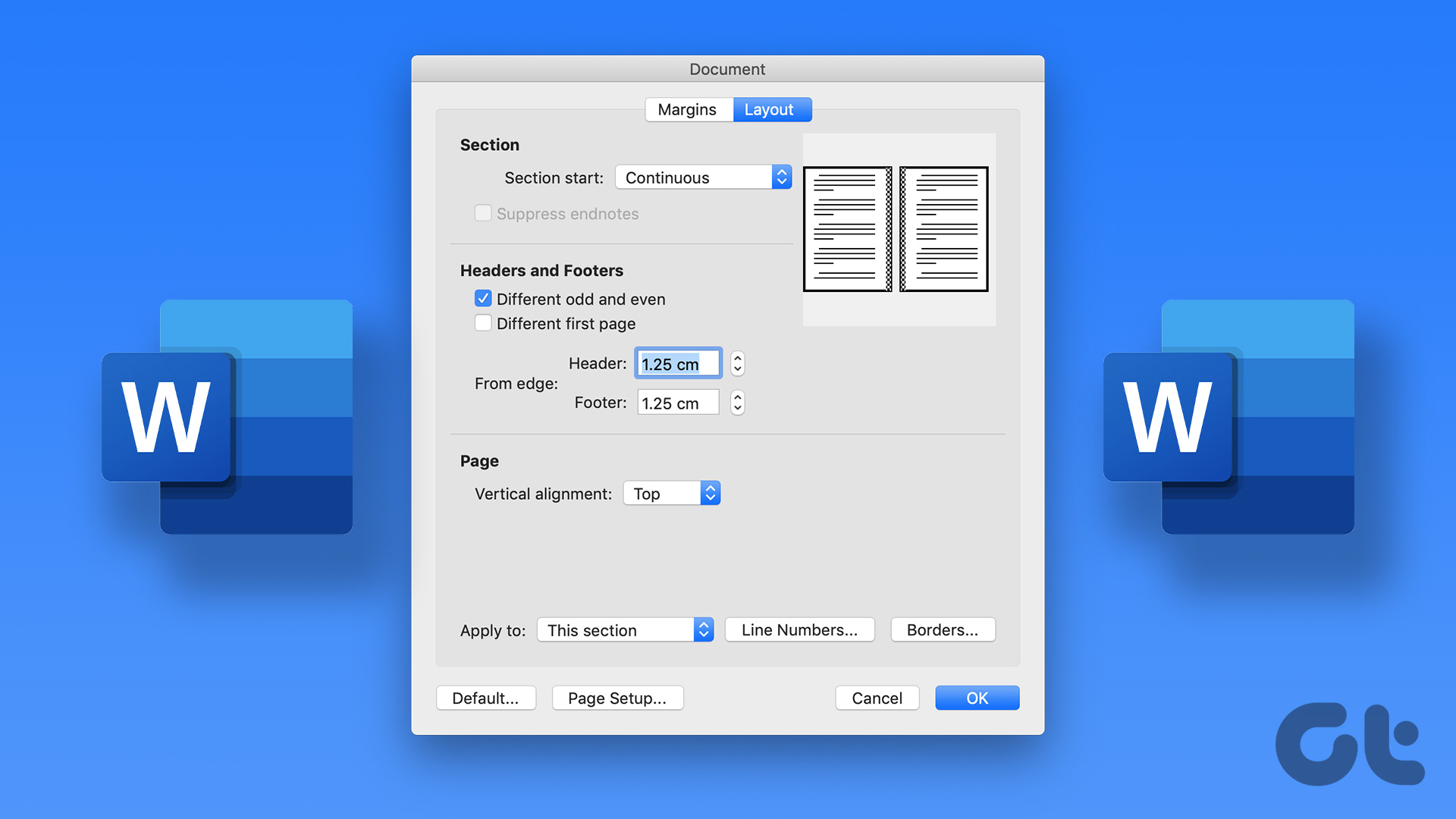 5 Ways to Change the Default Page Layout in Microsoft Word
Method 1: Change Page Size Microsoft Word uses the document size and layout as A4 by default.
5 Ways to Change the Default Page Layout in Microsoft Word
Method 1: Change Page Size Microsoft Word uses the document size and layout as A4 by default.
 How to Create a Custom Template in Google Docs
How to Create Custom Template in Google Docs First, you need to make up your mind on how you want to create a template in Google Docs.
How to Create a Custom Template in Google Docs
How to Create Custom Template in Google Docs First, you need to make up your mind on how you want to create a template in Google Docs.
 Top 9 Ways to Fix Unable to Change Default Programs in Windows 10
The apps offered by Microsoft are great.
Top 9 Ways to Fix Unable to Change Default Programs in Windows 10
The apps offered by Microsoft are great.
 How to Change Default Download Location on Windows 11
Change Default Download Location for Apps, Documents, and Media By default, Windows 11 stores all downloads—apps, documents, media, and other important files—on the primary drive.
How to Change Default Download Location on Windows 11
Change Default Download Location for Apps, Documents, and Media By default, Windows 11 stores all downloads—apps, documents, media, and other important files—on the primary drive.
 How to Change the Default Language in Windows 11
How to Change the Display Language in Windows 11 Windows 11 supports various languages.
How to Change the Default Language in Windows 11
How to Change the Display Language in Windows 11 Windows 11 supports various languages.
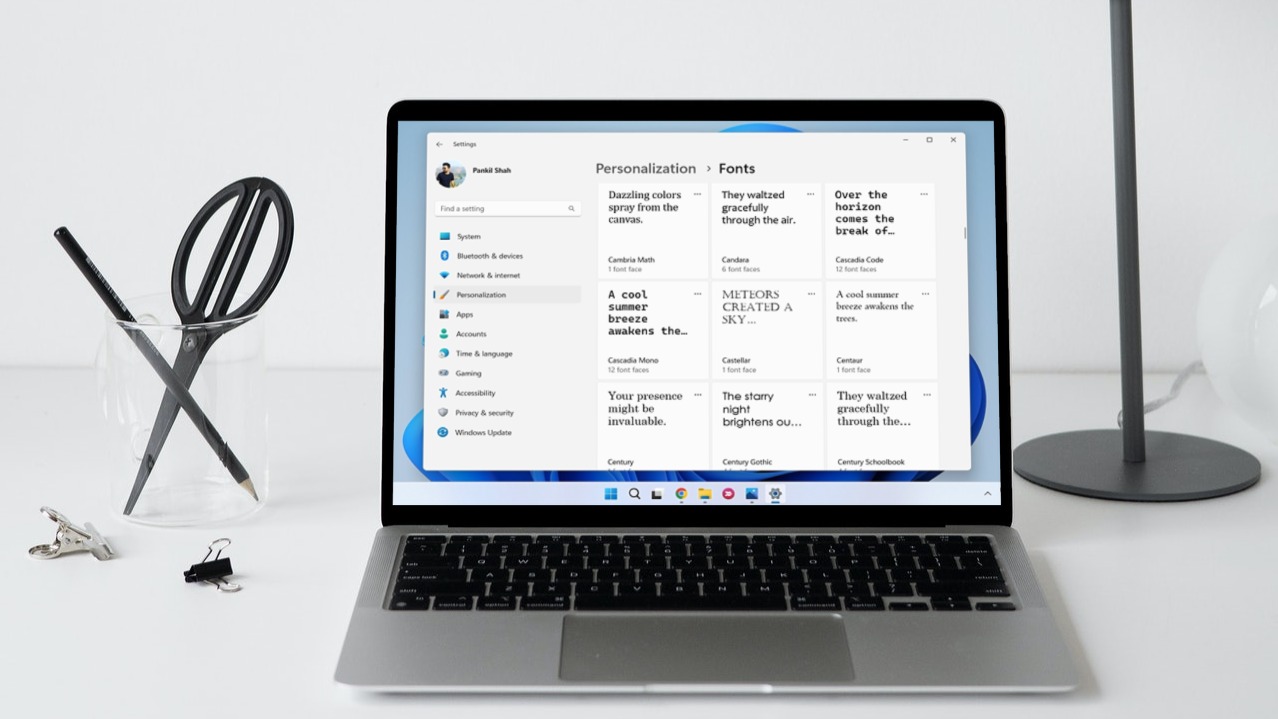 How to Change Default System Font on Windows 11
How to Change the Default Font on Windows 11 Windows 11 comes pre-installed with a wide range of fonts.
How to Change Default System Font on Windows 11
How to Change the Default Font on Windows 11 Windows 11 comes pre-installed with a wide range of fonts.
 3 Ways to Change the Default PDF Viewer on Windows 11
Method 1: Use Windows Settings to Change the Default PDF Viewer Windows 11 offers a dedicated menu in its Settings app to check your default programs.
3 Ways to Change the Default PDF Viewer on Windows 11
Method 1: Use Windows Settings to Change the Default PDF Viewer Windows 11 offers a dedicated menu in its Settings app to check your default programs.
The article above may contain affiliate links which help support Guiding Tech. The content remains unbiased and authentic and will never affect our editorial integrity.

