Method 1: Use Windows Settings to Change the Default PDF Viewer
Windows 11 offers a dedicated menu in its Settings app to check your default programs. You can use it to change the default PDF viewer.
Step 1: Press the Windows + I shortcut to open the Settings app > select Apps from the left sidebar > click on Default apps.

Step 2: Type .PDF in the search bar and select the current default app.

Step 3: Pick your desired PDF viewer from the popup menu and click on Set default to change it.

Method 2: Change the Default PDF Viewer Using the File Explorer
If you don’t wish to dive into Settings, change the default PDF viewer from the File Explorer menu.
Step 1: Open File Explorer (press the Windows + E shortcut), right-click a PDF file, and select Open with > Choose another app.

Step 2: Select your preferred app to open the PDF file and click on Always.

Method 3: Tweak Control Panel Settings
Lastly, you can open the Control Panel settings to quickly change the default PDF viewer on Windows 11.
Step 1: Press the Windows + R shortcut to open the Run dialog, type control, and press Enter.

Step 2: Select Programs in the Control Panel menu.

Step 3: Click Default Programs. You’ll be redirected to the Settings app, where you can change the default PDF viewer (as demonstrated in Fix 1 above).

Was this helpful?
Last updated on 11 July, 2024
Read Next
 How to Change Default PDF Viewer on Android
A few days back, my friend faced a problem where instead of launching the PDF files in her preferred PDF viewer app, the PDF files were opening in a different
How to Change Default PDF Viewer on Android
A few days back, my friend faced a problem where instead of launching the PDF files in her preferred PDF viewer app, the PDF files were opening in a different
 Top 9 Ways to Fix Unable to Change Default Programs in Windows 10
The apps offered by Microsoft are great.
Top 9 Ways to Fix Unable to Change Default Programs in Windows 10
The apps offered by Microsoft are great.
 7 Best Image Viewer Apps for Mac
Apple's native Preview app works fine as the Image Viewer on macOS.
7 Best Image Viewer Apps for Mac
Apple's native Preview app works fine as the Image Viewer on macOS.
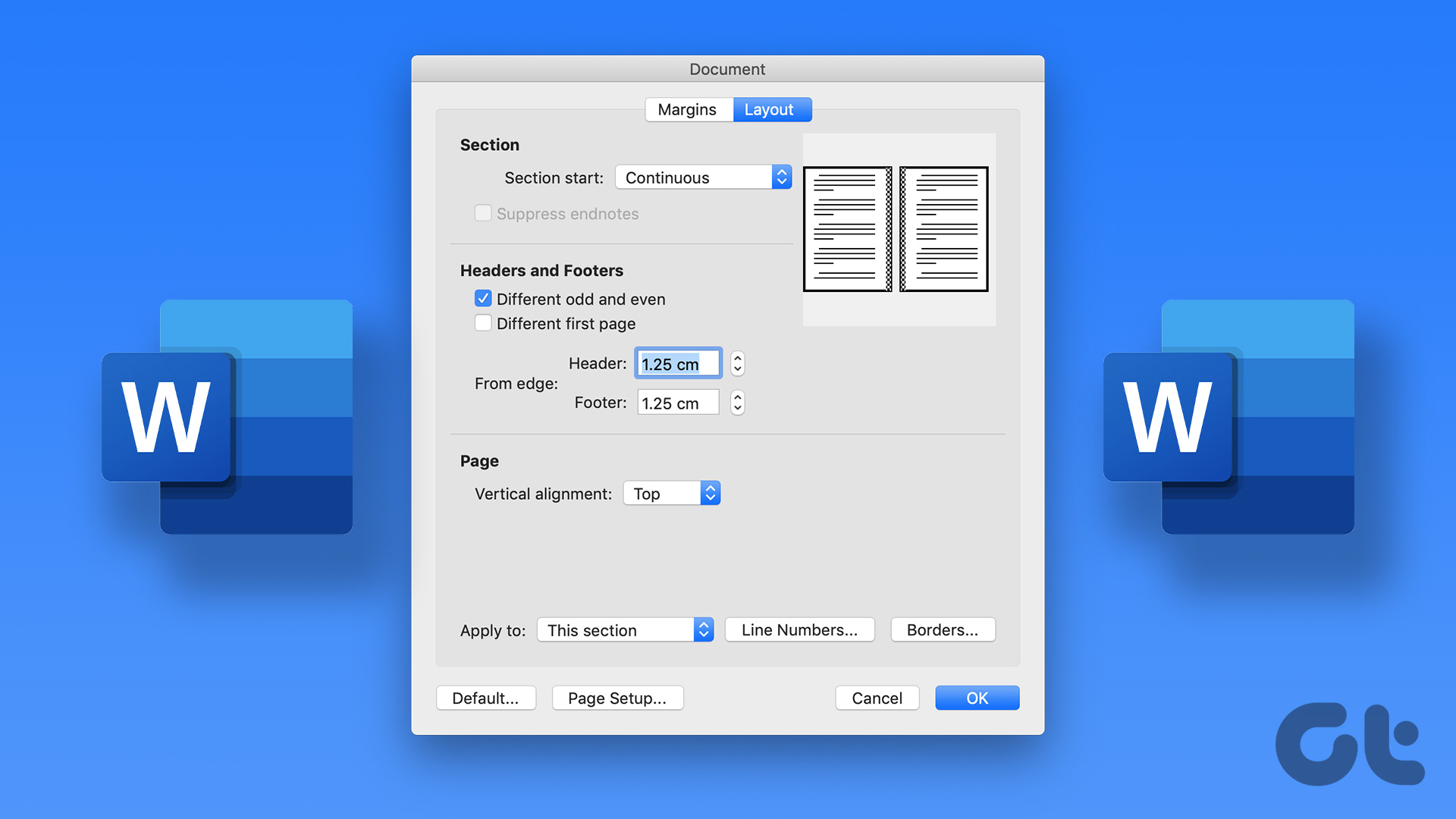 5 Ways to Change the Default Page Layout in Microsoft Word
Method 1: Change Page Size Microsoft Word uses the document size and layout as A4 by default.
5 Ways to Change the Default Page Layout in Microsoft Word
Method 1: Change Page Size Microsoft Word uses the document size and layout as A4 by default.
 How to Change Default Download Location on Windows 11
Change Default Download Location for Apps, Documents, and Media By default, Windows 11 stores all downloads—apps, documents, media, and other important files—on the primary drive.
How to Change Default Download Location on Windows 11
Change Default Download Location for Apps, Documents, and Media By default, Windows 11 stores all downloads—apps, documents, media, and other important files—on the primary drive.
 How to Change the Default Language in Windows 11
How to Change the Display Language in Windows 11 Windows 11 supports various languages.
How to Change the Default Language in Windows 11
How to Change the Display Language in Windows 11 Windows 11 supports various languages.
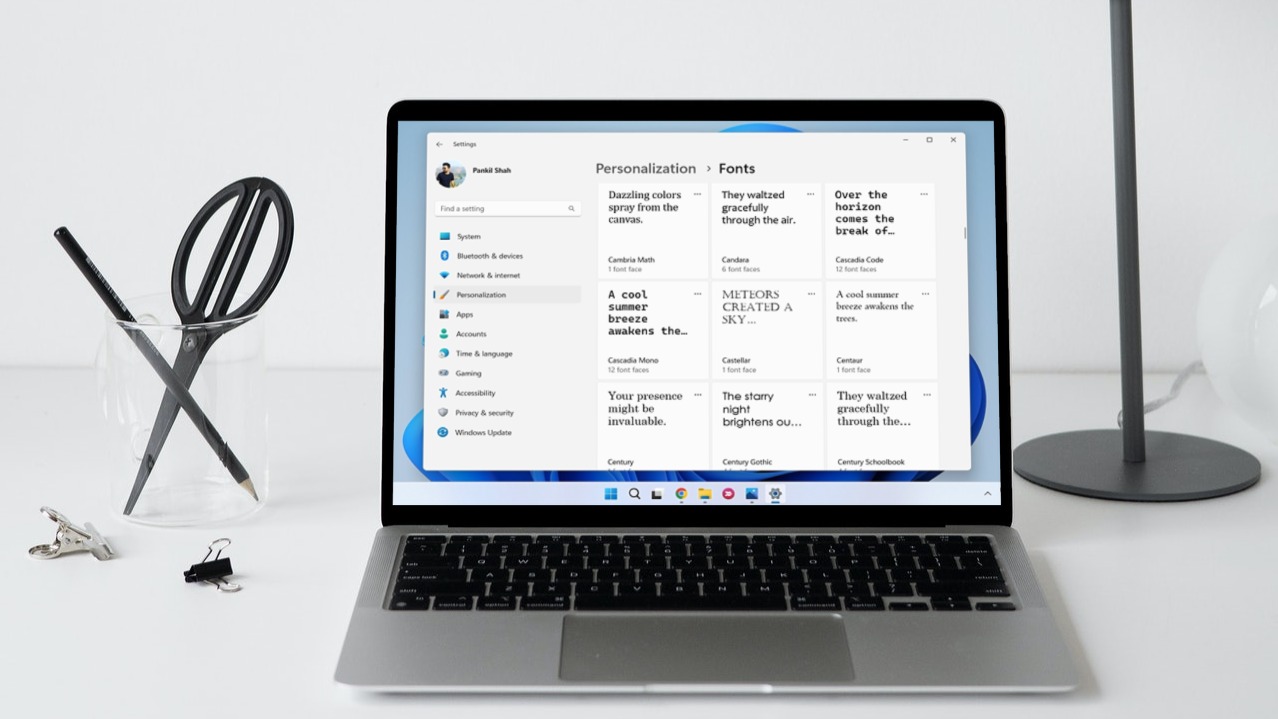 How to Change Default System Font on Windows 11
How to Change the Default Font on Windows 11 Windows 11 comes pre-installed with a wide range of fonts.
How to Change Default System Font on Windows 11
How to Change the Default Font on Windows 11 Windows 11 comes pre-installed with a wide range of fonts.
 3 Ways to Change Default Background Color in Chrome
Method 1: Use the Customize Chrome Button The easiest way to change the background color in Chrome is to use the Customize Chrome button.
3 Ways to Change Default Background Color in Chrome
Method 1: Use the Customize Chrome Button The easiest way to change the background color in Chrome is to use the Customize Chrome button.
The article above may contain affiliate links which help support Guiding Tech. The content remains unbiased and authentic and will never affect our editorial integrity.