


How to Set up Automation for Airplane Mode
While we’ll share generic steps to set Airplane Mode automatically, the exact steps might vary depending on your needs.
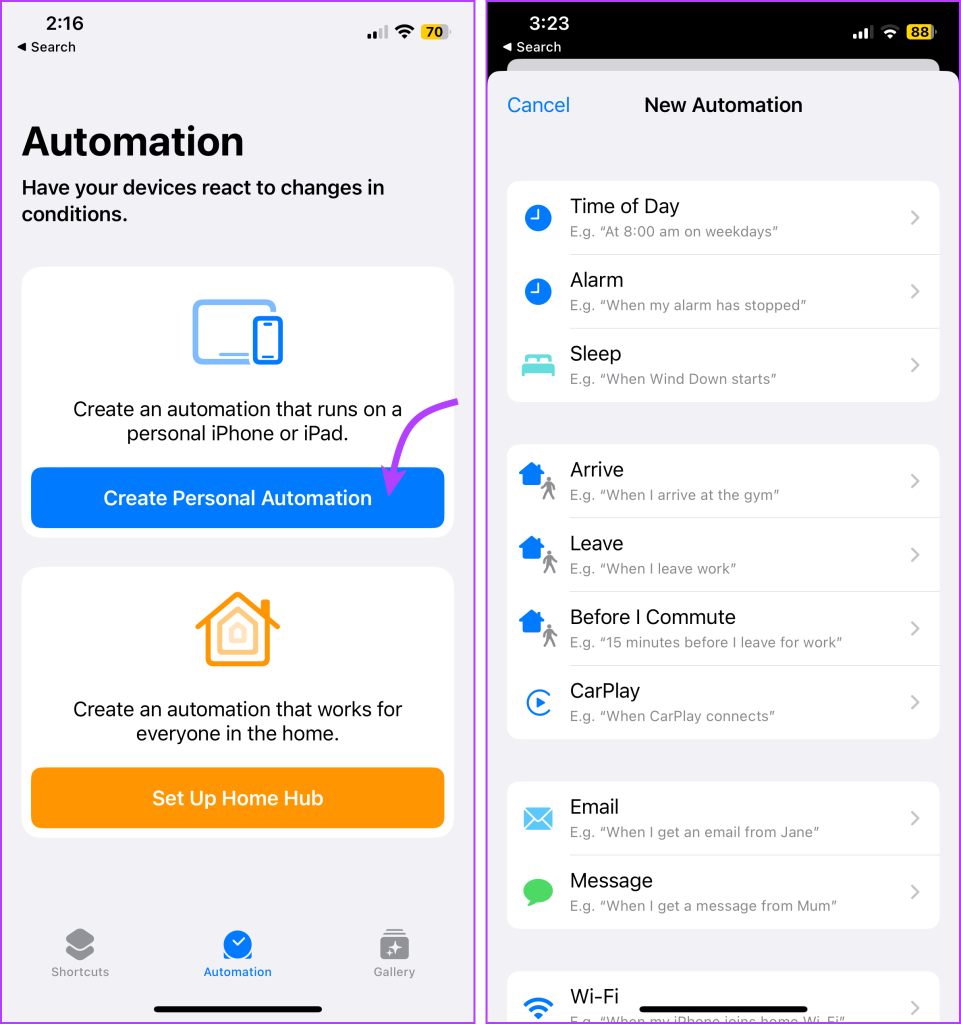
Step 1: Go to the Shortcuts app > select the Automation tab.
Step 2: Tap Create Personal Automation or + from the top right corner.
Step 3: Now, choose an action, for instance:
- If you want to schedule Airplane mode, choose Time of Day.
- For location-based Airplane mode, choose Arrive or Leave.
- To enable/disable Airplane mode as per your phone battery, choose Battery Level or Low Power Mode.
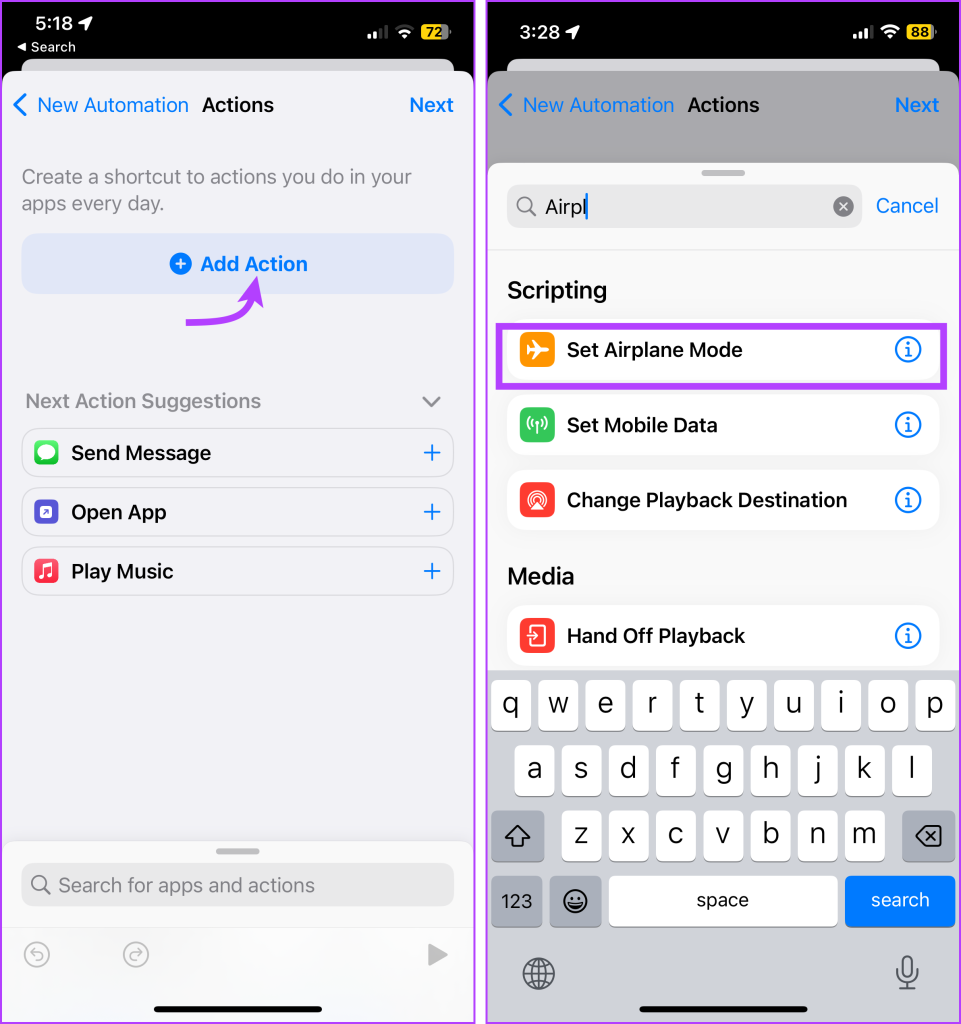
Step 4: Next up, tap + Add Action. Search and select Set Airplane Mode.
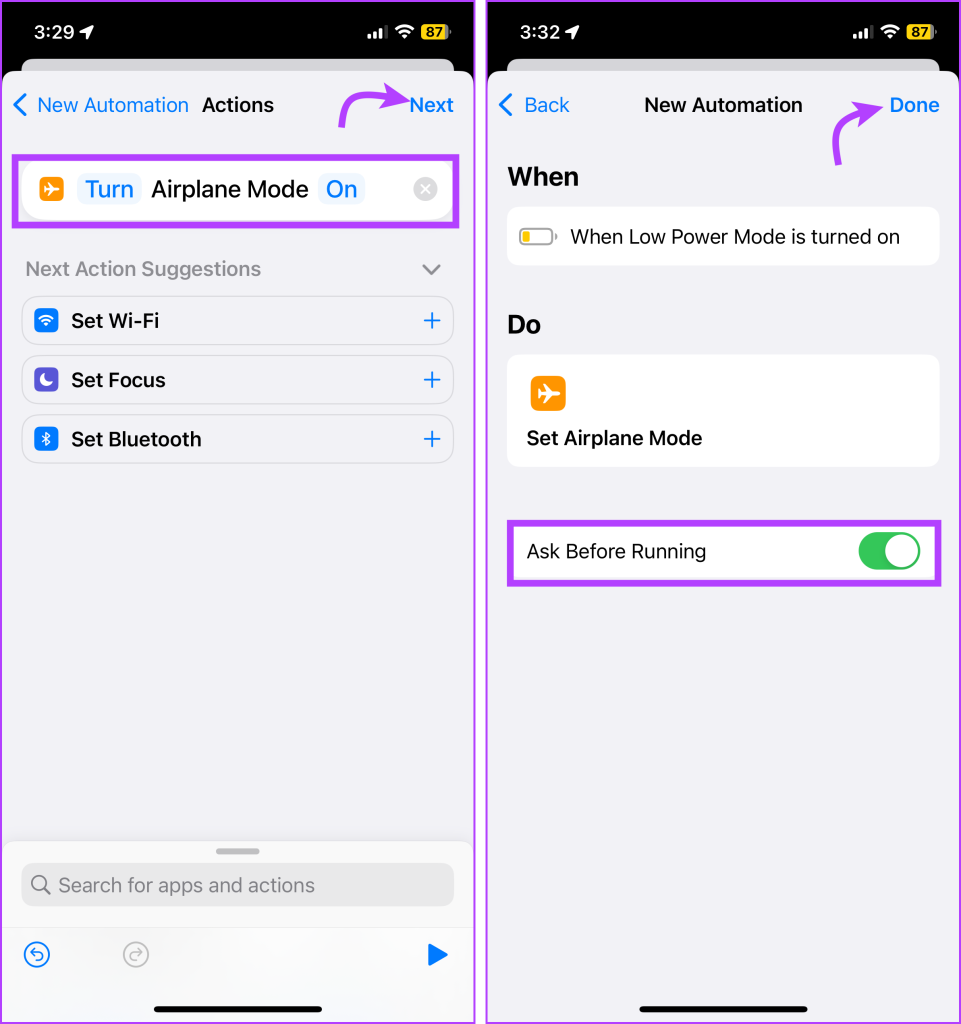
Step 5: Here, select whether to turn on or off the Airplane mode.
Step 6: Tap Next. Select whether the automation should Ask Before Running or not; accordingly, turn the toggle on or off.
Step 7: Tap Done to save the automation.
How to Remove Automatic Airplane Mode
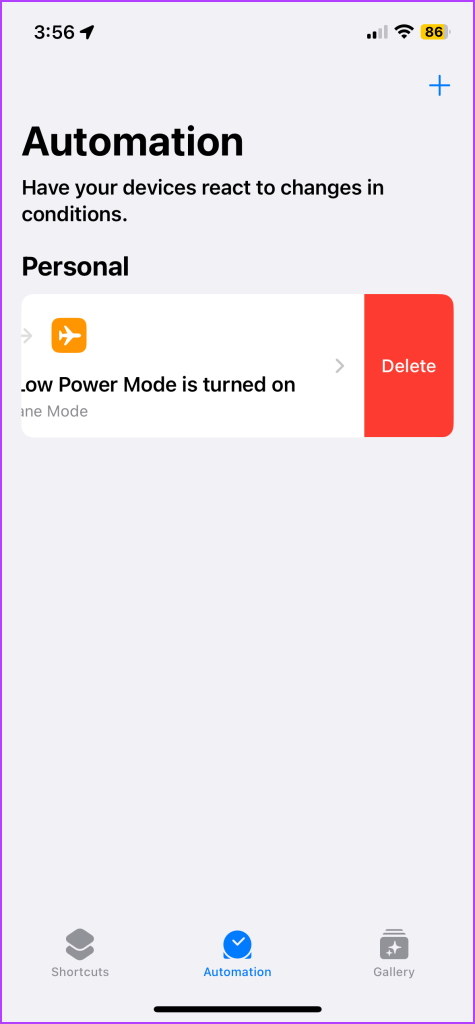
At any moment if you’d like to remove the above automation, go to Shortcuts → Automation tab → swipe left the automation → tap Delete.
Set an Automation to Turn Airplane Mode Off on iPhone
While helpful, Airplane Mode can also cause headaches if turned on accidentally. It could disconnect you from your cellular service, meaning you can’t receive SMS messages or phone calls or use Wi-Fi and mobile data.
Step 1: Go to Shortcuts app → Automation tab. Tap Create Personal Automation or +.
Step 2: Select Airplane Mode from the options.
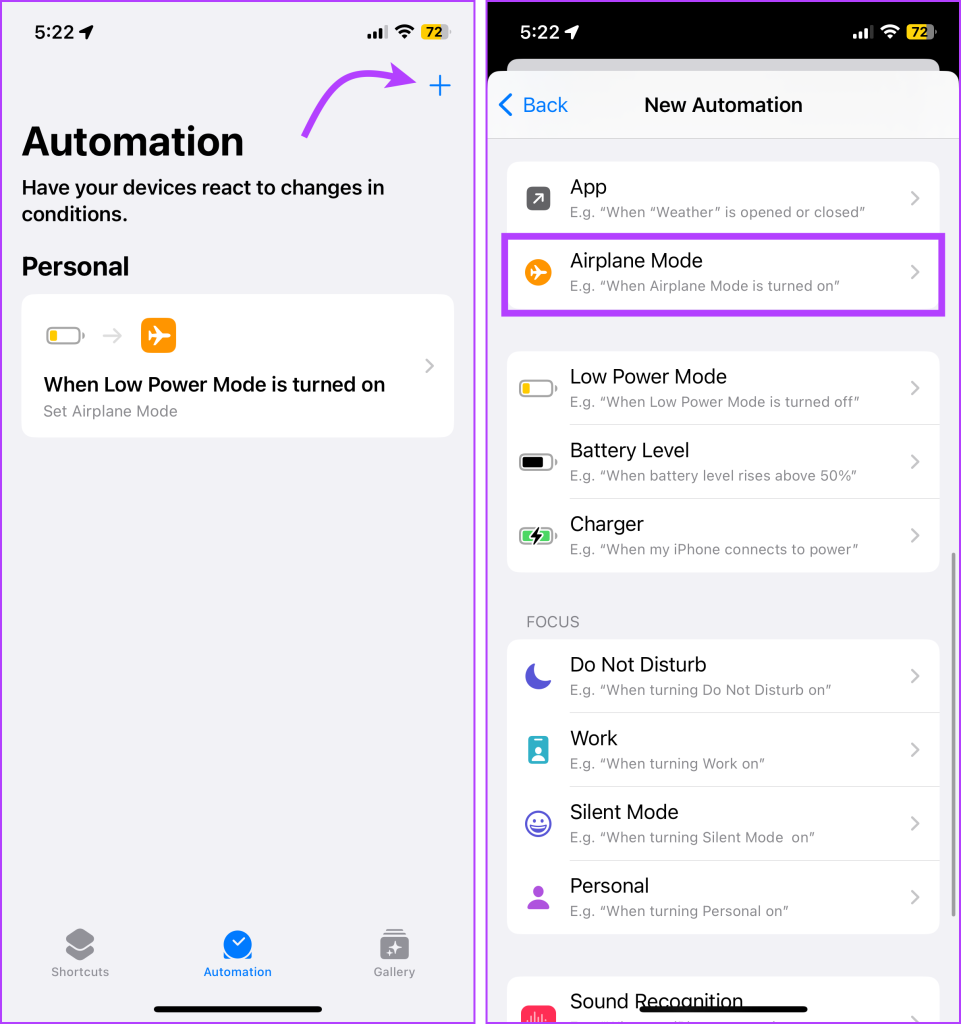
Step 3: Choose Is Turned On > tap Next > + Add Action.

Step 4: Search and select Set Airplane Mode. Tap On to change it to Off, and hit Next.
Step 5: Toggle off Ask Before Running and tap Done.
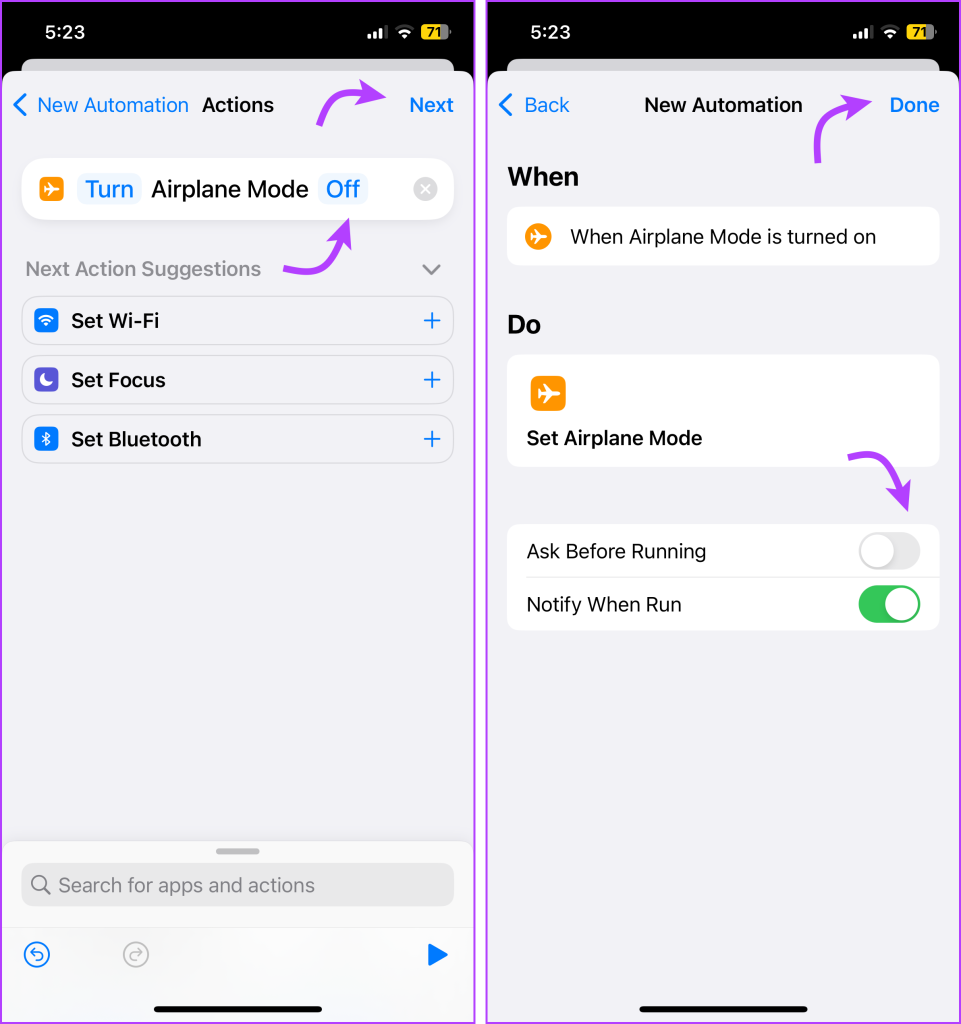
If your program runs correctly when you turn on Airplane mode, you will receive a notification that your automation is running and Airplane Mode will turn off.
Creative Ways to Use iPhone Airplane Mode Automation
- Schedule Airplane mode to enable or disable when a certain Focus Mode is disabled/enabled.
- Be unavailable during your power naps – Bothered by all the notifications piling on while you sleep? Is sleep or DND not doing the trick for you? Schedule Airplane Mode for a disturbance-free power nap.
- Enable Airplane Mode automatically when at the gym, movies, or more – Use location as the trigger action.
- Schedule Airplane Mode before an important meeting – Connect with your calendar or use the time action.
- Save battery life by scheduling airplane mode during idle periods.
Was this helpful?
Last updated on 10 July, 2024
1 Comment
Leave a Reply
Read Next
 What’s the Difference Between Do Not Disturb, Airplane, and Silent Mode on iPhone
What Is Silent Mode on iPhone?
What’s the Difference Between Do Not Disturb, Airplane, and Silent Mode on iPhone
What Is Silent Mode on iPhone?
 Do Not Disturb vs. Silent vs. Airplane Mode on Android: Know the Difference
What Is Silent Mode on Android When you enable silent mode, you will not hear call alerts or notifications.
Do Not Disturb vs. Silent vs. Airplane Mode on Android: Know the Difference
What Is Silent Mode on Android When you enable silent mode, you will not hear call alerts or notifications.
 5 Ways to Fix Windows Stuck in Airplane Mode
Try Basic Fixes Restart Windows: Restarting any device can fix most temporary issues where a process gets stuck.
5 Ways to Fix Windows Stuck in Airplane Mode
Try Basic Fixes Restart Windows: Restarting any device can fix most temporary issues where a process gets stuck.
 How to Turn off Airplane Mode in Dell Laptop
Laptops are a bit different than PC and often come loaded with features.
How to Turn off Airplane Mode in Dell Laptop
Laptops are a bit different than PC and often come loaded with features.
 6 Ways to Fix Airplane Mode Grayed Out on Windows 10 and Windows 11
Fix 1: Restart Radio Management Service Radio Management Service is an essential component that needs to run in the background for airplane mode to work.
6 Ways to Fix Airplane Mode Grayed Out on Windows 10 and Windows 11
Fix 1: Restart Radio Management Service Radio Management Service is an essential component that needs to run in the background for airplane mode to work.
 8 Ways to Fix Windows 11 Stuck in Airplane Mode
Basic Fixes: Restart Windows 11: Restarting your device regularly can help keep it running smoothly.
8 Ways to Fix Windows 11 Stuck in Airplane Mode
Basic Fixes: Restart Windows 11: Restarting your device regularly can help keep it running smoothly.
 Airplane Mode: What It Does and How to Enable or Disable It on Your Phone
What Is Airplane Mode?
Airplane Mode: What It Does and How to Enable or Disable It on Your Phone
What Is Airplane Mode?
 How to Schedule WhatsApp Messages on iPhone
 We will create a custom Shortcut to send scheduled messages to a selected contact on WhatsApp.
How to Schedule WhatsApp Messages on iPhone
How to Schedule WhatsApp Messages on iPhone We will create a custom Shortcut to send scheduled messages to a selected contact on WhatsApp.
The article above may contain affiliate links which help support Guiding Tech. The content remains unbiased and authentic and will never affect our editorial integrity.


This article was helpful. But it looks like Apple moved “Add Action” and “scripting” in iOS17. Now you click the + on main shortcuts screen and then choose add action then scripting. Under “device” select Set Airplane Mode. It will appear on the All Shortcuts screen. You will then be able to use it for a Time or Location automation.