


How to Add File Explorer to Taskbar in Windows 11
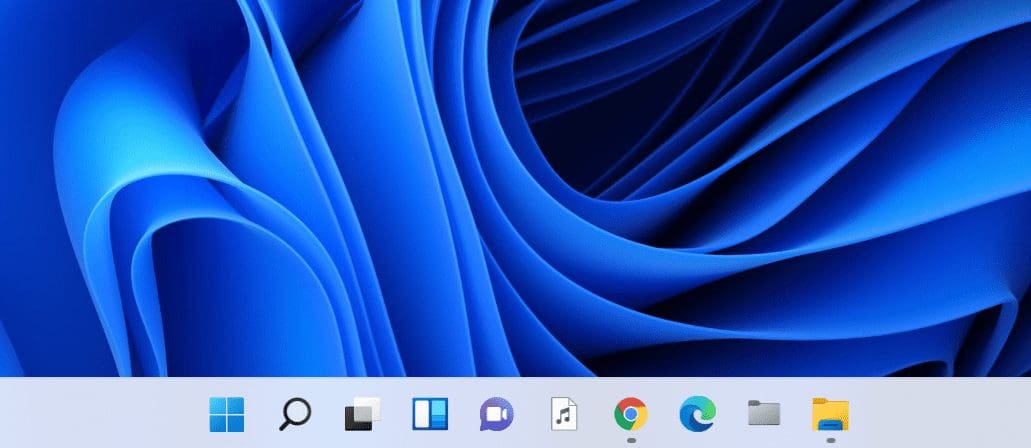
The Taskbar in Windows 11 has the File Explorer icon pinned to the Taskbar by default. If you have unpinned accidentally, it’s simple to get it back.
Step 1: Open File Explorer (Win + E) and you’ll see the File Explorer icon on the Taskbar
Step 2: Right-click on it and select Pin to taskbar. That’s it.
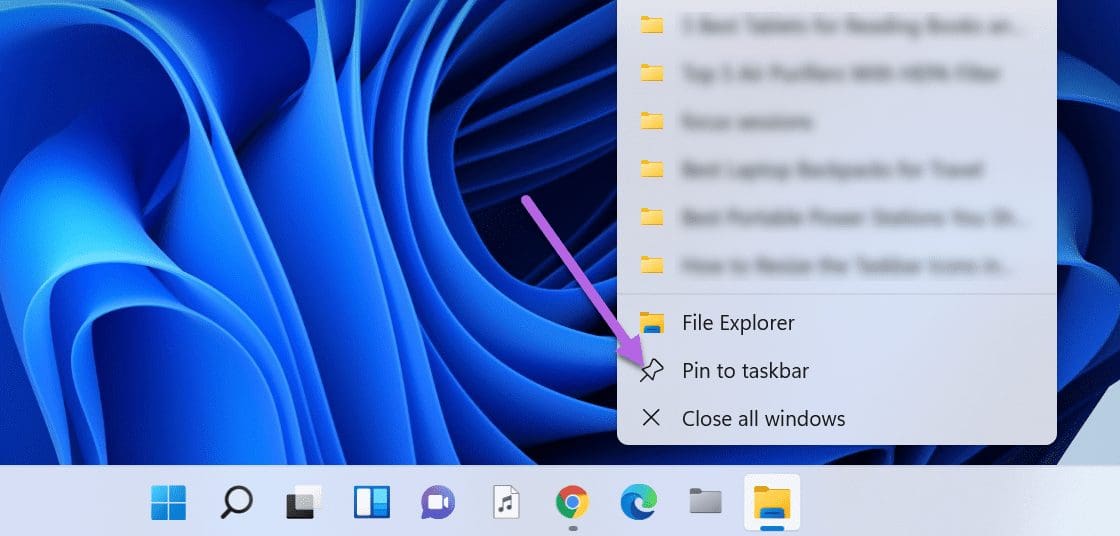
- The File Explorer icon will now be pinned to the Taskbar until manually removed. The good thing is that the list also packs all the folders you use frequently.
- So, if you open Folder A and Folder C daily, you will see all the folder names under Frequent.
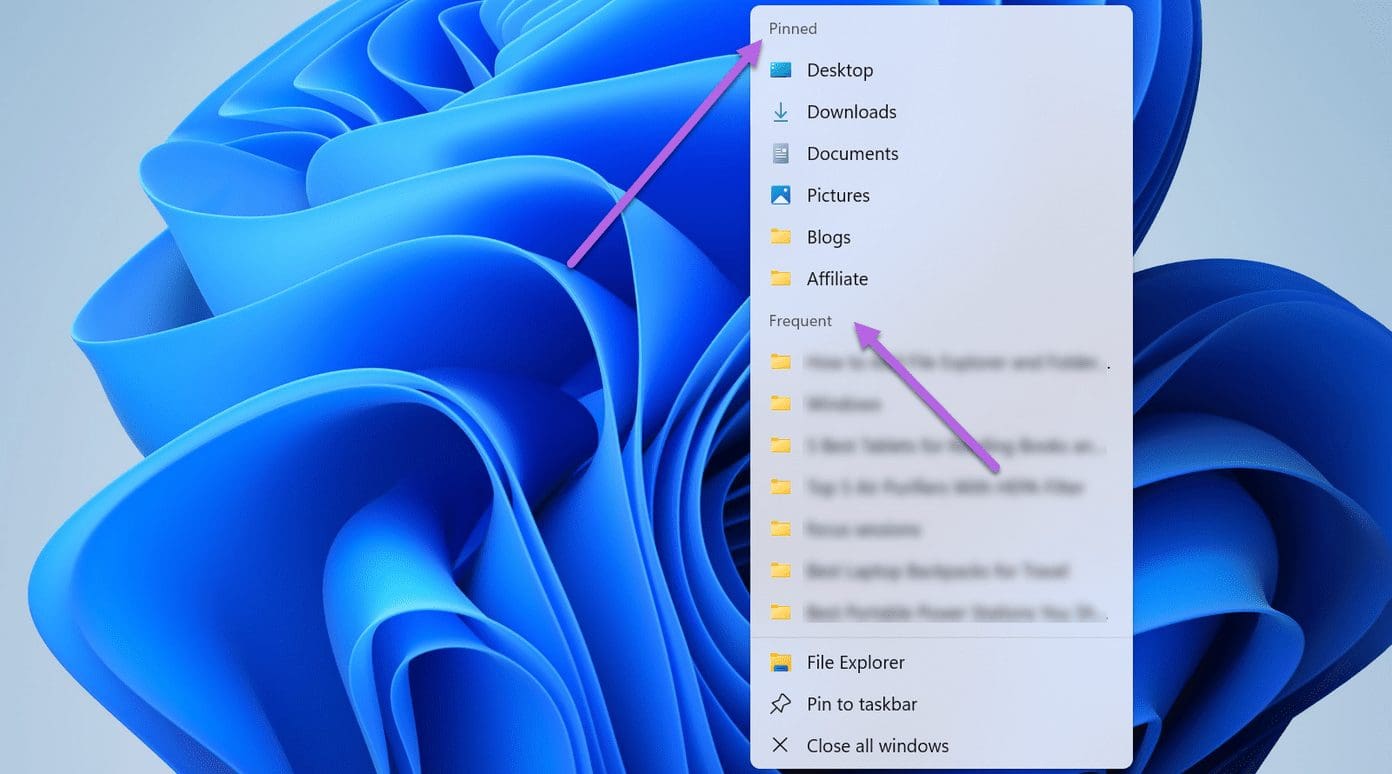
- Secondly, all the folders under Quick Access (on File Explorer) will be pinned automatically to this list.
- To remove the ones you do not like, unpin a few folders from this list. All you need to do is click on the Unpin icon.
Though a simple right-click on the File Explorer icon lets you access all your favorite folders, the series of clicks may seem a little much. Thankfully, there’s a little workaround that lets you add the folder of your choice to the Taskbar.
How to Add Folders to Taskbar in Windows 11
Step 1: Right-click on the folder that you want to pin, select Show more Options, and then select Send to > Desktop (create shortcut).

As suggested by the name, this action will create a shortcut on the desktop.
Step 2: Press Win + D to go to Desktop. Now, right-click on the folder you just created and select Properties.
Step 3: Click on Shortcut, and add the word explorer to the Target string.
Make sure to add a space after the explorer, as shown in the screenshot below. This will append the Explorer path automatically once you hit the Apply button.
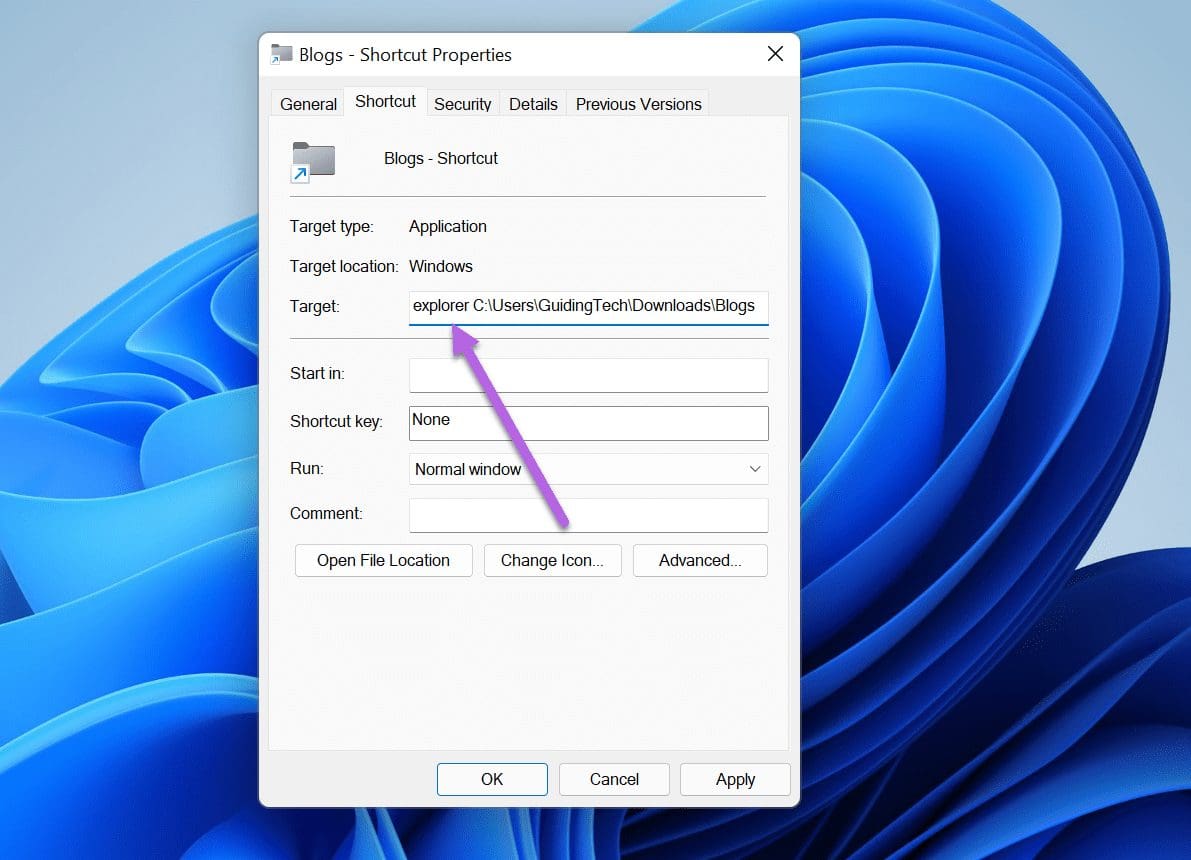
At the same time, rename the file under the General tab. This is not a mandatory step, and you may skip it.
Now let’s choose an icon.
Step 4: Click on the Change Icon button and choose an icon from the available gallery.

If you are looking for new system icons for Windows 11, you can type imageres.dll on the Search field and hit the Enter button.
Once you have chosen the icon, hit the Apply All and Ok buttons.
Step 5: Head back to your PC’s desktop and right-click on the new icon. Next, select Show more options and then Pin to Taskbar. That’s it!
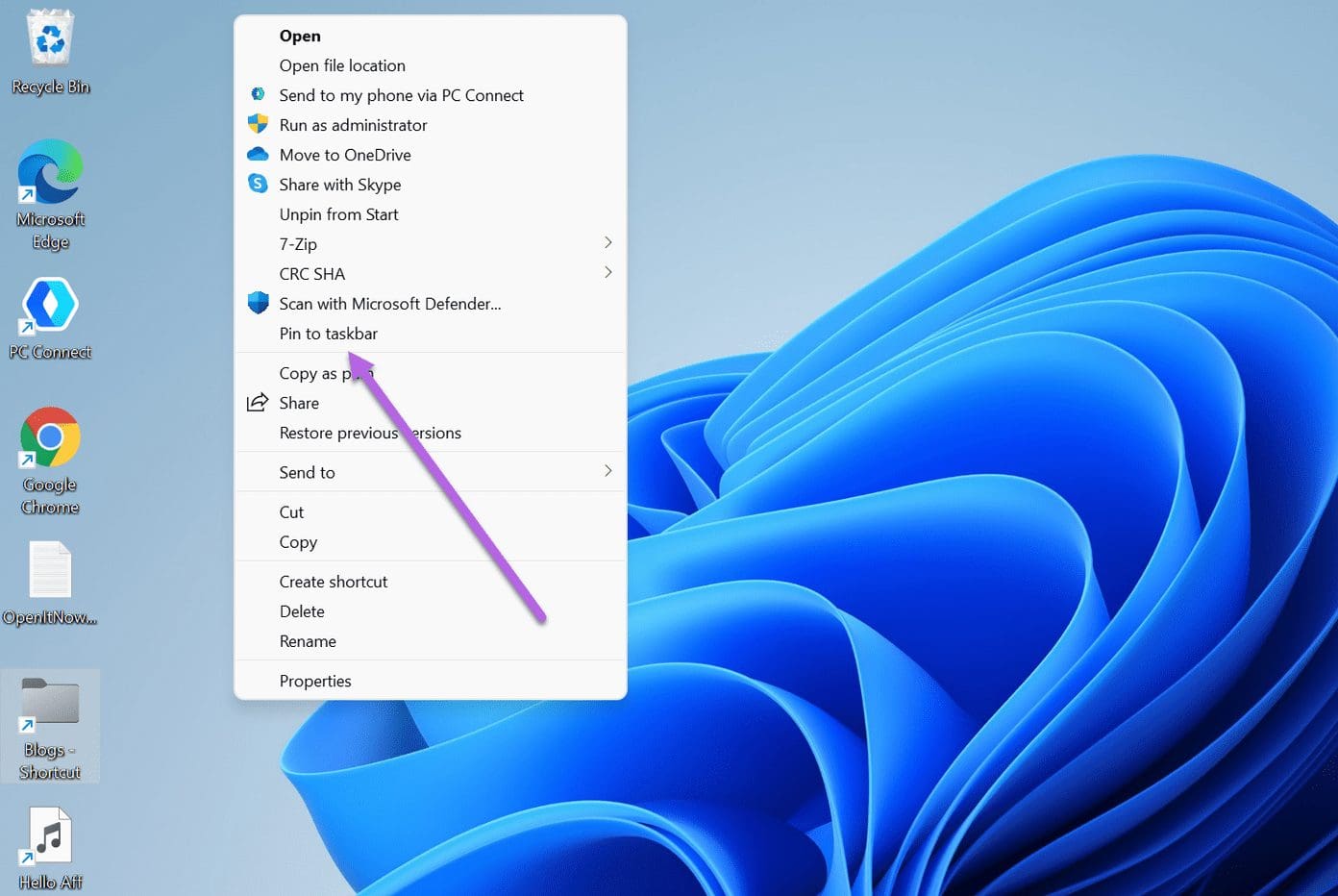
The new icon will be added to the Taskbar. You simply need to click it to land on the folder you want.
You can follow the above steps to add your favorite files to the Taskbar.
If you do not want to mess with the settings, you can go via the native method and add folders to the Start menu (instead of the Taskbar). It’s simple and easy and doesn’t take more than a couple of seconds.
How to Add Folders to the Start Menu
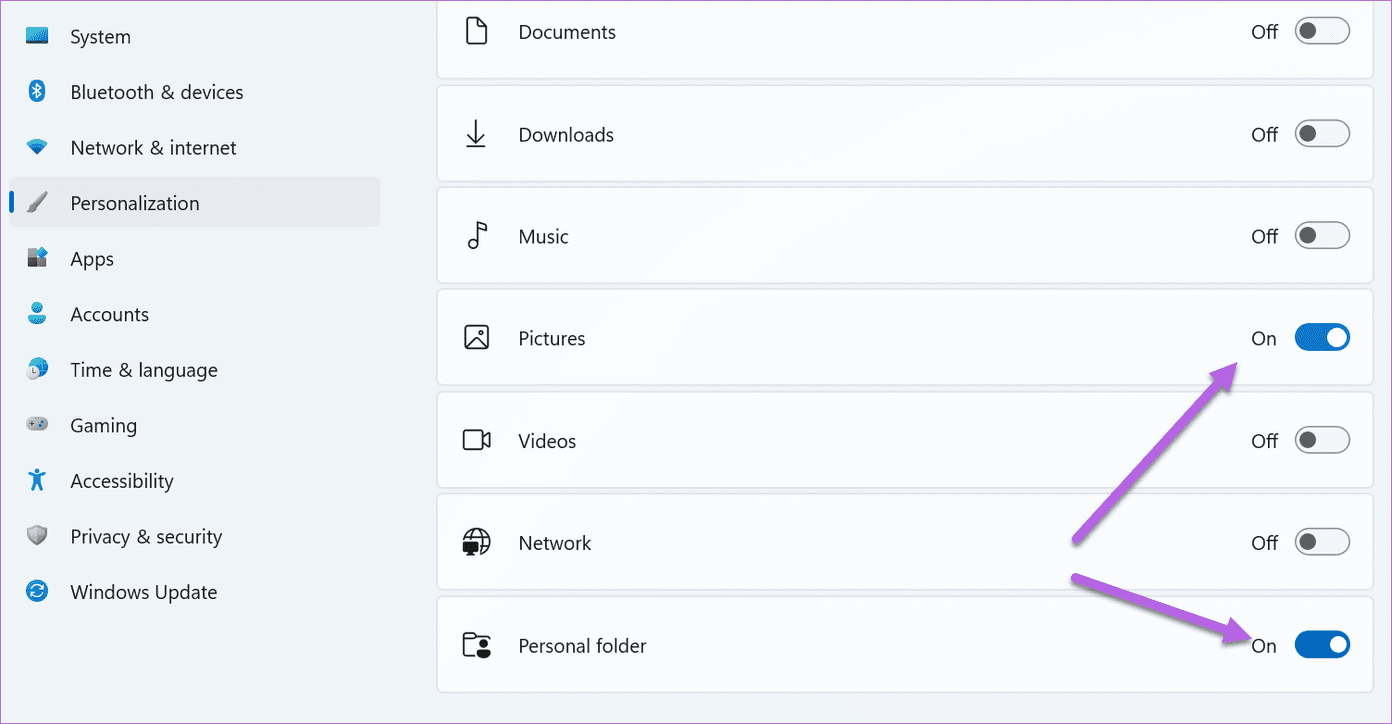
Step 1: Go to Settings (Win + I) and select Personalization from the left panel. Now, select Start and then Folders to see the available options.

Step 2: Toggle the switch next to the Personal folder. It will add a shortcut to the Users’ folders under the Start menu.
Alternatively, if you wish to see other folders on the Start menu, you can toggle the switch next to the folders.
The only limitation of this method is that it doesn’t allow you to add any random folder to the Start menu. Rather, you have to choose from the list of given options.
Also Read: How to Change Taskbar olor in Windows 11.
Was this helpful?
Last updated on 08 August, 2024
5 Comments
Leave a Reply
Read Next
 How to Add Columns Permanently to All Folders in Windows 10 File Explorer
File Explorer in Windows usually shows just a few columns such as name, date, and type.
How to Add Columns Permanently to All Folders in Windows 10 File Explorer
File Explorer in Windows usually shows just a few columns such as name, date, and type.
 How to Add iCloud to File Explorer on Windows 11/10
Adding iCloud to File Explorer Step 1: Install the iCloud app from the Microsoft Store and sign in using your Apple ID or account.
How to Add iCloud to File Explorer on Windows 11/10
Adding iCloud to File Explorer Step 1: Install the iCloud app from the Microsoft Store and sign in using your Apple ID or account.
 How to Clear File Explorer Search History in Windows 10
File Explorer on Windows 10 keeps track of all your searches to make it easy for you to search for the same files again.
How to Clear File Explorer Search History in Windows 10
File Explorer on Windows 10 keeps track of all your searches to make it easy for you to search for the same files again.
 8 Ways to Fix File Explorer Search Not Working on Windows 11
Before you begin, try restarting the File Explorer app and fixing corrupted files using an SFC scan.
8 Ways to Fix File Explorer Search Not Working on Windows 11
Before you begin, try restarting the File Explorer app and fixing corrupted files using an SFC scan.
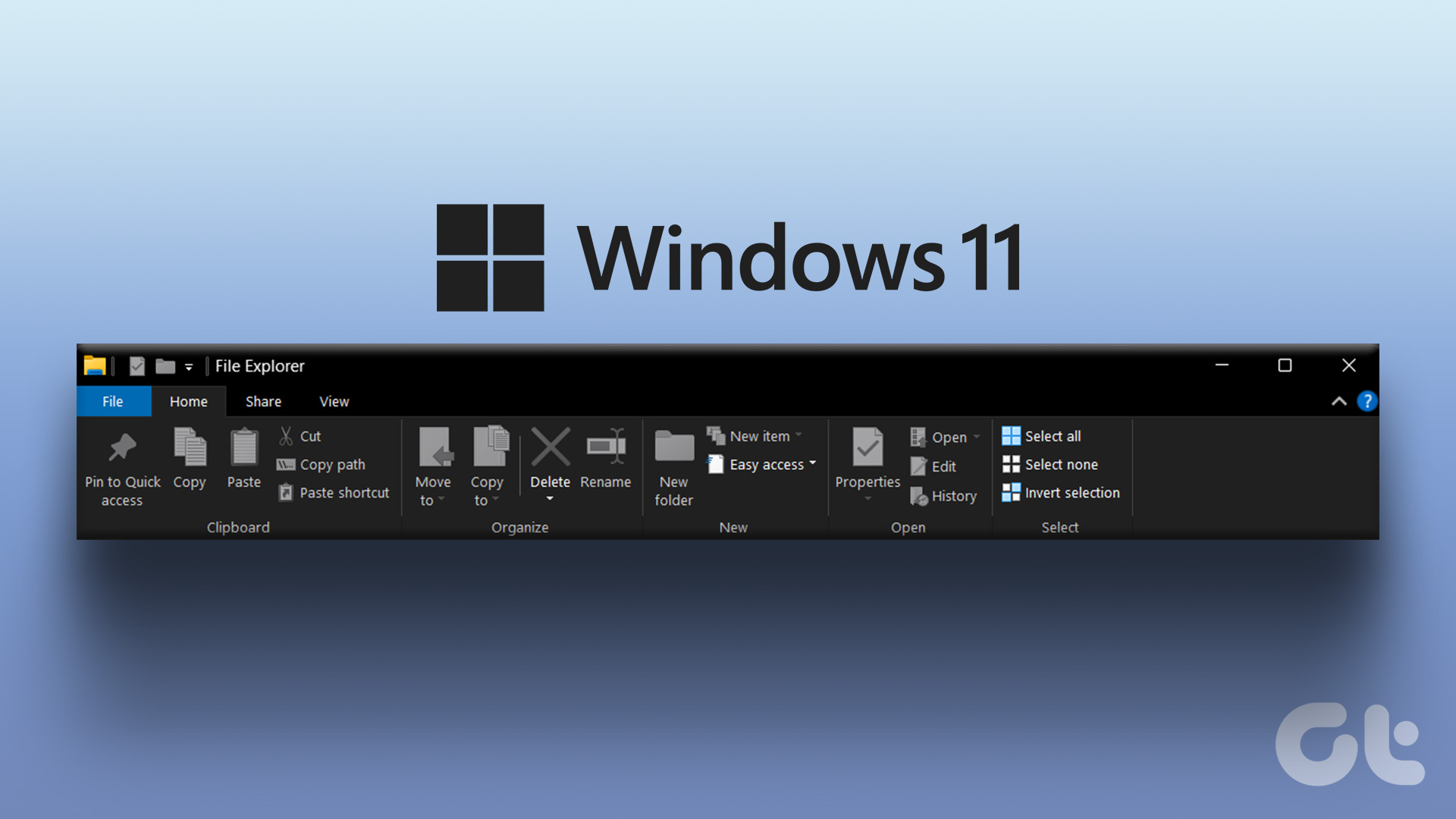 How to Restore the Classic File Explorer Ribbon in Windows 11
Method 1: Using Control Panel This method temporarily restores the old classic ribbon in File Explorer.
How to Restore the Classic File Explorer Ribbon in Windows 11
Method 1: Using Control Panel This method temporarily restores the old classic ribbon in File Explorer.
 3 Ways to Fix File Explorer Tabs Not Showing in Windows 11
Try Basic Fixes Install Windows updates: File Explorer tabs are only available on computers running Windows 11 22H2 or later.
3 Ways to Fix File Explorer Tabs Not Showing in Windows 11
Try Basic Fixes Install Windows updates: File Explorer tabs are only available on computers running Windows 11 22H2 or later.
 3 Ways to Fix iPhone Not Showing Up in File Explorer on Windows 11
Basic Fixes Install iTunes: Install iTunes from Microsoft Store to access and sync your iPhone on your PC.
3 Ways to Fix iPhone Not Showing Up in File Explorer on Windows 11
Basic Fixes Install iTunes: Install iTunes from Microsoft Store to access and sync your iPhone on your PC.
 4 Fixes for OneDrive Not Showing Up in File Explorer on Windows
Fix 1: Restart Windows Explorer Windows Explorer is a system process that handles the graphical user interface for File Explorer.
4 Fixes for OneDrive Not Showing Up in File Explorer on Windows
Fix 1: Restart Windows Explorer Windows Explorer is a system process that handles the graphical user interface for File Explorer.
The article above may contain affiliate links which help support Guiding Tech. The content remains unbiased and authentic and will never affect our editorial integrity.

I was having trouble pinning a folder in Explorer to the task bar. All the options offer in a Google search were useless. None were working for me. I came across your work around “How to Add File Explorer to Taskbar in Windows 11”, and it worked. Thank you.
I LOVE the ACTIVE FOLDER explorer on task bar where I could get and OPEN the FILE wihtout opening up the entire folder then closing it. Using add a Tool Bar to task menu in 10 was GREAT
I did you “explorer” option above BUT that only opens the entire folder where I have to then open the file then close the Folder.
very annoying. I want windows 10 back
any ideas
Andrew, i feel you. i have been combing the net looking for ways to get this ACTIVE FOLDER explorer on my taskbar, to no avail. please hit me up when you find solution, will do the same 🙂 thanks heaps
Thank you very much for the step by step walkthrough!
Thank you for providing a walkthrough to allow shortcuts on the Taskbar that works! The method I used to use stopped working and I was struggling to find another solution.