


Method 1: Use Google Photos
Step 1: Open the Google Photos app > select a photo you want to edit > tap Edit at the bottom.
Step 2: Scroll to Markup > select Text > select the emoji icon beside the spacebar.

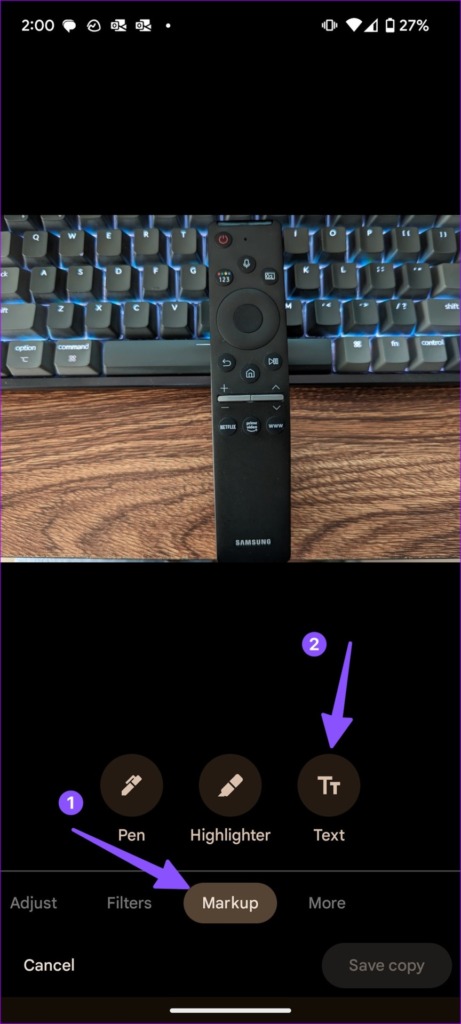
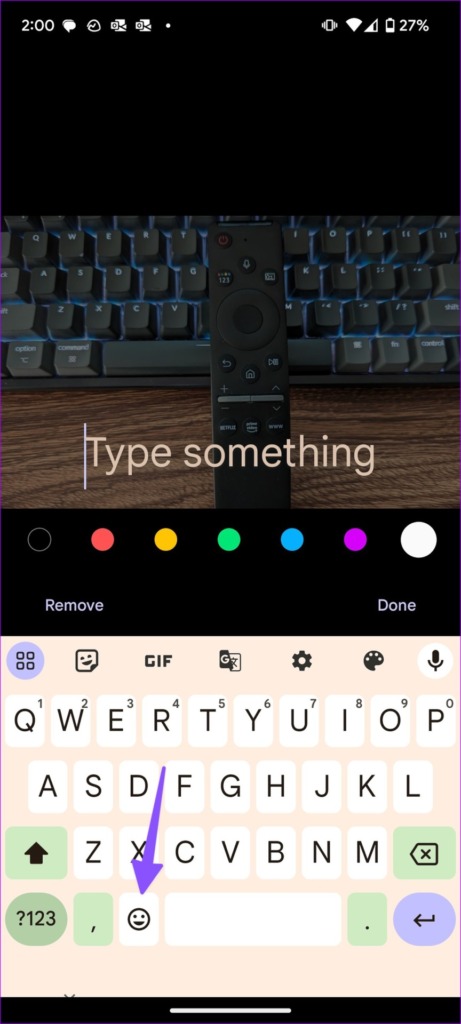
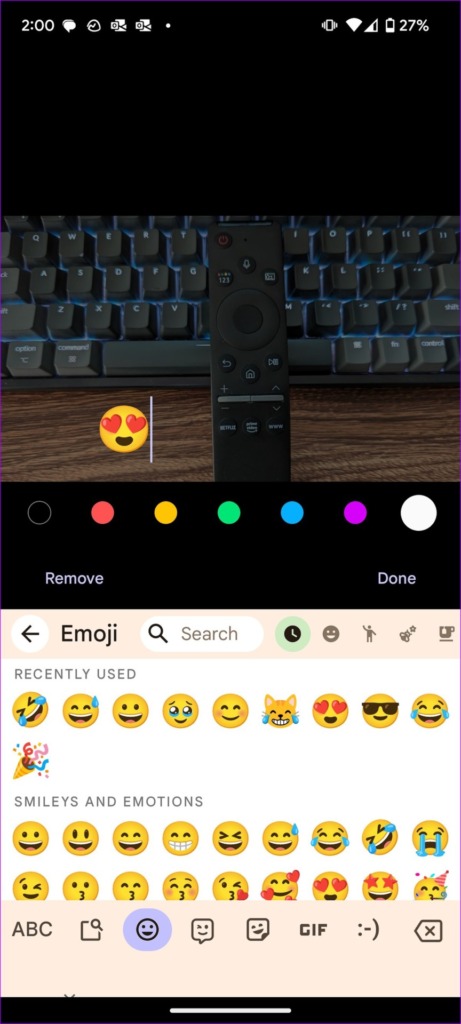
Step 3: Add emojis and hit Done. You can tap and move the emojis to a specific place. Tap Done at the bottom-right corner. Save a copy, and your photo is ready for sharing.

Also Read: How to get new emojis on Android
Method 2: Use Messaging Apps
Most messaging and social media apps offer tools to edit photos and add emojis. Let’s take WhatsApp as an example here.
Step 1: Select an image you want to edit and share > tap the emoji icon at the top > select stickers and emojis you want to add.
Step 2: Hit the send button.


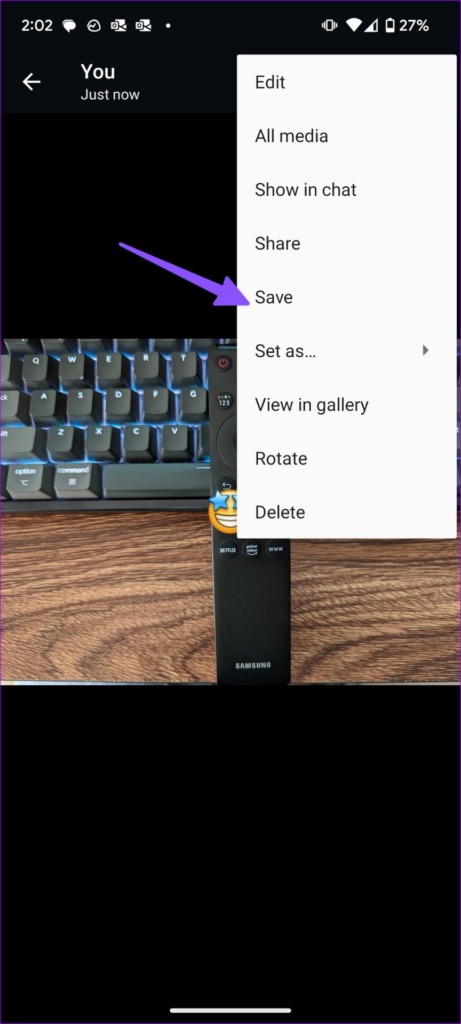
After sending edited photos to a personal conversation or group, open the photo and hit the three vertical dots menu at the top right > Save.

Method 3: Use Third-Party Apps
Step 1: Download the Picsart photo editor from Google Play Store.
Step 2: Tap Edit a Photo > pick an image from the following menu > scroll to the Text menu.
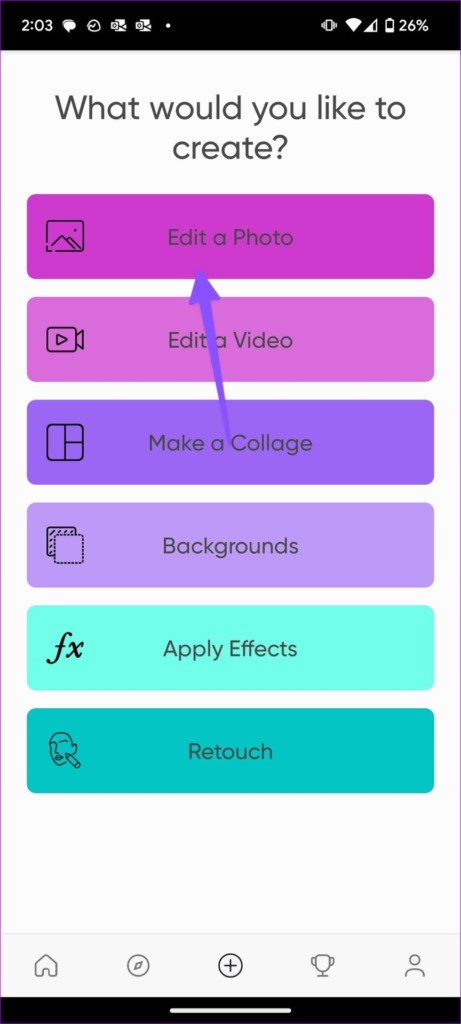
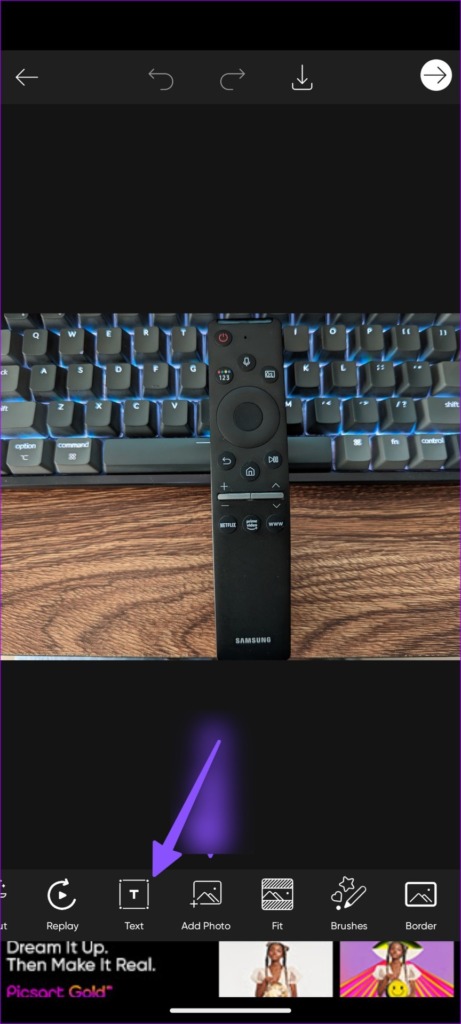
Step 3: Select the Emoji menu on your keyboard > insert emojis into the picture > tap the checkmark at the top-right corner.
Step 4: You can resize emojis, place them in a relevant position, and save the image from the top menu.
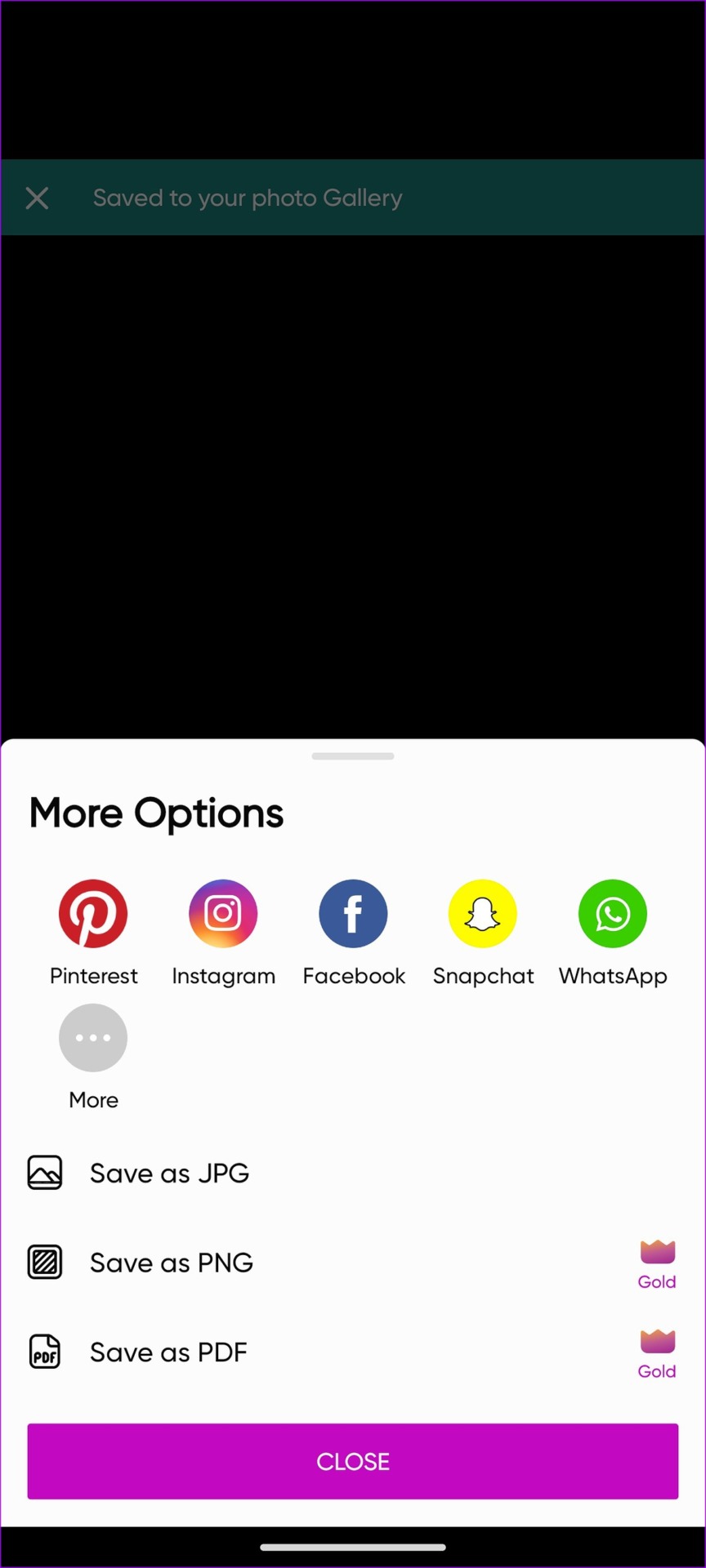
Step 5: Then, share the edited photo to a social media platform or save it to device storage in JPG, PNG, or PDF format.


Also Read: How to insert emojis in Google Docs
Was this helpful?
Last updated on 02 August, 2024
1 Comment
Leave a Reply
Read Next
 4 Ways to Fix Picture-In-Picture Mode Not Working on Android
Try Basic Fixes Update the problematic app: If the picture-in-picture mode is not working due to a buggy app build, you should be able to fix it by updating the
4 Ways to Fix Picture-In-Picture Mode Not Working on Android
Try Basic Fixes Update the problematic app: If the picture-in-picture mode is not working due to a buggy app build, you should be able to fix it by updating the
 3 Fixes for Netflix Picture-In-Picture Mode Not Working on Android
Fix 1: Upgrade Netflix Plan If you are from a country where Netflix offers an ad-supported version, you must upgrade to a premium plan.
3 Fixes for Netflix Picture-In-Picture Mode Not Working on Android
Fix 1: Upgrade Netflix Plan If you are from a country where Netflix offers an ad-supported version, you must upgrade to a premium plan.
 4 Ways to Fix WhatsApp Picture-In-Picture Not Working
Basic Fixes Update WhatsApp: Open the Google Play Store or Apple App Store, search WhatsApp, and tap Update (if available).
4 Ways to Fix WhatsApp Picture-In-Picture Not Working
Basic Fixes Update WhatsApp: Open the Google Play Store or Apple App Store, search WhatsApp, and tap Update (if available).
 3 Ways to Fix Prime Video Picture-in-Picture Not Working on Android and iPhone
Basic Fixes Restart Prime Video: Restart the Prime Video app and your smartphone to eliminate bugs and glitches.
4 Ways to Fix the iPhone Picture-in-Picture Not Working
Before you begin, try restarting your iPhone, and update the app you are trying to use picture-in-picture with, to the latest version.
3 Ways to Fix Prime Video Picture-in-Picture Not Working on Android and iPhone
Basic Fixes Restart Prime Video: Restart the Prime Video app and your smartphone to eliminate bugs and glitches.
4 Ways to Fix the iPhone Picture-in-Picture Not Working
Before you begin, try restarting your iPhone, and update the app you are trying to use picture-in-picture with, to the latest version.
 3 Ways to Fix Picture-In-Picture Not Working in Facebook Messenger
Common Fixes Restart device - Long-press the physical Power button and tap Reboot to restart Android.
3 Ways to Fix Picture-In-Picture Not Working in Facebook Messenger
Common Fixes Restart device - Long-press the physical Power button and tap Reboot to restart Android.
 8 Ways to Insert Emojis in Google Docs
Method 1: Using the Menus Search Feature You can add an emoji to your Google Docs file with a simple keyboard shortcut.
8 Ways to Insert Emojis in Google Docs
Method 1: Using the Menus Search Feature You can add an emoji to your Google Docs file with a simple keyboard shortcut.
 2 Ways to Turn on Picture in Picture on Microsoft Edge
Method 1: Use the Inbuilt PiP Option in Microsoft Edge Picture-in-Picture (PiP) mode was officially released in Microsoft Edge with the stable release of Microsoft Edge version 78.
2 Ways to Turn on Picture in Picture on Microsoft Edge
Method 1: Use the Inbuilt PiP Option in Microsoft Edge Picture-in-Picture (PiP) mode was officially released in Microsoft Edge with the stable release of Microsoft Edge version 78.
The article above may contain affiliate links which help support Guiding Tech. The content remains unbiased and authentic and will never affect our editorial integrity.

Step 7
Is VAGUE
TAP
SHOW / TELL HOW TO MOVE
TEXT
OR
EMOJIS
WHERE
YOU WANT THEM….
THEY ARE RIGHT ON TOP OF THE PHOTOS FACES!