Like most major Microsoft programs, PowerPoint has a lot of beginner-friendly, surface-level features, as well as more advanced features hidden a little deeper in its menus. One of those features allows you to add a handy PowerPoint mouseover effect, in which hidden text appears when you hover the mouse cursor over an element.
This guide shows you exactly how to set up the mouseover text effect for PowerPoint, one step at a time.
How to Create a PowerPoint Mouseover Effect for Text: Step-by-Step Instructions
Setting up the mouseover text effect for PowerPoint isn’t too tricky, once you know how. It simply involves a clever usage of PowerPoint’s hyperlink feature. Here’s a close look at exactly how it’s done. Note that these steps will work just as well on existing presentations as new ones, so you can apply the effect to a presentation you’ve already made, or start from scratch.
Step 1. If you want to apply this effect to an existing presentation, open it up and find the element or image you want to add the text to. If you’re starting a new one, open PowerPoint and create a slide with an image or item to attach some secret text to. For the purposes of this guide, we’ll use a simple circle.

Step 2. Right-click on the object/image you want to add the effect to. Then find and select “Hyperlink.” Note that you can alternatively just use the “Ctrl” and “K” keyboard shortcut. If you’re planning on applying a lot of text to many objects, it’s faster to learn and use the shortcut.

Step 3. In the sidebar menu on the left, click on “Place in This Document.” Then make sure to select the exact slide you want to add the effect to. You’ll see an image of the slide in the preview window to help ensure you’re picking the correct one.

Step 4. Don’t click “OK” yet. Instead, select the “Screentip” button in the top-right corner of the dialog window.

Step 5. A new ScreenTip window will appear, with a text box. Use that textbox to type in the hidden text you want to show up when you hover over the image later on. Click “OK” to confirm. Note that there is a maximum amount of text you can add to this box. Specifically, PowerPoint supports up to 256 characters of text, total. That includes spaces.

How to Display the Mouseover Text Effect for PowerPoint
Once you’ve set up your mouseover text effect, you can launch your PowerPoint presentation via the “Shift” and “F5” keyboard shortcut. Then, just hover your mouse over the image/element you added the text to and wait a moment. The text should then appear in its own floating window.
Was this helpful?
Last updated on 26 June, 2025
Read Next
 How to Apply Parchment Background Effect in Word
Applying the Parchment Background Effect in Microsoft Word Step 1.
How to Apply Parchment Background Effect in Word
Applying the Parchment Background Effect in Microsoft Word Step 1.
 5 AI Tools to Help You Generate PowerPoint Presentation from Text
We’ve entered the age of AI.
5 AI Tools to Help You Generate PowerPoint Presentation from Text
We’ve entered the age of AI.
 How to Use PowerPoint Speak to Read Your Presentation Text
Want to hear the text in your PowerPoint presentation read out loud without having to do so yourself?
How to Use PowerPoint Speak to Read Your Presentation Text
Want to hear the text in your PowerPoint presentation read out loud without having to do so yourself?
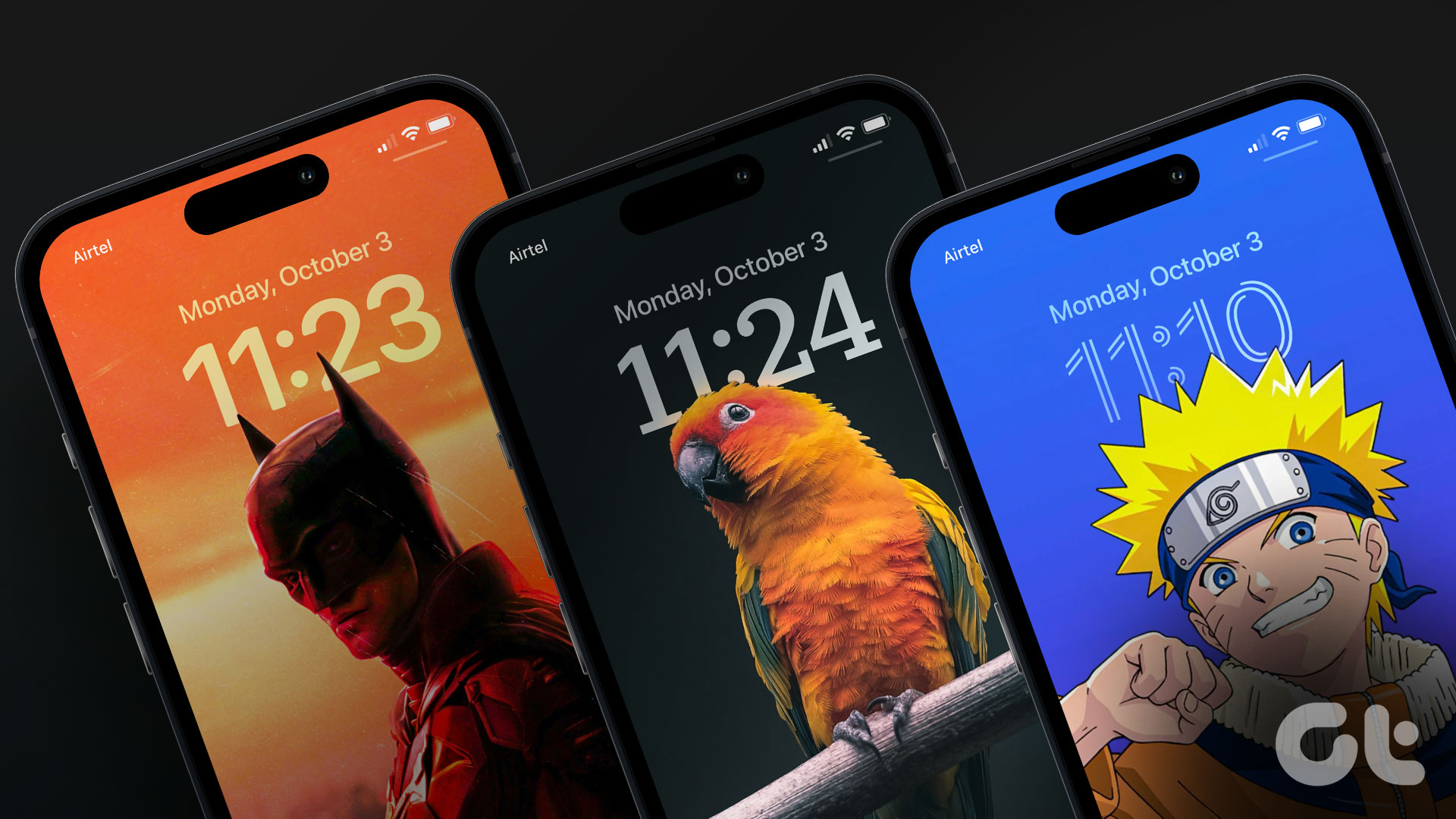 45 Best Depth Effect Wallpapers (4K) for iPhone Lock Screen
How to Enable Depth Effect on iPhone Lock Screen Step 1: Open the photo you want to set as the lock screen wallpaper.
45 Best Depth Effect Wallpapers (4K) for iPhone Lock Screen
How to Enable Depth Effect on iPhone Lock Screen Step 1: Open the photo you want to set as the lock screen wallpaper.
 4 Ways to Fix Depth Effect Wallpaper Not Working on iPhone
Which iPhone Models Support the Depth Effect Feature The depth effect feature is only available on iPhones with an A12 Bionic chip or later.
4 Ways to Fix Depth Effect Wallpaper Not Working on iPhone
Which iPhone Models Support the Depth Effect Feature The depth effect feature is only available on iPhones with an A12 Bionic chip or later.
 Top 3 Ways to Add Icons to a Microsoft PowerPoint Presentation
You can Microsoft PowerPoint more interesting and intuitive by using icons instead of just text.
Top 3 Ways to Add Icons to a Microsoft PowerPoint Presentation
You can Microsoft PowerPoint more interesting and intuitive by using icons instead of just text.
 How to Add Live Translation to Slides in PowerPoint
If you’re asked to give a live presentation using PowerPoint, there’s a good chance that not everyone in the audience will have English as their first language.
How to Add Live Translation to Slides in PowerPoint
If you’re asked to give a live presentation using PowerPoint, there’s a good chance that not everyone in the audience will have English as their first language.
 How to Add Live Subtitles to Your PowerPoint Presentation
Sometimes, your PowerPoint presentations aren’t going out to a couple of people in a conference room.
How to Add Live Subtitles to Your PowerPoint Presentation
Sometimes, your PowerPoint presentations aren’t going out to a couple of people in a conference room.
The article above may contain affiliate links which help support Guiding Tech. The content remains unbiased and authentic and will never affect our editorial integrity.