Method 1: Use the Notes App to See Clipboard
Using the Notes app is a great way to not only access but also store the copied contents from a clipboard.
Step 1: Once you have the contents copied onto the clipboard, open the Notes app.
Step 2: Tap on the pencil icon to create a new note. Long-press the newly opened note and tap on Paste.
Step 3: You will now find your pasted clipboard contents. Now, tap on Done to store the same in Notes.


Method 2: Using the Shortcuts App
Step 1: Open the Shortcuts app. Tap on Gallery at the bottom.
Step 2: Search for Adjust Clipboard and tap on the + icon to add the shortcut.
Step 3: To access the shortcut, tap on the Shortcuts tab in the bottom bar followed by My Shortcuts.


Step 5: Tap on the shortcut you added.
The shortcut will now run and show you the contents of your clipboard.


Also Read: How to fix Shortcuts app crashing on iPhone
Method 3: Use Third-Party Clipboard Managers
Paste lets you view all your clipboard contents within the app. Once you set it up, the moment you copy anything, it will get automatically stored on the app. This way, you can copy multiple items, view them in the app, and share them.
Step 1: Download the Paste app from the App Store.
Once you open the app, it will ask you to set up a few things. None of them are necessary for what we are doing here, so tap on ‘I’ll enable it later in Settings’.
Step 2: Now, tap on the three-dots icon at the top right corner of the home screen. Tap on Settings.
Step 3: Turn on both the options under Collect Clipboard Contents – When App Becomes Active and When Keyboard Becomes Active.


However, there are a few things that you need to do if you are using the app for the first time.
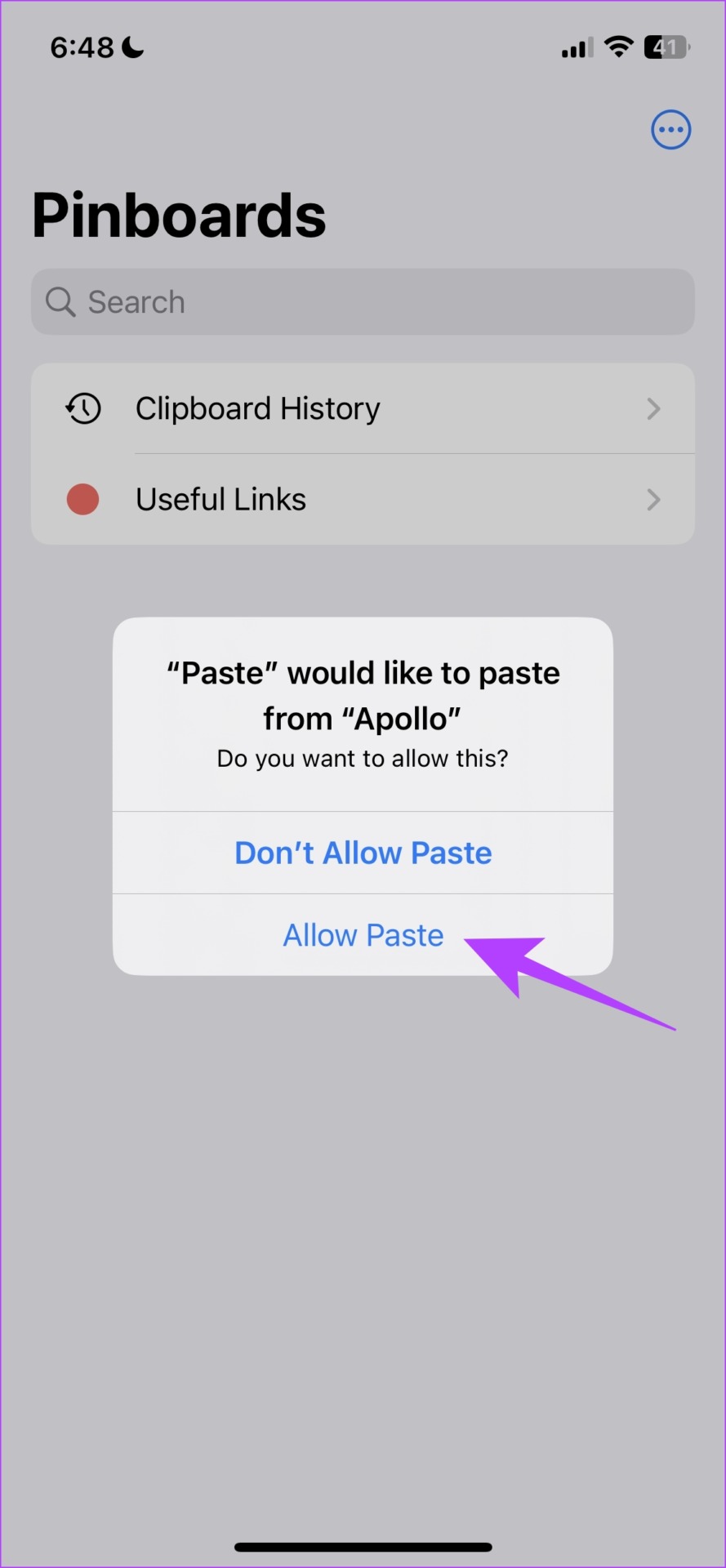
Step 4: Copy the contents onto the clipboard and open the Paste app. Tap on Allow Paste for Paste to read content from the particular app.
Note: You need to permit every app you copy content from for the first time after setting up Paste.
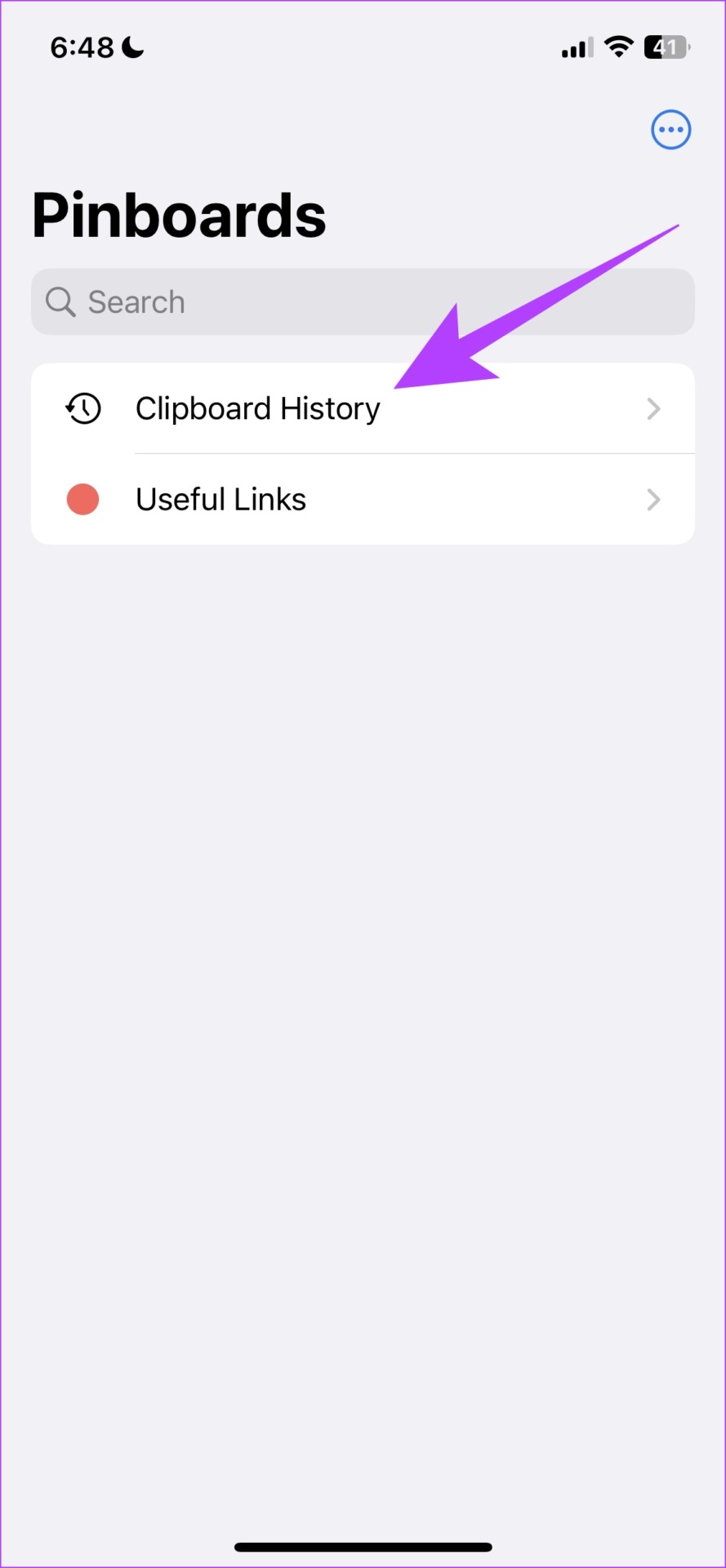
Step 5: Tap on the Clipboard History panel.
You can see the copied texts on the clipboard along with the time you copied them. This way you can access multiple copied items on your clipboard.

Also Read: How to check clipboard history on Mac
Was this helpful?
Last updated on 16 July, 2024
Read Next
 How to Access and Use the Clipboard in Microsoft Office
How to Access and Use the Office Clipboard Using the Office Clipboard, you can save texts from an email, data from a spreadsheet, and even graphics from an online source.
How to Access and Use the Clipboard in Microsoft Office
How to Access and Use the Office Clipboard Using the Office Clipboard, you can save texts from an email, data from a spreadsheet, and even graphics from an online source.
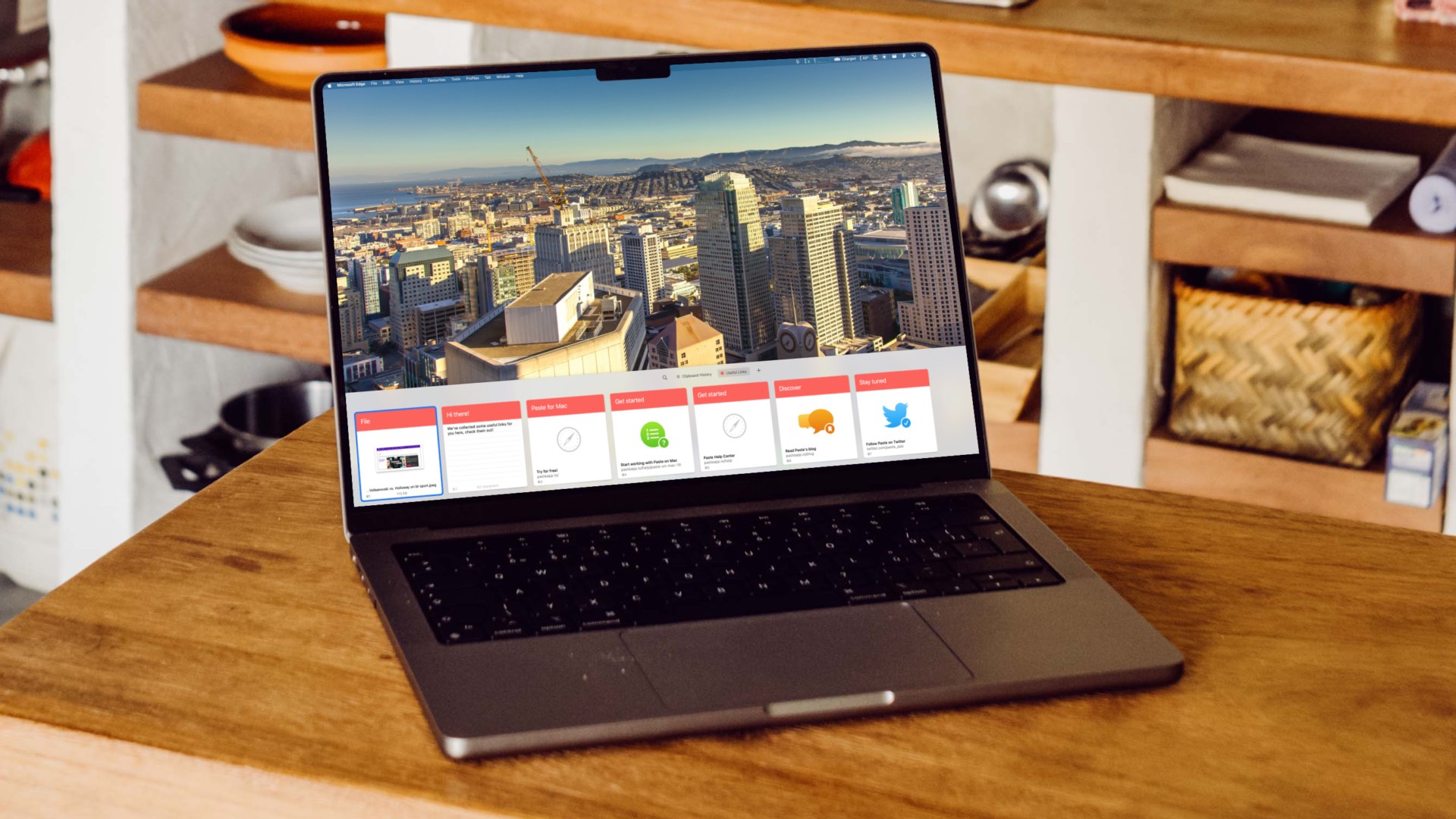 2 Ways to Check Clipboard History on Mac
Method 1: Default Clipboard Step 1: Open Finder on Mac, go to Edit in the menu bar, and choose Show Clipboard.
2 Ways to Check Clipboard History on Mac
Method 1: Default Clipboard Step 1: Open Finder on Mac, go to Edit in the menu bar, and choose Show Clipboard.
 3 Ways to Clear the Clipboard History in Windows 11
Method 1: Using the Clipboard Tab The easiest and quickest way to empty clipboard history in Windows is through the Clipboard tab.
3 Ways to Clear the Clipboard History in Windows 11
Method 1: Using the Clipboard Tab The easiest and quickest way to empty clipboard history in Windows is through the Clipboard tab.
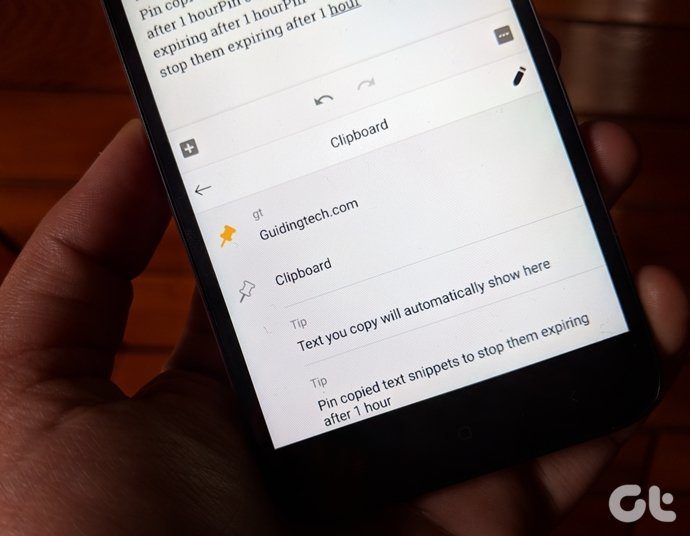 5 Android Keyboards With a Clipboard
1.
5 Android Keyboards With a Clipboard
1.
 5 Best Apps to Sync Clipboard Between PC and Android
When Pushbullet moved its amazing universal clipboard feature to the premium version, I was devastated.
5 Best Apps to Sync Clipboard Between PC and Android
When Pushbullet moved its amazing universal clipboard feature to the premium version, I was devastated.
 How to Check and Recover Clipboard History on Android
Method 1: Check and Recover Clipboard History Using Gboard One of the easiest ways to view and recover your clipboard history on an Android device is by using Gboard, the
How to Check and Recover Clipboard History on Android
Method 1: Check and Recover Clipboard History Using Gboard One of the easiest ways to view and recover your clipboard history on an Android device is by using Gboard, the
 What Is Clipboard in Windows 10 and How to Use It: A Complete Guide
You must have used copy-paste functionality at least once whether you own a smartphone, tablet, or computer.
What Is Clipboard in Windows 10 and How to Use It: A Complete Guide
You must have used copy-paste functionality at least once whether you own a smartphone, tablet, or computer.
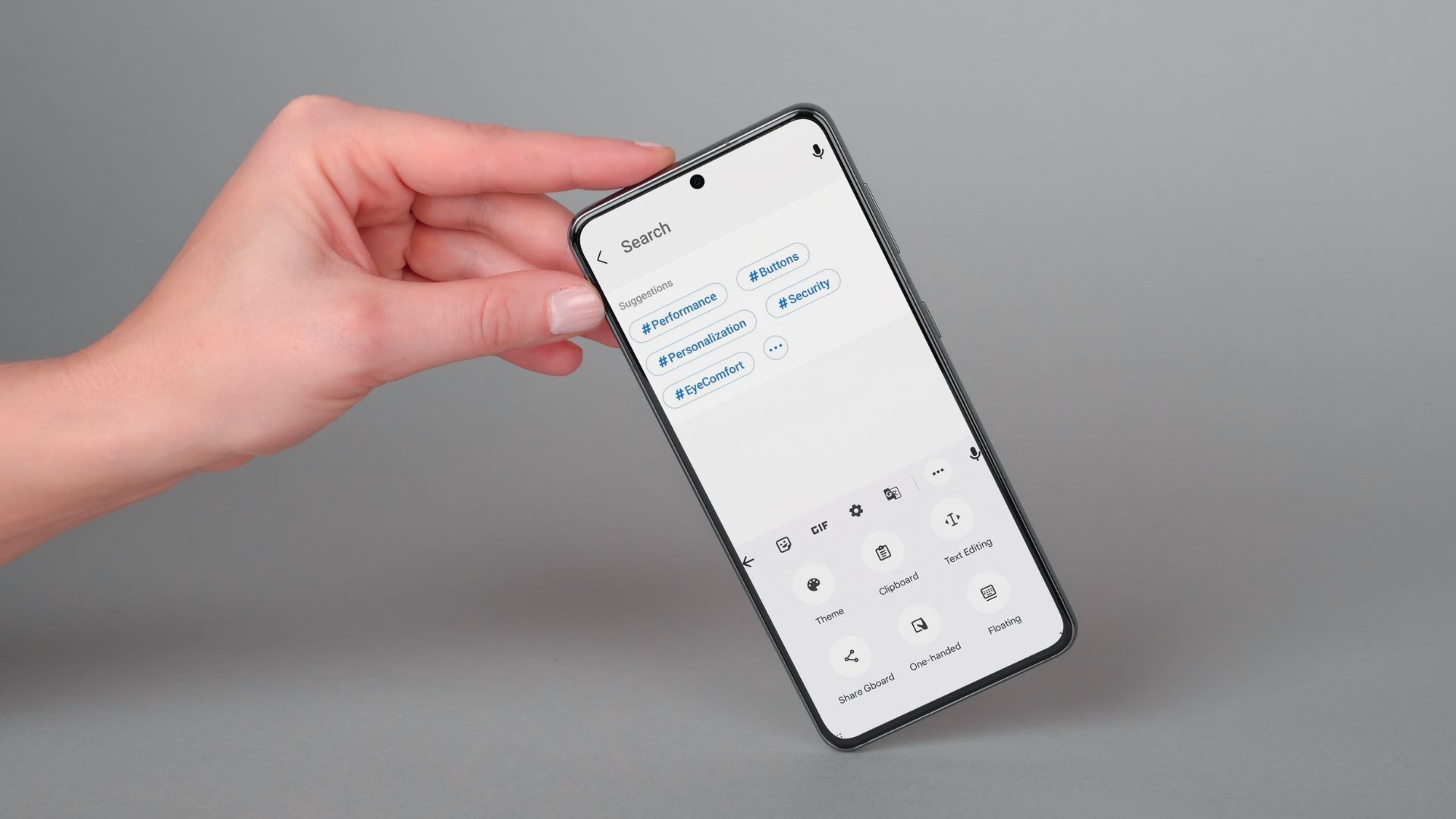 How to Use Clipboard on Samsung Galaxy Phones
Use Clipboard in Samsung Keyboard You can use One UI's native clipboard if Samsung Keyboard is your default keyboard app.
How to Use Clipboard on Samsung Galaxy Phones
Use Clipboard in Samsung Keyboard You can use One UI's native clipboard if Samsung Keyboard is your default keyboard app.
The article above may contain affiliate links which help support Guiding Tech. The content remains unbiased and authentic and will never affect our editorial integrity.