


Method 1: Enable Sleeping Tabs Using Memory Saver
Step 1: Open Google Chrome and click on three vertical dots.
Step 2: Navigate to Settings > Performance.

Step 3: Under Memory, toggle on Memory Saver.
Now, when you open multiple tabs without actively using them, they will go into a sleep state. This means that the tab is still open, but it won’t use resources or memory until you click on it again.
Method 2: Enable Sleeping Tabs Using Chrome Extension
Another way to enable Sleeping Tabs is by using a Chrome Extension. Here are two options to try:
1. Session Buddy
Session Buddy is a popular session manager. As the name suggests, it provides an overview of open tabs in your Chrome browser. You can keep the same set of tabs even after shutting down your laptop.
To use Session Buddy, follow these steps:
Step 1: Install Session Buddy from the Chrome Web Store.
Step 2: Once installed, click the Session Buddy icon.

Step 3: Choose the tabs you want to save and click Save selected.
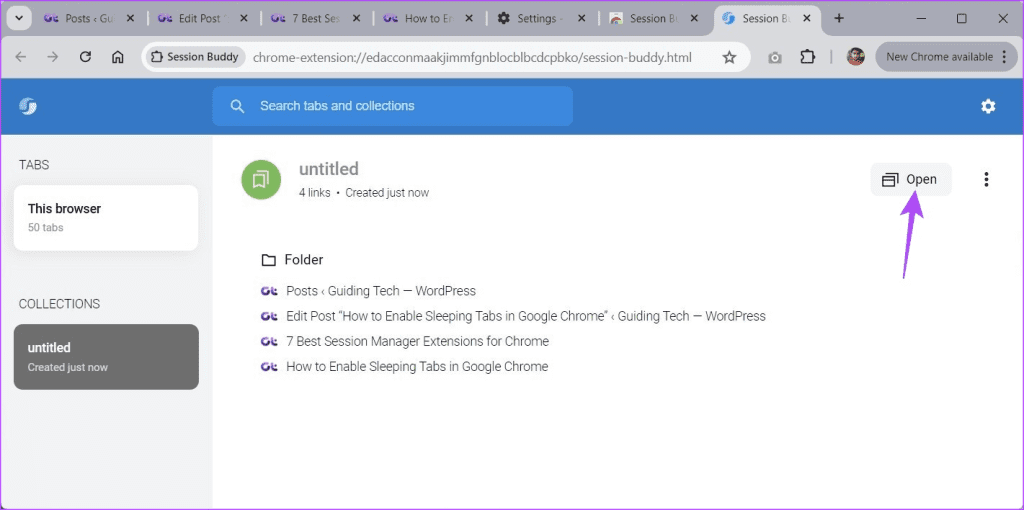
Step 4: To open saved tabs, click on the Session Buddy icon again > Open.
2. Tabby
Tabby is another Chrome extension for managing tab overload. It allows you to stop browsing once you exceed a specified number of tabs. To use Tabby, follow these steps:
Step 1: Install Tabby from the Chrome Web Store.
Step 2: Click on the Tabby icon in your Chrome toolbar.
Step 3: Select your preferred mode: Focus or Relax.

Note: Focus mode limits open tabs to 5, while Relax mode allows up to 12 tabs. You can also choose Customize to set your limits.
Was this helpful?
Last updated on 01 August, 2024
Read Next
 How to Stop iPhone From Turning Off, Sleeping, or Locking Automatically
Basic Fixes Restart Device: You can try restarting your device to see if it fixes the problem.
How to Stop iPhone From Turning Off, Sleeping, or Locking Automatically
Basic Fixes Restart Device: You can try restarting your device to see if it fixes the problem.
 How to Manage Sleeping Apps on Samsung Galaxy Phone
https://youtu.be/OFcUJkAAt1s How to Put Apps to Sleep on Samsung Galaxy Phones One UI lets you put apps in Sleep or Deep Sleep state to limit their background activities.
How to Manage Sleeping Apps on Samsung Galaxy Phone
https://youtu.be/OFcUJkAAt1s How to Put Apps to Sleep on Samsung Galaxy Phones One UI lets you put apps in Sleep or Deep Sleep state to limit their background activities.
 How to Close All Tabs From the Same Website on Google Chrome
Note: Chrome doesn't support this feature by default.
How to Close All Tabs From the Same Website on Google Chrome
Note: Chrome doesn't support this feature by default.
 How to Restore Tabs & Save Tab Groups In Google Chrome
Usually when Google Chrome crashes, it gives you a restore tabs option when you open the chrome browser again.
How to Restore Tabs & Save Tab Groups In Google Chrome
Usually when Google Chrome crashes, it gives you a restore tabs option when you open the chrome browser again.
 4 Fixes for Google Chrome Not Opening New Tabs on Windows
Common Fixes Before you delve into complex troubleshooting methods, try these basic fixes and see if they help restore normalcy to Google Chrome: Restart Google Chrome - Restarting the browser
4 Fixes for Google Chrome Not Opening New Tabs on Windows
Common Fixes Before you delve into complex troubleshooting methods, try these basic fixes and see if they help restore normalcy to Google Chrome: Restart Google Chrome - Restarting the browser
 3 Ways to Auto Refresh Tabs in Google Chrome
Method 1: Using Extensions While there are no native controls to reload web pages on Chrome automatically, you can add the Easy Auto Refresh extension to Chrome and get the
3 Ways to Auto Refresh Tabs in Google Chrome
Method 1: Using Extensions While there are no native controls to reload web pages on Chrome automatically, you can add the Easy Auto Refresh extension to Chrome and get the
 7 Chrome Extensions to Save Open Tabs
1.
7 Chrome Extensions to Save Open Tabs
1.
 How to Save Tabs Before Closing Chrome and Restore Lost Ones
Use Built-In Chrome Feature to Reopen Tabs Automatically Google Chrome has a native feature to open the last used tabs automatically.
How to Save Tabs Before Closing Chrome and Restore Lost Ones
Use Built-In Chrome Feature to Reopen Tabs Automatically Google Chrome has a native feature to open the last used tabs automatically.
The article above may contain affiliate links which help support Guiding Tech. The content remains unbiased and authentic and will never affect our editorial integrity.

