How to Edit Facebook Group Settings on Desktop
If you use Facebook on your desktop, here’s how to access and edit group settings
Step 1: Open Facebook in your web browser and sign in to the account that manages the group.
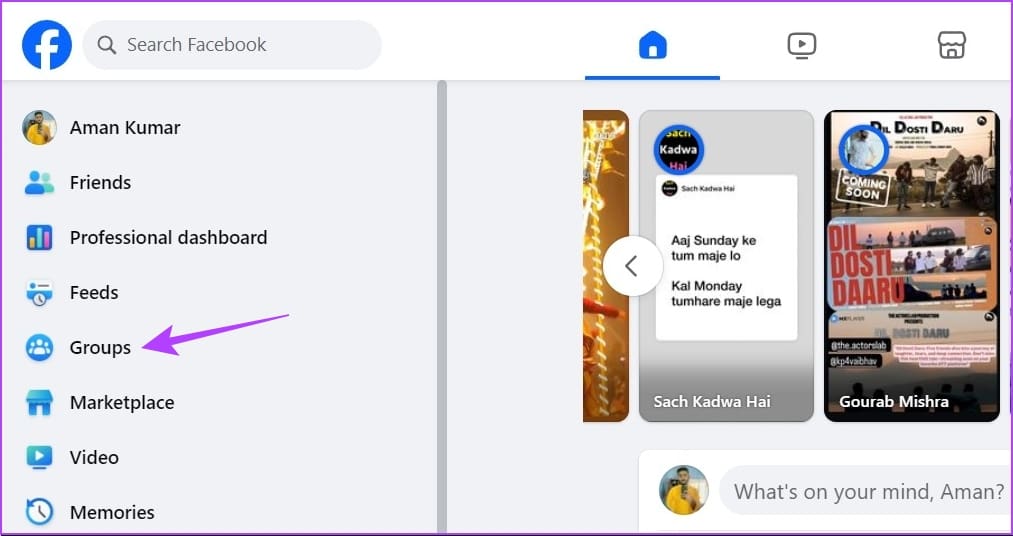
Step 2: On the left sidebar, click Groups.
Step 3: Under Your groups on the left sidebar, find your desired group. Click the three dots next to the group name, and then select Group status.

Step 3: Under the Settings section in the left sidebar, click on Group Settings.
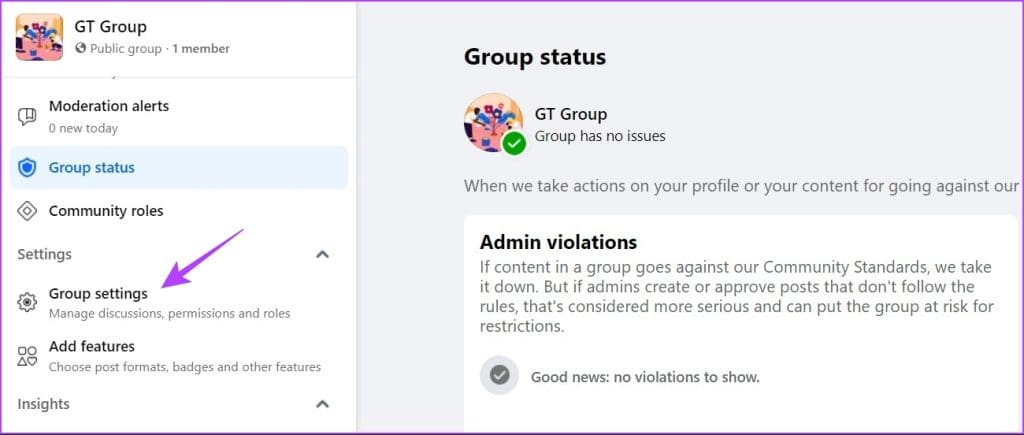
Step 4: You will find most of the settings related to your group. Those include basic group setting such as name, description, group privacy (closed, secret, private), group link, color, and group types. You can even customize the membership settings like who can join the group, who can post, membership approvals, post approvals, etc.

Step 5: Additional features like pending member requests, pending posts, activity log, and membership questions can be found under Admin Tools on the left sidebar.

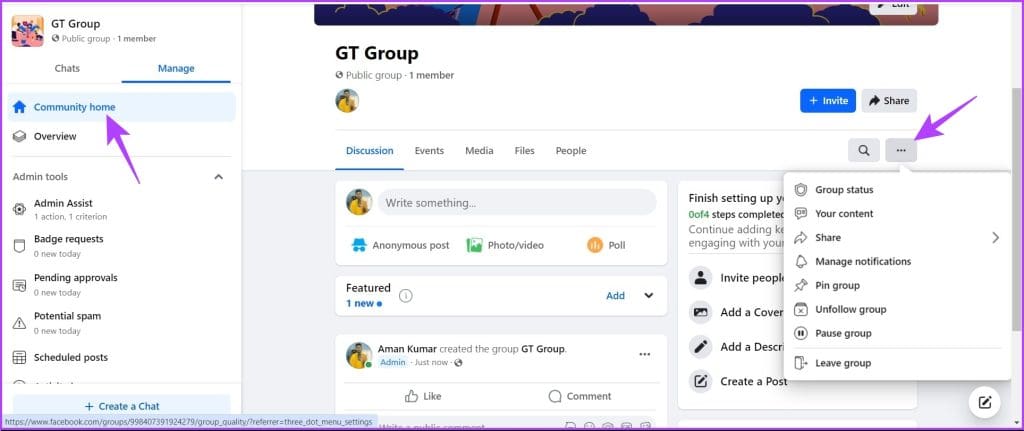
Step 5: To manage options like archiving or pinning the group, select Community home on the left sidebar and click the three dots next to the search icon. You can also manage notification settings for your group from this menu.
How to Edit Group Settings on Android, iOS, and iPadOS
Finding Facebook group settings gets confusing especially on mobile devices. But don’t worry. Here are the steps:
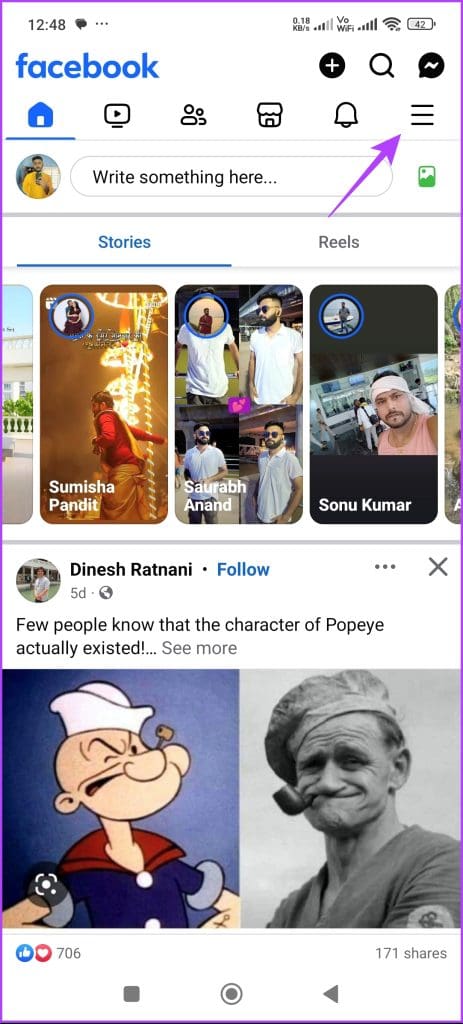
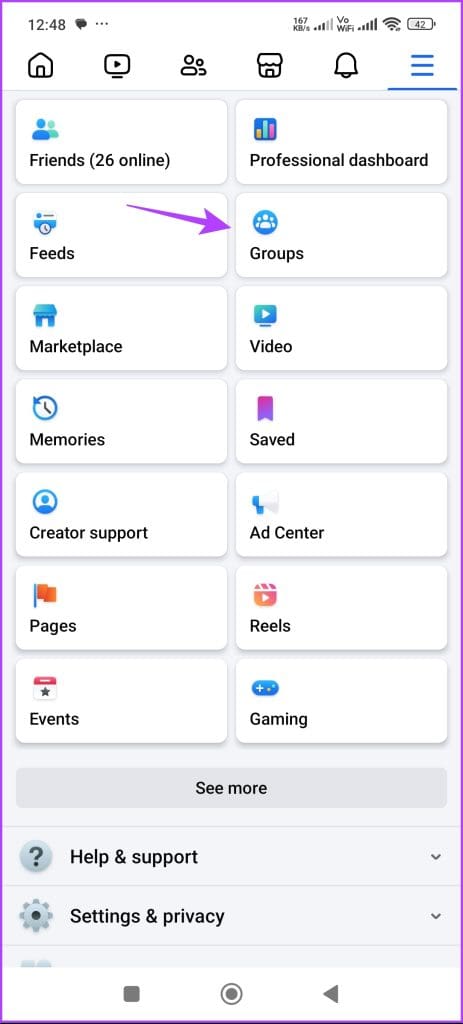
Step 1: Launch the Facebook mobile app, tap the hamburger icon in the top-right corner, and choose Groups. Then, tap the Your groups tab and choose the group whose settings you want to change.

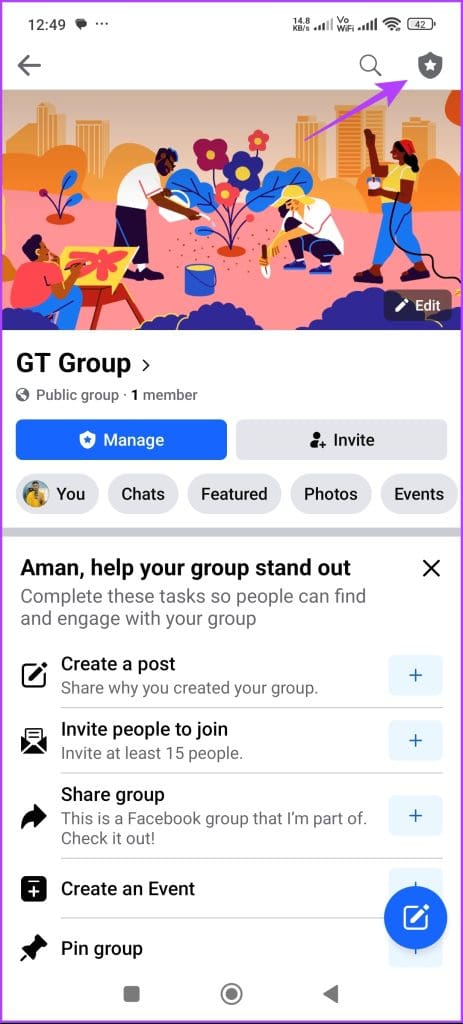
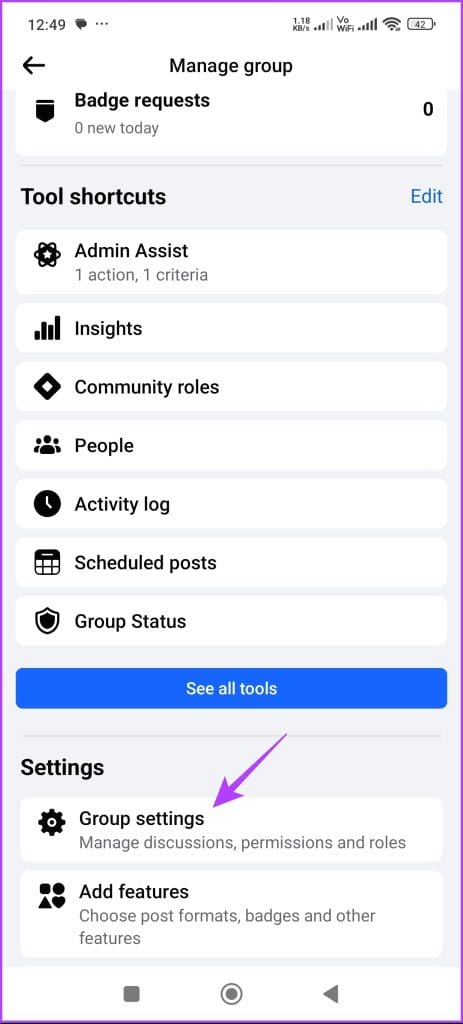
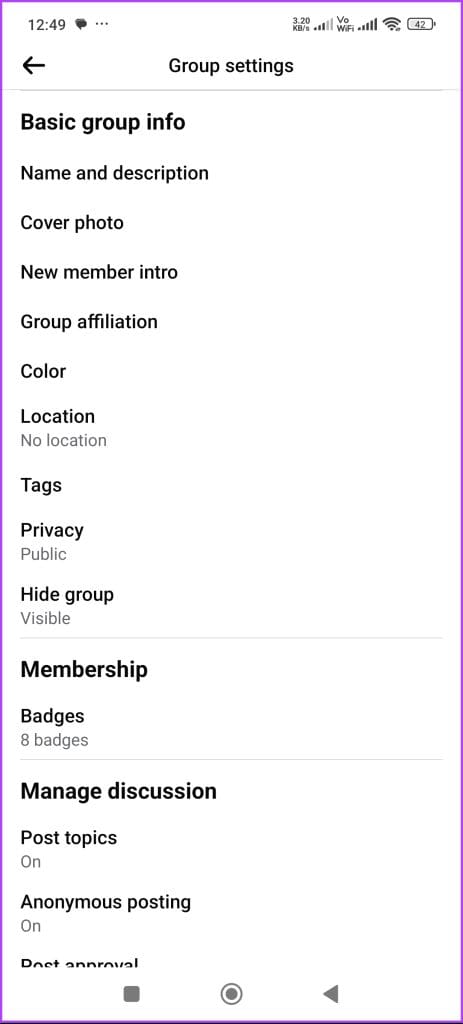
Step 2: Tap on the Badge icon at the top-right corner. The Manage group screen will open. Here you will see various features and settings. Tap on the Group settings option to view and customize the majority of the group settings. Those include group type, name, membership settings, linked groups, and extra features like Messenger rooms, watch party, etc.
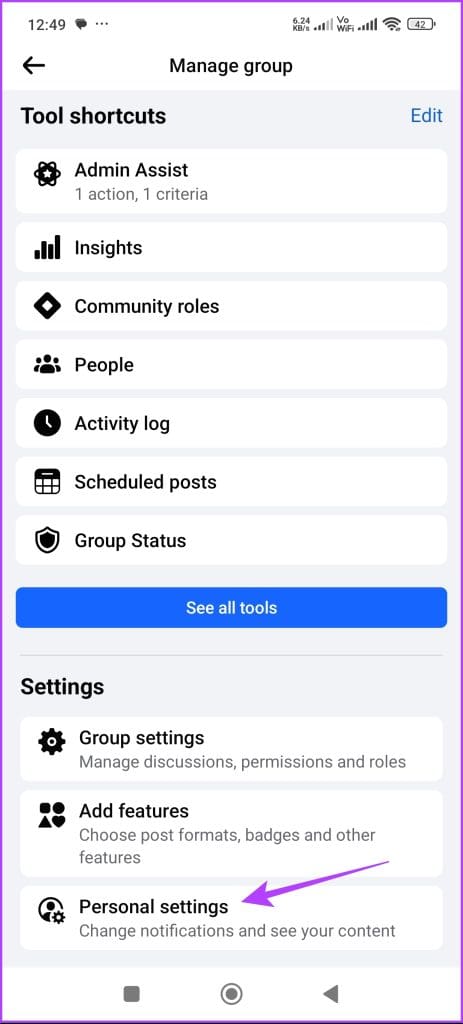
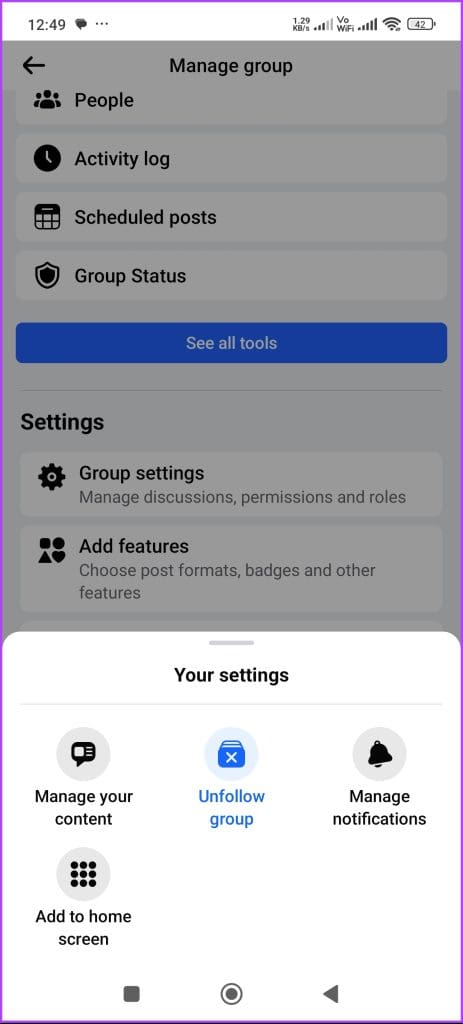
Step 3: Other settings, such as rules and membership questions, can be directly seen under the Manage group screen. Tap on Personal settings on the Manage group screen to pin the group or modify the group notifications. On Android, you can add the group icon as a shortcut on your phone screen.
Also Read: How to Find the Email You Used for Facebook on Mobile or Desktop
Was this helpful?
Last updated on 01 August, 2024
Read Next
 How to Leave a Facebook Group on Mobile or Desktop
Facebook is a hub for community connection.
How to Leave a Facebook Group on Mobile or Desktop
Facebook is a hub for community connection.
 The Complete Guide to Facebook Group Admin Roles and Responsibilities
Any group without a leader can quickly spiral to chaos.
The Complete Guide to Facebook Group Admin Roles and Responsibilities
Any group without a leader can quickly spiral to chaos.
 2 Ways to Reset Local Group Policy Settings on Windows 11
Method 1: Reset Local Group Policy Settings Using the Group Policy Editor To reset local group policy settings on Windows 11, set all policies to 'Not Configured' individually using the
2 Ways to Reset Local Group Policy Settings on Windows 11
Method 1: Reset Local Group Policy Settings Using the Group Policy Editor To reset local group policy settings on Windows 11, set all policies to 'Not Configured' individually using the
 How to Group and Ungroup Elements in Canva on Mobile and PC
Grouping elements in any photo-editing tool comes in handy when you want to accomplish a task on multiple objects together.
How to Group and Ungroup Elements in Canva on Mobile and PC
Grouping elements in any photo-editing tool comes in handy when you want to accomplish a task on multiple objects together.
 Telegram Channel vs Group: Which One Should You Use
Telegram is a highly-lauded alternative to WhatsApp.
Telegram Channel vs Group: Which One Should You Use
Telegram is a highly-lauded alternative to WhatsApp.
 8 Rights and Powers WhatsApp Group Admins Enjoy
1.
8 Rights and Powers WhatsApp Group Admins Enjoy
1.
 How to Make Group Video Calls on Telegram
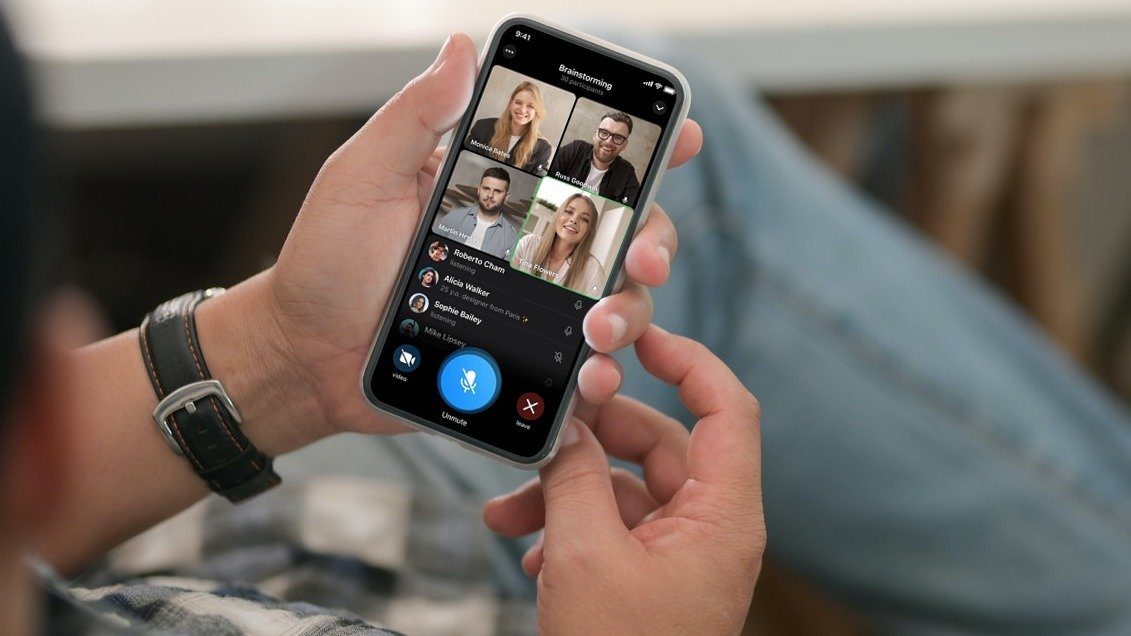
Make a Group Video Calls on Telegram on Android & iOS Step 1: Open your Telegram Android app's existing group.
How to Make Group Video Calls on Telegram
Make a Group Video Calls on Telegram on Android & iOS Step 1: Open your Telegram Android app's existing group.
 How to Add Someone to Telegram Group on Android, iOS, or PC
How to Add Someone to an Existing Telegram Group On Android Step 1: Open the Telegram app on your Android device.
How to Add Someone to Telegram Group on Android, iOS, or PC
How to Add Someone to an Existing Telegram Group On Android Step 1: Open the Telegram app on your Android device.
The article above may contain affiliate links which help support Guiding Tech. The content remains unbiased and authentic and will never affect our editorial integrity.