If you’ve made the move from Windows 10 to Windows 11, but it looks like your hard drive hasn’t done the same, or if you boot up your machine one day only to find your drive isn’t doing likewise, then you’re dealing with a common Windows 11 error. While it may seem like a pretty big cause for alarm, this is quite a common error with many causes and fixes.
If your hard drive disappeared, Windows 11 has several fixes thatt can help. This article will give them to you to hopefully get your drive detected again.
What Causes This Error
A missing hard drive in Windows 11 can have several causes. These include:
- A faulty connection between the hard drive and computer (port or cable)
- The disk is missing a proper configuration or disk drivers
- A corrupted partition during operation or update
- An update (particularly 24H2) has installed incompatible drivers
- Infection from malware or a virus
Let’s take a look at some major fixes to begin the troubleshooting process.
Hard Drive Disappeared Windows 11 – The Fixes to Try
Now that you know the reasons behind the error, let’s get to work on fixing it:
Preliminary Fixes
Before starting with any of the other fixes, it’s a good idea to do the following:
- If using an external hard drive, try disconnecting and reconnecting it. Use a different USB port, another cable, and test it out on a different machine.
- Open your machine, if possible, and check that your internal hard drive is properly attached to your motherboard.
- Restart your machine and press the designated key to enter the BIOS and UEFI. See that your hard drive is indeed detected, letting you know if the problem is with Windows or your drive.
Reenable Your Device
On rare occasions, your hard drive may be disabled by Windows and thus fail to show up. If this happens, you can easily restore things with Device Manager. Here’s how:
Step 1. Open the Run Dialog and type in “devmgmt.msc” and press “Enter.”
Step 2. In Device Manager, open the “Disk Drives” subsection and right-click the problematic drive.
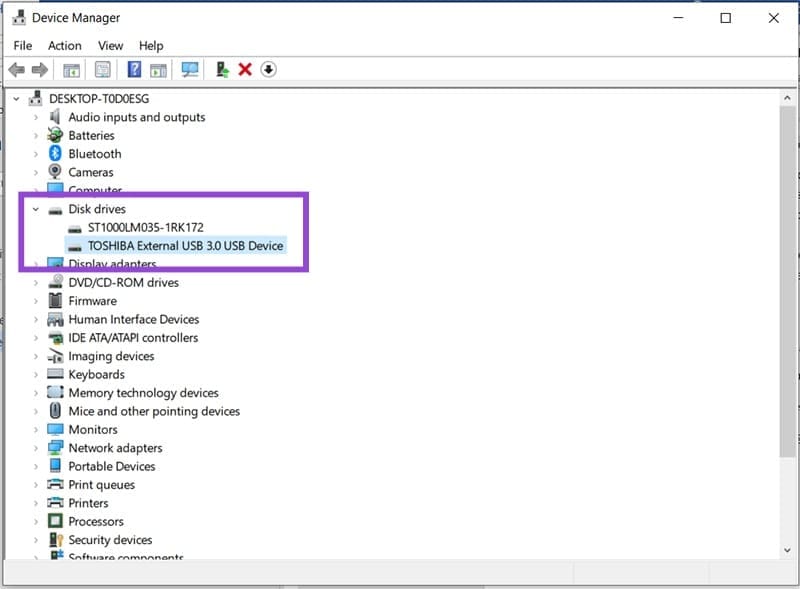
Step 3. Select “Properties” and navigate to the “Driver” tab in the window that pops up.
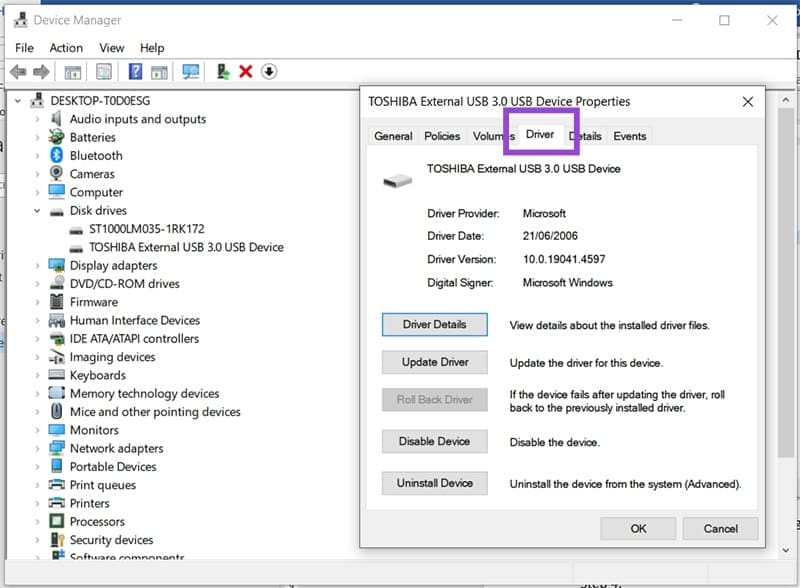
Step 4. If the device is disabled, you’ll see a button to “Enable Device.” Click it to start the drive.
Update the Drivers
If this doesn’t work (and you’re still in Device Manager), you can also update the drivers to resolve any potential compatibility issues with Windows 11. Here’s how:
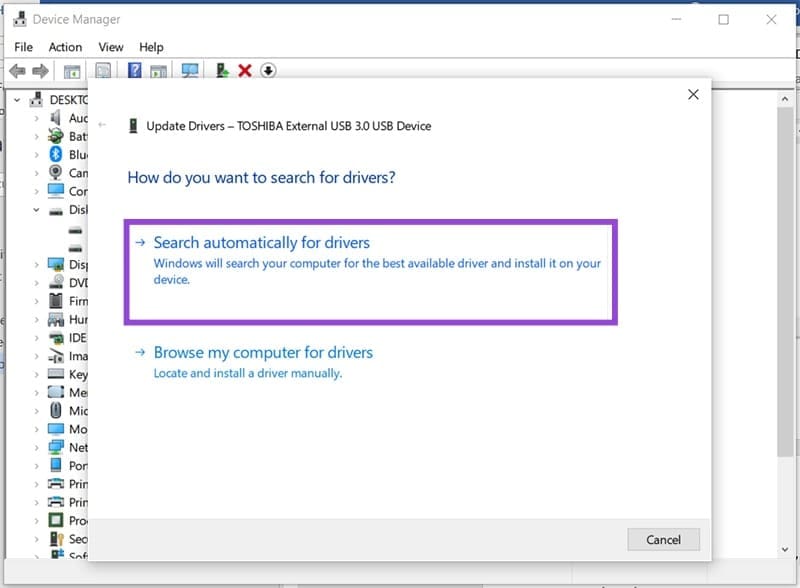
Step 1. In Device Manager, right-click the problematic hard drive and select “Update Drivers” from the context menu.
Step 2. In the new window, click “Search automatically for drivers” and wait for any potential drivers to appear. When they do, follow the steps to install them.
Relabel with Disk Management
Disk Management is the go-to utility for managing all things storage-related, from partitions to cloning. If you find your hard drive gone from Disk Management, this is a good place to fix it. Relabeling your drive may let it appear again. Here’s what to do:
Step 1. Open up the Search Bar and type in “Disk Management.”
Step 2. Click the option “Create and format hard disk partitions.”
Step 3. In the Disk Management window, you’ll see all current drives, partitions, and assigned letters. To change a letter, right-click the drive or partition, and click “Change Drive Letter and Paths…” from the context menu.
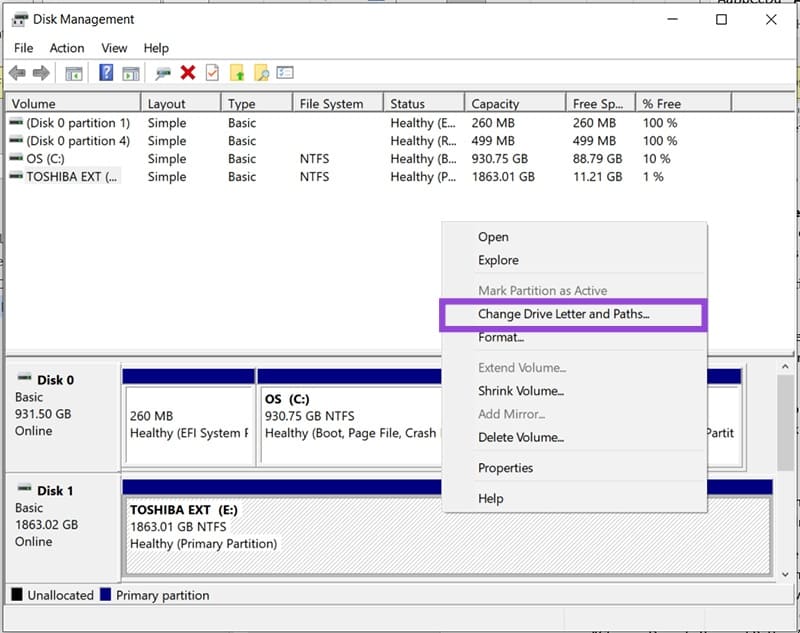
Step 4. Click the “Change” button.
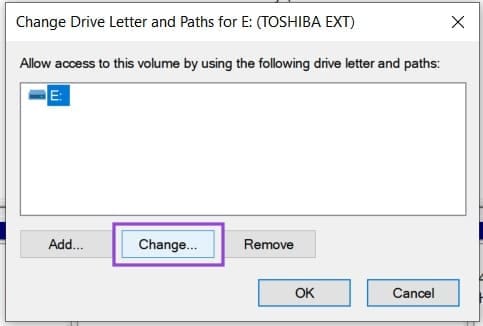
Step 5. Select “Assign the following drive letter” in the window that pops up and choose the new drive letter from the dropdown list next to it.

Step 6. Click “OK” once done, confirm the warning that some programs might no longer work correctly, and the drive should be relabeled.
Once done, open File Explorer and see if your drive appears.
Was this helpful?
Last updated on 28 September, 2025
Read Next
 8 Best Ways to Fix Taskbar Disappeared or Missing on Windows 11
The Windows 11 taskbar is where you can find your favorite apps and the Start menu.
8 Best Ways to Fix Taskbar Disappeared or Missing on Windows 11
The Windows 11 taskbar is where you can find your favorite apps and the Start menu.
 How to Fix Message App Icon Disappeared on iPhone and iPad
Try These Fixes First Restart your device: The Messages app might not appear because of a temporary bug.
How to Fix Message App Icon Disappeared on iPhone and iPad
Try These Fixes First Restart your device: The Messages app might not appear because of a temporary bug.
 3 Ways to Fix Wallpaper Disappeared on iPhone
Basic Fixes: Restart iPhone: Force your iOS device to shut down.
3 Ways to Fix Wallpaper Disappeared on iPhone
Basic Fixes: Restart iPhone: Force your iOS device to shut down.
 5 Ways to Fix Memoji Disappeared After iOS 17 Update on iPhone
Fix 1: Send a Memoji via Stickers After the iOS 17 update, you can use the Stickers option to send a Memoji in iMessage.
5 Ways to Fix Memoji Disappeared After iOS 17 Update on iPhone
Fix 1: Send a Memoji via Stickers After the iOS 17 update, you can use the Stickers option to send a Memoji in iMessage.
 6 Ways to Find and Recover Disappeared iPhone Notes
Basic Troubleshoot Check the Recently Deleted Folder - Assuming the disappeared note is accidentally deleted, you can recover it within 30 days from the date of deletion.
6 Ways to Find and Recover Disappeared iPhone Notes
Basic Troubleshoot Check the Recently Deleted Folder - Assuming the disappeared note is accidentally deleted, you can recover it within 30 days from the date of deletion.
 8 Fixes for GIFs Not Working or Disappeared on iPhone
Not everything can be described in words.
8 Fixes for GIFs Not Working or Disappeared on iPhone
Not everything can be described in words.
 4 Ways to Fix Firefox Not Opening on Windows 10 and Windows 11
Fix 1: Force Close Firefox Processes Sometimes, Firefox processes may become unresponsive on your PC, resulting in such issues.
4 Ways to Fix Firefox Not Opening on Windows 10 and Windows 11
Fix 1: Force Close Firefox Processes Sometimes, Firefox processes may become unresponsive on your PC, resulting in such issues.
 6 Ways to Fix Print Spooler Keeps Stopping on Windows 10 and Windows 11
Fix 1: Run Printer Troubleshooter Windows comes with a dedicated printer troubleshooter that can automatically diagnose and fix any printing issues on your PC.
6 Ways to Fix Print Spooler Keeps Stopping on Windows 10 and Windows 11
Fix 1: Run Printer Troubleshooter Windows comes with a dedicated printer troubleshooter that can automatically diagnose and fix any printing issues on your PC.
The article above may contain affiliate links which help support Guiding Tech. The content remains unbiased and authentic and will never affect our editorial integrity.