Google Drive vs Google Photos Comparison
Key Differences
| Feature | Google Drive | Google Photos |
|---|---|---|
| File Types | All types | Photos, Videos, GIFs |
| Organization | Folders & Subfolders | Albums |
| Photo Quality | Original | Original, High (compressed), Express (compressed) |
| Storage Limit | 15GB shared with Gmail & Photos | 15GB shared with Gmail & Drive (no free High Quality storage anymore) |
| Photo Editing | No | Yes |
| Hide Photos | No | Yes (Locked Folder) |
| Photo Scan | Yes | Requires PhotoScan App |
| Search | Text search | AI search by object, scene, location, face recognition |
Use and Supported File Types
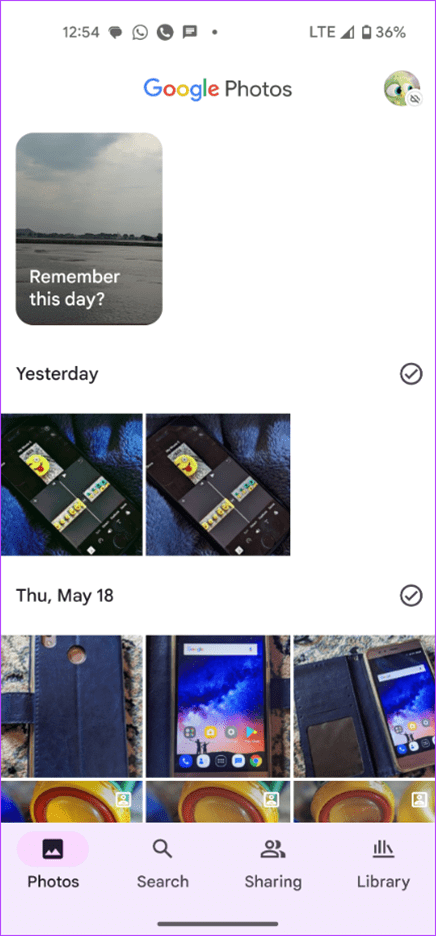
Google Photos is a photo/video viewer, editor, backup, and sync service rolled into one. It supports three types of media files: photos, videos, and GIFs. Google Photos will not show any other type of file.
Google Photos acts natively as a gallery app showing all the photos and videos on your phone. However, it can also automatically back up photos and videos from your phone and keep them synced across your devices.
On the other hand, Google Drive is a powerful file storage service that stores your files in cloud storage. It also acts as a backup service for some apps like WhatsApp. You can add any file to Google Drive, including images, videos, and documents like PDF, ZIP files, APK, etc. However, you need to add the files manually, as Google Drive will not show anything unless you add files to it.
Both services offer mobile apps for Android and iPhone and can sync or add data from a desktop. However, as expected, Google Photos will only sync photos and videos, whereas Google Drive will automatically save all the files from the selected folder on your computer.
User Interface
Google Photos’ user interface is quite similar to gallery apps. On the first screen, you are greeted with camera photos, whereas other local folders or Google Photos albums can be accessed from the Library tab at the bottom.
Similarly, Google Drive’s user interface is similar to that of other file-backup services or file managers. The Files tab shows various folders and files. To view images, you need to go to the image folder.
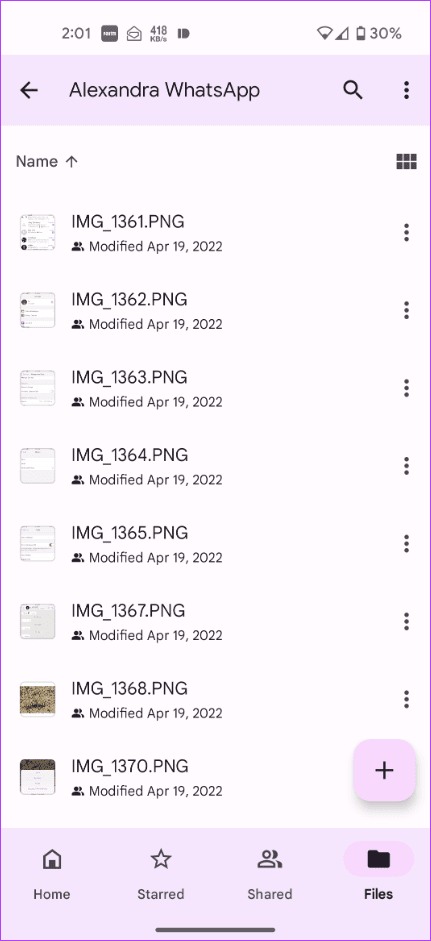
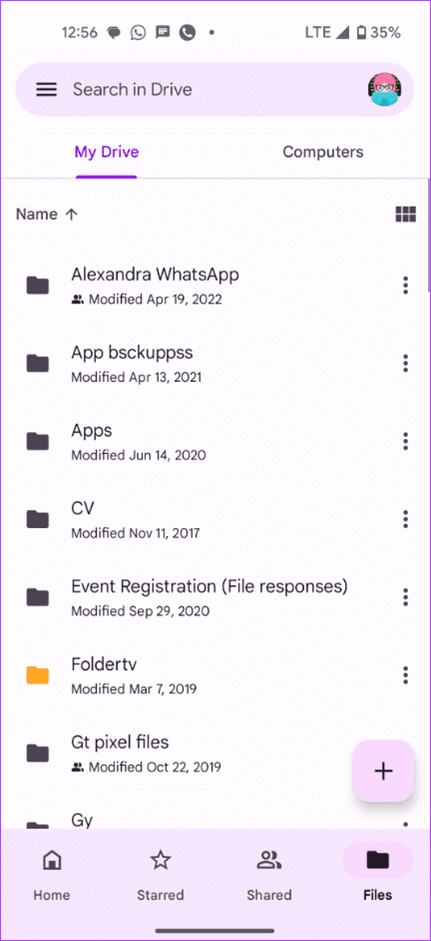
Organization
Since Google Drive is essentially a file manager for files stored in Google Cloud, it offers far better organization. It supports hierarchy and lets you organize your files in various folders. You can even create subfolders and copy or move files very easily.
On the other hand, while Google Photos also shows folders, you cannot create new local folders. However, you can create new Google Photos albums. Furthermore, you can also copy or move photos and videos between folders.
Photo Quality
Quality is very important when it comes to photos and videos. Google Photos lets you save files in three qualities: Original, High (storage saver), and Express Quality.
As expected, photos and videos uploaded in Original quality will not be compressed. On the other hand, photos in High and Express Quality are compressed to reduce space on Google.
For High-Quality Mode, Google compresses photos and saves them at 16MP. Videos are compressed to 1080p. Similarly, in Express Quality, photos, and videos are resized to 3MP and 480p, respectively.
For a regular user, 16MP is more than enough. But if you are a professional photographer, compression might result in losing quality.
On the other hand, there are no separate quality modes in Google Drive. The files will be uploaded in original quality. You can, however, reduce the quality manually if you want to and then upload them to Google Drive.
Storage Limit
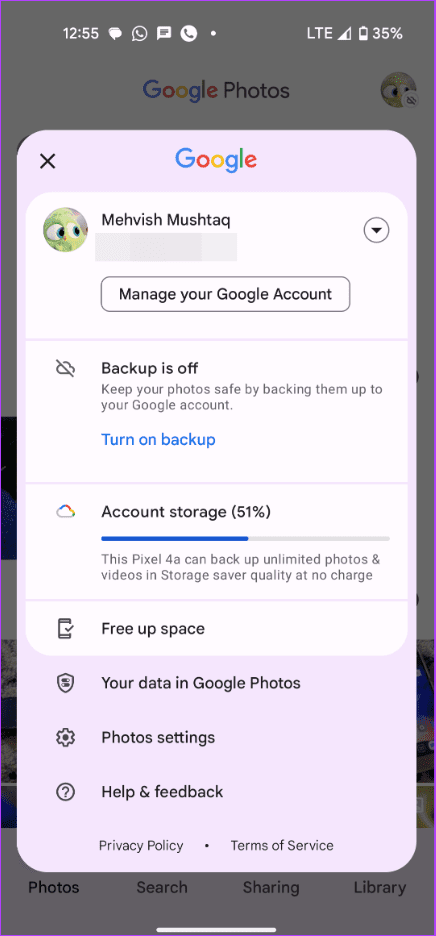
Google offers 15GB of free space, which is shared across its products, such as Google Drive, Gmail, and Google Photos. So, anything that you upload in Google Drive or Google Photos will count towards the final Google storage; i.e., Google Photos storage and Google Drive storage are the same. Once 15GB is gone, you can buy extra storage space from Google One.

Earlier, Google offered free storage for photos and videos uploaded in High-Quality mode, but that feature no longer exists.
Sharing of Photos
Both services let you share photos via a link or collaborate with others. Google Photos offers an additional feature known as a Partner Account, which automatically shares photos of specific people or from a specific date with your partner.
Search/Reverse Photo Search
Google Photos offers a powerful search that uses AI to find your photos and videos. You can search by the name of the file or the data in the photo. For instance, you can find photos by their color, objects in them, scenes, or locations. Google Photos also offers facial recognition to recognize familiar humans and dogs.
Google Drive, on the other hand, also offers a powerful search but doesn’t use AI features.
Also, Google Photos comes with a cool feature known as Google Lens, which identifies objects in the image and shows relevant information. You can even copy text from the image, scan QR codes, identify addresses, and do other things using Google Lens.
For instance, if you use Lens on a photo of a flower, Google Photos will identify the flower and provide more information about it. Google Drive doesn’t support Lens, but it does support OCR.
Photo Editor
Google Photos offers a built-in photo and video editor. You can perform editing tasks like crop, rotate, etc. You can also create collages, apply filters, remove unwanted objects using Magic Eraser, and create movies and animations from your photos. Google Drive doesn’t include a photo or video editor.
Hiding Photos
Google Photos offers the feature to hide photos. This is possible using the Locked Folder. Google Drive doesn’t let you hide photos.
Photo Scan
If your phone has Google Drive installed, you don’t need a third-party app to scan documents, receipts, or photos; it has a built-in scanner feature. Just press the floating Add (+) button to find the scan option.
While Google Photos also supports photo scans, you must download the PhotoScan app from Google.
Was this helpful?
Last updated on 08 July, 2024
Read Next
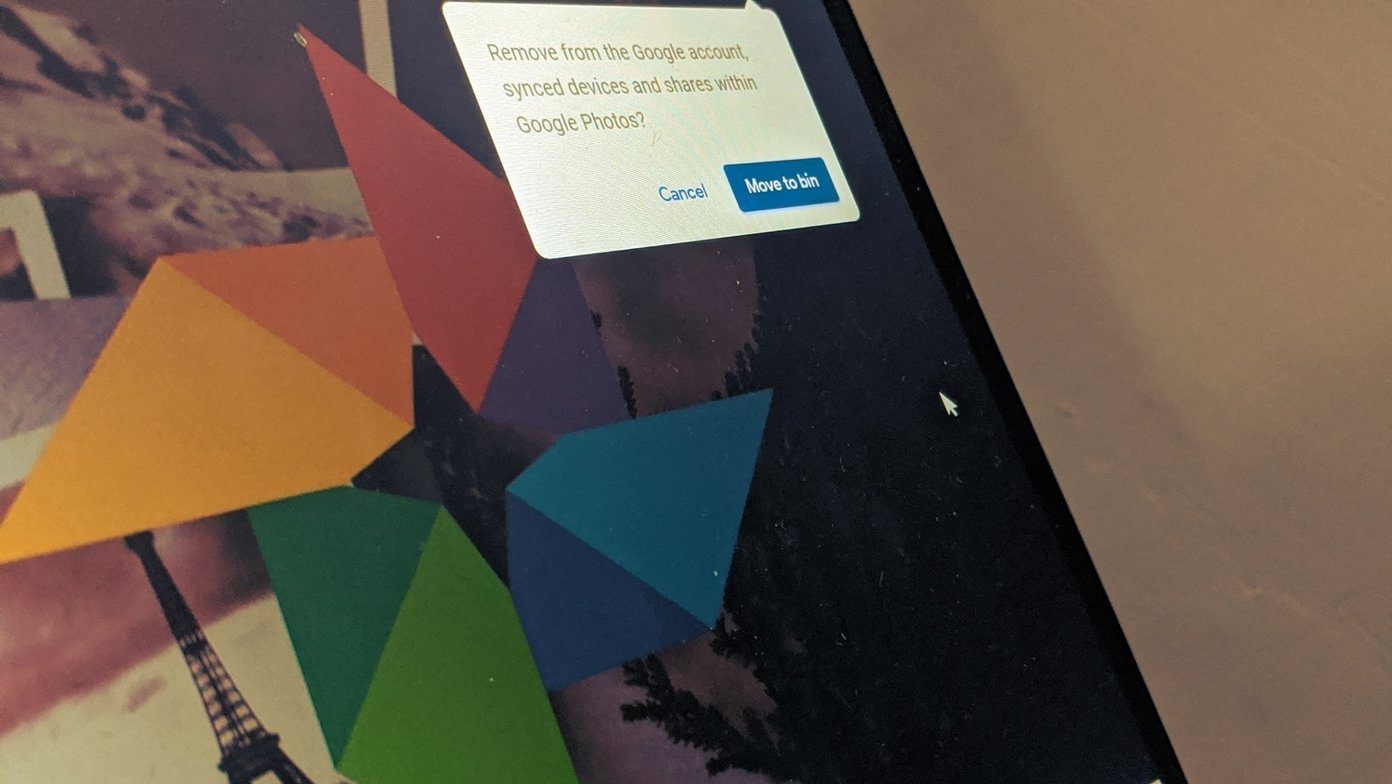
 How to Remove Photos from Google Drive but Not Google Photos
Google Drive and Photos are two similar yet distinct products for storing photos and videos.
How to Remove Photos from Google Drive but Not Google Photos
Google Drive and Photos are two similar yet distinct products for storing photos and videos.
 How to Delete Photos From Google Photos But Not From Phone
What Happens When You Delete Photos?
How to Delete Photos From Google Photos But Not From Phone
What Happens When You Delete Photos?
 How to Move Photos from Email to Google Photos
Earlier, when you received photos on Gmail, it was easy to move them to Google Photos.
How to Move Photos from Email to Google Photos
Earlier, when you received photos on Gmail, it was easy to move them to Google Photos.
 What Happens When You Delete Photos from Google Photos
If you use the gallery app on your phone without the cloud storage service, things are pretty easy.
What Happens When You Delete Photos from Google Photos
If you use the gallery app on your phone without the cloud storage service, things are pretty easy.
 How to Upload Photos to Google Photos on Android, iPhone, PC
How to Upload Photos on Google Photos From Mobile There are two ways to add pictures to Google Photos from Android or iOS devices.
How to Upload Photos to Google Photos on Android, iPhone, PC
How to Upload Photos on Google Photos From Mobile There are two ways to add pictures to Google Photos from Android or iOS devices.
 How to Download Photos From Google Photos on Desktop and Mobile
If you save photos in Cloud services like Google Photos, you may want to download your precious memories to your local storage.
How to Download Photos From Google Photos on Desktop and Mobile
If you save photos in Cloud services like Google Photos, you may want to download your precious memories to your local storage.
 How to Delete Photos From iPhone But Not From Google Photos
How to Delete Photos from iPhone But Keep Them in Google Photos Open Google Photos, swipe up the photo you want to delete, and select Delete from Device.
How to Delete Photos From iPhone But Not From Google Photos
How to Delete Photos from iPhone But Keep Them in Google Photos Open Google Photos, swipe up the photo you want to delete, and select Delete from Device.
 5 Ways to Fix Google Photos App Not Showing All Photos
Basic Fixes Check your network connection - Ensure your phone is connected to a good internet connection.
5 Ways to Fix Google Photos App Not Showing All Photos
Basic Fixes Check your network connection - Ensure your phone is connected to a good internet connection.
The article above may contain affiliate links which help support Guiding Tech. The content remains unbiased and authentic and will never affect our editorial integrity.