1. Google Meet Call Timer – Keep Track of Time
You often need to conduct online meetings within a specific time limit. Google Meet does offer the clock function in the upper-right corner, but there is no way to set a live timer and be notified about it. You can use the Google Meet Call Time extension to add a timer to Google Meet meetings.
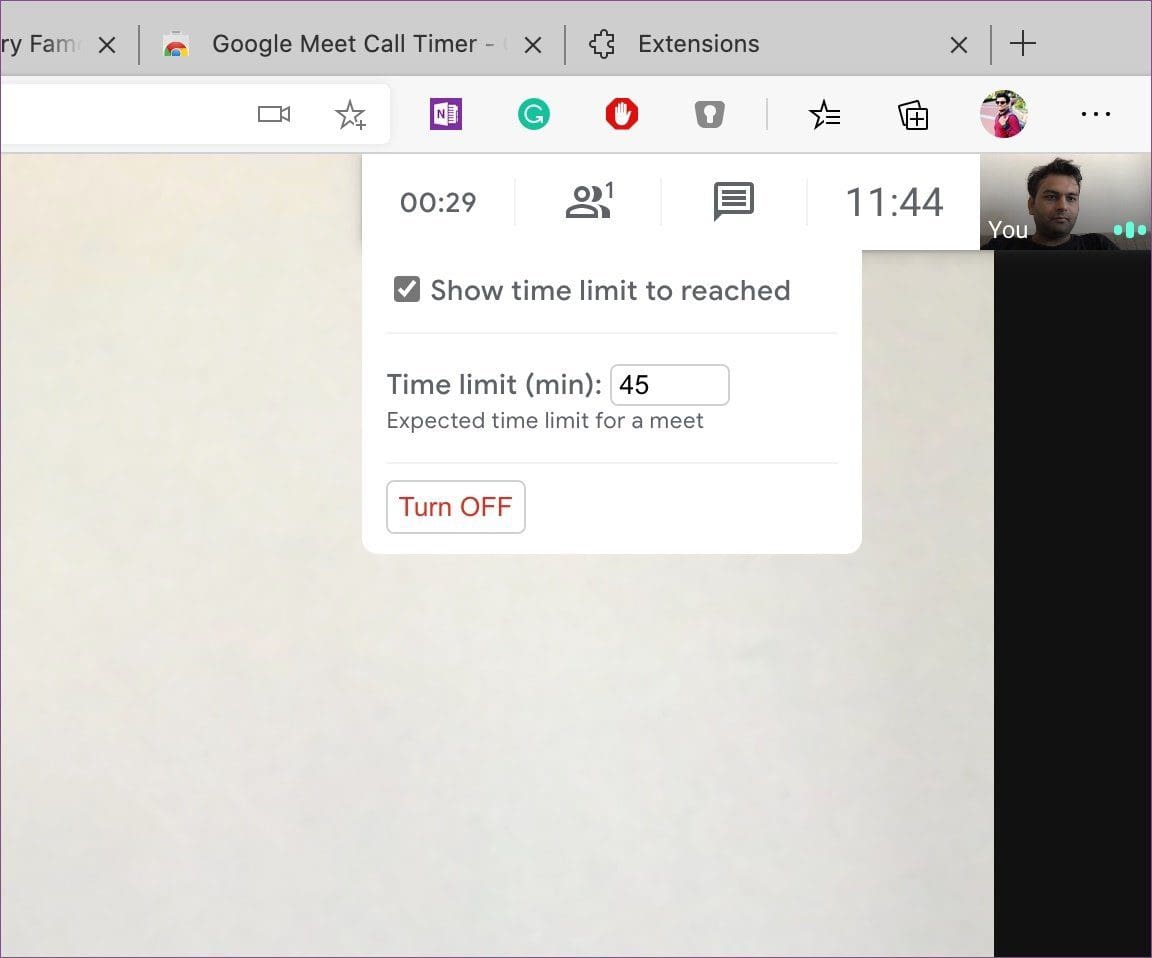
When you download this extension, the next time you start the video call on Google Meet, you will see a live timer in the upper right corner. You can also tap on it and increase the time limit.
Pros
- Easy to use
- Zero data tracking
- Responsive customer support
Cons
- It does not offer an alarm
- No call log
Price: Free
2. Google Meet Grid View – Zoom Participant View Management
If you have used Zoom to conduct meetings, you must know the gallery grid view that displays more than 49 persons. Google Meet also supports the grid view, which is termed a tiled layout. However, the functionality is limited compared to a third-party extension. Google Meet Grid View extension fixes it.
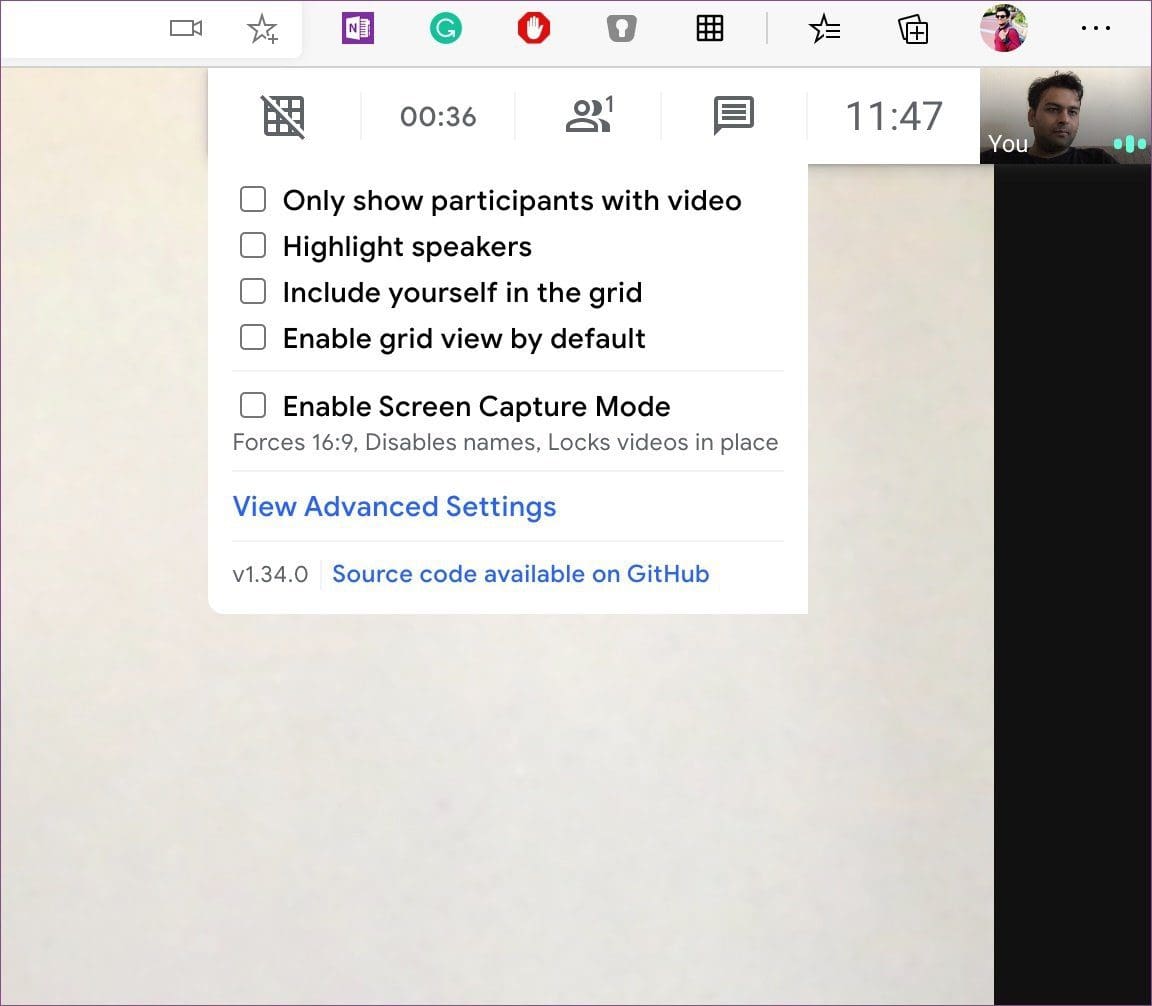
The extension offers several options to customize the grid view experience on Google Meet. You can display only participants with video, highlight speakers, enable grid view by default, and even remove yourself from the grid.
It can be useful when you are conducting a meeting with 30-40 participants.
Pros
- Offers additional features like push-to-talk
- Allows you to hide participants without video
- Easy grid view enabling
Cons
- You can only activate it after joining meetings
- It may cause meeting lag
Price: Free
3. Meet Attendance – Great Attendance Tracking
You might sometimes want to keep track of video call attendance throughout the week/month. Unfortunately, Google Meet doesn’t offer the option to take attendance automatically. You should download the Meet Attendance extension from the Chrome Web Store.

The method is simple. When taking the online meeting, tap on the Meet Attendance extension and select Add a New Sheet. This will create a new spreadsheet with attendees’ names and timestamps.
Pros
- Automated attendance collection
- Offers free features
- Attendance duration tracking
Cons
- Limited free plan
- Privacy concerns because it requires syncing your Chrome browser
Price: Free plan, Premium plan starts at $2.50 monthly
4. Virtual Background for Google Meet – Background Changer
Video backgrounds enhance the user experience during meetings, and you may use the Virtual Background extension for Google Meet for this purpose.

While taking a call on Google Meet, you can tap on the Virtual Background extension, which will offer you some ready-to-go digital backgrounds. Select the relevant one to apply the live effect in the video call.
Pros
- Several fun and professional backgrounds
- The extension is privacy-centric and will not collect user data
Cons
- Requires host to give broader access within Google Meet
Price: Free
5. Google Meet Push to Talk – Easy Mute and Unmute Button
While switching from Zoom to Google Meet, I missed the Zoom app’s push-to-talk function. As the name suggests, push-to-talk allows you to hold down a specific key to enable the microphone, and when you remove your finger from the key, it turns off the microphone. It’s convenient and much better than using the mute button.

By default, it’s set to the Space key on the keyboard. You can remap it to any key on the keyboard. From the next meeting, you can hold down the space key to turn on the microphone and lift the finger to turn it off.
Pros
- The extension does not store any of your information
- It allows you to remap the key
- It is easy to use
Cons
- You can not mute or unmute when on another window
Price: Free
6. Google Meet Plus – All-in-One Meet Extension
Google Meet Plus is a must-have extension. It elevates the video-calling experience to the next level. With Google Meet Plus, you can use the Whiteboard function to share and discuss ideas. You can share your emotions through the built-in emoji pack.

There is also a timer option. From the extension settings, you can enable push-to-talk. All the functions are nicely placed in a toolbar at the upper left corner. You can drag and drop it anywhere on the screen.
The extension is free but has a pro plan with a three-day trial for pro features. Extension support can provide pricing options.
Pros
- Easy drag-and-drop options
- Offers easy background changing
- It allows notification muting
- Allows Meeting auto-joining
Cons
- Limited trial for the paid solution
- you may face occasional glitches
Price: Free Basic plan and paid premium solution
Was this helpful?
Last updated on 24 July, 2024
Read Next
 Top 20 POCO Launcher Tips and Tricks to Increase Your Productivity
A launcher plays an important role in Android phones.
Top 20 POCO Launcher Tips and Tricks to Increase Your Productivity
A launcher plays an important role in Android phones.
 10 Best Ways to Increase Download Speeds in Google Chrome on Windows
While Google Chrome is touted as the fastest web browser among the competition, it isn't unusual to see slow download speeds on the browser.
10 Best Ways to Increase Download Speeds in Google Chrome on Windows
While Google Chrome is touted as the fastest web browser among the competition, it isn't unusual to see slow download speeds on the browser.
 Microsoft Loop vs. Notion: Which Productivity Tool Is Better
Microsoft Loop vs.
Microsoft Loop vs. Notion: Which Productivity Tool Is Better
Microsoft Loop vs.
 9 Best Microsoft Whiteboard Keyboard Shortcuts to Boost Productivity
Whiteboards are super useful to brainstorm with your team, collect ideas, or draw a plan.
9 Best Microsoft Whiteboard Keyboard Shortcuts to Boost Productivity
Whiteboards are super useful to brainstorm with your team, collect ideas, or draw a plan.
 21 OneNote Keyboard Shortcuts to Improve Your Productivity
1.
21 OneNote Keyboard Shortcuts to Improve Your Productivity
1.
 Top 7 Ways to Fix Google Meet Audio Not Working
Major IT companies, such as Twitter and Spotify, are encouraging employees to work from home.
Top 7 Ways to Fix Google Meet Audio Not Working
Major IT companies, such as Twitter and Spotify, are encouraging employees to work from home.
 4 Fixes When Google Meet Background Blur Is Not Working
Basic Fix: Use Google Chrome: Because not all browsers meet the requirements for blur, Google Chrome is the safest choice.
4 Fixes When Google Meet Background Blur Is Not Working
Basic Fix: Use Google Chrome: Because not all browsers meet the requirements for blur, Google Chrome is the safest choice.
 How to Change Name and Picture in Google Meet
How to Change Name and Picture on Google Meet on Mobile Devices Your Google Meet account is linked to your Google account, so you must change the name (and profile
How to Change Name and Picture in Google Meet
How to Change Name and Picture on Google Meet on Mobile Devices Your Google Meet account is linked to your Google account, so you must change the name (and profile
The article above may contain affiliate links which help support Guiding Tech. The content remains unbiased and authentic and will never affect our editorial integrity.