While it generally doesn’t take up much bandwidth, Google Maps can be surprisingly resource-intensive. It’s constantly loading map tiles, satellite imagery, traffic data, and location pins. But updating the map locations and terrain can sometimes feel sluggish. If you find Google Maps loading slowly on your browser or phone, there are several common culprits and straightforward fixes for each one.
Fix 1 – Check Your Internet Connection With Google Maps Loading Slowly
Before changing any settings, it’s worth ruling out the most obvious answer to why is Google Maps so slow. Google Maps requires a reasonably stable connection to load map tiles, especially at higher zoom levels or when using satellite view.
Step 1. Open another website or run a speed test at a service like Speedtest.net to check whether the slowdown is only affecting Maps or your whole connection.
Step 2. If you’re on Wi-Fi, move closer to the router or switch to a wired connection. If you’re on mobile data, check your signal strength and switch between Wi-Fi and mobile data to see which performs better.
Step 3. Restart your router by unplugging it for 30 seconds, then plugging it back in.
If other sites load fine, then you can try specifically troubleshooting Maps.
Fix 2 – Clear Your Browser Cache and Cookies
Google Maps stores map tile data and session information in your browser cache to load faster on repeat visits. If you’re wondering why Google Maps is so slow, a large or corrupted cache might be forcing it to redownload all files.
Step 1. In Chrome, press “Ctrl + Shift + Delete” (or “Cmd + Shift + Delete” on Mac) to open the “Clear browsing data” menu.
Step 2. Make sure “Cached images and files” and “Cookies and other site data” are checked, then choose the “All time” option for the time range.
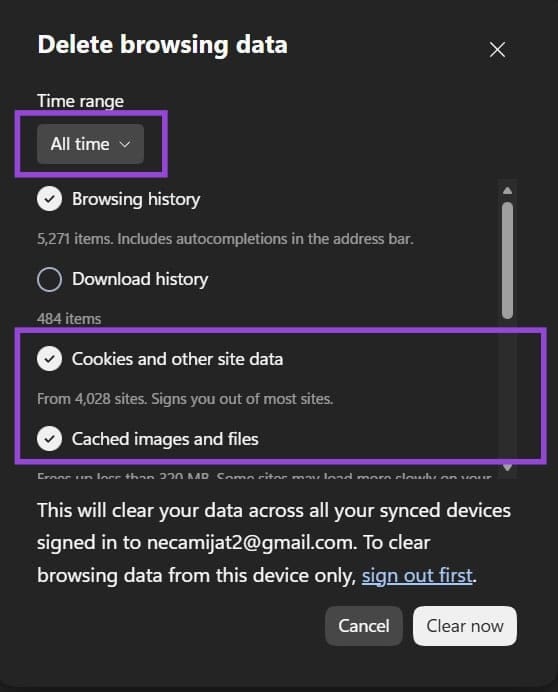
Step 3. Click on “Clear data” and wait for the process to finish.
Step 4. Reload Google Maps and test whether the speed has improved. This will sign you out of accounts, so you may need to log in again.
In Safari on Mac, the path is “Develop,” then “Empty Caches.”
Fix 3 – Disable Browser Extensions
Ad blockers, VPN extensions, script blockers, and privacy tools can all interfere with Google Maps loading its data. If a particular extension is updated, it might be causing issues with various background processes, and you’ll need to isolate it.
Step 1. Open Google Maps in a private or incognito window, which runs without most extensions active by default. The shortcut for this is usually “Ctrl + Shift + N” (or “Cmd + Shift + N” on Mac).
Step 2. If Maps loads noticeably faster in the private window, an extension is the likely culprit. Go back to your normal window and open the Extensions menu.
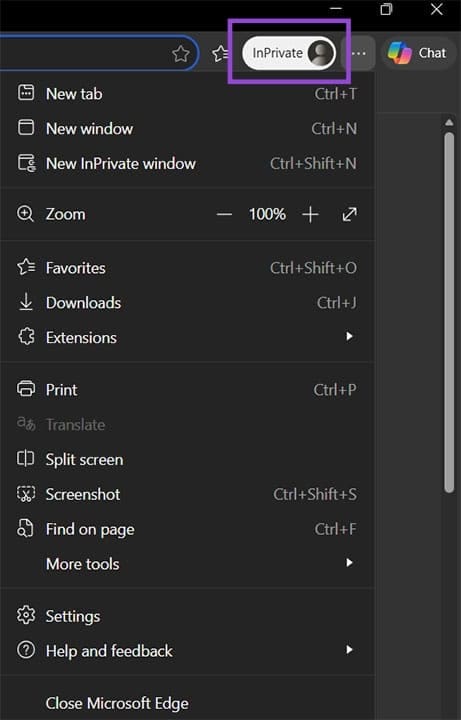
Step 3. Disable extensions one at a time, then reload Maps after each one.
When Google Maps starts working properly (or at least faster), you know which extension is at fault. You can keep it disabled or try to update it.
Fix 4 – Fix Google Maps Loading Slowly on Android or iPhone
On mobile, a slow Google Maps app is usually caused by the cache or a background process hogging resources. These steps apply to both Android and iPhone.
Step 1. On Android, go to “Settings,” then find “Google Maps” in “Apps.” Tap “Force Stop” and “Clear cache” (it might be located in “Local storage”).
Step 1b. On iPhone, swipe up from the bottom of the screen (or double-click the Home button) and swipe the Maps app card away to close it fully.
Step 3. Check for app updates using the Play Store or App Store and download them.
Step 4. Restart your phone after updating and reopen Maps.
Was this helpful?
Last updated on 18 April, 2026
Read Next
 5 Ways to Fix Windows Explorer Loading Slowly
Basic Fixes Restart PC: Restart your PC to get rid of temporary bugs and glitches Close unwanted apps: Close unwanted apps using Task Manager to free up memory, and improve
5 Ways to Fix Windows Explorer Loading Slowly
Basic Fixes Restart PC: Restart your PC to get rid of temporary bugs and glitches Close unwanted apps: Close unwanted apps using Task Manager to free up memory, and improve
 11 Easy Ways to Fix iPhone Charging Slowly
You have thirty minutes to leave for work and plug your iPhone to charge.
11 Easy Ways to Fix iPhone Charging Slowly
You have thirty minutes to leave for work and plug your iPhone to charge.
 What to Do if Your Downloads Folder Loads Slowly in Windows 11
A slow PC is a surefire cause of frustration, but sometimes your hardware isn’t to blame.
What to Do if Your Downloads Folder Loads Slowly in Windows 11
A slow PC is a surefire cause of frustration, but sometimes your hardware isn’t to blame.
 3 Ways to Fix Google Maps Not Loading or Working in Browser
Fix 1: Sign Out of Your Google Account and Sign Back In Authentication issues with your Google account can cause Google Maps to stop working in your browser.
3 Ways to Fix Google Maps Not Loading or Working in Browser
Fix 1: Sign Out of Your Google Account and Sign Back In Authentication issues with your Google account can cause Google Maps to stop working in your browser.
 How to Switch Between KM and Miles in Google Maps and Apple Maps
How to Change Kilometers to Miles in Apple Maps To change KM to Miles (or vice versa) on iPhone, iPad, and Mac, all you need to do is change your
How to Switch Between KM and Miles in Google Maps and Apple Maps
How to Change Kilometers to Miles in Apple Maps To change KM to Miles (or vice versa) on iPhone, iPad, and Mac, all you need to do is change your
 Google Maps vs Maps Go Comparison: Explaining the Difference
Last year, Google announced the optimized version of Android Oreo operating system, Android Go.
Google Maps vs Maps Go Comparison: Explaining the Difference
Last year, Google announced the optimized version of Android Oreo operating system, Android Go.
 9 Best Ways to Fix Google Chrome Not Loading Pages in Windows 10
Google Chrome is one of the most used browsers in the world, no doubt.
9 Best Ways to Fix Google Chrome Not Loading Pages in Windows 10
Google Chrome is one of the most used browsers in the world, no doubt.
 3 Fixes for Google Sheets Not Loading in Chrome
Basic Fixes: Restart Chrome: In some cases, a simple restart should fix the issue.
3 Fixes for Google Sheets Not Loading in Chrome
Basic Fixes: Restart Chrome: In some cases, a simple restart should fix the issue.
The article above may contain affiliate links which help support Guiding Tech. The content remains unbiased and authentic and will never affect our editorial integrity.