To use this feature, you must install the Solid Explorer File Manager app on your Android device and then follow these steps to manage it further. Ensure the Android phone and the PC are connected to the same network.
Step 1: Open the app and grant access to manage all files on your device.

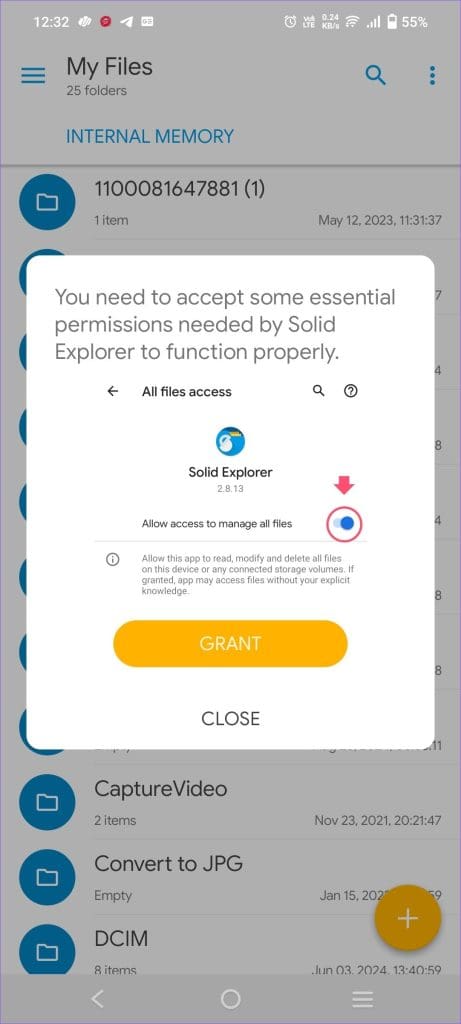
Step 2: Then tap the hamburger icon at the top right corner and scroll to the bottom to select the FTP Server option.


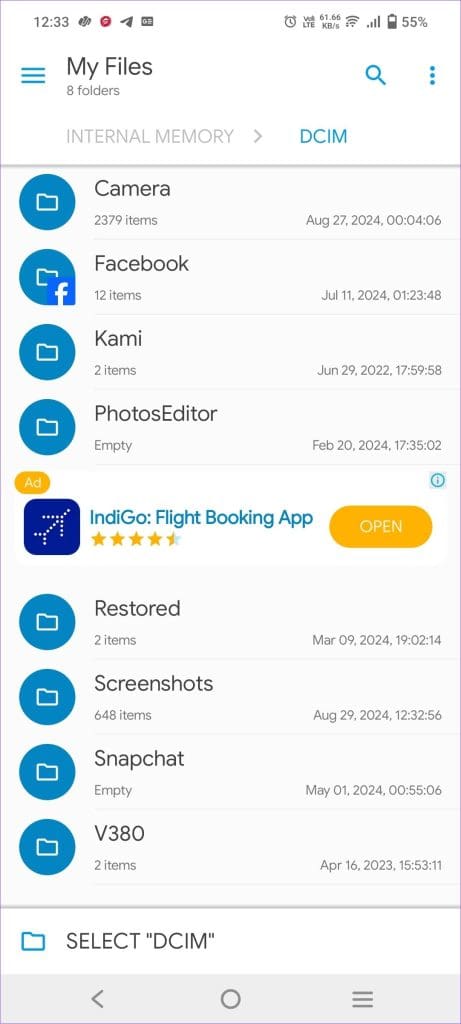
Step 2: The FTP Server page will provide information about your WiFi Network. You can tap on the three-dot menu on top left, and choose to Change directory if you dont want to give complete access. There is a provision to setup password as well.

Step 3: Now tap the Start button, and note down the FTP address.
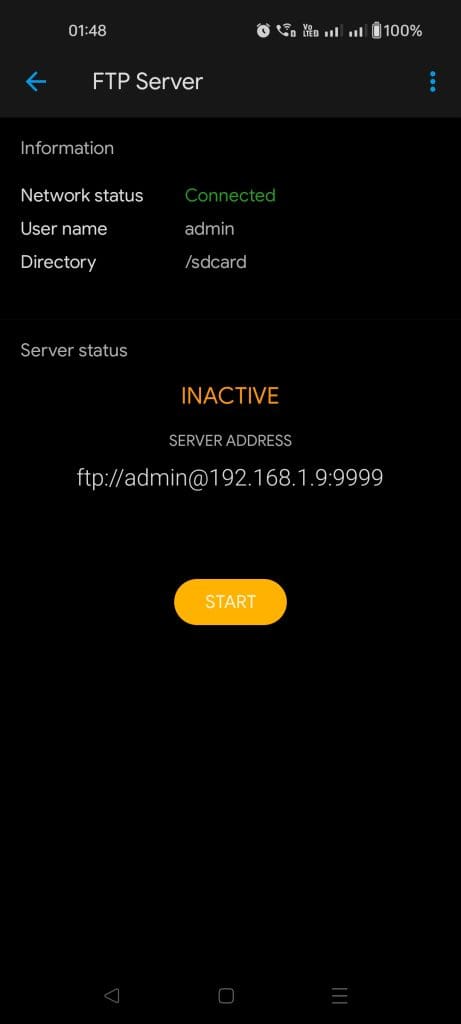

Step 4: Go to your laptop or PC Screen, open File Explorer, select the This PC option, and enter the Server address on the Android phone (on the FTP Server page of the app). You can also type the address in the browser to access the file.

When you enter the address, all the files on your Smartphone will be shown on your PC, and you can manage, add, or delete any files you need.
Was this helpful?
Last updated on 29 August, 2024
Read Next
 How To Access SMB Server on Solid Explorer
Solid Explorer isn’t just a simple file explorer.
How To Access SMB Server on Solid Explorer
Solid Explorer isn’t just a simple file explorer.
 How to Setup and Use FTP Server on Android
There are many ways to transfer data from your Android device to PC.
How to Setup and Use FTP Server on Android
There are many ways to transfer data from your Android device to PC.
 How to Use Google Drive as a FTP Server or Network Drive for Free
Calling Google Drive a simple cloud storage system, will be an understatement.
How to Use Google Drive as a FTP Server or Network Drive for Free
Calling Google Drive a simple cloud storage system, will be an understatement.
 How to Fix if File Manager Keeps Stopping on Android
Basic Fixes: Restart Android phone: Long-press the power button and tap on Restart.
How to Fix if File Manager Keeps Stopping on Android
Basic Fixes: Restart Android phone: Long-press the power button and tap on Restart.
 Samsung Galaxy Book3 360 Review: A Solid 2-in-1 Laptop
Samsung's Galaxy Book3 series comes in a bunch of flavors.
Samsung Galaxy Book3 360 Review: A Solid 2-in-1 Laptop
Samsung's Galaxy Book3 series comes in a bunch of flavors.
 Samsung My Files vs Google Files: Which File Manager Is Better on Galaxy Phones
Samsung apps are bundled to replace the official Google Apps in the One UI.
Samsung My Files vs Google Files: Which File Manager Is Better on Galaxy Phones
Samsung apps are bundled to replace the official Google Apps in the One UI.
 4 Ways to Fix File Explorer Not Working on Windows 11
Try Basic Fixes Scan for malware: It's possible that a malicious virus has affected your PC, disrupting regular operations on Windows 11.
4 Ways to Fix File Explorer Not Working on Windows 11
Try Basic Fixes Scan for malware: It's possible that a malicious virus has affected your PC, disrupting regular operations on Windows 11.
 3 Ways to Fix iPhone Not Showing Up in File Explorer on Windows 11
Basic Fixes Install iTunes: Install iTunes from Microsoft Store to access and sync your iPhone on your PC.
3 Ways to Fix iPhone Not Showing Up in File Explorer on Windows 11
Basic Fixes Install iTunes: Install iTunes from Microsoft Store to access and sync your iPhone on your PC.
The article above may contain affiliate links which help support Guiding Tech. The content remains unbiased and authentic and will never affect our editorial integrity.