


Try These Fixes First
- Restart your device: The Messages app might not appear because of a temporary bug. So, restart your iPhone or iPad to fix the issue.
- Download the latest iOS update: The issue might be related to the iOS version you are using. To rule this out, download the latest iOS update available for your device.
Fix 1: Look for the Messages App in the App Library
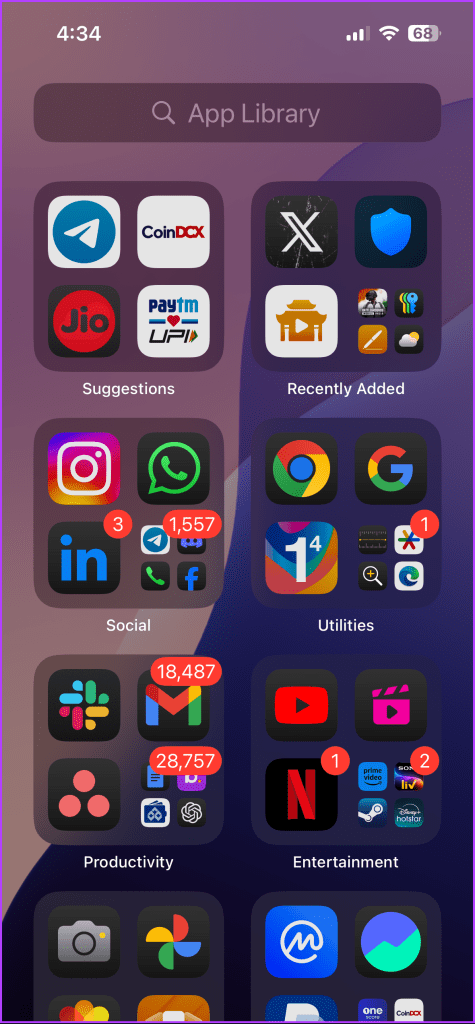
You might have accidentally removed the Messages app from your Home screen. In that case, you must find it in the App Library and add it back. Here’s how:
Step 1: On your iPhone or iPad’s Home screen, swipe left until you reach the App Library.
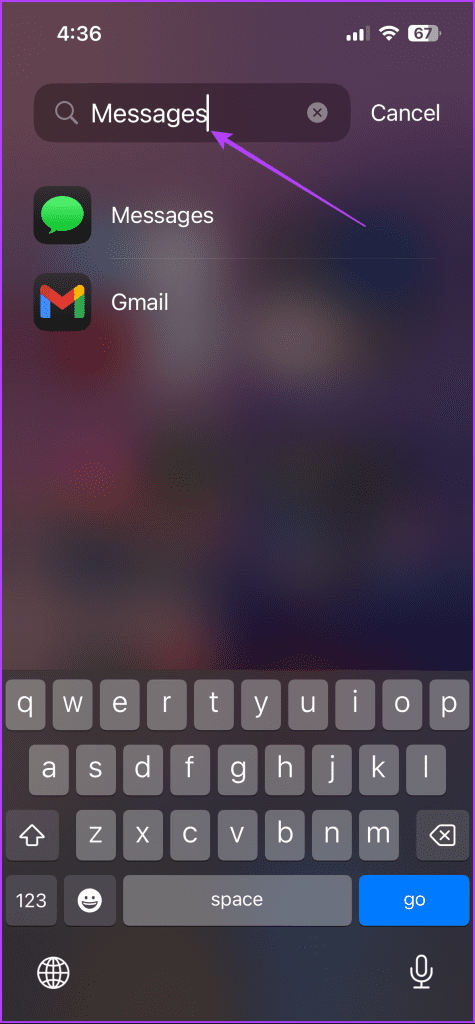
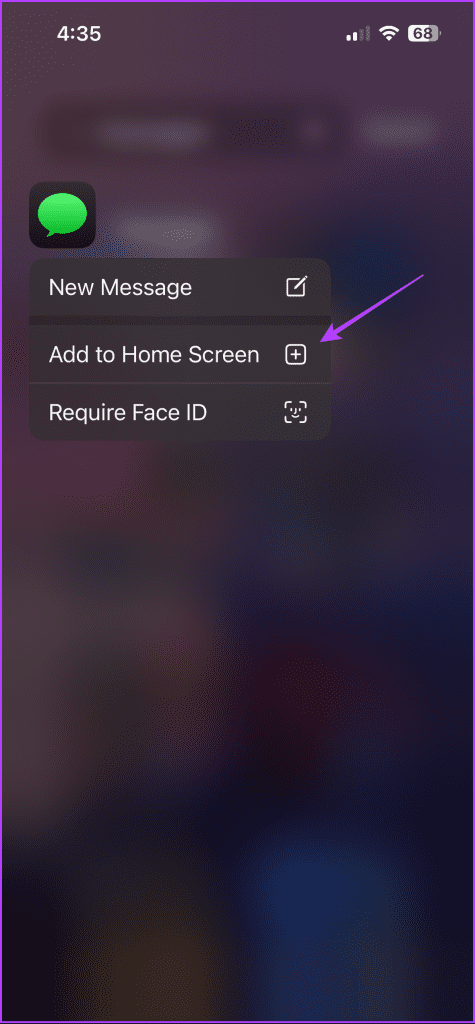
Step 2: Type Messages in the search bar at the top of the App Library. Then, tap and hold the Messages app icon > choose Add to Home Screen.
Fix 2: Reset Home Screen Layout
If you still can’t find the Messages app, consider resetting your Home screen layout. This will put all apps back in their original spots and is a great way to locate lost app icons. However, you’ll lose any folders you’ve created.
Step 1: Go to Settings on your iPhone or iPad > tap General > select Transfer or Reset iPhone.

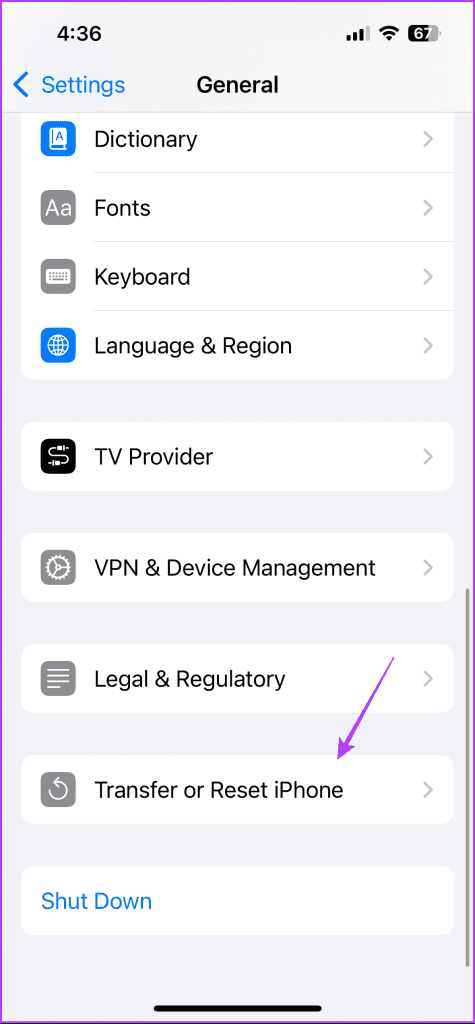
Step 2: Select Reset > choose Reset Home Screen Layout from the menu > select Reset Home Screen to confirm.
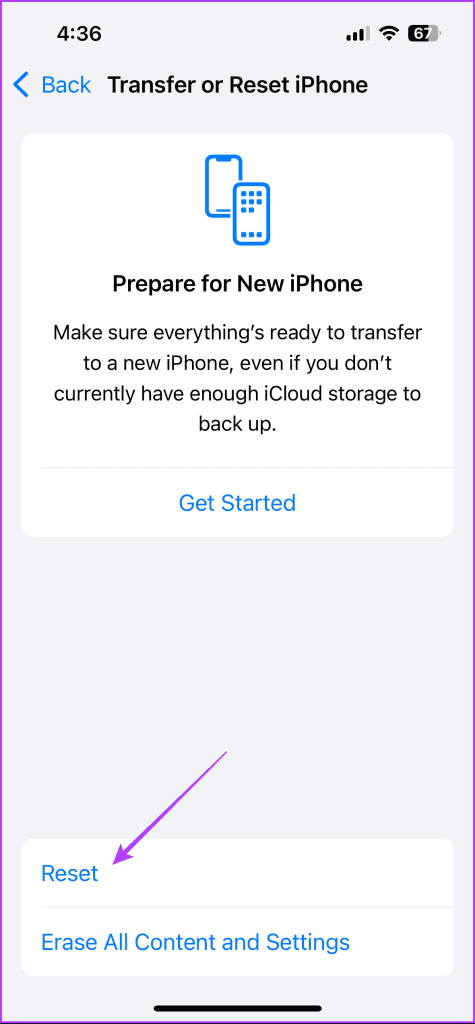
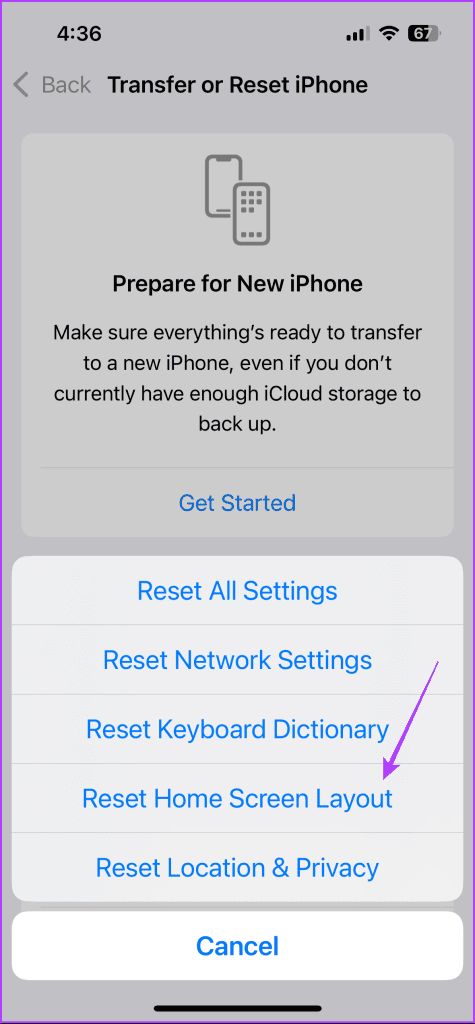
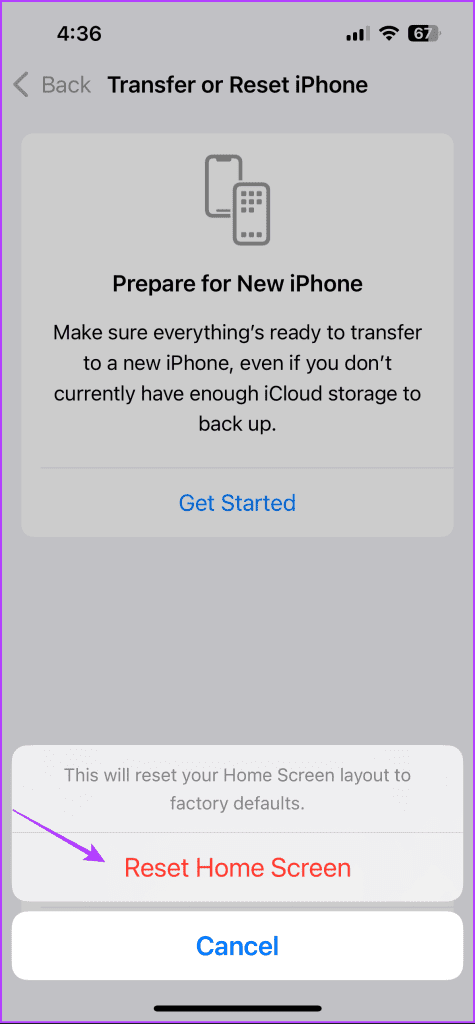
And that’s it. All the apps will be in their original locations. The Messages app should be at the bottom bar of your iPhone or on the dock of your iPad.
Fix 3: Reset All Settings
The last thing you can try if you’re still having trouble is to reset all the settings on your iOS device. Here’s how to do it:
Step 1: Open the Settings app > tap General > select Transfer or Reset iPhone > Reset.
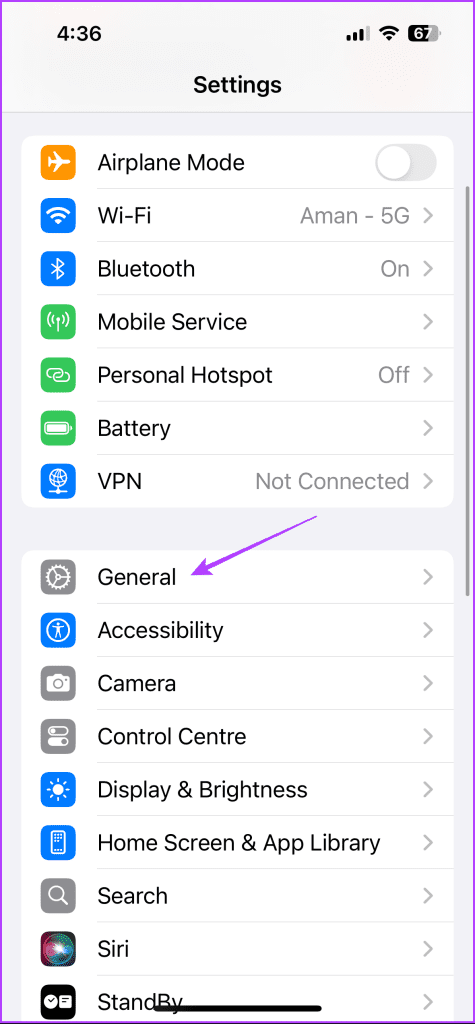
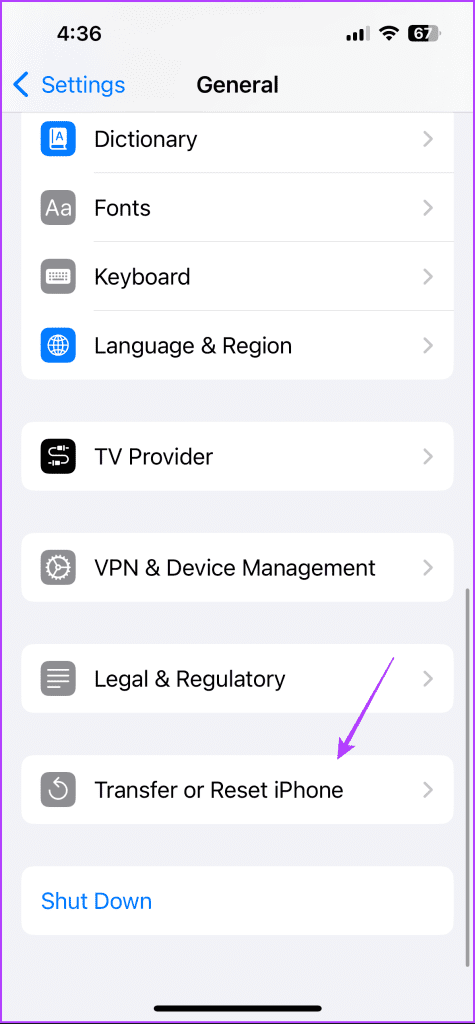
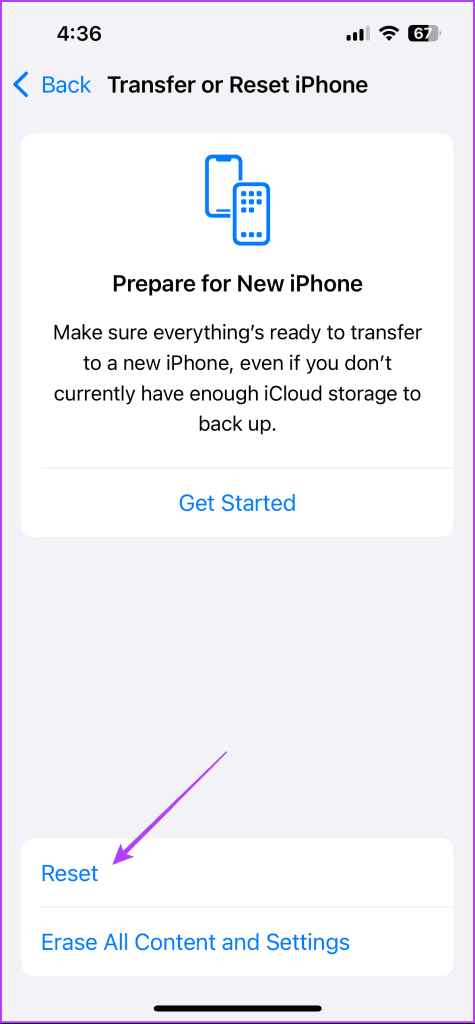
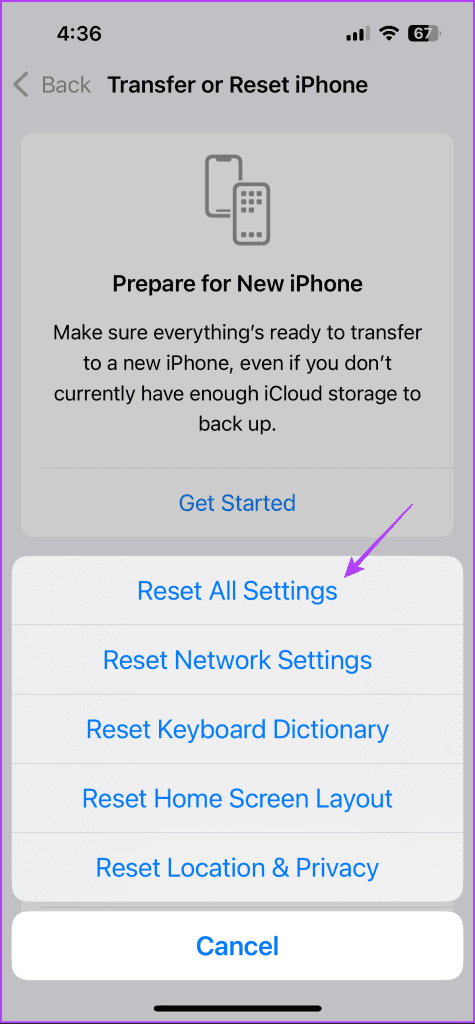
Step 2: Choose Reset All Settings > enter your device passcode > tap Reset All Settings again to confirm.
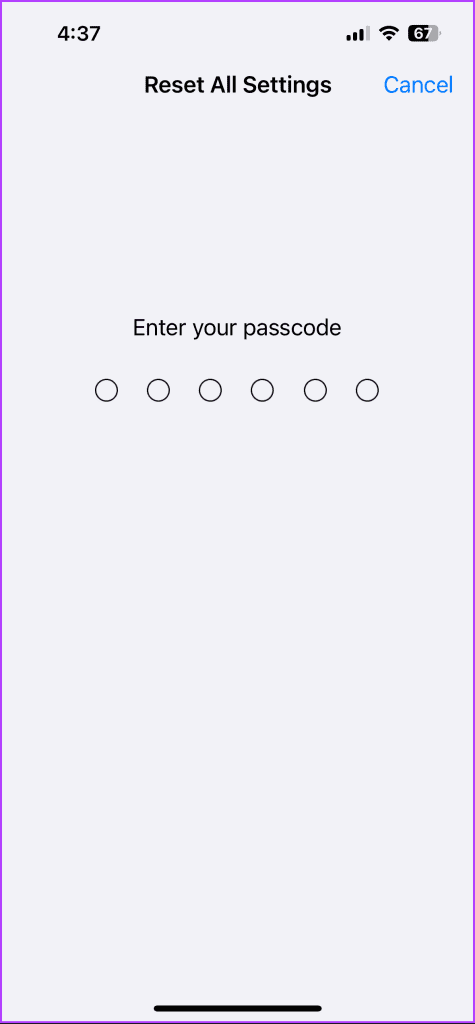
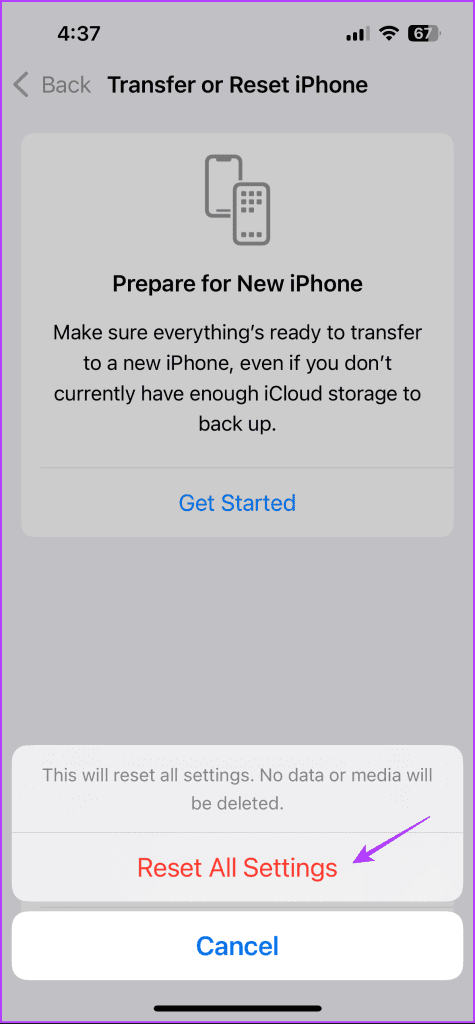
After that, restart your iOS device, and you should see the Messages app on the home screen.
Also Read: iPhone settings you didn’t know you need to change
Was this helpful?
Last updated on 26 August, 2024
1 Comment
Leave a Reply
Read Next
 3 Ways to Fix Wallpaper Disappeared on iPhone
Basic Fixes: Restart iPhone: Force your iOS device to shut down.
3 Ways to Fix Wallpaper Disappeared on iPhone
Basic Fixes: Restart iPhone: Force your iOS device to shut down.
 5 Ways to Fix Memoji Disappeared After iOS 17 Update on iPhone
Fix 1: Send a Memoji via Stickers After the iOS 17 update, you can use the Stickers option to send a Memoji in iMessage.
5 Ways to Fix Memoji Disappeared After iOS 17 Update on iPhone
Fix 1: Send a Memoji via Stickers After the iOS 17 update, you can use the Stickers option to send a Memoji in iMessage.
 6 Ways to Find and Recover Disappeared iPhone Notes
Basic Troubleshoot Check the Recently Deleted Folder - Assuming the disappeared note is accidentally deleted, you can recover it within 30 days from the date of deletion.
6 Ways to Find and Recover Disappeared iPhone Notes
Basic Troubleshoot Check the Recently Deleted Folder - Assuming the disappeared note is accidentally deleted, you can recover it within 30 days from the date of deletion.
 8 Fixes for GIFs Not Working or Disappeared on iPhone
Not everything can be described in words.
8 Fixes for GIFs Not Working or Disappeared on iPhone
Not everything can be described in words.
 8 Best Ways to Fix Taskbar Disappeared or Missing on Windows 11
The Windows 11 taskbar is where you can find your favorite apps and the Start menu.
8 Best Ways to Fix Taskbar Disappeared or Missing on Windows 11
The Windows 11 taskbar is where you can find your favorite apps and the Start menu.
 3 Ways to Fix Delayed Telegram Message Notifications on iPhone
Try These Things First Disable Low Data Mode: The first thing to do is turn off Low Data Mode on your iPhone.
3 Ways to Fix Delayed Telegram Message Notifications on iPhone
Try These Things First Disable Low Data Mode: The first thing to do is turn off Low Data Mode on your iPhone.
 How to Fix iMessage “Sent as Text Message” Issue on iPhone
Basic Fixes Trigger Airplane Mode: If your mobile data has trouble, it is best to trigger airplane mode.
How to Fix iMessage “Sent as Text Message” Issue on iPhone
Basic Fixes Trigger Airplane Mode: If your mobile data has trouble, it is best to trigger airplane mode.
 3 Ways to Fix Text Message Forwarding Not Showing Up on iPhone
Basic Fixes Check network connection: Make sure that you have an active internet connection on your iPhone, and that there's no problem with it.
3 Ways to Fix Text Message Forwarding Not Showing Up on iPhone
Basic Fixes Check network connection: Make sure that you have an active internet connection on your iPhone, and that there's no problem with it.
The article above may contain affiliate links which help support Guiding Tech. The content remains unbiased and authentic and will never affect our editorial integrity.
Very useful information, my text app wasn’t showing up on the main menu.