Fix 1: Unblock Your Word File
Microsoft Word may fail to open a document if it has been altered by third-party software. So, modify its properties to unblock the Word file and fix it. Here’s how to do it.
Step 1: Right-click on the Word file failing to open and select Properties.
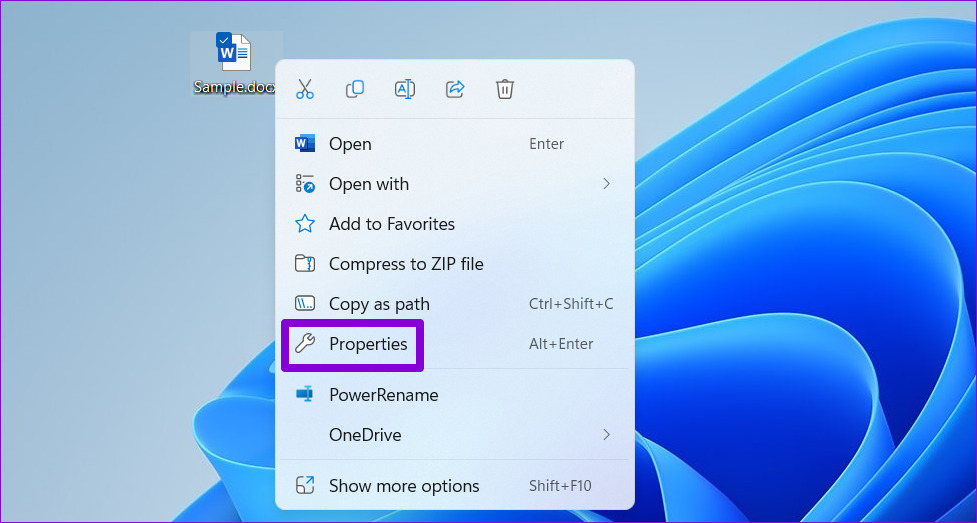
Step 2: Under the General tab, tick Unblock. Then, hit Apply, followed by OK.

Fix 2: Repair the Word Document
Microsoft Word includes a document repair feature that automatically fixes issues with your Word files. You can use it to resolve the “Word experienced an error trying to open the file” message on Windows. Here’s how:
Step 1: Open Microsoft Word on your PC. Select Open from the left sidebar and click on Browse.
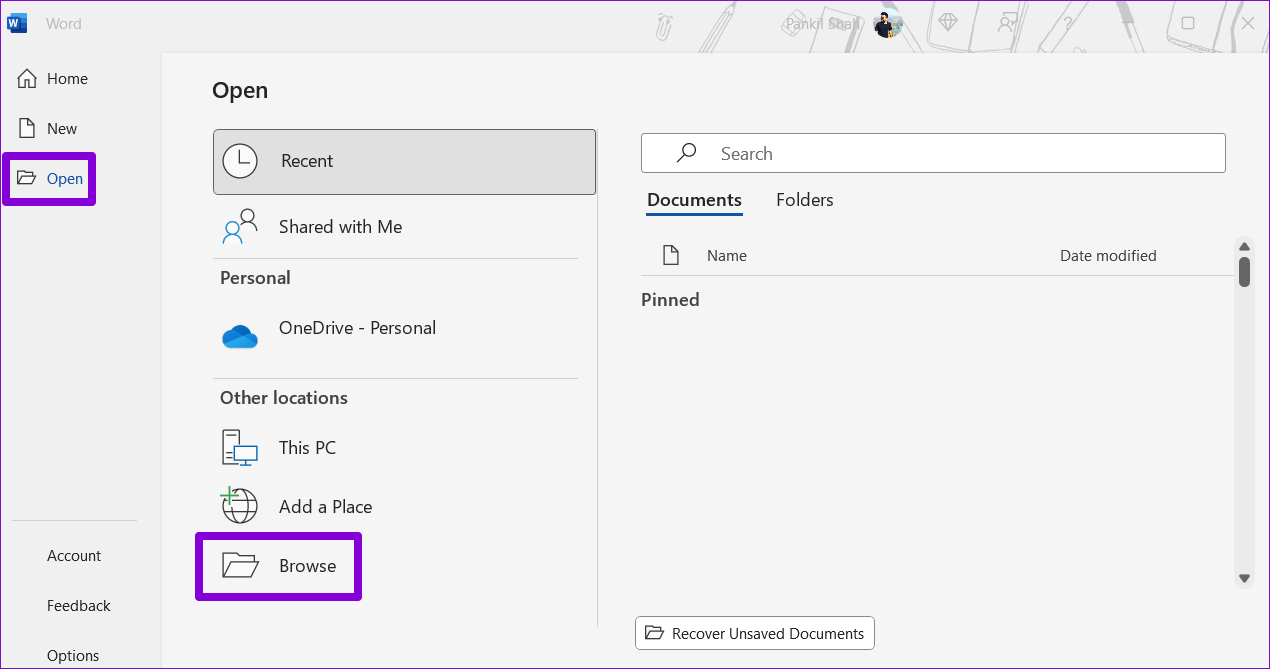
Step 2: Locate and select your Word file. Then, click the downward arrow next to Open and select Open and Repair.

Microsoft Word will attempt to repair your file and open it.
Fix 3: Mark the Folder Containing the File as a Trusted Location in Word
You might encounter the “Word experienced an error trying to open the file” message while opening your documents from an untrusted folder or drive. To resolve the error, add the folder containing your documents as a trusted location in Microsoft Word.
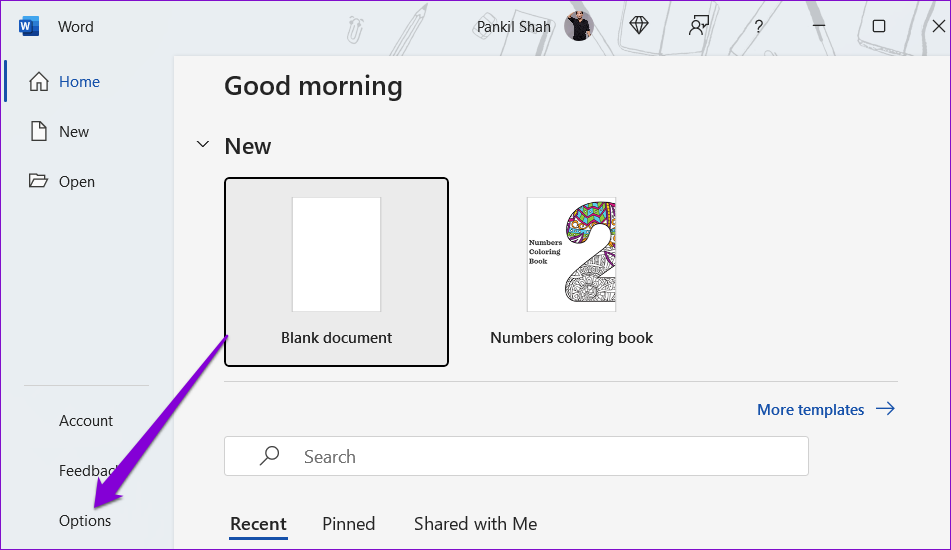
Step 1: In Microsoft Word, select Options from the left column.
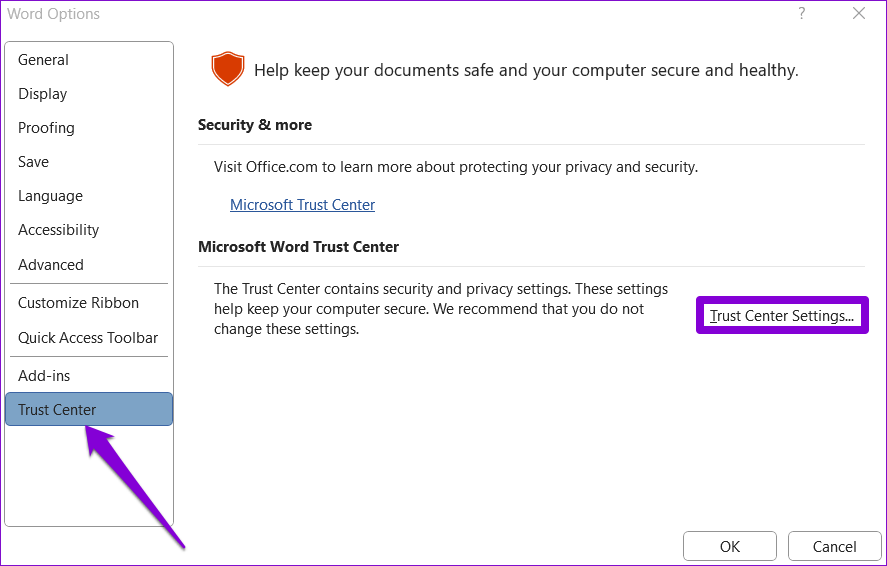
Step 2: In the Word Options window, switch to the Trust Center tab. Then, click on Trust Center Settings on your right.
Step 3: In the Trusted Locations tab, click on Add new location.

Step 4: Click on Browse to select the folder containing your Word files. Then, hit OK.

Fix 4: Open Word in Safe Mode
Word’s add-ins may be acting up and preventing the app from opening your files. You can use Microsoft Word in safe mode to confirm that. To do so, hold down the Ctrl key and double-click on the Word shortcut. Then, select Yes to confirm.
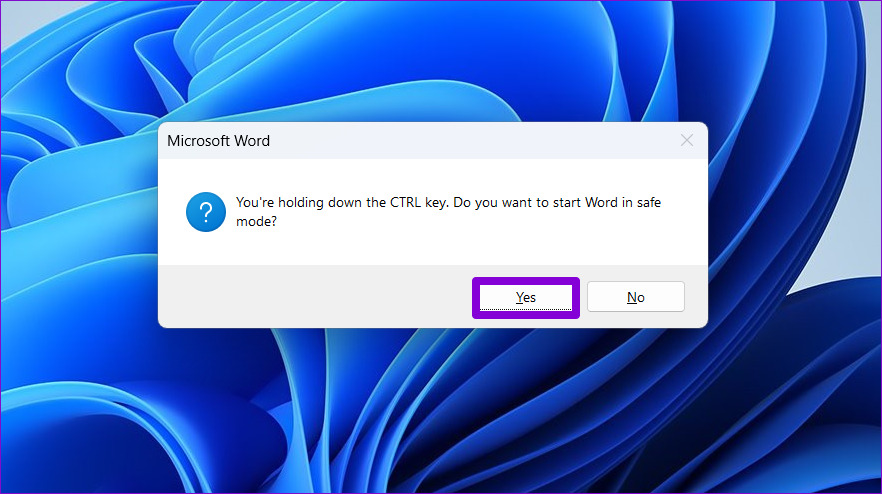
After Word opens in safe mode, open your documents and see if you get any errors. If this solves your problem, it means the add-in that was causing problems got disabled. To isolate the culprit, disable all your add-ins and re-enable them one at a time.
Step 1: Open Microsoft Word and select Options from the sidebar.
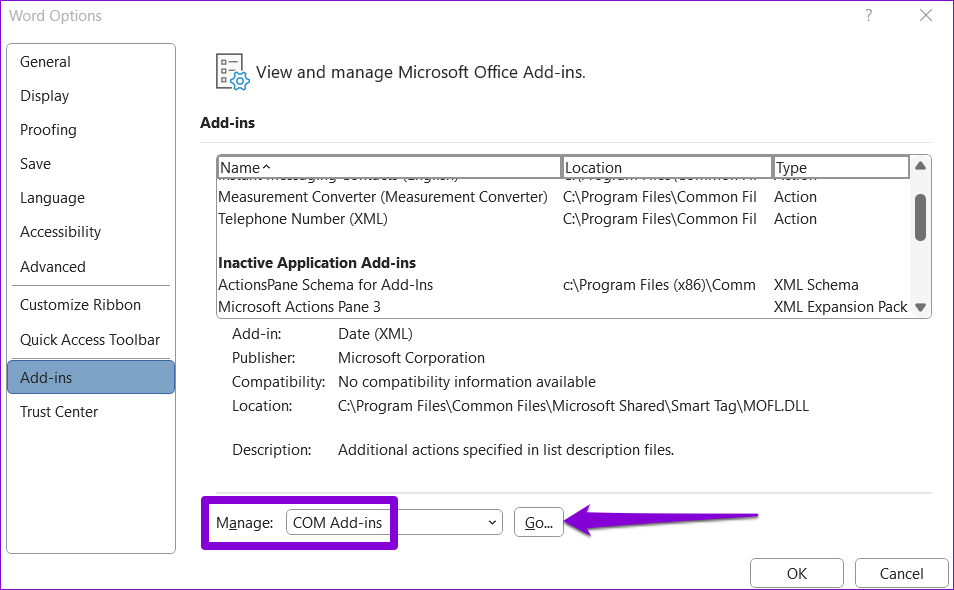
Step 2: In the Add-ins tab, select COM Add-ins from the Manage drop-down menu and click on Go.
Step 3: Clear all the checkboxes to disable your add-ins and hit OK.
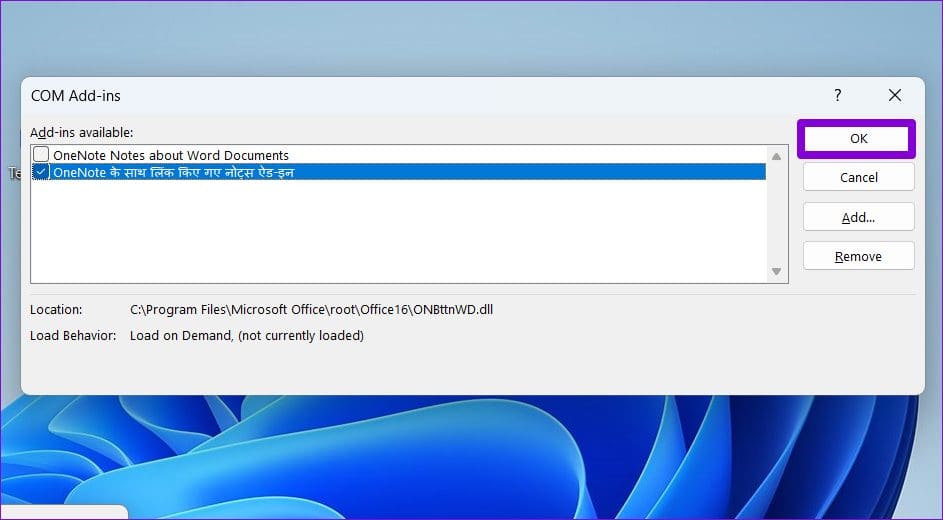
After this, restart Word and enable your add-ins one by one. After enabling each add-in, open a document to identify the one causing the issue.
Fix 5: Run the Microsoft Office Repair Tool
If Microsoft Word fails to open documents in safe mode, run the Office repair tool as a last resort. It can automatically detect and resolve problems with your Office programs, including Word.
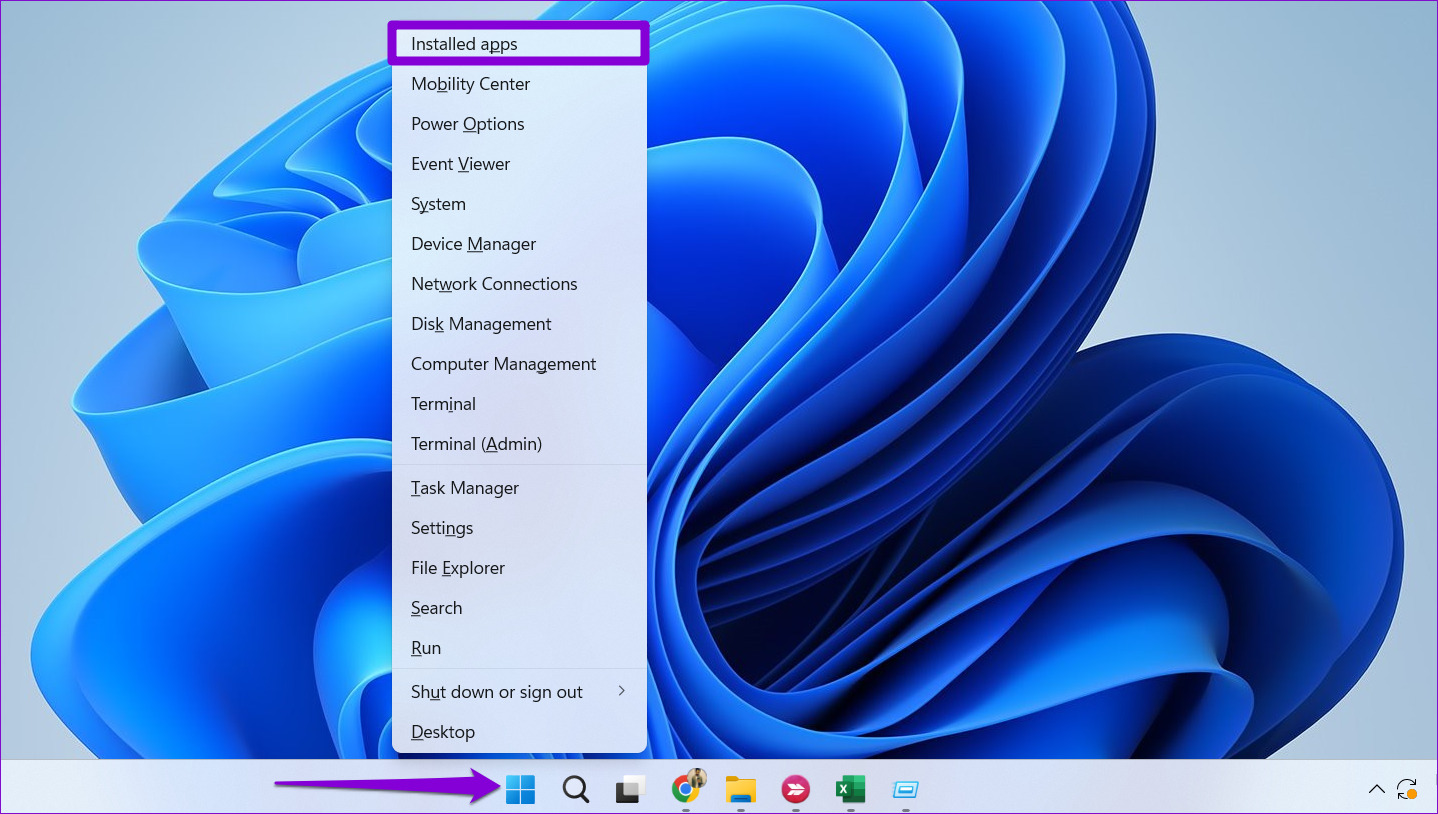
Step 1: Right-click on the Start icon and select Installed apps from the list.
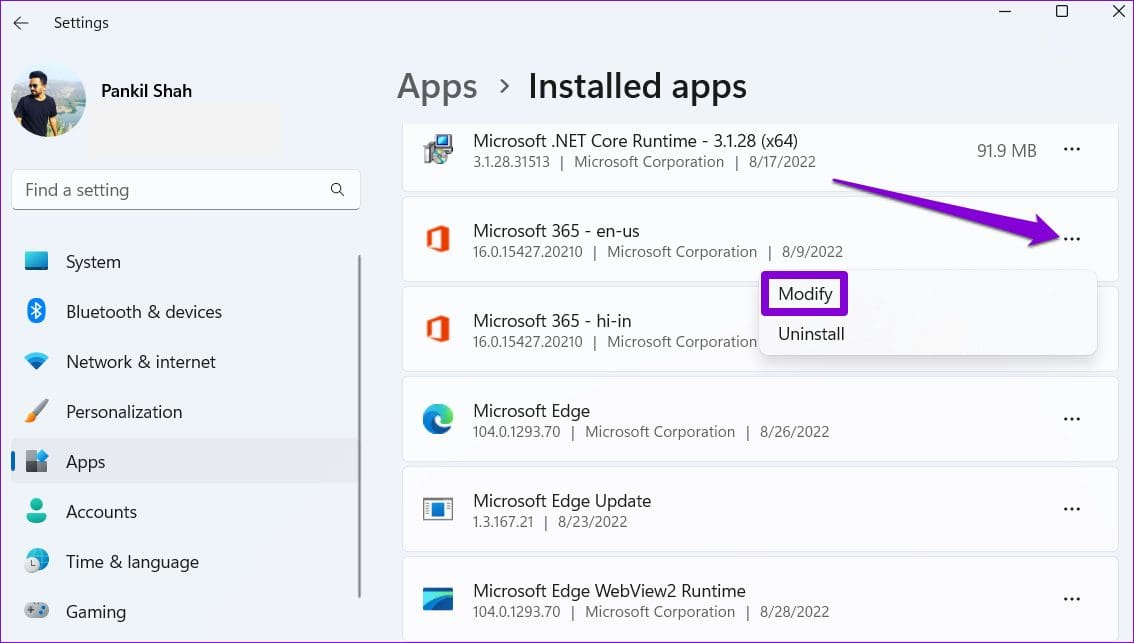
Step 2: Scroll down to locate the Microsoft Office product on the list. Click the three-dot menu icon next to it and select Modify.
Step 3: Select Online Repair and hit Repair.

Was this helpful?
Last updated on 04 July, 2024
Read Next
 7 Ways to Fix Outlook Not Responding When Trying to Print
Try Basic Fixes: Restart Outlook: When Outlook relaunches, it loads all the modules, including extensions.
7 Ways to Fix Outlook Not Responding When Trying to Print
Try Basic Fixes: Restart Outlook: When Outlook relaunches, it loads all the modules, including extensions.
 8 Ways to Fix ‘File Is Open in Another Program’ Error in Windows
Fix 1: Use Task Manager to Close the App The primary reason for the 'another program is currently using this file' error is that another program on your PC is
8 Ways to Fix ‘File Is Open in Another Program’ Error in Windows
Fix 1: Use Task Manager to Close the App The primary reason for the 'another program is currently using this file' error is that another program on your PC is
 5 Fixes for the “Outlook Data File Has Reached the Maximum Size” Error in Windows
Fix 1: Compact the Microsoft Outlook Data File Compacting your Outlook data file removes unused space and purges redundant information from the data file, effectively reducing its size.
5 Fixes for the “Outlook Data File Has Reached the Maximum Size” Error in Windows
Fix 1: Compact the Microsoft Outlook Data File Compacting your Outlook data file removes unused space and purges redundant information from the data file, effectively reducing its size.
 6 Fixes For ‘Path too Long’ Error When Extracting a ZIP File in Windows 10 and 11
Fix 1: Restart Windows Explorer Windows Explorer offers interface support for many system apps, and if it encounters a glitch, you may have trouble with File Explorer.
6 Fixes For ‘Path too Long’ Error When Extracting a ZIP File in Windows 10 and 11
Fix 1: Restart Windows Explorer Windows Explorer offers interface support for many system apps, and if it encounters a glitch, you may have trouble with File Explorer.
 6 Fixes for “This Image Cannot Currently Be Displayed” Error in Microsoft Word
Fix 1: Use the "In Line With Text" Option for Wrap Text A common reason images might not appear in your Word document is if you use a wrapping style
6 Fixes for “This Image Cannot Currently Be Displayed” Error in Microsoft Word
Fix 1: Use the "In Line With Text" Option for Wrap Text A common reason images might not appear in your Word document is if you use a wrapping style
 4 Fixes for Microsoft Word Dictation Tool Not Working on Windows 11 and 10
Fix 1: Check Microphone Permission Windows lets you enable or disable microphone permissions for each app and program individually.
4 Fixes for Microsoft Word Dictation Tool Not Working on Windows 11 and 10
Fix 1: Check Microphone Permission Windows lets you enable or disable microphone permissions for each app and program individually.
 5 Fixes When Read Aloud Is Not Working in Microsoft Word for Windows
Fix 1: Add the Read Aloud Option Is the Read Aloud option missing from Microsoft Word?
5 Fixes When Read Aloud Is Not Working in Microsoft Word for Windows
Fix 1: Add the Read Aloud Option Is the Read Aloud option missing from Microsoft Word?
 4 Fixes for Can’t Select or Highlight Text in Microsoft Word for Windows
Try Basic Fixes Rule out issues with your mouse or touchpad: A malfunctioning mouse or touchpad might fail to register clicks and drag motions.
4 Fixes for Can’t Select or Highlight Text in Microsoft Word for Windows
Try Basic Fixes Rule out issues with your mouse or touchpad: A malfunctioning mouse or touchpad might fail to register clicks and drag motions.
The article above may contain affiliate links which help support Guiding Tech. The content remains unbiased and authentic and will never affect our editorial integrity.