

Try Basic Fixes
- Close Telegram on your computer: If you have the Telegram app open on your computer, Telegram notifications may not appear or make a sound on your phone. To avoid this, close the Telegram app on your PC or Mac. If you’re using Telegram in the web browser, close the Telegram tab to divert all notifications to your Android or iPhone.
- Disable Focus or Do Not Disturb mode: Enabling DND (Android) or Focus (iOS) on your phone pauses all app notifications. Hence, ensure it is disabled on your phone.
- Update the Telegram app: There might be a problem with the Telegram app version you’re using. Go to the Play Store or App Store to update the Telegram app and check if the notification sounds work after that.
- Disconnect Bluetooth devices: If your phone is connected to a Bluetooth speaker or headphones, your incoming notifications and phone calls might ring on that paired Bluetooth device instead of your phone. To avoid this, disconnect your Bluetooth devices when not in use.
Fix 1: Check Your Phone’s Notification Volume
You should also check the notification volume on your Android or iPhone. If it is too low, you might have trouble hearing your Telegram notifications.
On Android
Step 1: Open the Settings app > head to Sounds and vibration > Notification sound.
Step 2: Drag the slider to your right to increase the notification sound volume.


On iPhone
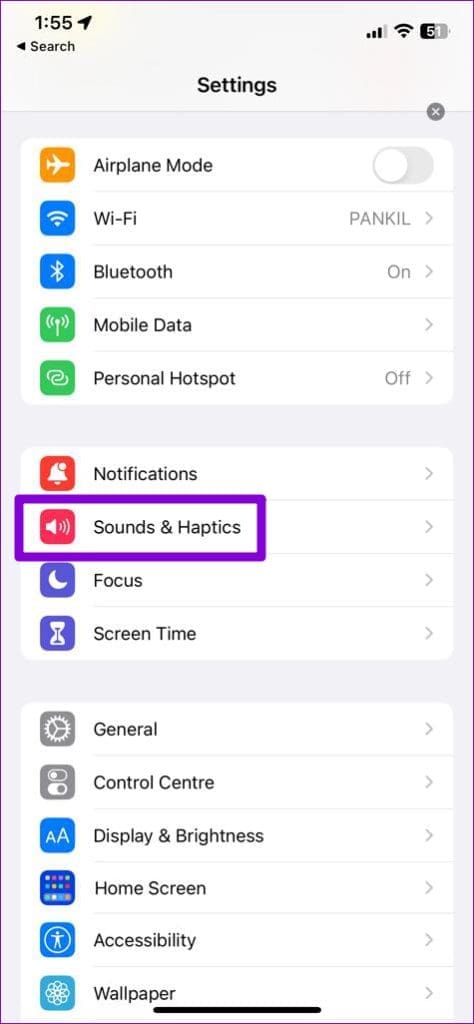
Step 1: Open the Settings app > navigate to Sounds & Haptics.
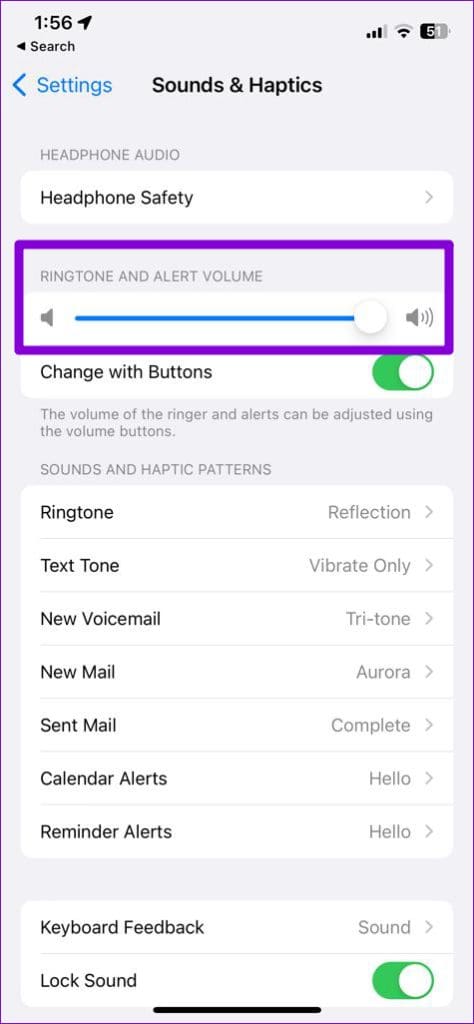
Step 2: Use the slider under Ringtone and Alert Volume to increase the volume.
Fix 2: Check System Notification Settings for Telegram
Next, ensure you haven’t silenced Telegram notifications from your phone’s settings menu. Here’s how to check.
On Android
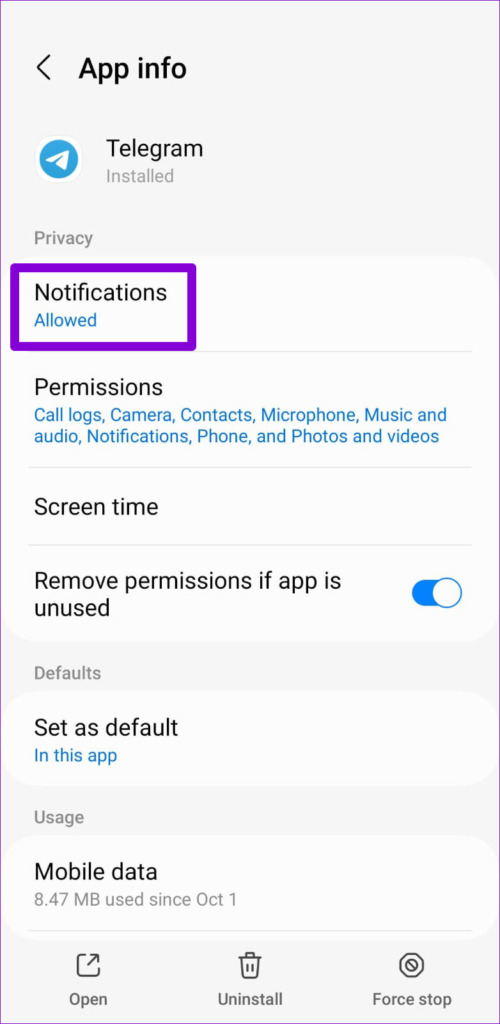
Step 1: Long-press on the Telegram app icon > tap the info icon
Step 2: Go to Notifications > select Allow sound and vibration.

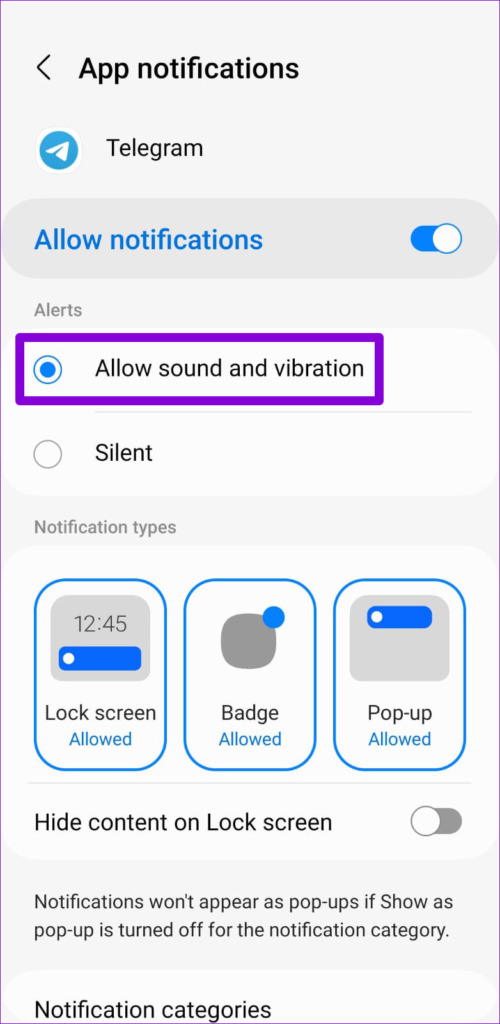
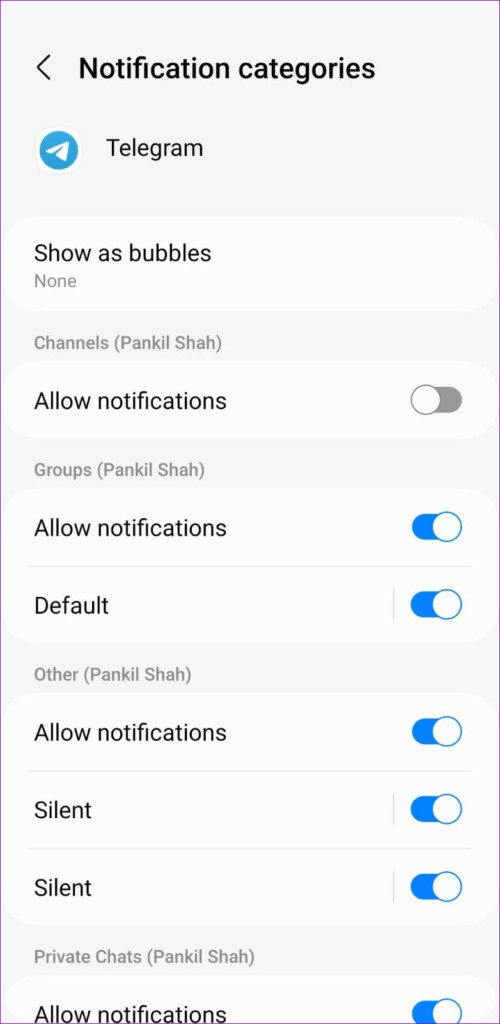
Step 3: Tap on Notification categories.
Step 4: Go through each notification type and ensure all are set to Alert.


On iPhone
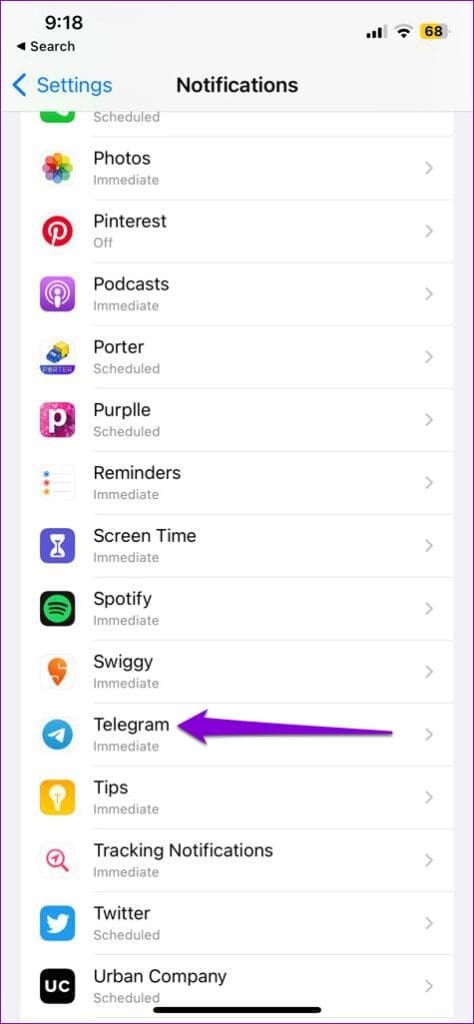
Step 1: Launch the Settings app on your iPhone > tap on Notifications.
Step 2: Scroll down to select Telegram from the list and enable the toggle for Sounds.


Fix 3: Check In-App Notification Settings
Telegram, like most messaging apps, allows you to customize notification preferences directly from the in-app settings menu. You must check these settings to ensure that notifications from your private chats, groups, and channels can play a sound on your phone.
Step 1: Open the Telegram app on your phone.
Step 2: Tap the three horizontal lines at the top left > select Settings. If you use Telegram on an iPhone, tap Settings at the bottom right.
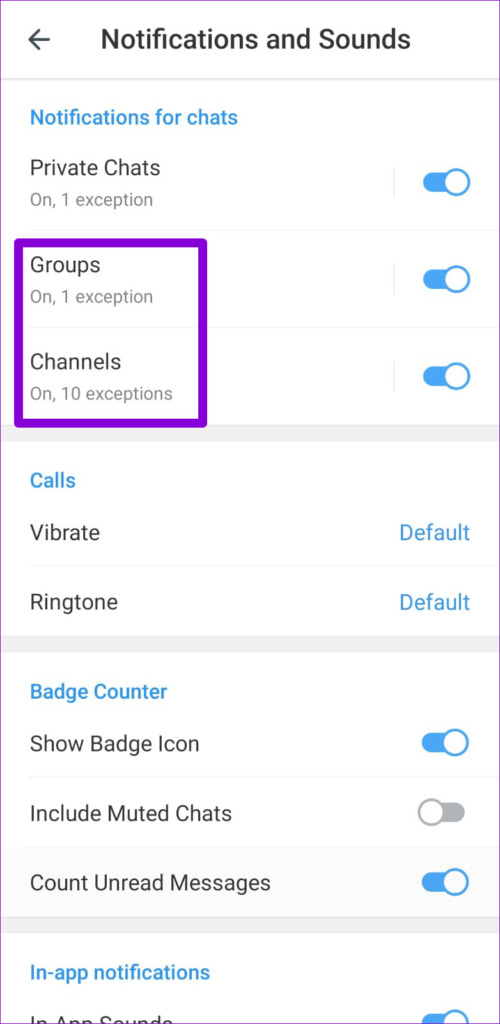
Step 3: Go to Notifications and Sounds > Private Chats.


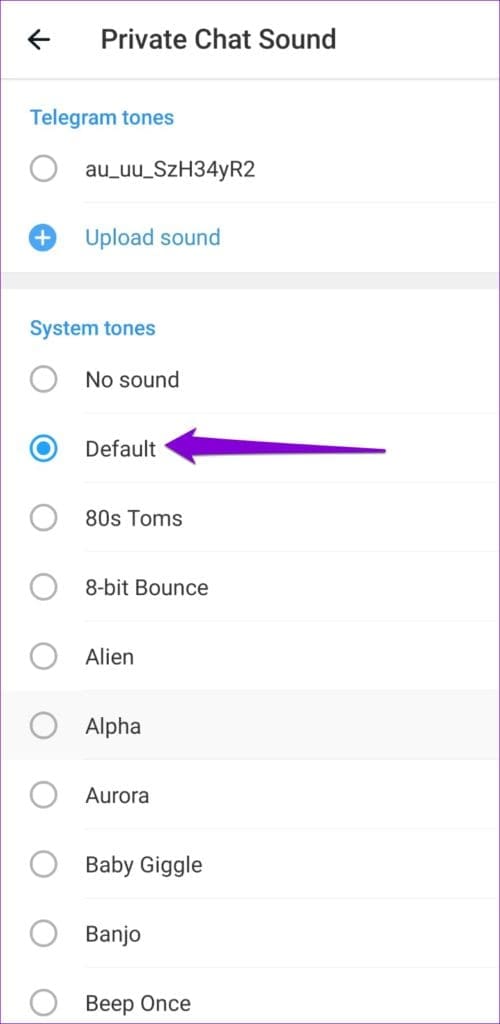
Step 4: Tap on Sound and select your preferred tone from the following menu.
Step 5: Similarly, check the notification tones for Groups and Channels.

Fix 4: Unmute Conversations and Check Notification Sound
If Telegram is not making a notification sound when you receive messages from a specific person, group, or channel, you may have accidentally silenced notifications for the same. Here’s how to change that.
Step 1: Use the Telegram app’s search tool to find the contact, group, or channel for which the notification sound is not working.
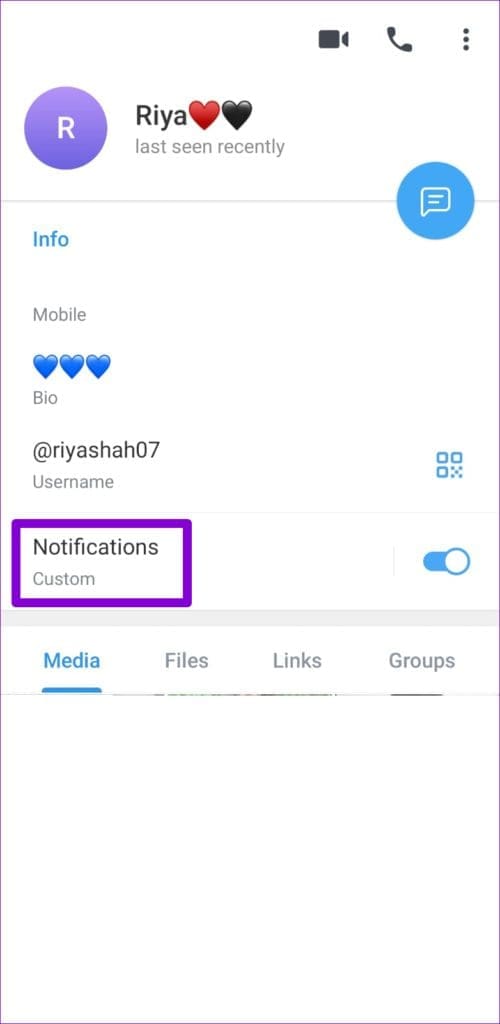
Step 2: Tap the profile icon at the top.
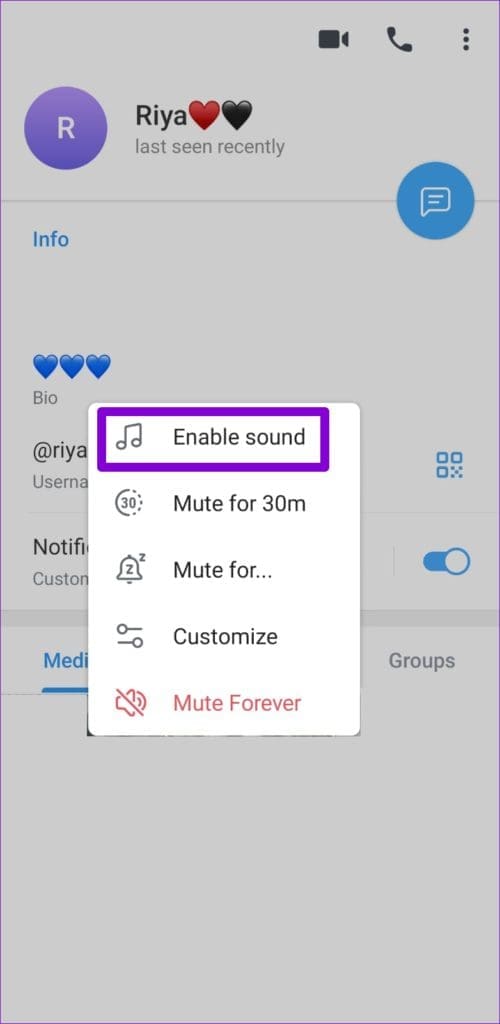
Step 3: Tap on Notifications > select Enable sound.

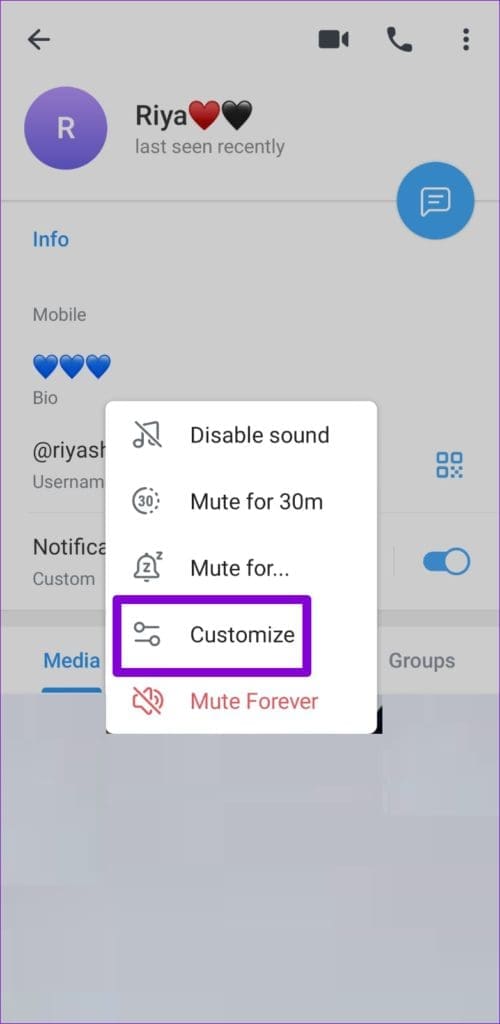
Step 4: Tap on Notifications again > select Customize.
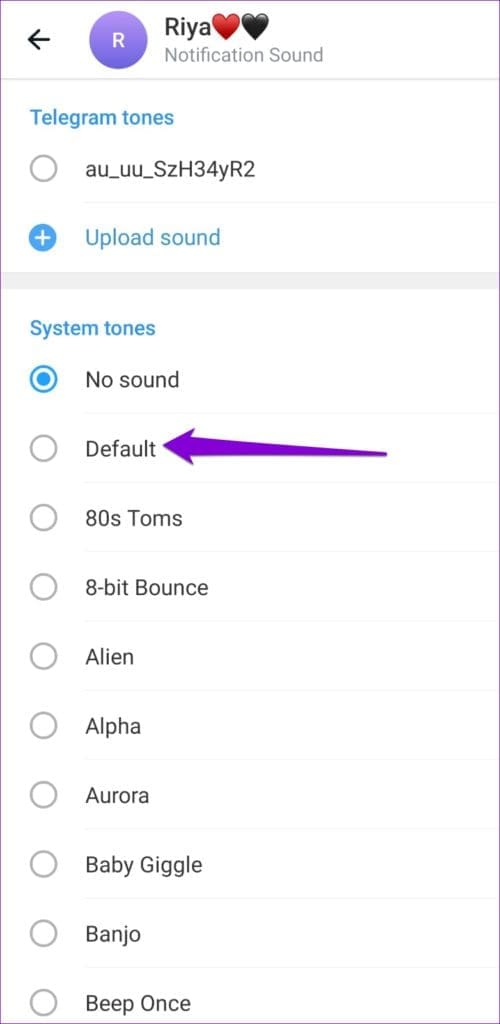
Step 5: Go to Sound > select one of the system tones.

Was this helpful?
Last updated on 09 August, 2024
1 Comment
Leave a Reply
Read Next
 3 Fixes for Gmail Notification Sound Not Working on Android and iPhone
Try Basic Fixes Check your phone’s notification volume: Make sure you haven't lowered the notification volume level on your phone unintentionally.
3 Fixes for Gmail Notification Sound Not Working on Android and iPhone
Try Basic Fixes Check your phone’s notification volume: Make sure you haven't lowered the notification volume level on your phone unintentionally.
 How to Change Instagram Notification Sound (iPhone and Android)
Change Instagram Notification Sound on iPhone Unfortunately, iOS doesn't allow you to change the notification sound for individual apps.
How to Change Instagram Notification Sound (iPhone and Android)
Change Instagram Notification Sound on iPhone Unfortunately, iOS doesn't allow you to change the notification sound for individual apps.
 4 Ways to Fix Facebook Messenger Notification Sound Not Working
Try Basic Fixes Close the Messenger app on your computer: If you have the Messenger app open on your computer, notifications may appear there instead of on your phone, and
4 Ways to Fix Facebook Messenger Notification Sound Not Working
Try Basic Fixes Close the Messenger app on your computer: If you have the Messenger app open on your computer, notifications may appear there instead of on your phone, and
 5 Ways to Fix Snapchat Notification Sound Not Working
Basic Fixes Disable the silent profile: Press the Volume Up physical button on your Android phone and tap the sound profile icon to disable the silent mode.
5 Ways to Fix Snapchat Notification Sound Not Working
Basic Fixes Disable the silent profile: Press the Volume Up physical button on your Android phone and tap the sound profile icon to disable the silent mode.
 3 Ways to Fix Notification Sound Not Working on Android
Basic Ways: Adjust notification volume: Use the volume buttons or go to the Settings menu to check the current notification volume.
3 Ways to Fix Notification Sound Not Working on Android
Basic Ways: Adjust notification volume: Use the volume buttons or go to the Settings menu to check the current notification volume.
 How to Fix WhatsApp Notification Sound Not Working
Basic Fixes Ensure silent mode is turned off - The first thing you should do is to check and turn off Vibrate/Silent mode on your iPhone or Android.
How to Fix WhatsApp Notification Sound Not Working
Basic Fixes Ensure silent mode is turned off - The first thing you should do is to check and turn off Vibrate/Silent mode on your iPhone or Android.
 3 Ways to Fix the Notification Sound Not Working on Windows 11
Basic Fixes: Unmute your Windows PC: You might have muted your Windows PC and forgotten to unmute it after an important meeting or work hours.
3 Ways to Fix the Notification Sound Not Working on Windows 11
Basic Fixes: Unmute your Windows PC: You might have muted your Windows PC and forgotten to unmute it after an important meeting or work hours.
 How to Fix Microsoft Teams Notification Sound Not Working
On Windows Method 1: Check Notifications Options in the Settings App Step 1: Press the Windows + I keys shortcut to open the Settings app.
How to Fix Microsoft Teams Notification Sound Not Working
On Windows Method 1: Check Notifications Options in the Settings App Step 1: Press the Windows + I keys shortcut to open the Settings app.
The article above may contain affiliate links which help support Guiding Tech. The content remains unbiased and authentic and will never affect our editorial integrity.
To disable Focus mode on your iPhone, swipe down from the top-right corner of the screen (or swipe upwards from the bottom of the screen on iPhones with a physical Home button) to bring up the Control Center. Tap on the crescent moon icon to turn off Focus mode.