Basic Fixes
- Ensure your phone is turned on: If your phone is switched off, your smartwatch will not receive notifications—unless it’s an LTE variant.
- Update the app(s): If you’re not receiving notifications from a certain set of apps, update them to the latest version to see if it fixes the notifications issue.
- Turn off DND: Enabling DND would prevent notifications from appearing on your smartwatch. So, turn it off if you enabled it by mistake.
Fix 1: Enable Notifications in the Galaxy Wearable App
Open the Galaxy Wearable app on your phone > tap on Notifications > ensure the toggle is enabled.

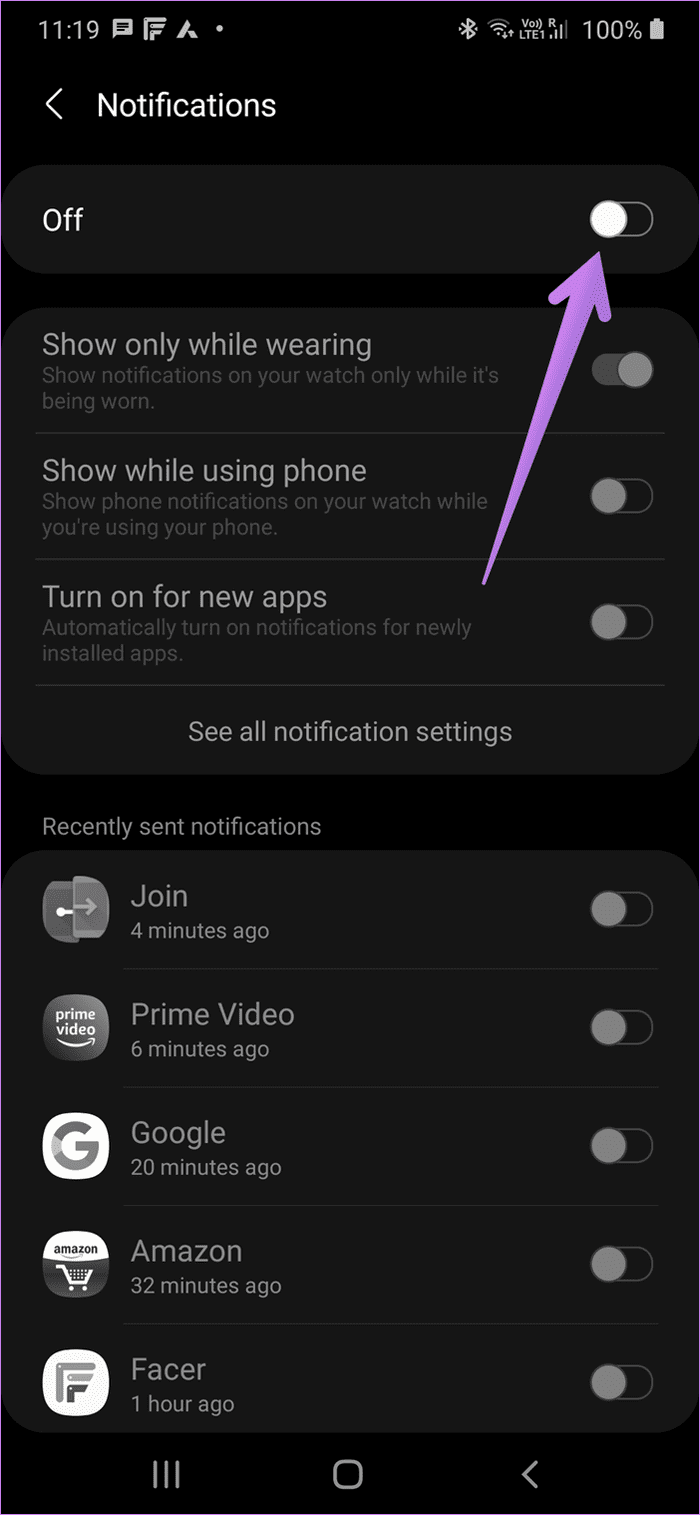

Tip: On the same screen, enable the toggles for individual apps to customize notifications on your watch.
Fix 2: Grant Notification Access
The Galaxy Wearable app or the associated plugin app must have access to your phone’s notifications to show them on the Watch. For that, you must grant special permission.
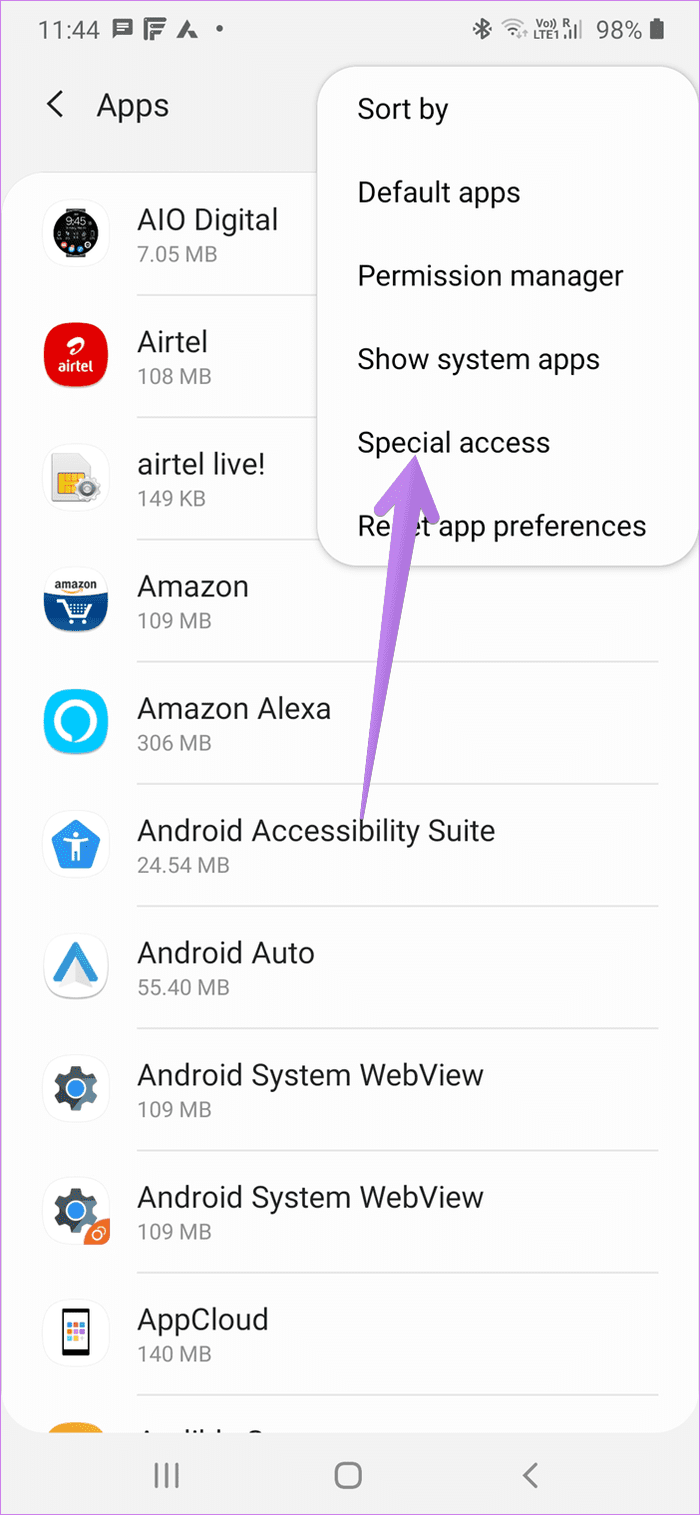
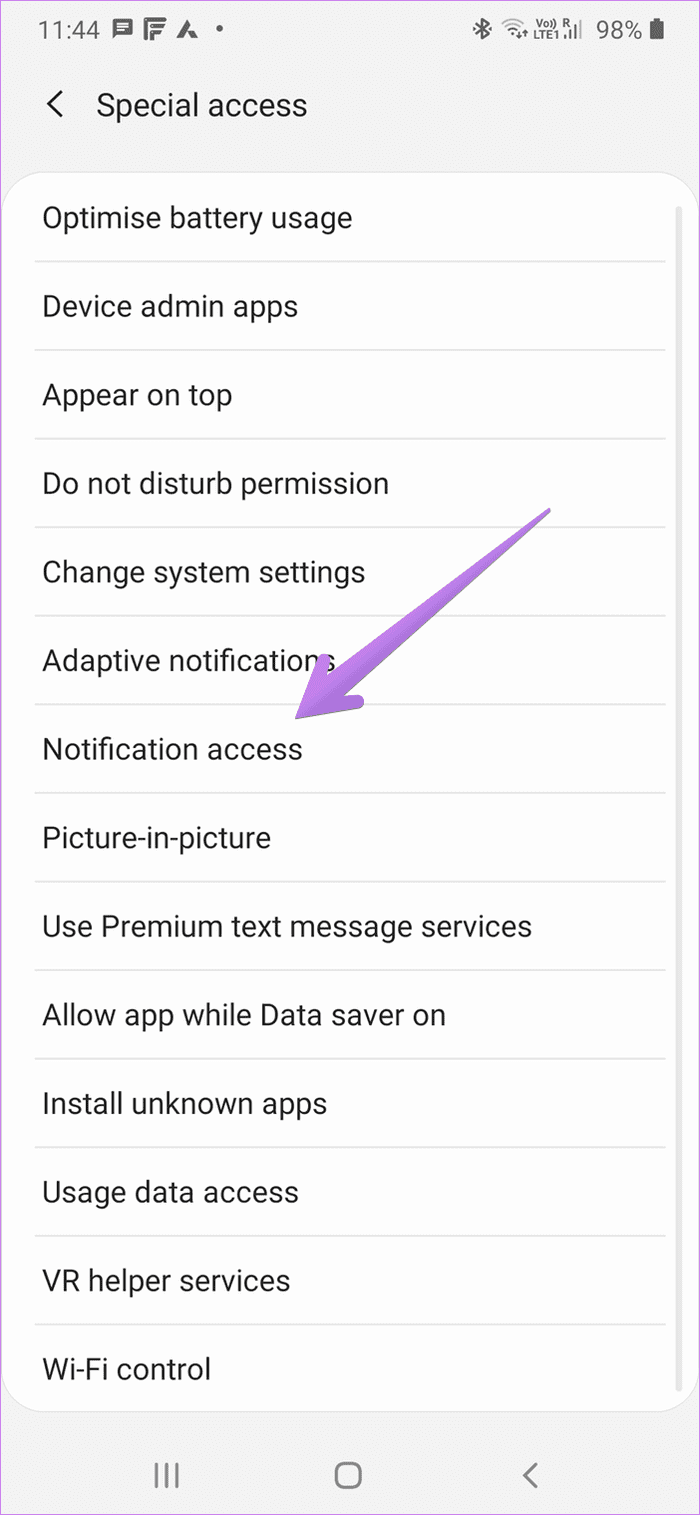
Step 1: Open Settings on your phone > go to Apps. Look for Special access in the three-dot menu.
Step 2: Tap on Notification Access. Enable the toggle for the Galaxy Wearable app and the Watch Plugin app.
Also Read: How to use Samsung Pay in unsupported regions on the Samsung Galaxy Watch
Fix 3: Enable App Notifications on the Phone
The individual app notification settings could also be hampering notifications on your Watch. Here’s how to fix them.
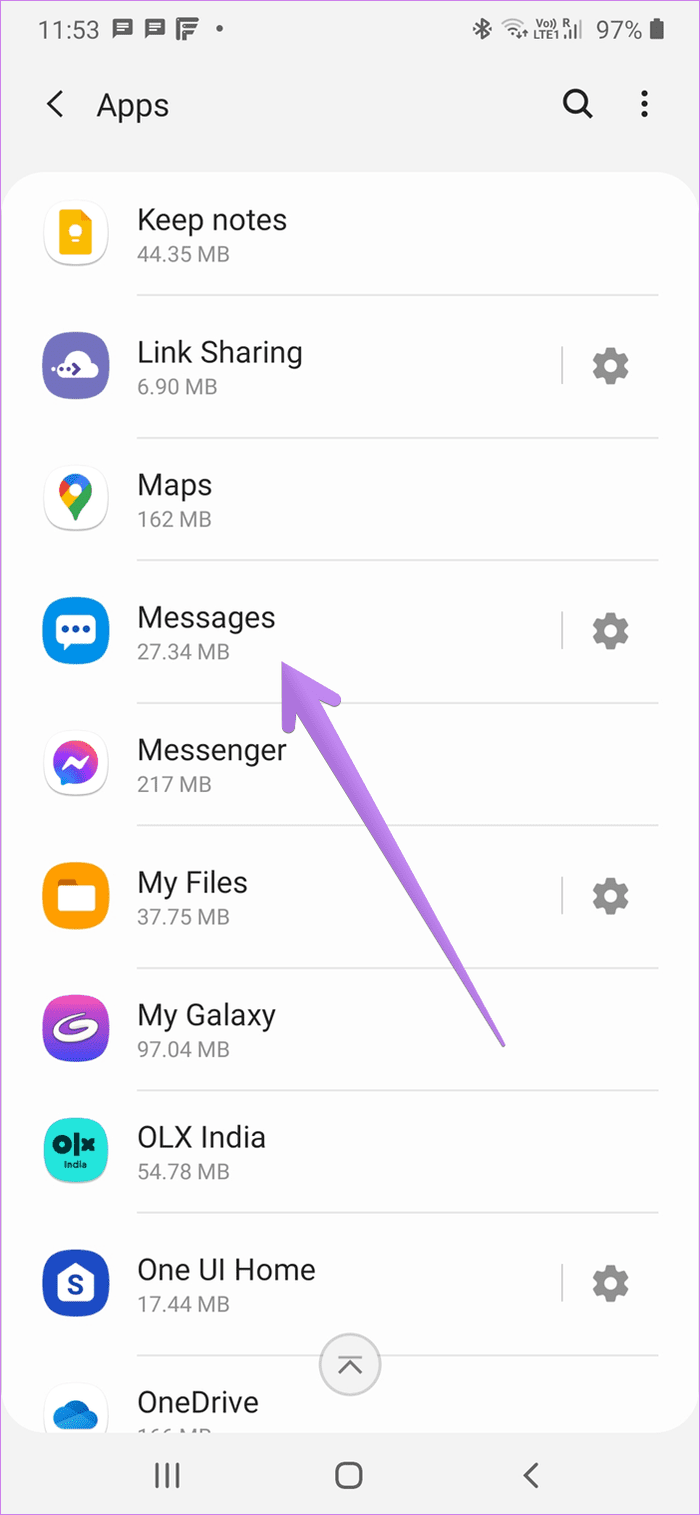
Step 1: Open Settings on your phone > go to Apps. Tap on the problematic app from which you aren’t receiving notifications on your Watch. Let’s say the Message app.
Step 2: Tap on Notifications > enable the toggle for Show Notifications.
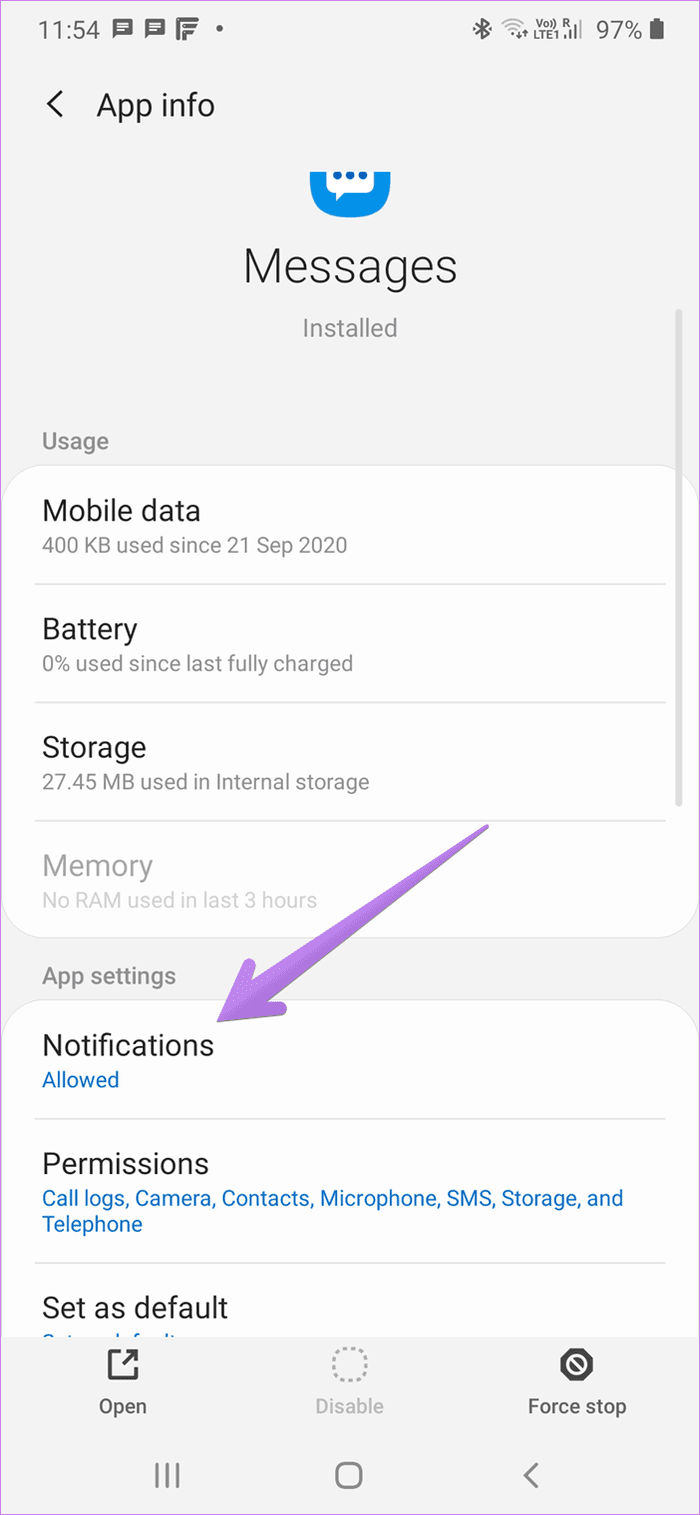

Tip: You can also select individual categories for notifications from the list.
Fix 4: Check Available Storage on Watch
The Galaxy Watch needs to have some free space to receive notifications. If the storage is full, you will face issues. To check available storage, go to Settings > About Watch > Storage. If it’s full or way too high, delete unnecessary data or uninstall apps from it.
Also Read: How to enable blood pressure monitoring on Samsung Galaxy Watch 4
Fix 5: Clear Cache and Data
Step 1: Open Settings on your phone > go to Apps > under All apps, tap on Galaxy Wearable.
Step 2: Then, go to Storage > hit Clear cache > Clear data.


Tip: Repeat the procedure for the Watch Plugin installed on your phone. This is also a good solution if your Galaxy Watch isn’t connecting to your phone. However, in this case, only clear the cache and not the data.
Was this helpful?
Last updated on 22 July, 2024
Read Next
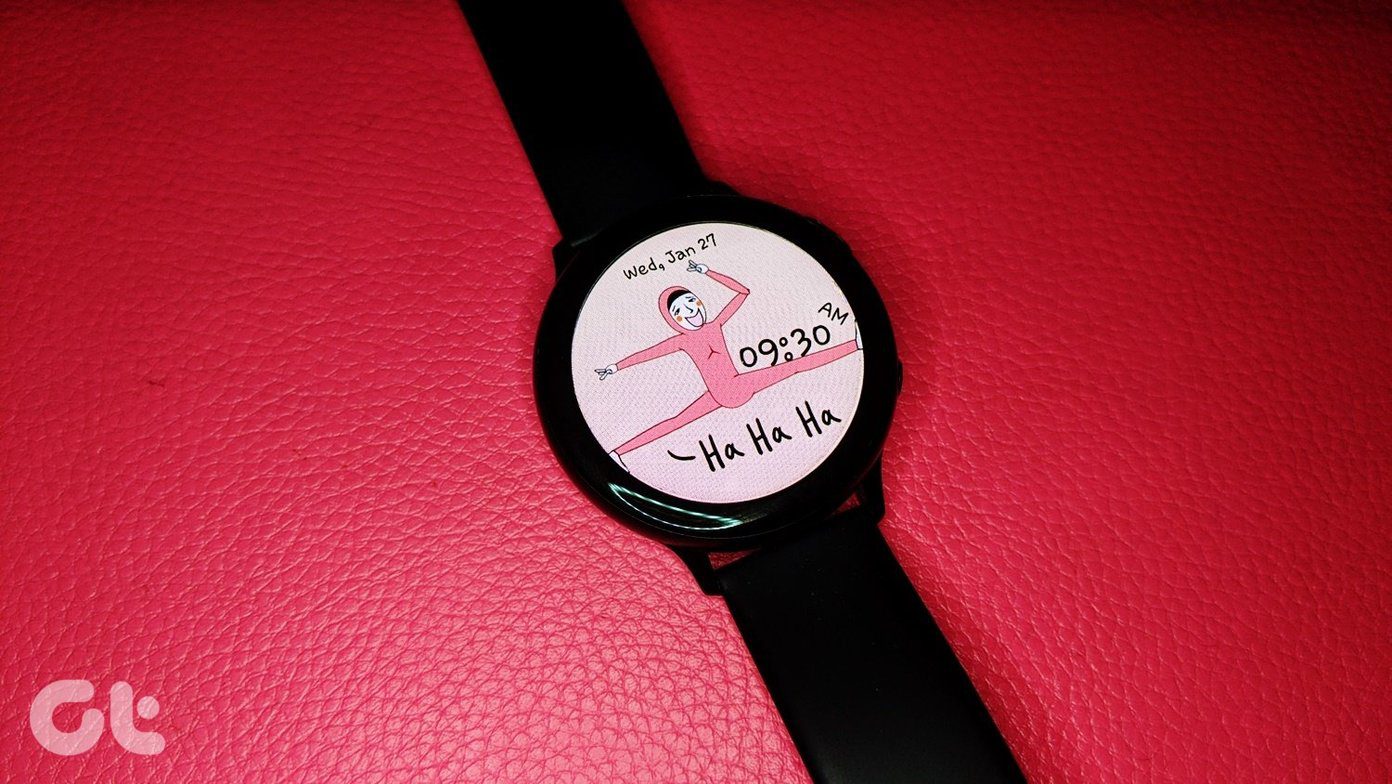 11 Best Animated Watch Faces for Samsung Galaxy Watch
Watch faces enhance the look of any smartwatch.
11 Best Animated Watch Faces for Samsung Galaxy Watch
Watch faces enhance the look of any smartwatch.
 5 Fixes for iPhone Not Receiving Text Notifications
https://youtu.be/bmD4KSVPxfI Basic Fixes Force quit and relaunch Messages app: This will give the app a fresh start if it has been running in the background for some time now.
5 Fixes for iPhone Not Receiving Text Notifications
https://youtu.be/bmD4KSVPxfI Basic Fixes Force quit and relaunch Messages app: This will give the app a fresh start if it has been running in the background for some time now.
 6 Fixes for Samsung Galaxy Watch Keeps Vibrating Randomly
Fix 1: Turn off Bluetooth Connection Alerts One of the primary reasons your Galaxy smartwatch vibrates randomly is the Bluetooth disconnection alerts.
6 Fixes for Samsung Galaxy Watch Keeps Vibrating Randomly
Fix 1: Turn off Bluetooth Connection Alerts One of the primary reasons your Galaxy smartwatch vibrates randomly is the Bluetooth disconnection alerts.
 5 Ways to Fix Samsung Galaxy Phone Not Receiving Calls
https://youtu.be/oL3QSdMsT3o Basic Fixes: Restart your phone: Long-press the power button and select Restart.
5 Ways to Fix Samsung Galaxy Phone Not Receiving Calls
https://youtu.be/oL3QSdMsT3o Basic Fixes: Restart your phone: Long-press the power button and select Restart.
 Samsung Galaxy Watch Not Connecting to Phone: 4 Ways to Fix It
Fix 1: Unpair and Pair Again Your Samsung Galaxy Watch If the Samsung Galaxy Watch isn't connecting to your phone, unpair and pair it again.
Samsung Galaxy Watch Not Connecting to Phone: 4 Ways to Fix It
Fix 1: Unpair and Pair Again Your Samsung Galaxy Watch If the Samsung Galaxy Watch isn't connecting to your phone, unpair and pair it again.
 How to Enable Blood Pressure Monitoring on Samsung Galaxy Watch 4
The Apple Watch dominates the wearable industry in terms of popularity and features.
How to Enable Blood Pressure Monitoring on Samsung Galaxy Watch 4
The Apple Watch dominates the wearable industry in terms of popularity and features.
 6 Best Rugged Cases for Samsung Galaxy Watch 4 Series
The Samsung Galaxy Watch 4 is one of the best smartwatches in Android land.
6 Best Rugged Cases for Samsung Galaxy Watch 4 Series
The Samsung Galaxy Watch 4 is one of the best smartwatches in Android land.
 How to Remove Security PIN from Samsung Galaxy Watch
A few days back, I enabled Samsung Pay on my Samsung Galaxy Watch.
How to Remove Security PIN from Samsung Galaxy Watch
A few days back, I enabled Samsung Pay on my Samsung Galaxy Watch.
The article above may contain affiliate links which help support Guiding Tech. The content remains unbiased and authentic and will never affect our editorial integrity.