Basic Fixes
- Try incognito mode: Incognito mode will let you open Gmail without any saved browser preferences.
- Log in again to the Gmail app: Log out and log in again to your account to check if the problem has been solved.
- Update Gmail app: If you haven’t done this for some time, we suggest updating to the latest Gmail app version.
Fix 1: Select the Correct Signature
If you have created multiple signatures in Gmail, set a default signature or select the one with the image when composing an email.
Step 1: Open Gmail and log in to your account.
Step 2: Click the Settings icon and select See all settings.

Step 3: Scroll down and go to the Signature section.
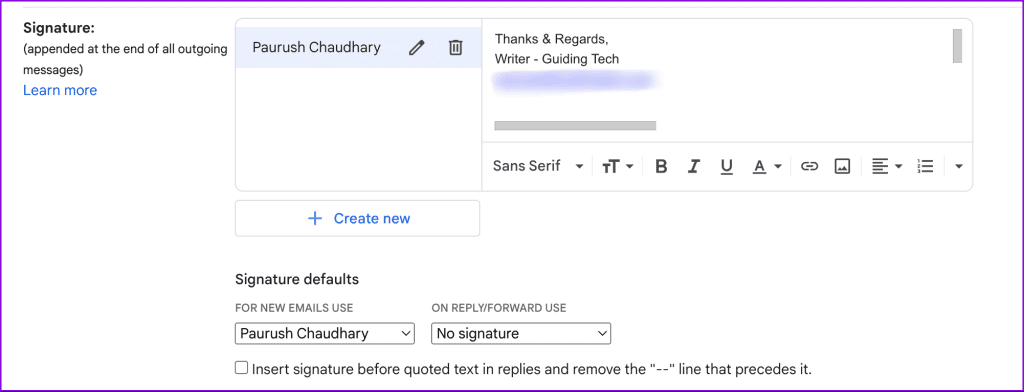
Check if the correct signature has been selected for both new emails and reply or forwards.
Fix 2: Use the Right Steps to Add Image to Signature
As mentioned above, you can add an image to your signature only from a computer. If you tried doing the same from the mobile app, it won’t be a success.
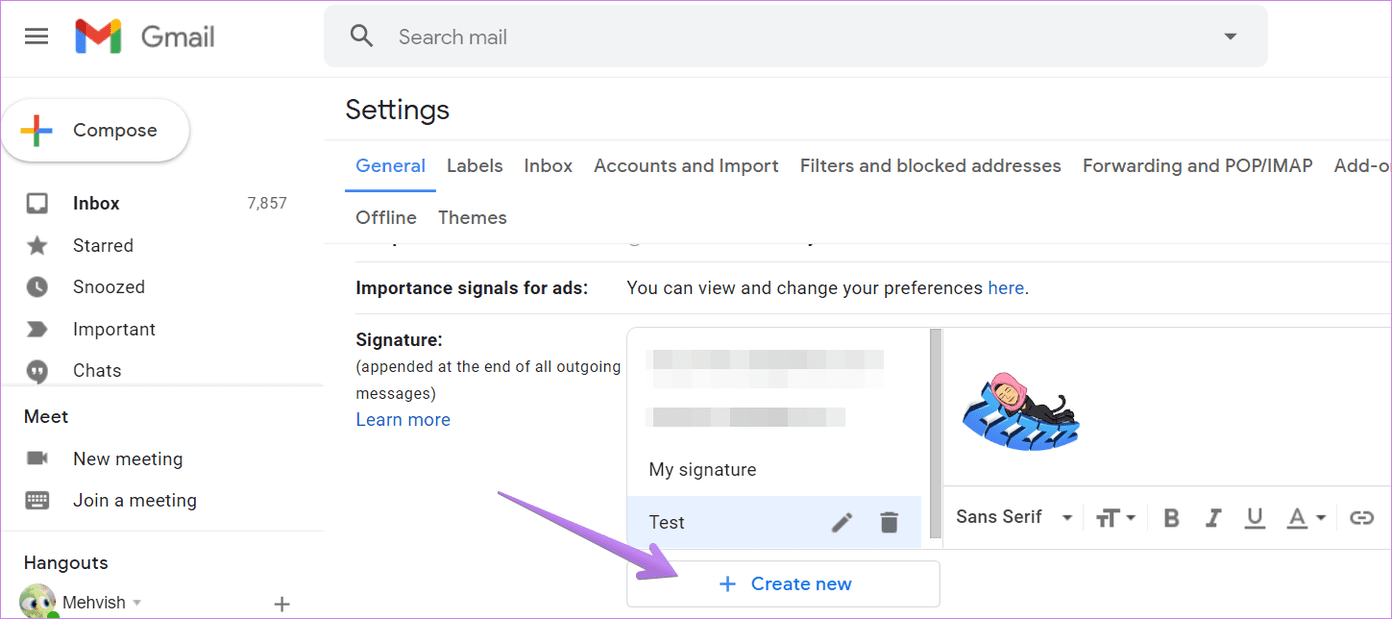
Step 1: Open Settings in Gmail and go to your Signature section. Then, click on Create New.
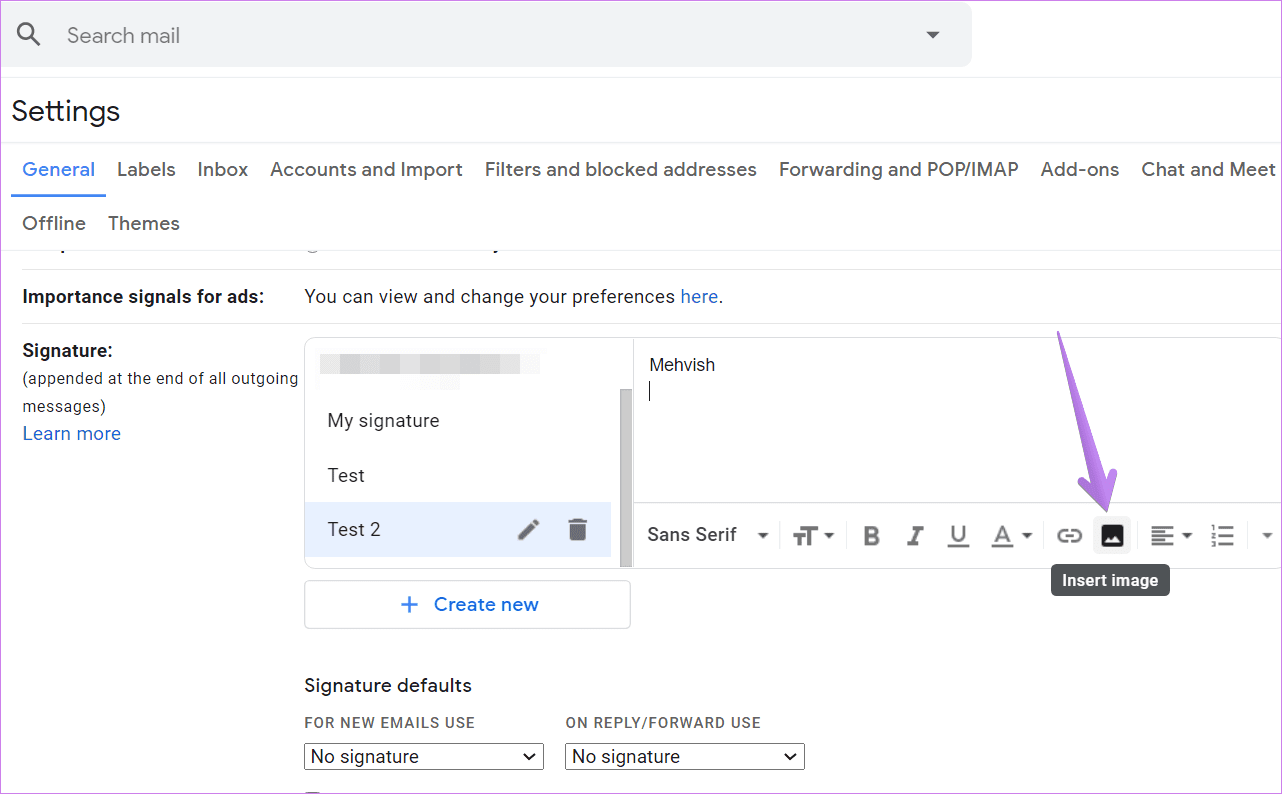
Step 2: In the right box, hit the Insert Image icon from the toolbar to add a picture to your signature.
Step 3: In the Add an image window, you can add images from multiple locations: Google Drive, your computer using Upload, and Web Address. Choose your preferred option and click on Select.
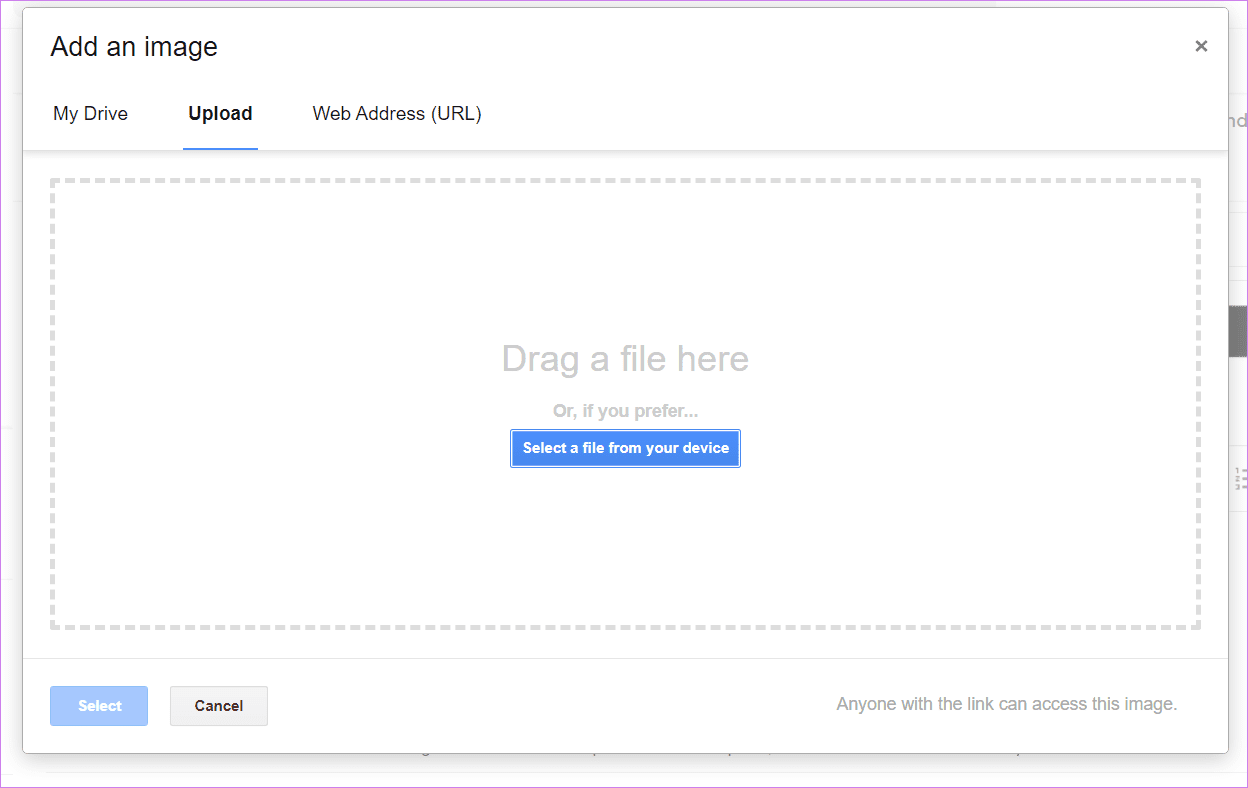
You will be taken back to the Signature section. Here, modify the size of the image and hyperlink your signature image. Finally, scroll down and hit the Save changes button. Now, when you compose an email from a PC, you will see the image in your signature.
Fix 3: Use the Correct Link to Insert Image
Users often add incorrect links when adding an image’s URL. Basically, you must add the image address and not the link to the page containing the image.
Step 1: To get the correct URL for your image, right-click on the image and select Copy image address.
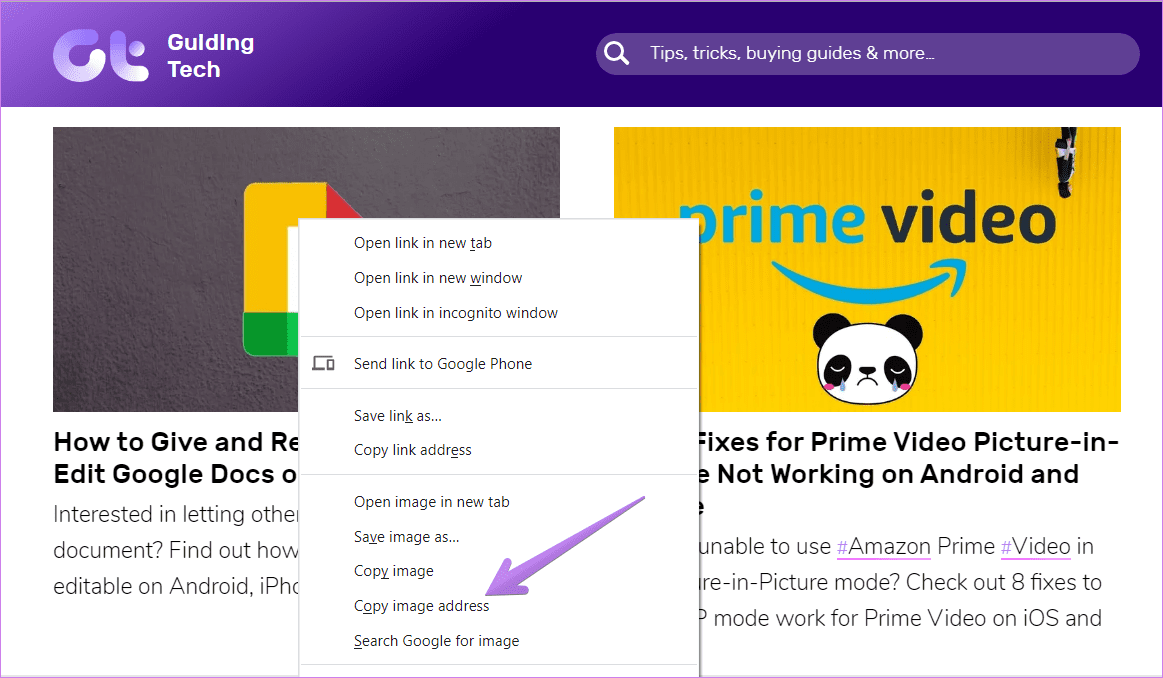
Step 2: Paste the copied address from any two methods in the URL section of Gmail Signature’s Add image window. That should get the right image.

Fix 4: Disable Plain Text Mode
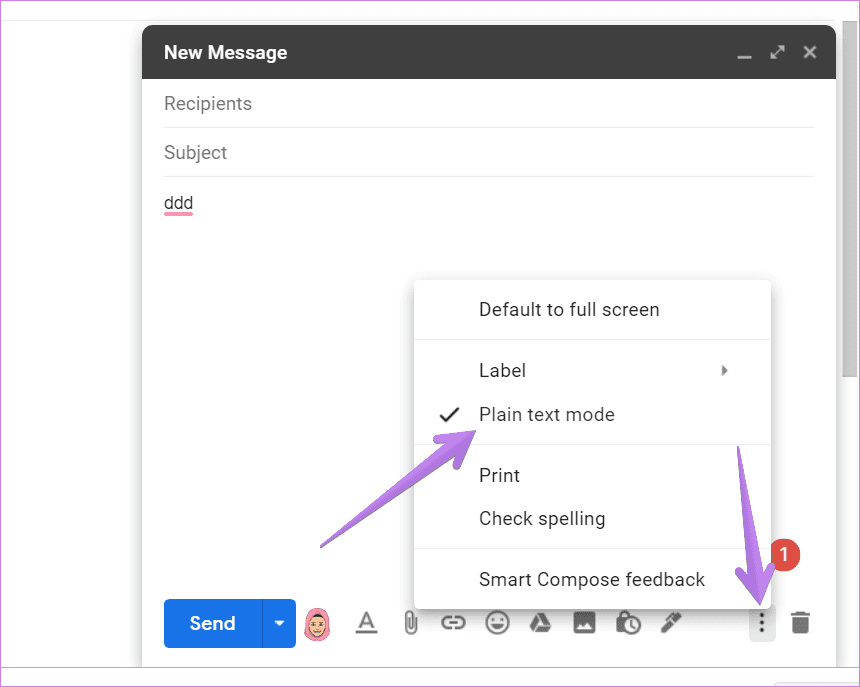
If Plain text mode is enabled for the Gmail compose screen, you will not see the image in your signature. So, you must disable it.
For that, open a new Gmail message > click the three dots > ensure that Plain text mode is not selected.
Fix 5: Give Sharing Permission to Drive Image
Typically, when you insert an image from Google Drive in Gmail’s signature, its privacy will automatically change to ‘Anyone can view it’. However, that may not happen at times. That’s why you might see a question mark icon. So, change the permission manually. You can read more about Google Drive sharing permissions.
Open Google Drive > right-click on the image > select Share > change the permission mode to Anyone with the link can view the file.
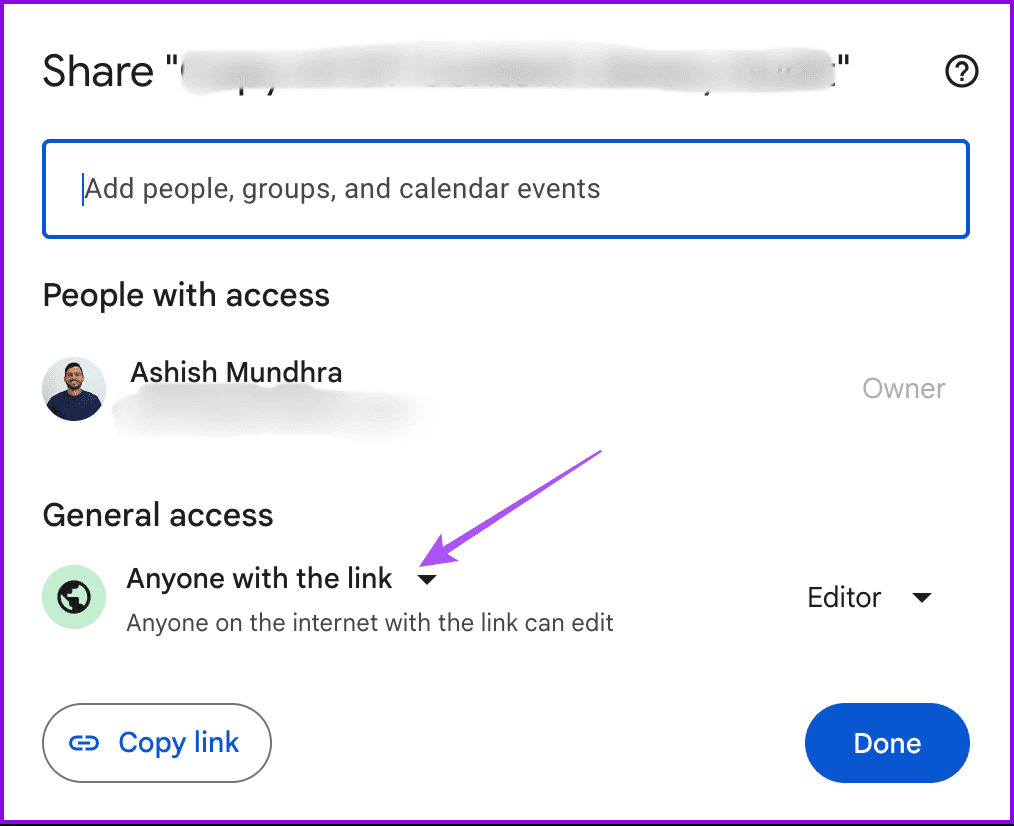
Now, you can select the image directly from Drive folders that appear in Gmail’s signature window or copy-paste the image link when you click on the Insert image option.
Note: Do not delete the images from your Google Drive while being used in your signature. Further, if you have a work or school Gmail account, contact your administrator to share Drive images publicly.
Was this helpful?
Last updated on 02 July, 2024
Read Next
 How to Add or Remove Link From Image in Gmail Signature
How to Add Link to an Image in Gmail Signature There are two methods for adding a link to an image in your Gmail signature.
How to Add or Remove Link From Image in Gmail Signature
How to Add Link to an Image in Gmail Signature There are two methods for adding a link to an image in your Gmail signature.
 How to Add Canva Email Signature to Gmail
Create a Gmail Signature Using Canva You can quickly create an email signature in Canva for free, as its intuitive user interface has drag-and-drop options.
How to Add Canva Email Signature to Gmail
Create a Gmail Signature Using Canva You can quickly create an email signature in Canva for free, as its intuitive user interface has drag-and-drop options.
 5 Ways to Fix Outlook Signature Not Showing on Windows
Fix 1: Configure Outlook to Compose Messages in HTML Format Are you using images in your Outlook signature?
5 Ways to Fix Outlook Signature Not Showing on Windows
Fix 1: Configure Outlook to Compose Messages in HTML Format Are you using images in your Outlook signature?
 How to Add Image to Apple Mail Signature on Mac
Add Image to Email Signature in Mail App Before moving ahead, make sure you have a PNG file of your signature saved on your Mac if you want to use
How to Add Image to Apple Mail Signature on Mac
Add Image to Email Signature in Mail App Before moving ahead, make sure you have a PNG file of your signature saved on your Mac if you want to use
 6 Fixes for Facebook Stories Not Showing on Mobile and PC
Try These Basic Fixes Update the Facebook app: It’s possible that the Facebook app is not showing stories because you're using an outdated app version.
6 Fixes for Facebook Stories Not Showing on Mobile and PC
Try These Basic Fixes Update the Facebook app: It’s possible that the Facebook app is not showing stories because you're using an outdated app version.
 Top 17 Fixes for Gmail Not Showing New Emails on Android
Typically, when you add a Google account to your Android phone and enable sync for Gmail, you should start receiving new emails without any issue.
Top 17 Fixes for Gmail Not Showing New Emails on Android
Typically, when you add a Google account to your Android phone and enable sync for Gmail, you should start receiving new emails without any issue.
 How to Create and Insert a Signature in Microsoft Word
Microsoft Word is so versatile that you can use it for official documentation and creating invoices.
How to Create and Insert a Signature in Microsoft Word
Microsoft Word is so versatile that you can use it for official documentation and creating invoices.
 How to Change Font Style in Gmail on Web and Mobile
Change Default Text Style in Gmail on Web The compose menu in Gmail on the Web offers several formatting tools to change an email's text look and style.
How to Change Font Style in Gmail on Web and Mobile
Change Default Text Style in Gmail on Web The compose menu in Gmail on the Web offers several formatting tools to change an email's text look and style.
The article above may contain affiliate links which help support Guiding Tech. The content remains unbiased and authentic and will never affect our editorial integrity.