Basic Fixes
- Change folder icon: Right-click on the folder icon with black background > Properties > Customize > Change icon > select from the folder icon options > click Ok.
- Restore folder settings to default: Right-click on the folder icon with black background > Properties > Customize > Restore Default > click Ok and then Apply.
- Update windows 11: Installing the latest version of Windows 11 should fix this issue.
Fix 1: Clear Thumbnails Cache Using Disk Cleanup
Every folder icon in your Windows 11 computer is a thumbnail image preview. A thumbnail acts like a visual identifier for different folders and programs. If you see a black square background behind folder icons, we suggest clearing the Thumbnail cache by performing Disk Cleanup on your Windows 11 computer.
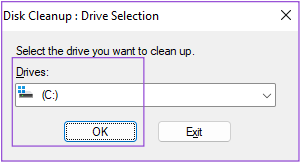
Step 1: Open Disk Cleanup, select C drive, and click Ok.
Step 2: Under the Files to Delete section, scroll down and click the checkbox next to Thumbnails. Then, click Ok at the bottom to confirm.

Step 3: Click on Delete Files to confirm your choice.
Once the Disk Cleanup is complete, check if the problem is solved.
Tip: Refer to our post to learn how to see the hidden files and folders on Windows 11.
Fix 2: Rebuild Icon Cache
Whenever you open a storage drive on your Windows 11 computer, the file and folder icons are displayed quickly or take some time to appear on your screen. Icon Cache takes care of the quick display of icons as it stores all the information about the file and folder icons. This is just like the App Cache on your mobile. If you still see the black background behind folder icons, here’s how to rebuild Icon Cache, which might have corrupted over time.
Step 1: Open Command Prompt as Administrator on your Windows 11 PC or laptop.
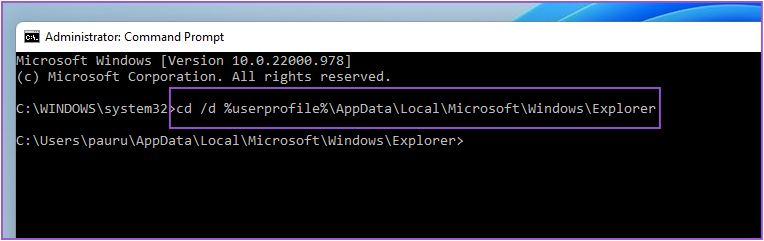
Step 2: Once Command Prompt opens, type the following path in the address bar and press Enter:
cd /d %userprofile%\App Data\Local\Microsoft\Windows\Explorer
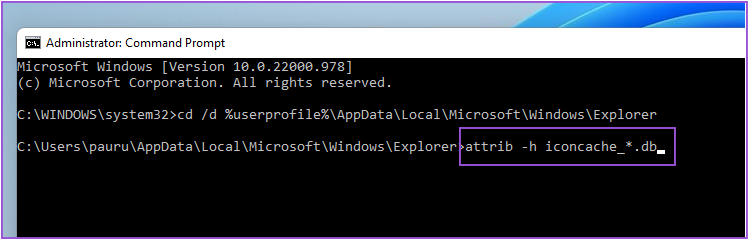
Step 3: Type the next command and press Enter:
attrib -h iconcache_*.db
Step 4: Type the next command and press Enter:
del iconcache_*.db start explorer

Step 5: Close the Command Prompt window and restart your Windows 11 computer to rebuild the Icon Cache.
After your system restarts, check if the problem is solved.
Fix 3: Update Display Driver
The Graphics Driver is responsible for the smooth rendering of all visual graphics on your system, including folder icons. If you haven’t updated the Graphics Driver in a while, it’s a good idea to do so right away.
Step 1: Open Device Manager and click Display Adapters from the list of options.
Step 2: Right-click on your video card name and select Update Driver from the list of options.

Step 3: Start the process by clicking on Search Automatically for Drivers.
Close Device Manager and check if the problem is solved.
Fix 4: Run an SFC Scan
SFC (System File Checker) scan is a utility that scans for corrupt or damaged operating system files and replaces them with the correct versions whenever possible. If you still see a black background behind the folder icon, here’s how to try fixing it using SFC Scan.
Step 1: Run Command Prompt as Administrator on your Windows 11 PC or laptop.
Step 2: Type the following command and press Enter.
sfc /scannow
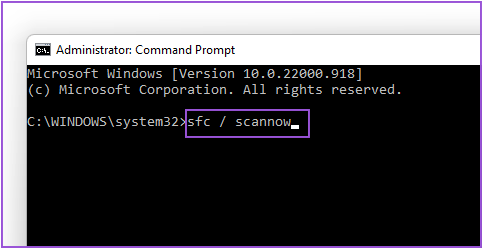
Step 3: After the system scan initiates, wait until the process completes.
Step 4: If you see Windows resource protection found corrupt files and successfully repaired them on your screen, close the Command Prompt window.

Step 5: Restart your system and check if this fixed the problem.
Was this helpful?
Last updated on 01 July, 2024
Read Next
 How to Fix the Black Folder Background Issue in Windows 10
Do you have black squares show up all of a sudden behind certain folders in Windows 10?
How to Fix the Black Folder Background Issue in Windows 10
Do you have black squares show up all of a sudden behind certain folders in Windows 10?
 7 Best Ways to Fix App Icons Not Showing in Taskbar on Windows 10
Don't you just love loading up your Windows 10 PC with all the amazing apps?
7 Best Ways to Fix App Icons Not Showing in Taskbar on Windows 10
Don't you just love loading up your Windows 10 PC with all the amazing apps?
 3 Ways to Fix Mac Desktop Icons Missing or Not Showing
Basic Fixes Force quit Finder: Finder is always running on Mac, so you can't exactly close it.
3 Ways to Fix Mac Desktop Icons Missing or Not Showing
Basic Fixes Force quit Finder: Finder is always running on Mac, so you can't exactly close it.
 4 Ways to Fix Camera Showing a Black Screen on Windows 11
Basic Fixes: Ensure the camera lens is unobstructed: Certain laptops come with built-in privacy shutters for the device camera.
4 Ways to Fix Camera Showing a Black Screen on Windows 11
Basic Fixes: Ensure the camera lens is unobstructed: Certain laptops come with built-in privacy shutters for the device camera.
 How to Fix Windows 10 Invisible Taskbar Icons Issue
Pinning the frequently used apps to the taskbar is quite helpful.
How to Fix Windows 10 Invisible Taskbar Icons Issue
Pinning the frequently used apps to the taskbar is quite helpful.
 How to Fix Desktop Icons Disappearing on Windows 11
Basic Fixes Run a malware scan: Malware is a common source of corruption that may lead to this icon issue.
How to Fix Desktop Icons Disappearing on Windows 11
Basic Fixes Run a malware scan: Malware is a common source of corruption that may lead to this icon issue.
 6 Ways to Fix Icons Missing From Start Menu on Windows 11
Fix 1: Restart Windows Explorer Windows Explorer process is responsible for providing the graphical interface for several utilities, including the Start menu.
6 Ways to Fix Icons Missing From Start Menu on Windows 11
Fix 1: Restart Windows Explorer Windows Explorer process is responsible for providing the graphical interface for several utilities, including the Start menu.
 How to Fix Taskbar Icons Missing on Windows 11
Windows 11's new Taskbar looks great and feels modern, but it's not as perfect as it used to be.
How to Fix Taskbar Icons Missing on Windows 11
Windows 11's new Taskbar looks great and feels modern, but it's not as perfect as it used to be.
The article above may contain affiliate links which help support Guiding Tech. The content remains unbiased and authentic and will never affect our editorial integrity.