Basic Fixes
- Check Internet Connectivity: Ensure your device is connected to a Wi-Fi network or cellular data with good signal strength and an active plan.
- Update YouTube App: Update the YouTube app from the Play Store or App Store for a bug-free experience.
- Reinstall YouTube: If you face persistent issues with the app, this may be due to a few corrupted files, and reinstalling it will help you fix the issue.
Fix 1: Check and Delete if the Video is Downloaded
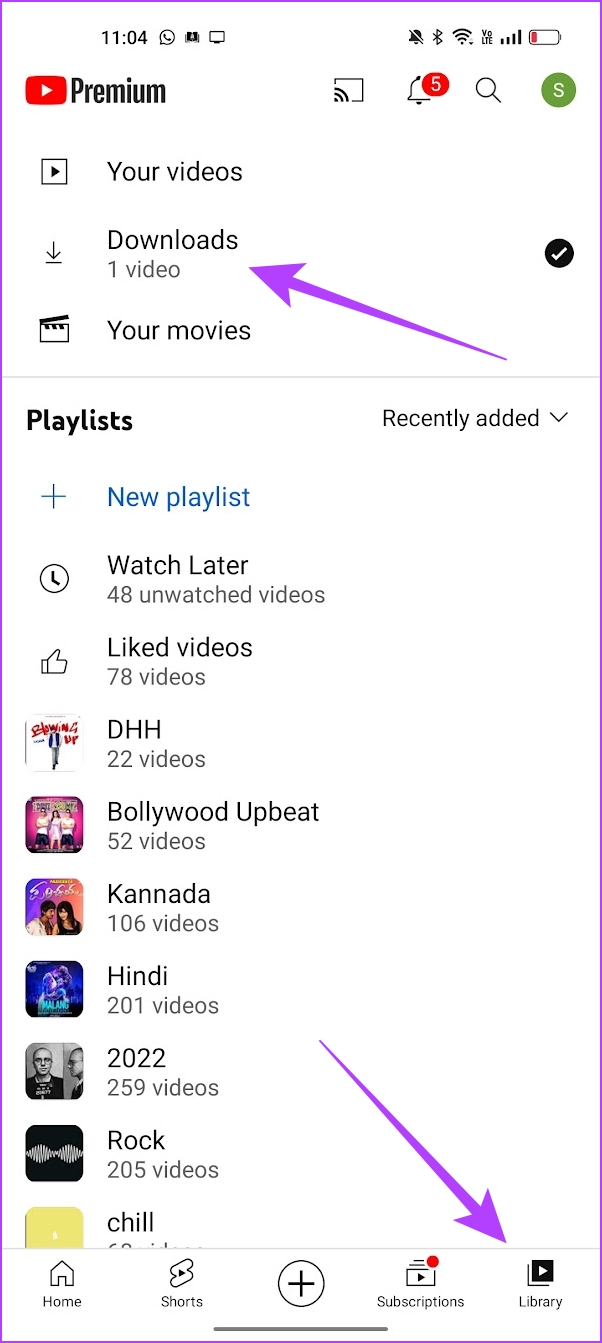
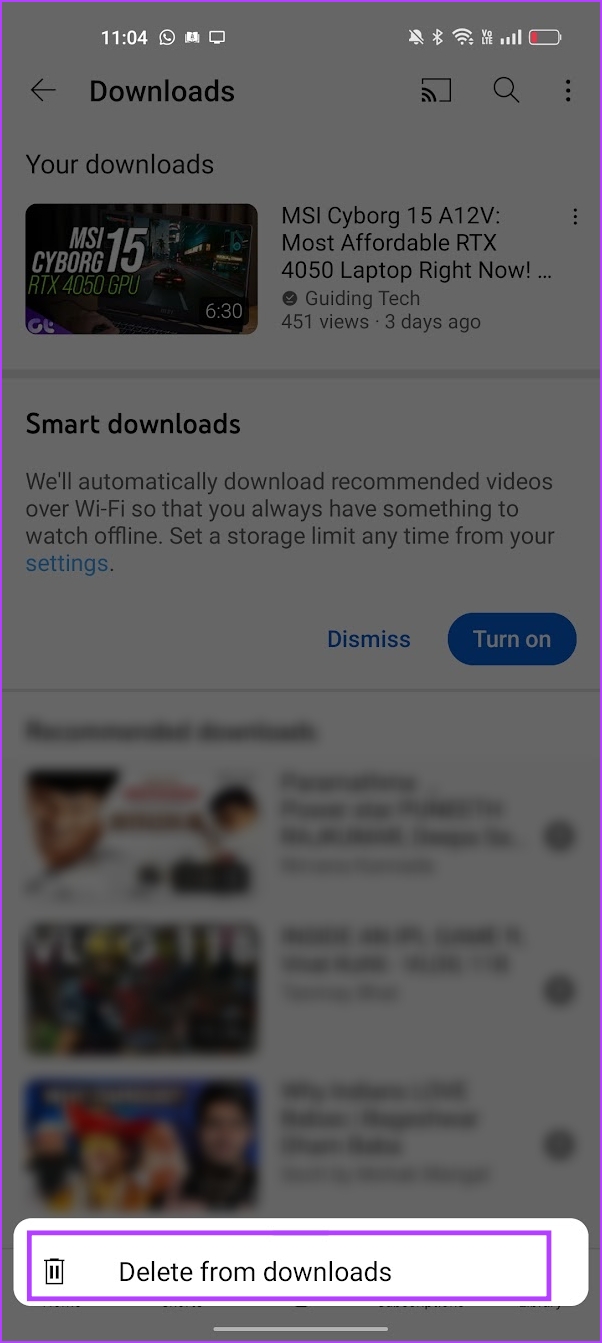
If you have downloaded a video on YouTube, it is saved to your offline library at a specific set resolution. Therefore when you try changing the resolution, you may encounter the Quality Unavailable issue.
Step 1: Tap on Library and select Downloads to check if the video is downloaded.
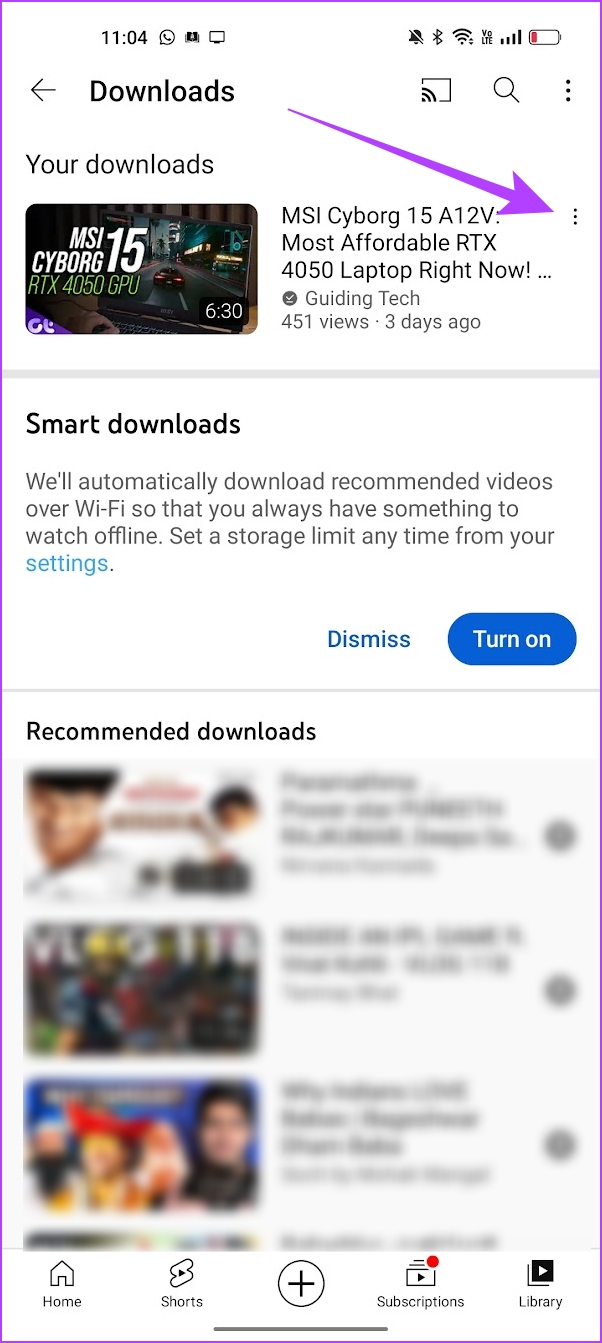
Step 2: Tap on the three dots icon next to the video. Tap on Delete From Downloads.
Fix 2: Turn off Smart Downloads
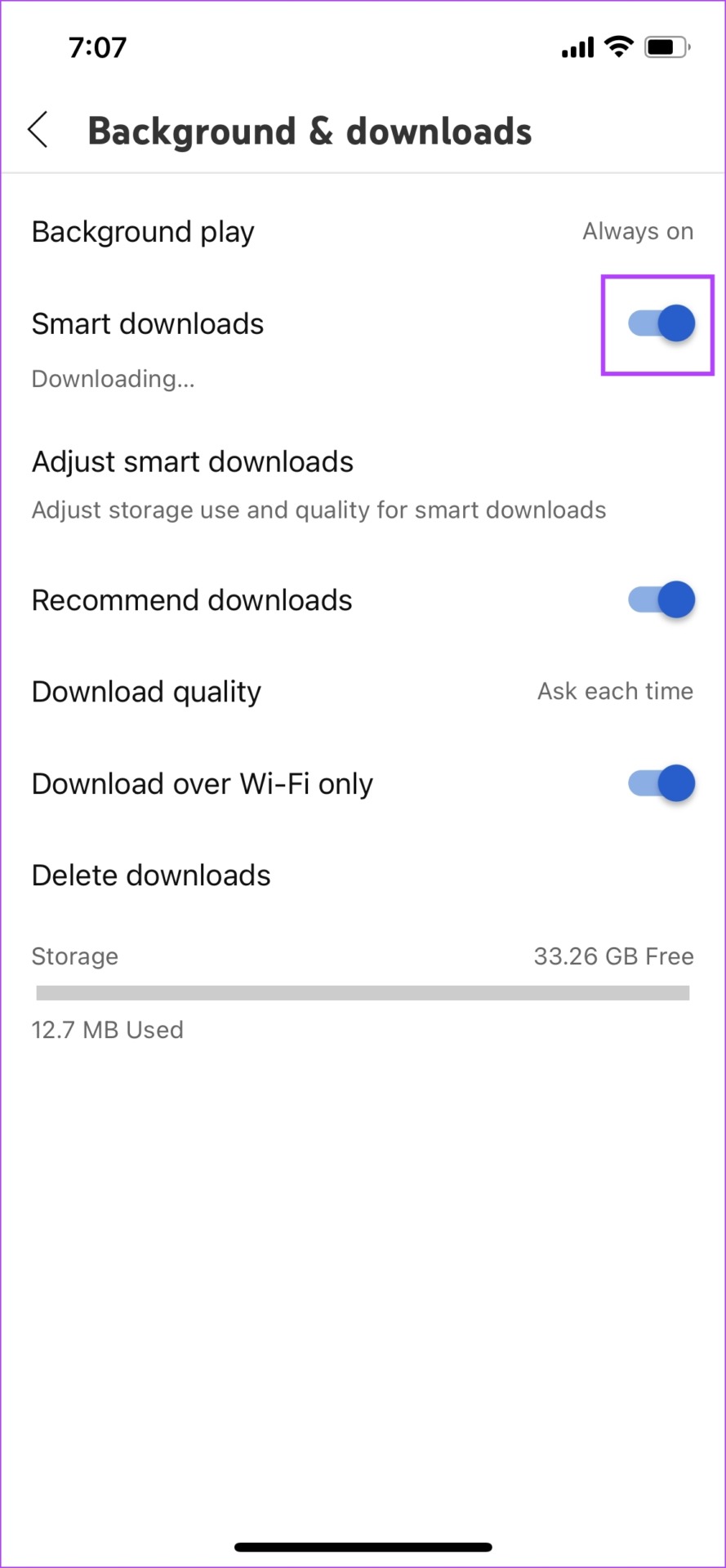
Smart Downloads automatically saves videos offline based on your viewing history. Therefore, this is also related to the previous fix since it downloads videos to your library.
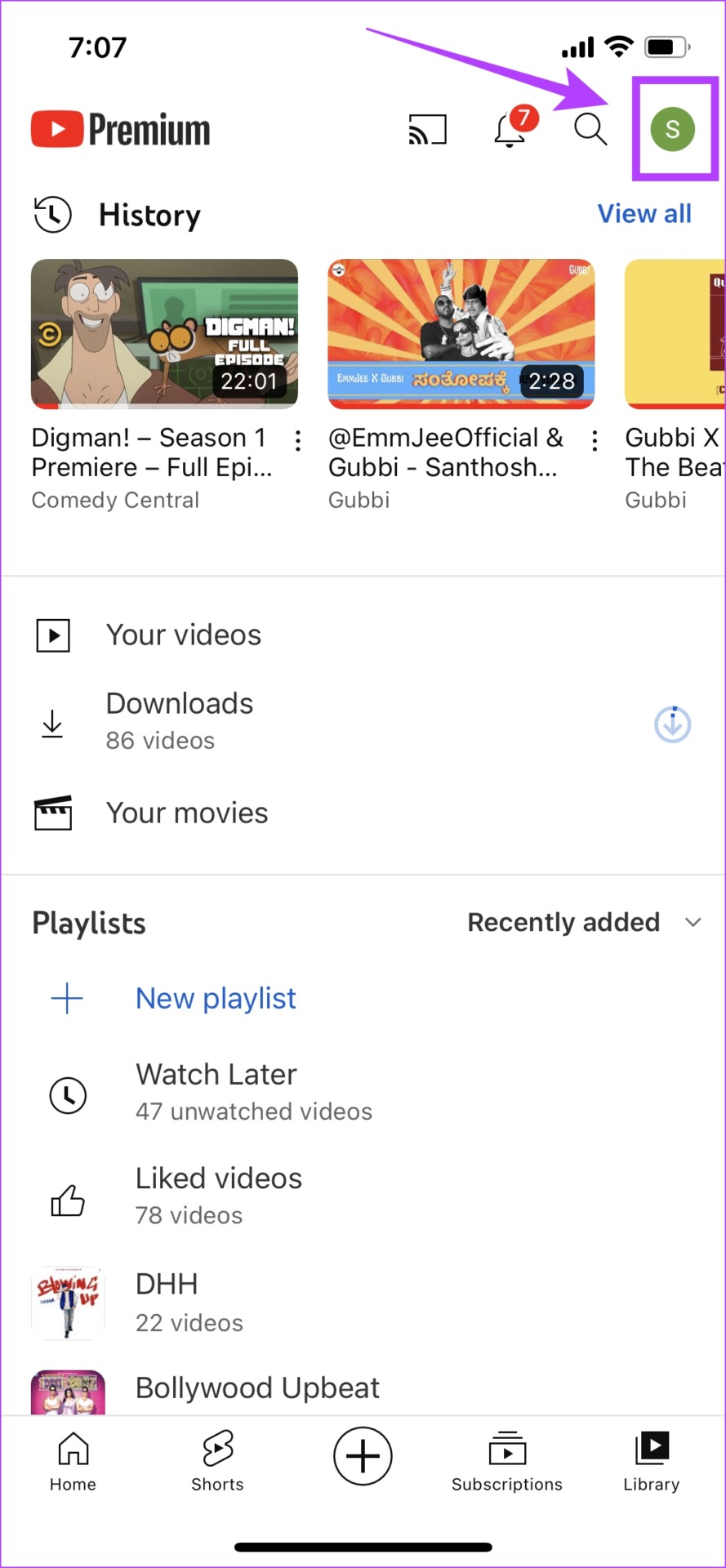
Step 1: Tap on the Profile Picture icon, and go to Settings.

Step 3: Tap on Background & downloads. Turn off the toggle for Smart downloads.

Also Read: How to fix can’t post comments on YouTube videos and shorts
Fix 3: Modify Quality Controls on YouTube
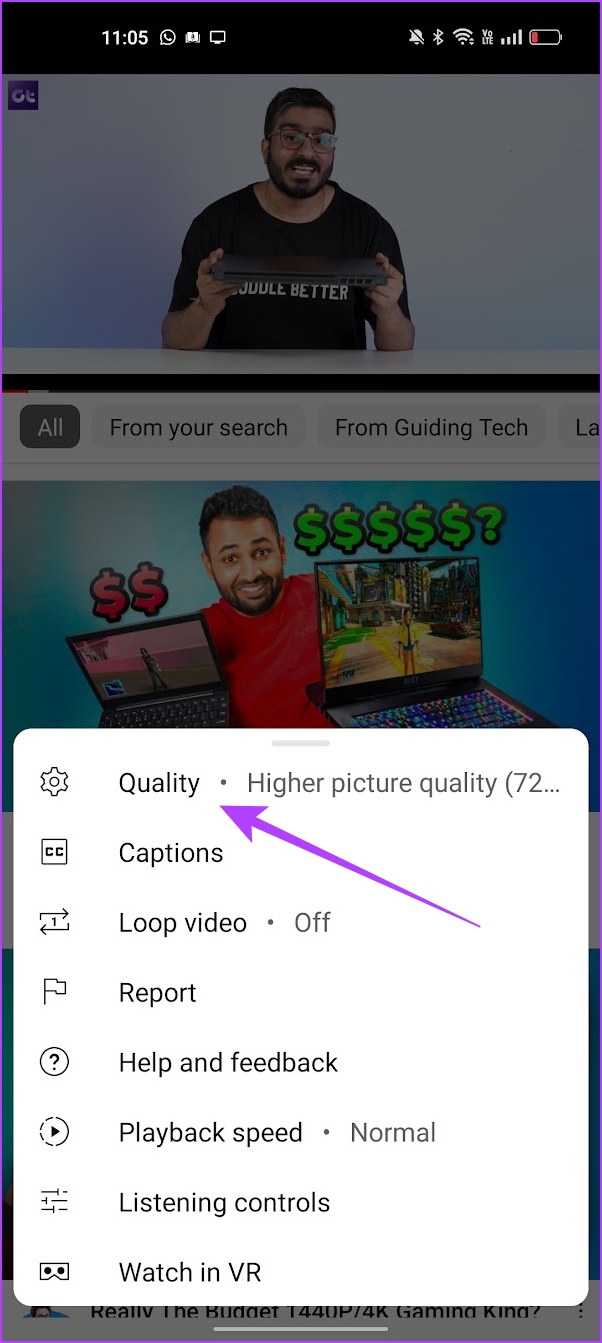
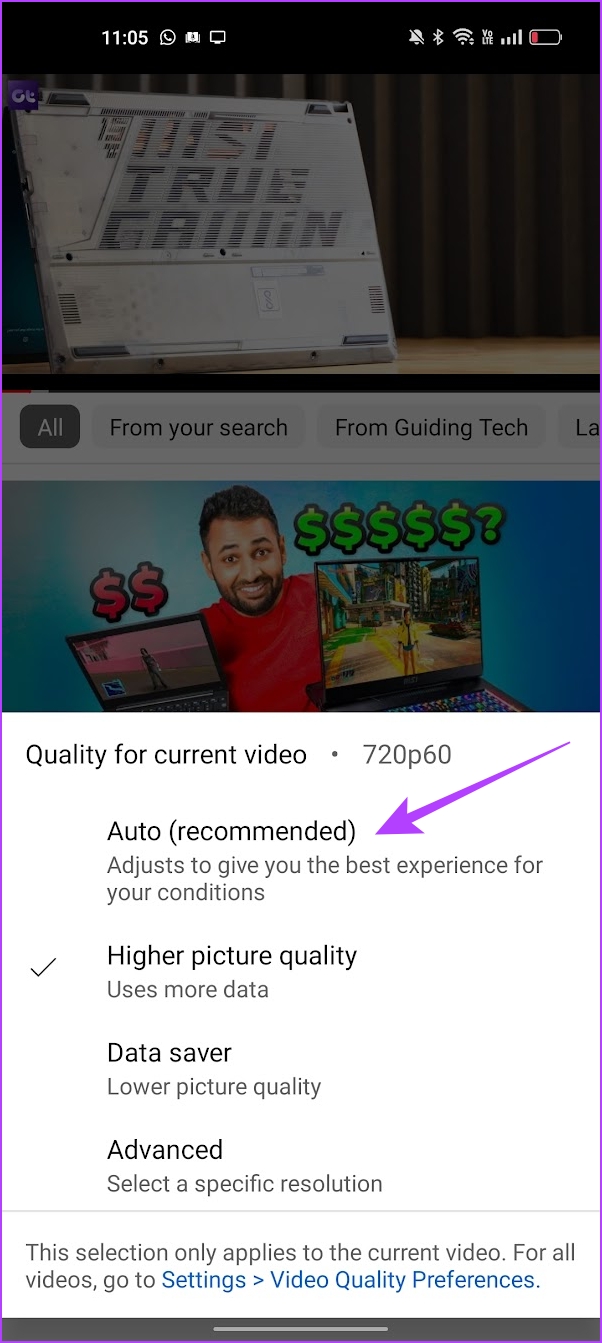
If you have set your viewing quality to a specific resolution, there is a chance that the video is not playable in that resolution. Try setting the quality to ‘Auto’ and then play the video again.
Step 1: Tap on the video you are watching. Tap on the Settings icon.
Step 2: Tap on the Quality option. Select Auto. The quality will change depending on the internet’s strength and speed.

Fix 4: Clear Cache
You can clean up the junk within an application by clearing the cache. Once there is a lot of accumulated cache, it might lead to a few junk files that execute bugs, responsible for the problem.
On iPhone
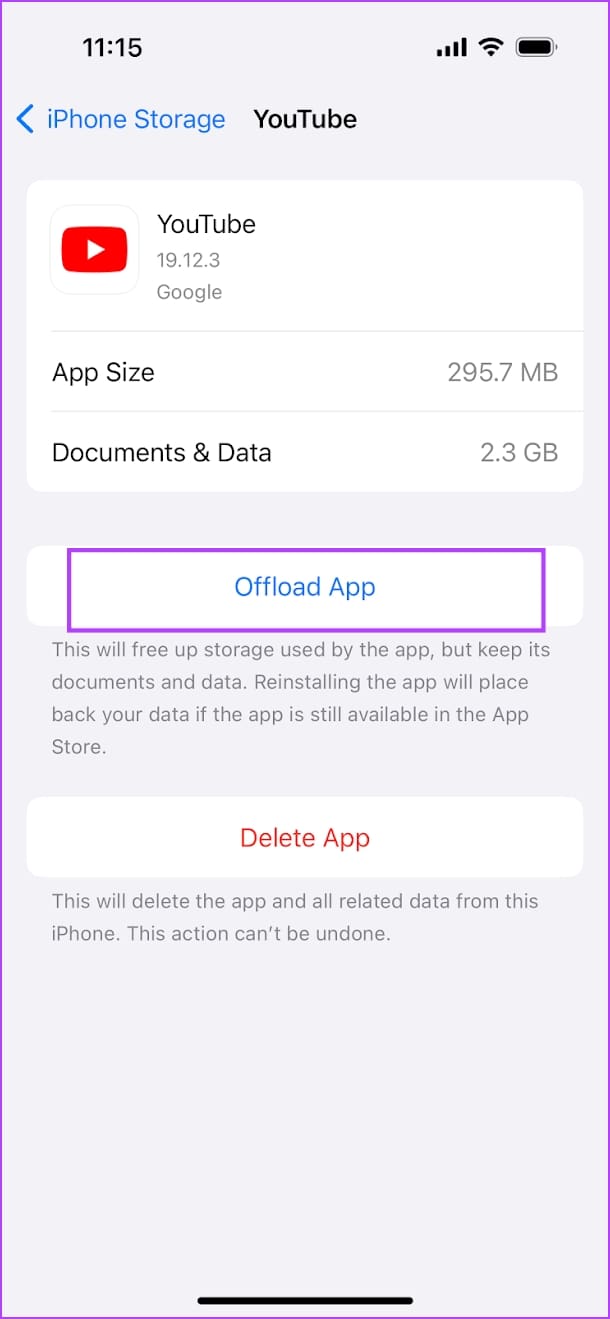
Offloading an application on your iPhone removes temporary data, including cache and junk files. However, it maintains all the other essential data, such as your sign-in information, in-app downloads and purchases, etc.
Step 1: Open the Settings app and tap on General > iPhone Storage
Step 2: Scroll down, select the YouTube app, and tap on Offload App. Tap on the Offload App once again to confirm.
Step 3: Now, tap on Reinstall App.


On Android
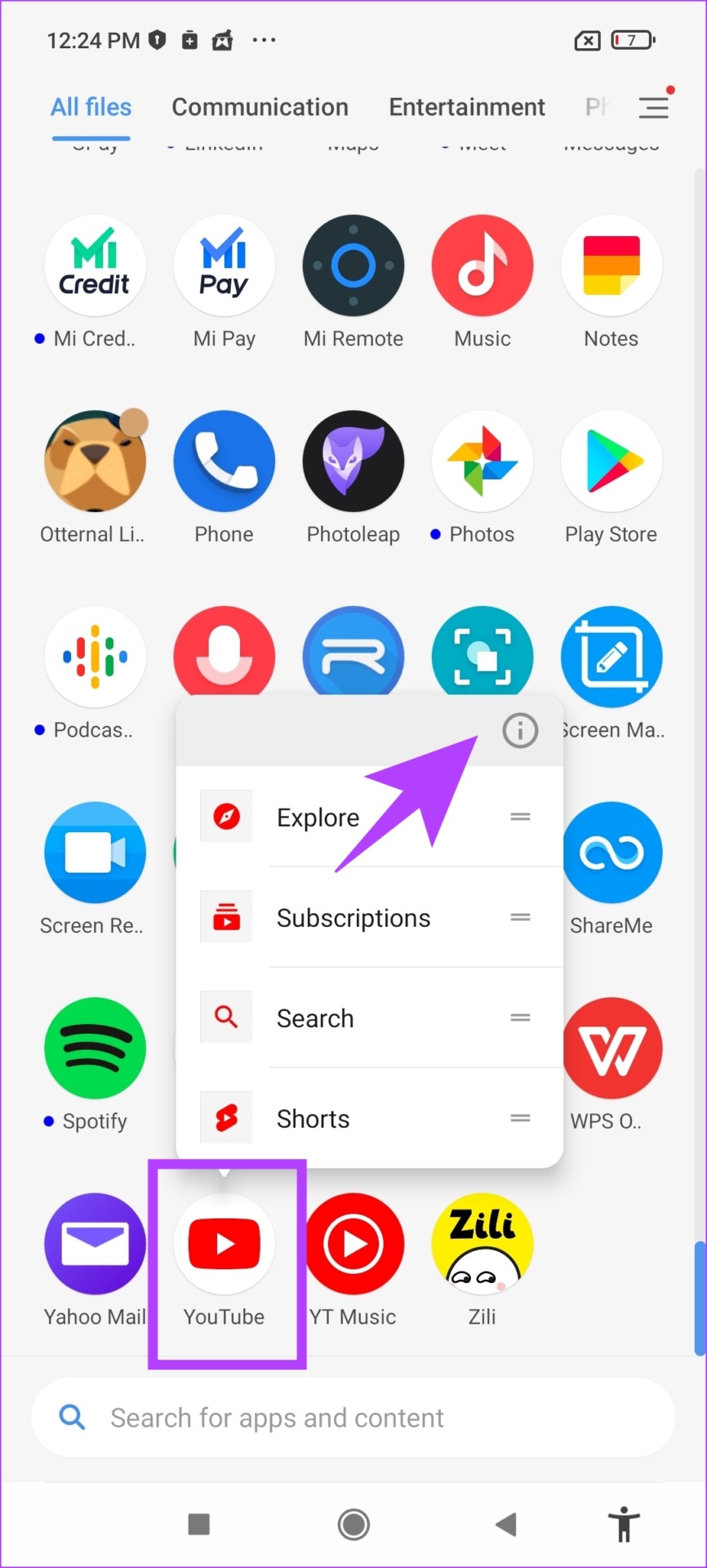
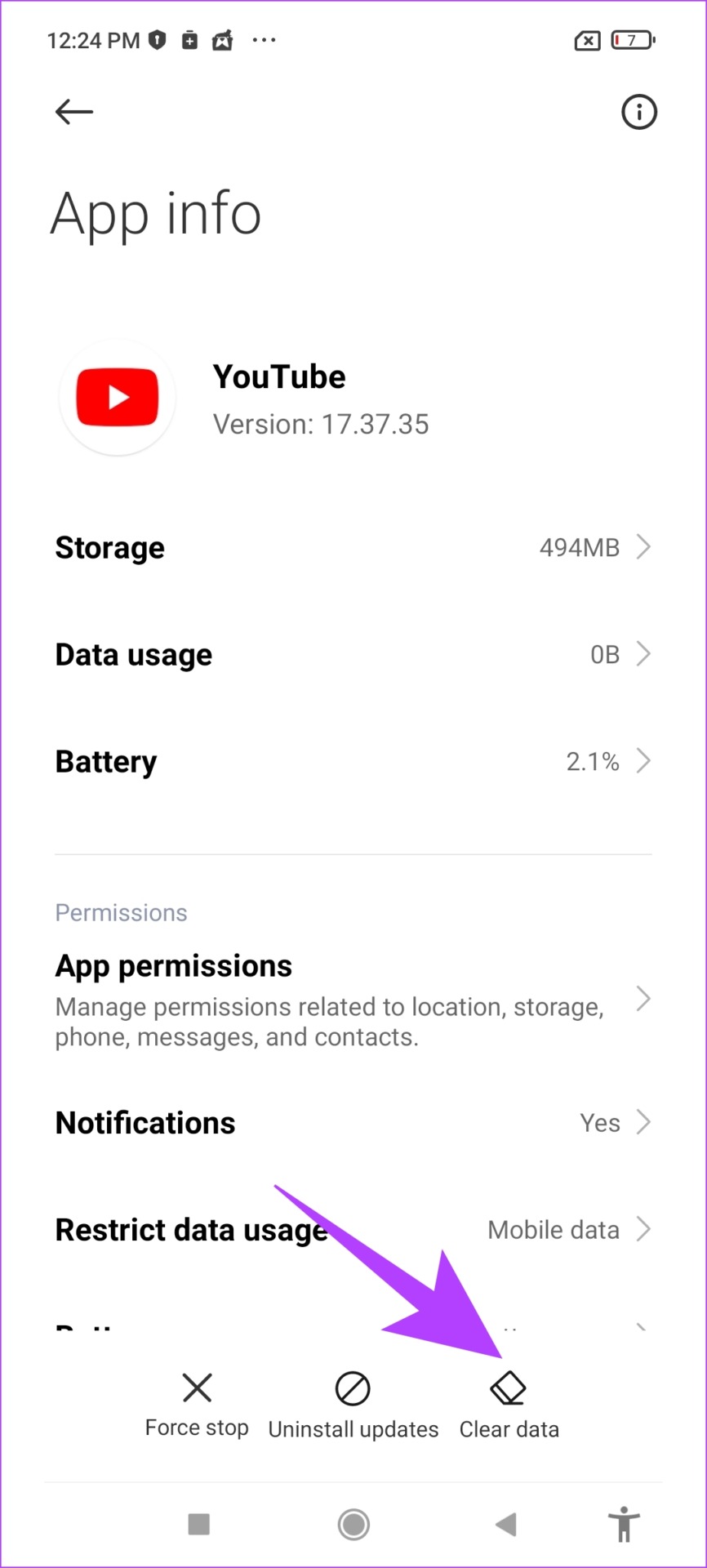
Step 1: Long-press the YouTube app icon and select the info button. Once you are on the App info page, tap on Clear data.
Step 2: Now, select Clear cache and tap OK to confirm.

Was this helpful?
Last updated on 27 June, 2024
Read Next
 4 Ways to Fix “Song Is Unavailable” Error in YouTube Music App
Try Basic Fixes Try playing other songs or playlists: The availability of songs on YouTube Music can vary depending on your geographical location and YouTube's agreements with music copyright owners.
4 Ways to Fix “Song Is Unavailable” Error in YouTube Music App
Try Basic Fixes Try playing other songs or playlists: The availability of songs on YouTube Music can vary depending on your geographical location and YouTube's agreements with music copyright owners.
 3 Ways to Fix “This Story Is Unavailable” on Instagram
What Does Story Unavailable Mean on Instagram?
3 Ways to Fix “This Story Is Unavailable” on Instagram
What Does Story Unavailable Mean on Instagram?
 5 Ways to Fix Video Unavailable in Amazon Prime Video
Basic Fixes Check network connection: Playing Prime without any problems requires an optimum internet speed.
5 Ways to Fix Video Unavailable in Amazon Prime Video
Basic Fixes Check network connection: Playing Prime without any problems requires an optimum internet speed.
 4 Ways to Fix Roblox Error 503 “This Service Is Unavailable”
Why Are You Seeing Roblox Error Code 503 Server overload: One of the most common reasons for Roblox error 503 is when the servers become overloaded with too many user
4 Ways to Fix Roblox Error 503 “This Service Is Unavailable”
Why Are You Seeing Roblox Error Code 503 Server overload: One of the most common reasons for Roblox error 503 is when the servers become overloaded with too many user
 4 Ways to Fix Spotify Jam Not Working Issue
https://youtu.be/VlNJzz-q-Gs Basic Fixes: Check for Spotify app updates: Since Spotify Jam is a recent addition, the Spotify mobile app needs to be updated to use it.
4 Ways to Fix Spotify Jam Not Working Issue
https://youtu.be/VlNJzz-q-Gs Basic Fixes: Check for Spotify app updates: Since Spotify Jam is a recent addition, the Spotify mobile app needs to be updated to use it.
 5 Ways to Fix Netflix Streaming in Low Quality on Android and iPhone
Common Fixes Check internet speed - I recommend at least 5Mbps to stream Netflix in high definition (HD) and a minimum of 25Mbps for Ultra HD and 4K video quality.
5 Ways to Fix Netflix Streaming in Low Quality on Android and iPhone
Common Fixes Check internet speed - I recommend at least 5Mbps to stream Netflix in high definition (HD) and a minimum of 25Mbps for Ultra HD and 4K video quality.
 How to Fix Instagram Insights Unavailable or Stopped Working
Basic Troubleshooting Clear Instagram cache: If Instagram collects a corrupt cache, it may fail to load the latest insights.
How to Fix Instagram Insights Unavailable or Stopped Working
Basic Troubleshooting Clear Instagram cache: If Instagram collects a corrupt cache, it may fail to load the latest insights.
 5 Ways to Fix Printer Driver Is Unavailable Error on Windows 11
Fix 1: Run the Printer Troubleshooter Windows 11 includes several troubleshooters that can help you fix common system-level issues.
5 Ways to Fix Printer Driver Is Unavailable Error on Windows 11
Fix 1: Run the Printer Troubleshooter Windows 11 includes several troubleshooters that can help you fix common system-level issues.
The article above may contain affiliate links which help support Guiding Tech. The content remains unbiased and authentic and will never affect our editorial integrity.