Try Basic Fixes
- Check if YouTube is down: You might not be the only one having problems with the YouTube app. If YouTube’s servers are down, the app will fail to load on your phone, no matter what you do. You can visit Downdetector to see if others are facing similar issues.
- Turn off VPN: If you are using a VPN service to bypass any region-specific restrictions, you could encounter such connection errors in the YouTube app. To check for this possibility, disable your VPN connection temporarily and then try to use YouTube again.
- Update the YouTube app: An outdated YouTube app on your phone might cause trouble. Head to the Play Store (Android) or App Store (iPhone) to update the YouTube app and see if that helps.
Fix 1: Enable Mobile Data for YouTube (iPhone)
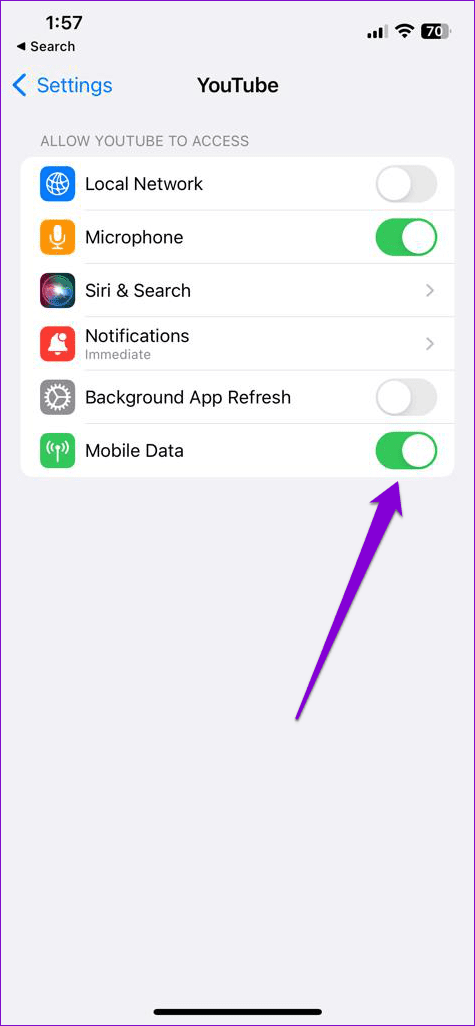
On your iPhone, you can configure mobile data permissions for each app separately. If you’ve accidentally disabled mobile data for the YouTube app, it won’t be able to connect to the internet unless you use Wi-Fi.
To enable mobile data permission for the YouTube app:
Step 1: Open the Settings app and scroll down to tap on YouTube.
Step 2: Enable the toggle for Mobile Data.

Fix 2: Disable Data Saver Mode
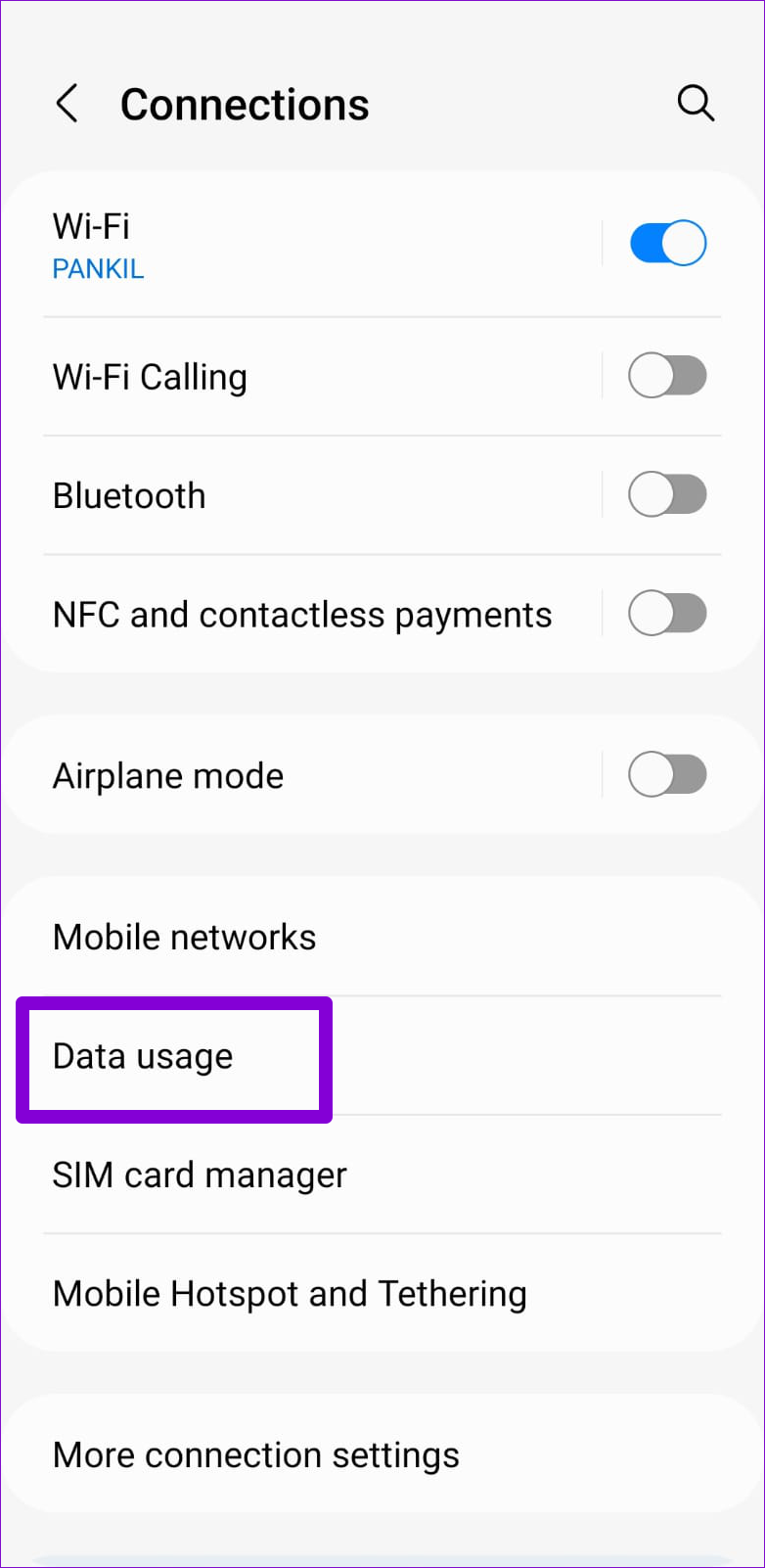
The Data Saver mode on your phone can help you reduce internet usage by imposing various data restrictions on apps. However, this feature can sometimes prevent your apps from using the internet entirely. Hence, it’s best to turn it off if you experience problems.
Android
Step 1: Open the Settings app and go to Connections > Data usage.
Step 2: Turn off the Data Saver mode.

iPhone
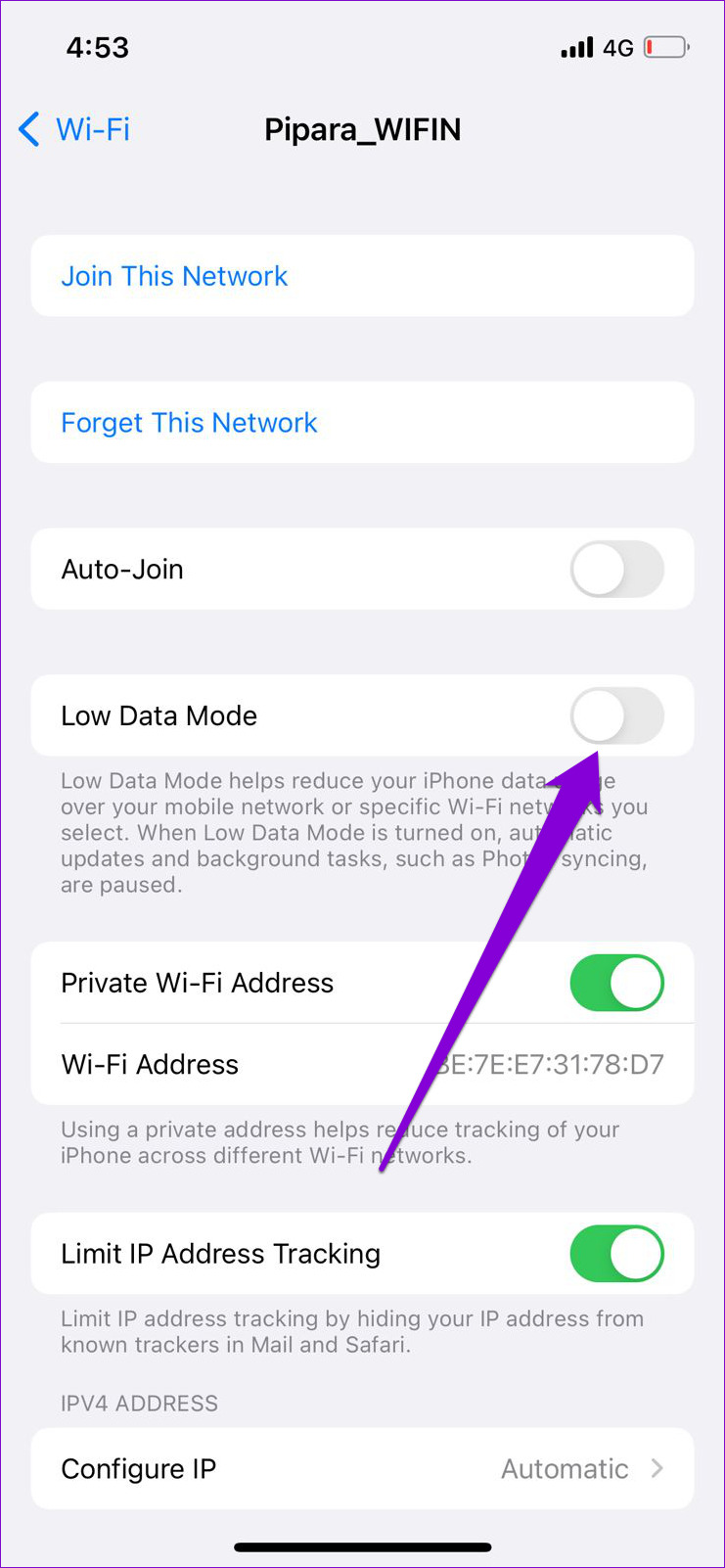
To disable Low Data Mode on Wi-Fi, launch the Settings app and select Wi-Fi. Tap the info icon next to your Wi-Fi network and turn off Low Data Mode toggle.


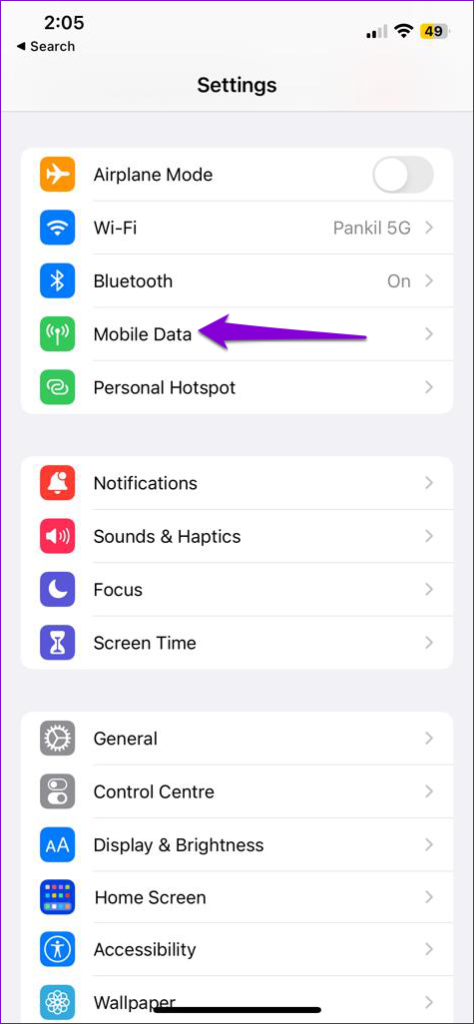
If you are using Google Drive on cellular data, go to Settings > Mobile Data > Mobile Data Options and disable the Low Data Mode toggle.


Fix 3: Correct the Date and Time on Your Phone
This may seem strange, but having your phone set to an incorrect date or time can prevent YouTube from connecting to its servers and cause problems. To avoid any inconsistencies, you’ll need to enable the automatic date and time feature on your Android or iPhone.
Android
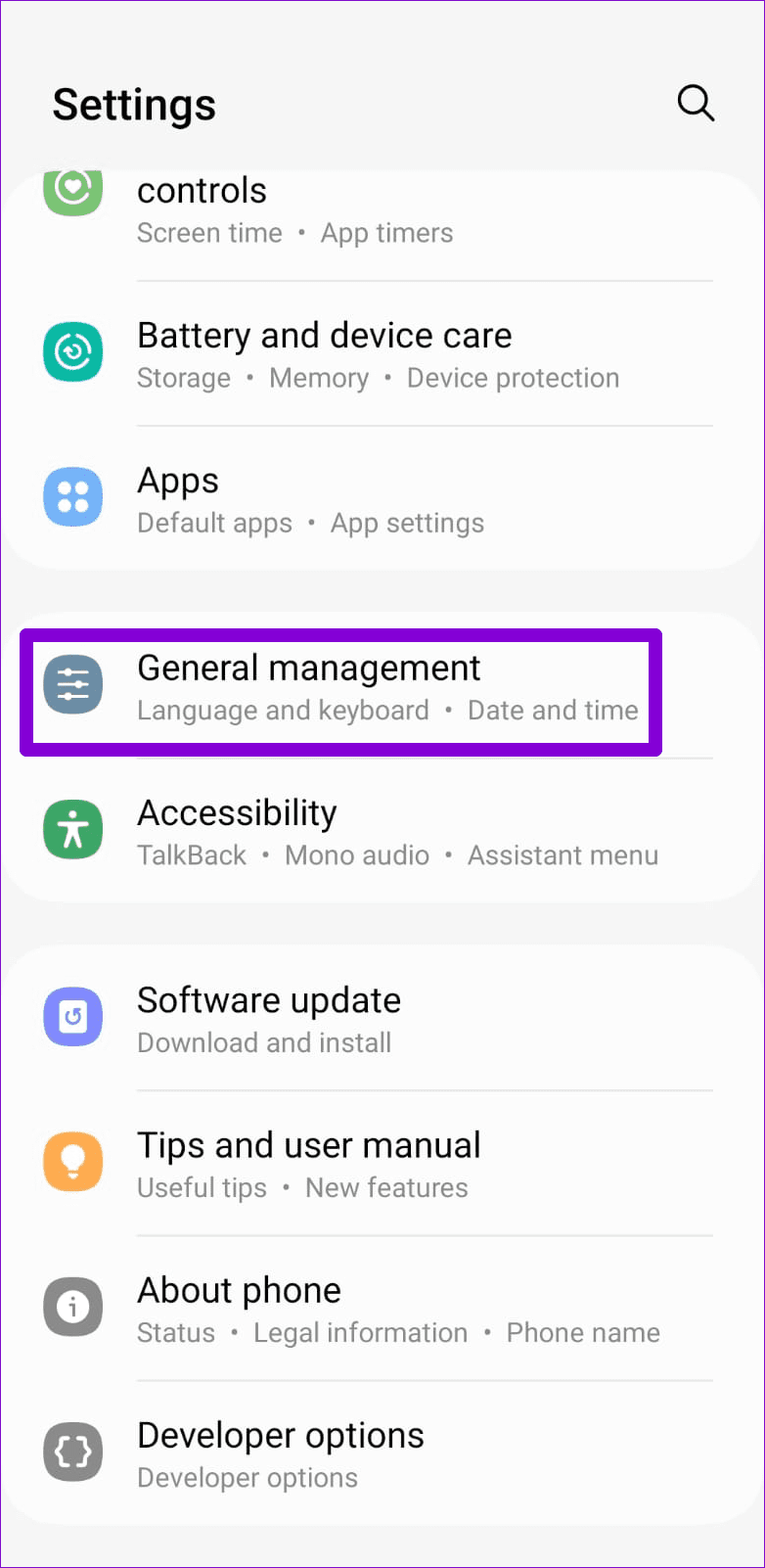
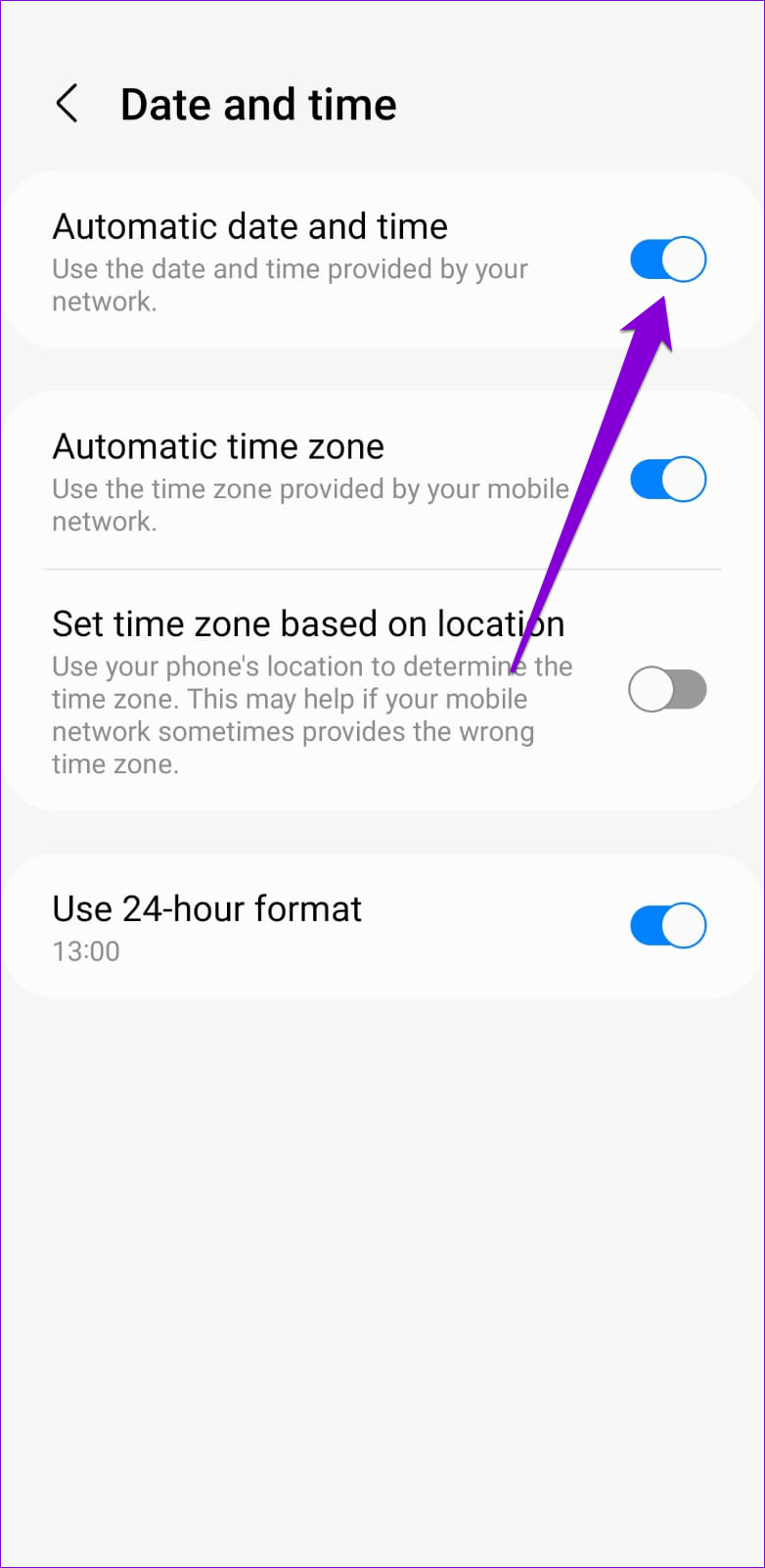
Step 1: Open the Settings app and navigate to General Management.
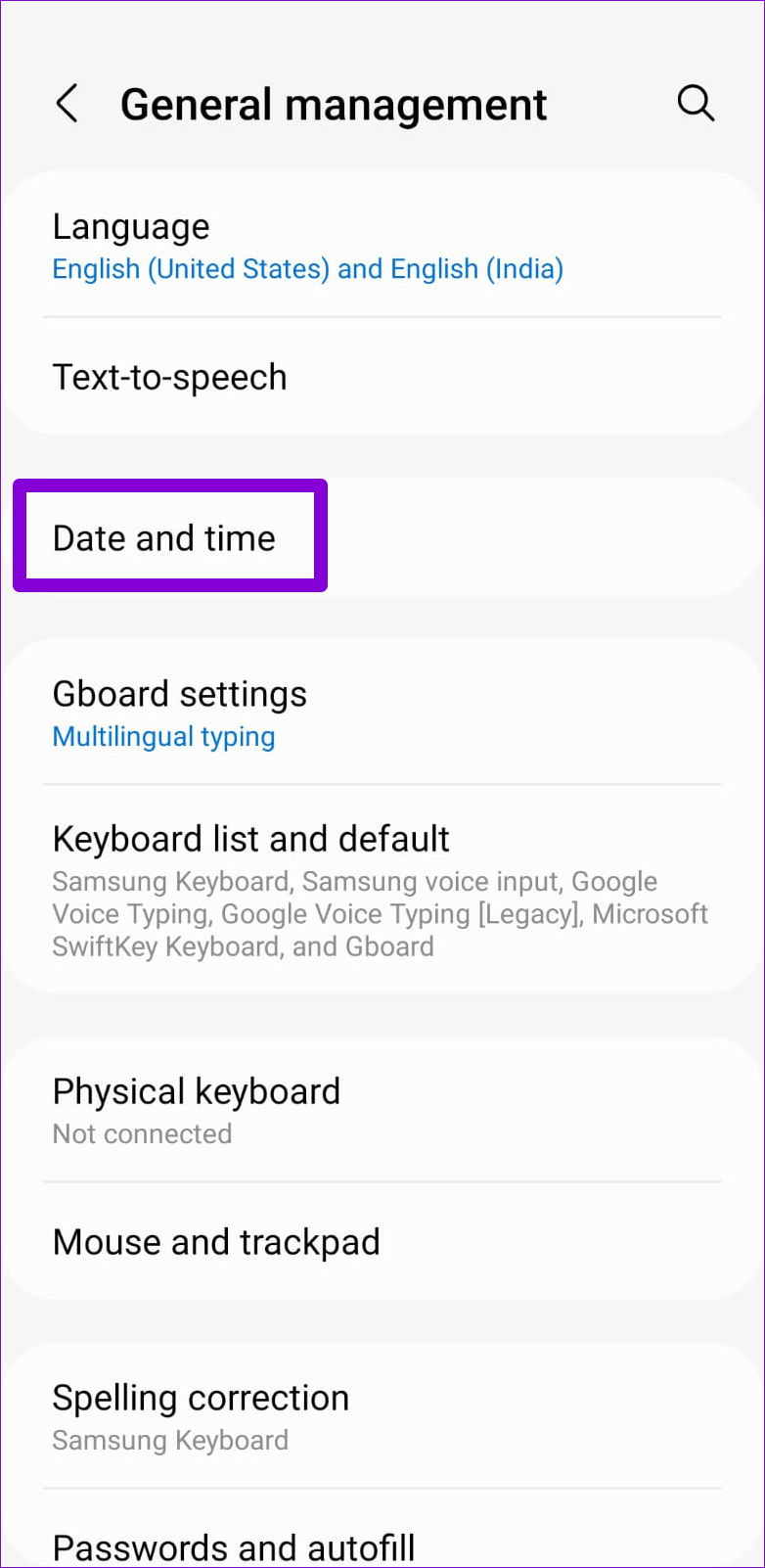
Step 2: Tap on Date and time. Then, enable the toggle for Automatic date and time.
iPhone
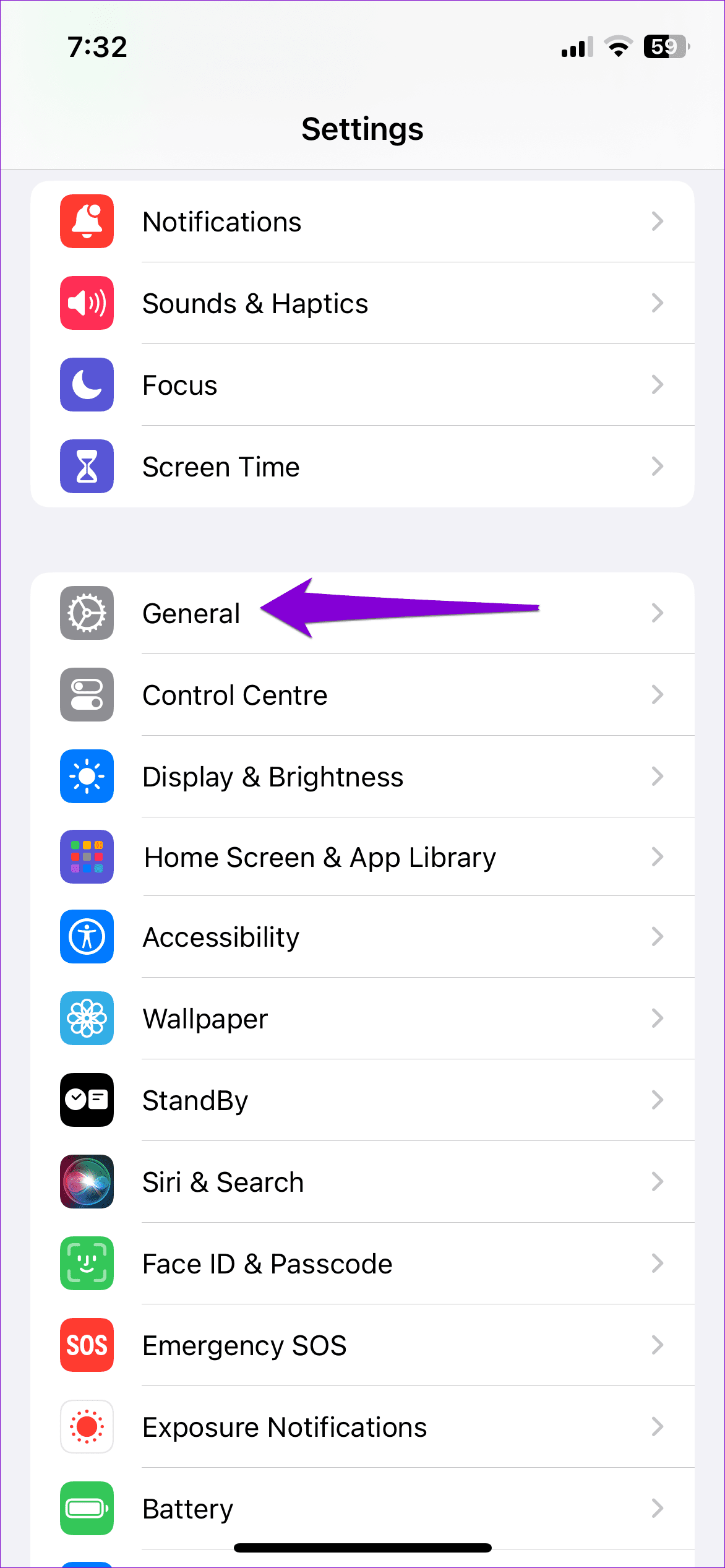
Step 1: Launch the Settings app on your iPhone and navigate to General.
Step 2: Tap on Date & Time. Toggle on the switch next to Set Automatically.


Fix 4: Clear YouTube App Cache (Android)
Cache data is usually beneficial as it allows the app to load specific content and information more quickly. However, if that existing cache data goes corrupt, it can cause the YouTube app to stop working on your phone.
To clear YouTube’s app cache on Android:
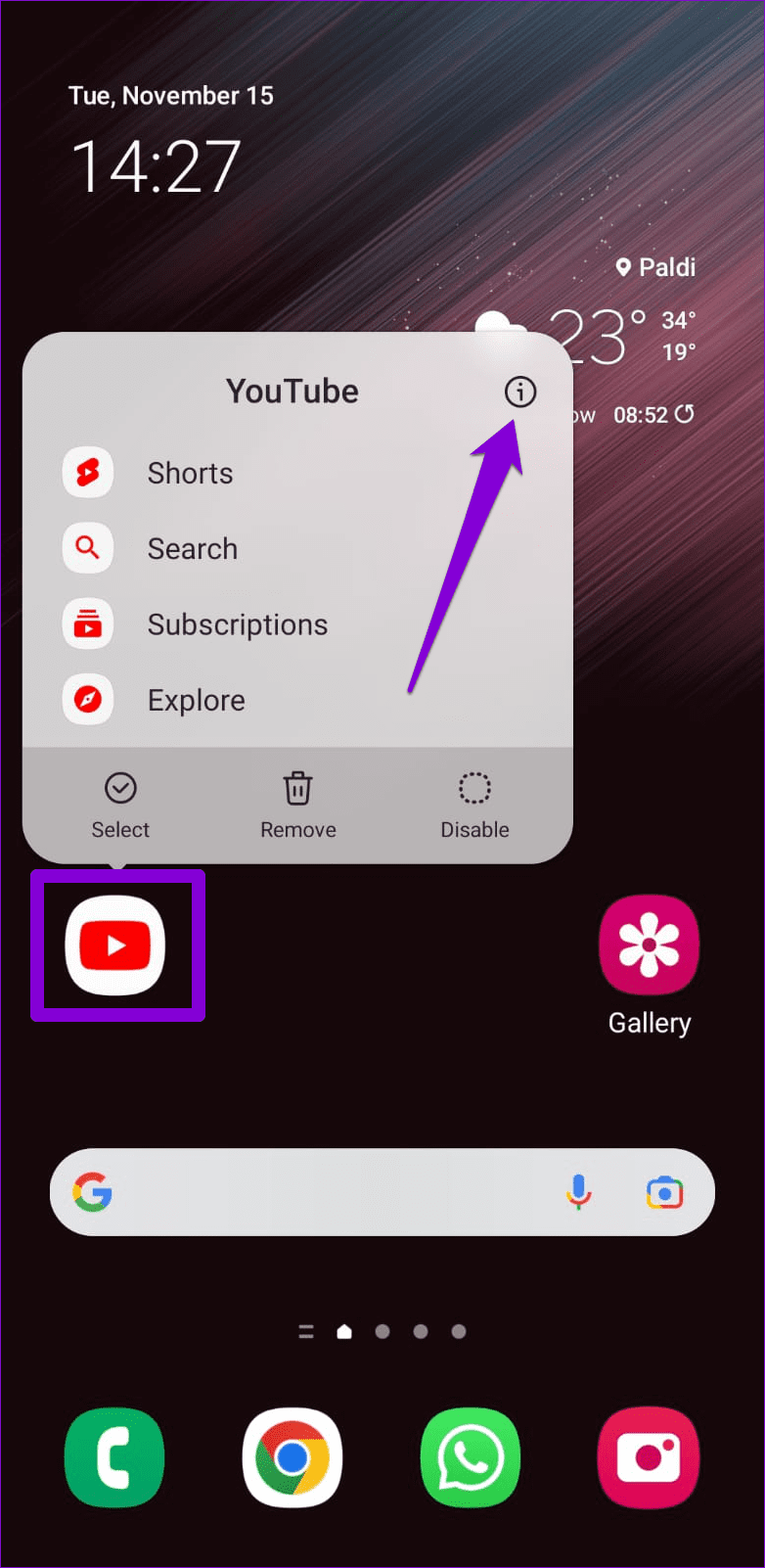
Step 1: Long-press the YouTube app icon and tap the info icon from the menu that appears.
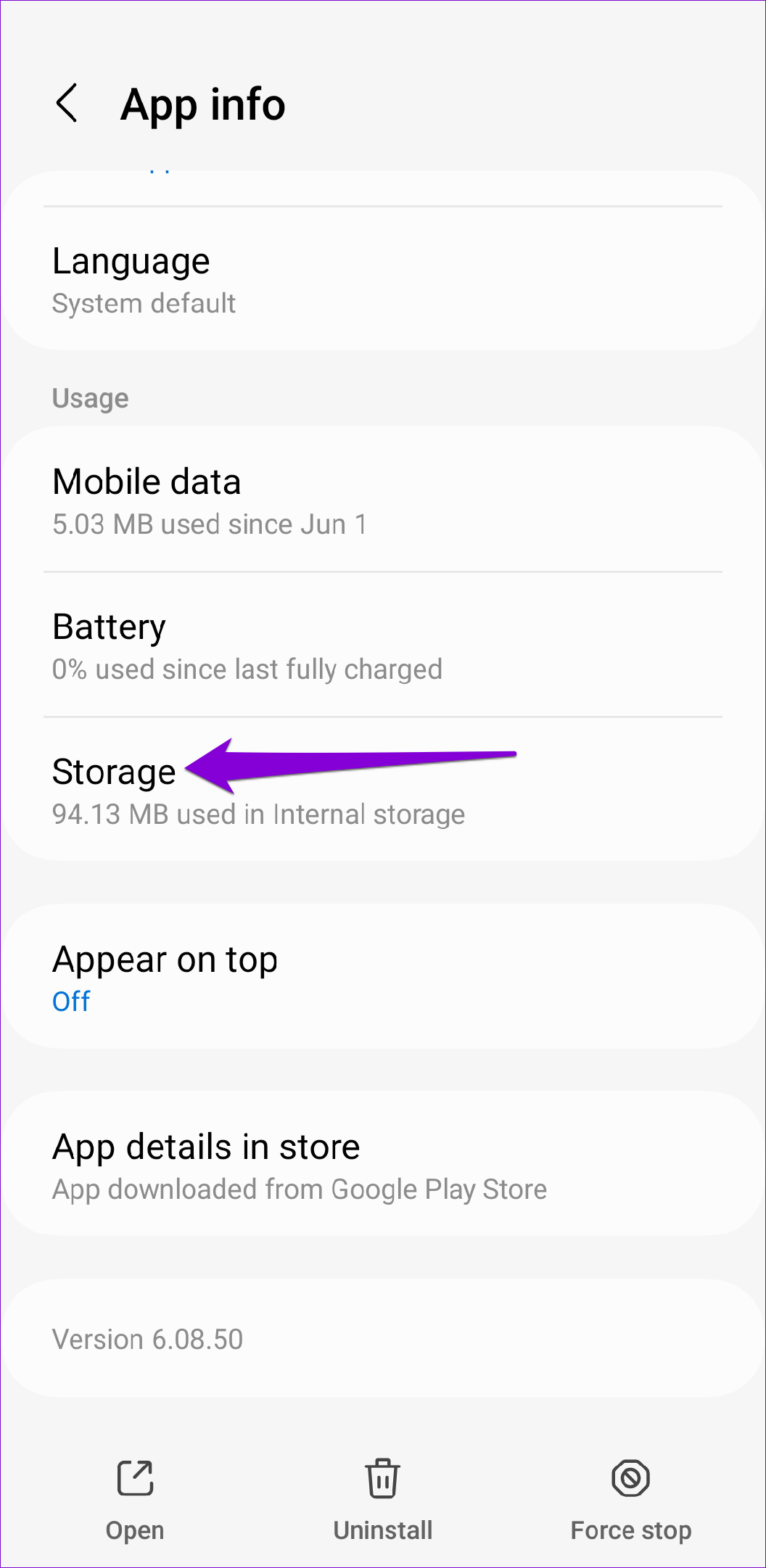
Step 2: Tap Storage and tap the Clear cache option at the bottom.

Was this helpful?
Last updated on 05 July, 2024
Read Next
 3 Ways to Fix Facebook Messenger Not Connecting to the Internet on iPhone
Try Basic Fixes Check if Messenger is down: Facebook Messenger servers can occasionally experience problems.
3 Ways to Fix Facebook Messenger Not Connecting to the Internet on iPhone
Try Basic Fixes Check if Messenger is down: Facebook Messenger servers can occasionally experience problems.
 4 Ways to Fix iPad Not Connecting to the Internet
Basic Fixes: Restart your iPad: Restarting your iPad can help fix any temporary issues preventing it from connecting to the internet.
4 Ways to Fix iPad Not Connecting to the Internet
Basic Fixes: Restart your iPad: Restarting your iPad can help fix any temporary issues preventing it from connecting to the internet.
 Top 12 Ways to Fix Steam Not Connecting to the Internet on Windows
Steam is one of the popular gaming apps on Windows.
Top 12 Ways to Fix Steam Not Connecting to the Internet on Windows
Steam is one of the popular gaming apps on Windows.
 4 Fixes for No Internet Connection After Connecting to VPN
Fix 1: Change Routing Settings The routing settings are set to use the default gateway as it is.
4 Fixes for No Internet Connection After Connecting to VPN
Fix 1: Change Routing Settings The routing settings are set to use the default gateway as it is.
 4 Fixes for Telegram Calls Not Connecting on Android and iPhone
Basic Fixes Blocked by recipient: You might have been blocked by the contact on Telegram.
4 Fixes for Telegram Calls Not Connecting on Android and iPhone
Basic Fixes Blocked by recipient: You might have been blocked by the contact on Telegram.
 5 Ways to Fix Amazon Echo Not Connecting to Wi-Fi Issue
Basic Fixes Check the Setup Process: Ensure you set up the Echo properly.
5 Ways to Fix Amazon Echo Not Connecting to Wi-Fi Issue
Basic Fixes Check the Setup Process: Ensure you set up the Echo properly.
 2 Ways to Fix Zoom Stuck on Connecting
Basic Fixes: Disable VPN and firewall: Zoom is banned in several countries, including Iran, Syria, and North Korea, for regulatory reasons.
2 Ways to Fix Zoom Stuck on Connecting
Basic Fixes: Disable VPN and firewall: Zoom is banned in several countries, including Iran, Syria, and North Korea, for regulatory reasons.
 5 Ways to Fix WhatsApp Call Stuck at Connecting
Basic Fixes Check WhatsApp servers - The culprit behind WhatsApp calls getting stuck at connecting could be server issues.
5 Ways to Fix WhatsApp Call Stuck at Connecting
Basic Fixes Check WhatsApp servers - The culprit behind WhatsApp calls getting stuck at connecting could be server issues.
The article above may contain affiliate links which help support Guiding Tech. The content remains unbiased and authentic and will never affect our editorial integrity.