


Basic Fixes:
- Update Windows: It’s nice to start with a Windows Update since this will fix minor glitches that may trigger the problem.
- Check connection issues with external devices: If you haven’t connected the external drive properly, your drive folders may show files and folders. You should reconnect the external drive. If your Windows PC doesn’t detect a hard drive, read our troubleshooting post to fix the problem.
- Run a malware scan: You should run a malware scan since the problem may be triggered by malware on your computer.
- Run the chkdsk command. The Check Disk utility repairs bad drive sectors and other problems that may trigger this File Explorer problem.
Fix 1: Delete Faulty AutomaticDestinations and CustomDestinations Folders
Some quick-access folders may be corrupted, so File Explorer keeps getting stuck. Deleting them may fix the problem.
Step 1: Press Windows + E to open File Explorer.
Step 2: Copy and paste the path in the address bar, hit Enter, and delete the entire content of the location.
shell:recent\AutomaticDestinations

Step 3: Again, copy and paste the path in the address bar, hit Enter, and delete the entire location’s content.
shell:recent\CustomDestinations
Step 4: Restart your computer.
Fix 2: Restart Windows Explorer Services
Windows Explorer services run in the background during system startup. You can restart it and try your luck again.
Step 1: Right-click on the Windows key and open Task Manager.

Step 2: Search for Windows Explorer and select Restart task at the top.

Fix 3: Clear File Explorer History
When you clear the File Explorer history, you may correct minor bugs that caused the glitch. Follow the steps below.
Step 1: Press the Windows + E keyboard shortcut to open File Explorer and click the three-dot menu at the top to open Options.

Step 2: Click the Clear button > Apply > OK.

Fix 4: Rebuild Search Index
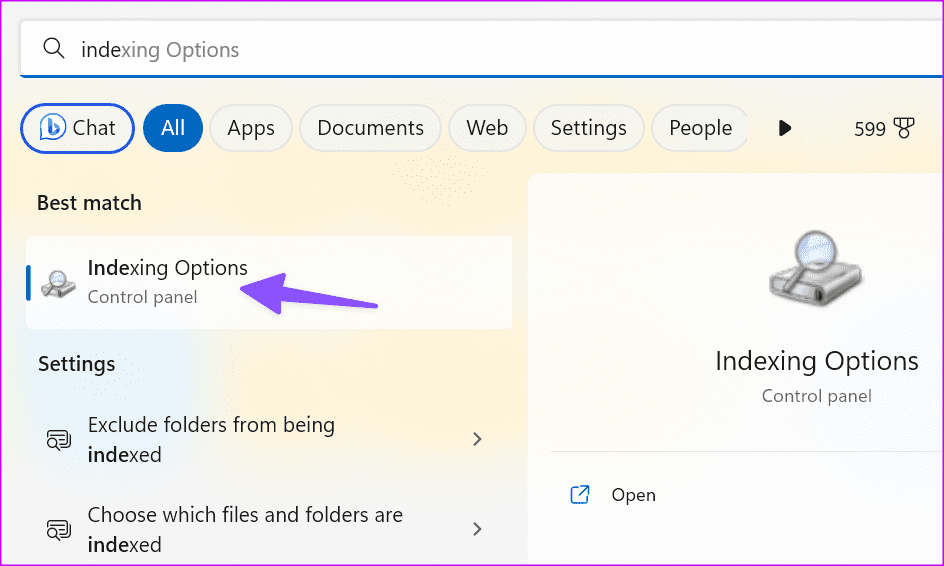
Rebuilding the search index on Windows will clear out the existing database of indexed files and locations and then build a new one from scratch. This can be helpful when the File Explorer shows some irregularities.
Step 1: Press the Windows key and search for Indexing options. Hit Enter.
Step 2: Open the Advanced menu.

Step 3: Click Rebuild.
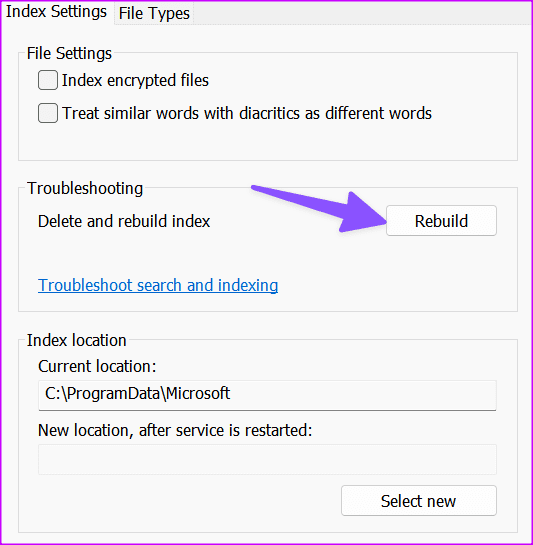
Step 4: Close the menu, restart the PC, and try opening folders again.
Was this helpful?
Last updated on 30 July, 2024
1 Comment
Leave a Reply
Read Next
 4 Fixes for OneDrive Not Showing Up in File Explorer on Windows
Fix 1: Restart Windows Explorer Windows Explorer is a system process that handles the graphical user interface for File Explorer.
4 Fixes for OneDrive Not Showing Up in File Explorer on Windows
Fix 1: Restart Windows Explorer Windows Explorer is a system process that handles the graphical user interface for File Explorer.
 5 Ways to Fix File Explorer Search Not Working on Windows 11
Basic Fixes Perform a clean boot: An installed PC software may conflict with the File Explorer app, causing the search issue.
5 Ways to Fix File Explorer Search Not Working on Windows 11
Basic Fixes Perform a clean boot: An installed PC software may conflict with the File Explorer app, causing the search issue.
 4 Ways to Fix File Explorer Not Working on Windows 11
Try Basic Fixes Scan for malware: It's possible that a malicious virus has affected your PC, disrupting regular operations on Windows 11.
4 Ways to Fix File Explorer Not Working on Windows 11
Try Basic Fixes Scan for malware: It's possible that a malicious virus has affected your PC, disrupting regular operations on Windows 11.
 8 Ways to Fix File Explorer Search Not Working on Windows 11
Before you begin, try restarting the File Explorer app and fixing corrupted files using an SFC scan.
8 Ways to Fix File Explorer Search Not Working on Windows 11
Before you begin, try restarting the File Explorer app and fixing corrupted files using an SFC scan.
 How to Add Columns Permanently to All Folders in Windows 10 File Explorer
File Explorer in Windows usually shows just a few columns such as name, date, and type.
How to Add Columns Permanently to All Folders in Windows 10 File Explorer
File Explorer in Windows usually shows just a few columns such as name, date, and type.
 Top 8 Ways to Fix File Explorer Not Opening on Windows 10
File Explorer is an integral part of Windows 10 OS.
Top 8 Ways to Fix File Explorer Not Opening on Windows 10
File Explorer is an integral part of Windows 10 OS.
 4 Ways to Select Multiple Files on Windows File Explorer
Method 1: Select All Files Using CTRL + A Once a folder is open and you press the CTRL + A key combination, all the files will be selected.
4 Ways to Select Multiple Files on Windows File Explorer
Method 1: Select All Files Using CTRL + A Once a folder is open and you press the CTRL + A key combination, all the files will be selected.
 How to Add iCloud to File Explorer on Windows 11/10
Adding iCloud to File Explorer Step 1: Install the iCloud app from the Microsoft Store and sign in using your Apple ID or account.
How to Add iCloud to File Explorer on Windows 11/10
Adding iCloud to File Explorer Step 1: Install the iCloud app from the Microsoft Store and sign in using your Apple ID or account.
The article above may contain affiliate links which help support Guiding Tech. The content remains unbiased and authentic and will never affect our editorial integrity.

None of them.