


Basic Fixes
- Update Windows: Before starting, make sure that you’re running the latest version of Windows. Chances are that the issue you’re facing was simply a bug, which Microsoft might have already resolved in their latest update. Simply head over to Settings > Windows Update > Check for updates.
- Uninstall 3rd-party apps: If you’re using a third-party clipboard manager, that might be causing issues with the Windows Clipboard. As such, you should try uninstalling any third-party apps that use the Clipboard, but you no longer rely on them.
- Check for Malware: It’s also possible that your system is infected by malware. Make sure to download an antivirus on your PC to check for the same.
How to Fix Windows Clipboard Not Working on Windows
Fix 1: Switch on Clipboard History
For the Clipboard to function, it’s important to ensure that the Clipboard History feature is turned on. While the setting is enabled by default, you might have turned it off by mistake. To fix it, simply head over to Settings > System > Clipboard. Here, enable the toggle next to Clipboard history.

Once enabled, test it by pressing the Windows key + V shortcut. If it was a simple issue of the clipboard history not working, this simple tweak should solve it.
Fix 2: Restart Windows Explorer
The issue may also be due to Windows Explorer not working properly. While you can easily fix it with a simple reboot, that might not be the best solution if you have ongoing work or important documents open. Thankfully, you can simply restart the Windows Explorer to fix this.
Step 1: Press the Ctrl + Shift + Esc keys to launch the Task Manager.
Step 2: Switch to the Details tab, and find ‘explorer.exe‘. Simply right-click on it, and select ‘End Task‘.

Step 3: Now, press the Windows + R keys to launch the Run window. Here, enter ‘explorer.exe‘ and press Enter.

And that’s it. This should restart the Windows Explorer process, and your clipboard issue should be resolved.
Fix 3: Clear Clipboard Data
It’s possible that there is a lot of data stored in the clipboard, which might be causing issues. As such, a simple fix is to clear the clipboard data and start afresh.
To do that, simply press the Windows key + V shortcut on your keyboard to summon the Clipboard. Now, click on Clear All to remove all clipboard history.

Fix 4: Check Group Policy Setting
So, if the above trick does not solve your issue, it’s time to delve a little deeper into the advanced settings, aka Group Policy. If you must know, Windows Group Policy has a variety of advanced settings that can be tweaked to adjust settings on a local computer, provided you know your way around them.
Step 1: To summon the Group Policy window, search for Gpedit.msc in the Start Menu.

Step 2: Launch it and click on Computer Configuration.
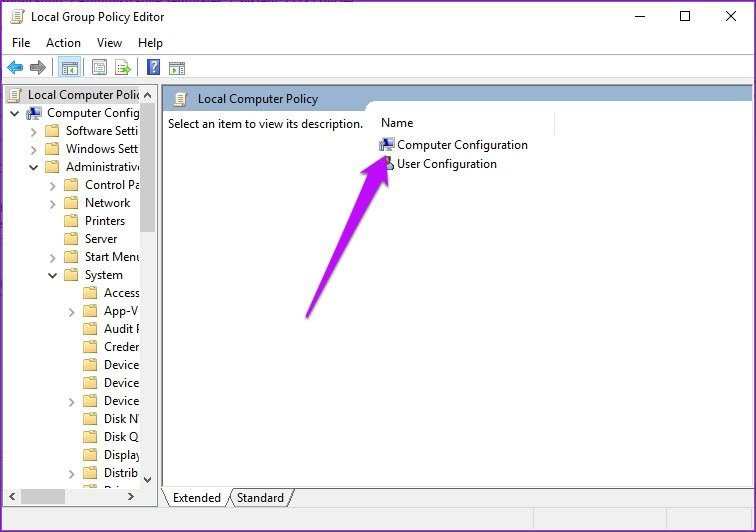
Step 3: Now, navigate your way to Administrative Templates > System > OS Policies. Under OS Policies, you’ll see the options for Clipboard History and Synchronization. And the chances are that the state will be set as Not configured for both.
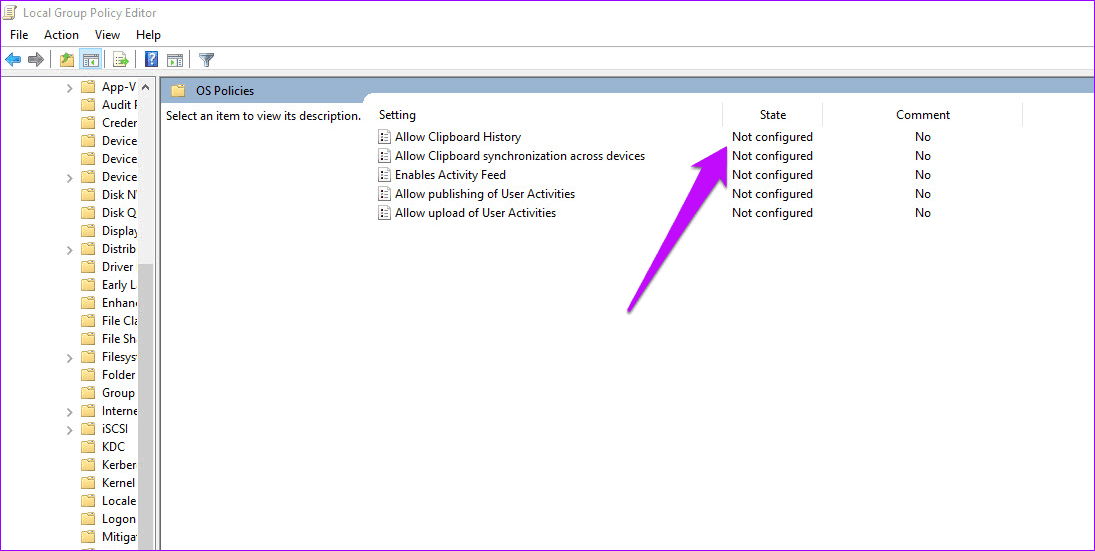
Step 4: All you have to do is double-click on Allow Clipboard History. That will open a secondary window. Select Enabled and hit the Apply button.
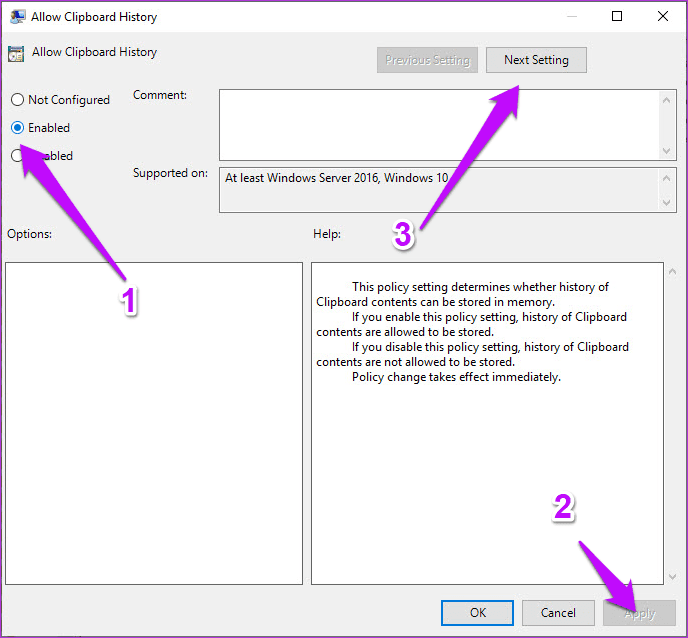
Step 5: Next, click on the Next Setting button and click on the Enabled button again. Once done, hit OK.
Fix 5: Check Windows Registry
Doing the above should also reflect the same on your Registry. But if that’s not the case, you may want to edit the Registry values.
Note: We strongly recommend taking a backup of the registry before making any changes.
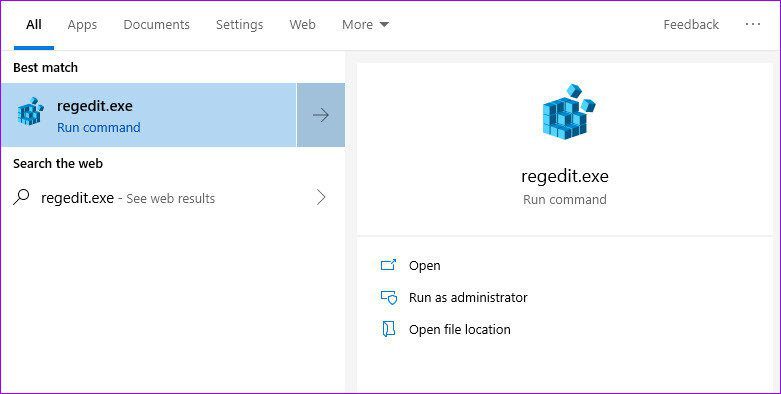
Step 1: Once you’ve taken a backup, open the Start menu, search for regedit.exe, and hit Enter.
Step 2: Next, navigate to the path below,
HKEY_LOCAL_MACHINE\SOFTWARE\Policies\Microsoft\Windows\
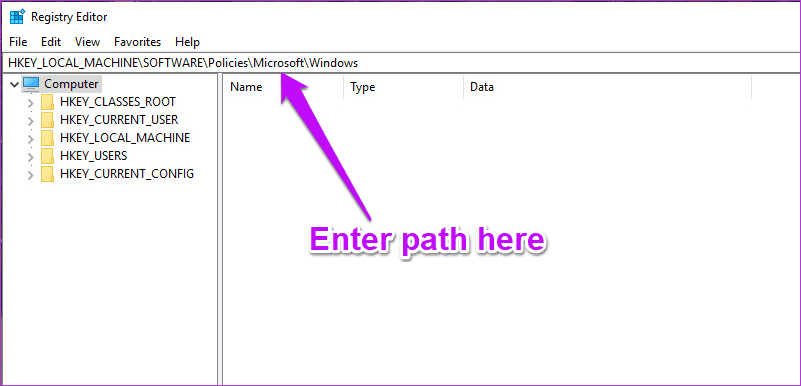
Step 3: Double-click on System from the left menu. You should see the following values, set to 1, here.
- AllowClipboardHistory
- AllowCrossDeviceClipboard
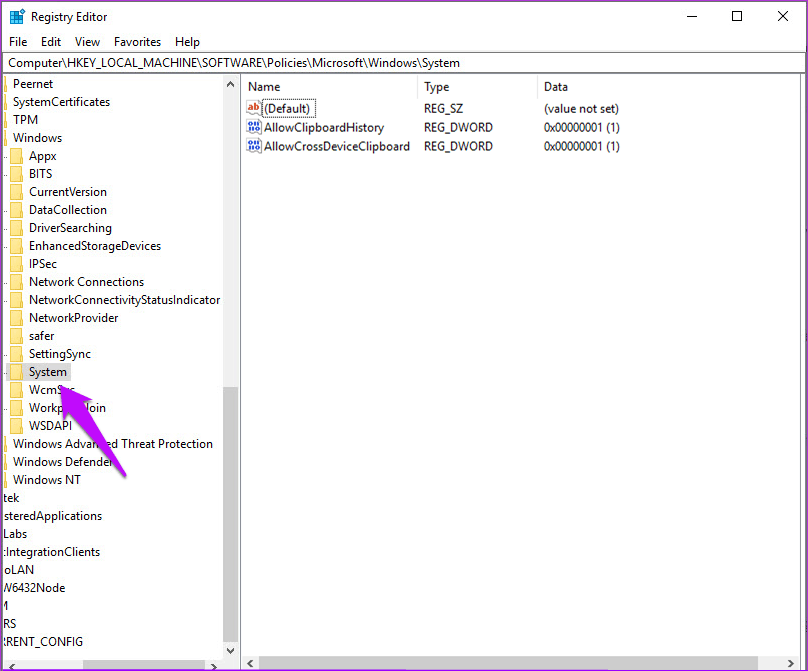
Step 4: But on the off-chance that the System doesn’t contain any key other than the default key, you’d have to add the values yourself. To add them, click on the space in the Registry window and select New. Next, select the DWORD (32-bit) value.

Once done, double-click on the key and set the value of each key to 1.
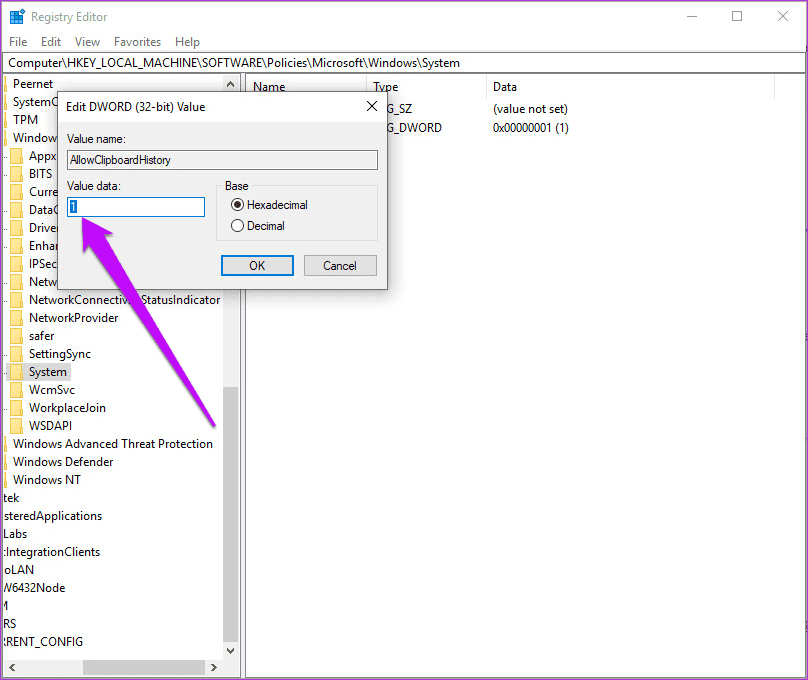
Having done that, restart your system, and the problem should be solved by itself.
Was this helpful?
Last updated on 15 June, 2024
1 Comment
Leave a Reply
Read Next
 What Is Clipboard in Windows 10 and How to Use It: A Complete Guide
You must have used copy-paste functionality at least once whether you own a smartphone, tablet, or computer.
What Is Clipboard in Windows 10 and How to Use It: A Complete Guide
You must have used copy-paste functionality at least once whether you own a smartphone, tablet, or computer.
 3 Ways to Clear the Clipboard History in Windows 11
Method 1: Using the Clipboard Tab The easiest and quickest way to empty clipboard history in Windows is through the Clipboard tab.
3 Ways to Clear the Clipboard History in Windows 11
Method 1: Using the Clipboard Tab The easiest and quickest way to empty clipboard history in Windows is through the Clipboard tab.
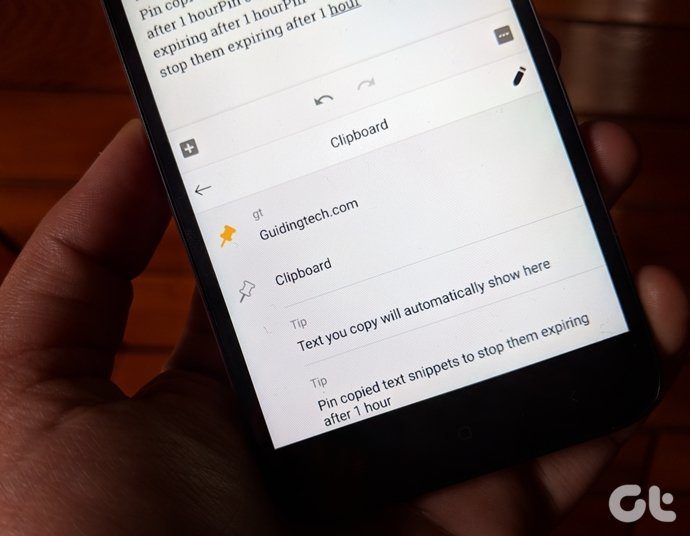 5 Android Keyboards With a Clipboard
1.
5 Android Keyboards With a Clipboard
1.
 How to Check and Recover Clipboard History on Android
Method 1: Check and Recover Clipboard History Using Gboard One of the easiest ways to view and recover your clipboard history on an Android device is by using Gboard, the
How to Check and Recover Clipboard History on Android
Method 1: Check and Recover Clipboard History Using Gboard One of the easiest ways to view and recover your clipboard history on an Android device is by using Gboard, the
 2 Ways to Check Clipboard History on Mac
Method 1: Default Clipboard Step 1: Open Finder on Mac, go to Edit in the menu bar, and choose Show Clipboard.
2 Ways to Check Clipboard History on Mac
Method 1: Default Clipboard Step 1: Open Finder on Mac, go to Edit in the menu bar, and choose Show Clipboard.
 How to Use Clipboard on Samsung Galaxy Phones
Use Clipboard in Samsung Keyboard You can use One UI's native clipboard if Samsung Keyboard is your default keyboard app.
How to Use Clipboard on Samsung Galaxy Phones
Use Clipboard in Samsung Keyboard You can use One UI's native clipboard if Samsung Keyboard is your default keyboard app.
 How to Access and Use the Clipboard in Microsoft Office
How to Access and Use the Office Clipboard Using the Office Clipboard, you can save texts from an email, data from a spreadsheet, and even graphics from an online source.
How to Access and Use the Clipboard in Microsoft Office
How to Access and Use the Office Clipboard Using the Office Clipboard, you can save texts from an email, data from a spreadsheet, and even graphics from an online source.
 3 Ways to Access the Clipboard on Your iPhone
Method 1: Use the Notes App to See Clipboard Using the Notes app is a great way to not only access but also store the copied contents from a clipboard.
3 Ways to Access the Clipboard on Your iPhone
Method 1: Use the Notes App to See Clipboard Using the Notes app is a great way to not only access but also store the copied contents from a clipboard.
The article above may contain affiliate links which help support Guiding Tech. The content remains unbiased and authentic and will never affect our editorial integrity.

Hi!
I have a problem with the insert operation (Ctrl + V) into the search bar of the explorer. Windows server 2022 standard, remote desktop. The Domain Administrator does not have such problems, but for some reason users do not have this opportunity.