Fix 1: Close Interfering Apps
We often install multiple screenshot software, each taking over the Print screen shortcuts. If that is the case, you can uninstall the rest of the apps and use only one or close the app you don’t want to use from running in the background.
Cloud storage apps like Dropbox, OneDrive, and the Windows Snipping Tool are commonly responsible for this interference. Some users have also reported that closing third-party snipping tools and photo editing apps helped restore their PC’s screenshot functionality.
Step 1: Open the Windows Task Manager using the Ctrl + Shift + Esc keyboard shortcut.
Step 2: Scan through the Apps and Background processes list and close any active cloud storage or photo editing app preventing your Windows PC from taking screenshots.
Step 3: To close an app from the Windows Task Manager, right-click on it and click on End task.

Try taking a screenshot after closing these apps and check if it works.
Fix 2: Modify Cloud Drive Settings
Apps from Dropbox, OneDrive, and others have an option to instantly take a screenshot and save it on the cloud when you press the Print screen key.
So, if you press the hotkey but don’t see anything happening, it is possible that the screenshots are being saved elsewhere on your PC.
Here is how to disable it on OneDrive. Other apps have similar settings that you can turn off.
Step 1: Right-click the OneDrive icon at the bottom-right corner of your PC’s taskbar.
Step 2: Next, click on Settings. That will open a new OneDrive Settings window.
Step 3: Toggle off the Save screenshots I capture to the OneDrive option.

Take screenshots and check if they are visible in your PC’s default screenshot folder.
On Dropbox, you must go to Preferences > Backups and toggle off Screenshots.

Fix 3: Enable Print Screen for Screen Snipping
If pressing the Print screen button doesn’t do anything, including saving the screen to a cloud app, you can set it to launch the Snipping tool.
Step 1: Press Win + S, type snipping, and click to launch the Snipping tool.
Step 2: Click on the three-dot menu > select Settings.
Step 3: Scroll to find the Shortcuts section and click on Change in Windows settings link to open the Keyboard settings of the Accessibility section.

Step 4: Toggle on Use the Print screen key to open screen capture.

Fix 4: Use Print Screen + Hotkey Combinations
If you use a professional screenshot tool that offers varied features, check the hotkey combination of these tools. You will usually find combinations such as Alt + PrtScn or Win + PrtScn. Some of these hotkeys allow you to instantly capture the active windows, or select an area on the screen, and so on.

FAQs
Does the Print Screen Key Work Without Any Tool?
Yes, and if you want to check, use Ctrl + V in any image editor. You should see the same content you had when you pressed the Print screen key. Pressing Print Screen captures an image of your entire screen and copies it to the Clipboard in your computer’s memory.
What Are the Popular Keyboard Shortcuts for Taking Screenshots?
Windows Logo Key + PrtScn and Fn + Windows logo key + Space Bar are the most popular keyboard shortcuts used on PCs and Laptops.
Was this helpful?
Last updated on 04 June, 2024
Read Next
 3 Ways to Fix iCloud Drive Taking Up Too Much Space on iPhone
Method 1: Delete Local Copies of iCloud Drive Files From iPhone Files and folders stored in iCloud Drive are backed up to iCloud, and some may be stored on the
3 Ways to Fix iCloud Drive Taking Up Too Much Space on iPhone
Method 1: Delete Local Copies of iCloud Drive Files From iPhone Files and folders stored in iCloud Drive are backed up to iCloud, and some may be stored on the
 3 Ways to Take Scrolling Screenshots in Windows 11
Method 1: Using Microsoft Edge Microsoft Edge offers a handy Web Capture tool to snap and annotate screenshots.
3 Ways to Take Scrolling Screenshots in Windows 11
Method 1: Using Microsoft Edge Microsoft Edge offers a handy Web Capture tool to snap and annotate screenshots.
 Microsoft Whiteboard vs OneNote: Which One to Use for Note Taking
Availability First, both platforms require a Microsoft account to function regardless of the platform you use.
Microsoft Whiteboard vs OneNote: Which One to Use for Note Taking
Availability First, both platforms require a Microsoft account to function regardless of the platform you use.
 Top 3 Ways to Insert Screenshots in Microsoft Outlook
Screenshots can be very helpful when passing certain information over messages or social media.
Top 3 Ways to Insert Screenshots in Microsoft Outlook
Screenshots can be very helpful when passing certain information over messages or social media.
 2 Tools to Automatically Take Screenshots on Windows PC
Just think for a moment.
2 Tools to Automatically Take Screenshots on Windows PC
Just think for a moment.
 How to Take Screenshots of One Monitor on Windows 11 With a Multi-Monitor Setup
Method 1: PikPick Some screenshot tools allow you to configure their settings so that they will only capture screenshots of one monitor.
How to Take Screenshots of One Monitor on Windows 11 With a Multi-Monitor Setup
Method 1: PikPick Some screenshot tools allow you to configure their settings so that they will only capture screenshots of one monitor.
 Where to Find Screenshots on Windows 11 and 10
Where Does Snipping Tool Save Screenshots?
Where to Find Screenshots on Windows 11 and 10
Where Does Snipping Tool Save Screenshots?
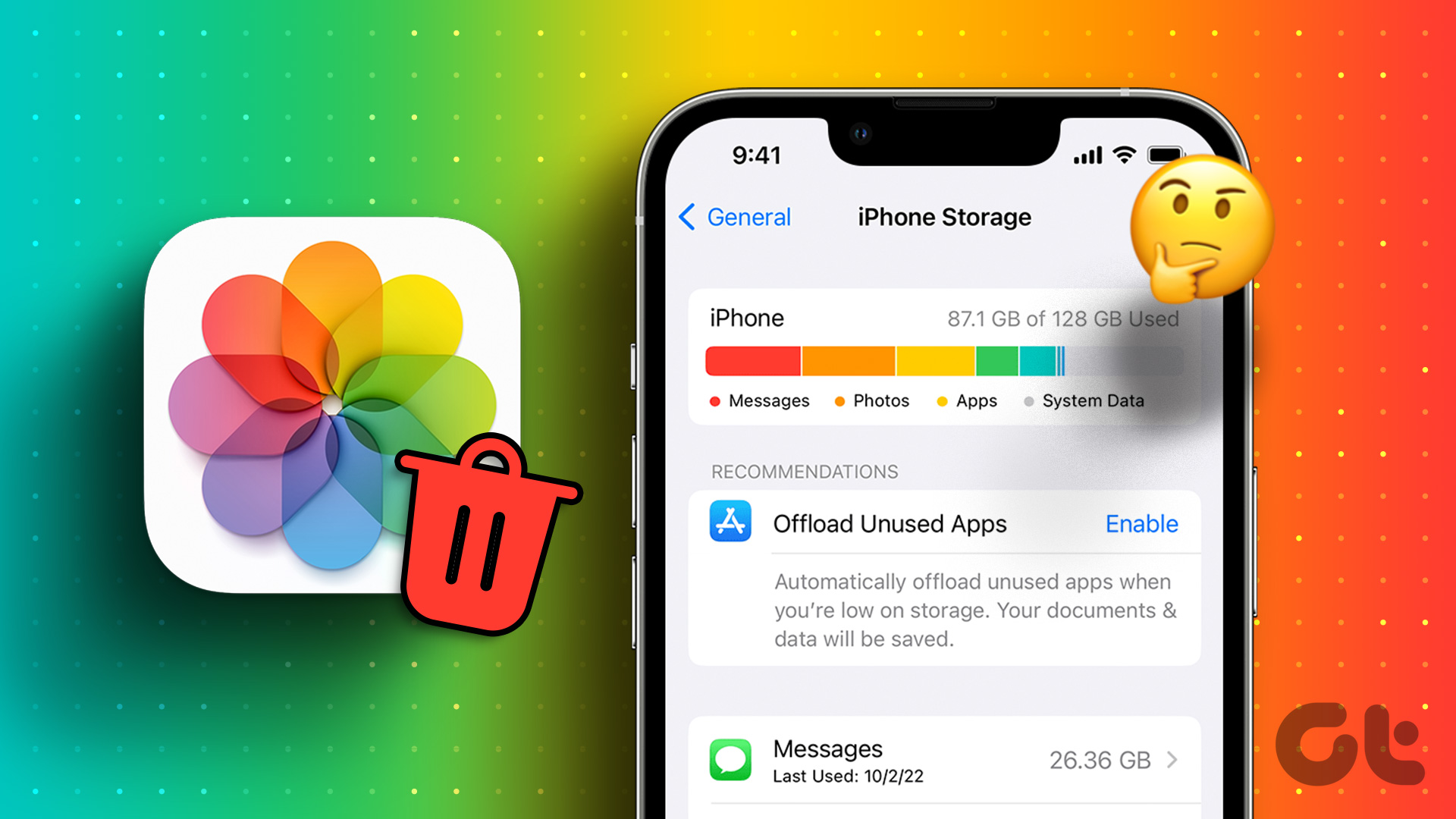 5 Fixes for iPhone Photos Taking Up Space Even After Deleting Them
Fix 1: Delete the Recently Deleted Folder Step 1: Open the Photos app, and go to the Recently Deleted folder.
5 Fixes for iPhone Photos Taking Up Space Even After Deleting Them
Fix 1: Delete the Recently Deleted Folder Step 1: Open the Photos app, and go to the Recently Deleted folder.
The article above may contain affiliate links which help support Guiding Tech. The content remains unbiased and authentic and will never affect our editorial integrity.