Basic Fixes
- Check network connection: Ensure there are no problems with network connectivity or the router/modem.
- Disable airplane mode: You won’t be able to use the hotspot on your PC with airplane mode enabled.
- Restart PC: Restart your PC to eliminate any temporary bugs and glitches.
- Disable VPN: Turn off the VPN on your PC if you aren’t able to share your internet using the hotspot.
Fix 1: Update or Re-Install Network Adapter
Updating or re-installing the drivers for the Wi-Fi adapter can fix the issue with the hotspot on your PC.
Open the Device Manager app from the start menu, click on Network Adapters, and right-click on your Wi-Fi adapter.
- Right-click on Update to update the driver, and follow the on-screen instructions to do it.
- If updating the driver does not work, you can use the Uninstall option, and restart your PC to re-install the device.

Fix 2: Disable Mobile Hotspot Power Saving
Turn off the power-saving option to prevent Windows from turning off the hotspot service when not in use.
Go to Settings > Network & Internet > Mobile hotspot and ensure that the Mobile hotspot is enabled. At the bottom of the Mobile hotspot menu, turn off the Power saving option.

Fix 4: Change Power Management Settings for Wi-Fi Adapter
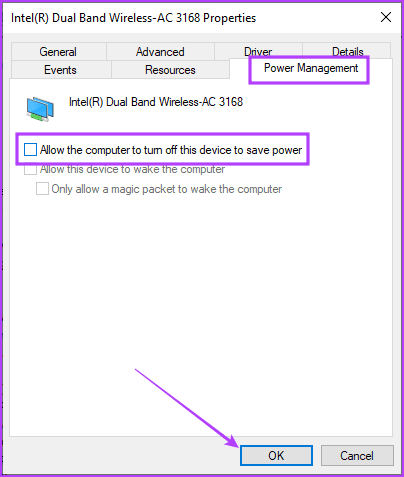
Turn off the power-saving setting in the device manager for your Wi-Fi adapter so that it doesn’t turn off when not in use.
Step 1: Open the Device Manager app, and click to expand the Network Adapters menu. Right-click on the Wi-Fi adapter.

Step 2: Go to Power Management, and turn off Allow the computer to turn off this device to save power. Click on OK to save changes.
Also Read: How to fix mobile hotspot not working on Windows 11
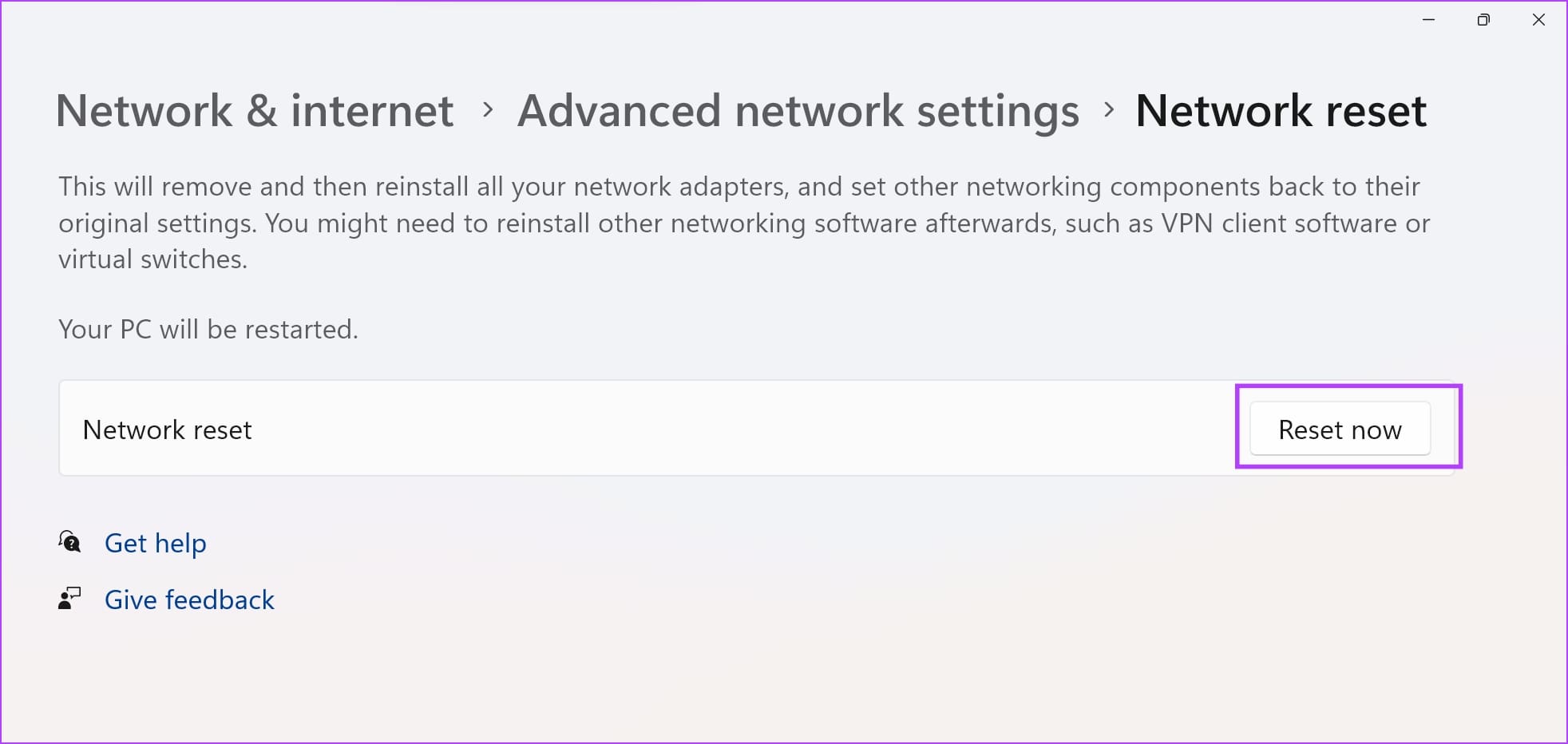
Fix 4: Reset Network Settings
Resetting the network settings on your Windows PC fixes any misconfiguration that may be causing issues with the hotspot.
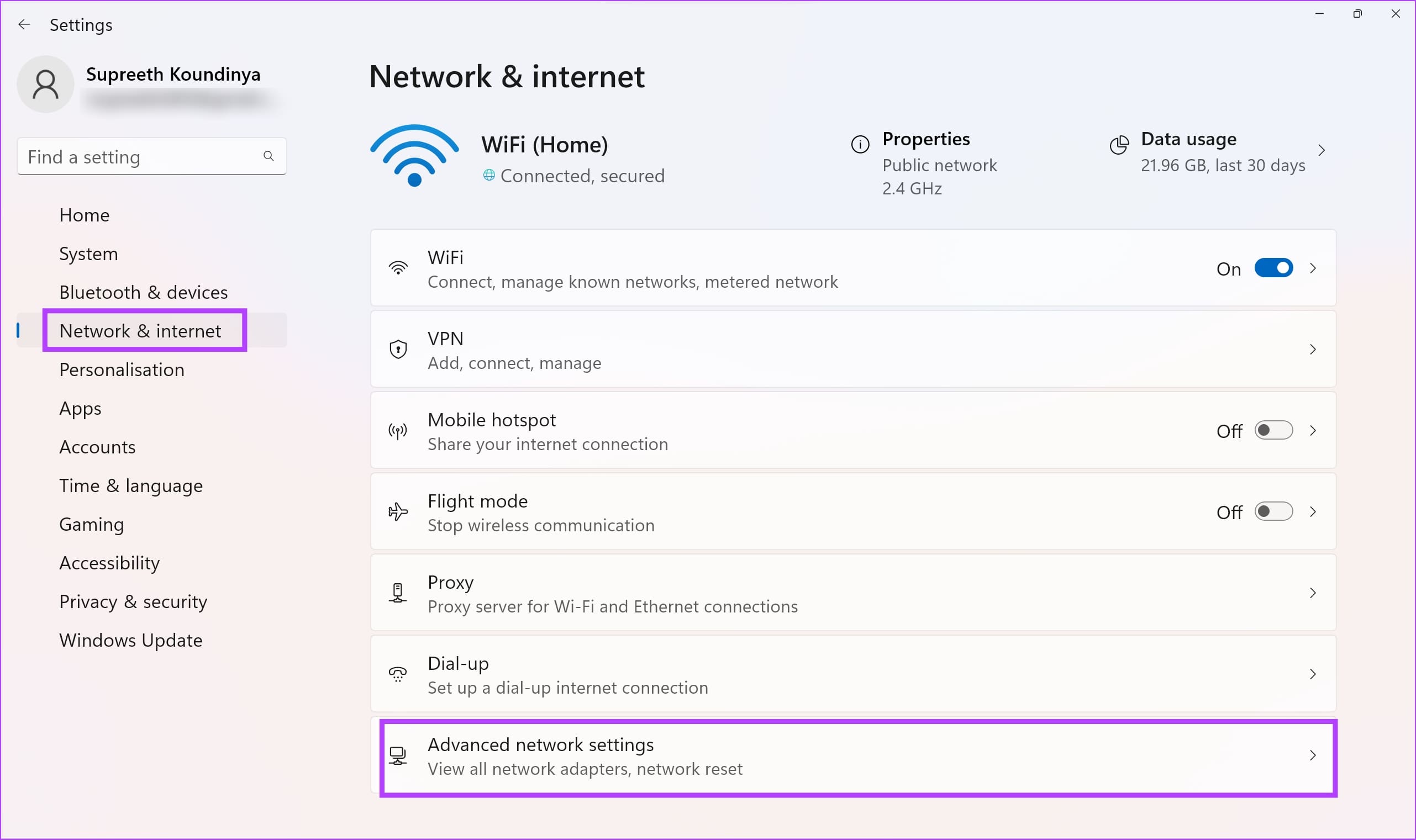
Step 1: Open the Settings app and select Network & Internet.
Step 2: Click on Advanced network settings.
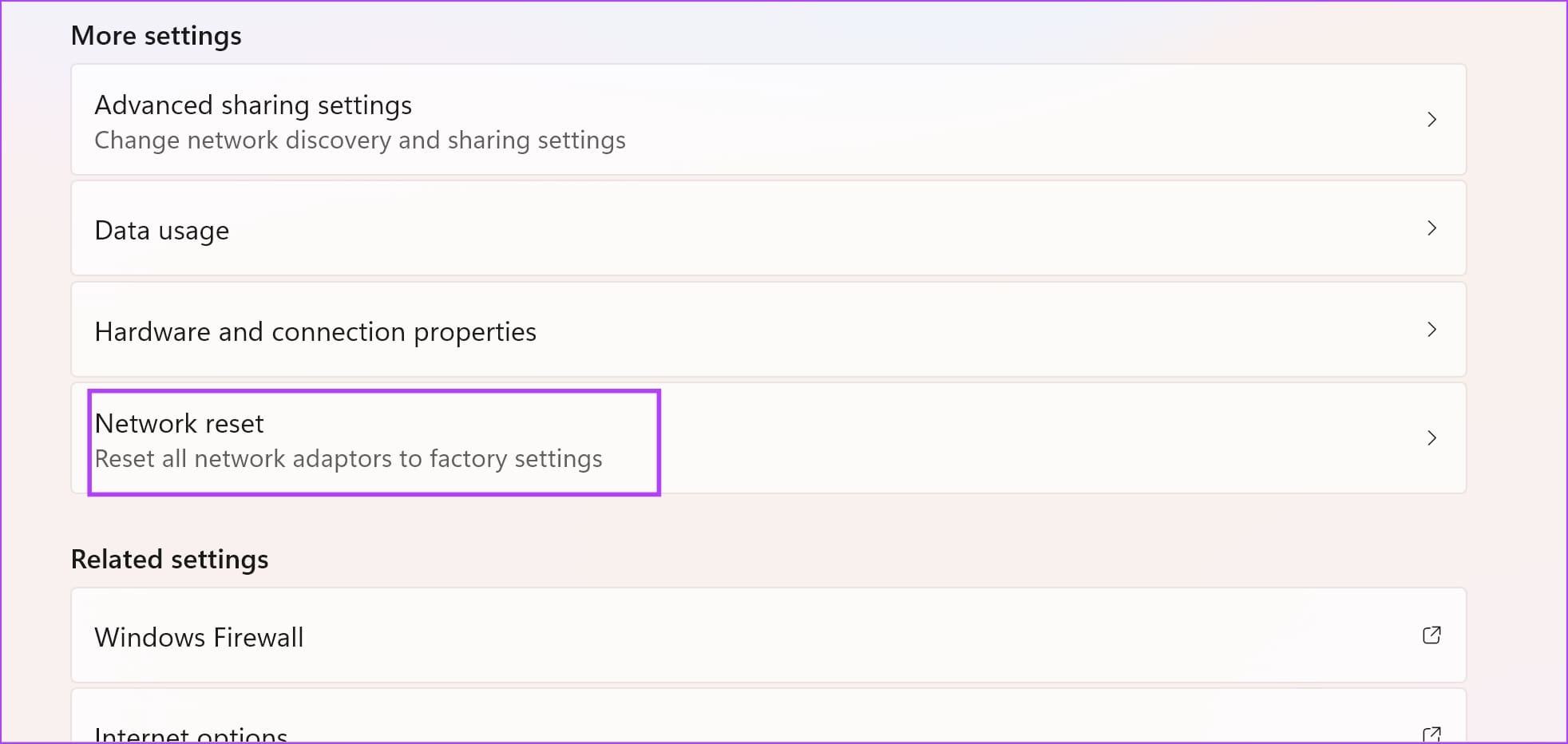
Step 3: Select Network reset.
Step 4: Click Reset now.
Step 5: Select Yes to confirm.
Was this helpful?
Last updated on 27 June, 2024
Read Next
 6 Ways to Fix Airplane Mode Grayed Out on Windows 10 and Windows 11
Fix 1: Restart Radio Management Service Radio Management Service is an essential component that needs to run in the background for airplane mode to work.
6 Ways to Fix Airplane Mode Grayed Out on Windows 10 and Windows 11
Fix 1: Restart Radio Management Service Radio Management Service is an essential component that needs to run in the background for airplane mode to work.
 5 Fixes for Cellular Data Grayed Out Issue on iPhone and iPad
Fix 1: Turn off and Back on Cellular Service Turning off and on the cellular service can re-establish connectivity free from bugs and glitches.
5 Fixes for Cellular Data Grayed Out Issue on iPhone and iPad
Fix 1: Turn off and Back on Cellular Service Turning off and on the cellular service can re-establish connectivity free from bugs and glitches.
 8 Ways to Fix Recycle Bin Is Grayed out Issue in Windows 10
The Recycle Bin acts as a failsafe for when you delete a file or folder and need to restore it.
8 Ways to Fix Recycle Bin Is Grayed out Issue in Windows 10
The Recycle Bin acts as a failsafe for when you delete a file or folder and need to restore it.
 Top 5 Ways to Fix Screen Resolution Setting Grayed Out Problem on Windows 10
Whether you’ve plugged in a new monitor or trying to improve the video performance, tweaking your screen resolution to the right settings is the key to a better viewing experience.
Top 5 Ways to Fix Screen Resolution Setting Grayed Out Problem on Windows 10
Whether you’ve plugged in a new monitor or trying to improve the video performance, tweaking your screen resolution to the right settings is the key to a better viewing experience.
 4 Ways to Fix Location Services Grayed Out on Windows 11
Fix 1: Configure Geolocation Service Geolocation Service is a small program that needs to run in the background for the location services to work.
4 Ways to Fix Location Services Grayed Out on Windows 11
Fix 1: Configure Geolocation Service Geolocation Service is a small program that needs to run in the background for the location services to work.
 4 Ways to Fix Windows Laptop Not Connecting to Mobile Hotspot on Android
Try Basic Fixes Switch to Airplane Mode or Restart Devices: It will ensure the removal of temporary blocks that show up if the device is turned on for a long
4 Ways to Fix Windows Laptop Not Connecting to Mobile Hotspot on Android
Try Basic Fixes Switch to Airplane Mode or Restart Devices: It will ensure the removal of temporary blocks that show up if the device is turned on for a long
 4 Ways to Fix Windows Mobile Hotspot Keeps Turning off
Fix 1: Disable Mobile Hotspot Power Saving Disable the power saving feature to prevent Windows from automatically turning off the hotspot when not in use.
4 Ways to Fix Windows Mobile Hotspot Keeps Turning off
Fix 1: Disable Mobile Hotspot Power Saving Disable the power saving feature to prevent Windows from automatically turning off the hotspot when not in use.
 7 Ways to Fix Mobile Hotspot Not Working on Windows 11
Try These Things First Turn off Bluetooth: Sometimes, the Bluetooth connection on your PC may interfere with the mobile hotspot.
7 Ways to Fix Mobile Hotspot Not Working on Windows 11
Try These Things First Turn off Bluetooth: Sometimes, the Bluetooth connection on your PC may interfere with the mobile hotspot.
The article above may contain affiliate links which help support Guiding Tech. The content remains unbiased and authentic and will never affect our editorial integrity.