Fix 1. Resync the Calendar App
If you have synced an external calendar to Outlook, and the sync breaks or the calendar is unavailable, events will not appear. The best way out of this is to resync or import the calendar.
Step 1: If you are syncing from Google or Yahoo Calendar, export the calendar to a .ics file.
Step 2: To import the calendar to Outlook, go to Outlook Calendar on the web and open the navigation pane.
Step 3: Click Add Calendar > Upload from file.
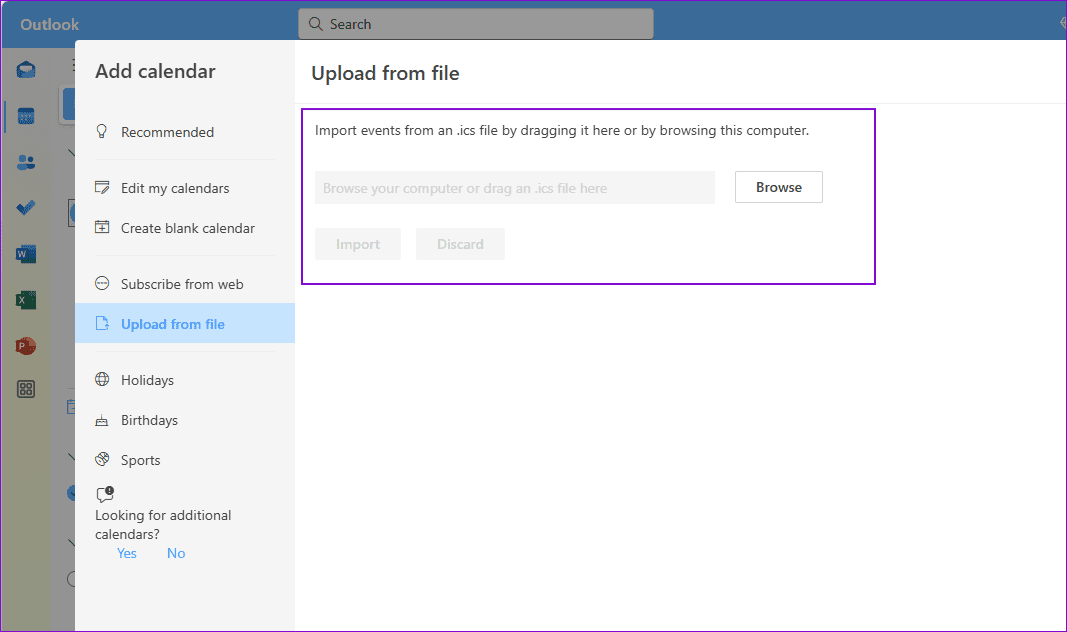
Step 4: Browse for the required file and import. This will resync your Google or Yahoo calendar with Yahoo.
Step 5: If you still have trouble, subscribe to the calendar instead of uploading the file. The option is under Add Calendar > Subscribe from Web.

Fix 2. Reset or Repair the Outlook App
Step 1: Open Windows Settings > open Apps > Installed apps > scroll down to find the Outlook app.
Step 2: Click on the three dots next to it > open Advanced options.

Step 3: Scroll down to find the Reset section in the Advanced options. You will see the option to Repair or Reset the app, so choose the one you prefer.
Fix 3. Use Calendar Widget in Windows Widget Panel
If you don’t see the events in Outlook, try the Outlook calendar widget and check if they show up there. This will help you understand the source of the problem.
Step 1: Access the Widget panel by clicking the Weather or Widget icon on the left side of the taskbar.
Step 2: In the Widget panel, click the + button at the top right of the widget pane.
Step 3: You will now see different widgets you can add. Click on the Outlook Calendar.
Step 4: Click Pin to add the Calendar Events Flyout in Windows.

Fix 4. Use the Calendar Flyout App
Calendar Flyout ($2.69) is an app on the Windows store that provides the exact functionality of Windows 10 calendar events for Windows 11. The app syncs to your Outlook account, allowing you to join Microsoft Teams meetings directly by clicking on the event on the taskbar. The Calendar Flyout app lets you add and view events in complete detail, like in Windows 10.

FAQs
Add the Outlook Calendar widget to the taskbar widget pane to make your Outlook Calendar events visible in Windows. Previously, you could view the calendar events from the calendar area in the Taskbar, but this has now been switched.
If you are experiencing issues with your calendar events not updating in Outlook, the best way to refresh them is by logging your email out of the Outlook app and logging in again. This establishes the sync, causes it to fetch the data from scratch, and refreshes your Outlook Calendar.
Was this helpful?
Last updated on 28 August, 2024
Read Next
 4 Fixes for Events Not Showing in Outlook Calendar on Windows 11
Basic Fixes Check your internet speed: You should check the status of your internet speeds in order to sync your calendar events to Outlook Check your Outlook account: If you
4 Fixes for Events Not Showing in Outlook Calendar on Windows 11
Basic Fixes Check your internet speed: You should check the status of your internet speeds in order to sync your calendar events to Outlook Check your Outlook account: If you
 4 Fixes for Samsung Calendar Not Showing Events and Holidays
Basic Fixes Check internet settings: Ensure that you have a high speed internet connection with your Samsung phone.
4 Fixes for Samsung Calendar Not Showing Events and Holidays
Basic Fixes Check internet settings: Ensure that you have a high speed internet connection with your Samsung phone.
 4 Fixes for Events Disappear from Calendar App on iPhone
Basic Fixes Check the internet connection: You must check if you use a strong internet connection to sync all your events quickly.
4 Fixes for Events Disappear from Calendar App on iPhone
Basic Fixes Check the internet connection: You must check if you use a strong internet connection to sync all your events quickly.
 How to Add Zoom Meetings to Outlook Calendar and Google Calendar
How to Add Zoom Meetings to Google Calendar The easiest way is using the Zoom for Google Workspace Google calendar add-on.
How to Add Zoom Meetings to Outlook Calendar and Google Calendar
How to Add Zoom Meetings to Google Calendar The easiest way is using the Zoom for Google Workspace Google calendar add-on.
 How to Connect Outlook Calendar With Google Calendar: 4 Best Ways
Note: The methods recommended in the article allow two-way syncs in the calendar.
How to Connect Outlook Calendar With Google Calendar: 4 Best Ways
Note: The methods recommended in the article allow two-way syncs in the calendar.
 How to Add and Remove Holidays Calendar in Apple Calendar App
How to Use Holidays Calendar on iPhone The Apple Calendar app offers a built-in regional calendar, displaying the common holidays (occasions and festivals) from that area.
How to Add and Remove Holidays Calendar in Apple Calendar App
How to Use Holidays Calendar on iPhone The Apple Calendar app offers a built-in regional calendar, displaying the common holidays (occasions and festivals) from that area.
 How to Fix Birthdays Not Showing up in iPhone Calendar
Basic Fixes Force quit and relaunch the app: This will give the app a fresh start and reload it entirely on your iPhone.
How to Fix Birthdays Not Showing up in iPhone Calendar
Basic Fixes Force quit and relaunch the app: This will give the app a fresh start and reload it entirely on your iPhone.
 How to Get Apple Calendar on Windows PC
Method 1: Use iCloud Web Apple provides a robust iCloud web solution for accessing the major apps and services.
How to Get Apple Calendar on Windows PC
Method 1: Use iCloud Web Apple provides a robust iCloud web solution for accessing the major apps and services.
The article above may contain affiliate links which help support Guiding Tech. The content remains unbiased and authentic and will never affect our editorial integrity.