Basic Fixes
- Force quit and relaunch: This will give the app a fresh start and should make the feature work.
- Update WhatsApp: Install the latest version as the feature sometimes lags behind on old app versions.
Fix 1: Both Users Must Enable Read Receipts
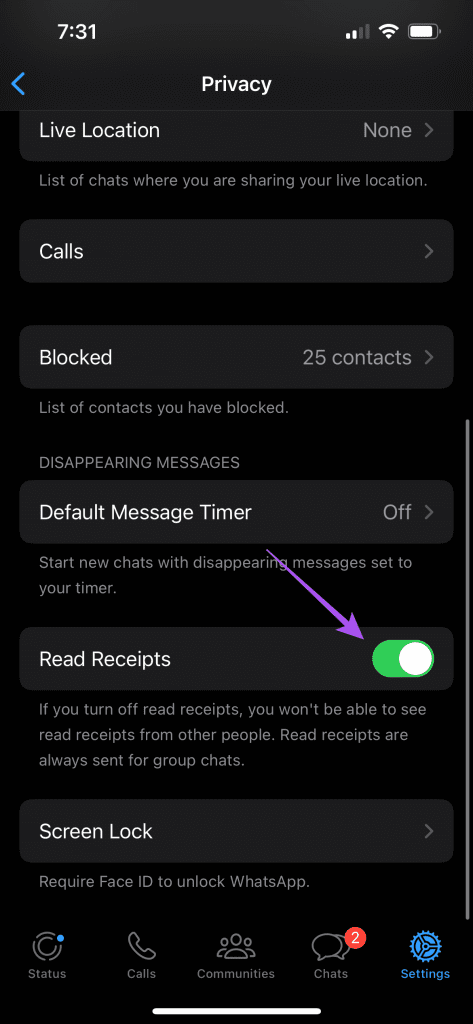
If WhatsApp is not showing blue ticks on your iPhone or Android, enable the Read Receipts option. After you turn off this option, you or your contact won’t determine whether the sent message has been read. Here’s how to check and enable the feature. The steps mentioned below apply to both iPhone and Android.
Step 1: Open WhatsApp and then tap the Settings icon at the bottom right.
Step 2: Select Privacy > enable Read Receipts.

Tip: Learn how to send a blank message on WhatsApp.
Fix 2: Check Blocked Contacts
You might have blocked certain contacts. On your iPhone or Android, you can check and unblock them. That should solve the issue.
Step 1: Open WhatsApp on your iPhone and then tap on Settings at the bottom right.
Step 2: Select Privacy and then tap on Blocked.
Step 3: Tap on Edit at the top right > tap the Minus icon next to the contact name to unblock him.


Step 4: Finally. tap on Done at the top right to confirm.
Tip: Know more about how to read WhatsApp messages without the sender knowing.
Was this helpful?
Last updated on 29 August, 2024
Read Next
 Does Bumble Have Read Receipts and How to Tell if Someone Read Your Message
Does Bumble Show Read Receipts?
Does Bumble Have Read Receipts and How to Tell if Someone Read Your Message
Does Bumble Show Read Receipts?
 What Is Read Receipts in WhatsApp and Should You Turn Them Off
What Are Read Receipts in WhatsApp WhatsApp uses three types of checkmarks in chats: a single grey checkmark indicates your message has been sent, two grey checkmarks mean it was
What Is Read Receipts in WhatsApp and Should You Turn Them Off
What Are Read Receipts in WhatsApp WhatsApp uses three types of checkmarks in chats: a single grey checkmark indicates your message has been sent, two grey checkmarks mean it was
 What Are Telegram Read Receipts and Can You Turn Them Off?
What Does Telegram Check Mark or Read Receipt Mean?
What Are Telegram Read Receipts and Can You Turn Them Off?
What Does Telegram Check Mark or Read Receipt Mean?
 How to Turn Off Read Receipts for Apple Watch Only
How Does Apple Watch Mark Texts as Read?
How to Turn Off Read Receipts for Apple Watch Only
How Does Apple Watch Mark Texts as Read?
 5 Fixes When Read Aloud Is Not Working in Microsoft Word for Windows
Fix 1: Add the Read Aloud Option Is the Read Aloud option missing from Microsoft Word?
5 Fixes When Read Aloud Is Not Working in Microsoft Word for Windows
Fix 1: Add the Read Aloud Option Is the Read Aloud option missing from Microsoft Word?
 How to Read WhatsApp Messages Without Sender Knowing
Method 1: Dive Into Notification History (Android) You can read WhatsApp messages without letting the sender know by accessing the Notification History on your Android smartphone.
How to Read WhatsApp Messages Without Sender Knowing
Method 1: Dive Into Notification History (Android) You can read WhatsApp messages without letting the sender know by accessing the Notification History on your Android smartphone.
 4 Ways to Read and Save Twitter Threads as a PDF or an Article
The process of maintaining context continuity from one tweet to another to convey a lot of information has been made possible by threads.
4 Ways to Read and Save Twitter Threads as a PDF or an Article
The process of maintaining context continuity from one tweet to another to convey a lot of information has been made possible by threads.
 How to Use the Read Aloud Feature in Microsoft Edge
Use Read Aloud in Microsoft Edge on Desktop Microsoft Edge’s Read Aloud feature is simple to use and does not require any setup.
How to Use the Read Aloud Feature in Microsoft Edge
Use Read Aloud in Microsoft Edge on Desktop Microsoft Edge’s Read Aloud feature is simple to use and does not require any setup.
The article above may contain affiliate links which help support Guiding Tech. The content remains unbiased and authentic and will never affect our editorial integrity.