Basic Fixes
- Ensure silent mode is turned off – The first thing you should do is to check and turn off Vibrate/Silent mode on your iPhone or Android.
- Unmute conversations – If the issue is with some chats, you might have muted some conversations or specific groups. So, check the setting and correct it.
- Close WhatsApp on other devices – If WhatsApp is open on the desktop or other linked devices, you might receive notifications on those devices. Getting no or delayed WhatsApp notifications on this one.
- Disable Focus or Do Not Disturb mode – If you have DND (Android) or Focus (iPhone) enabled, you won’t receive any notifications from WhatsApp, let alone hear the sound of it. Check and disable the settings.
- Disconnect Bluetooth devices – You can’t hear the sound of WhatsApp notifications because it’s directed to your Bluetooth device. Disconnect all devices for some time and see if notifications ping.
- Update or reinstall the app – WhatsApp notification sound not working on Android and iPhone might be related to an outdated app or some error. Try updating or reinstalling the app to fix the issue.
Fix 1. Allow WhatsApp to Show Notifications
Maybe you mistakenly did so while setting up WhatsApp or it accidentally happened due to a system error. Whatever the reason may be, if you’re not receiving WhatsApp notifications, check if the app is allowed to send you notifications.
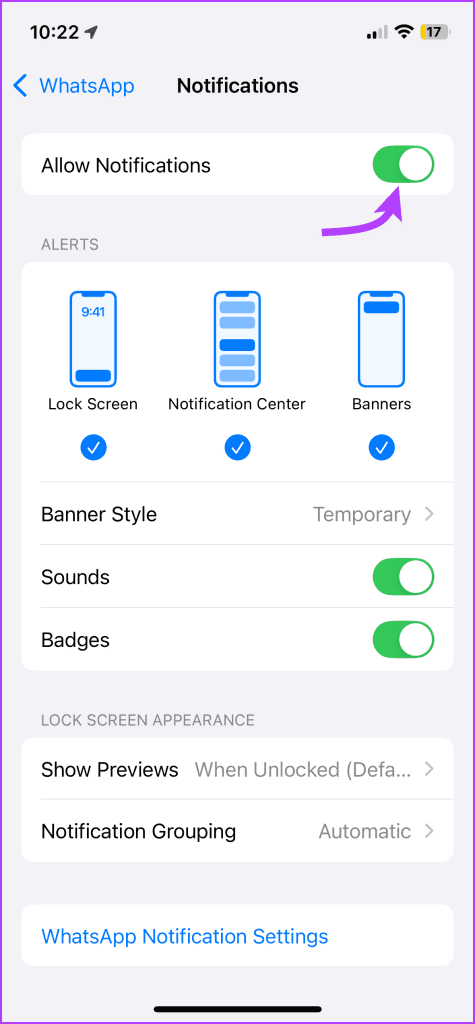
On iPhone – Go to Settings > WhatsApp > Notifications. Here, ensure that the toggle next to Allow Notifications is on.


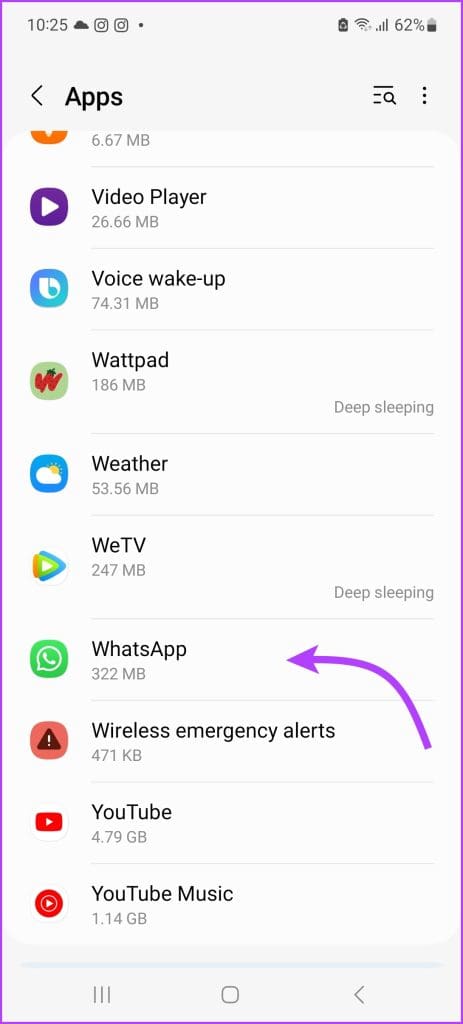
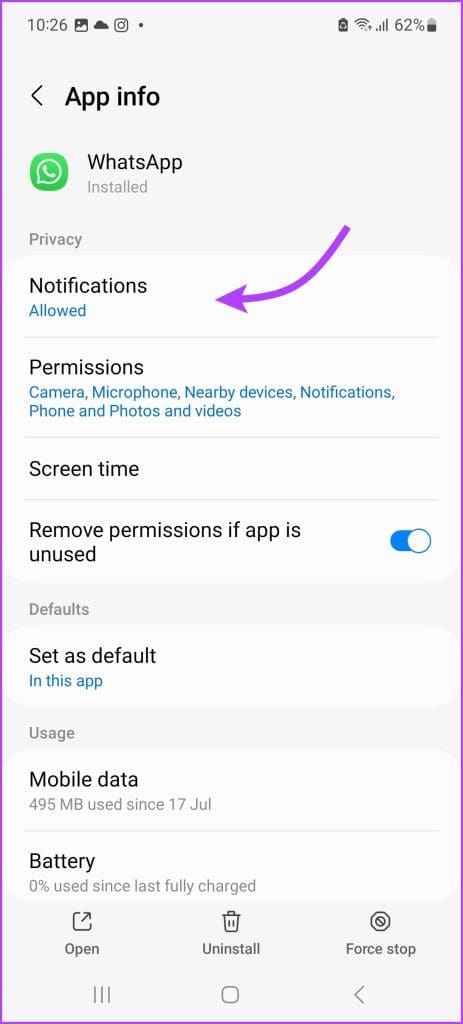
On Android – Go to Settings > Apps > WhatsApp > Notifications. Here, ensure that the toggle next to Allow notifications is on.

Fix 2. Check for Notification Summary or Notification grouping
Both iPhone and Android have built-in features that stop notifications from popping and disturbing you during working/studying time. If you often use Notification Summary (iPhone) or Notification grouping (Android), remove WhatsApp from their list.
On iPhone – Go to Settings > Notifications > Scheduled Summary. You can either toggle off the switch next to WhatsApp or disable the summary option completely.


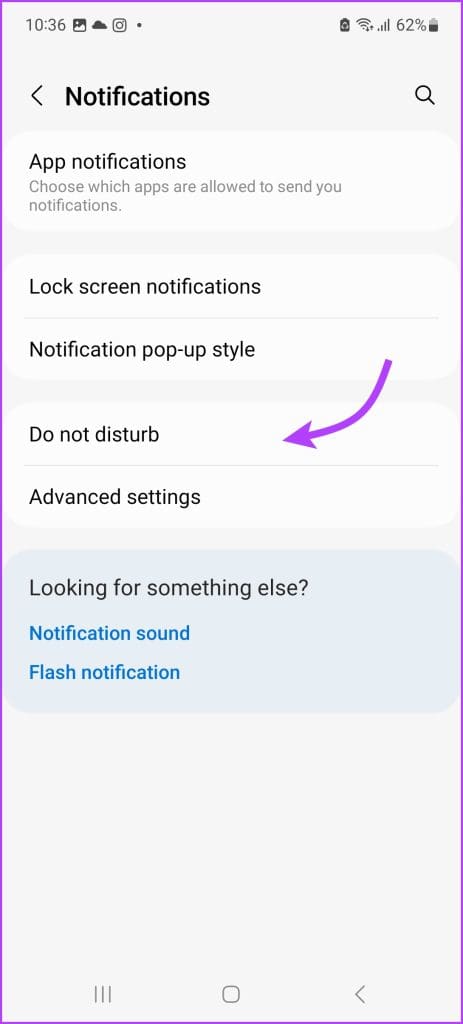
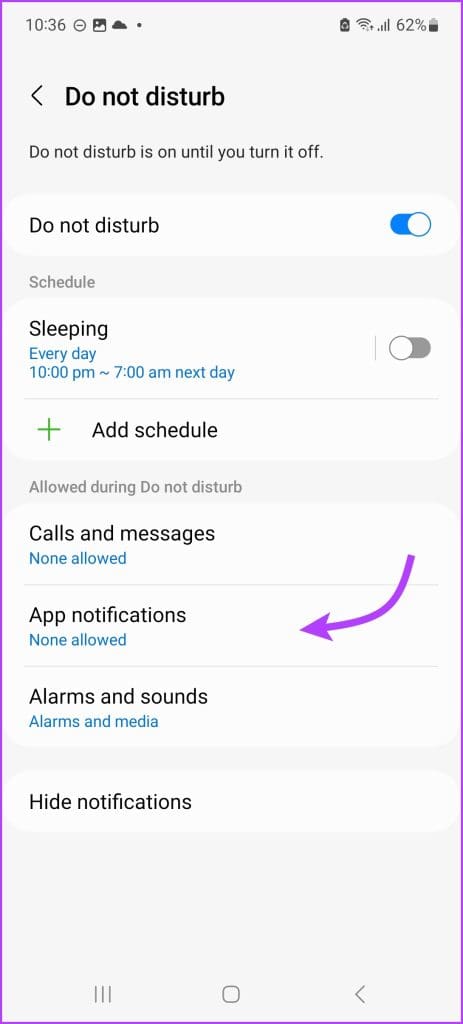
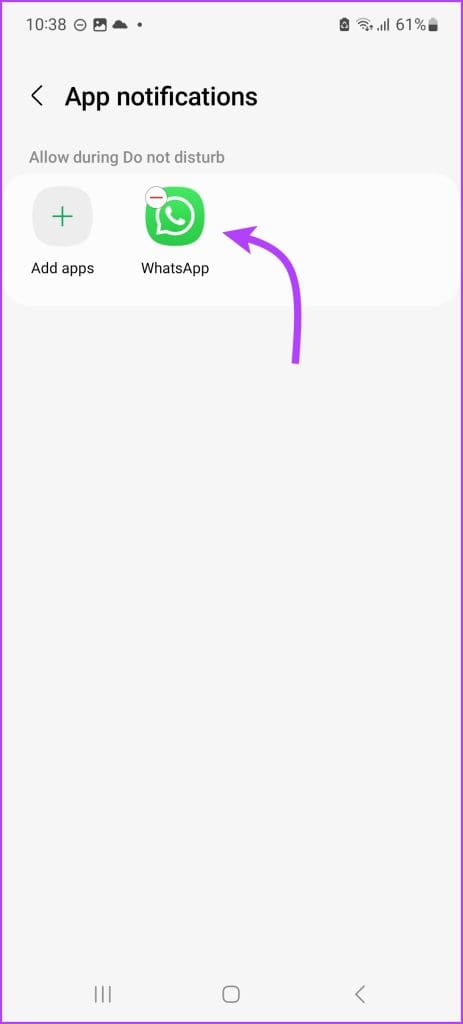
On Android – Go to Settings > Notifications > Do not disturb > App Notification → Add WhatsApp (to allow the app to send notifications). Or you can simply toggle off Do not disturb all together.
Fix 3. Check WhatsApp In-App Notification Setting
Maybe you intended to turn off notifications for message reactions or accidentally changed the notification setting while setting a custom ringtone for someone. Whatever, the reason, it wiser to check WhatsApp’s notification settings.
On iPhone – Open WhatsApp and go to Settings (tap the gear icon for iPhone and three-dot icon > Settings for Android.) Tap Notifications and check that notifications for messages and calls are enabled. Plus, there is a ringtone selected in front of the Sound section and not none.


You might miss some important messages when the WhatsApp notification sound fails to work. So select a loud and clear notification tone for your WhatsApp.
Was this helpful?
Last updated on 16 August, 2024
Read Next
 3 Ways to Fix Notification Sound Not Working on Android
Basic Ways: Adjust notification volume: Use the volume buttons or go to the Settings menu to check the current notification volume.
3 Ways to Fix Notification Sound Not Working on Android
Basic Ways: Adjust notification volume: Use the volume buttons or go to the Settings menu to check the current notification volume.
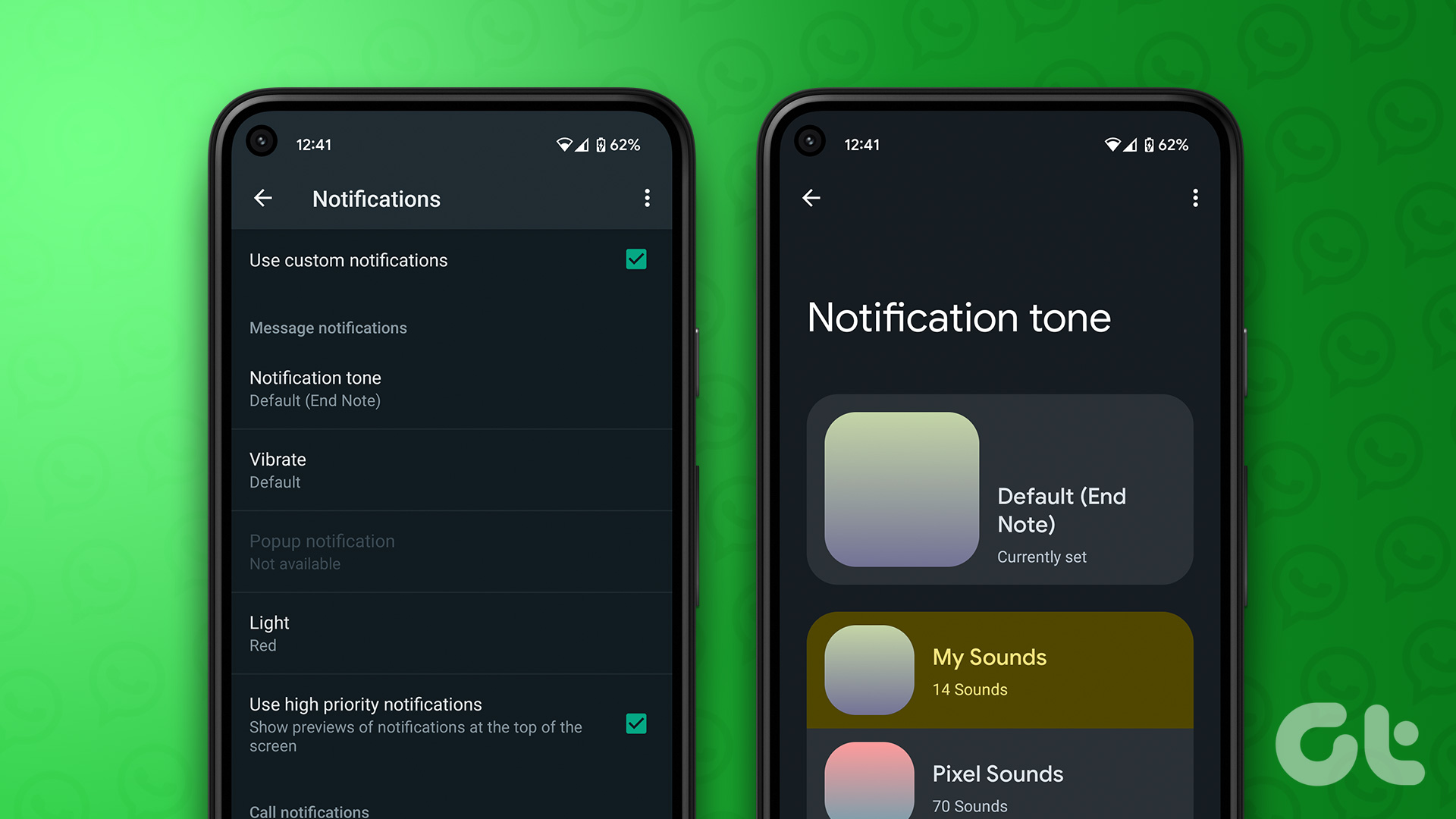 How to Set Custom Notification Sound for Specific Contacts on WhatsApp
Set Specific Tones on WhatsApp iOS You can set different notification tones on WhatsApp for all contacts or groups and custom tones for individual contacts or groups.
How to Set Custom Notification Sound for Specific Contacts on WhatsApp
Set Specific Tones on WhatsApp iOS You can set different notification tones on WhatsApp for all contacts or groups and custom tones for individual contacts or groups.
 3 Ways to Fix the Notification Sound Not Working on Windows 11
Basic Fixes: Unmute your Windows PC: You might have muted your Windows PC and forgotten to unmute it after an important meeting or work hours.
3 Ways to Fix the Notification Sound Not Working on Windows 11
Basic Fixes: Unmute your Windows PC: You might have muted your Windows PC and forgotten to unmute it after an important meeting or work hours.
 How to Fix Microsoft Teams Notification Sound Not Working
On Windows Method 1: Check Notifications Options in the Settings App Step 1: Press the Windows + I keys shortcut to open the Settings app.
How to Fix Microsoft Teams Notification Sound Not Working
On Windows Method 1: Check Notifications Options in the Settings App Step 1: Press the Windows + I keys shortcut to open the Settings app.
 4 Ways to Fix Facebook Messenger Notification Sound Not Working
Try Basic Fixes Close the Messenger app on your computer: If you have the Messenger app open on your computer, notifications may appear there instead of on your phone, and
4 Ways to Fix Facebook Messenger Notification Sound Not Working
Try Basic Fixes Close the Messenger app on your computer: If you have the Messenger app open on your computer, notifications may appear there instead of on your phone, and
 5 Ways to Fix Snapchat Notification Sound Not Working
Basic Fixes Disable the silent profile: Press the Volume Up physical button on your Android phone and tap the sound profile icon to disable the silent mode.
5 Ways to Fix Snapchat Notification Sound Not Working
Basic Fixes Disable the silent profile: Press the Volume Up physical button on your Android phone and tap the sound profile icon to disable the silent mode.
 4 Fixes for Telegram Notification Sound Not Working on Android and iPhone
Try Basic Fixes Close Telegram on your computer: If you have the Telegram app open on your computer, Telegram notifications may not appear or make a sound on your phone.
4 Fixes for Telegram Notification Sound Not Working on Android and iPhone
Try Basic Fixes Close Telegram on your computer: If you have the Telegram app open on your computer, Telegram notifications may not appear or make a sound on your phone.
 3 Fixes for Gmail Notification Sound Not Working on Android and iPhone
Try Basic Fixes Check your phone’s notification volume: Make sure you haven't lowered the notification volume level on your phone unintentionally.
3 Fixes for Gmail Notification Sound Not Working on Android and iPhone
Try Basic Fixes Check your phone’s notification volume: Make sure you haven't lowered the notification volume level on your phone unintentionally.
The article above may contain affiliate links which help support Guiding Tech. The content remains unbiased and authentic and will never affect our editorial integrity.