Basic Fixes
- Restart Wi-Fi router: Restart your Wi-Fi router to fix any temporary issues.
- Check Wi-Fi network: If the Wi-Fi network you are connected to blocks WhatsApp, you won’t be able to access it.
- Switch to the 5 GHz band: Switch to the 5 GHz variant of your Wi-Fi network for faster speeds.
- Restart WhatsApp: Restart WhatsApp, and your smartphone to get rid of any bugs.
- Update WhatsApp: Update WhatsApp: Install the latest version of WhatsApp from the Play Store or App Store.
Fix 1: Disable Low Data Mode on Wi-Fi (iPhone)
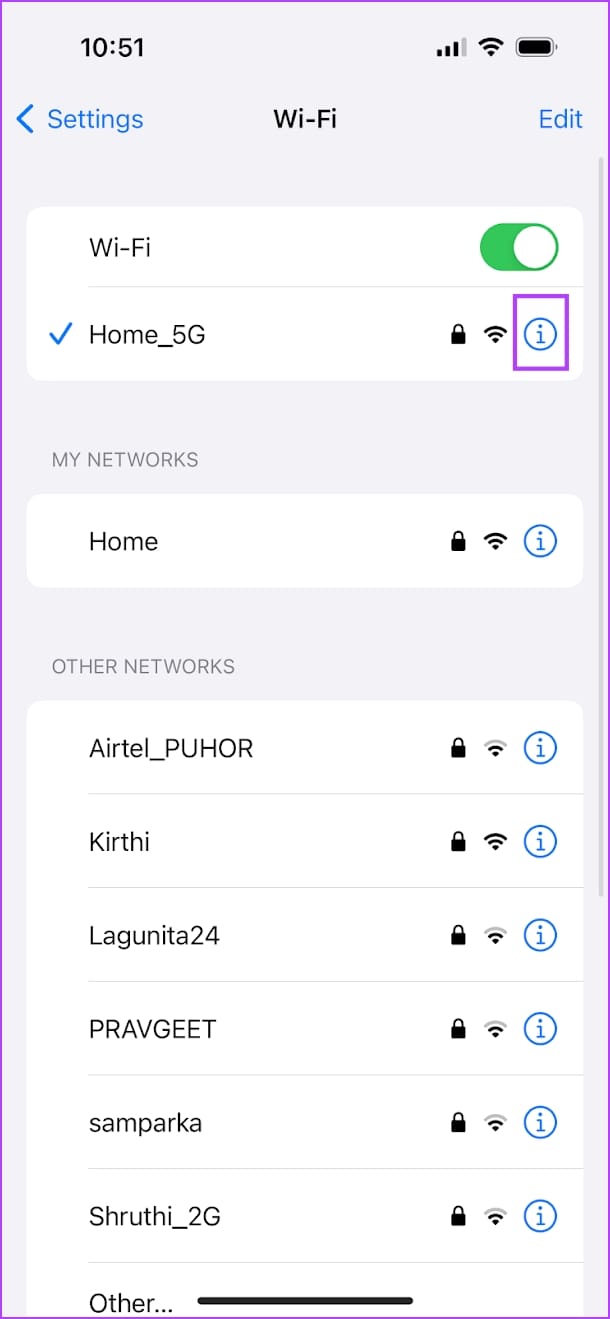
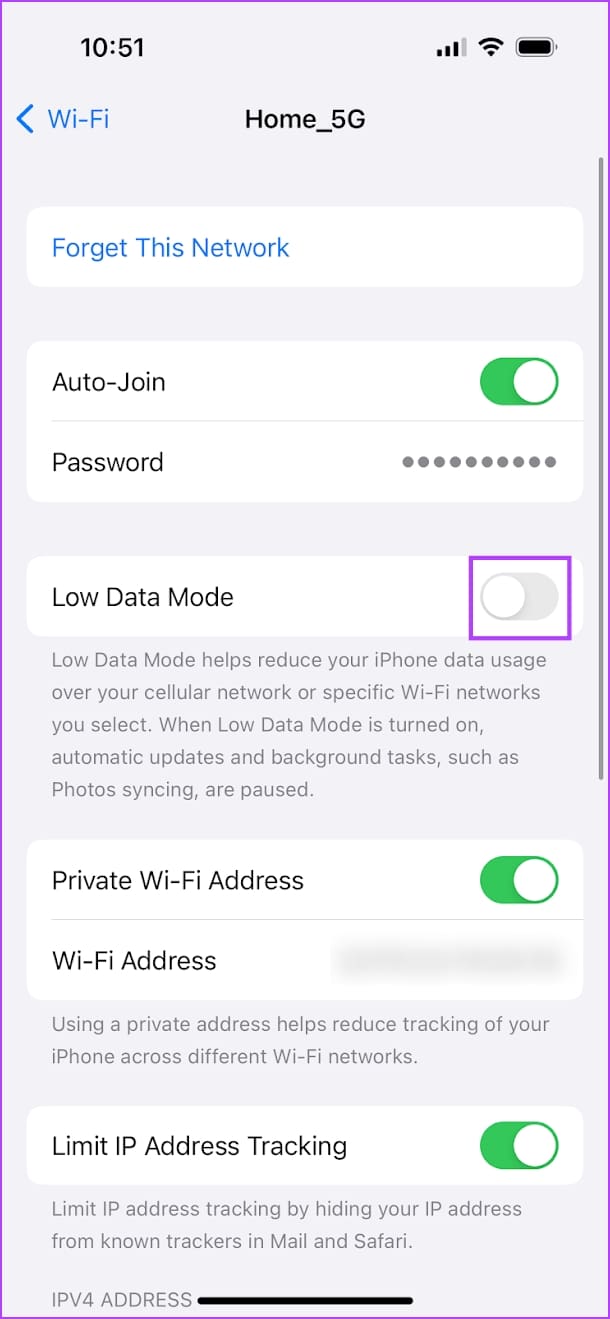
Data saver settings for Wi-Fi on your iPhone may affect WhatsApp.
Open the Settings app > tap on Wi-Fi > tap on the info icon next to the connected network > turn off the toggle for Low Data Mode.
Fix 2: Reset Wi-Fi Network (Android)
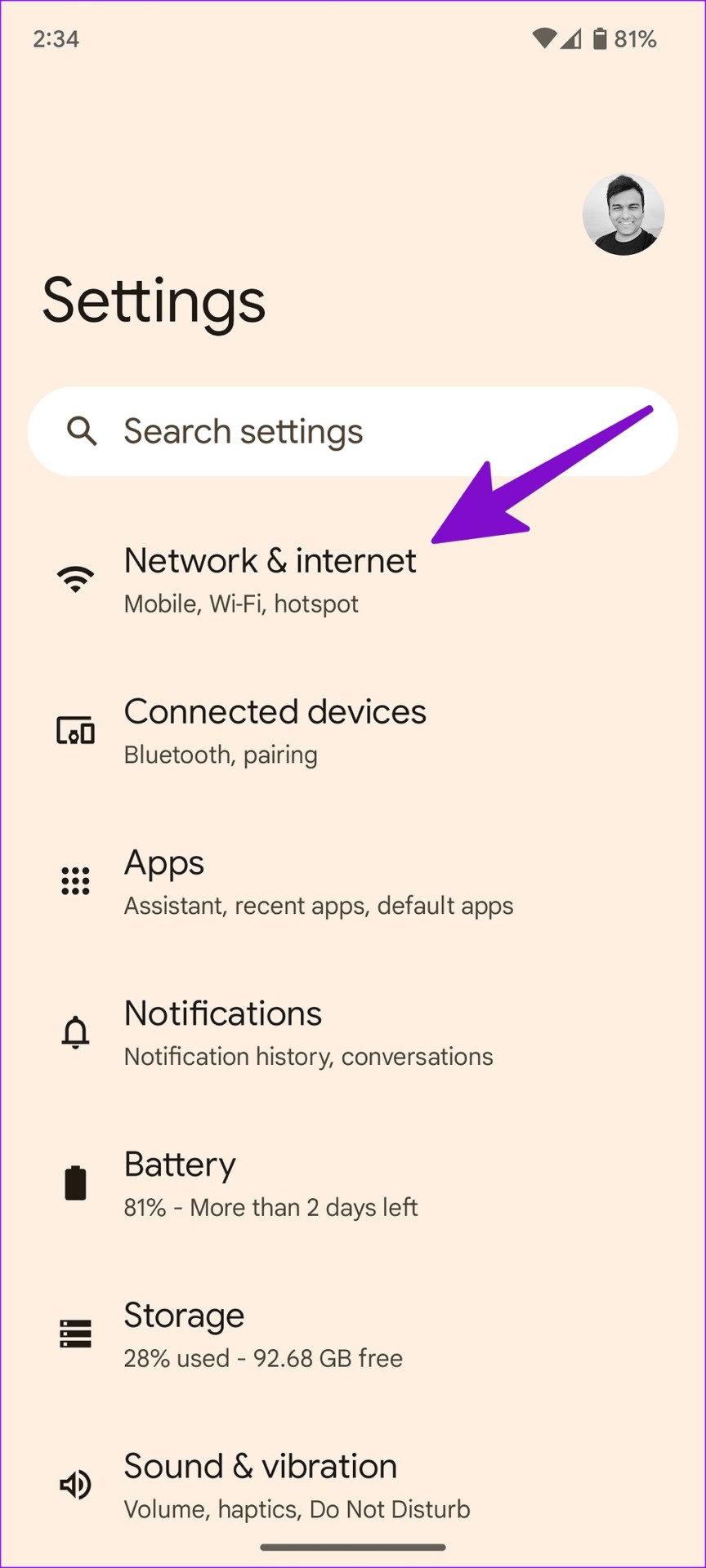
You can reset the network connection from the Android settings menu and fix issues like WhatsApp not working on Wi-Fi. This will only refresh the Wi-Fi networks, but it will not forget the passwords for saved networks.
Open Settings > Network & internet > Internet and tap the reset icon in the top-right corner to reset the network connection.


Fix 3: Clear Cache
Clearing the cache for an app on your Android device erases all the accumulated junk files that may be responsible for executing bugs.
On Android
Step 1: Long-tap on the WhatsApp icon. Tap on App Info.
Step 2: Tap on Storage usage > Clear cache.


On iPhone
Offloading an app clears all cache and junk files. This can remove any bugs from the app.
Go to Settings > General > iPhone Storage. Select WhatsApp, tap on Offload, and then Reinstall the app. Don’t worry, this will not delete the chats or media files.


If none of the above methods work, try resetting the network settings on your smartphone.
Was this helpful?
Last updated on 24 July, 2024
Read Next
 How to Fix WhatsApp Web QR Code Not Loading or Scanning
Basic Fixes Reload WhatsApp QR code - If not scanned for long, the QR code expires.
How to Fix WhatsApp Web QR Code Not Loading or Scanning
Basic Fixes Reload WhatsApp QR code - If not scanned for long, the QR code expires.
 2 Ways to Fix WhatsApp Calls Not Working on Mac
Basic Fixes Check your internet speed: WhatsApp calls need a stable internet connection.
2 Ways to Fix WhatsApp Calls Not Working on Mac
Basic Fixes Check your internet speed: WhatsApp calls need a stable internet connection.
 4 Ways to Fix WhatsApp Not Working on Mobile Data
Before you begin, ensure you have no problems with using the internet via mobile data on your smartphone.
4 Ways to Fix WhatsApp Not Working on Mobile Data
Before you begin, ensure you have no problems with using the internet via mobile data on your smartphone.
 Top 8 Ways to Fix WhatsApp Microphone Not Working on iPhone and Android
Thanks to group calls, the ability to share and create call links, and desktop support, WhatsApp voice and video calls are gaining traction among users.
Top 8 Ways to Fix WhatsApp Microphone Not Working on iPhone and Android
Thanks to group calls, the ability to share and create call links, and desktop support, WhatsApp voice and video calls are gaining traction among users.
 4 Ways to Fix WhatsApp Not Working on Wear OS
Fix 1: Check if Your Smartwatch Is Supported The official WhatsApp application for Wear OS is only supported on smartwatches running on Wear OS 3 and above.
4 Ways to Fix WhatsApp Not Working on Wear OS
Fix 1: Check if Your Smartwatch Is Supported The official WhatsApp application for Wear OS is only supported on smartwatches running on Wear OS 3 and above.
 How to Add New Contacts via WhatsApp Web
Use InTouch App to Add New Contacts Using WhatsApp Web InTouchApp is a contacts manager app that lets you add contacts directly via WhatsApp Web.
How to Add New Contacts via WhatsApp Web
Use InTouch App to Add New Contacts Using WhatsApp Web InTouchApp is a contacts manager app that lets you add contacts directly via WhatsApp Web.
 WhatsApp Proxy: How to Use WhatsApp Without Internet
What Is WhatsApp Proxy You may have experienced several times that WhatsApp is not working on Wi-Fi or a mobile data connection.
WhatsApp Proxy: How to Use WhatsApp Without Internet
What Is WhatsApp Proxy You may have experienced several times that WhatsApp is not working on Wi-Fi or a mobile data connection.
 4 Ways to Fix WhatsApp for PC Not Working on Windows 11
Fix 1: Allow WhatsApp to Run in the Background If WhatsApp does not have the necessary permissions to run in the background, it won't send any notifications or sync your
4 Ways to Fix WhatsApp for PC Not Working on Windows 11
Fix 1: Allow WhatsApp to Run in the Background If WhatsApp does not have the necessary permissions to run in the background, it won't send any notifications or sync your
The article above may contain affiliate links which help support Guiding Tech. The content remains unbiased and authentic and will never affect our editorial integrity.