Basic Fixes
- Connect your device to the internet: In most cases, the notification disappears as soon as the device connects to the Internet.
- Restart your device: A simple restart often resolves technical glitches, so restart your device and see if this works.
- Update WhatsApp: Outdated versions may have notification bugs. Ensure you have the latest WhatsApp version installed on your device.
Fix 1: Turn Off Data Saver
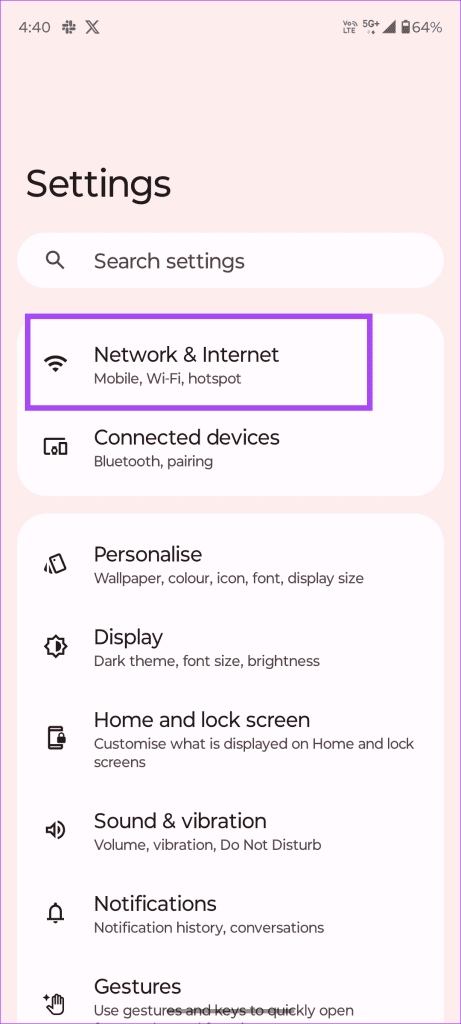
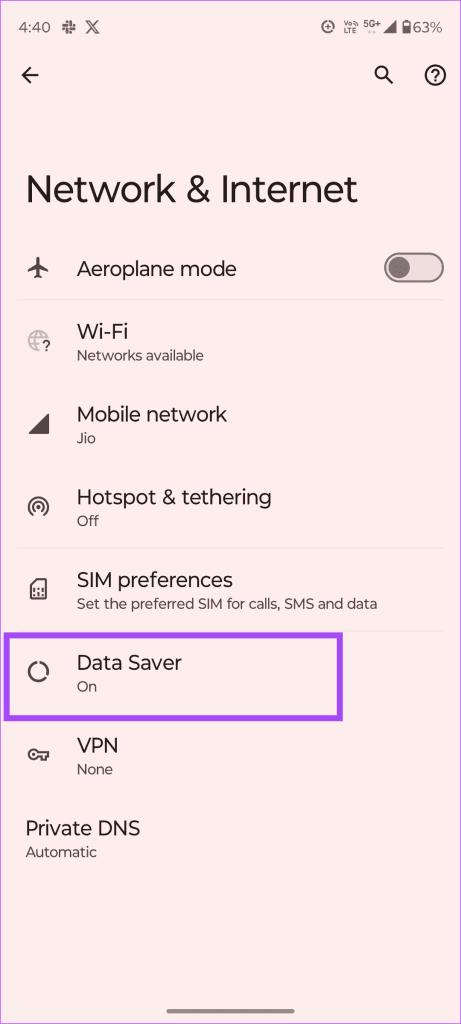
If you have data saver enabled on your device, it may restrict WhatsApp from receiving notifications.
Step 1: Go to Settings > Network & Internet > Data Saver.
Step 2: Toggle off Use Data Saver.

Fix 2: Enable Background Data Usage
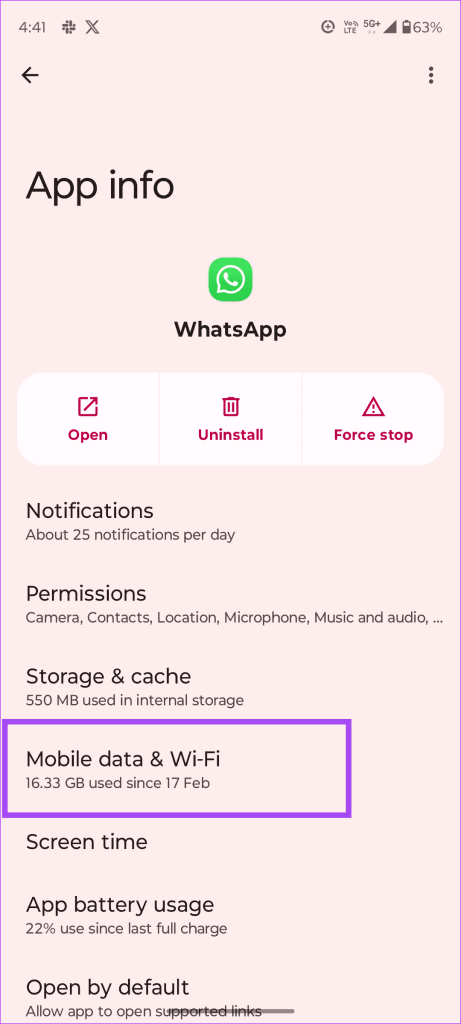
Step 1: Go to Settings > Apps > WhatsApp > Mobile data & Wi-Fi.
Step 2: Toggle on Background data.


Fix 3: Turn Off Battery Saver Mode
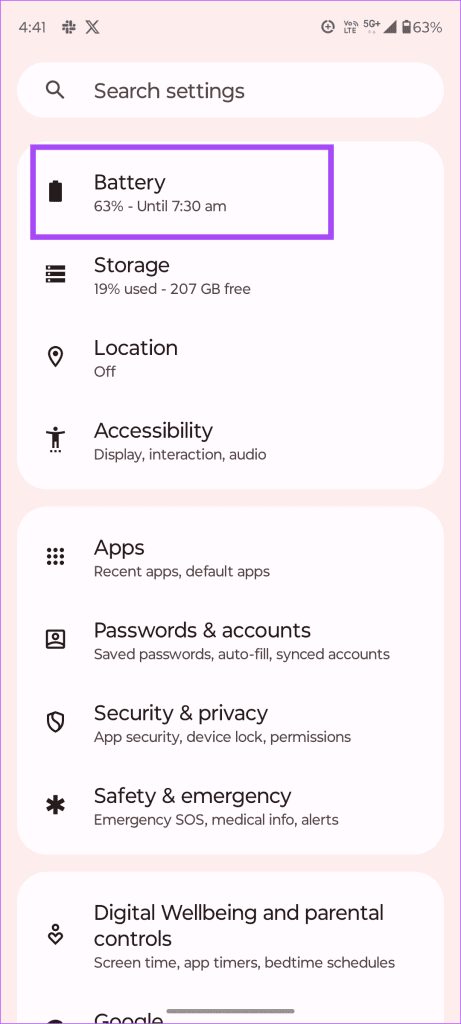
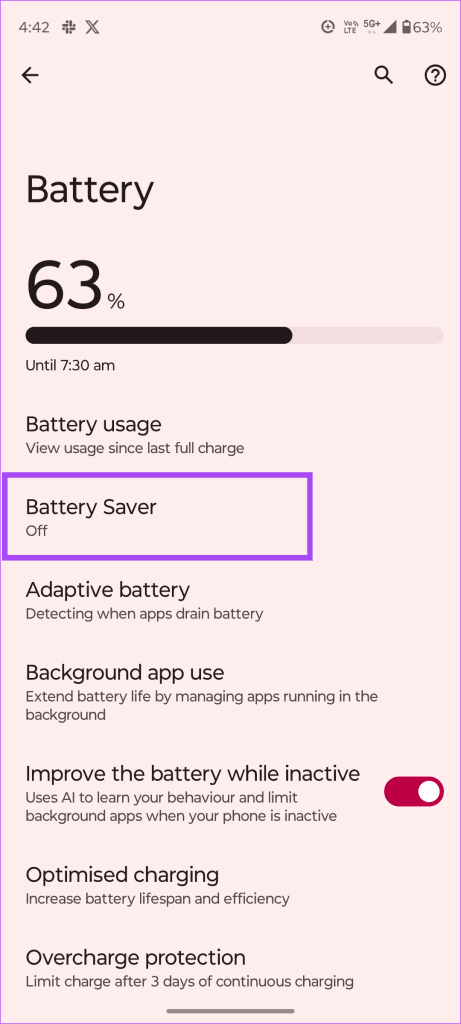
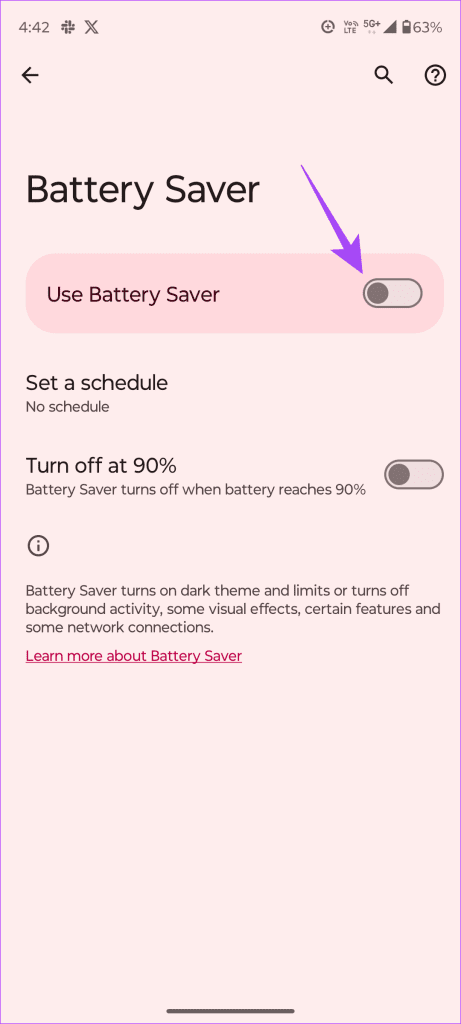
Battery saver limits background app activity to save battery power. If this feature is enabled, WhatsApp won’t function properly, causing it to constantly check for new messages.
Step 1: Navigate to Settings > Battery > Battery Saver.
Step 2: Toggle off Use Battery Saver.
Also Read: How to Fix “Waiting for this message” error on WhatsApp
Why Does WhatsApp Say Checking for New Messages?
WhatsApp says, “Checking for new messages,” even if there are no new messages to display. This could be due to a slow or unstable internet connection.
Another reason could be an outdated app version. If you haven’t updated your WhatsApp, it may struggle with checking for new messages, triggering this notification.
Additionally, if your device has background data restrictions, this could also cause the persistent “Checking for new messages” notification.
Was this helpful?
Last updated on 01 August, 2024
Read Next
 5 Ways to Fix Error Checking for Updates in the Google Play Store
Basic Fixes Check the app update preference: If you can't update apps manually, check the app update preference to automate it.
5 Ways to Fix Error Checking for Updates in the Google Play Store
Basic Fixes Check the app update preference: If you can't update apps manually, check the app update preference to automate it.
 Fix: WhatsApp Not Showing Message Notifications Until Opened
Common Fixes Unmute the WhatsApp conversation: Long-tap the muted contact or group and select the Sound icon at the top right corner to unmute it.
Fix: WhatsApp Not Showing Message Notifications Until Opened
Common Fixes Unmute the WhatsApp conversation: Long-tap the muted contact or group and select the Sound icon at the top right corner to unmute it.
 4 Ways to Fix Windows Stuck on Checking for Updates
Basic Fixes Check internet connection: Ensure your PC is connected to a stable Wi-Fi or Ethernet connection.
4 Ways to Fix Windows Stuck on Checking for Updates
Basic Fixes Check internet connection: Ensure your PC is connected to a stable Wi-Fi or Ethernet connection.
 3 Ways to Fix Apple Mail Stuck on Checking for Mail on iPhone
Basic Fixes: Check the network connection: First, check the network connection quality on your iPhone. If you face network issues, you can enable Airplane mode on your iPhone and disable it
3 Ways to Fix Apple Mail Stuck on Checking for Mail on iPhone
Basic Fixes: Check the network connection: First, check the network connection quality on your iPhone. If you face network issues, you can enable Airplane mode on your iPhone and disable it
 3 Ways to Fix Discord Stuck on Checking for Updates
Preliminary Fixes Restart your PC: This will stop all the running background processes in Discord from working properly and allow you to check again.
3 Ways to Fix Discord Stuck on Checking for Updates
Preliminary Fixes Restart your PC: This will stop all the running background processes in Discord from working properly and allow you to check again.
 4 Ways to Fix Delayed WhatsApp Notifications on Android
https://youtu.be/2HV0Hl2epgk Try Basic Fixes Update WhatsApp: Your WhatsApp notifications might not work as expected if you’re using an outdated or buggy version of the app.
4 Ways to Fix Delayed WhatsApp Notifications on Android
https://youtu.be/2HV0Hl2epgk Try Basic Fixes Update WhatsApp: Your WhatsApp notifications might not work as expected if you’re using an outdated or buggy version of the app.
 3 Ways to Fix Delayed Telegram Message Notifications on iPhone
Try These Things First Disable Low Data Mode: The first thing to do is turn off Low Data Mode on your iPhone.
3 Ways to Fix Delayed Telegram Message Notifications on iPhone
Try These Things First Disable Low Data Mode: The first thing to do is turn off Low Data Mode on your iPhone.
 5 Ways to Fix Waiting for This Message Error on WhatsApp
Why Do I See the 'Waiting for This Message' Error?
5 Ways to Fix Waiting for This Message Error on WhatsApp
Why Do I See the 'Waiting for This Message' Error?
The article above may contain affiliate links which help support Guiding Tech. The content remains unbiased and authentic and will never affect our editorial integrity.