

Try These Basic Fixes
- Remove the phone case: If your iPhone’s case remains pressed against one of the volume buttons, the volume level can increase or decrease. This can happen if your case is broken or does not fit properly. So, remove the case and check.
- Clean volume buttons: Over time, dust and grime can clog your iPhone’s volume buttons leading them to malfunction. Use a soft-bristled brush to gently remove any dirt surrounding the volume button. If that doesn’t help, try other tips to fix your iPhone’s volume buttons.
- Turn off Bluetooth: Bluetooth devices connected to your iPhone can also change your iPhone’s volume levels. Using wireless earphones or speakers that support touch gestures may result in unintended volume changes. To avoid this, turn off Bluetooth on your iPhone when it’s not in use.
Fix 1: Disable Attention-Aware Features
Attention Aware uses your iPhone’s front camera to lower the volume of alarms or phone calls when you look at the screen. This may lead you to believe that your iPhone’s volume is going down. If you don’t want this to happen, disable the Attention-Aware features on your iPhone.
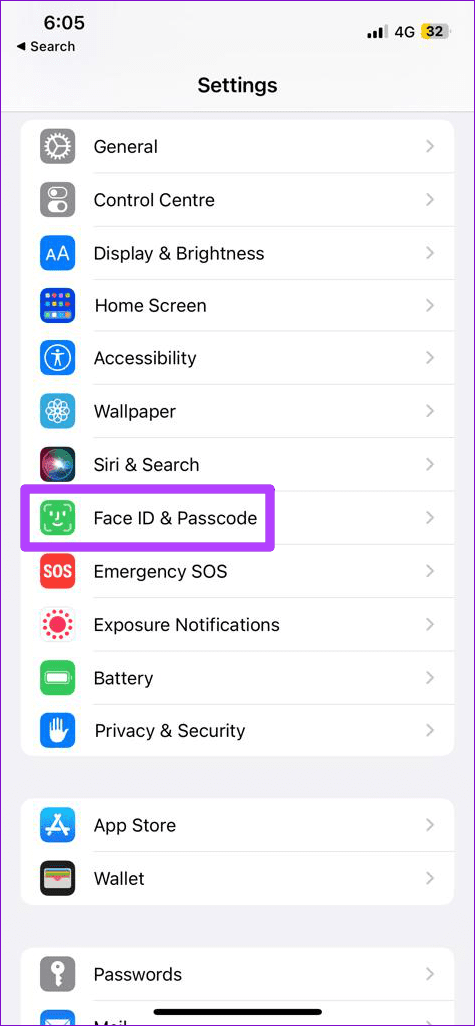
Step 1: Open the Settings app and scroll down to tap on Face ID & Passcode. Then, enter your passcode to verify your identity.
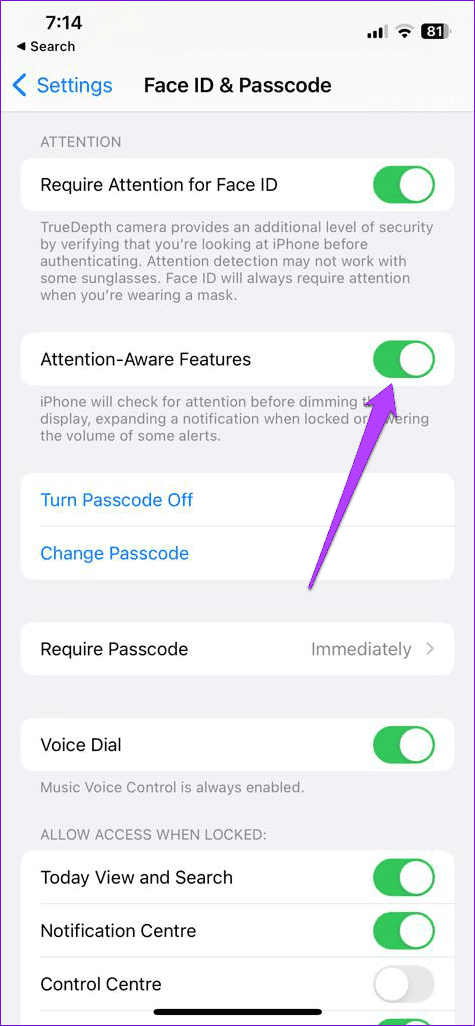
Step 2: Turn off the toggle for Attention-Aware Features.
Fix 2: Check if the Issue Is App-Related
If the volume changes only occur while using a specific app, the problem may be with the app itself. You can check the App Store on your iPhone to see if any updates are available for the problematic app.
You can try re-installing the app on your iPhone if updating it does not fix the issue.
Fix 3: Reset Your iPhone
If your iPhone’s volume level is still going up or down by itself, consider resetting it as a last resort. Since this option resets all your iPhone settings to default, it’s likely to fix the issue.
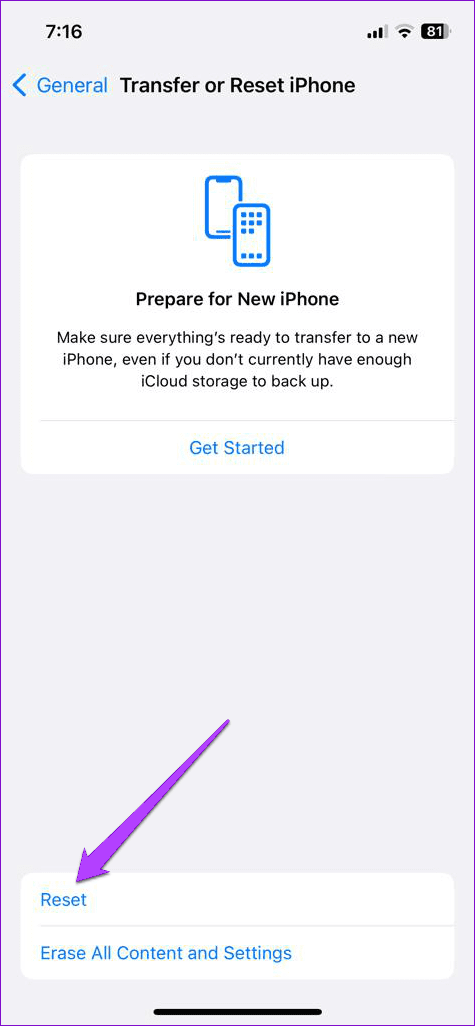
Step 1: Open the Settings app and tap on General > Transfer or Reset iPhone.


Step 2: Tap on Reset at the bottom and select Reset All Settings from the resulting menu. When prompted, enter your iPhone’s passcode.

Once you finish resetting your iPhone, the issue should not bother you.
Was this helpful?
Last updated on 01 May, 2024
Read Next
 7 Ways to Fix Volume Level Automatically Goes Up or Down in Windows 11
Fix 1: Run the Audio Troubleshooter Microsoft offers several troubleshooters to help you identify and resolve common system-related issues on Windows.
7 Ways to Fix Volume Level Automatically Goes Up or Down in Windows 11
Fix 1: Run the Audio Troubleshooter Microsoft offers several troubleshooters to help you identify and resolve common system-related issues on Windows.
 How to Control Integrity Level of Windows 10 Files, Folders
Ever had the problem of ‘Access is Denied’ while browsing through your own computer?
How to Control Integrity Level of Windows 10 Files, Folders
Ever had the problem of ‘Access is Denied’ while browsing through your own computer?
 Check Your Android Device’s Security Patch Level in 3 Steps
Security is of paramount importance, especially in the highly connected modern world, where devices are vulnerable to remote attacks and everything from your financial to personal data can be mined
Check Your Android Device’s Security Patch Level in 3 Steps
Security is of paramount importance, especially in the highly connected modern world, where devices are vulnerable to remote attacks and everything from your financial to personal data can be mined
 5 Ways to Fix Low or Loud Alarm Volume on iPhone
Common Fixes Restart iPhone - Press and hold either of the volume buttons with the side button and drag the power off slider to shut down.
5 Ways to Fix Low or Loud Alarm Volume on iPhone
Common Fixes Restart iPhone - Press and hold either of the volume buttons with the side button and drag the power off slider to shut down.
 3 Ways to Fix Volume Buttons Not Working on iPhone
Basic Fixes Remove the case: The case might be tight and restrict the volume buttons from clicking.
3 Ways to Fix Volume Buttons Not Working on iPhone
Basic Fixes Remove the case: The case might be tight and restrict the volume buttons from clicking.
 5 Ways to Fix Low Call Volume on iPhone
Basic Fixes Clean earpiece - Gently clean the earpiece cavity to remove accumulated dust and debris.
5 Ways to Fix Low Call Volume on iPhone
Basic Fixes Clean earpiece - Gently clean the earpiece cavity to remove accumulated dust and debris.
 4 Ways to Fix Apple Music Low Volume Issue on iPhone
Basic Fixes: Check volume levels on iPhone: If the volume levels are set to low, it might result in an overall low volume when using Apple Music.
4 Ways to Fix Apple Music Low Volume Issue on iPhone
Basic Fixes: Check volume levels on iPhone: If the volume levels are set to low, it might result in an overall low volume when using Apple Music.
 3 Fixes for WhatsApp Voice Message Playing at Low Volume on iPhone
Basic Fixes Avoid proximity sensor activation: Don't bring your iPhone closer to your ear while listening to the voice messages.
3 Fixes for WhatsApp Voice Message Playing at Low Volume on iPhone
Basic Fixes Avoid proximity sensor activation: Don't bring your iPhone closer to your ear while listening to the voice messages.
The article above may contain affiliate links which help support Guiding Tech. The content remains unbiased and authentic and will never affect our editorial integrity.

