


Basic Fixes
- Restart device: Restart your Android device to get rid of temporary bugs and glitches.
- Remove phone case: Check if your phone case is pressing the physical buttons and automatically turn the volume up and down
- Check headphone controls: If you’ve connected to a pair of headphones/earphones, check if the volume buttons are being accidentally pressed.
Fix 1: Understand Sound Profiles
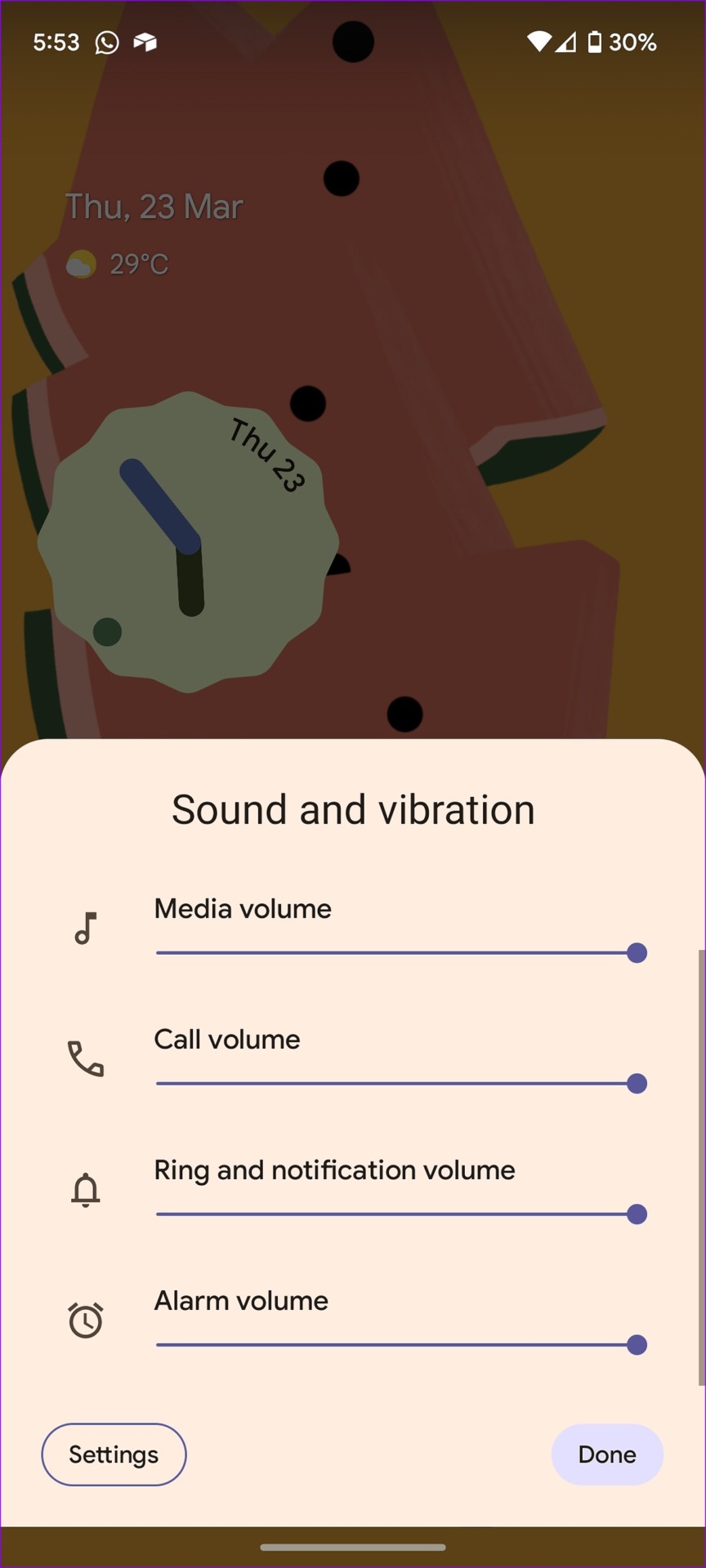
You can keep a separate volume for media, calls, notifications, and alarms. If you have turned down the volume for incoming calls or media, make the necessary changes.
Press any volume button to open a small sound menu. Select the three dots menu to open the familiar Sound & vibration menu.
Alternatively, you can also go to Settings > Sound and Vibration, and use the slider to adjust the volumes.


Fix 2: Disable Adaptive Sound
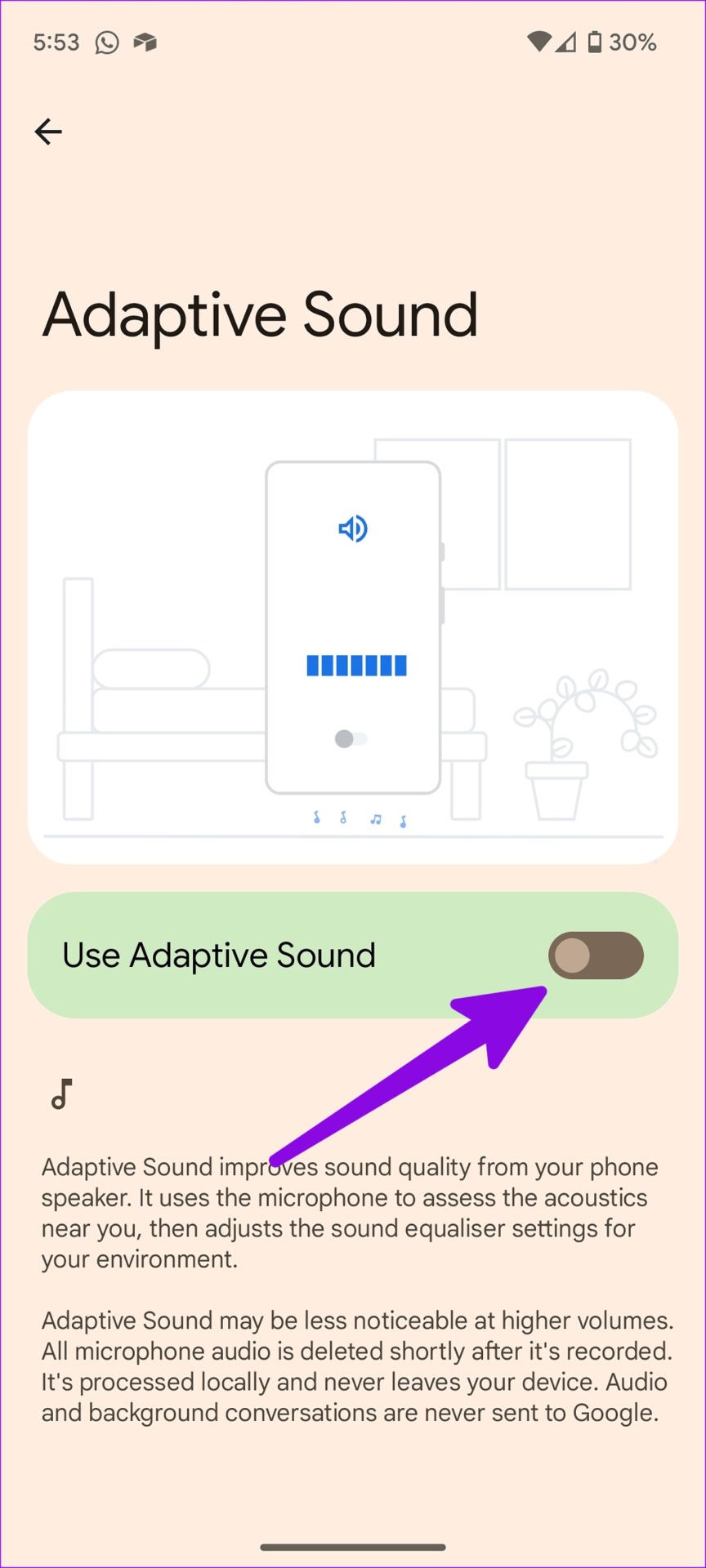
Adaptive sound improves sound quality by using the microphone to access the acoustics near you. The function adjusts the sound equalizer settings for your environment. It can be the reason if the volume keeps going down automatically.
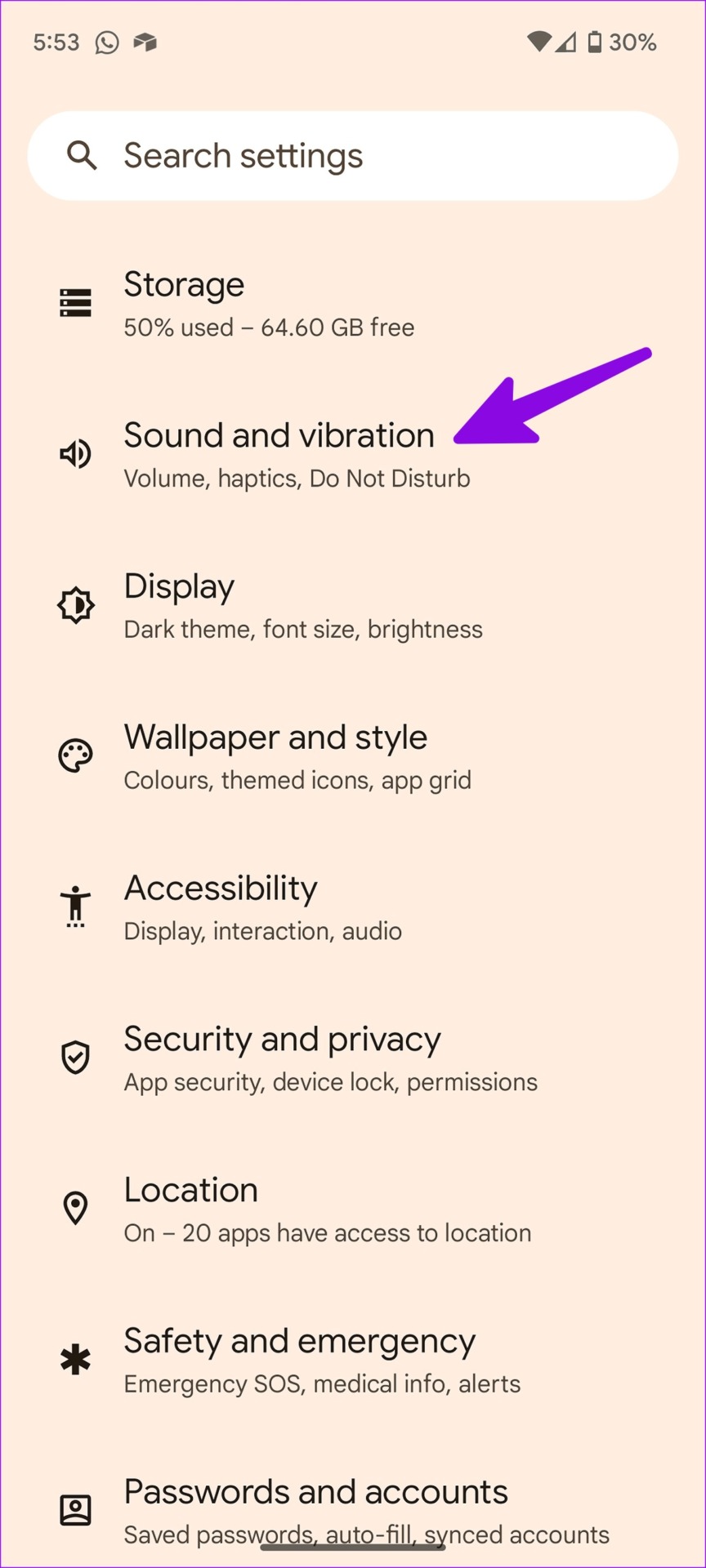
Open the Settings app > Sound and Vibration> Adaptive Sound and turn it off.

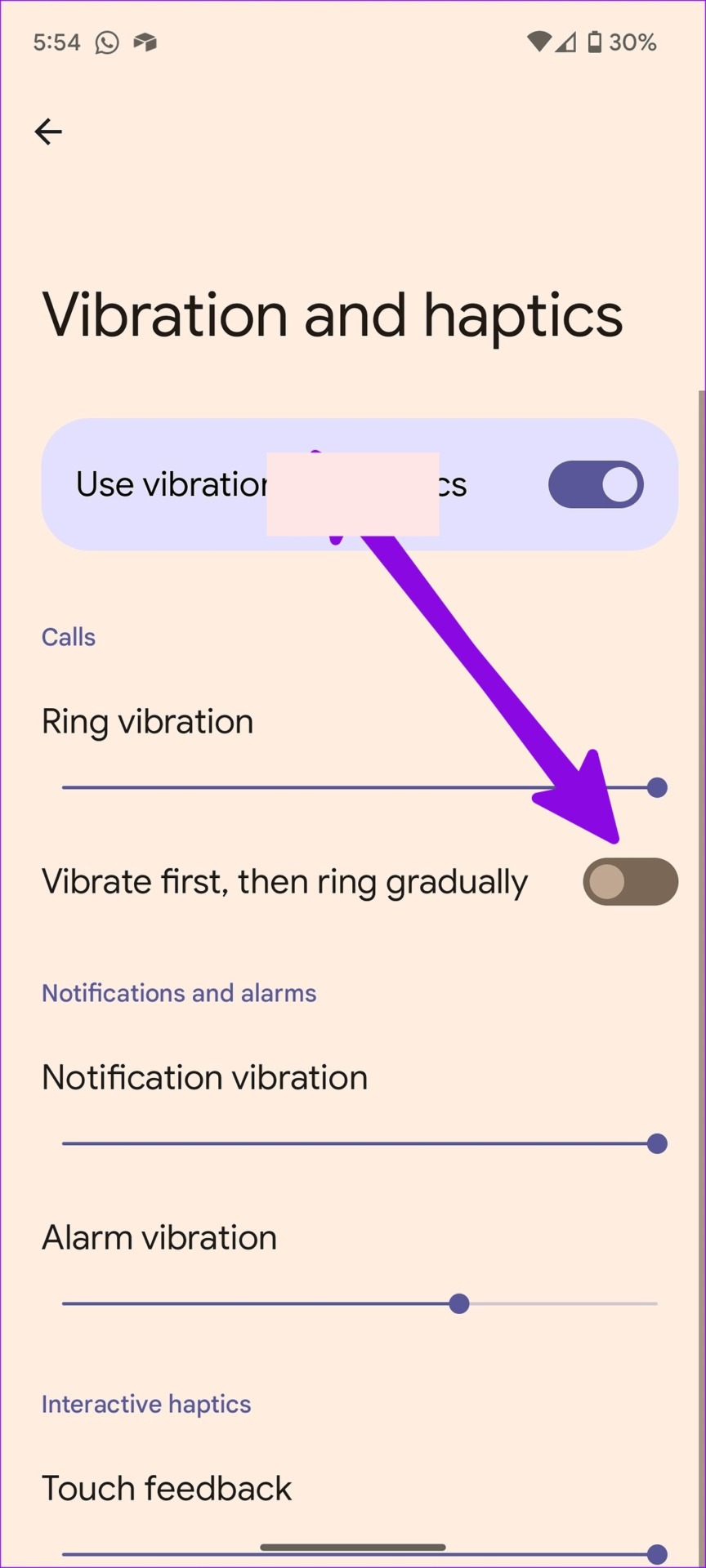
Fix 3: Disable Ring Gradually
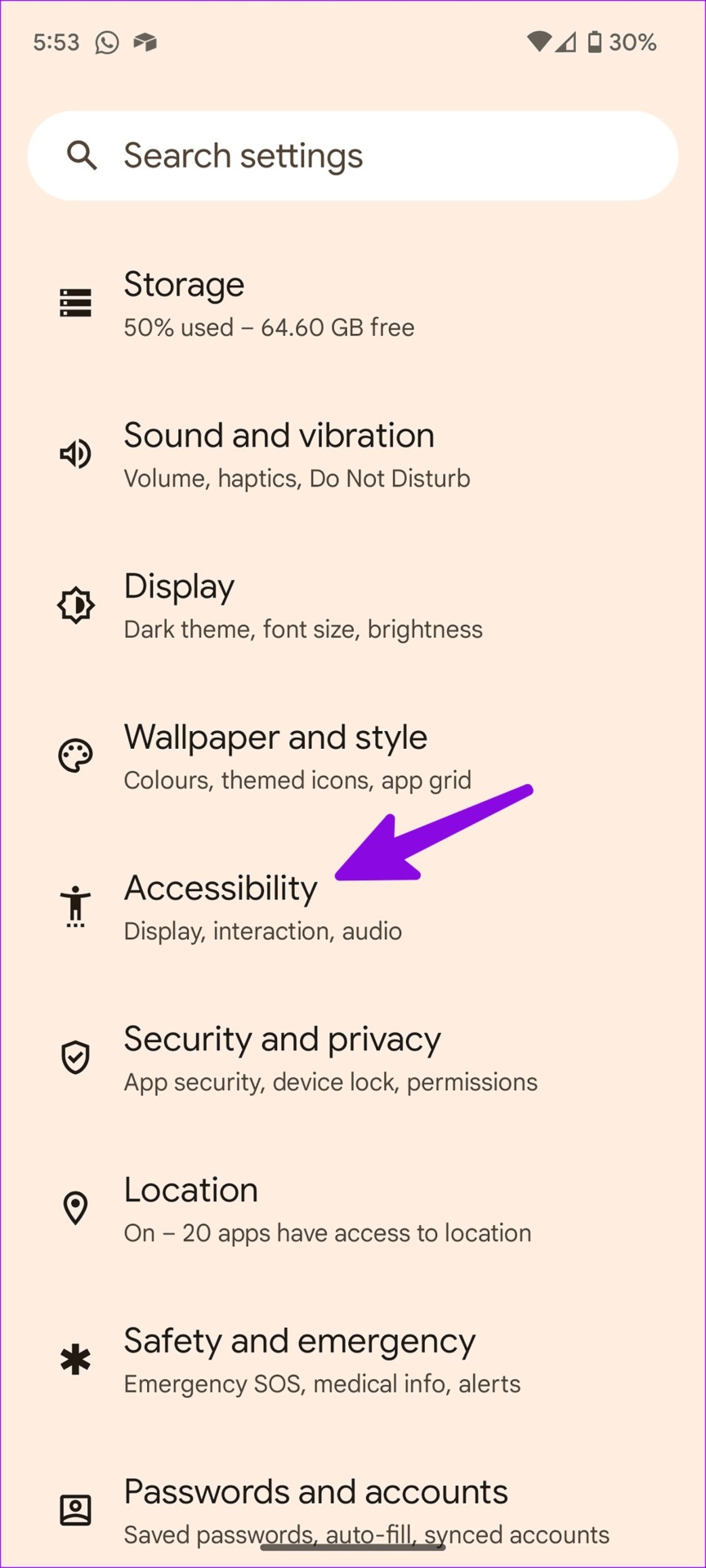
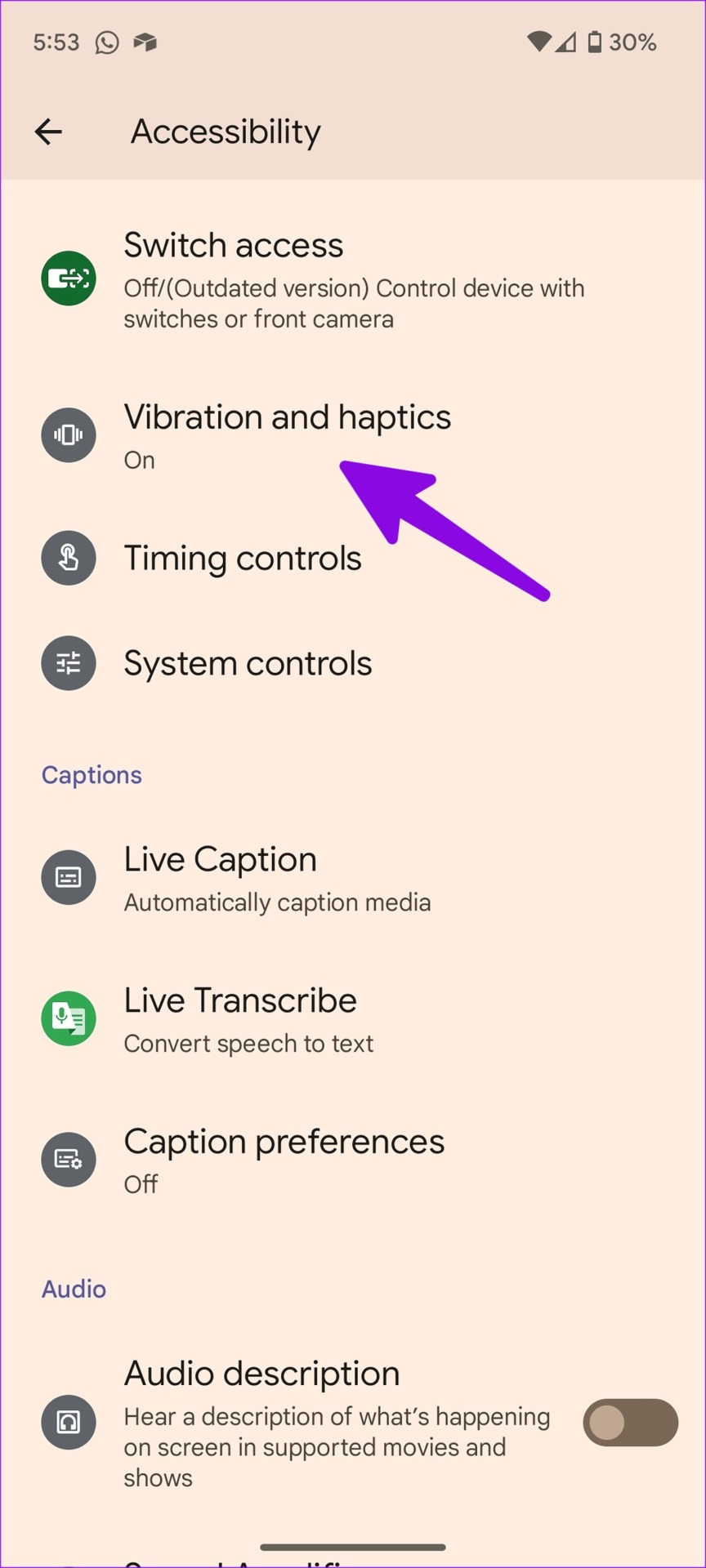
If enabled, your Android phone begins to vibrate for an incoming call, starts ringing with a low volume, and gradually increases it. To disable it, go to Settings > Accessibility > Vibration and Haptics and turn it off.
Fix 4: Disable Routines on Samsung Phones
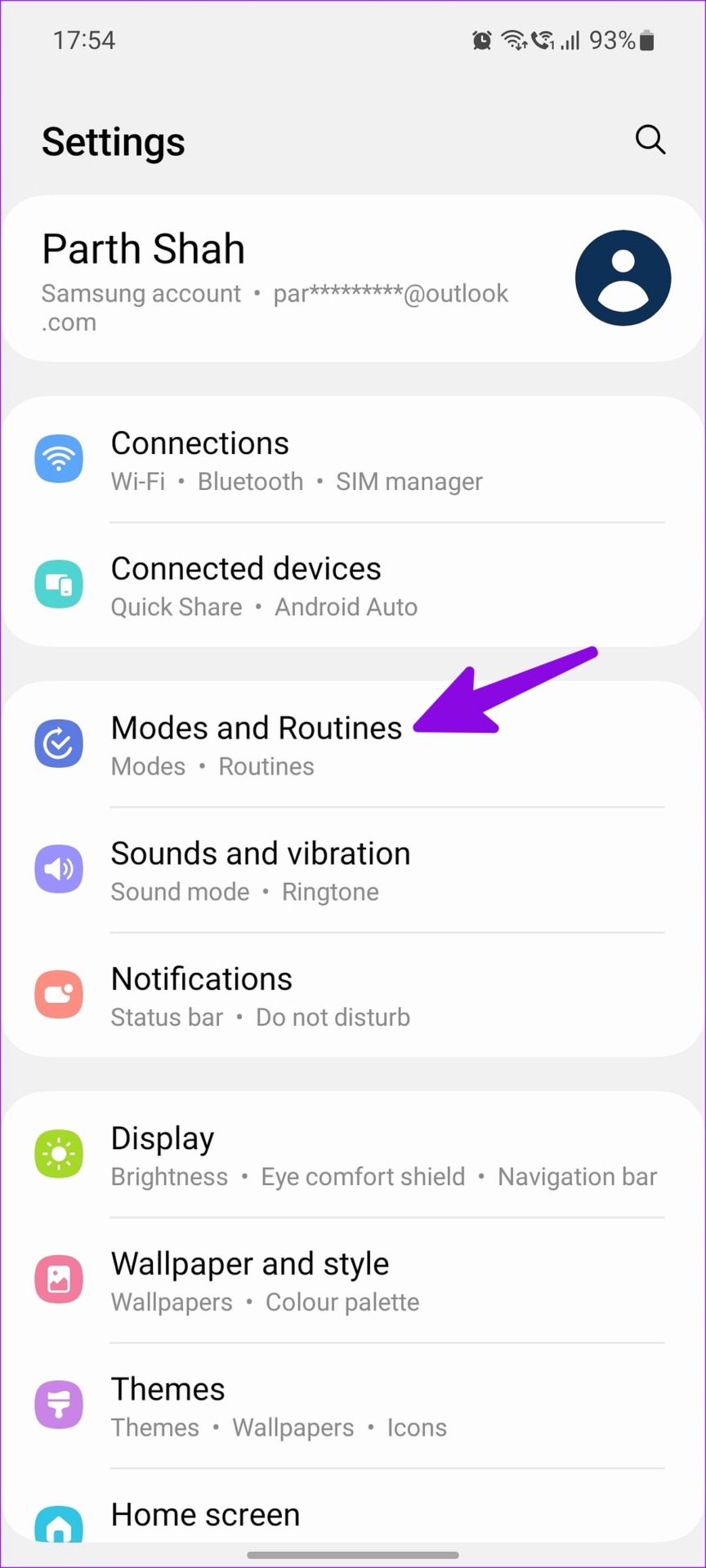
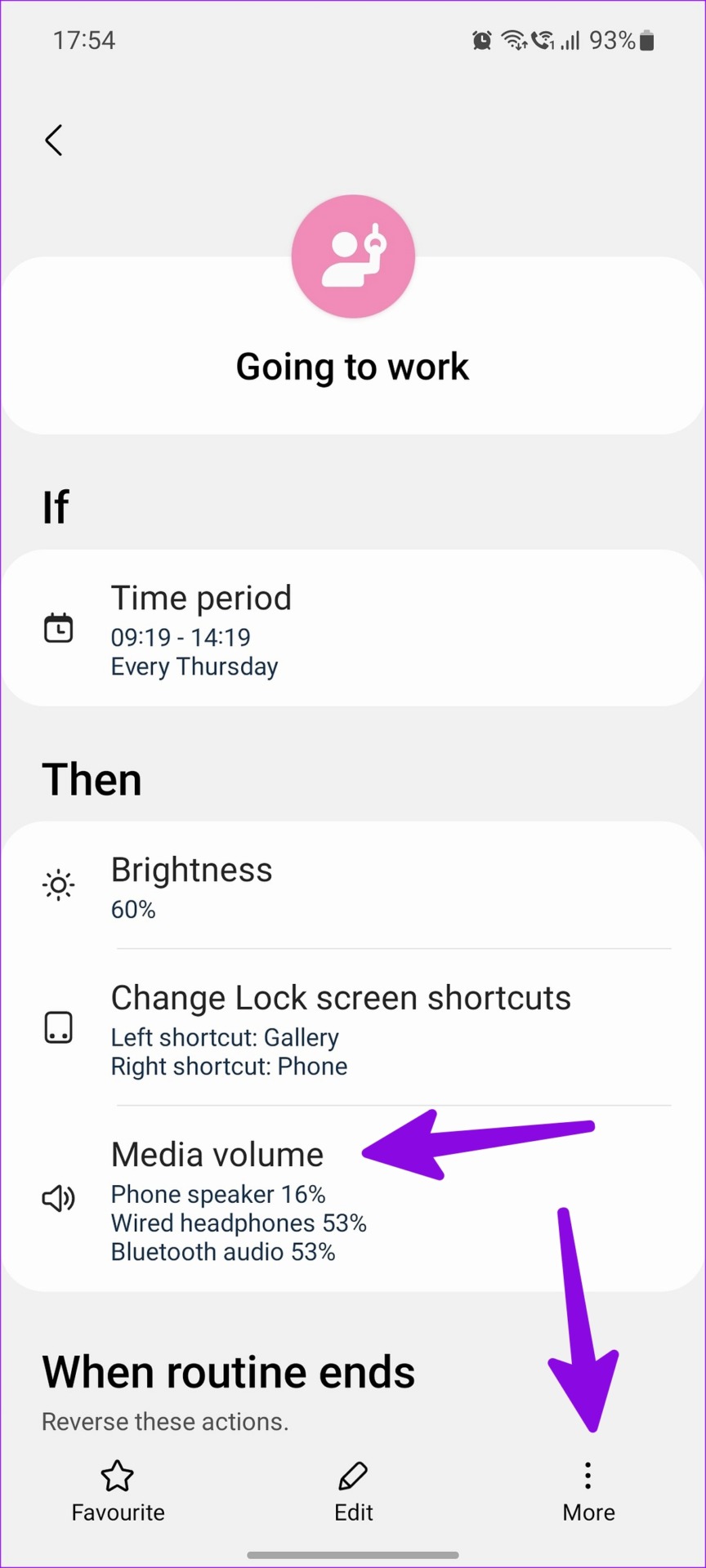
Samsung’s One UI has modes and routines to automate tasks on your Galaxy phone. If a specific routine is turning down the volume, you need to edit or delete it.
For example, you may have created a routine to reduce the volume at night, during work hours, or when you reach the office. Here’s how you can edit or delete such routines.
Step 1: Open the Settings app, select Modes and Routines, and go to the Routines tab.
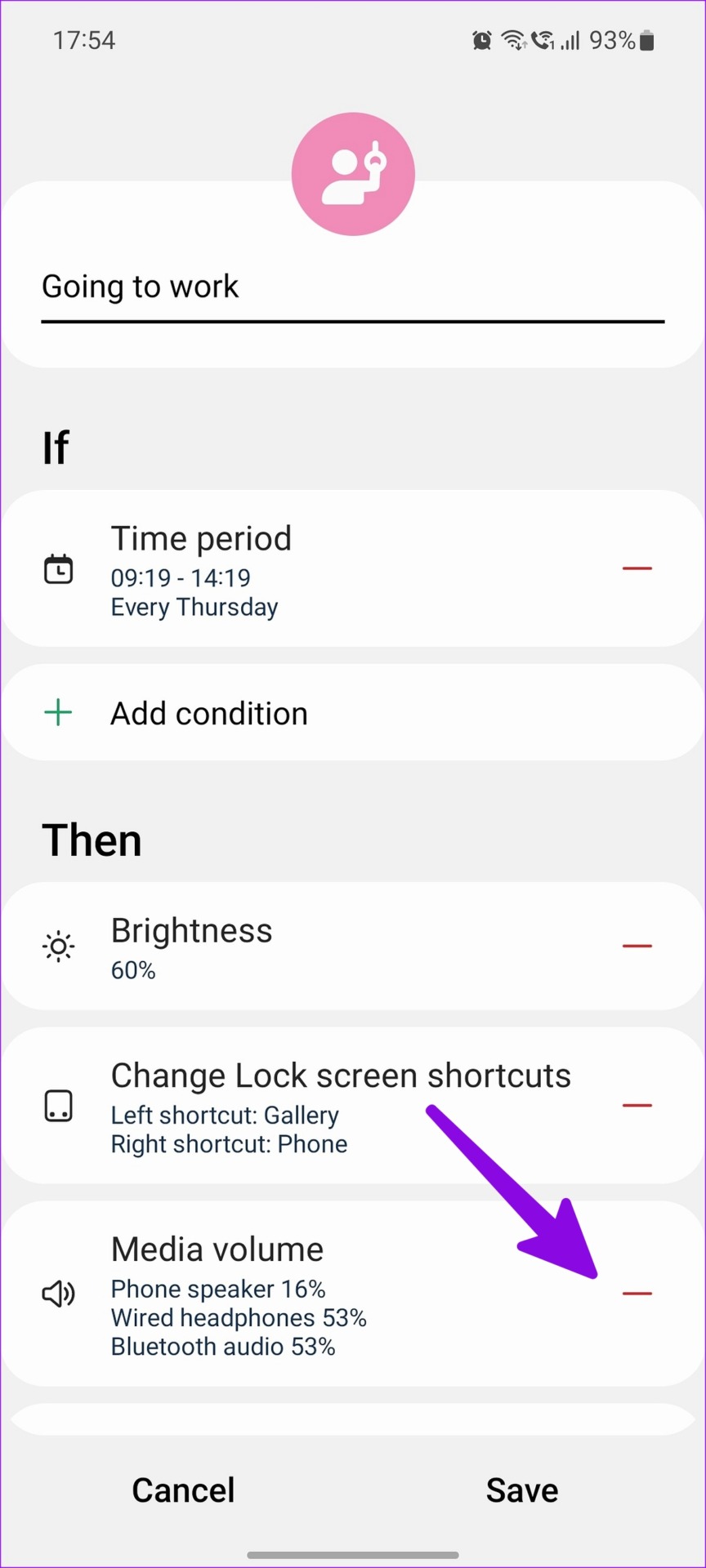
Step 2: Select a routine and check the conditions. If it’s turning up or down volume levels, hit the edit button.


Step 3: You can tap the ‘–‘ button and remove the condition. You can also tap More in the bottom right corner and delete the routine.

Also Read: 6 ways to fix volume buttons not working on Android
Fix 5: Disable Media Volume Limit
If your device is automatically decreasing the media volume, you will need to disable the Media Volume Limit feature.
Here’s how you can do it on a Samsung Galaxy device.
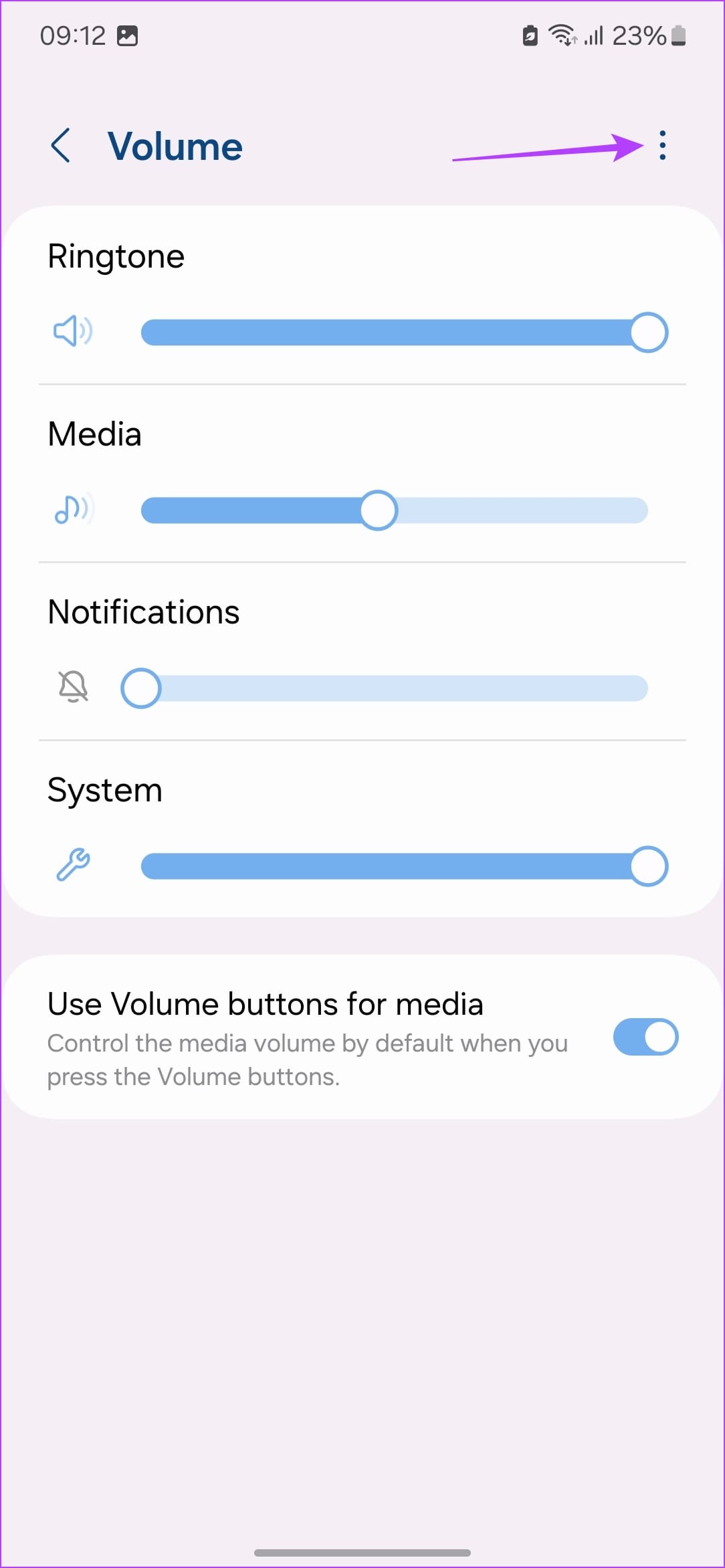
Step 1: Go to Settings > Sound and Vibration> Volume.
Step 2: Click on the three-dots icon, select Media Volume Limit, and turn it off.


Was this helpful?
Last updated on 08 July, 2024
5 Comments
Leave a Reply
Read Next
 4 Ways to Fix Do Not Disturb Turning on Automatically on iPhone
Fix 1.
4 Ways to Fix Do Not Disturb Turning on Automatically on iPhone
Fix 1.
 4 Ways to Stop Bluetooth From Turning on Automatically on iPhone
Why Does My iPhone’s Bluetooth Keep Turning On?
4 Ways to Stop Bluetooth From Turning on Automatically on iPhone
Why Does My iPhone’s Bluetooth Keep Turning On?
 7 Ways to Fix Volume Level Automatically Goes Up or Down in Windows 11
Fix 1: Run the Audio Troubleshooter Microsoft offers several troubleshooters to help you identify and resolve common system-related issues on Windows.
7 Ways to Fix Volume Level Automatically Goes Up or Down in Windows 11
Fix 1: Run the Audio Troubleshooter Microsoft offers several troubleshooters to help you identify and resolve common system-related issues on Windows.
 3 Ways to Stop iPhone Wi-Fi From Turning on Automatically
Fix 1: Turn Off Wi-Fi in Settings When you toggle off Wi-Fi from the Control Center, it only turns it off temporarily.
3 Ways to Stop iPhone Wi-Fi From Turning on Automatically
Fix 1: Turn Off Wi-Fi in Settings When you toggle off Wi-Fi from the Control Center, it only turns it off temporarily.
 How to Stop iPhone From Turning Off, Sleeping, or Locking Automatically
Basic Fixes Restart Device: You can try restarting your device to see if it fixes the problem.
How to Stop iPhone Personal Hotspot From Turning On Automatically
https://youtu.be/RIBOWbQOnMU Fix 1.
How to Stop iPhone From Turning Off, Sleeping, or Locking Automatically
Basic Fixes Restart Device: You can try restarting your device to see if it fixes the problem.
How to Stop iPhone Personal Hotspot From Turning On Automatically
https://youtu.be/RIBOWbQOnMU Fix 1.
 Why Is My iPhone and Android Phone Screen Turning Green and How to Fix It
Your iPhone or Android screen may sometimes turn green after installing a new OS version.
Why Is My iPhone and Android Phone Screen Turning Green and How to Fix It
Your iPhone or Android screen may sometimes turn green after installing a new OS version.
 4 Ways to Fix Android Phone Automatically Goes into Silent Mode
Basic Fixes Restart device: Restart your Android device to fix temporary bugs and glitches.
4 Ways to Fix Android Phone Automatically Goes into Silent Mode
Basic Fixes Restart device: Restart your Android device to fix temporary bugs and glitches.
The article above may contain affiliate links which help support Guiding Tech. The content remains unbiased and authentic and will never affect our editorial integrity.

Hi there,
My problem in my Android tablet has always been when I visit News Channels in Youtube like CNN, NBC, ABC news, choosing latest video news clips to watch; since I’m using my earphones, many times I always hear someone actually listening to me, background noises on other end, careful listening in. What I did was set Call Volume to zero to disable it. And when I heard something again I’d check Call Volume and it went up like it for enabled and careful listening again. How do you stop someone from listening in these YouTube News Channels. And I also read this happens when visiting social sites always.
Do they know I’m using earphones and can listen to them listening to me ?
Regards,
1. In Device Settings/ Sounds, there is Vibrate for Calls with 3 choices: Never Vibrate, Always Vibrate, and Vibrate then Ring Gradually. I guess I can choose either of the first two choices.
2. In the same Device Settings/ Sounds, there is another Toggle called ‘Vibrate when Silent’ , should this be turned off/disabled as well?
Thank you in advance, it’s actually my first time to come across GuidingTech now that Security and Privacy is beginning to be a major issue I’m concerned about.
Regards,
I have a 2 week old Samsung keeps doing things that i turned off .they automatically turn back on. in my pocket.
My volume automatically goes down from 100% to about 70% constantly. Every single one of these fixes listed were either already done, never set up to begin with, or just not there. I don’t have a volume limiter for the tablet or phone speakers (this is happening on both my tablet and my phone), so there’s no red area for volume.. no warning not to go above it. When Bluetooth speakers are in use I don’t have this issue. Anything that was available and untried, I did try. Both devices are up to date on software.
Researching fixes has shown me that this is a common issue on Android. So there has got to be a fix somewhere for it.
I tried a Volume lock app.