Basic Fixes:
- Check for app updates: Regular updates help ensure your apps get the latest security updates and bug fixes. So, if WhatsApp keeps stopping after the last update, updating the app might help fix it.
- Check your device storage: Insufficient storage space can also cause certain apps, like WhatsApp, to crash. So, check and ensure your Android phone has at least 30% storage space available.
- Force close and restart WhatsApp: Temporary app glitches can also cause the WhatsApp app to crash. When this happens, force all background apps to close. Then, reopen only WhatsApp and see if this fixes the issue.
Fix 1: Clear App Cache
Most Android apps collect cache to help them perform better. However, this cache can also cause app issues, especially if it gets corrupted. You can clear the cache for WhatsApp and see if this fixes the issue. Here’s how.
Step 1: Open Settings and tap on Apps. Here, tap on WhatsApp.


Step 2: Then, tap on Storage > Clear cache.


Fix 2: Update Android System WebView
As the name suggests, Android System WebView helps display web-related content on your phone. So, if the Android System WebView app is out-of-date, it can cause WhatsApp to crash when performing certain functions. Here’s how to update it on your Android phone.
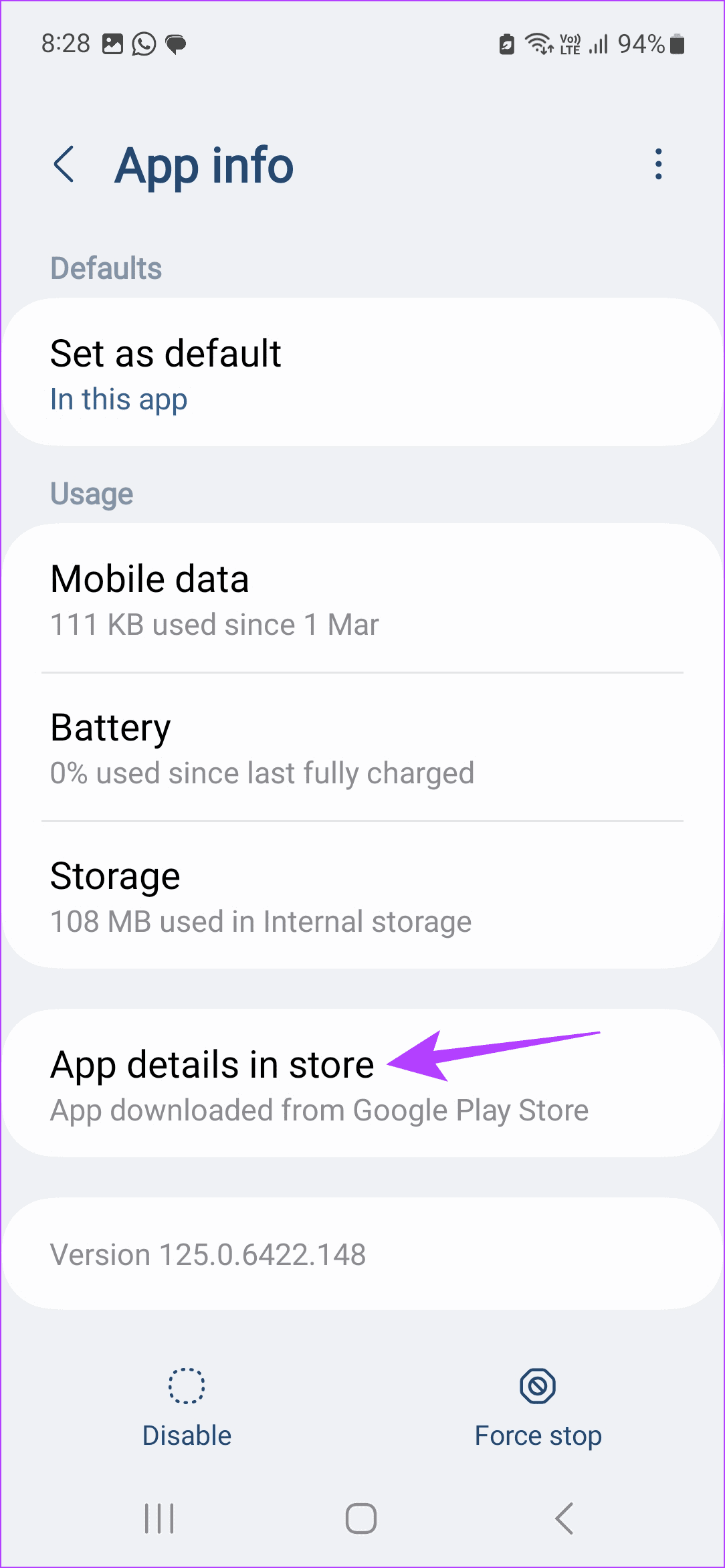
Step 1: Open Settings → Apps and tap on Android System WebView.


Step 2: Scroll down and tap on App details in store. Once Play Store opens, tap on Update.

Also Read: How to fix Android System WebView not updating issue
Fix 3: Ensure All App Permissions Are Enabled
If certain app permissions, like storage permission, are not enabled, the WhatsApp app might crash. Here’s how to check and ensure all app permissions are enabled for WhatsApp.
Step 1: Open Settings → Apps → WhatsApp. Then, tap on Permissions.
Step 2: Go to the Not allowed section and tap on the relevant permission → select Allow.

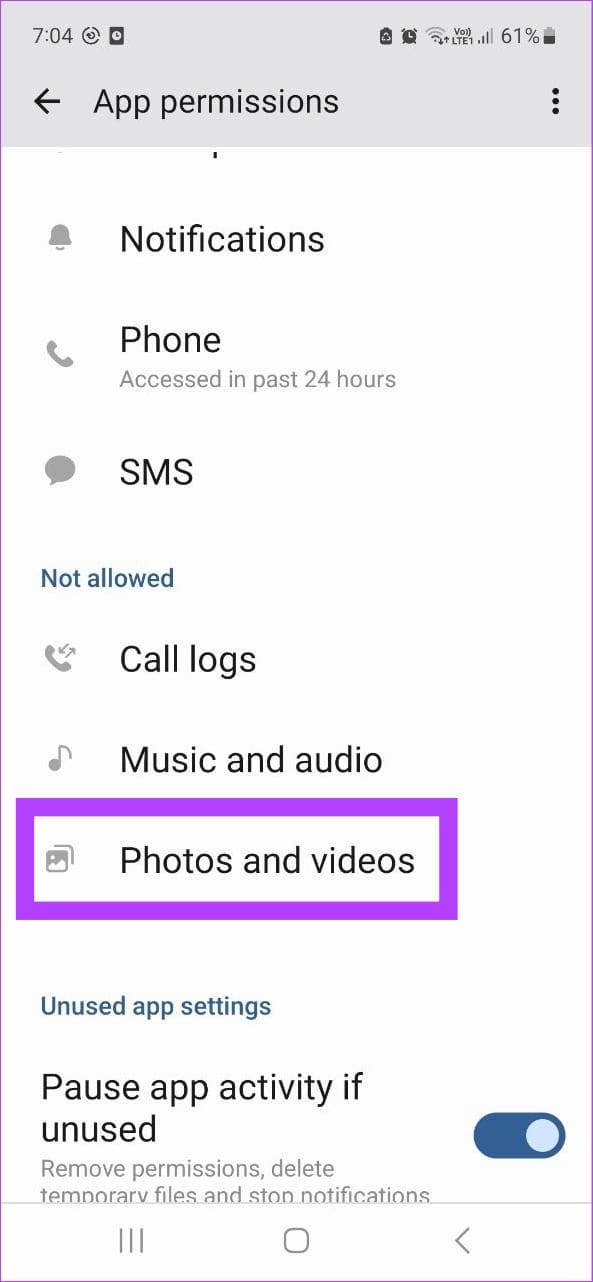

Repeat these steps until all the permissions have been enabled for the WhatsApp app. Then, try using the app again.
Fix 4: Reinstall WhatsApp
If the issue persists, uninstall WhatsApp from your Android device. This will help remove any custom settings causing WhatsApp to crash. Then, reinstall a fresh copy of the app, restore the data, and check if the app is working as expected. Follow the below steps to do it.
Step 1: Open Settings → Apps → WhatsApp. Tap on Uninstall and confirm the same.

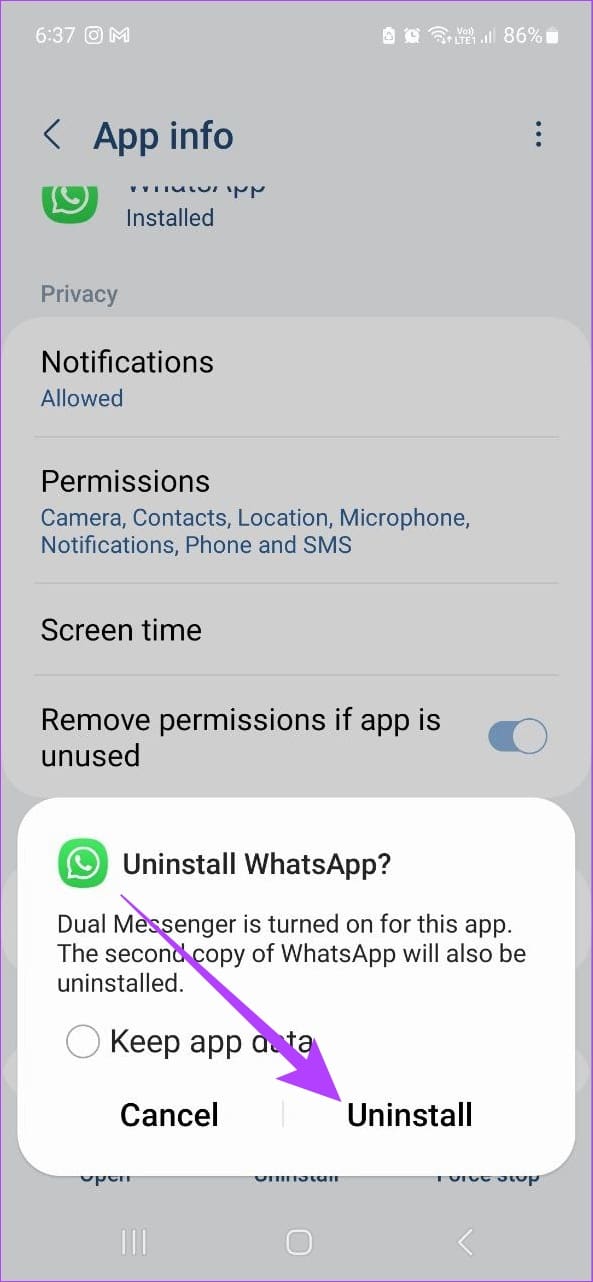
Once WhatsApp finishes uninstalling, go to Play Store and reinstall the app. Set it up and use it for a while to see if the issue has been fixed.
Was this helpful?
Last updated on 27 June, 2024
Read Next
 Top 8 Ways to Fix Unfortunately Messenger Has Stopped Error on Android
Facebook Messenger app is an integral part of the millions of Facebook users.
Top 8 Ways to Fix Unfortunately Messenger Has Stopped Error on Android
Facebook Messenger app is an integral part of the millions of Facebook users.
 4 Ways to Fix “Unfortunately, Settings Has Stopped” on Android
Basic Fixes Update Google Play Services: You install the latest version of Google Play Services on your Android phone and check if the problem is solved.
4 Ways to Fix “Unfortunately, Settings Has Stopped” on Android
Basic Fixes Update Google Play Services: You install the latest version of Google Play Services on your Android phone and check if the problem is solved.
 6 Ways to Fix Google Play Store Has Stopped Error on Android
Common Fixes Restart the device: Long-press the physical Power button and select Restart in the power menu.
6 Ways to Fix Google Play Store Has Stopped Error on Android
Common Fixes Restart the device: Long-press the physical Power button and select Restart in the power menu.
 6 Ways to Fix System UI Has Stopped Error on Android
Basic Fixes Restart your device: Long-press the physical power button or pair it with the volume up key to open the Power menu and select Restart.
6 Ways to Fix System UI Has Stopped Error on Android
Basic Fixes Restart your device: Long-press the physical power button or pair it with the volume up key to open the Power menu and select Restart.
 3 Ways to Fix the “Recording Stopped” Error in Snipping Tool for Windows 11
Try Basic Fixes Disable screen projection: The Snipping Tool may sometimes have trouble recording the screen if you are using multiple displays.
3 Ways to Fix the “Recording Stopped” Error in Snipping Tool for Windows 11
Try Basic Fixes Disable screen projection: The Snipping Tool may sometimes have trouble recording the screen if you are using multiple displays.
 4 Fixes for Bad Module Info Has Stopped Working Error on Windows
Fix 1: Turn off Fullscreen Optimizations Full-screen optimizations in Windows can enhance the performance of your games and programs while they're in full-screen mode.
4 Fixes for Bad Module Info Has Stopped Working Error on Windows
Fix 1: Turn off Fullscreen Optimizations Full-screen optimizations in Windows can enhance the performance of your games and programs while they're in full-screen mode.
 How to Fix Instagram Insights Unavailable or Stopped Working
Basic Troubleshooting Clear Instagram cache: If Instagram collects a corrupt cache, it may fail to load the latest insights.
How to Fix Instagram Insights Unavailable or Stopped Working
Basic Troubleshooting Clear Instagram cache: If Instagram collects a corrupt cache, it may fail to load the latest insights.
 3 Methods to Know Who Stopped Following You on Instagram (With/Without App)
Do you ever wonder who quietly slips away from your Instagram circle?
3 Methods to Know Who Stopped Following You on Instagram (With/Without App)
Do you ever wonder who quietly slips away from your Instagram circle?
The article above may contain affiliate links which help support Guiding Tech. The content remains unbiased and authentic and will never affect our editorial integrity.