


Preliminary Fixes
- Disable Do Not Disturb: If your phone is on DND, you don’t receive notifications from TikTok and other apps. Android users can disable DND by sliding down from the home screen. If you have an iPhone, swipe down from the top-right corner and disable the Focus mode.
- Give TikTok background data permission: TikTok may fetch data while it runs in the background to alert you about new videos, comments, or other actions. So, if TikTok doesn’t have background data permission, it may have issues sending you notifications.
- Remove TikTok from scheduled summary: If you added TikTok to iPhone’s scheduled summary, it will send alerts at set times only. You must remove TikTok from the scheduled summary.
- Update TikTok: An outdated TikTok app on your phone can cause issues with notifications. You must update TikTok to the latest version from the Play Store or App Store.
Fix 2: Check TikTok Notification Permission
If you have denied TikTok notification permission, the app can’t send real-time alerts. Let’s enable notification permission for TikTok.
On iOS
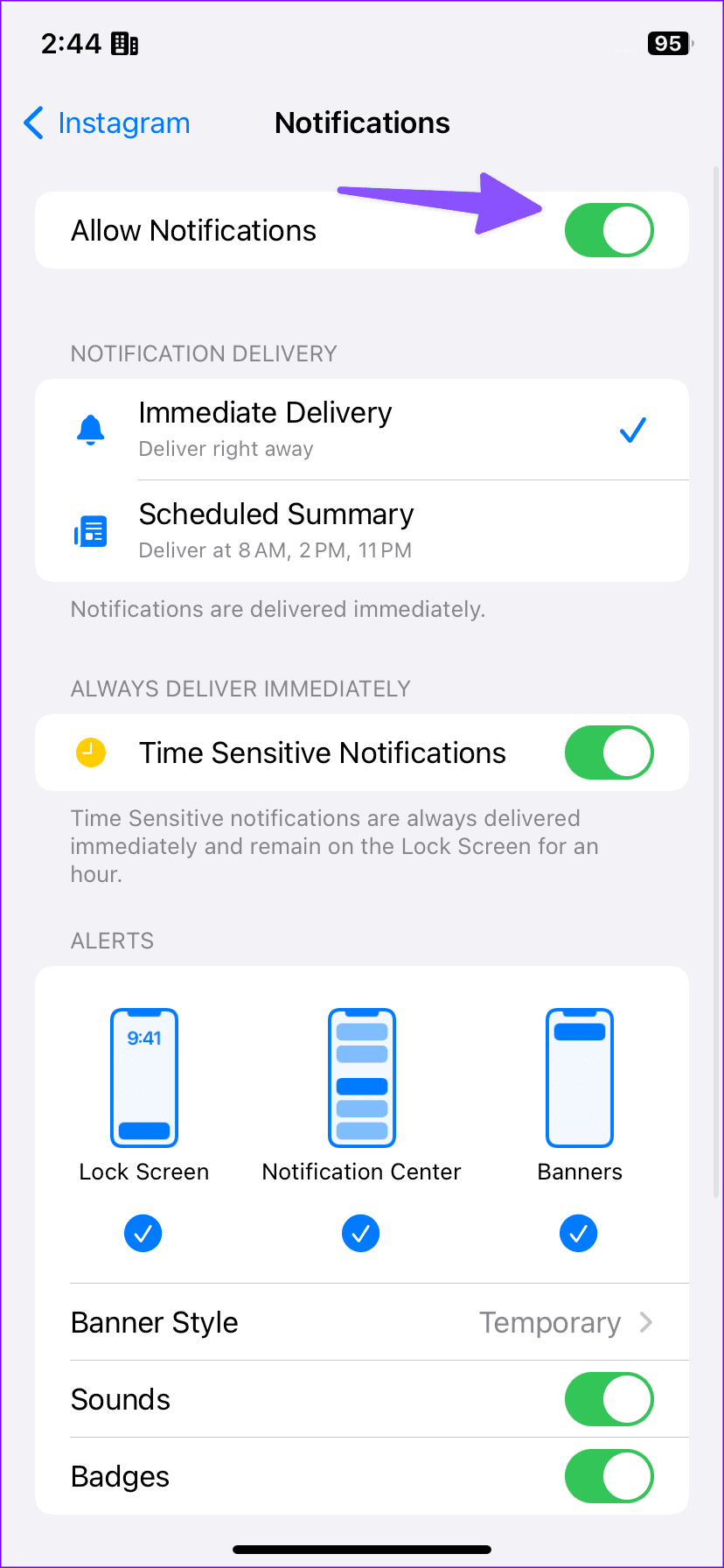
Step 1: Open the Settings app and scroll to TikTok and tap on it.
Step 2: Select Notifications and enable the toggle next to Allow Notifications.

On Android
Step 1: Long-press on TikTok and open the App Info menu.
Step 2: Select Notifications, enable the permission, and tweak the notification style.


Step 3: You can also open Notification categories and enable alerts for relevant categories.


Fix 3: Unmute TikTok Conversations
Step 1: Launch the TikTok app > tap the Inbox icon on the bottom bar.
Step 2: Select a conversation and tap the three horizontal dots menu at the top-right corner.
Step 3: Disable the Mute notifications toggle.


Fix 4: Check In-App Notification Settings
In addition to the Settings app on your Android or iPhone, the TikTok app offers in-app notification settings for finer control.
Step 1: Launch TikTok and move to Profile.
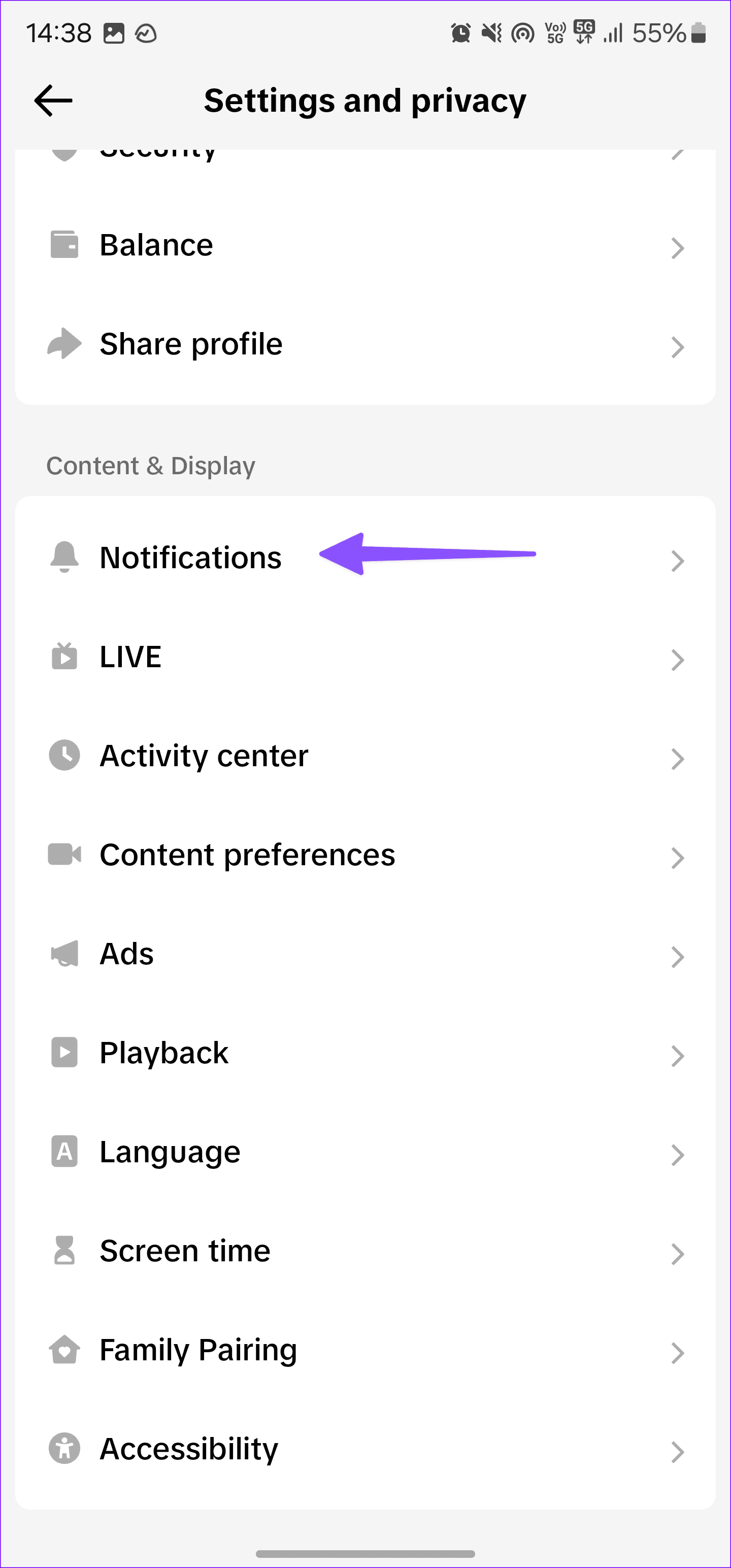
Step 2: Tap the three horizontal lines > open Settings and privacy.

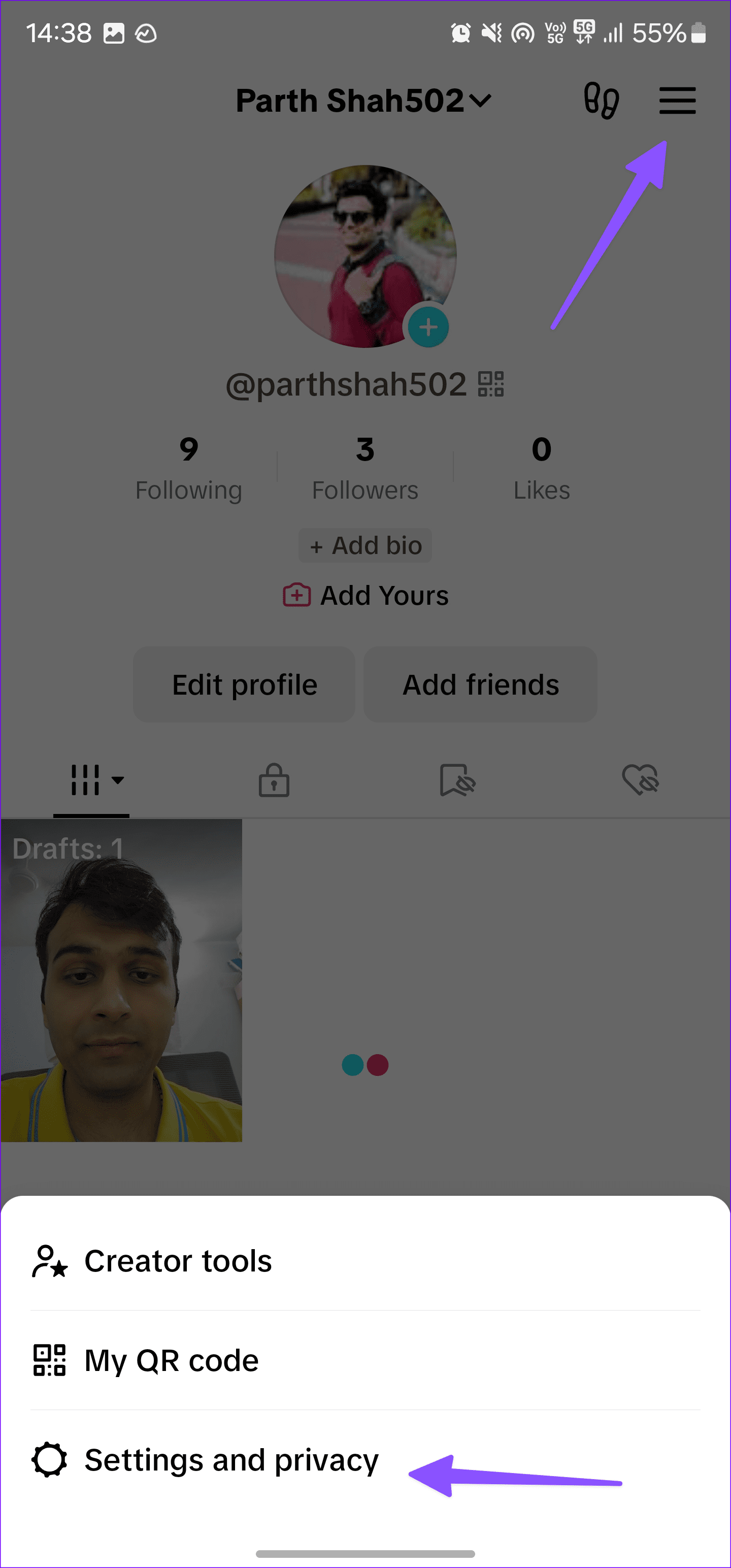
Step 3: Select Notifications. Tap in-app notifications and enable the relevant toggles.
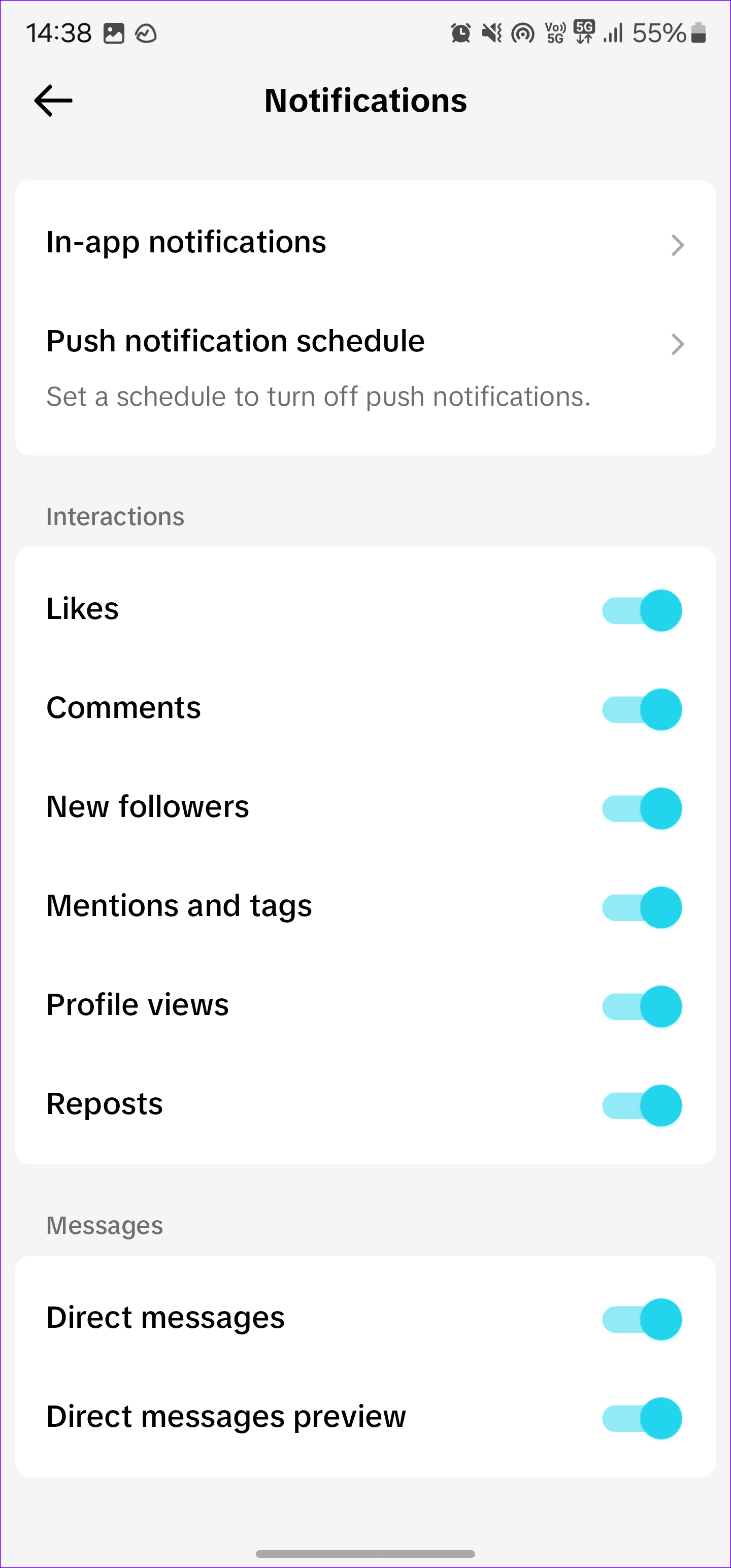
You can enable notifications for relevant options and disable unnecessary ones.
Fix 5: Check Live Notification Settings
Step 1: Go to Settings and privacy section in the TikTok app.
Step 2: Select Notifications.
Step 3: Tap Live notification settings.
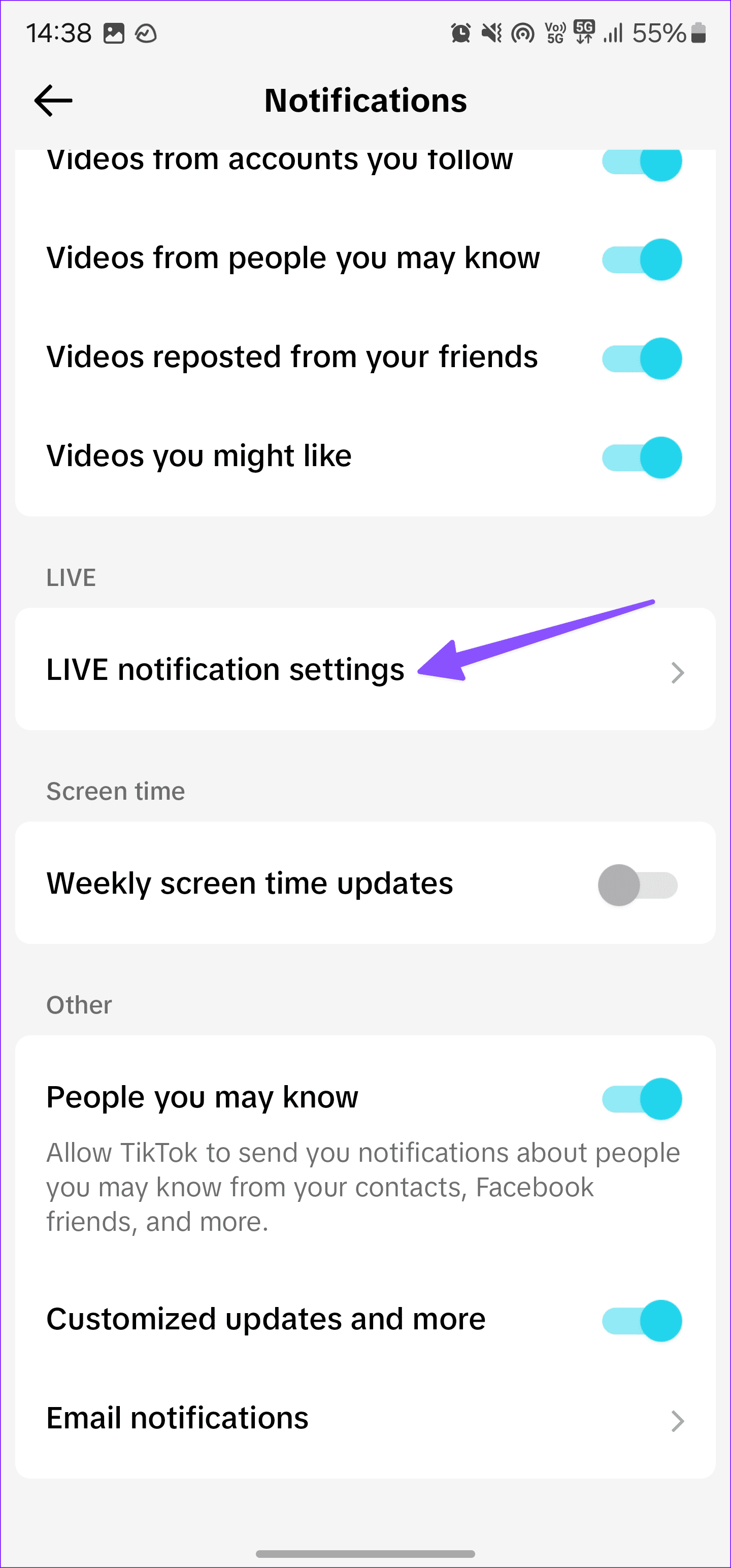
Step 4: Tap the bell icon beside an account you follow and enable notifications for all their activities.
Was this helpful?
Last updated on 30 May, 2024
1 Comment
Leave a Reply
Read Next
 TikTok vs TikTok Lite: What’s Best for You?
TikTok (previously known as Musical.ly) is one of the massively growing social media apps out there, and it's easy to see why.
TikTok vs TikTok Lite: What’s Best for You?
TikTok (previously known as Musical.ly) is one of the massively growing social media apps out there, and it's easy to see why.
 3 Ways to Fix TikTok App Not Loading on Your Phone
Basic Fixes Check your network connection: Ensure your smartphone has a robust internet connection.
3 Ways to Fix TikTok App Not Loading on Your Phone
Basic Fixes Check your network connection: Ensure your smartphone has a robust internet connection.
 3 Ways to Fix TikTok Effects Not Working
Basic Fixes: Ensure you're in the correct region: Due to region restrictions, some TikTok filters may not be available in your country.
3 Ways to Fix TikTok Effects Not Working
Basic Fixes: Ensure you're in the correct region: Due to region restrictions, some TikTok filters may not be available in your country.
 4 Ways to Fix TikTok Search Not Working
Quick Fixes Check TikTok Servers: If TikTok servers are down, you may run into glitches with the search function.
4 Ways to Fix TikTok Search Not Working
Quick Fixes Check TikTok Servers: If TikTok servers are down, you may run into glitches with the search function.
 3 Ways to Fix TikTok Not Working in Web Browser
Preliminary Fixes Check network connection: Ensure your device has a stable network connection.
3 Ways to Fix TikTok Not Working in Web Browser
Preliminary Fixes Check network connection: Ensure your device has a stable network connection.
 Why Is TikTok Lagging on Android or iPhone and How to Fix It
Why Is TikTok Lagging on Your Phone Apps like TikTok can lag or freeze on your phone for various reasons, such as temporary glitches, internet connectivity issues, device-specific factors, etc.
Why Is TikTok Lagging on Android or iPhone and How to Fix It
Why Is TikTok Lagging on Your Phone Apps like TikTok can lag or freeze on your phone for various reasons, such as temporary glitches, internet connectivity issues, device-specific factors, etc.
 6 Ways to Fix Discord Notifications Not Working on Android and iPhone
Close the Discord app on your PC: If you have Discord open on your computer, notifications may appear there first instead of on your phone.
6 Ways to Fix Discord Notifications Not Working on Android and iPhone
Close the Discord app on your PC: If you have Discord open on your computer, notifications may appear there first instead of on your phone.
 Top 9 Ways to Fix ‘No Internet Connection’ Error on TikTok
TikTok continues to enjoy its tremendous run in the social media space.
Top 9 Ways to Fix ‘No Internet Connection’ Error on TikTok
TikTok continues to enjoy its tremendous run in the social media space.
The article above may contain affiliate links which help support Guiding Tech. The content remains unbiased and authentic and will never affect our editorial integrity.

I am still not getting TikTok sound notifications from my TikTok app it just appears in a banner. iPhone user here
Thanks