Basic Fixes
- Check your network connection: Ensure your smartphone has a robust internet connection. I recommend an internet speed of at least 5 Mbps to load the TikTok app without errors.
- Ensure TikTok isn’t banned in your region: TikTok is partially banned in the United States and completely banned in several other countries such as India, the European Union, Australia, Belgium, Canada, etc. Google TikTok’s availability in your region to verify if you can access it.
- Enable/Disable VPN: If TikTok is unavailable in your region, use a VPN on your phone to load its app. Alternatively, disconnect an incorrect VPN connection to resume using TikTok.
- Force stop TikTok and reopen: Swipe up from your phone’s bottom screen to switch apps and slide up the TikTok card to force close it. Reopen the app to check if it loads properly.
- Disable Battery Saver and Low Power Mode: An active battery-saver/low power mode on your device may restrict TikTok from loading properly. Swipe down from the top right corner on Android to open the Notification panel, and tap the Battery Saver toggle to turn it off. Similarly, tap the Low Power Mode toggle in iOS’s Control Centre to switch it off.
- Update or reinstall TikTok: Open the Google Play Store or Apple App Store, search TikTok, and tap Update (if available). Alternatively, uninstall the app on your phone and install it afresh.
Fix 1: Enable Background Data for TikTok
The TikTok app may fail to load on your phone if it lacks the necessary background data permission. Head to your device settings to enable it manually.
Android
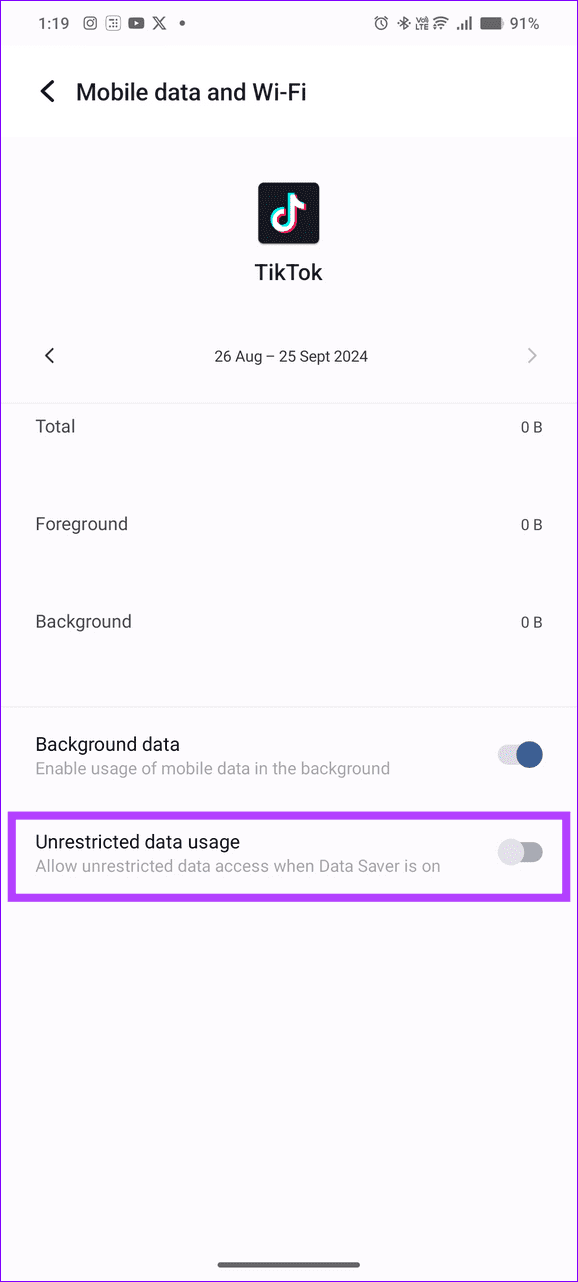
Step 1: Long-tap the TikTok app icon and select ‘i‘ to open its App info.
Step 2: Select Mobile data and Wi-Fi, and toggle on Unrestricted data usage.


iOS
Step 1: Open iPhone Settings, scroll down to select Apps, and tap TikTok.
Step 2: Turn on Background App Refresh to enable it.


Fix 2: Clear the TikTok Cache
A corrupt app cache may malfunction the TikTok app creating issues in opening or loading its content on your phone. Clear it manually from TikTok app settings to restore normalcy.
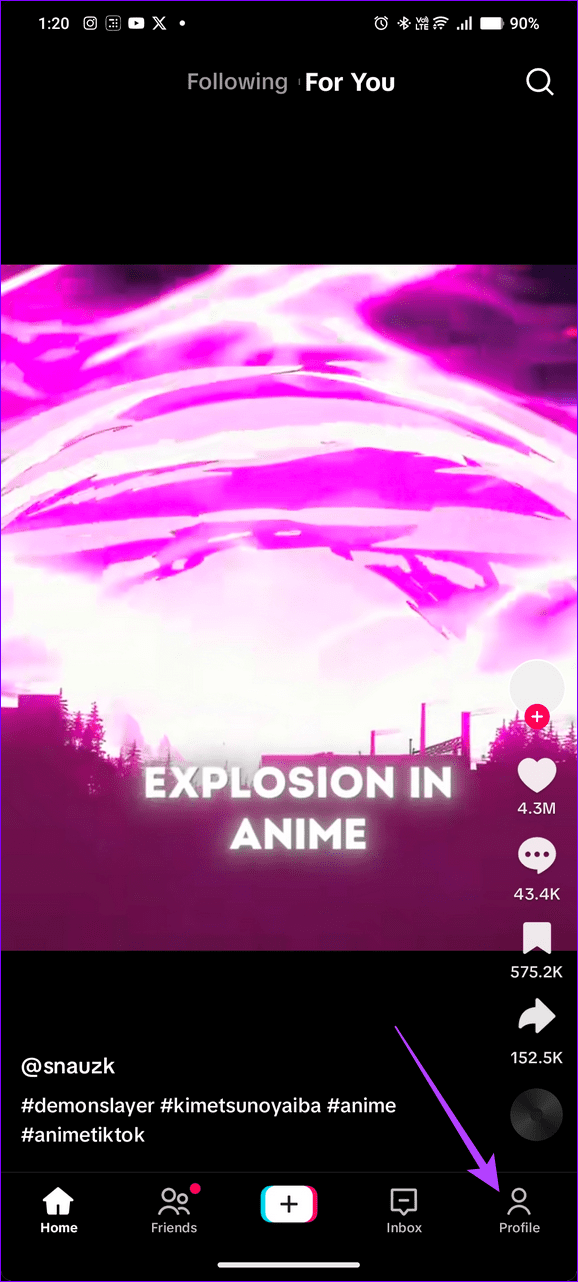
Step 1: Open TikTok, tap the Profile tab at the bottom right, and select the Hamburger menu.
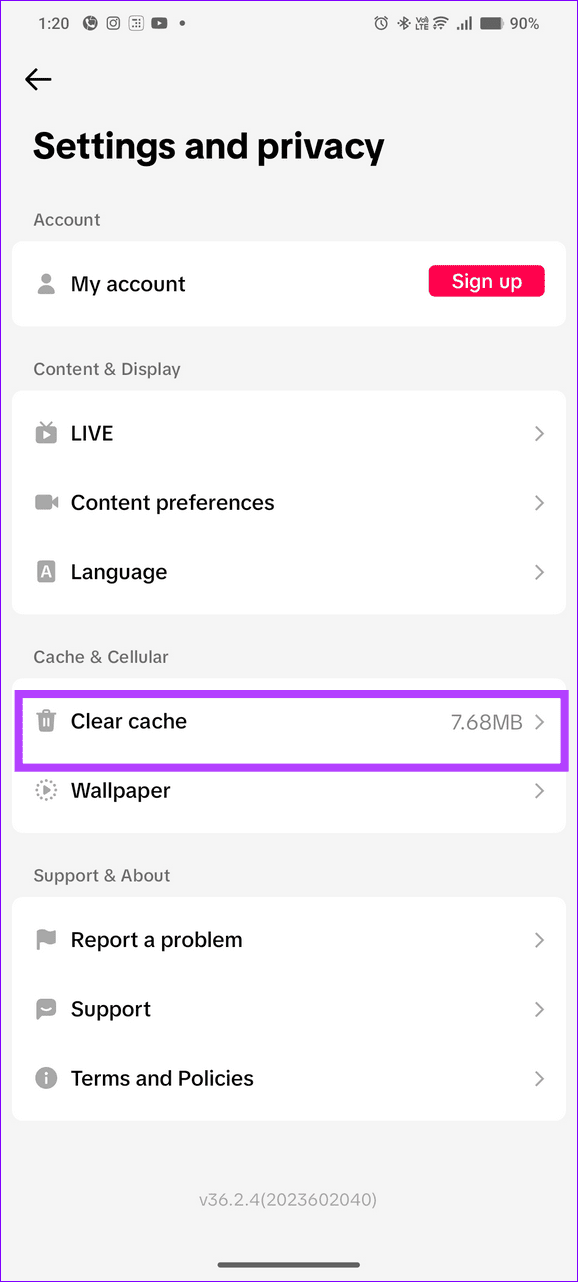
Step 2: Tap Clear cache to remove the TikTok app cache.
Tip: On Android, you can manually clear the TikTok app cache from its App info > Storage and cache > Clear cache.

Fix 3: Disable Data Saver or Low Data Mode
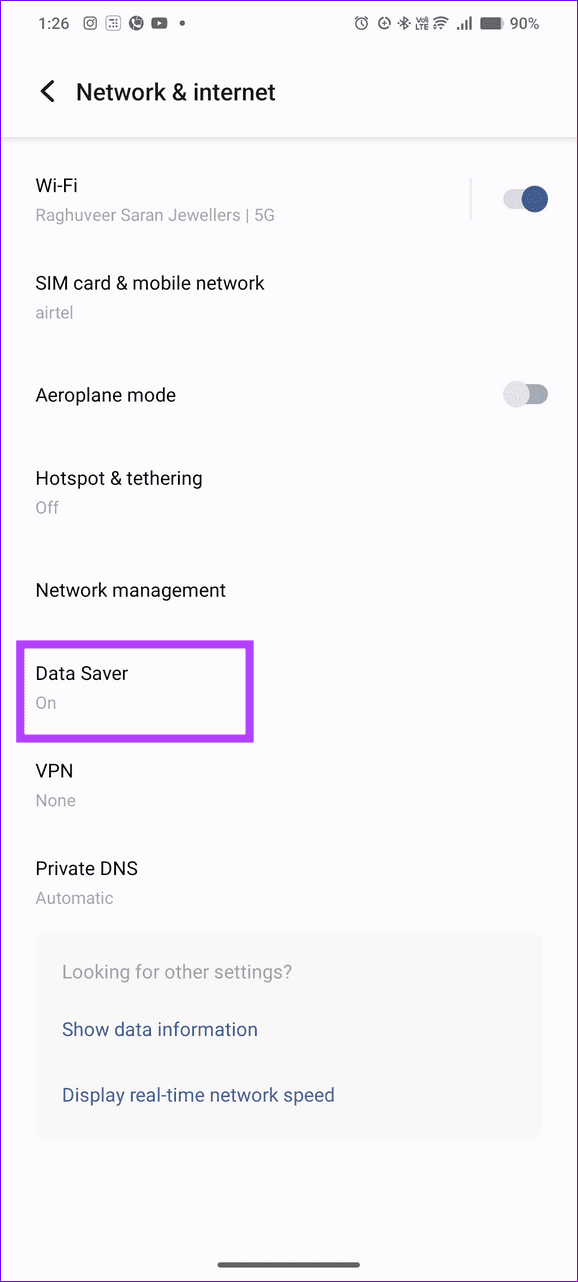
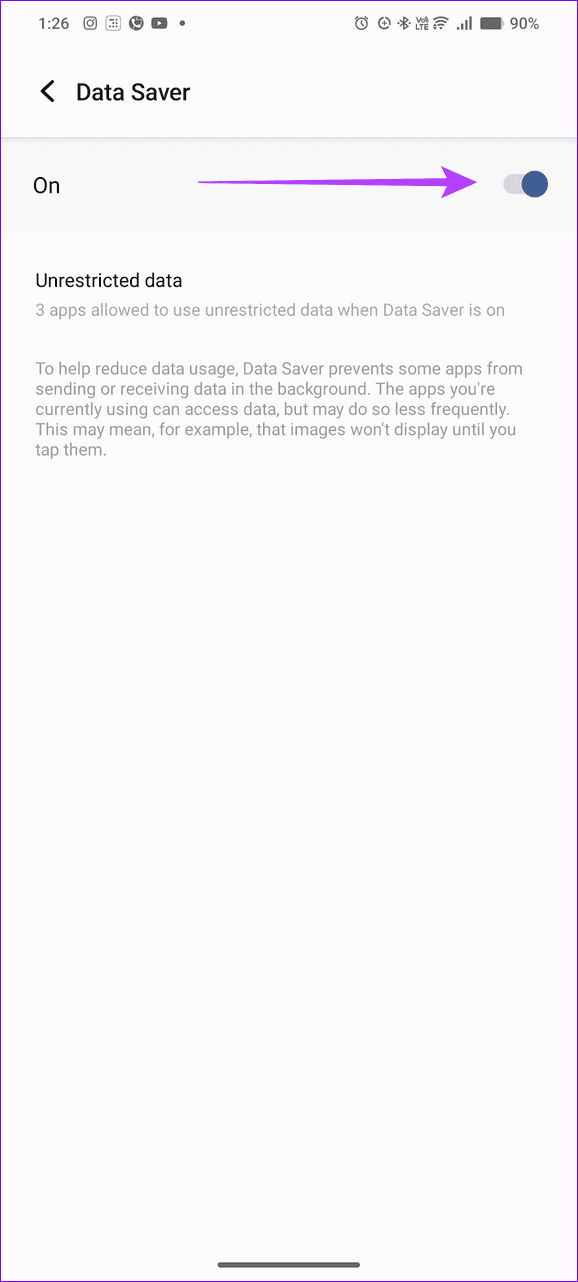
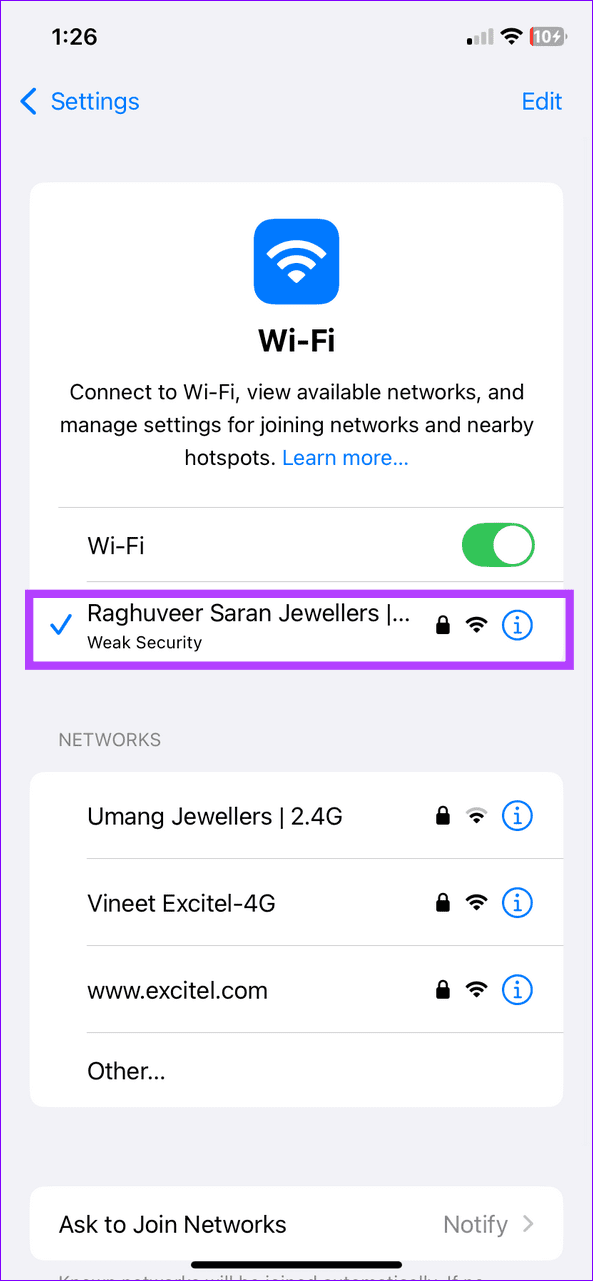
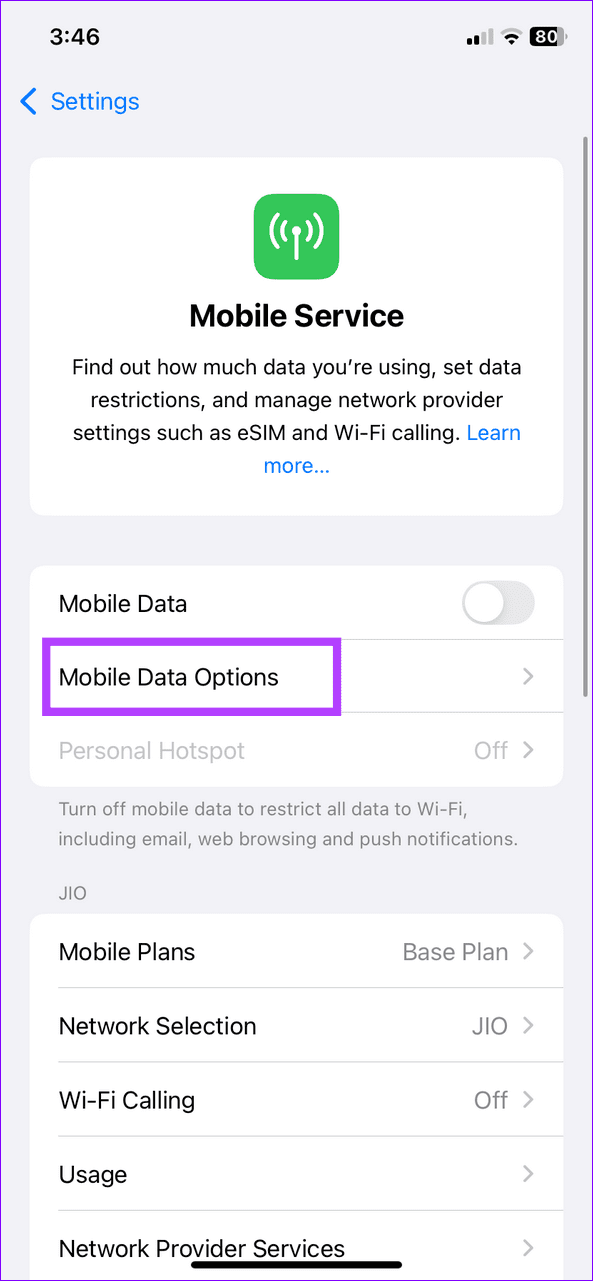
An active Data Saver (Android) or Low Data Mode (iOS) restricts internet connectivity to limit data usage, hampering your TikTok experience. Disable it and reopen TikTok to resume watching videos seamlessly.
Android
Step 1: Open Android settings, select Network & internet, and tap Data Saver.
Step 2: Toggle off Data Saver to disable it.

iOS
Step 1: Select Wi-Fi under iPhone Settings, tap your network name, and toggle off the Low Data Mode.


Step 2: If you’re using cellular data, select Mobile Service and tap Mobile Data Options. Toggle off Low Data Mode to disable it.


Was this helpful?
Last updated on 02 September, 2024
Read Next
 TikTok vs TikTok Lite: What’s Best for You?
TikTok (previously known as Musical.ly) is one of the massively growing social media apps out there, and it's easy to see why.
TikTok vs TikTok Lite: What’s Best for You?
TikTok (previously known as Musical.ly) is one of the massively growing social media apps out there, and it's easy to see why.
 3 Ways to Fix Instagram Not Loading New Posts on Your Phone
Basic Fixes: Ensure your Instagram account is not blocked/suspended: If you use Instagram excessively for several hours or take too many actions quickly, the service may temporarily block you.
3 Ways to Fix Instagram Not Loading New Posts on Your Phone
Basic Fixes: Ensure your Instagram account is not blocked/suspended: If you use Instagram excessively for several hours or take too many actions quickly, the service may temporarily block you.
 5 Ways to Fix Google Chrome Not Loading Pages on Android and iPhone
Try Basic Fixes Enable or disable the VPN: If webpages are not loading in Chrome, consider disabling your VPN connection temporarily and see if that resolves the problem.
5 Ways to Fix Google Chrome Not Loading Pages on Android and iPhone
Try Basic Fixes Enable or disable the VPN: If webpages are not loading in Chrome, consider disabling your VPN connection temporarily and see if that resolves the problem.
 3 Ways to Fix Photos and Videos Not Loading on Facebook Messenger
Try Basic Fixes Update the Messenger app: Using an outdated version of the Facebook app on your Android or iPhone can trigger the "This media is no longer available" error
3 Ways to Fix Photos and Videos Not Loading on Facebook Messenger
Try Basic Fixes Update the Messenger app: Using an outdated version of the Facebook app on your Android or iPhone can trigger the "This media is no longer available" error
 3 Fixes for Images Not Loading in Mail App for iPhone
Try Basic Fixes Turn off VPN: Since VPNs route your internet traffic through different servers, they can sometimes lead to delays or issues loading content, such as images in emails.
3 Fixes for Images Not Loading in Mail App for iPhone
Try Basic Fixes Turn off VPN: Since VPNs route your internet traffic through different servers, they can sometimes lead to delays or issues loading content, such as images in emails.
 6 Ways to Fix Safari Not Loading Pages on iPhone and iPad
Basic Fixes: Restart phone and modem: Long-press the power button and use the slider to turn your device off.
6 Ways to Fix Safari Not Loading Pages on iPhone and iPad
Basic Fixes: Restart phone and modem: Long-press the power button and use the slider to turn your device off.
 4 Ways to Fix Safari Not Loading Images on iPhone
https://youtu.be/Fj1KYUokzkI Fix 1: Disable Content Blocker Extensions If you use any content blocker extensions to avoid ads or pop-ups while browsing, they may interfere with Safari and prevent them from
4 Ways to Fix Safari Not Loading Images on iPhone
https://youtu.be/Fj1KYUokzkI Fix 1: Disable Content Blocker Extensions If you use any content blocker extensions to avoid ads or pop-ups while browsing, they may interfere with Safari and prevent them from
 5 Ways to Fix Samsung Internet Browser Not Loading Pages
Try Basic Fixes Check your internet connection: The Samsung Internet browser may have trouble loading web pages if there is a problem with your internet connection.
5 Ways to Fix Samsung Internet Browser Not Loading Pages
Try Basic Fixes Check your internet connection: The Samsung Internet browser may have trouble loading web pages if there is a problem with your internet connection.
The article above may contain affiliate links which help support Guiding Tech. The content remains unbiased and authentic and will never affect our editorial integrity.