What Is ‘Your Connection Is Not Private’ in Safari
- The message is displayed when your browser is unable to authenticate a secure connection between the website and your device. This implies that your browser is unable to check whether a website is secure.
- To safeguard your privacy and the security of your data, your web browser examines the security certificate of the website. Your personal information may be exposed to cyber-attacks if a certificate is weak and outdated.
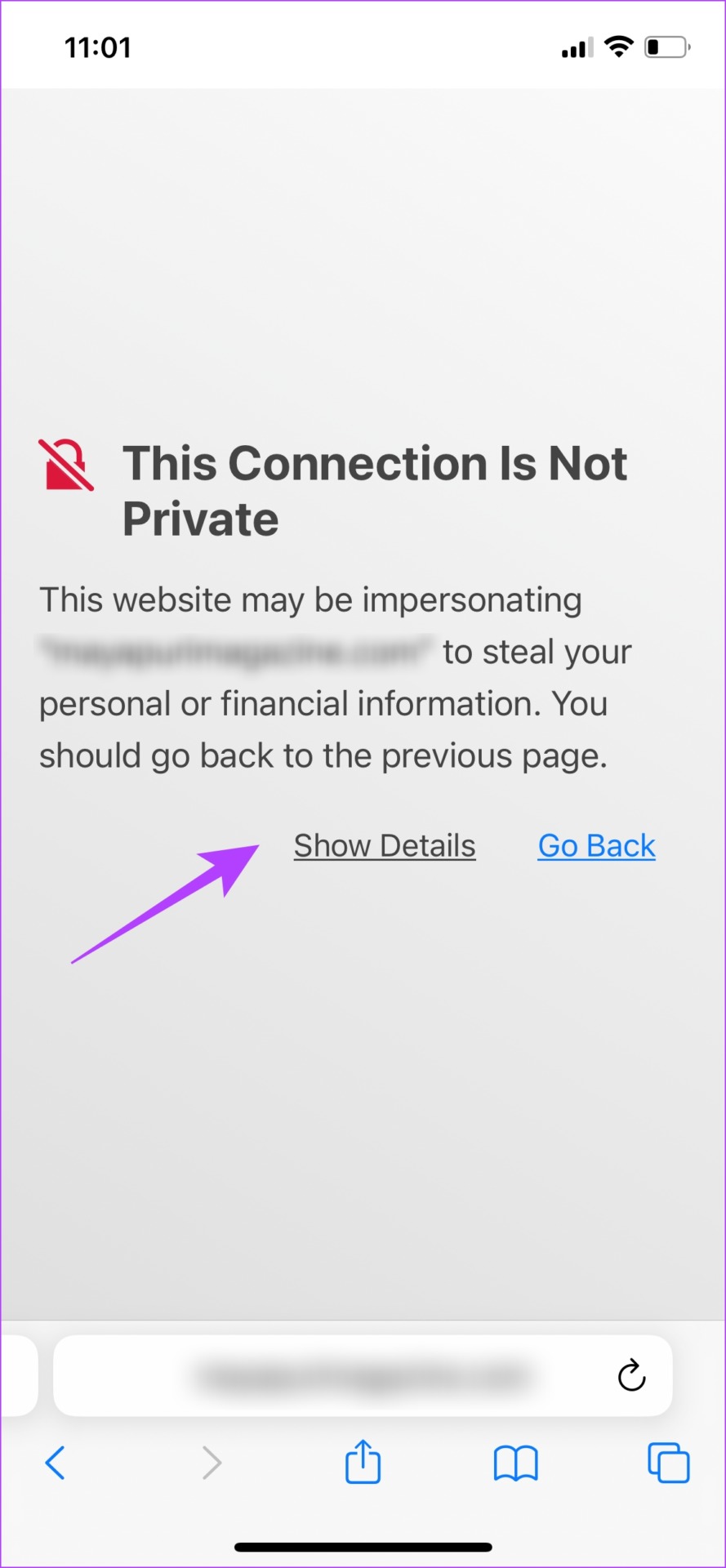
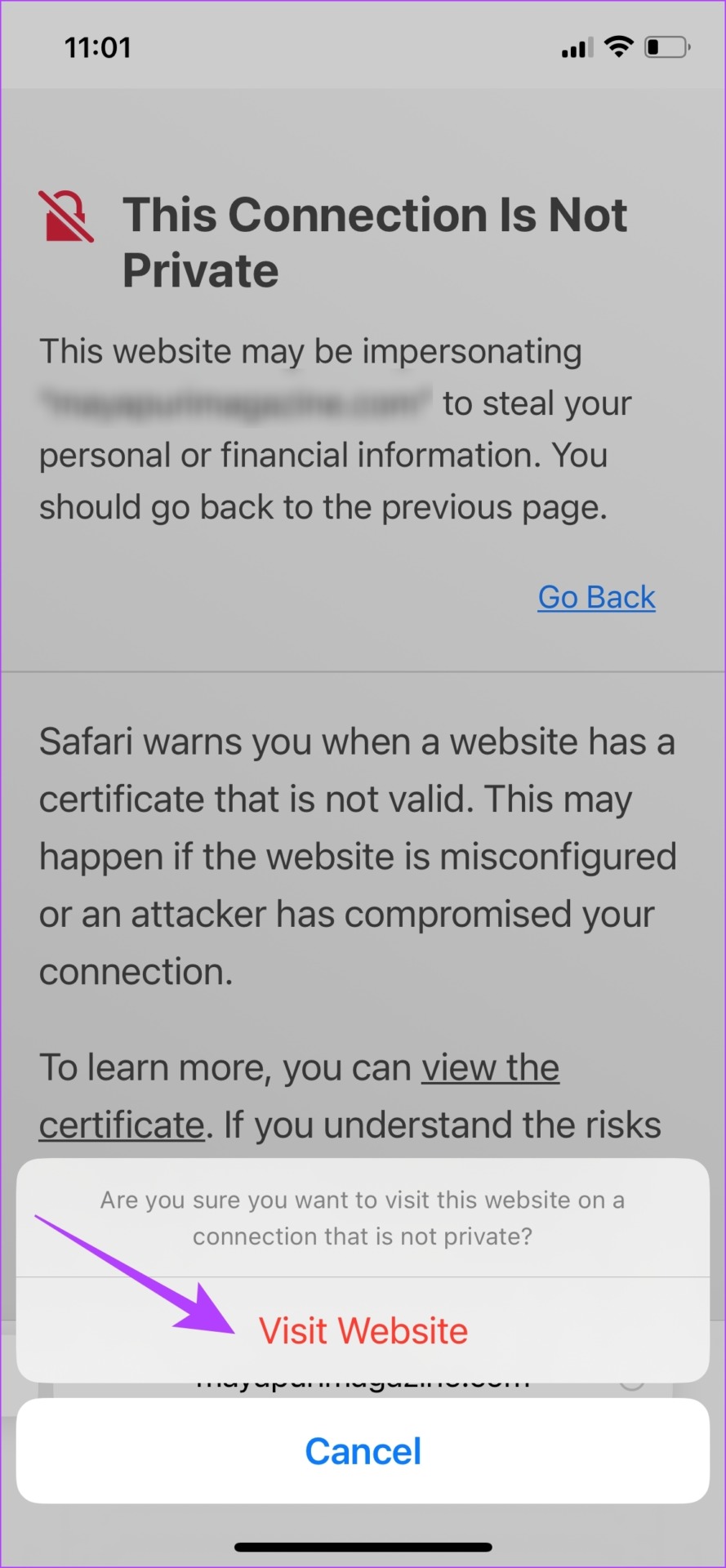
Overall, it means that your connection isn’t secure, and the error shouldn’t be disregarded. You might see an error message like this, in Safari.
Fix 1: Clear Safari Data
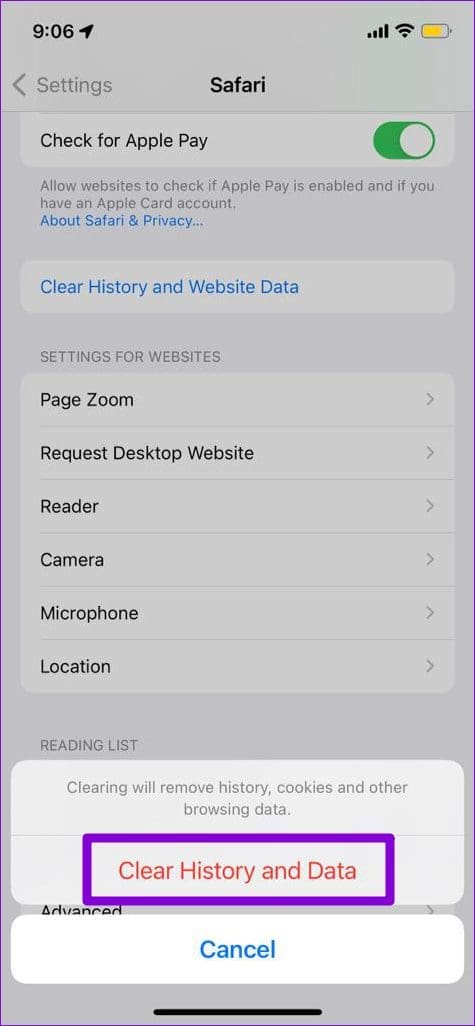
Cache and junk files on Safari can cause issues with opening websites that end up showing the error message. Doing this will delete your browsing history.
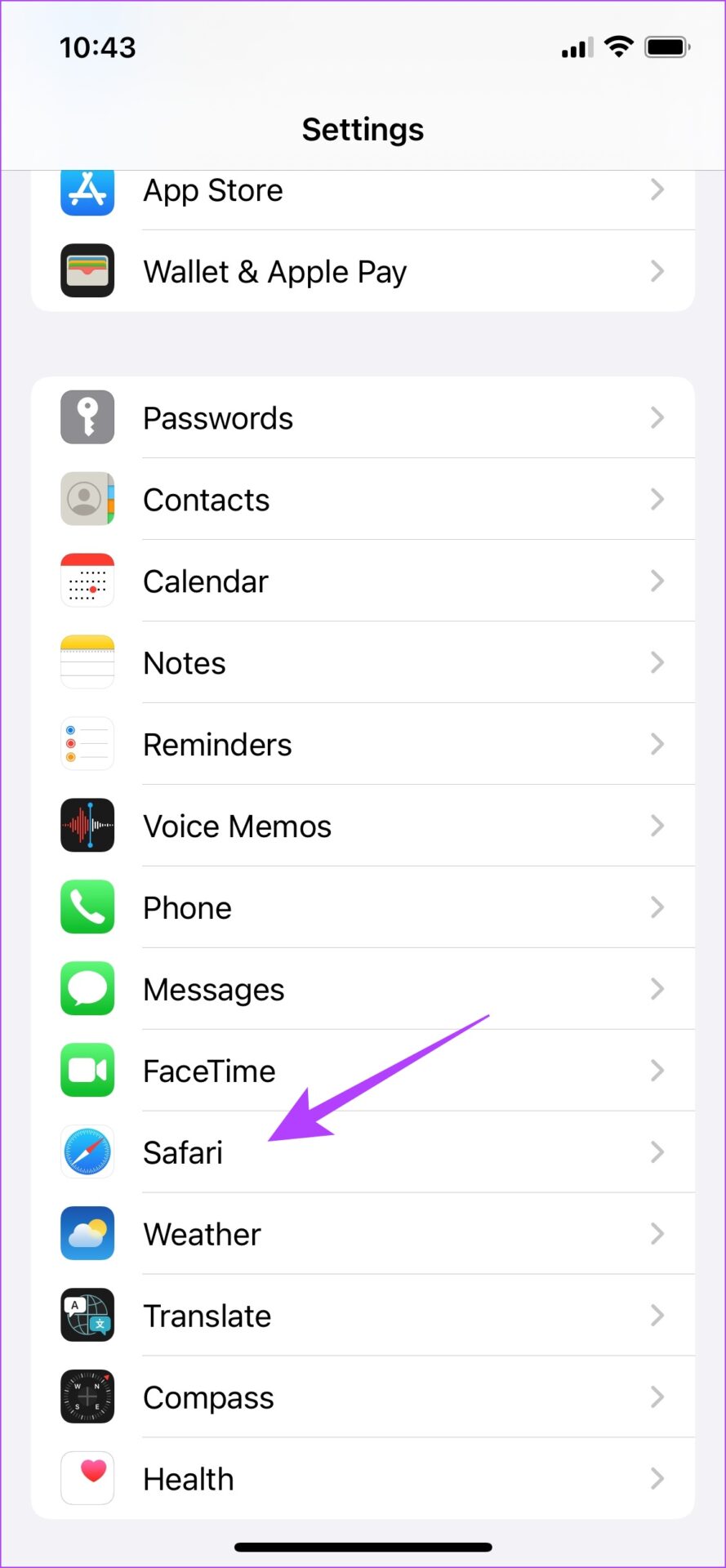
Step 1: Open the Settings app and tap on Safari.
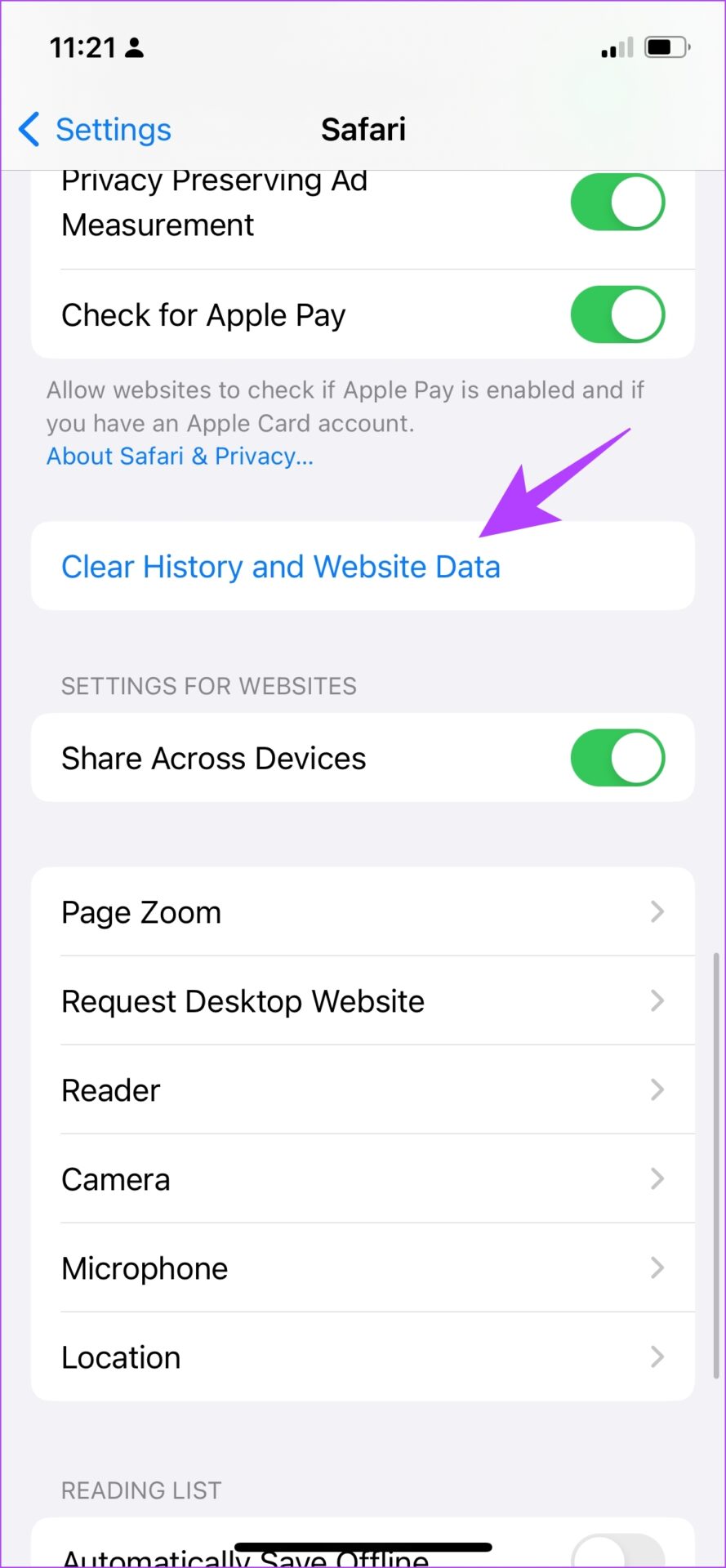
Step 2: Tap on Clear History and Website Data. Select Clear History and Data.
Fix 2: Use Private Mode
When you view a webpage in private mode, your data won’t be saved locally, and you will not be signed into any account. Thus, you can try to dismiss the error by accessing the website in private mode.
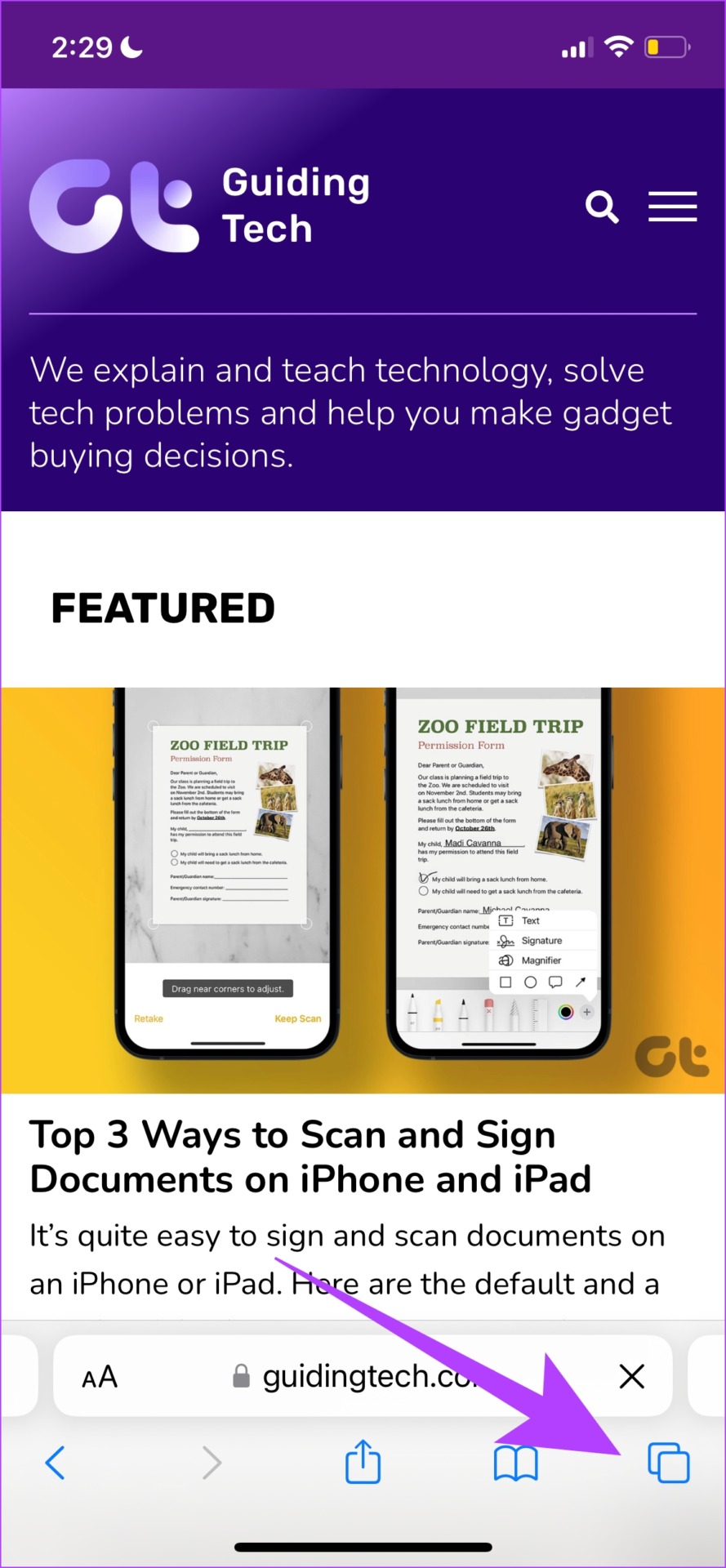
Step 1: Tap on the tabs icon and select the tab groups icon.

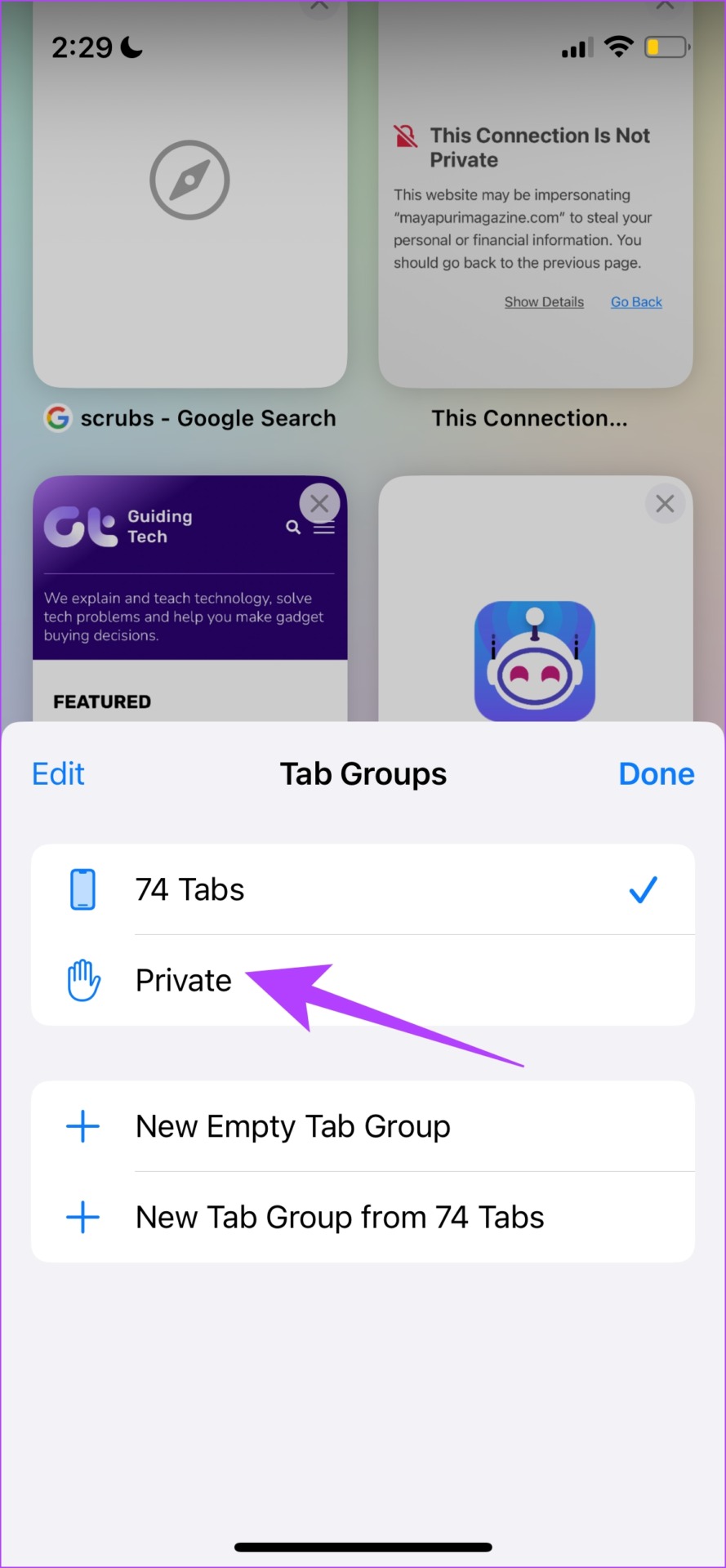
Step 2: Now, select Private. Tap on the plus icon. This will open a private tab. You can then view the website.

Also Read: How to refresh webpages in Safari
Fix 3: Check Date and Time
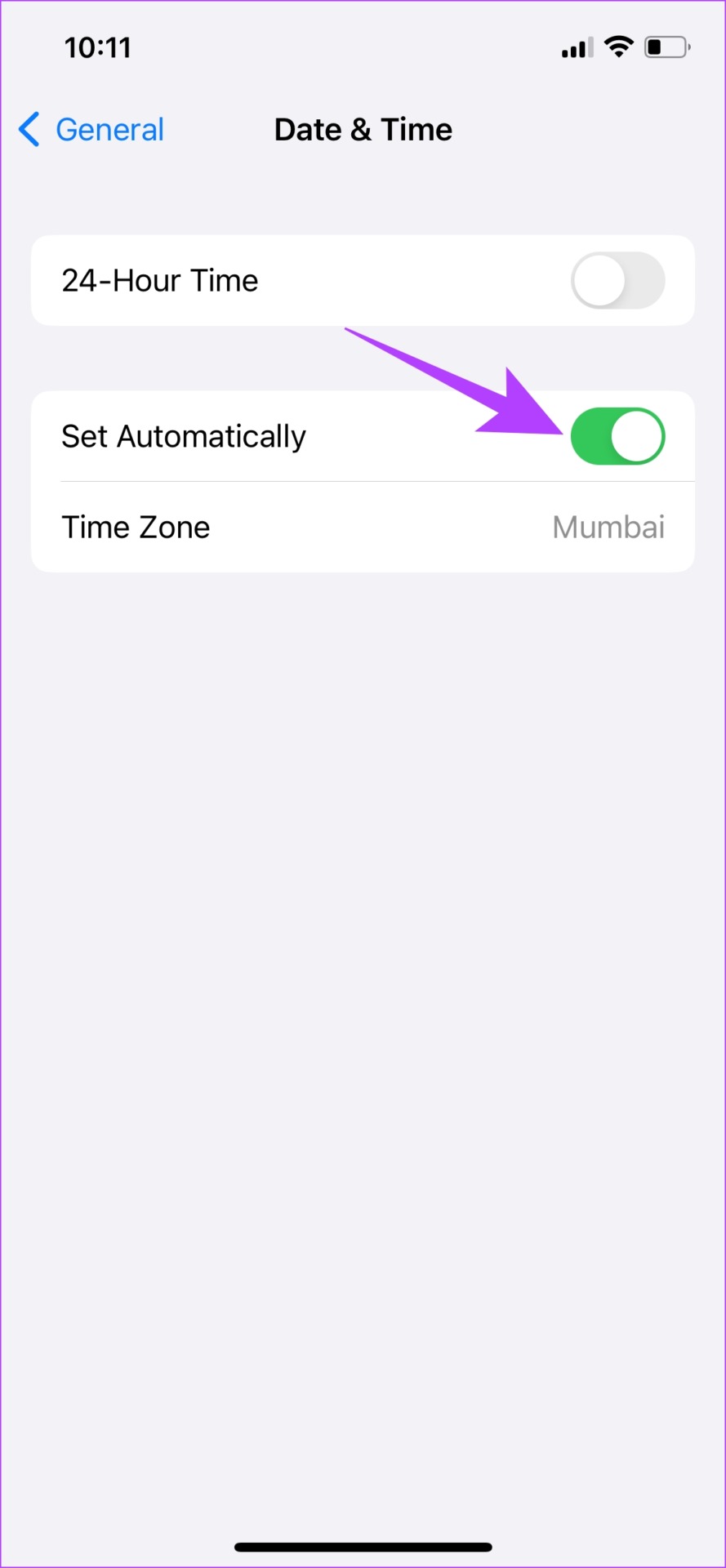
Incorrect date and time can cause issues with verifying the web browser’s integrity on your device.
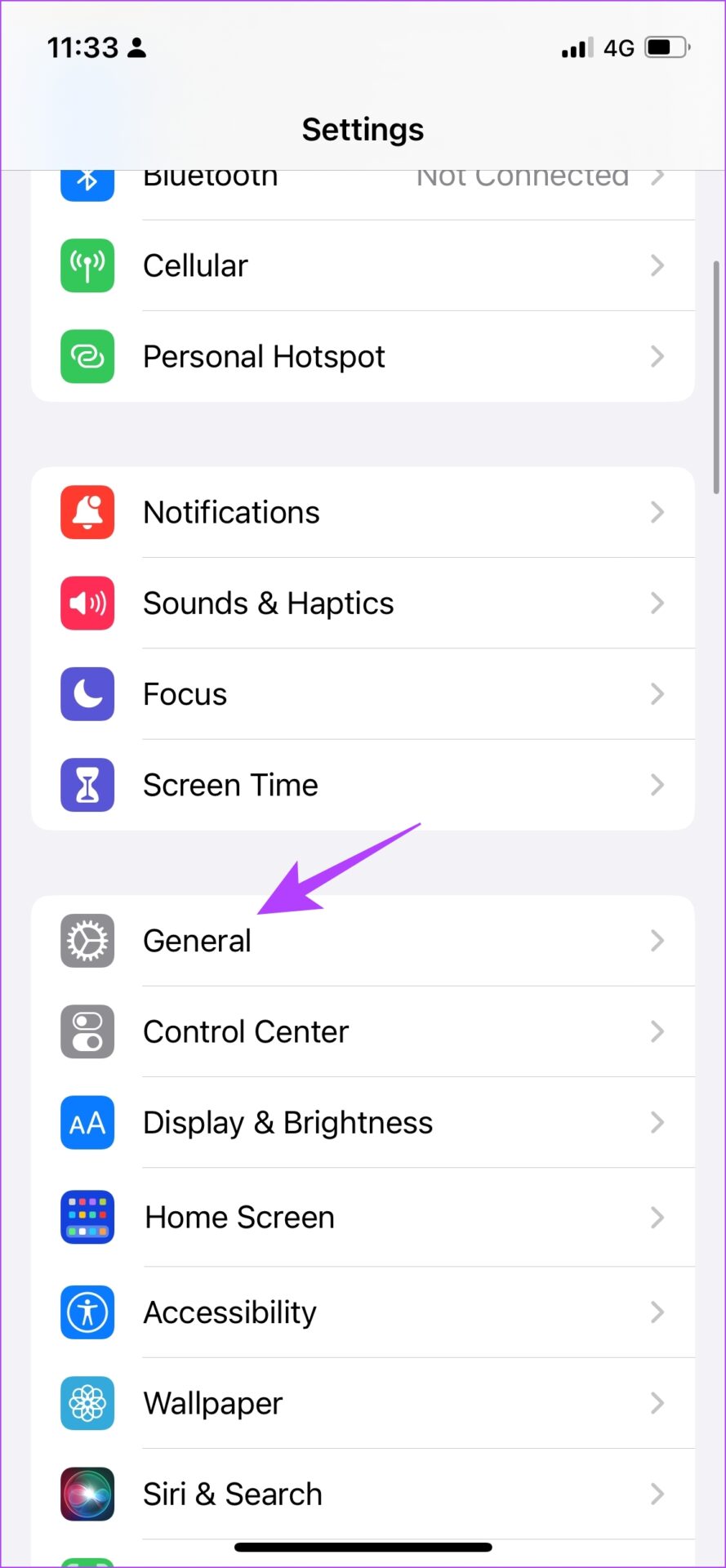
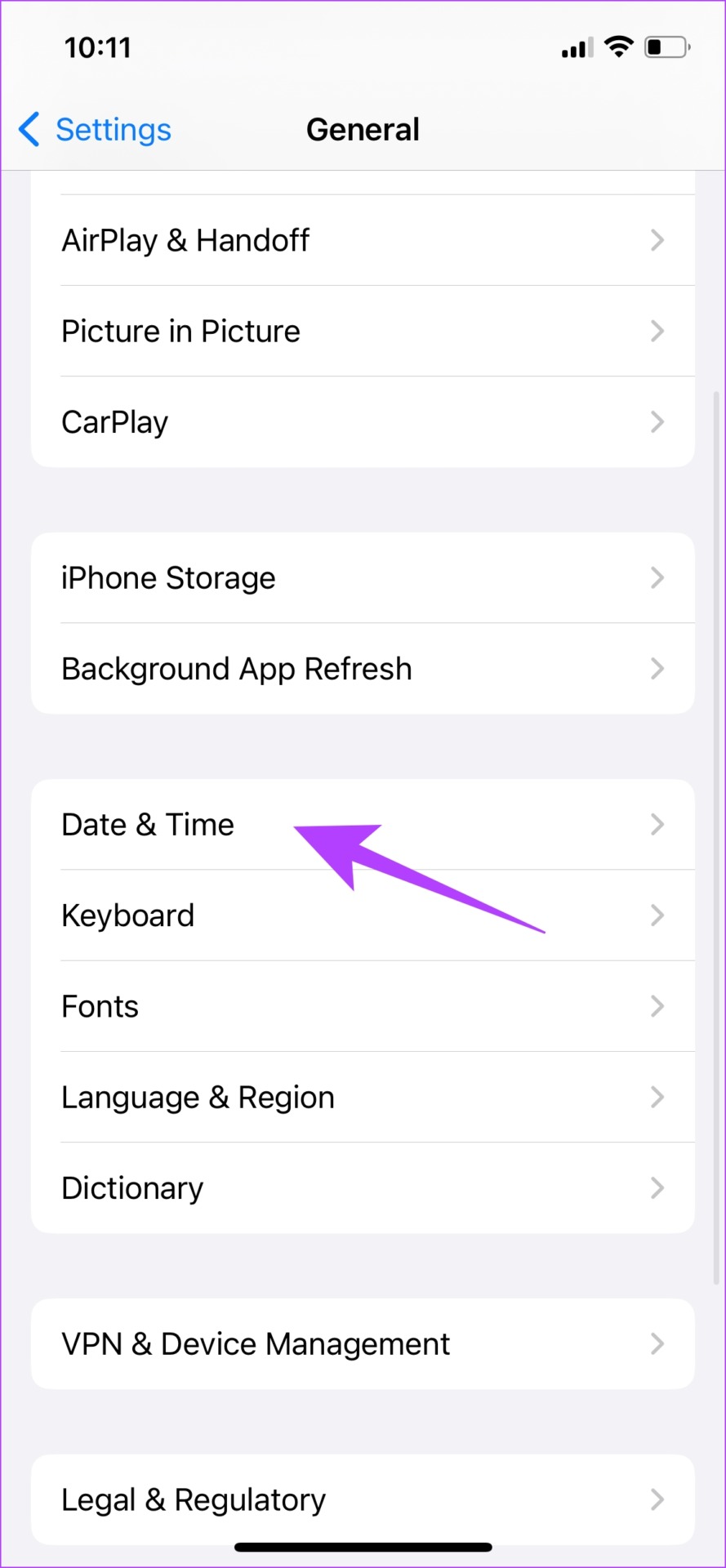
Step 1: Open the Settings app and select General.
Step 2: Now, select Date & Time. Turn on the toggle for Set Automatically.
Fix 4: View HTTPS Only
Websites today predominantly use the latest protocol called HTTPS. However, a few sites also tend to use an outdated HTTP protocol. This is less secure and not as encrypted as the HTTPS protocol. Therefore, ensure you are always viewing a website running on HTTPS.

Fix 5: Get Past ‘Your Connection Is Not Private’ in Safari
If none of the above methods work, and you want to access the website at any cost, you can simply bypass the error warning. However, we recommend against this as this can cause some potential harm to your online safety.
If you could contact the web developer and confirm the reasons for this error message, it would be a better option.
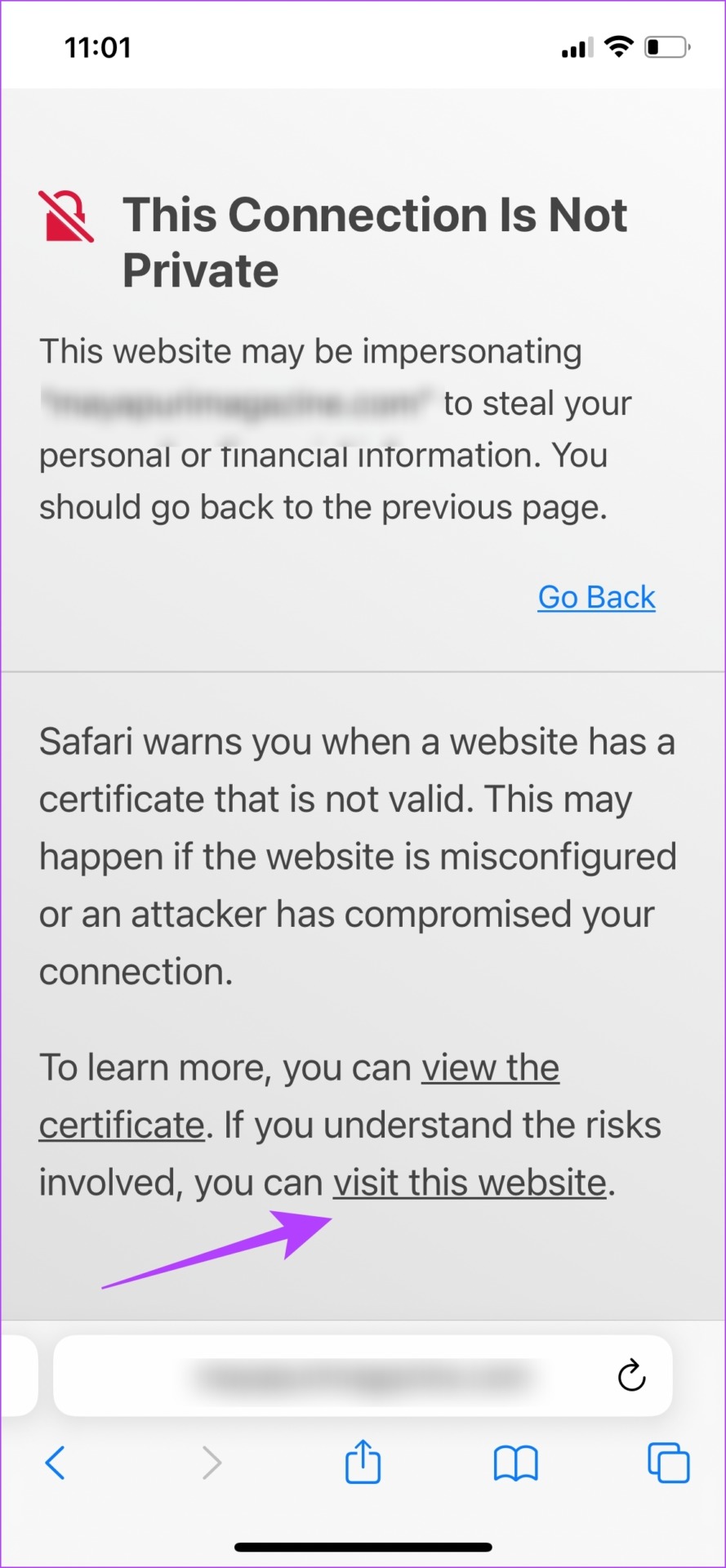
Select Show Details in the error message. Tap on visit this website, and tap on Visit Website to open it.
If none of the above methods work, you can try resetting all the network settings on your iPhone.
Was this helpful?
Last updated on 27 June, 2024
Read Next
 5 Ways to Fix Safari Private Browsing Not Available on iPhone or iPad
Private Browsing, aka, the incognito mode allows you to surf the internet without leaving a trace of your online activities.
5 Ways to Fix Safari Private Browsing Not Available on iPhone or iPad
Private Browsing, aka, the incognito mode allows you to surf the internet without leaving a trace of your online activities.
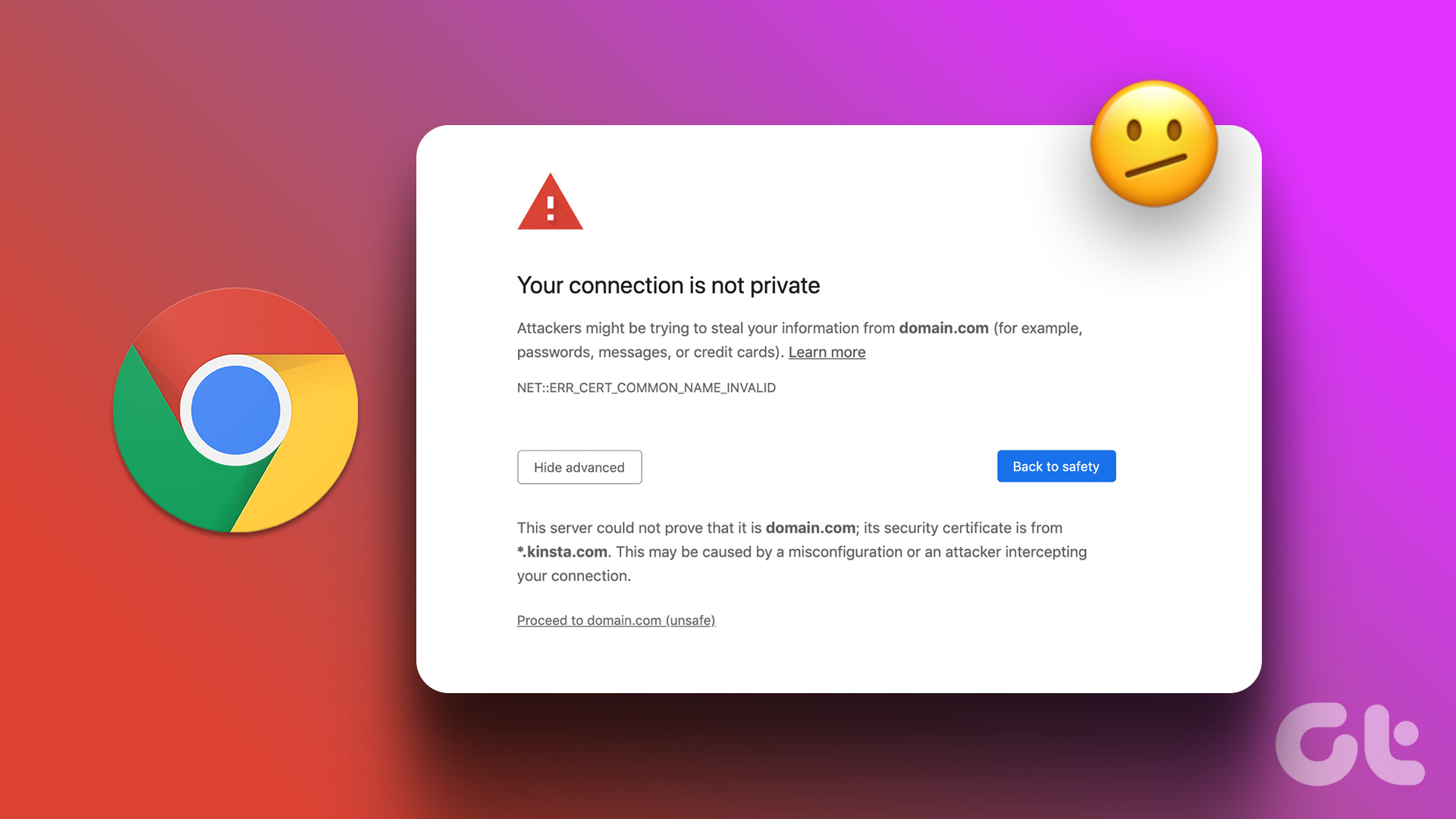 5 Fixes for “Your Connection Is Not Private” Error in Google Chrome
Try Basic Fixes Switch to a different network: If you use a public Wi-Fi connection at a restaurant, mall, or airport that runs on the HTTP protocol instead of HTTPS,
5 Fixes for “Your Connection Is Not Private” Error in Google Chrome
Try Basic Fixes Switch to a different network: If you use a public Wi-Fi connection at a restaurant, mall, or airport that runs on the HTTP protocol instead of HTTPS,
 How to Disable Private Browsing in Safari on iPhone
Limiting adult websites inside the Content Restrictions menu disables the Private Browsing Mode in Safari.
How to Disable Private Browsing in Safari on iPhone
Limiting adult websites inside the Content Restrictions menu disables the Private Browsing Mode in Safari.
 How to Disable Safari Private Browsing on Mac
If you hand over your Mac to someone else, you may not know what they were up to during their browsing sessions.
How to Disable Safari Private Browsing on Mac
If you hand over your Mac to someone else, you may not know what they were up to during their browsing sessions.
 How to Fix Can’t Establish Secure Connection Error in Safari
That nagging feeling of someone looking over your shoulder is quite discomforting.
How to Fix Can’t Establish Secure Connection Error in Safari
That nagging feeling of someone looking over your shoulder is quite discomforting.
 4 Fixes for Google Drive No Connection Error on Android and iPhone
Try Basic Fixes Update the app: Google Drive may not connect to its servers due to a buggy or outdated app build.
4 Fixes for Google Drive No Connection Error on Android and iPhone
Try Basic Fixes Update the app: Google Drive may not connect to its servers due to a buggy or outdated app build.
 6 Ways to Fix Safari Not Loading Pages on iPhone and iPad
Basic Fixes: Restart phone and modem: Long-press the power button and use the slider to turn your device off.
6 Ways to Fix Safari Not Loading Pages on iPhone and iPad
Basic Fixes: Restart phone and modem: Long-press the power button and use the slider to turn your device off.
 6 Ways to Fix Safari Not Working on iPhone and iPad
Basic Fixes Restart iPhone: Restart the Safari app, and restart your iPhone/iPad to fix any temporary bugs and glitches.
6 Ways to Fix Safari Not Working on iPhone and iPad
Basic Fixes Restart iPhone: Restart the Safari app, and restart your iPhone/iPad to fix any temporary bugs and glitches.
The article above may contain affiliate links which help support Guiding Tech. The content remains unbiased and authentic and will never affect our editorial integrity.